
Custom Product Details Page (PDPs) in SourCherry let you build dedicated, on-brand pages for individual products—perfect for richer storytelling and higher conversions. Use the builder you already know to design, assign, and manage PDPs that override the default product detail experience. Routing from Product Listings Page (PLP), featured sections, and direct links automatically respects your mapping, with a safe fallback to the default PDP if needed. This guide walks you through benefits, setup, and best practices.
TABLE OF CONTENTS
- What is Custom Product Details Pages for E-commerce Stores?
- Key Benefits of Custom Product Details Pages for E-commerce Stores
- How To Setup Custom Product Details Pages for E-commerce Stores
- Assigning, Reassigning & Managing Products
- Frequently Asked Questions
- Related Articles
What is Custom Product Details Page for E-commerce Stores?
Custom Product Details Pages are purpose-built product pages you create in SourCherry’s Site/Store Builder and map to specific products. Instead of relying on a single default PDP, you can craft unique layouts and messages per product while keeping store navigation intact. When a product has a Custom PDP, shoppers who click it from the Product List Page (PLP), featured sections, or any link will be taken to that custom page.
Custom PDPs expand your control over merchandising and brand expression at the product level. By pairing a product with a bespoke page, you can highlight unique value props, upsells, and media—without disrupting your store’s standard flow.
Key Benefits of Custom Product Details Page for E-commerce Stores
Understanding the practical wins helps you decide when to create a Custom PDP and how it improves both UX and operations.
Enhanced storytelling: Showcase rich content—benefits, demos, reviews, FAQs—tailored to each product.
Personalized design: Use custom layouts, media, and elements to match your brand and product identity.
Accurate routing: Clicks from PLP, featured sections, and any product link go to the Custom PDP when configured.
Single association: Each product maps to one Custom PDP at a time; switching pages updates the association automatically.
Safety fallback: Deleting a Custom PDP automatically returns mapped products to the default PDP.
Operational efficiency: Assign/reassign products quickly via the creation modal or the page/editor settings.
How To Setup Custom Product Details Page for E-commerce Stores
Follow this end-to-end checklist to go from “idea” to published, tested PDPs. Proper setup prevents routing or visibility surprises.
Prerequisites

At least one Product created (Payments → Products) and included in your online store.

Access to Site/Store Builder in your sub-account.

Confirm which store/site you’re editing.
Setup Steps
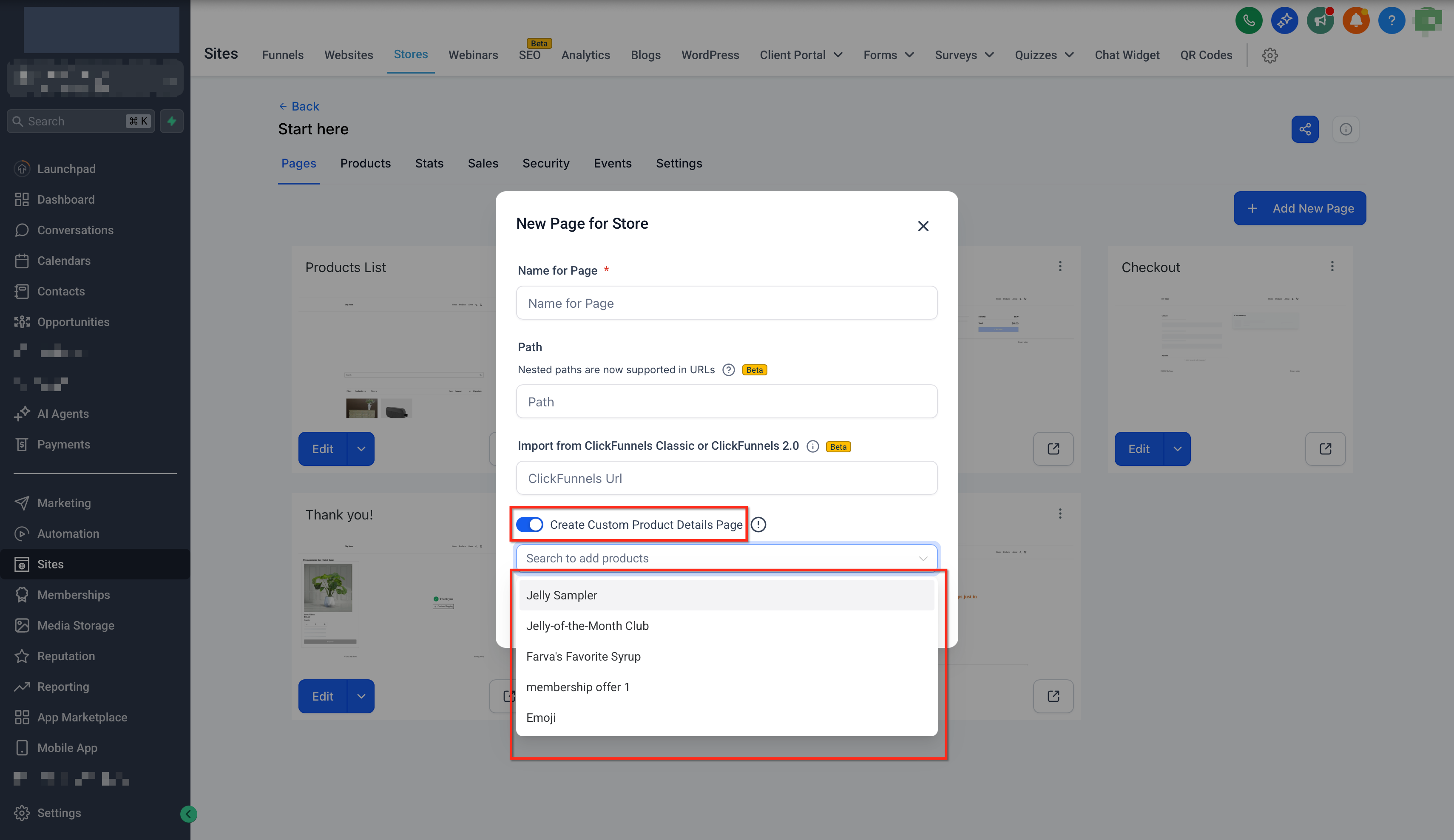
Go to Sites → Stores → Select the Particular Store → Add New Page.
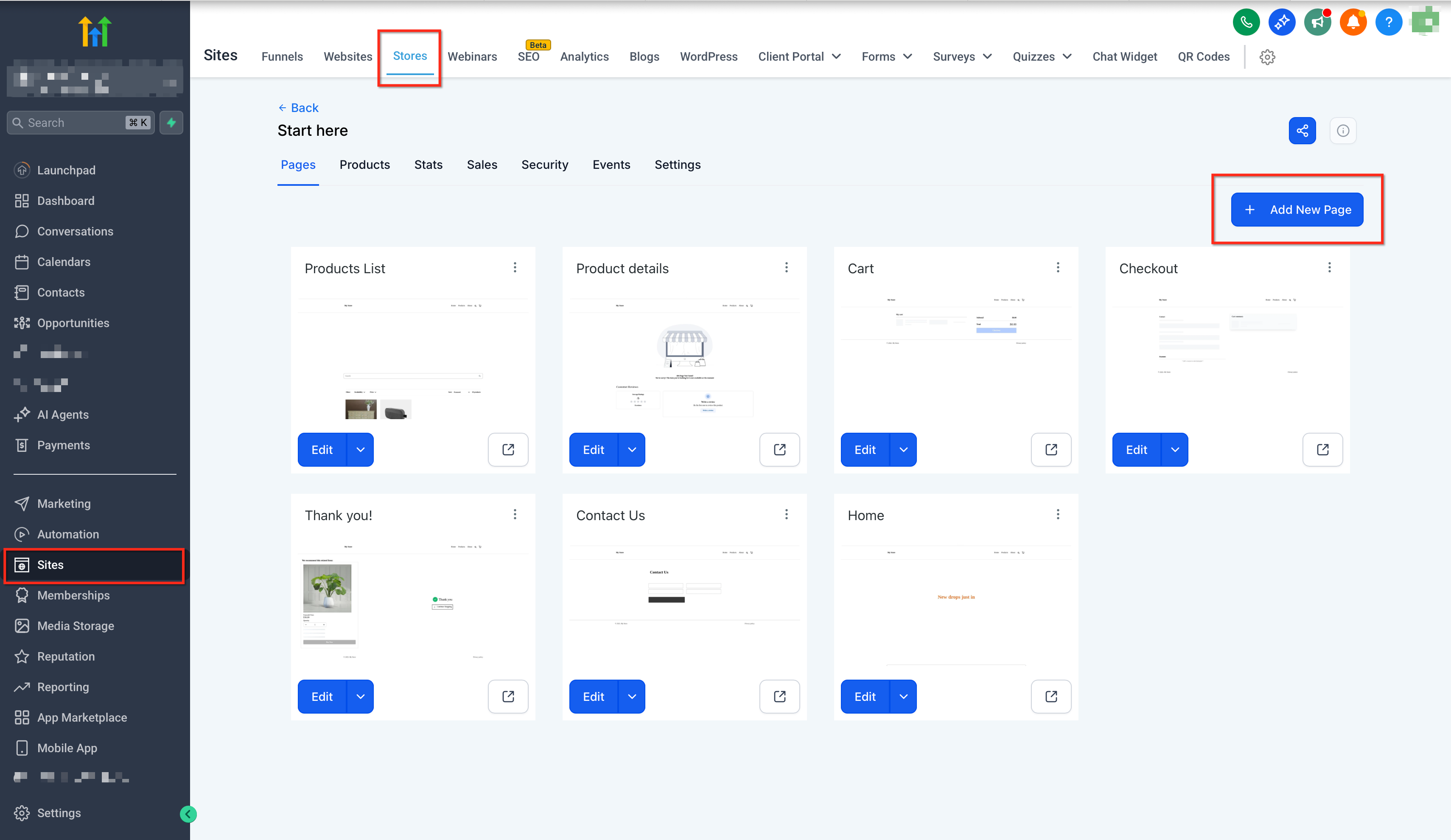
- Turn on Custom Product Details Page. In the modal, search/select product(s) to map.
When you create a new Custom PDP, it starts as a one-time copy of your Default Product Details Page (PDP), so you can edit an existing layout instead of starting from a blank page.
The copied design includes,
- Section structure and layout
- Store elements (media, title, price, variants, CTA, etc.)
- Styling (fonts, colors, spacing, borders, shadows)
- Visibility rules (desktop/mobile)
Note: This inheritance is a one-time copy. Changes to the Default PDP do not update existing Custom PDPs.
Turn on Custom Product Details Page. In the modal, search/select product(s) to map.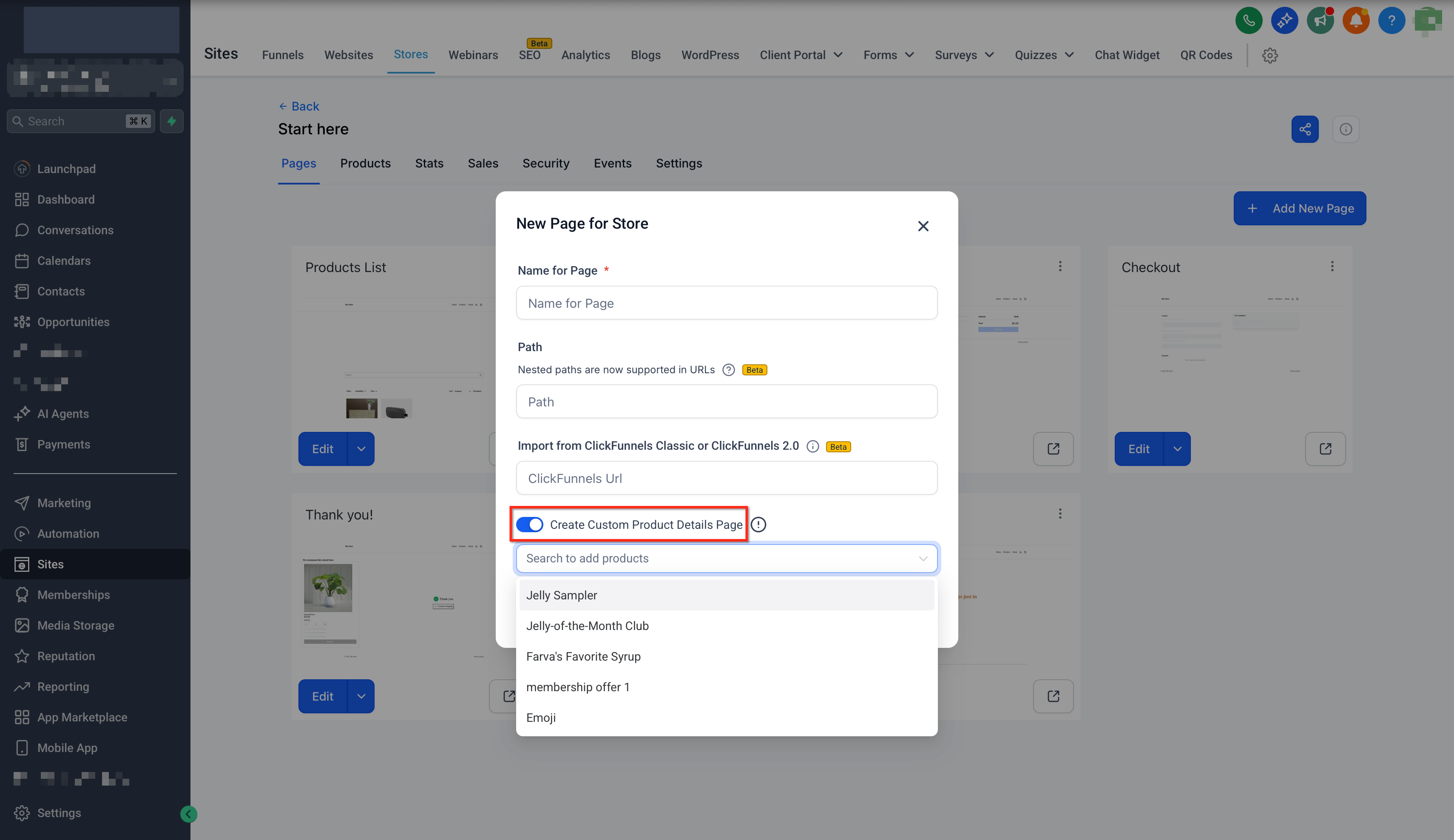
Build your layout using PDP elements (images, details, CTAs, Related Products).
Design Tips
Use the editor to build conversion-focused product pages. PDP elements and global text settings still apply, so you can combine Custom PDP layouts with store components you already use.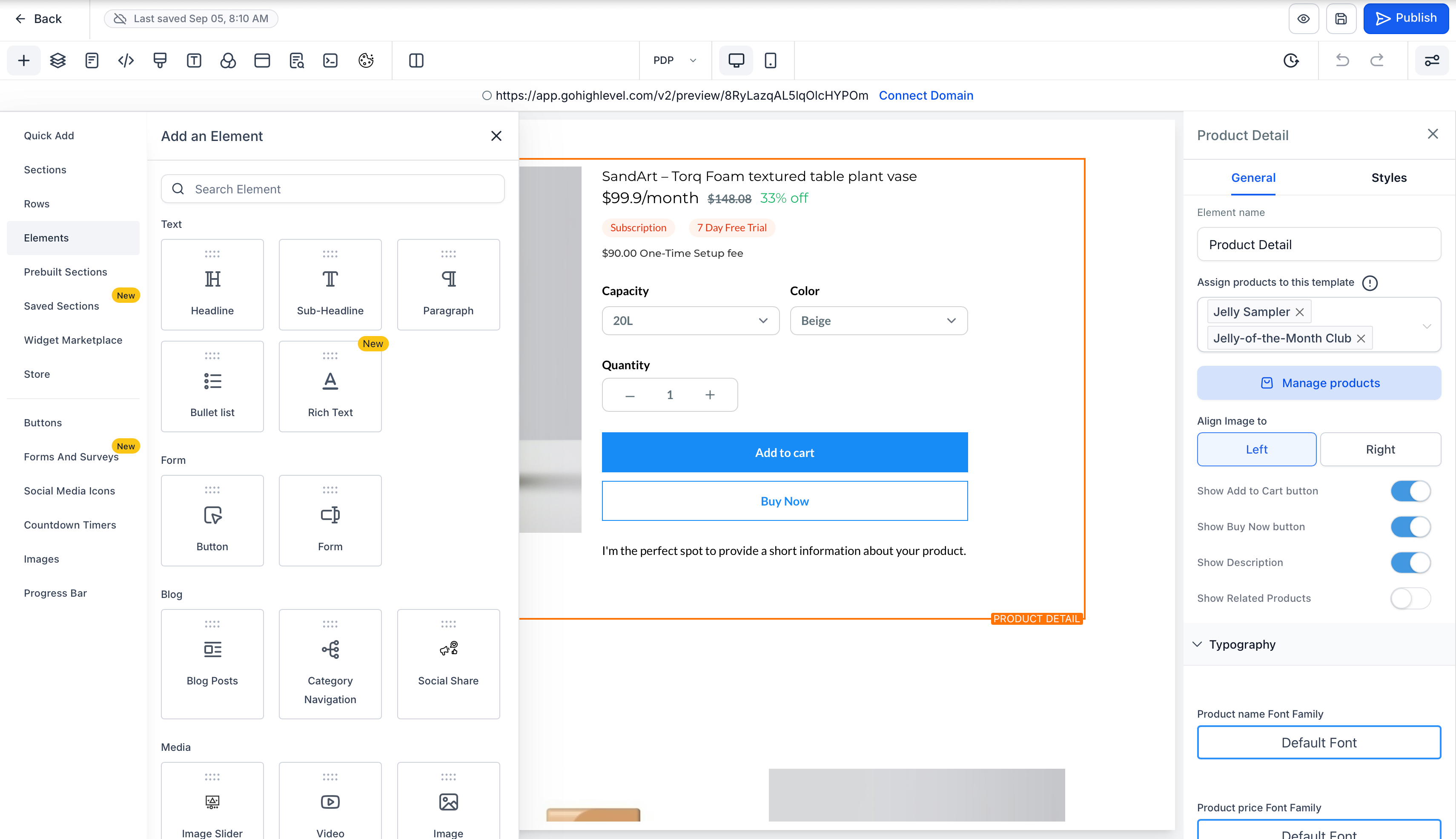
Drag in PDP-friendly elements (images, video, features, reviews, Related Products, etc.).
Use Text Customization to localize labels and messaging across PDP elements.
Keep key actions (Add to Cart/Buy Now) above the fold; repeat CTAs on long pages.
Reuse blocks/components across product pages to stay consistent.
Click Save and Publish.
Sample Preview: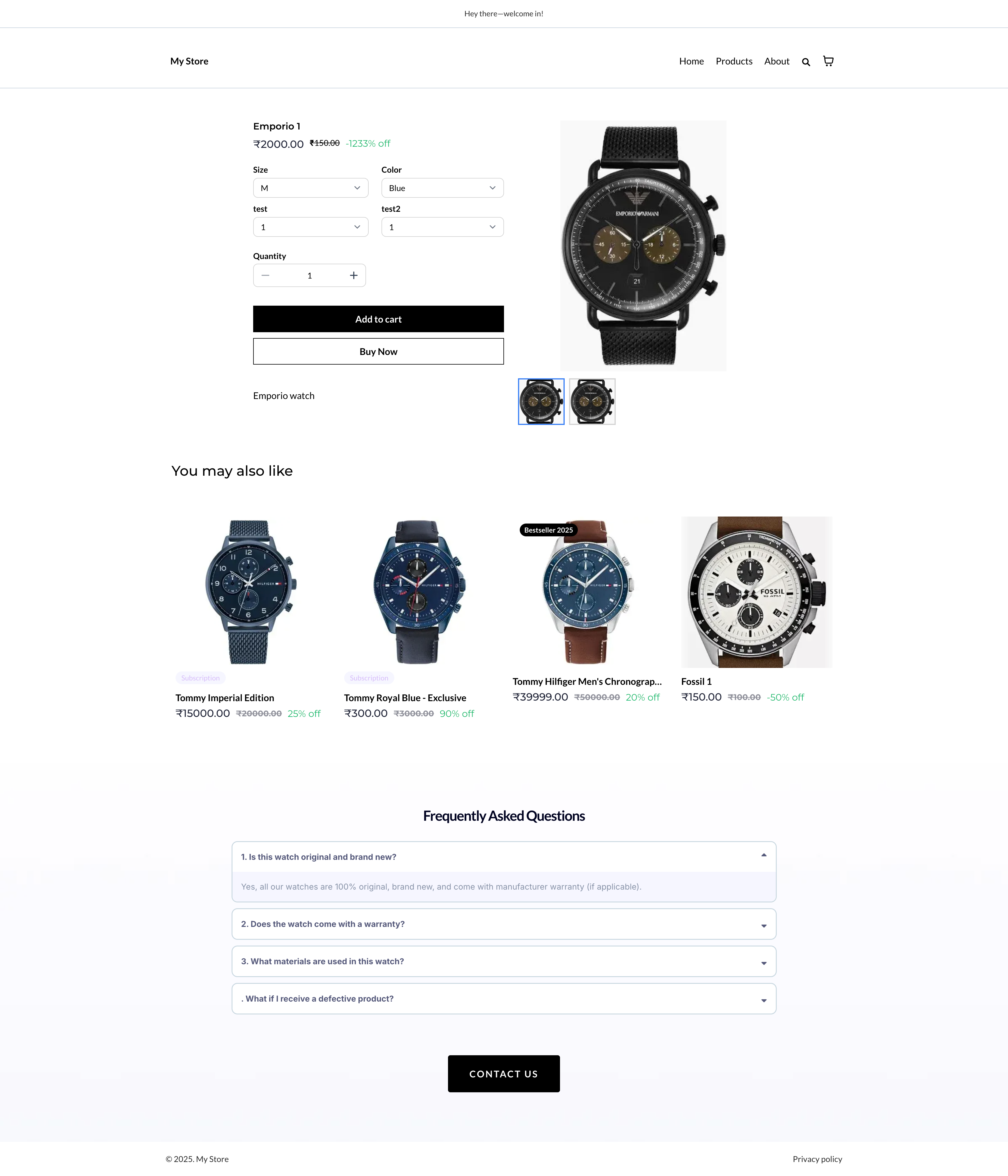
Assigning, Reassigning & Managing Products
Product-to-page mapping controls where shoppers land. Learn how to map initially, switch mappings later, and confirm which products are associated.
During page creation: Use the assignment modal to map products to the new Custom PDP.
After creation (reassign): Open the Custom PDP in the builder, select the relevant product element or page settings, and use the Settings panel to update the product assignment.
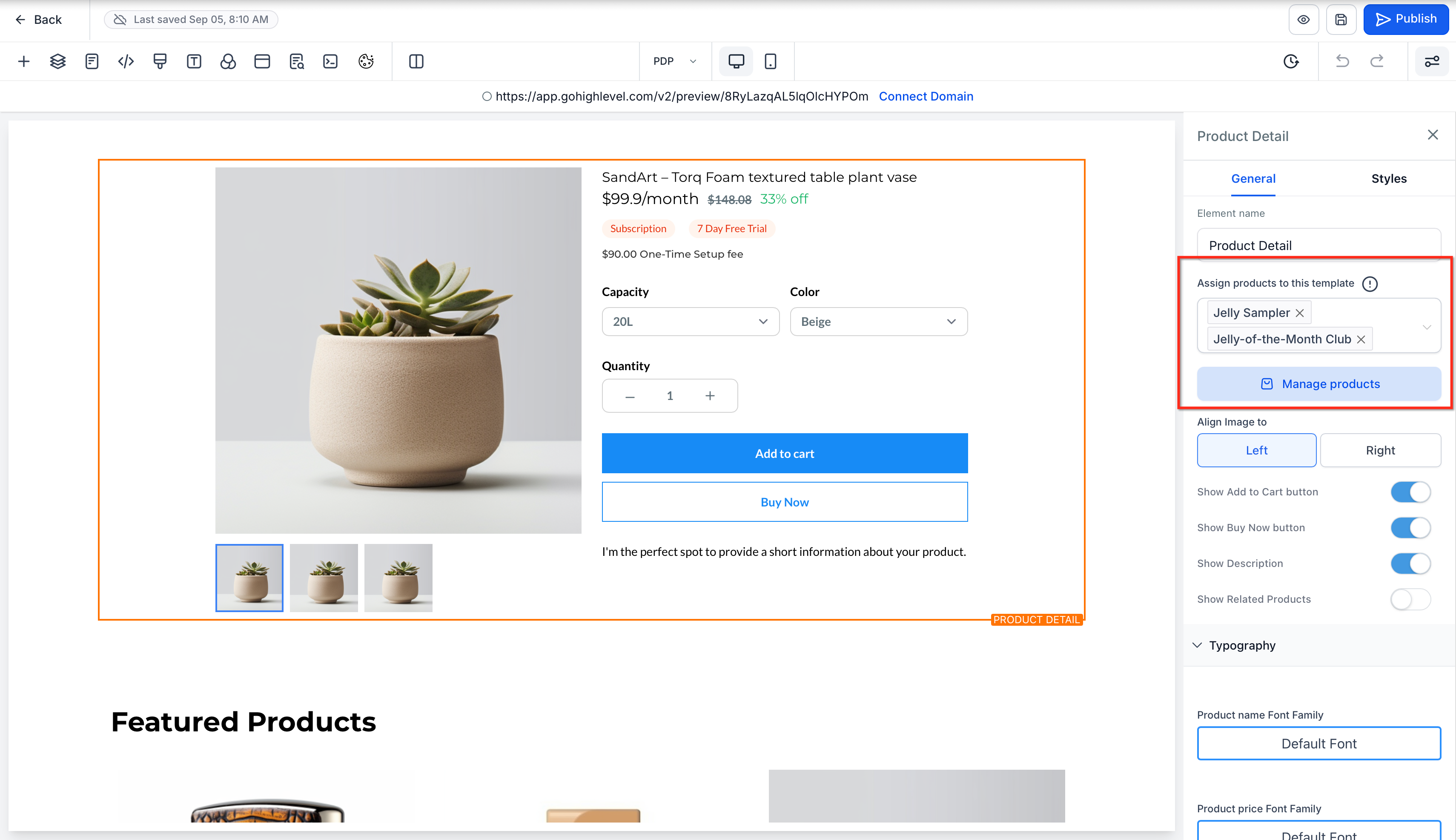
Single association rule: Assigning a product to a new Custom PDP automatically removes it from the previous one.
- Navigation from Product Lists Page (PLP )or Featured Sections: Navigation from product lists or featured sections will always route to the correct PDP (custom or default).
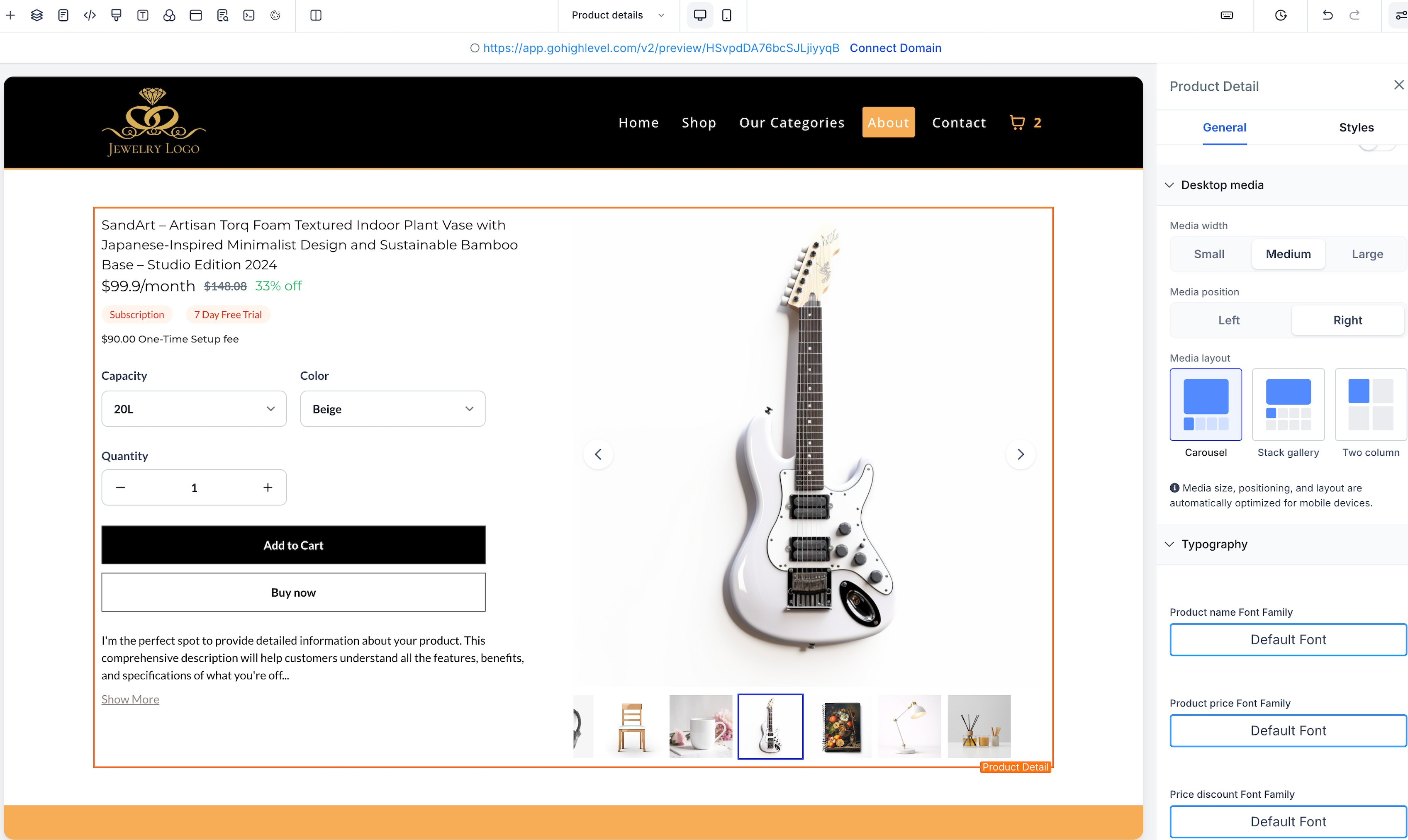
Desktop Media Customization in the Product Details Element
The Product Details element includes desktop media controls that help you customize how product images and product information are arranged on the page. These controls make it easier to align the Product Details Page with your storefront design.
Within the Product Details element, you can customize:
- desktop Media width
- desktop Media position
- product media layout options
For detailed instructions on media layout settings, refer to <span style="color:blue">Product Media Layouts for SourCherry Product Pages</span>.
Frequently Asked Questions
Q: Can a product be assigned to more than one Custom PDP?
No. Each product can be linked to only one Custom PDP at a time. Assigning it to a new Custom PDP removes the previous association.
Q: What happens if I delete a Custom PDP?
A: All associated products automatically revert to the default product detail page.
Q: Do clicks from the PLP and featured sections respect Custom PDP mapping?
A: Yes. Navigation routes to the Custom PDP when configured; otherwise, to the default PDP.
Q: How do I switch a product to a different Custom PDP?
A: Open the new PDP, assign the product via the modal or the page/editor Settings, Save, and Publish. The old association is removed automatically.
Q: Does this change SEO or existing product links?
A: The Custom PDP uses its own page URL/slug. When a product is mapped, shoppers reaching the product via PLP, featured sections, or links are routed to the Custom PDP.
Q: Do PDP elements like “Related Products” work on a Custom PDP?
A: Yes. PDP-compatible elements and Text Customization settings work on Custom PDP layouts.
Q: Do new Custom PDPs start from a blank page?
A: No. New Custom PDPs start as a copy of your current Default Product Details Page (PDP), so you begin with a fully built layout.
Q: If I update the Default PDP later, will my Custom PDP update too?
A: No. The Default-to-Custom inheritance happens once during creation. There is no live sync between the Default PDP and existing Custom PDPs.
Q: Does creating a Custom PDP change my Default PDP?
A: No. Creating a Custom PDP does not modify the Default PDP.
Q: Are existing Custom PDPs affected by this change?
A: No. Existing Custom PDPs keep their current design and settings.
Q: Why don’t I see the “Create Custom Product Details Page” option in ClickFunnels flows?
A: In ClickFunnels flows, the option is hidden to keep a simplified, funnel-first experience.
Related Articles
How to Sort and Filter Products in SourCherry Ecommerce Site Builder
Manual Product Sorting on Product List Page in Ecommerce Stores
How to Suggest Related Product(s) in Your Product Details Page