
The All-New Credential Preview Experience modernizes how certificates look, load, and get shared in SourCherry. Earners can quickly post or download their credentials, while viewers see clear issuer and validity details at a glance. This guide explains what changed, why it matters, and how to use the new preview to add certificates to LinkedIn, share across social platforms, and verify achievements with confidence.
TABLE OF CONTENTS
- What is the Credential Preview Experience?
- Key Benefits of Credential Preview
- Sleek, Modern Look
- Sharing Options
- Downloading the Certificate (PNG)
- Verification & Expiry Behavior
- How To Set Up Credential Preview
- Frequently Asked Questions
What is the Credential Preview Experience?
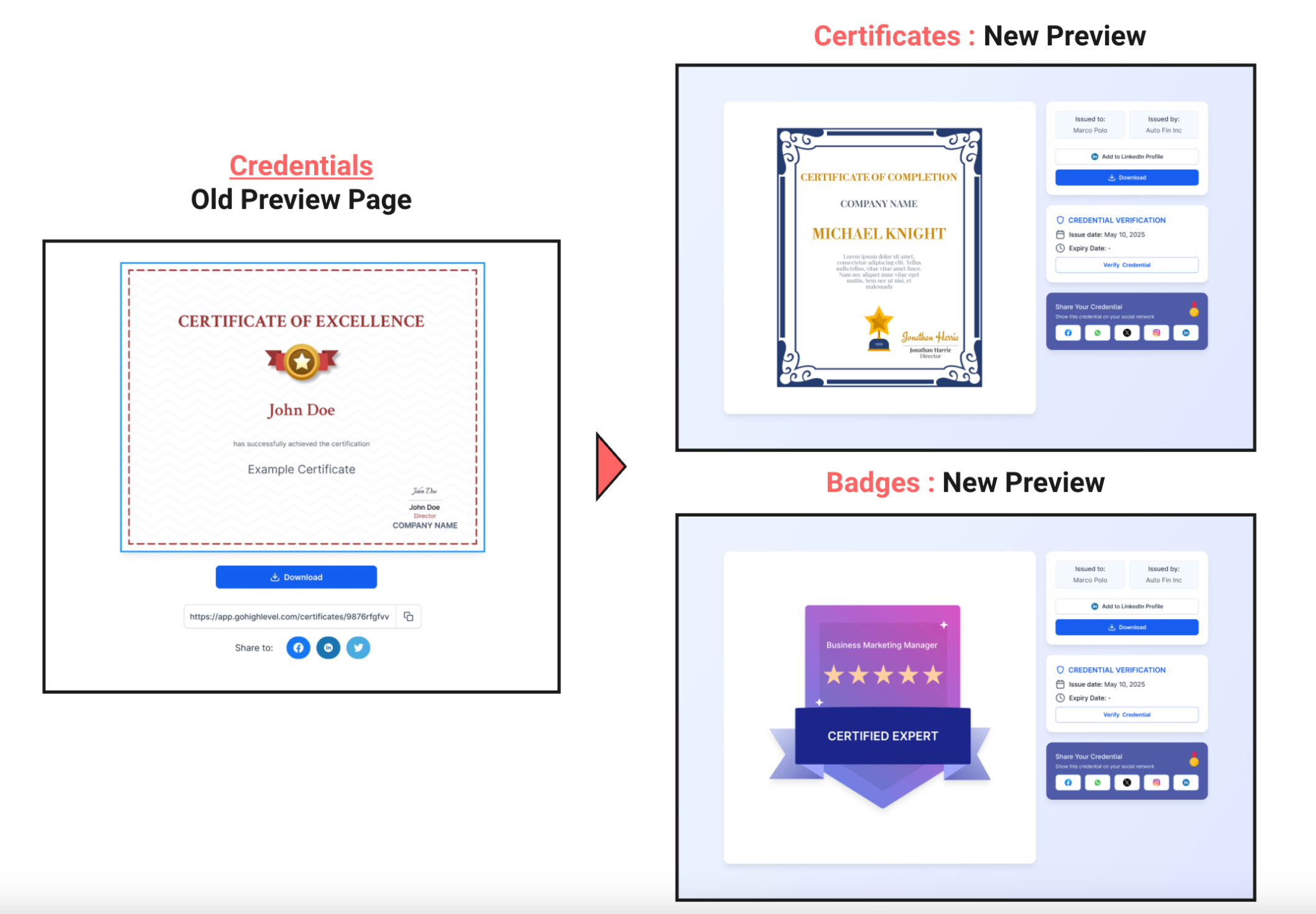
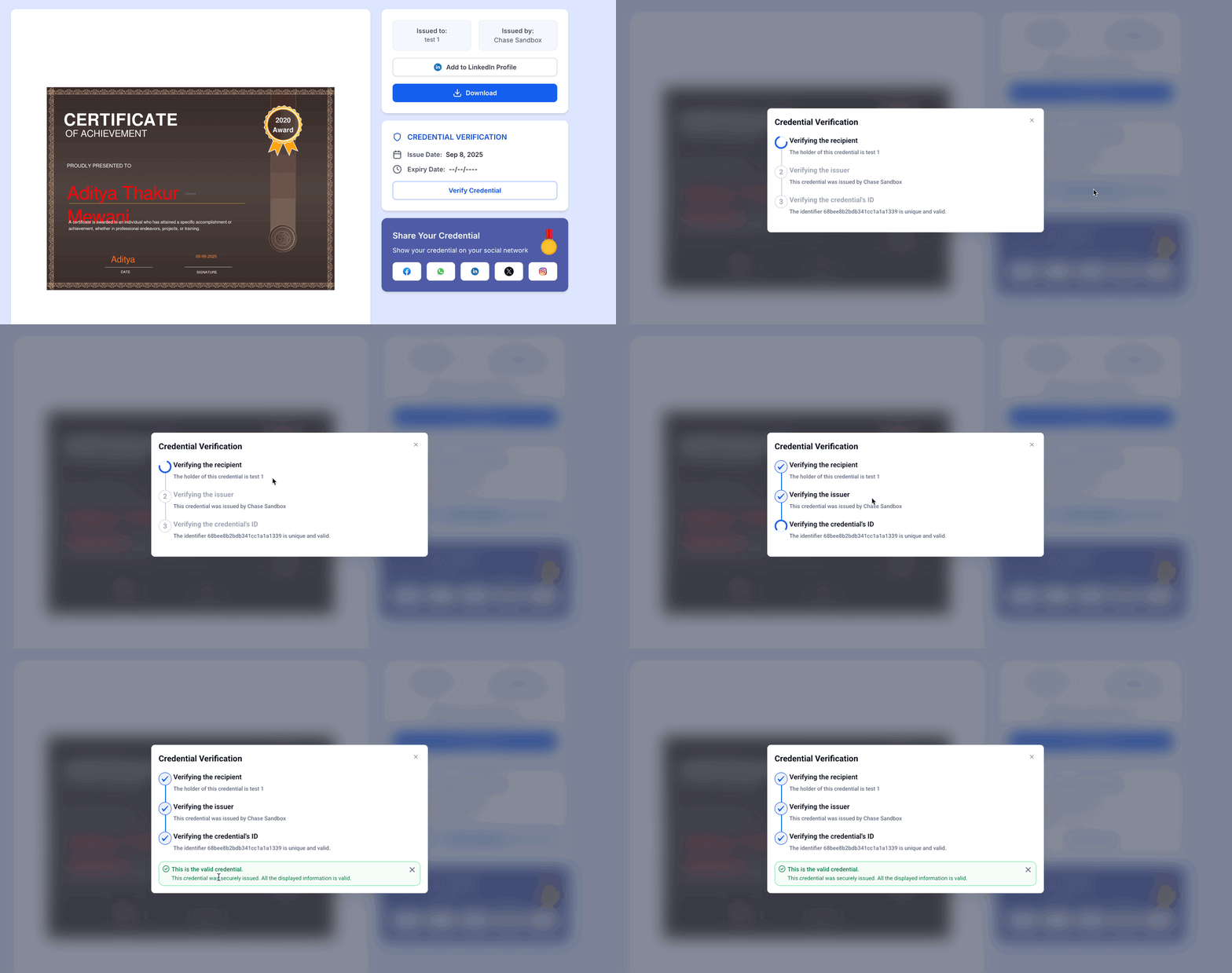
Credential Preview is the updated, public-facing certificate page that emphasizes trust and shareability. It presents your certificate in a clean, mobile-friendly layout, surfaces key metadata (issuer, issue date, expiry), and provides one-tap options to share or download—so achievements are easy to promote and verify.
Modern, responsive preview optimized for desktop and mobile.
Clear info boxes for issuer, issue date, and expiry.
- Public link for easy viewing (no login required).
Key Benefits of Credential Preview
Understanding the value helps teams roll out the new experience confidently and explain it to learners, hiring managers, and program stakeholders.
Professional presentation: A modern, high-contrast layout enhances the perceived value of the credential.
Faster sharing: Built-in share actions help recipients promote achievements quickly on major platforms.
LinkedIn add-to-profile: A dedicated button streamlines adding the credential to a LinkedIn profile (no copy/paste required).
Structured details: Issuer and validity information appear in clearly separated boxes to build trust.
High-quality downloads: Certificates download as PNG images that preserve design fidelity.
Sleek, Modern Look
Visual clarity improves credibility and reduces confusion—especially when sharing with employers or clients who need to verify at a glance.
Clean, distraction-free layout that highlights the certificate artwork.
Sharing Options
Making sharing effortless increases visibility for your program and encourages recipients to celebrate their accomplishments.
Direct share actions to LinkedIn, Facebook, X (Twitter), and WhatsApp from the preview.
LinkedIn Add to Profile button places the credential directly on the recipient’s profile—eliminating manual entry.
Public links allow anyone with the URL to view the certificate page without logging in.
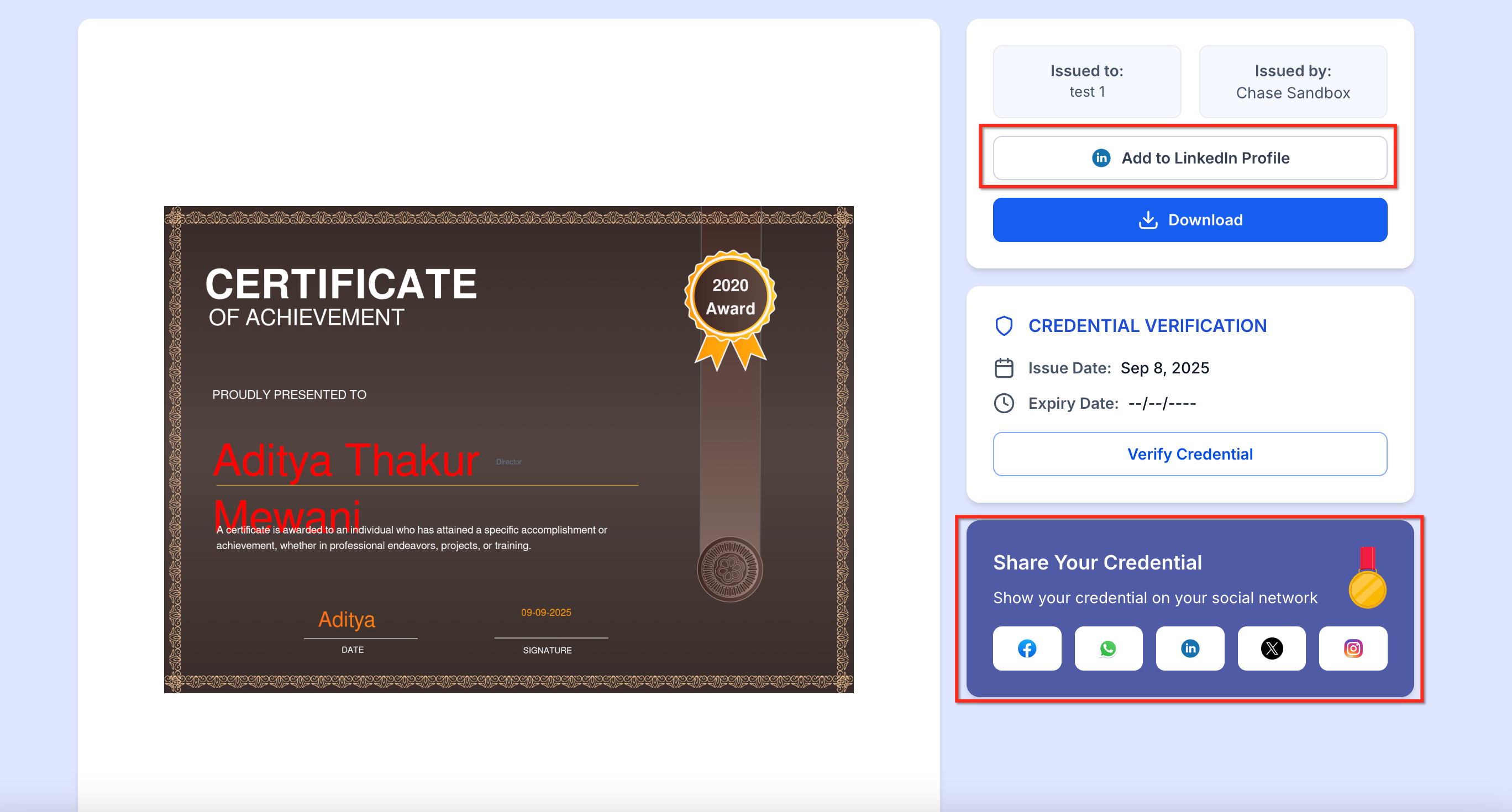
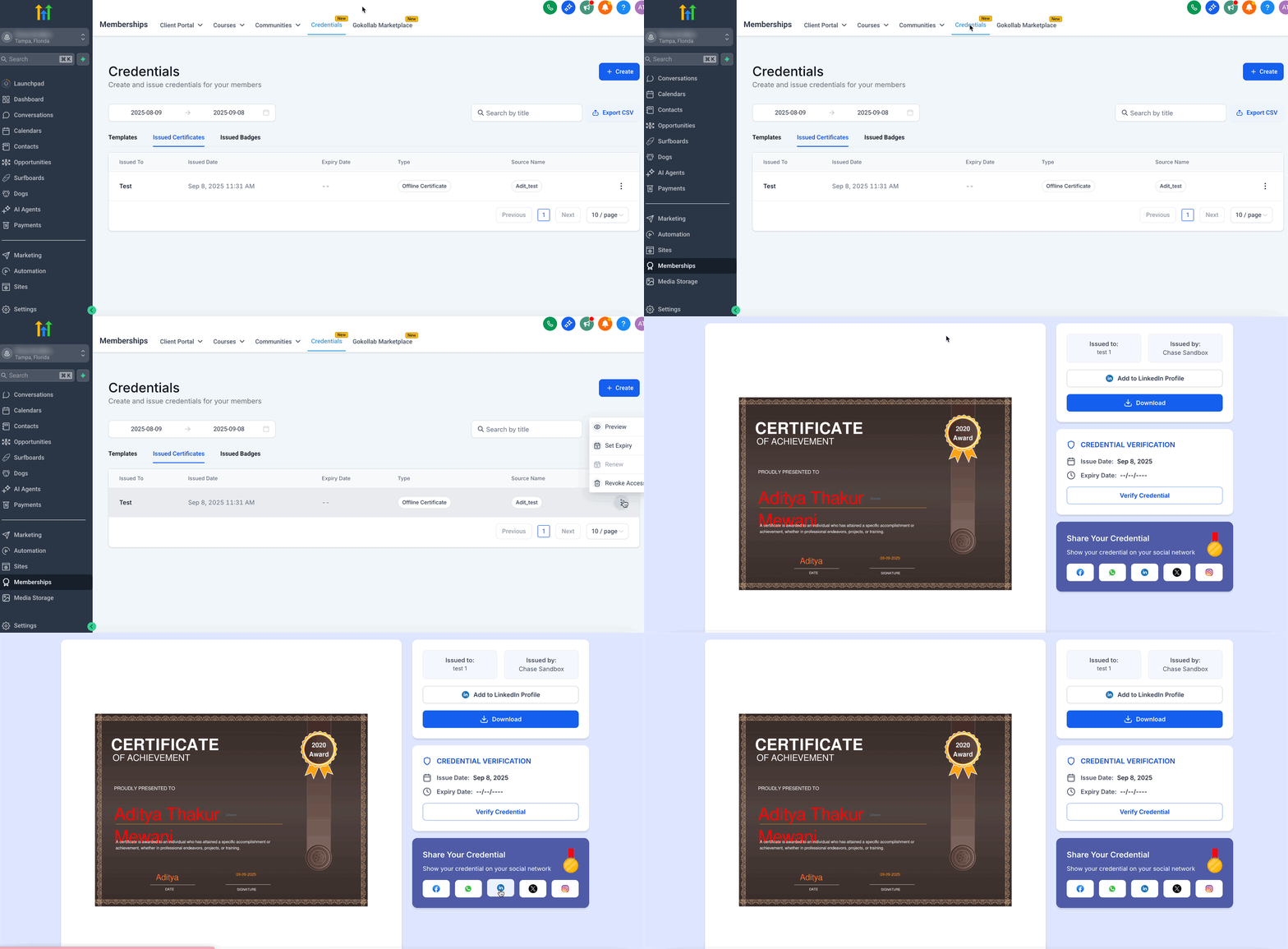
IMPORTANT: You can get these share options, when you preview an issued certificate.
Downloading the Certificate (PNG)
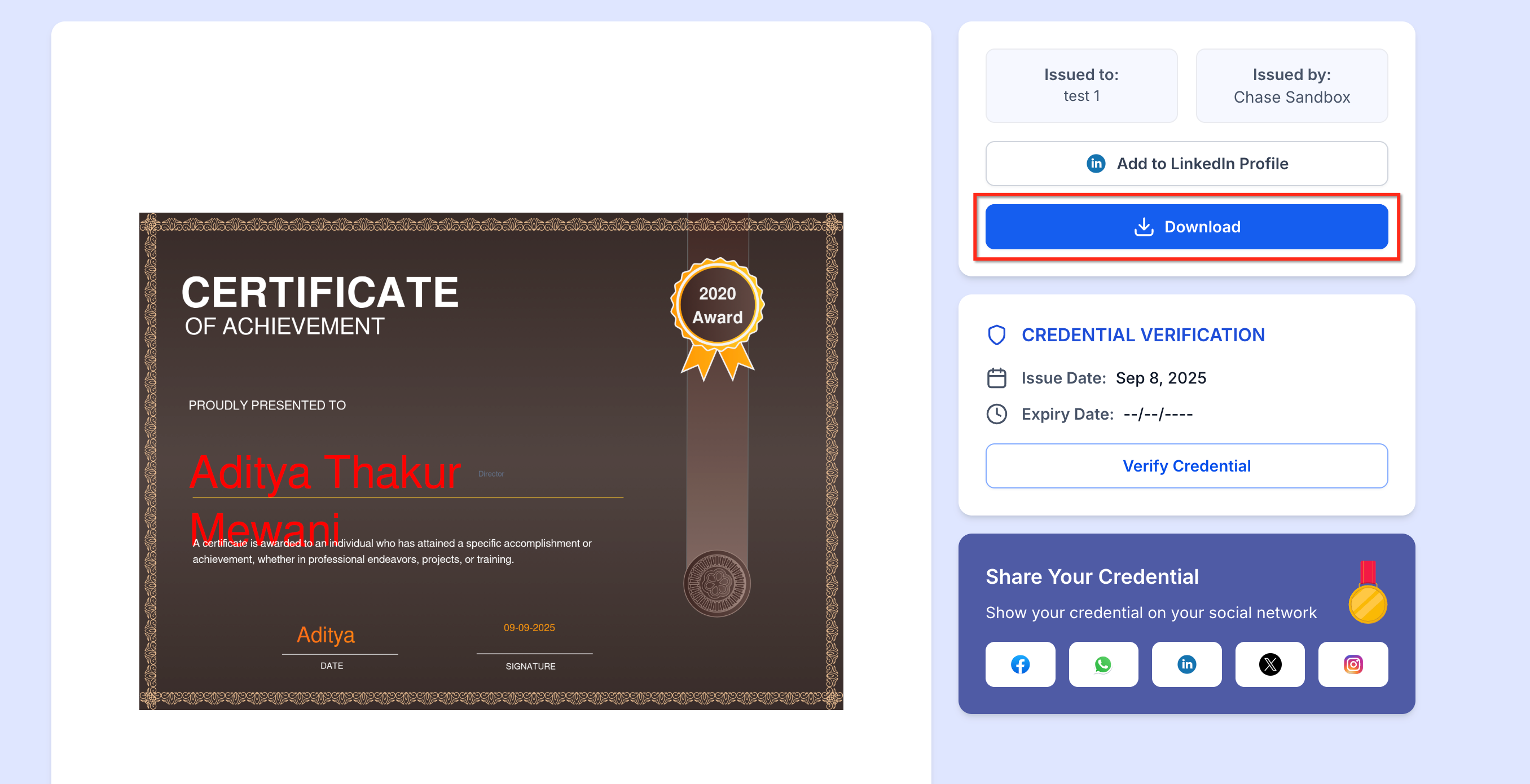
PNG downloads maintain pixel-perfect design for screens and quick printing, ensuring what you preview is exactly what you save.
One-click Download provides a PNG image that matches the original layout.
Images are pre-generated at issuance for rapid downloads.
Verification & Expiry Behavior
Clear verification and expiry states help viewers trust the credential while giving admins predictable controls.
Viewers access a public certificate page via the share link; key details help confirm authenticity.
When a certificate expires, its preview becomes unavailable to the user; issued-certificate expiry takes precedence over template-level expiry.
Optional reminder emails can be customized (replacing the old 2- and 7-day defaults).
How To Set Up Credential Preview
Proper setup ensures your templates render cleanly and that issuance and sharing work consistently across desktop and mobile.
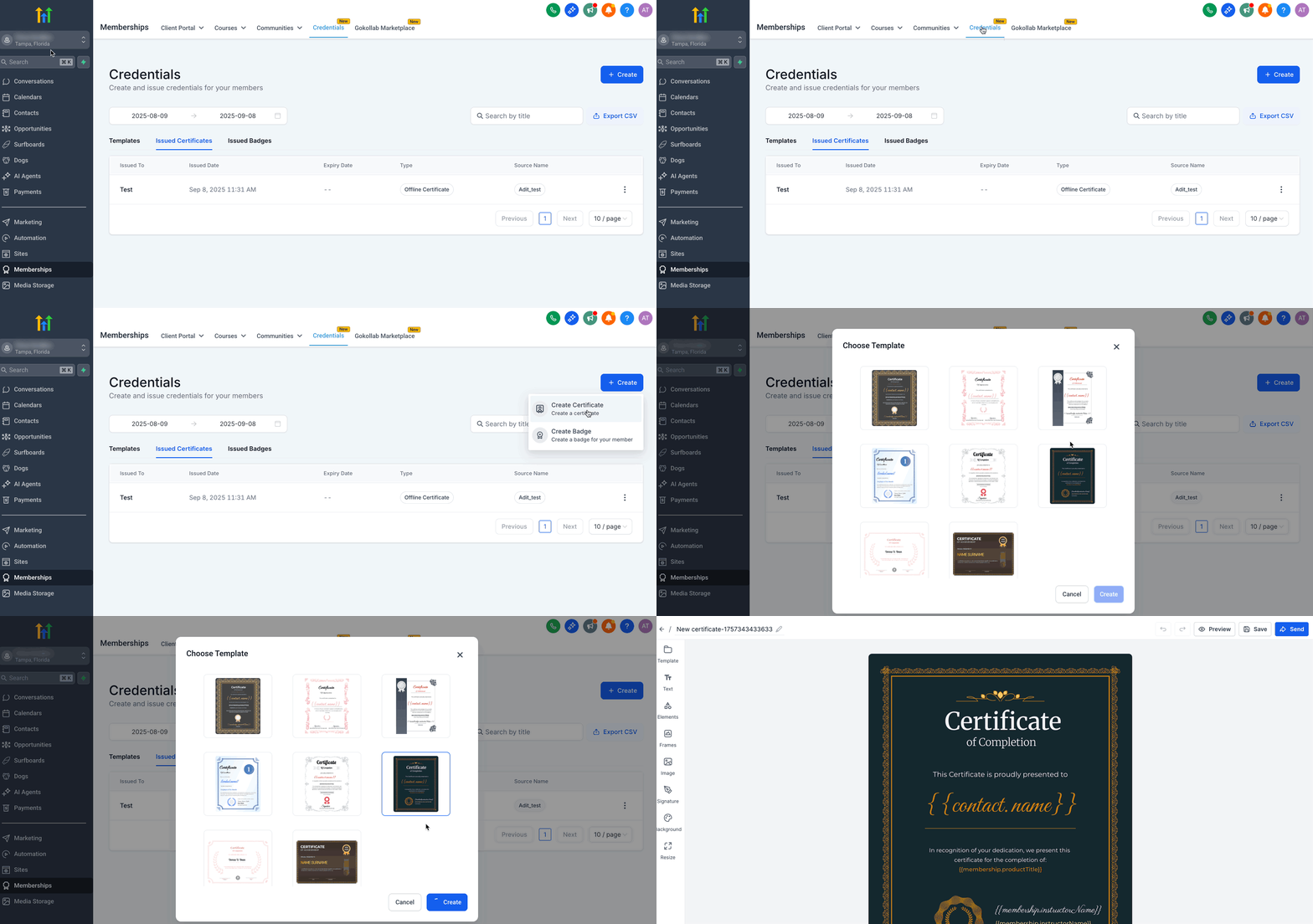
Step 1: Create or edit a Certificate/Badge: Memberships →Credentials → Templates → Create Certificate/Badge.
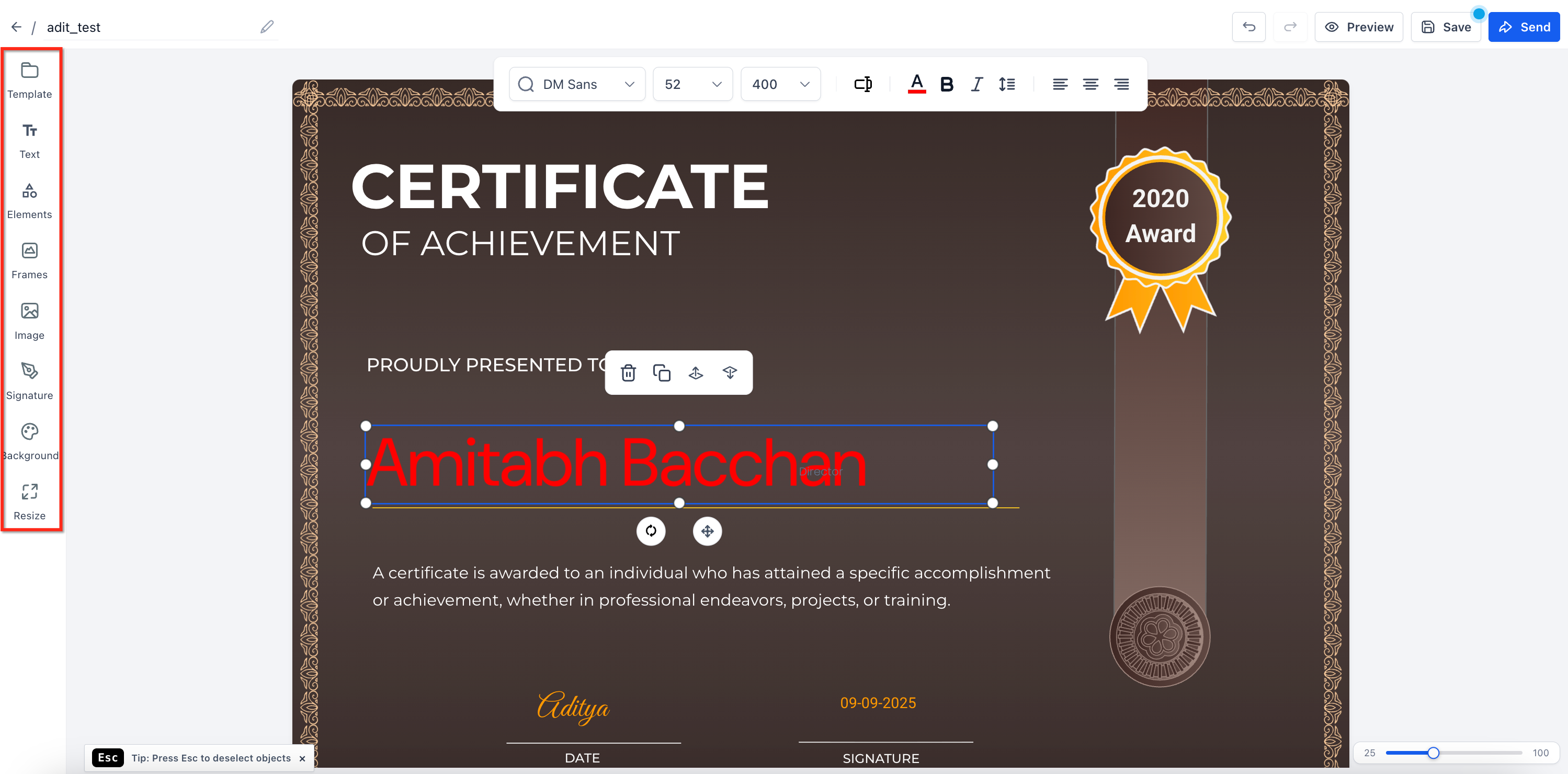
Step 2: Design & map fields in the builder; preview to confirm names, dates, and IDs appear correctly.
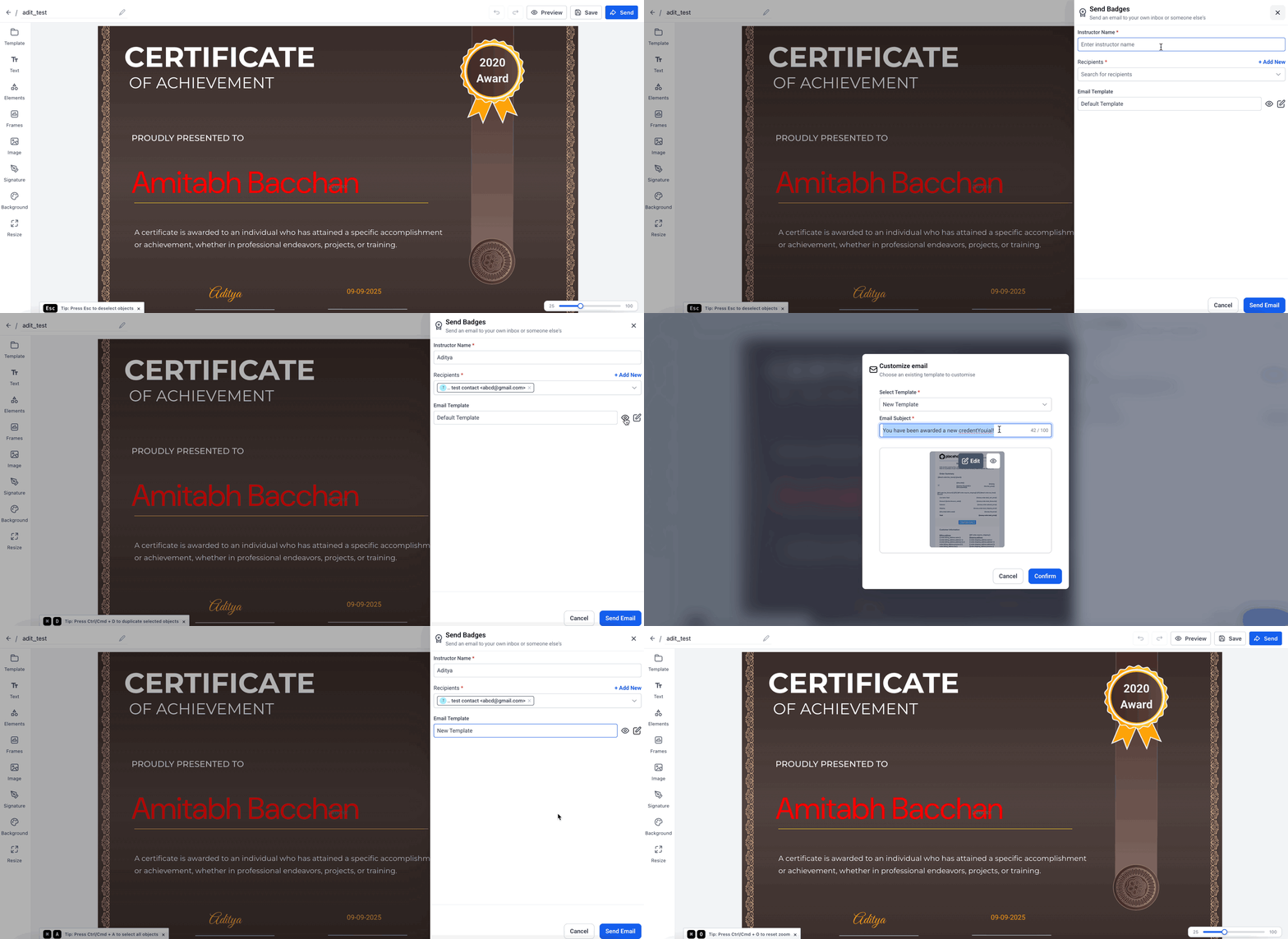
Step 3: Send the Certificate/Badge
After you finish creating or editing the certificate or badge, you can either send a test email to your own inbox or share it directly with the recipient. To share, you must enter the instructor’s name and select a recipient. For the email, you can preview the default template or create your own in Templates, then select your custom template before sending.
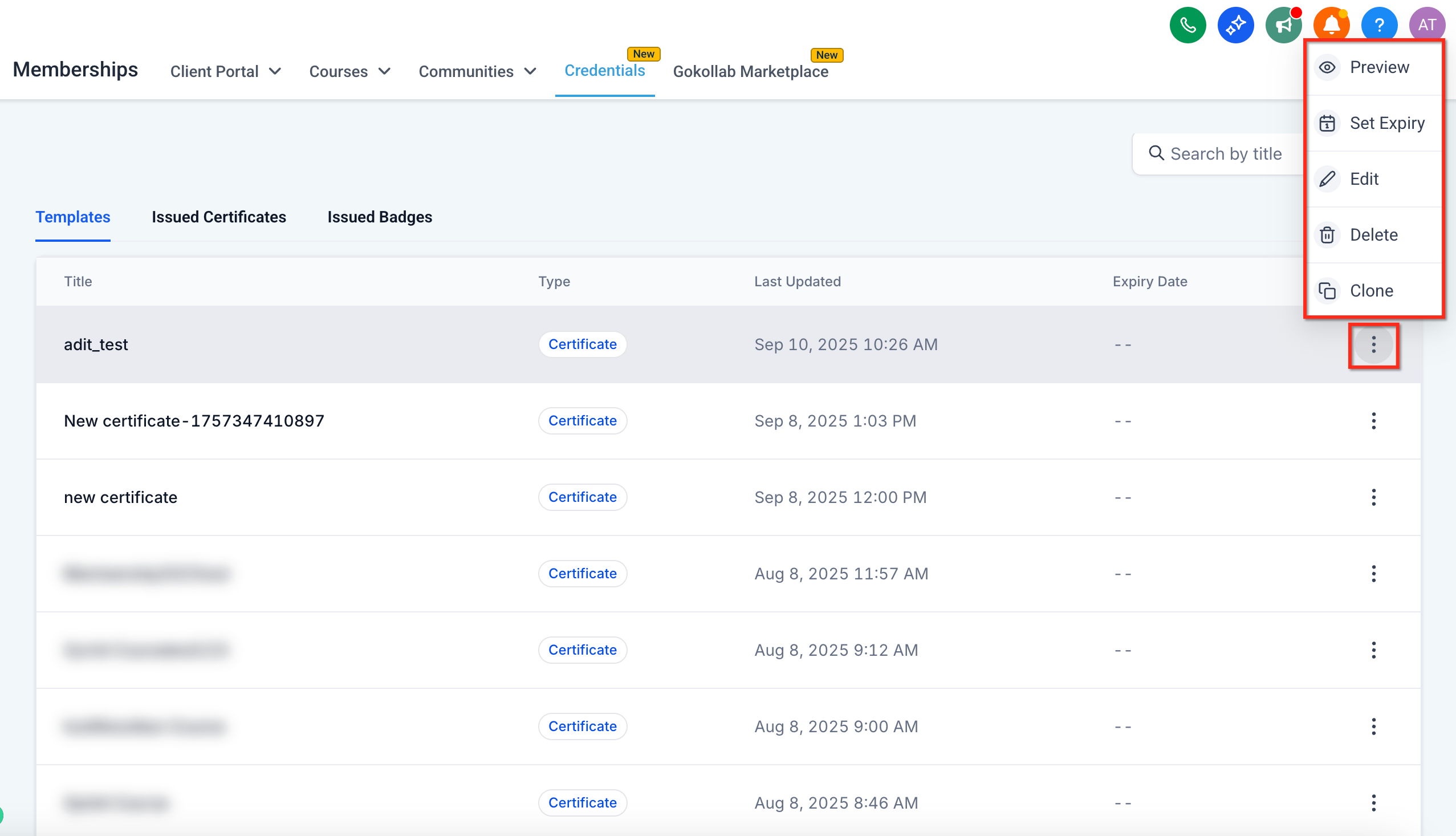
Please Note: You can Preview, Set Expiry, Edit, Delete and Clone a Certificate/Badge by clicking on the three dots of the template.
Frequently Asked Questions
Q. Can anyone view my certificate if they have the link?
Yes. Shared certificates are publicly accessible via a unique URL, though they are not searchable or indexed.
Q. Is the download a PDF or an image?
PNG image. High-quality PNG preserves the exact layout and typically downloads faster than PDF.
Q. I don’t see Instagram in the share tray—can I still post there?
Yes. Use Copy Link and paste it into Instagram captions, bio, or story link tools. Direct share buttons include LinkedIn, Facebook, X, and WhatsApp.
Q. What happens when a certificate expires?
The preview becomes unavailable to the user. Issued certificate expiry overrides template-level expiry.
Q. Is “Add to LinkedIn profile” the same as Social Planner’s LinkedIn connection?
No. Add to Profile posts the credential to a personal profile record; Social Planner is for scheduling LinkedIn posts.