Managing your WordPress site’s performance and security has never been easier. With the PHP Version Update feature in Advanced Settings, you now have full control over which PHP version your site runs on—ensuring stronger security, better compatibility, and faster performance.
TABLE OF CONTENTS
What’s Included
- Flexible PHP Version Selection – Switch between supported PHP versions with ease for optimal stability.
- Seamless Configuration – Update your PHP version in just a few clicks, no complicated setup required.
- Improved Security – Keep your site safe by running on the latest versions with critical security patches.
- Better Plugin & Theme Compatibility – Ensure your site works smoothly with plugins and themes that require newer PHP versions.
- Performance Boost – Enjoy faster load times and efficient resource usage on updated PHP versions.
⸻
How to Update Your PHP Version
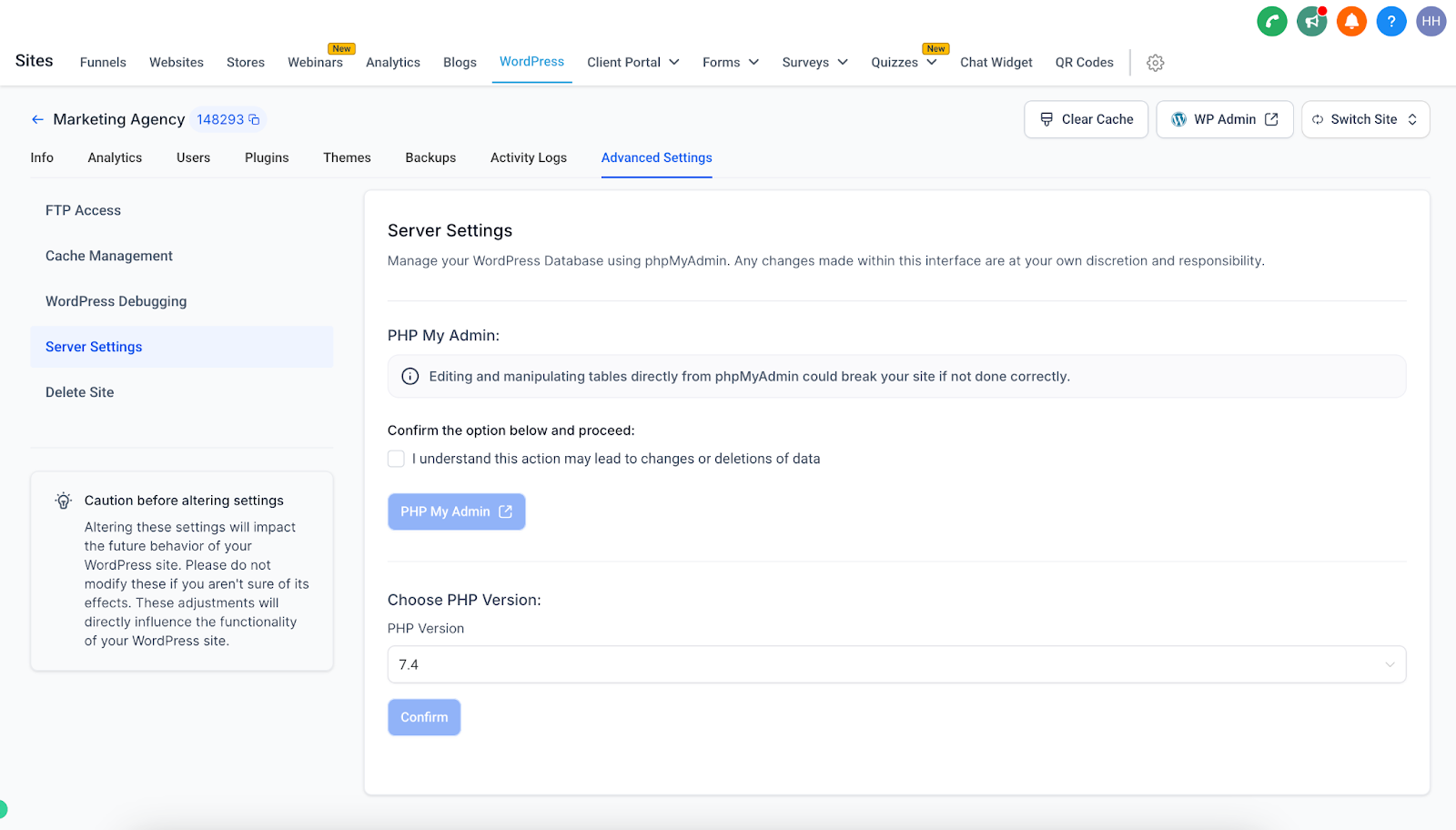
- Go to WordPress → Advanced Settings → Server Settings → Choose PHP Version.
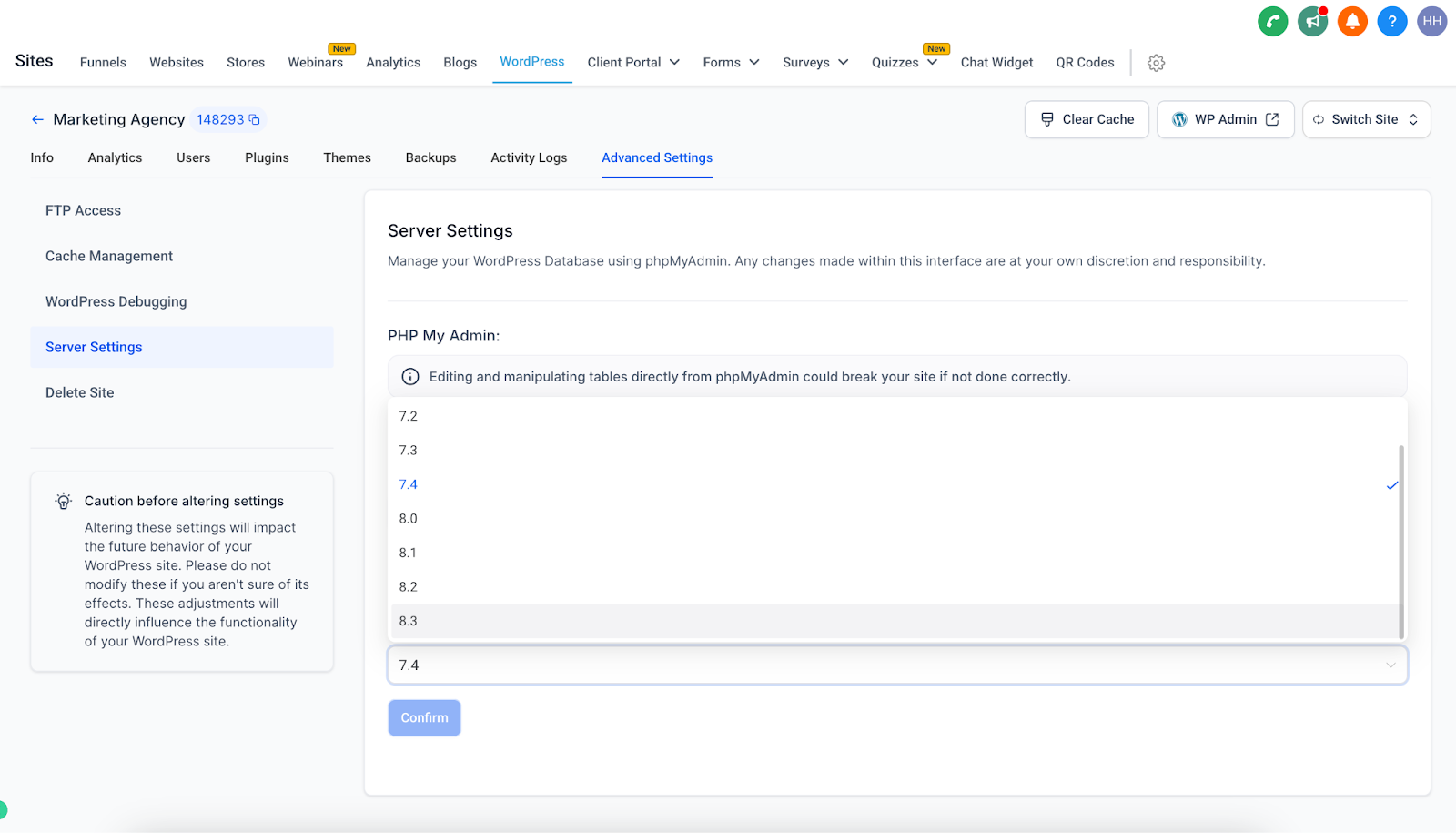
- Select your preferred PHP version from the list of available options.
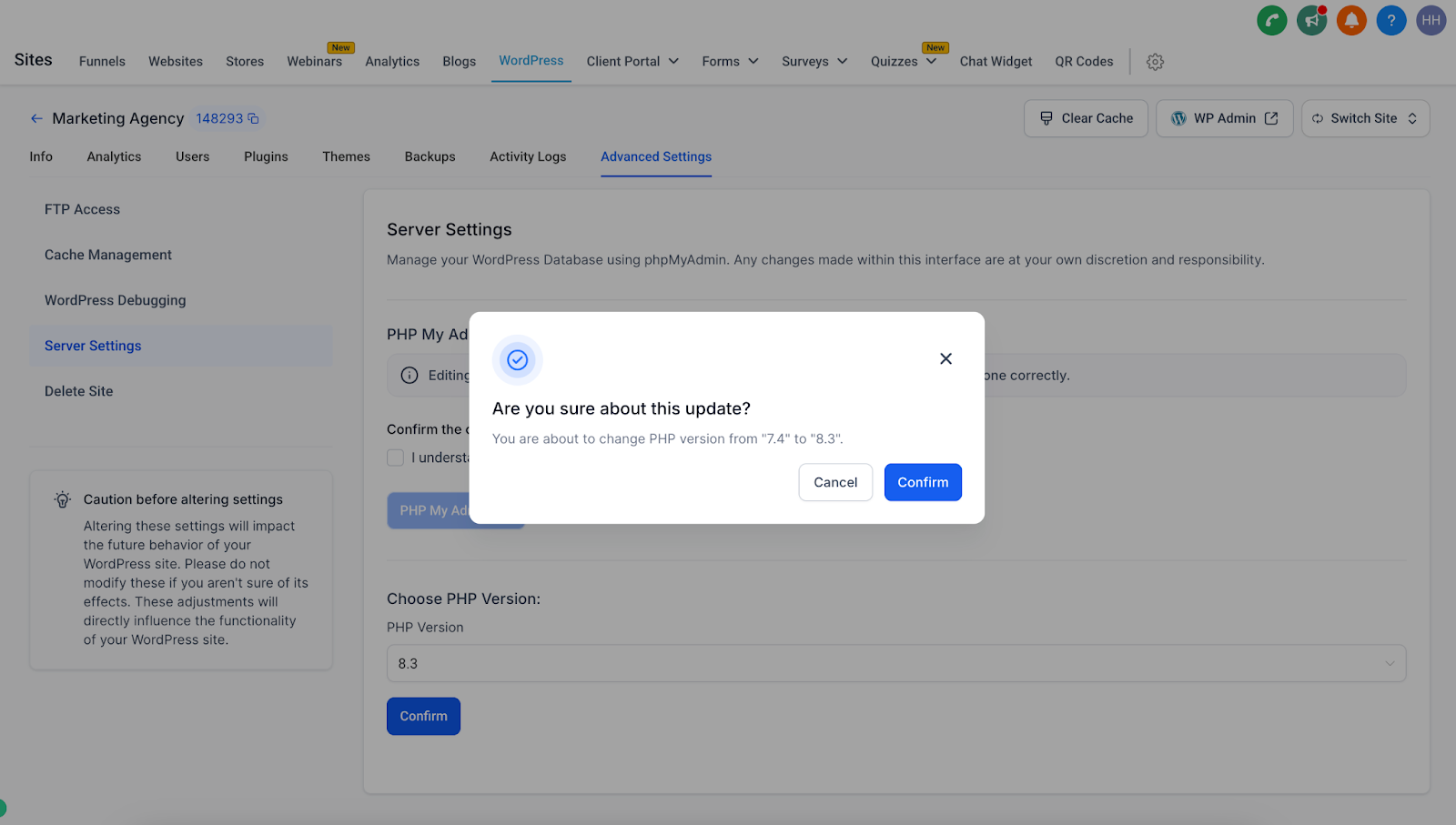
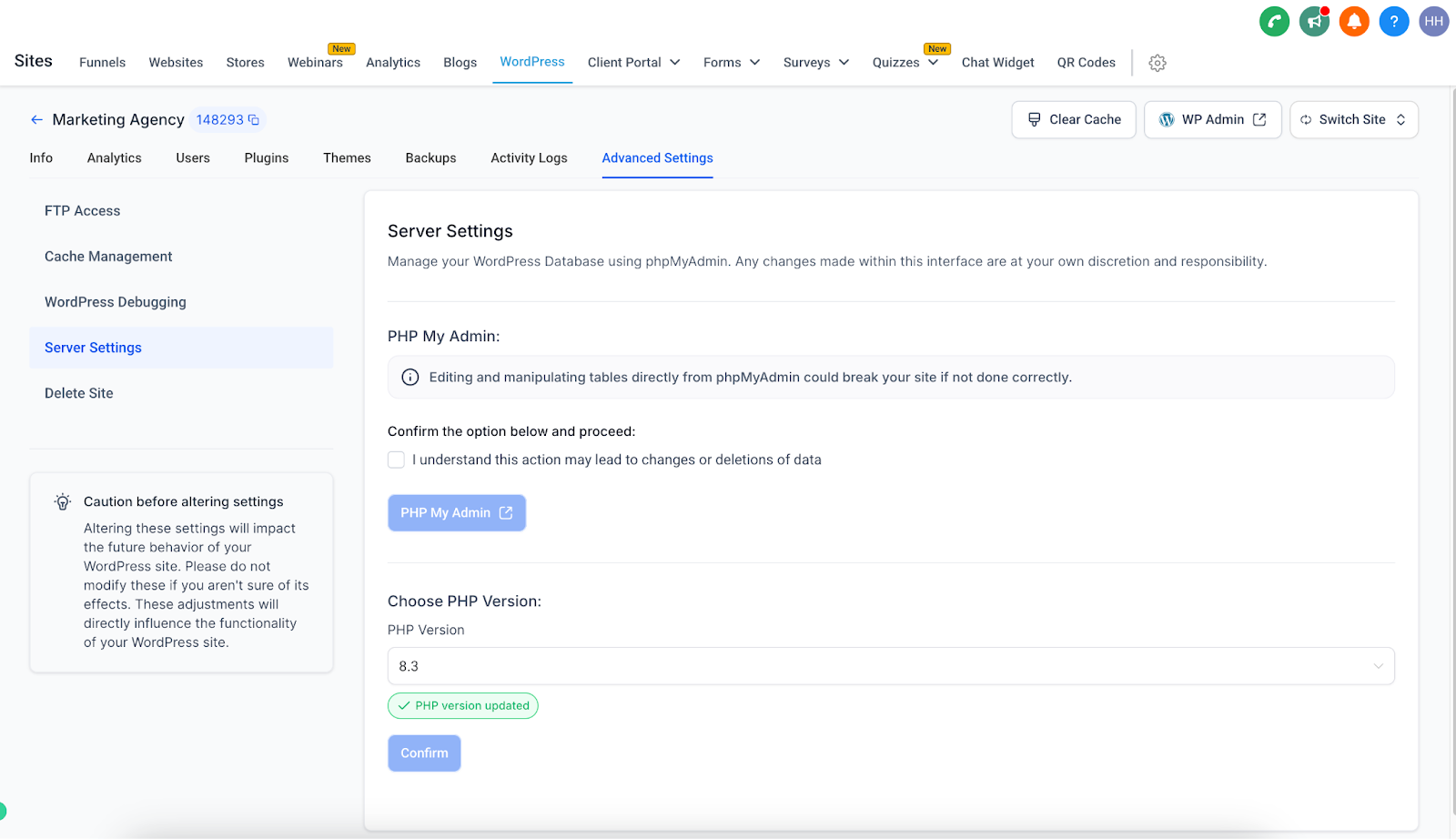
- Click Confirm. Your site will automatically update to the selected PHP version.
This ensures your site always benefits from the latest improvements in speed, compatibility, and security.
⸻
FAQs
Q: Why should I update my PHP version?
A: Updating ensures your site runs with the latest performance optimizations, security patches, and compatibility for plugins and themes.
Q: Will updating PHP affect my website content?
A: No. Your content and design will remain the same. Updates only impact how your site processes data behind the scenes.
Q: What if a plugin isn’t compatible with the latest PHP version?
A: If you notice compatibility issues, you can easily switch back to a previous supported PHP version from the same settings menu.
Q: How often should I check for updates?
A: We recommend reviewing your PHP version at least once every few months or whenever you install new plugins/themes.
Q: Is there downtime when updating PHP?
A: Updates are applied seamlessly, with minimal to no downtime for your site.