
Overview
Roles & Permissions for payment operations have been redesigned. Instead of one generic “Payments” block, there are now six dedicated sections, letting account owners decide exactly which team members can view, create, edit, delete or configure different parts of Payments.
Table of Contents
- Overview
- What does this feature do?
- What do I need to use this feature?
- How to assign payment permissions
- Frequently Asked Questions
What does this feature do?
This feature breaks down payment-related permissions into separate modules so staff access can be tailored. Each module has its own toggles for common actions (view, create, update, delete, export, configure). Built-in safeguards ensure dependent actions are enforced automatically — for example, bulk product actions are only available when “Create/Edit” is granted. This exists alongside the primary 'Payments' permissions.
The six modules now available as part of roles & permissions are:
Orders – view, export, import and collect payments (including partial payments).
Subscriptions – create, modify, pause, resume, cancel, export and manage payment method updates.
Transactions – view, refund, export, import and download receipts.
Taxes – view and configure tax settings, add or delete manual tax rates, and enable automatic tax calculation.
Products – view, create, edit, import, duplicate, bulk-manage and delete products.
Payment Settings – configure receipts, subscription defaults and other payment settings.
Existing permissions like “Refund Transactions” and “Manage Subscriptions” have moved into the appropriate new modules. This layout gives admins finer control over sensitive actions such as issuing refunds or editing subscriptions.
What do I need to use this feature?
Access to Settings → My Staff with permission to edit staff roles.
A clear understanding of which staff members should handle each payment module.
A staff member or role to assign permissions to.
How to assign payment permissions
Step 1: Open Roles & Permissions
Go to Settings → My Staff
Click the 'Edit' icon next to the staff member you want to update
Open Roles & Permissions
Step 2: Configure any of the six payment modules
You’ll see Orders, Subscriptions, Transactions, Taxes, Products, and Payment Settings as separate sections.
For each section:
Tick the actions the staff member should have (view, create, update, delete, export, configure).
Dependencies are handled automatically — if a required permission is missing, related actions will be disabled.
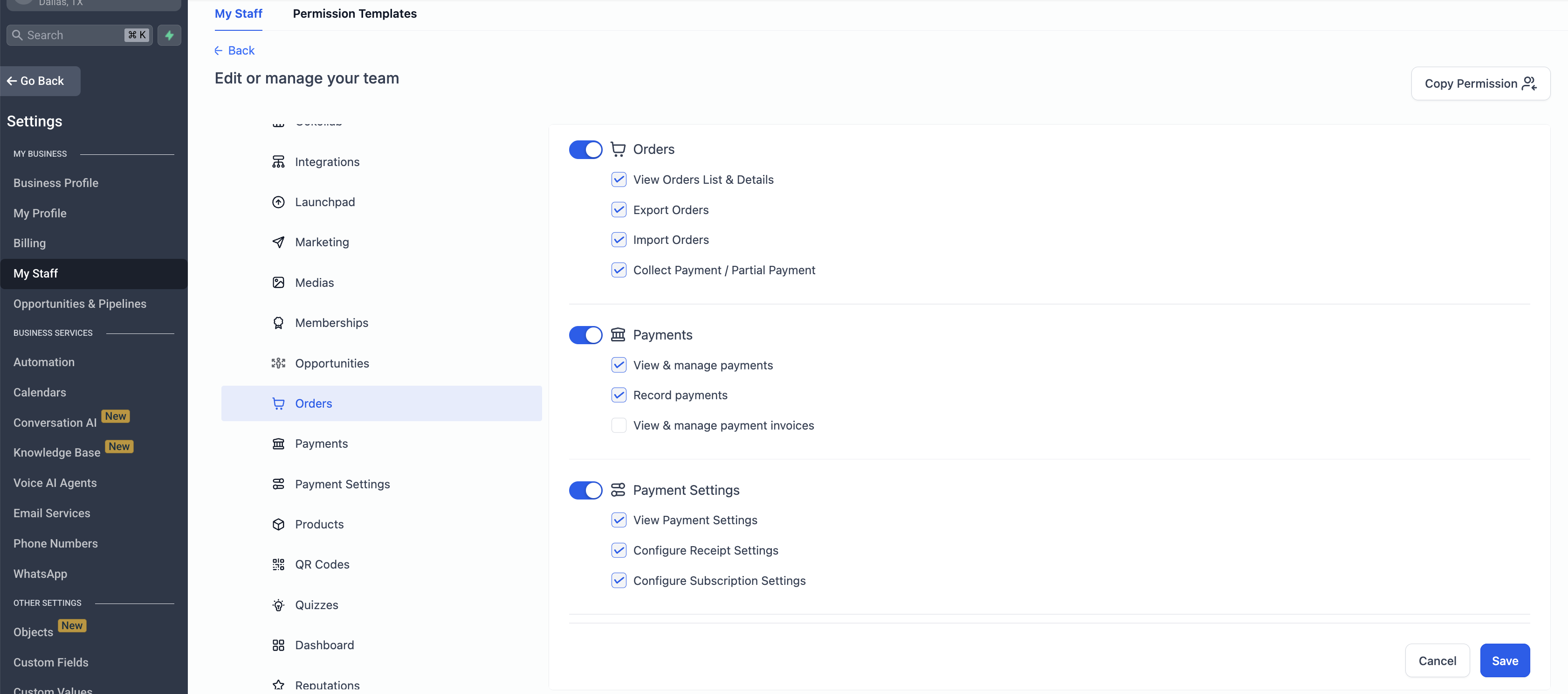
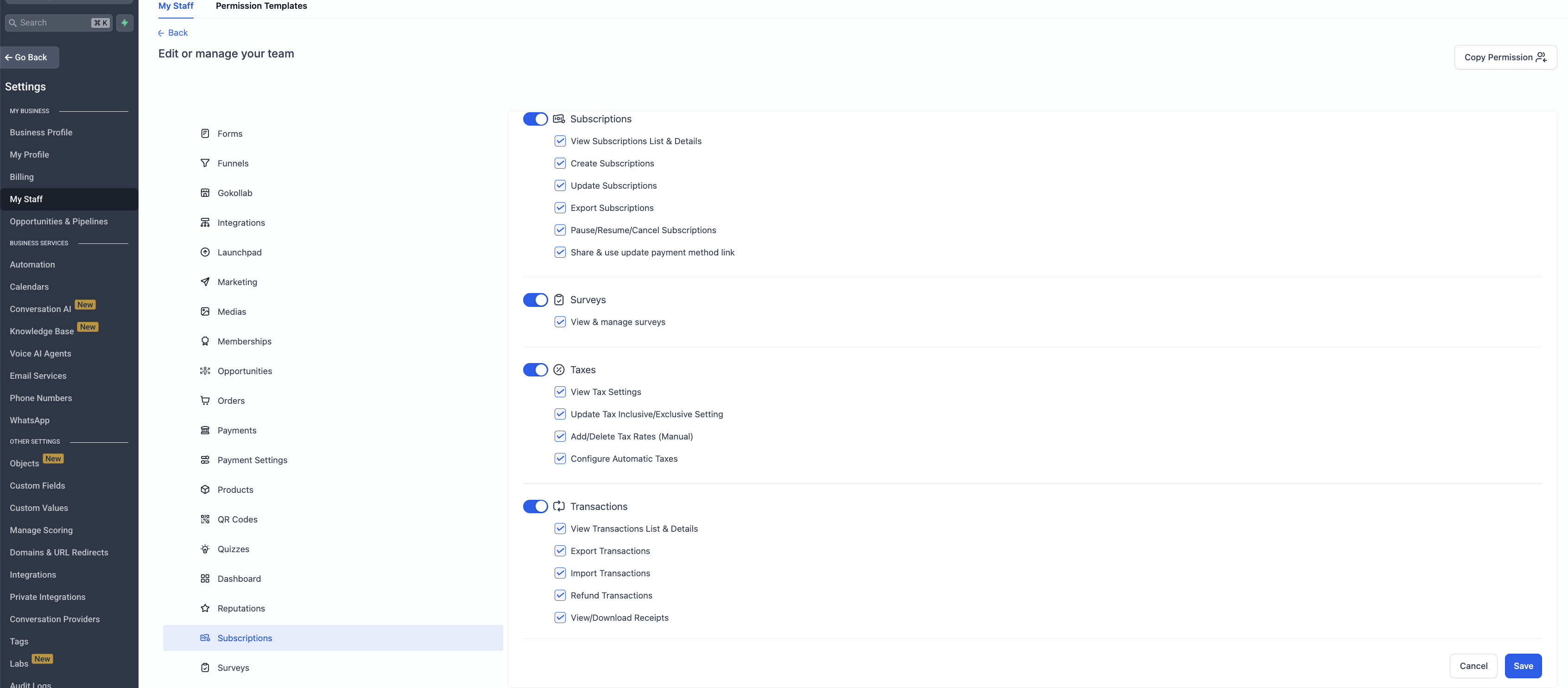
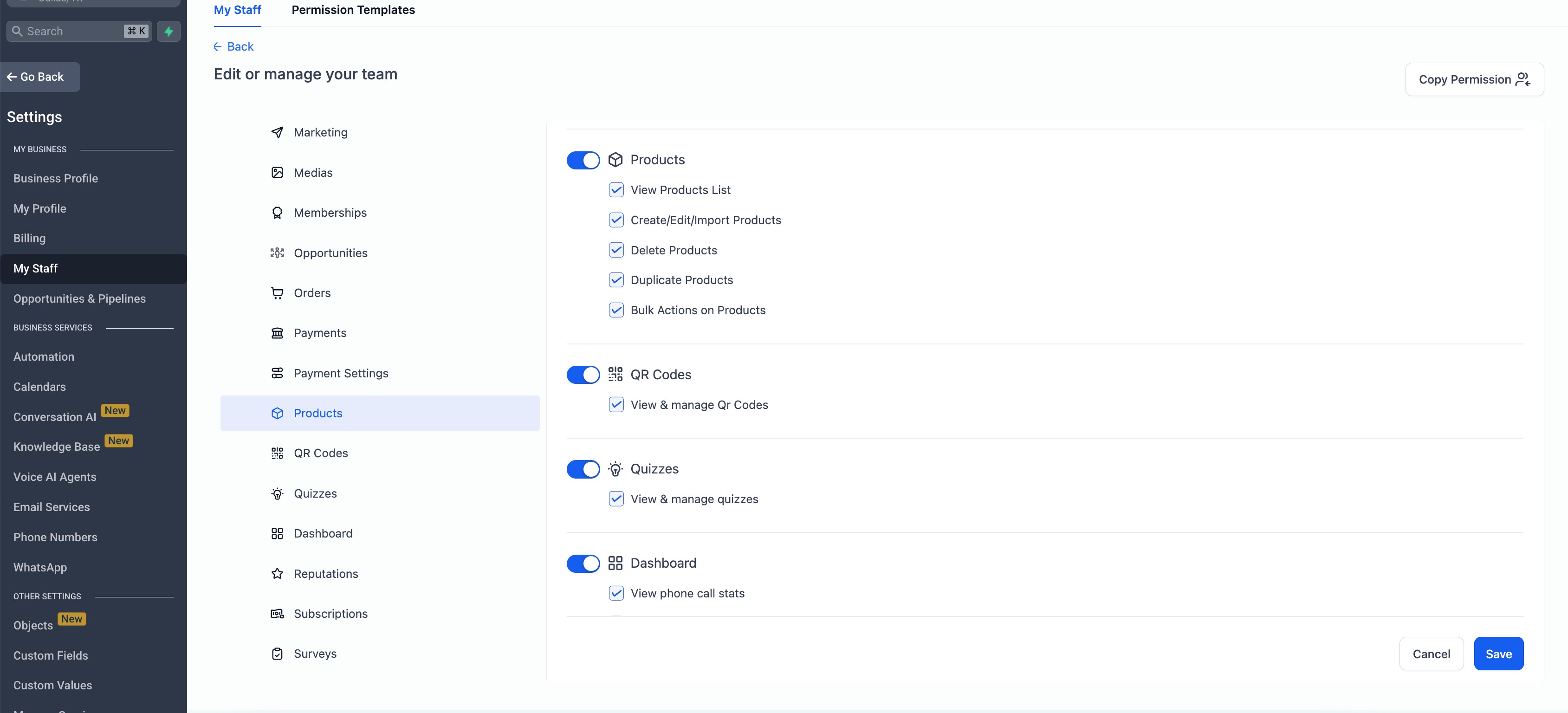
You can also modify multiple payment permissions at once and then proceed to Save.
You can also apply 'Assigned Data' Only permissions for members of you staff.
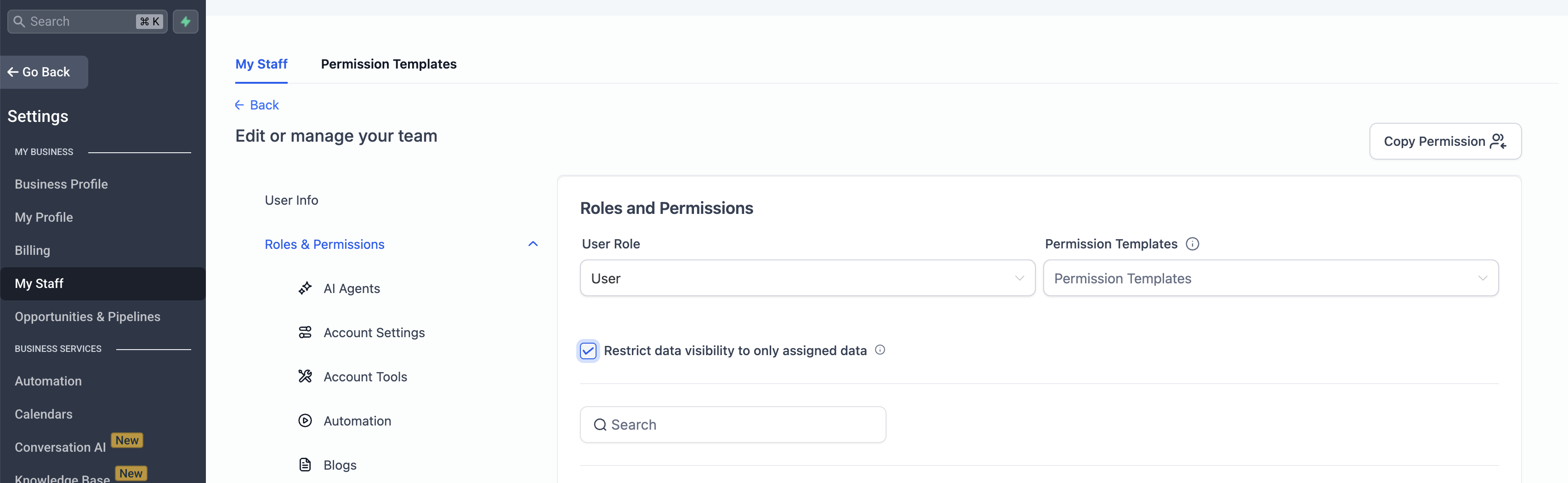
Click Save to apply changes. Once applied, the permissions would start to apply for the user for all the modified modules.
Frequently Asked Questions
What happens if I don’t give “Create/Edit” but enable “Bulk Manage Products”?
Bulk actions will be disabled automatically; required base permissions must be enabled.
Where do I see these options?
Go to Settings → My Staff → ‘Staff Member’ Edit → Roles & Permissions to see the new six sections.