
Enhance your scheduling flexibility with SourCherry’s Conversation AI – Multiple Calendars Support. This new capability enables AI bots to intelligently detect and book appointments across multiple calendars, simplifying multi-specialty or multi-department scheduling for your business.
TABLE OF CONTENTS
- What is Multiple Calendars Support?
- Key Benefits of Multiple Calendars Support
- Smart Calendar Detection
- Fallback Calendar
- How to Configure Multiple Calendars for Appointment Booking
- AI Configuration Tips (Prompts & Keywords)
- Viewing Booked Appointments and Calendar Details
- Frequently Asked Questions
- Related Articles
What is Multiple Calendars Support?
Multiple Calendars Support allows your AI Appointment Booking Bot to route booking requests to the correct calendar based on the customer’s intent. Instead of limiting your bot to a single calendar, you can now configure several calendars—each representing a service, department, or specialist—and let the AI automatically determine which one to use.
This feature is available under Conversation AI → Appointment Booking Bot Goal when setting up or editing an appointment booking flow.
Key Benefits of Multiple Calendars Support
- Smart Calendar Detection: The AI automatically matches user requests to the most appropriate calendar based on descriptions and keywords.
- Effortless Multi-Department Booking: Manage appointments for different teams or services (e.g., Cardiology, Neurology, Physiotherapy) within one AI bot.
- Fallback Calendar Assurance: Ensure no booking is missed by setting a default fallback calendar for unmatched requests.
- Seamless Workflow Integration: Supports all previous workflow triggers (cancel, reschedule, post-booking automation) used with single-calendar booking.
- Transparent Tracking: Instantly view which calendar was used when reviewing appointment details in the conversation or appointment record.
Smart Calendar Detection
The AI automatically detects and routes appointments to the right calendar using your configured calendar names, descriptions, and optional keywords. When a user types something like:
“I want to consult a Neurologist for migraine headaches.”
The AI identifies the relevant Neurology calendar and retrieves available slots for booking.
Fallback Calendar
The fallback calendar acts as a safety net when none of the configured calendars match the user’s message. This ensures every appointment request is captured and booked, avoiding any lost opportunities.
Select one of your configured calendars as the fallback option.
If no intent matches the AI descriptions, the appointment will automatically book on this fallback calendar.
How to Configure Multiple Calendars for Appointment Booking
Follow these steps to enable and configure Multiple Calendars in your Conversation AI bot:
Note that the Appointment Booking option in Bot Goals has a prompt and also has details about the calendars. The calendar details are ONLY for intent classification. If you want the bot to be able to answer questions that information needs to be in the prompt (above the Appointment Booking button).

For example: if you want the bot to be able to discuss what kind of appointment to book and why, you need to duplicate that information into the prompt. The bot will not be able to discuss the details it finds in the calendar details.
1. Navigate to AI Agents → Conversation AI → Bot Goals and select Appointment Booking.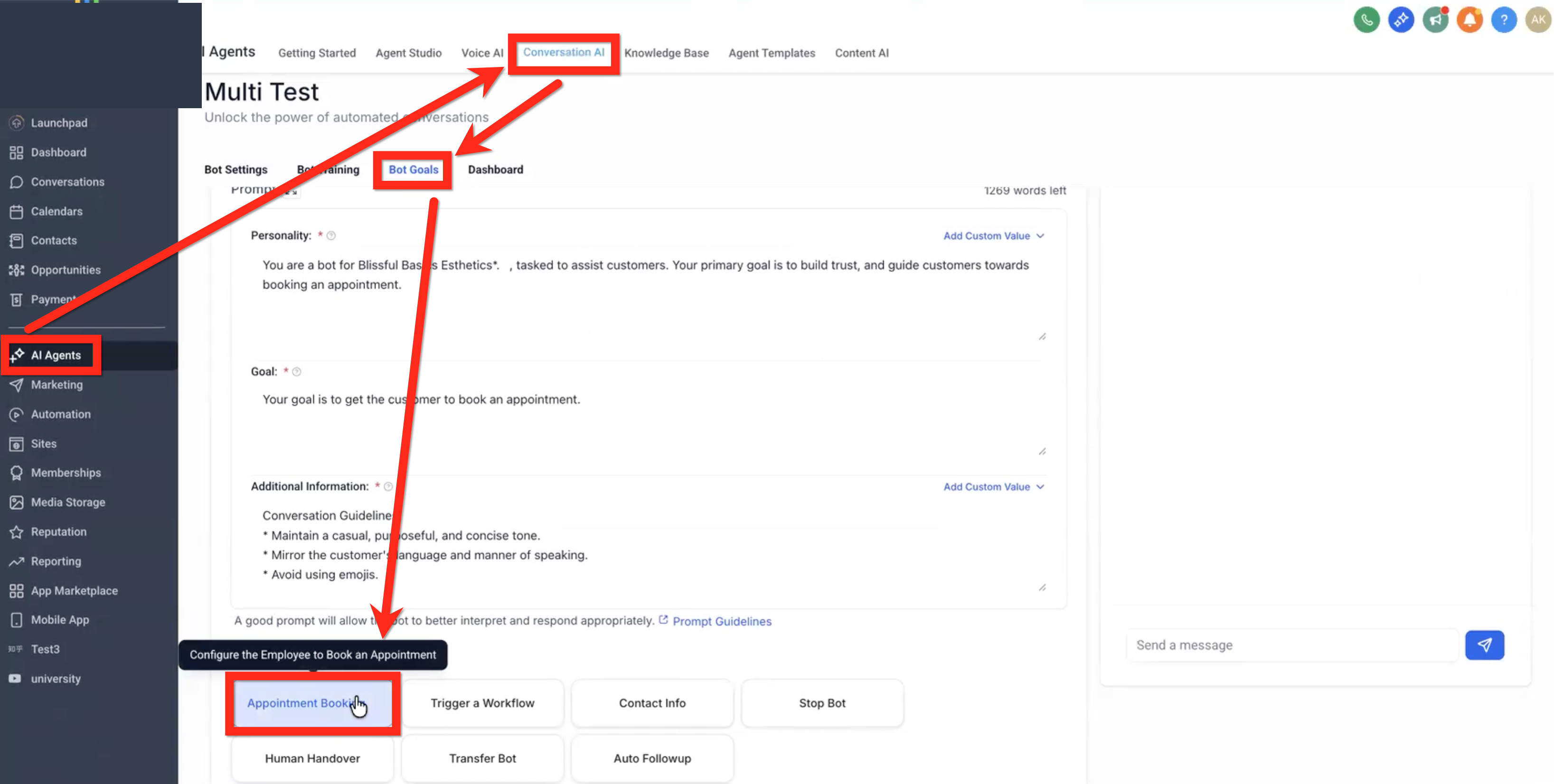
2. Choose the Multiple Calendars option at the top of the setup window.
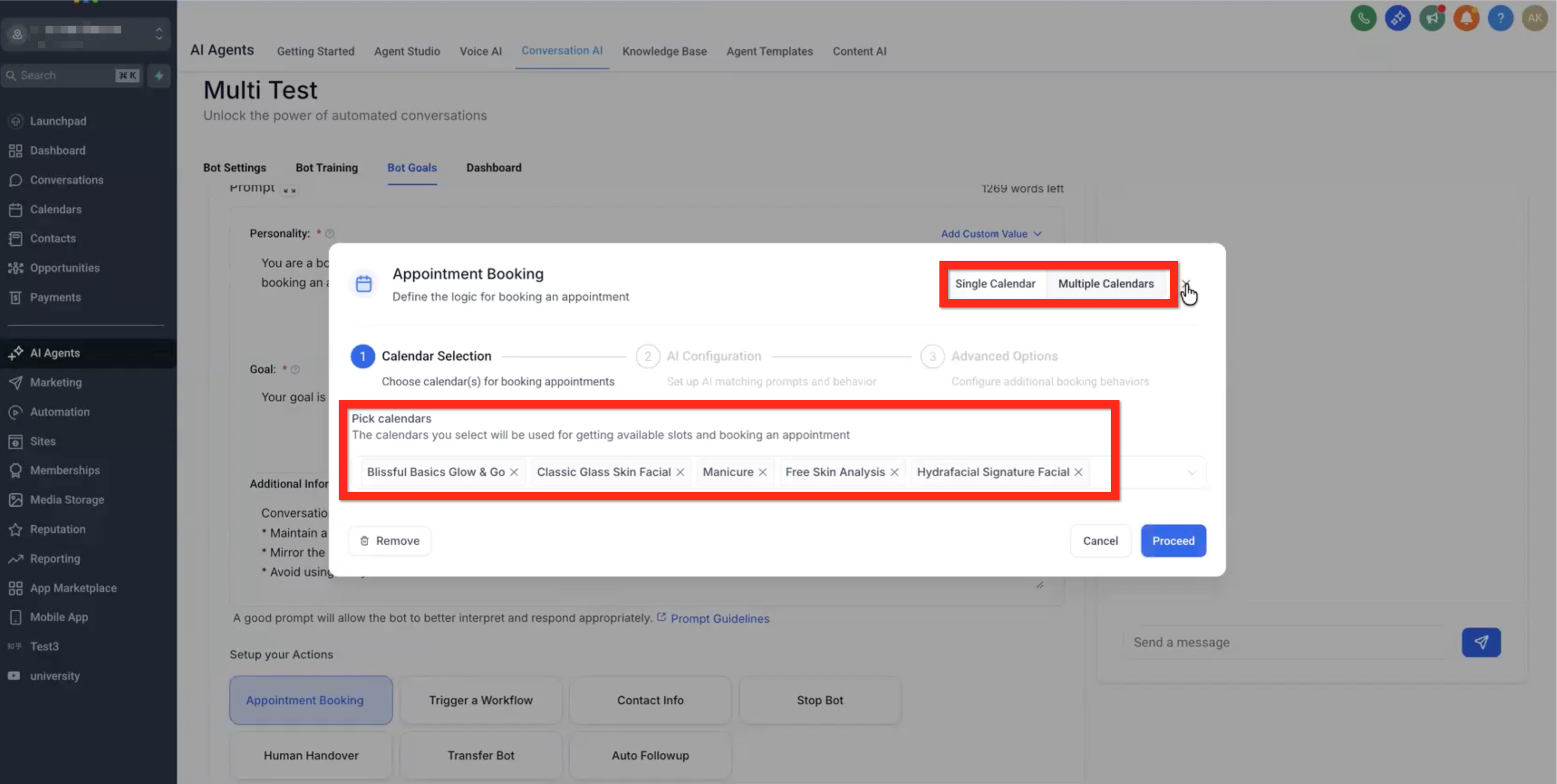
3. Under Calendar Selection, pick the calendars you want to include. Each calendar’s name and description are auto-fetched.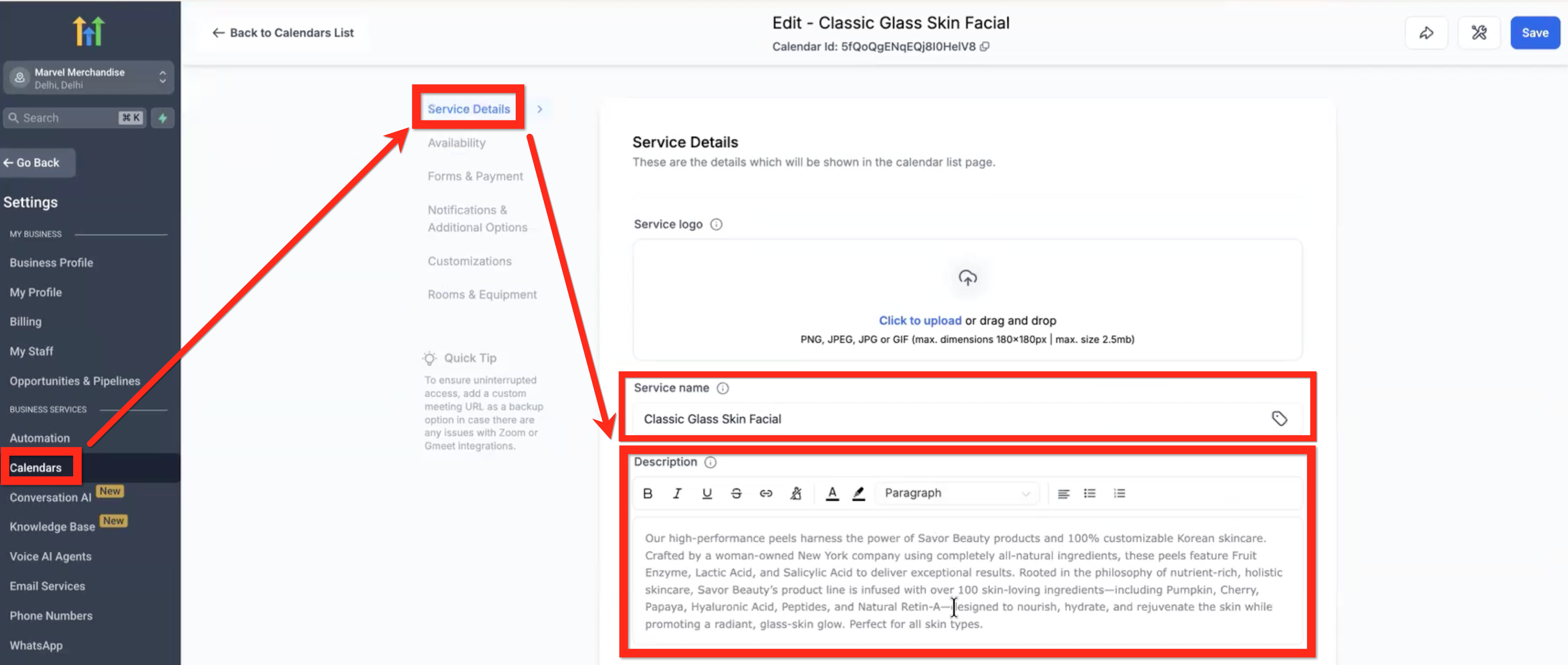
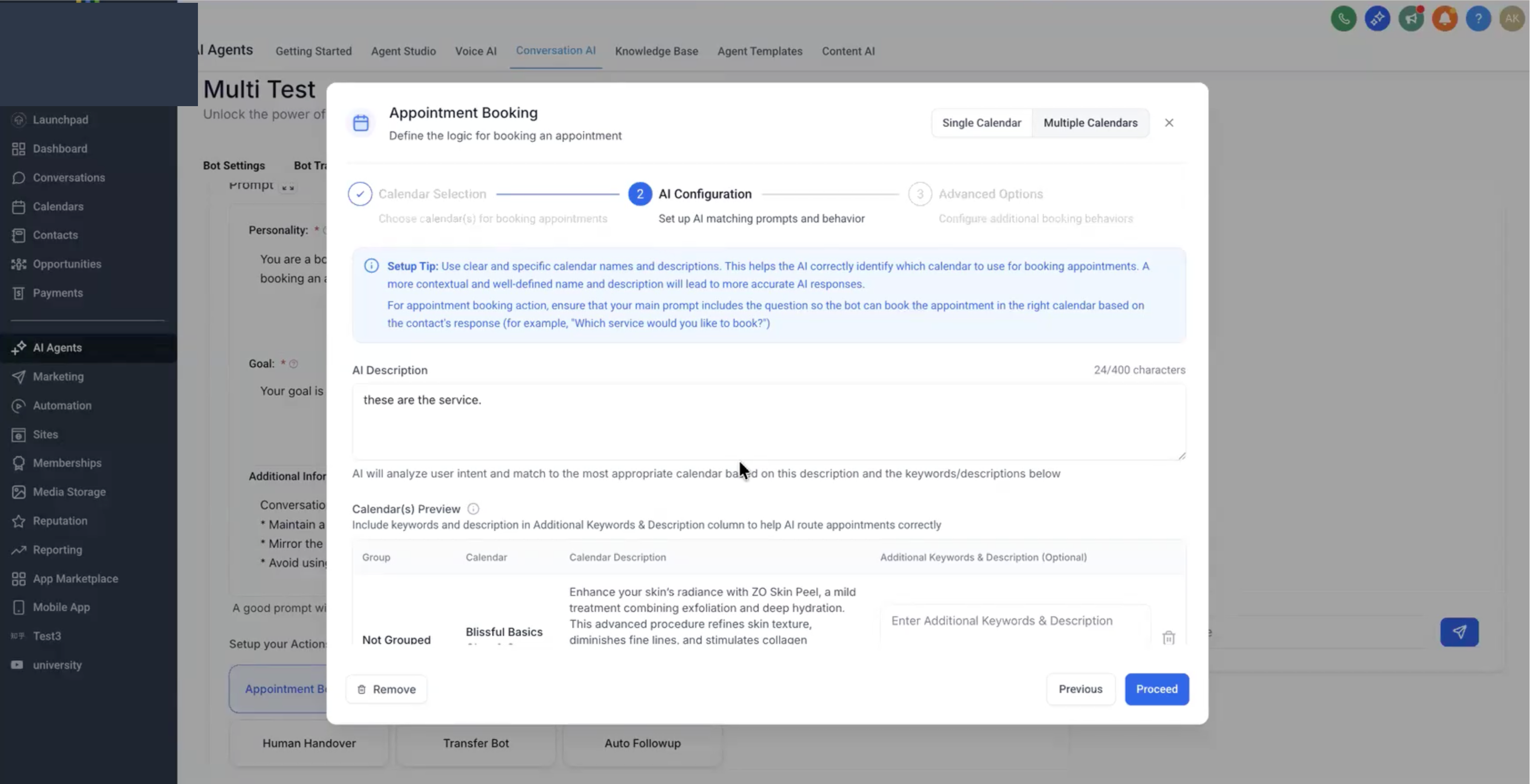
4. Optionally, add Additional Keywords & Descriptions to help the AI recognize user intent. This is helpful if the calendar itself, in its calendar settings, does not have a detailed name & description. If the calendar has a detailed name & description then you don't need to put anything here.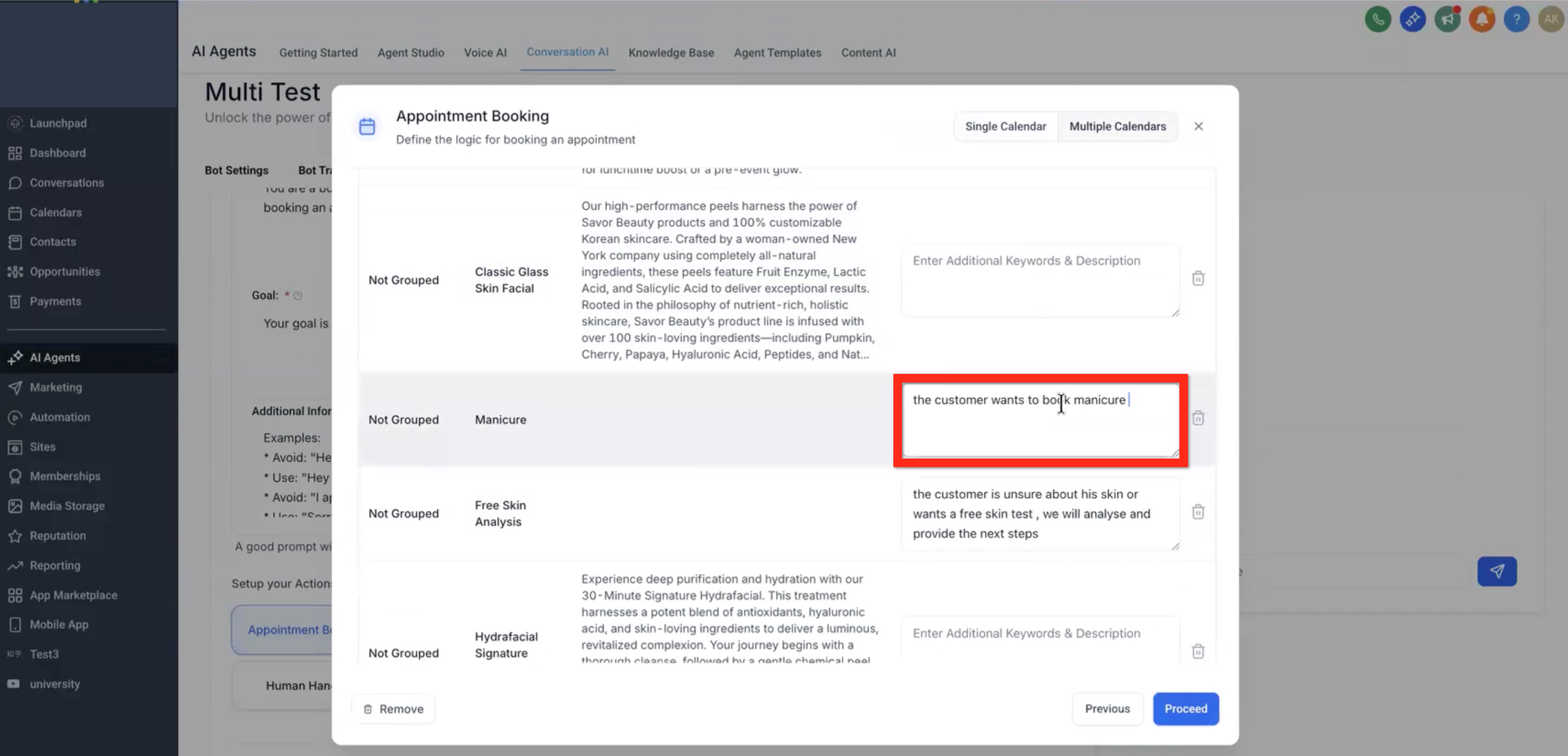
5. Configure a Fallback Calendar to handle unmatched requests. This can be unchecked to have no fallback calendar.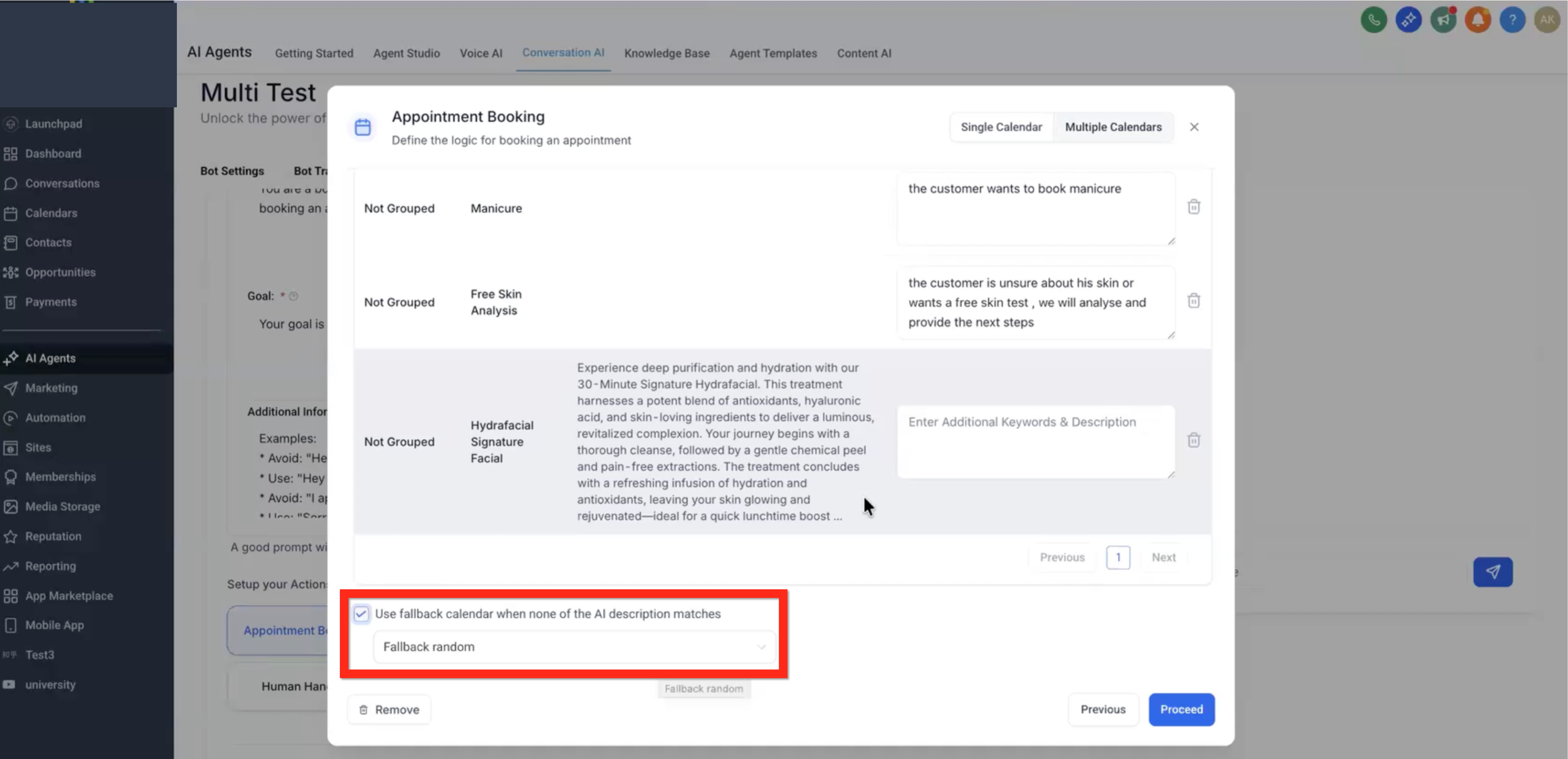
6. Proceed to AI Configuration and define your AI prompt (e.g., “Which type of consultation would you like to book?”).
7. Proceed to Advanced Options
Pause bot response after booking
Trigger workflows after booking
Transfer employee post appointment booking
Allow bot to cancel the appointment
Allow bot to reschedule the appointmen
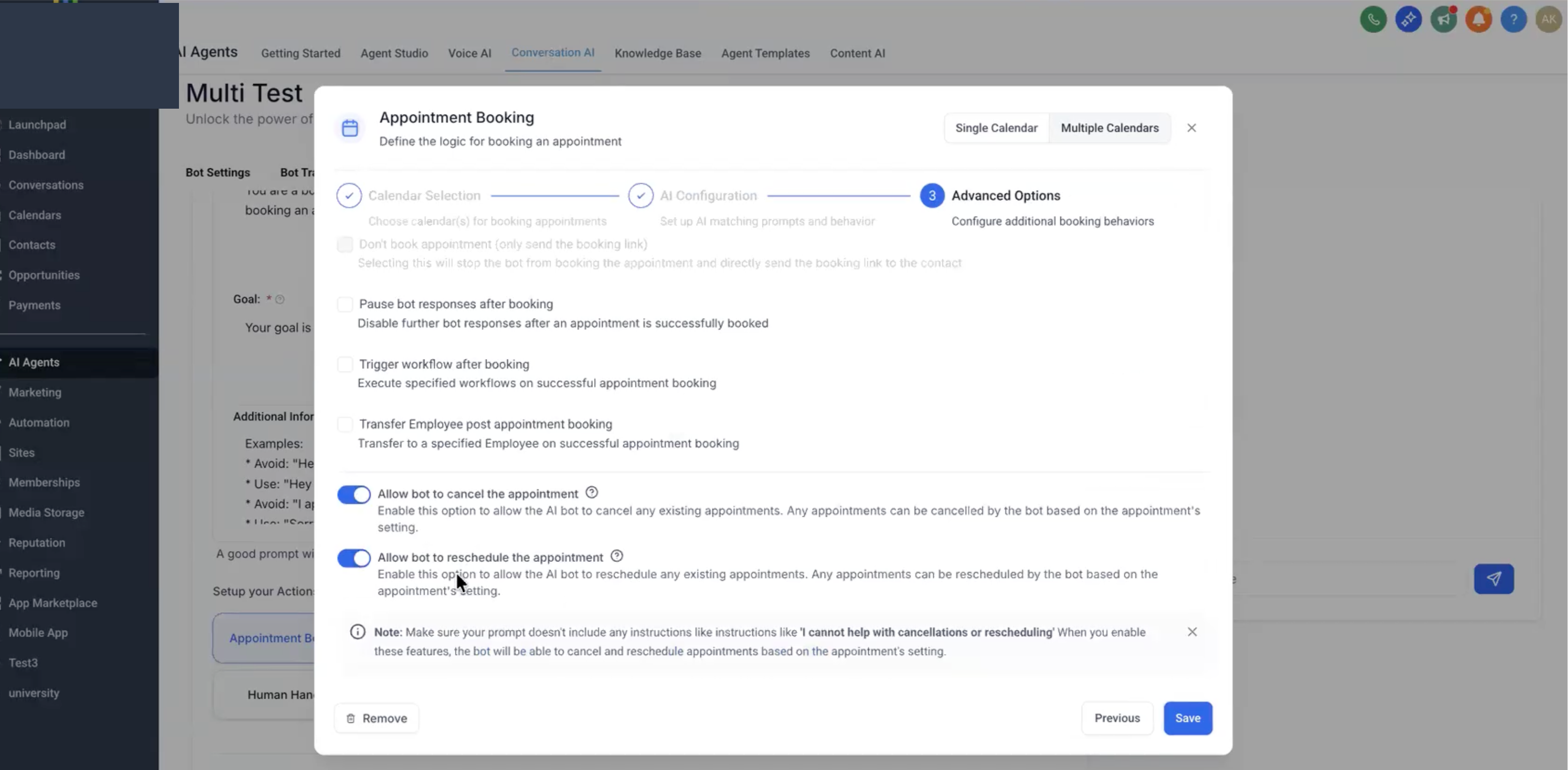
8. Save your configuration.
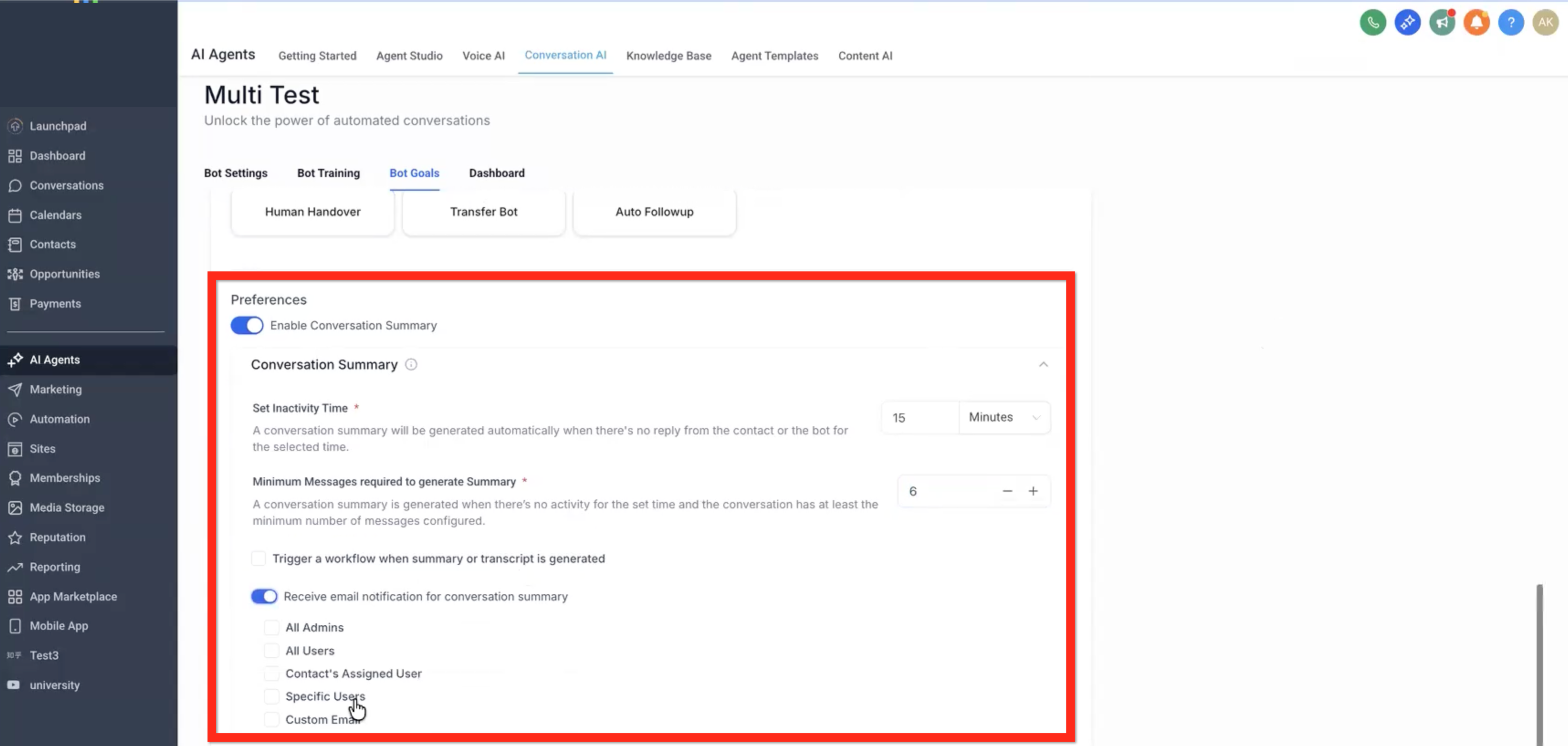
9. Bot Goals Preferences - Conversation Summary and Transcript are described in detail in this article:
Conversation AI Summary and Transcript.
Once enabled, the bot will automatically detect user intent and book appointments in the correct calendar based on conversation context.
AI Configuration Tips (Prompts & Keywords)
Designing effective AI prompts and keywords helps ensure accurate routing:
Use clear service-based keywords like “dentist,” “eye check,” or “consultation.”
Write calendar descriptions in plain language so the AI can understand the context.
Include alternative phrases for common user intents (e.g., “I need a doctor for my eyes” → Ophthalmology).
Keep prompts concise and user-friendly: “Which service would you like to book?” works better than long or complex phrasing.
Viewing Booked Appointments and Calendar Details
After an appointment is created, both the conversation and the appointment detail drawer will display which calendar was used to complete the booking.
Open the conversation thread to see the AI’s confirmation message and slot details.
Click View Appointment to open the details panel.
The assigned calendar name (e.g., Neurology) appears clearly in the Calendar field.
Frequently Asked Questions
Q: Can I use both Single and Multiple Calendar modes?
Yes. You can choose either mode based on your use case. Single Calendar works best for one service; Multiple Calendars is ideal for multi-specialty businesses.
Q: How many calendars can I add?
You can add multiple calendars, but it’s recommended to keep the list concise for more accurate AI matching.
Q: What if the AI can’t identify the correct calendar?
The fallback calendar will automatically handle such cases, ensuring every request results in a booked appointment.
Q. What happens if no calendar matches the user's request?
The booking is routed to the configured fallback calendar.
Q: Will my existing workflows still trigger?
Yes. All previous automations and workflow triggers (such as notifications, reminders, and post-booking workflows) continue to work as before.