
Create, preview, and publish fully custom HTML pages—no builder required—directly inside your SourCherry WordPress environment. Whether you export code from a static-site generator, an AI page builder, or hand-write HTML, the Custom HTML Pages feature keeps all of your hosting under one roof for faster performance and simpler workflows.
TABLE OF CONTENTS
- What are Custom HTML Pages?
- Key Benefits of Custom HTML Pages
- File Requirements & Limitations
- How to Upload a Custom HTML Page in WordPress
- Frequently Asked Questions
- Related Articles
What are Custom HTML Pages?
Custom HTML Pages let you upload a single .html file to your SourCherry-hosted WordPress site and publish it as a live page on your mapped domain. Instead of relying on a drag-and-drop editor, you can upload prebuilt code from any tool—giving developers and agencies full control while maintaining the convenience and security of SourCherry hosting.
Key Benefits of Custom HTML Pages
Using Custom HTML Pages empowers you to expand your website-building workflow without giving up the reliability and performance of SourCherry’s hosting infrastructure.
All-in-one hosting: Manage builder-based and code-based pages within the same WordPress site.
Performance optimized: Static HTML files load instantly for faster site speeds.
Flexible integration: Works seamlessly with AI tools, SSGs, and manual HTML code.
Simplified SSL & domain setup: Uses your existing SourCherry SSL certificates and domain connections.
Future-ready design: Perfect for microsites, custom landing pages, or one-off campaign pages.
File Requirements & Limitations
Understanding file requirements ensures your upload process is smooth and prevents publishing errors.
Only a single .html file can be uploaded at a time.
Maximum file size: 5 MB.
Images, CSS, and JavaScript files must be referenced via absolute URLs (e.g., from a CDN or media library).
Relative paths and multi-folder uploads are not yet supported.
Each upload represents one unique page. (Multiple pages require separate uploads.)
How to Upload a Custom HTML Page in WordPress
Uploading a Custom HTML Page in SourCherry takes only a few clicks and requires no external hosting configuration. Follow the steps below to get your page live in minutes.
Step 1: Navigate to WordPress Hosting
- Go to Sites → WordPress in your SourCherry dashboard.
- Then, click Activate WordPress (if not already enabled).
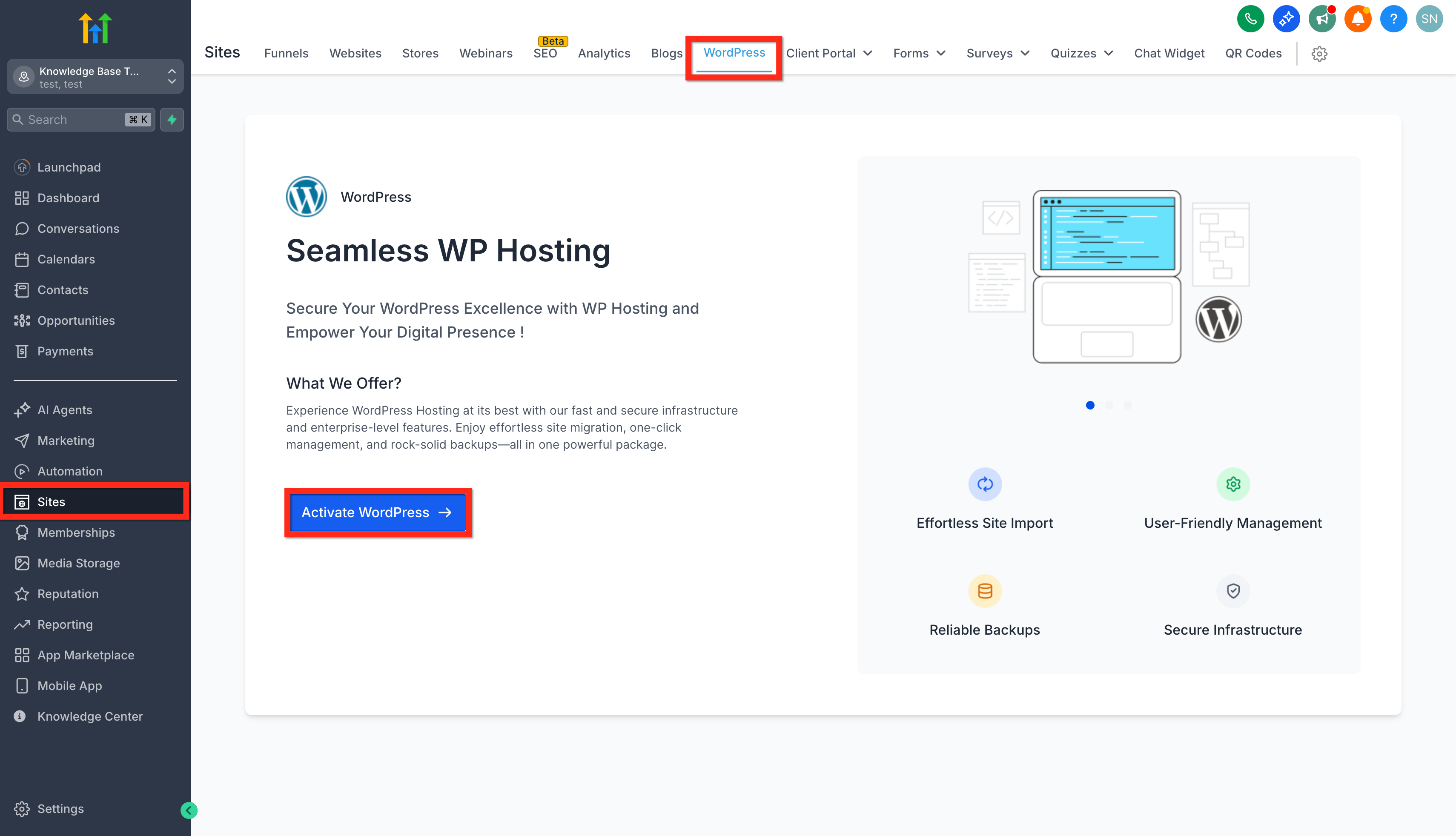
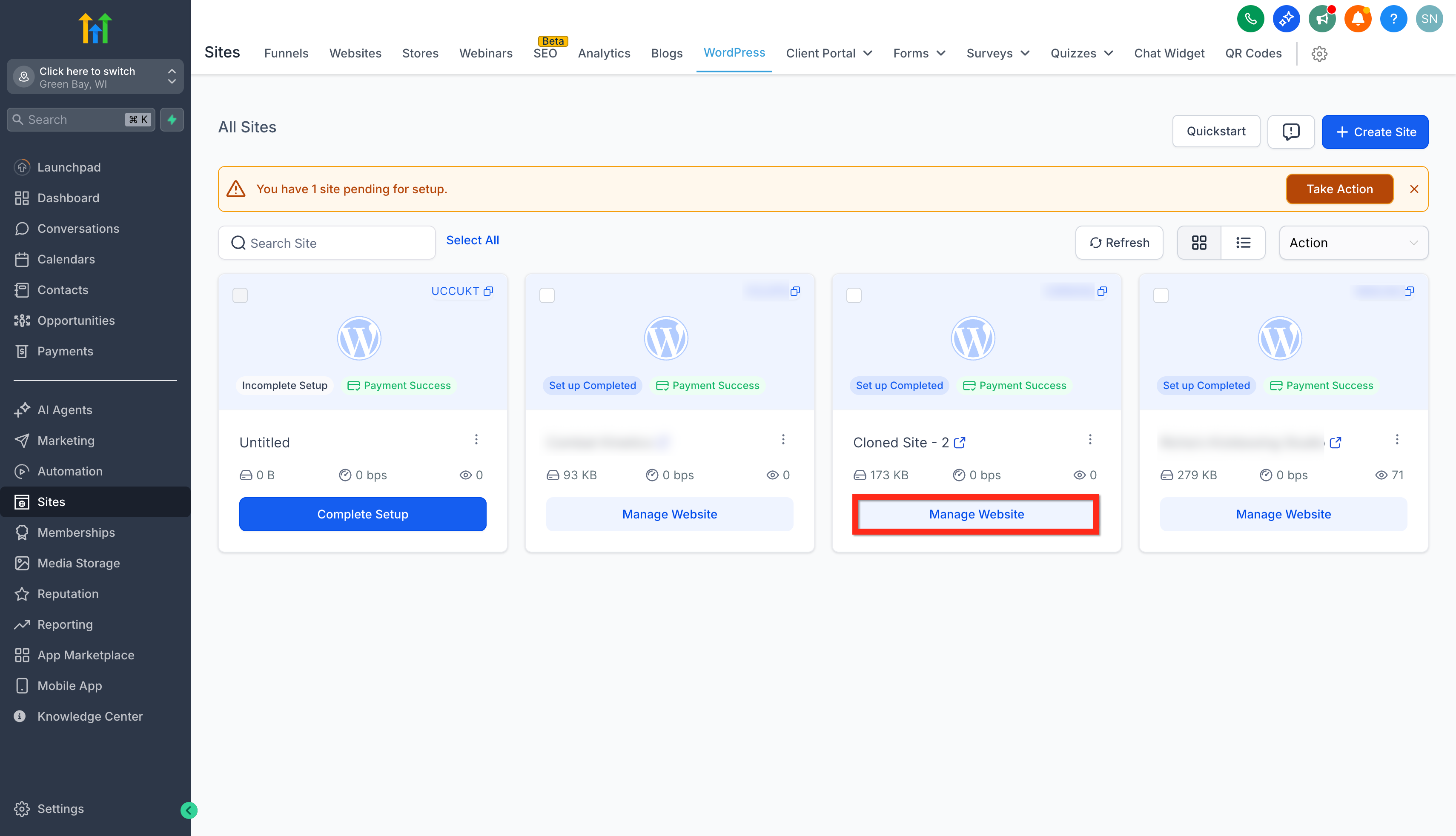
Step 2: Go to the Pages Tab
- Click on the Manage Website button for the WordPress site where you want to upload your HTML file.
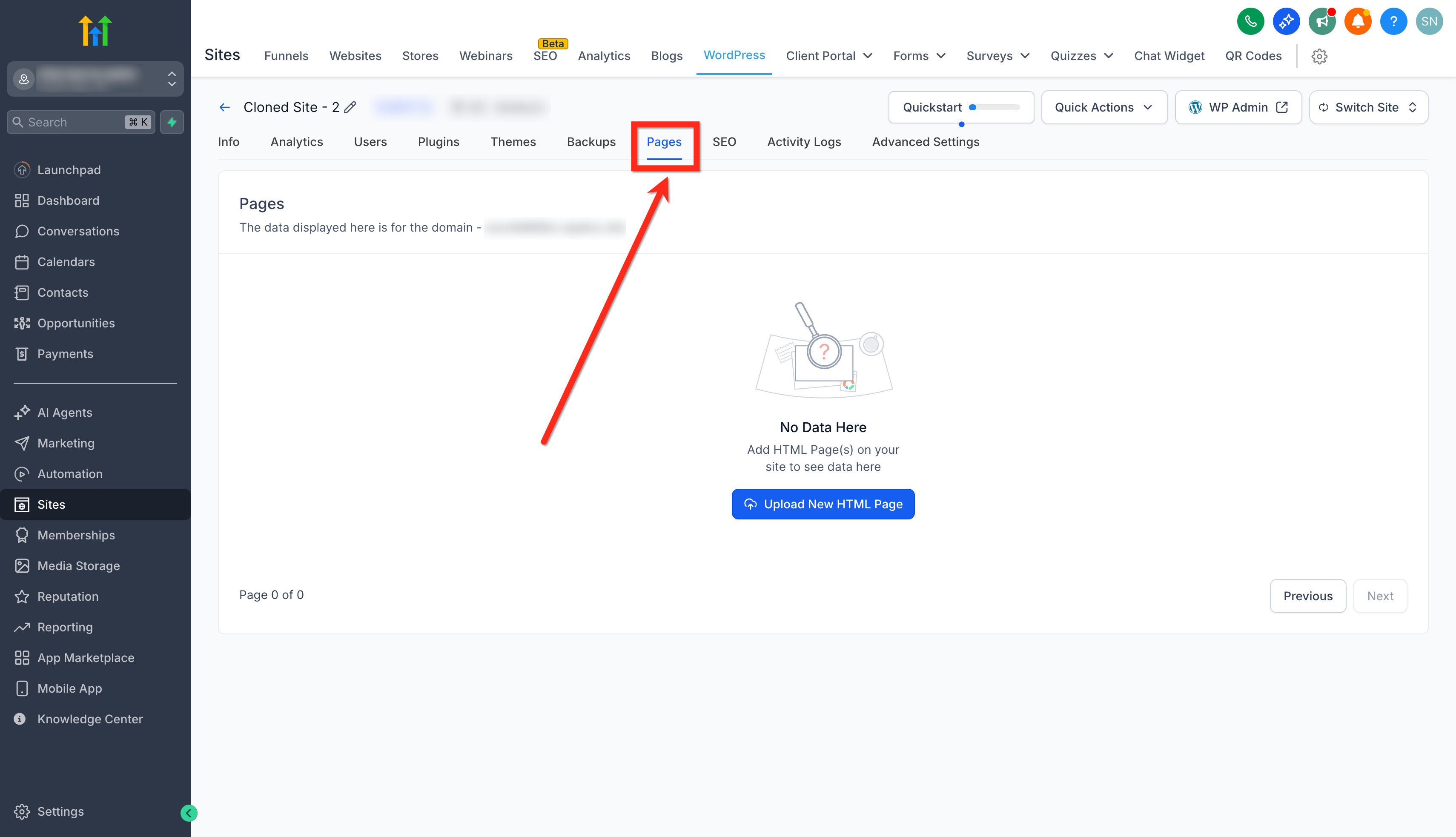
- Click on the Pages tab at the top of the screen.
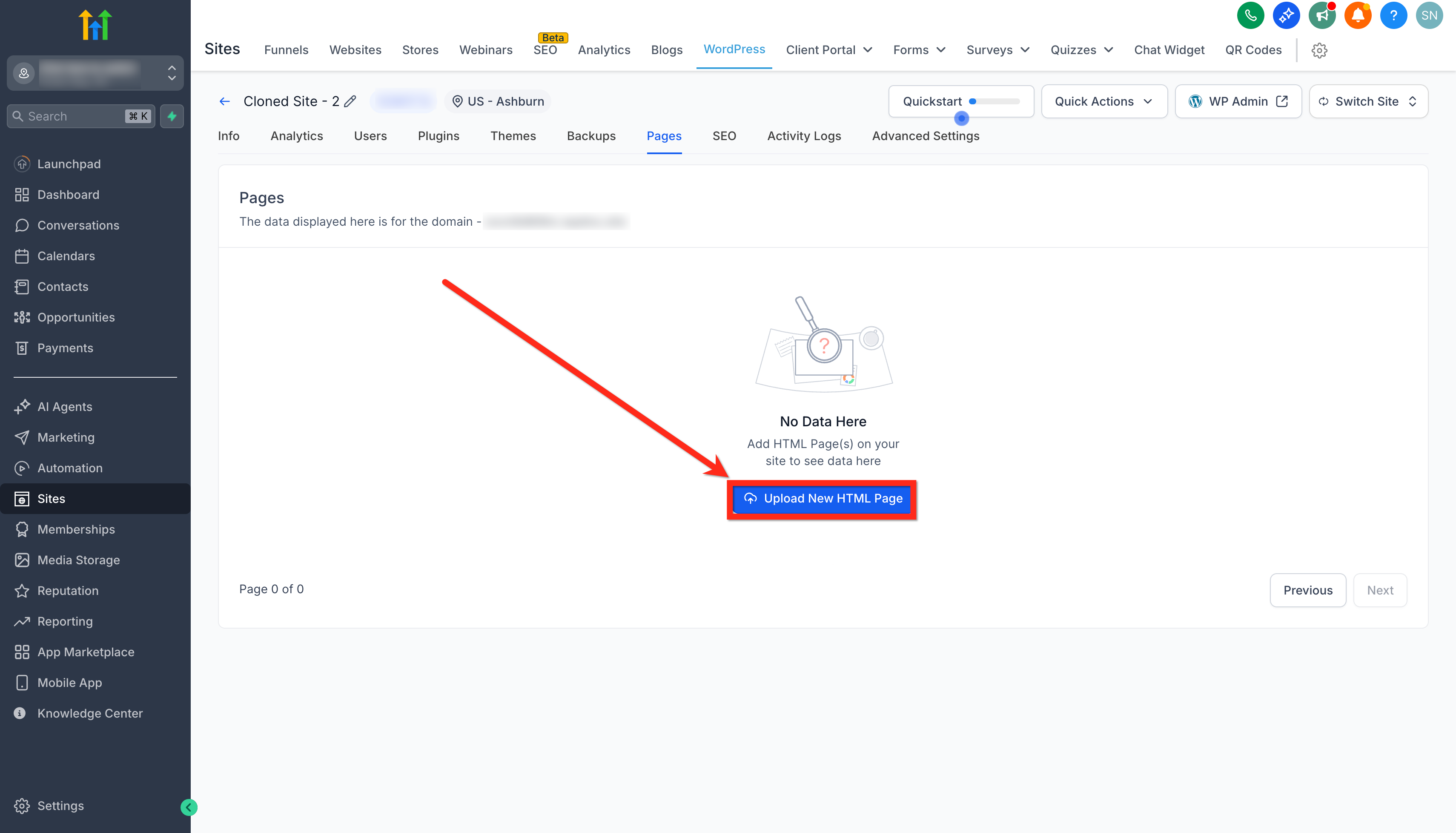
Step 3: Upload a New HTML Page
- Click Upload New HTML Page button.
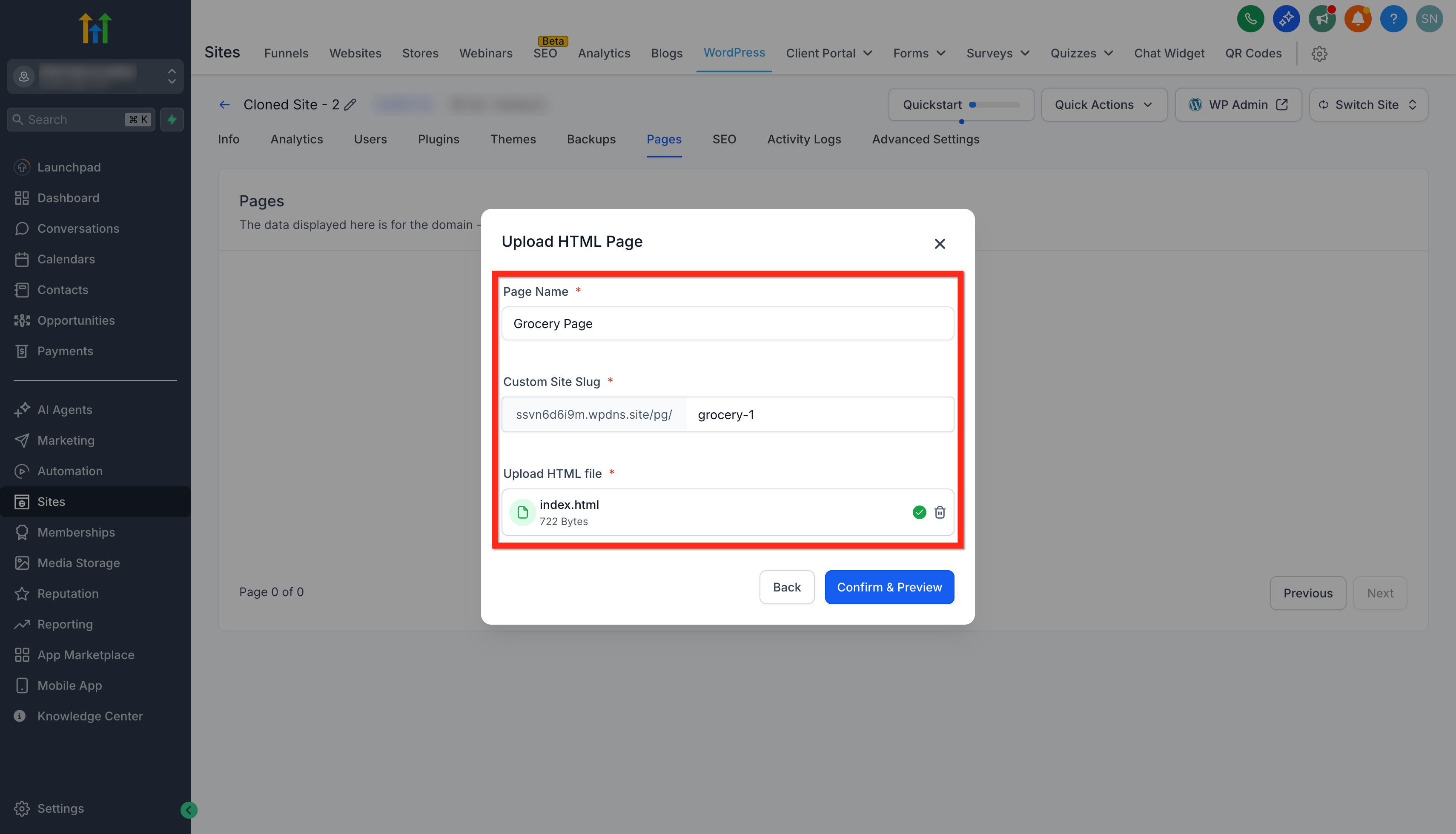
- Enter a Page Name (e.g., “Grocery Page”) and a Custom Site Slug (e.g., /grocery-3).
- Click the upload area to select your .html file.
Step 4: Confirm, Preview, and Publish
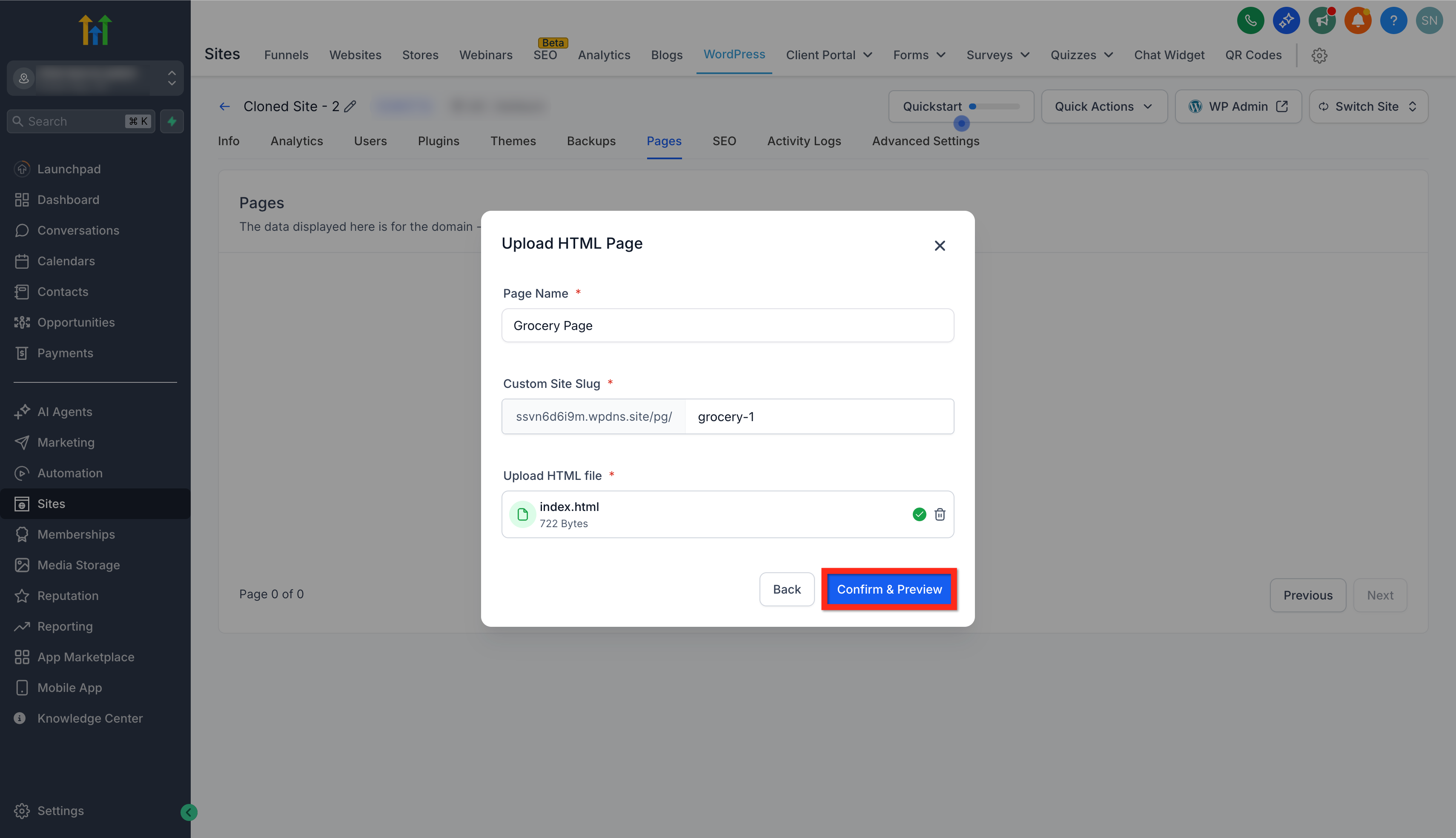
- Click Confirm & Preview to verify the page layout and content.
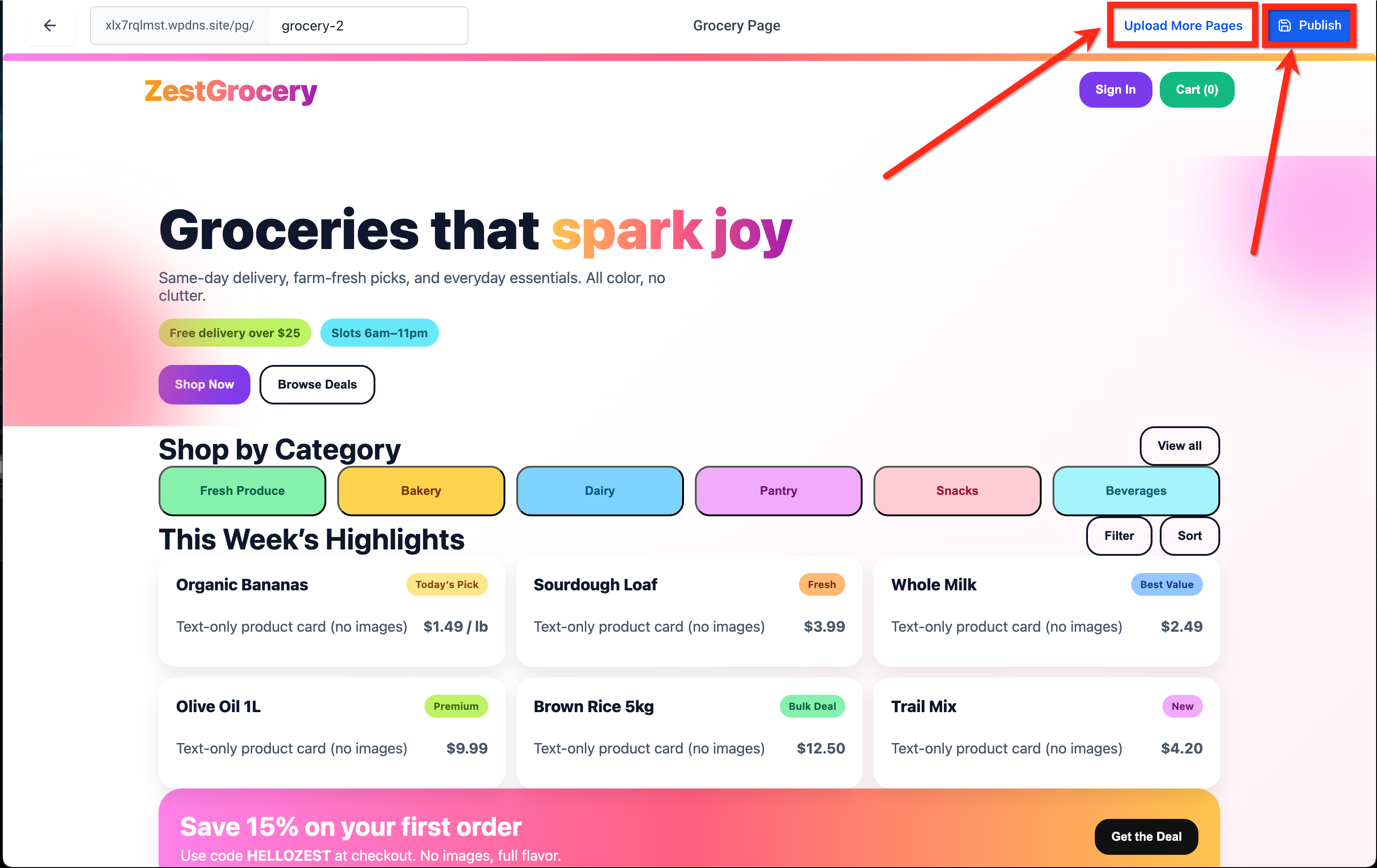
- To upload more pages, click on the Upload More Pages button.
- Once ready, click Publish to make your HTML page live.
Frequently Asked Questions
Q: Can I upload multiple pages at once?
No. Each upload supports one .html file. Multi-page ZIP uploads are planned for a future release.
Q: How do I add CSS, images, or scripts?
Host assets externally (like a CDN or your WordPress media library) and reference them with absolute URLs. Client-side scripts such as analytics or tracking pixels are supported.
Q: Can I edit an uploaded page?
You can’t edit HTML directly in SourCherry. To make changes, update your HTML file locally and upload a new version to replace the existing one.
Q: How do I replace a page I’ve already uploaded?
Open the Pages tab in your WordPress site, click the Action Menu (⋮) beside the page name, and select Upload New Version.This replaces the old file while keeping your original URL and settings intact.
Q: Does this feature require extra hosting fees?
No. It’s included with your existing SourCherry WordPress hosting plan.