
Voice AI Outbound Calling lets businesses place automated outbound calls from SourCherry workflows using Voice AI agents. Use it to automate lead follow-up, appointment outreach, prospect engagement, and reactivation campaigns while staying within platform call limits and safeguards.
TABLE OF CONTENTS
- What is Voice AI Outbound Calling?
- Key Benefits of Voice AI Outbound Calling
- Voice AI Outbound Calling Requirements
- Outbound Call Logic and Guidelines
- Flexible Outbound Calling Framework
- Voice AI Outbound Calling Dashboard
- How To Setup Voice AI Outbound Calling
- Frequently Asked Questions
- Related Articles
What is Voice AI Outbound Calling?
Voice AI Outbound Calling allows businesses to place AI-powered outbound calls from workflow actions in SourCherry. Users can add the Voice AI Outbound Call action to a workflow, select an AI agent, choose a phone number, and let the workflow schedule the call automatically.
The same Voice AI agent can support both inbound and outbound calls when configured with the right prompts and call instructions.
Key Benefits of Voice AI Outbound Calling
Voice AI Outbound Calling helps teams scale phone outreach without manually dialing each contact. It keeps outbound calling organized inside workflows and gives teams reporting tools to review results.
- Automated Call Scheduling: Place outbound calls from workflows without manual dialing.
- Workflow-Based Outreach: Trigger calls from forms, tags, appointments, pipeline changes, and other workflow events.
- Agent Efficiency: Use Voice AI agents to handle outbound conversations and follow-up.
- Scalable Call Volume: Place up to 1,000 outbound Voice AI calls per location per day.
- Faster Throughput: Place up to 10 calls per minute per location.
- Time-Zone-Based Scheduling: Schedule calls between 8:00 AM and 8:00 PM based on the contact’s phone-number timezone.
- Same-Country Domestic Calling: Call domestic numbers in the same country as the location.
- Performance Visibility: Review results in the Voice AI Outbound Calling Dashboard.
Voice AI Outbound Calling Requirements
Outbound Voice AI requires the location and workflow to meet platform requirements before calls can be placed. These requirements help ensure calls are placed from eligible locations and follow supported usage rules.
To use Voice AI Outbound Calling:
- Outbound Calling must be enabled for the location.
- KYC must be completed.
- The location must remain within LC’s Acceptable Use Policy thresholds.
- Calls must be placed through a workflow using the Voice AI Outbound Call action.
- The contact must have a valid same-country domestic phone number.
- The business is responsible for confirming consent before placing outbound calls.
Important: Voice AI no longer performs platform-level contact consent validation before placing outbound calls. Businesses are responsible for managing consent through their own systems, legal workflows, or compliance processes.
Outbound Call Logic and Guidelines
Outbound call limits control how often calls can be placed and when contacts can be reached. These rules help prevent excessive call attempts and keep outbound activity within supported thresholds.
SourCherry enforces the following limits:
- Call rate: Up to 10 calls per minute per location, or one call every 6 seconds.
- Daily location limit: Up to 1,000 outbound Voice AI calls per location per day.
- Daily overflow: Calls above the daily limit are scheduled for the next eligible day.
- Phone-number daily limit: Each phone number can be called once per day.
- Phone-number 14-day limit: Each phone number can be called up to 14 times in 14 days.
- Call hours: Calls are scheduled between 8:00 AM and 8:00 PM based on the contact’s phone-number timezone.
- Country restriction: Calls can only be placed to same-country domestic numbers.
Calls outside supported limits may be delayed, rescheduled, blocked, or marked as failed.
Flexible Outbound Calling Framework
The Flexible Outbound Calling Framework gives businesses more control over how they manage consent before placing outbound AI calls. This allows teams to use their own legal, operational, or compliance workflows while SourCherry continues enforcing platform-level safeguards.
Under this framework:
- SourCherry does not validate contact consent before placing outbound Voice AI calls.
- Businesses are responsible for ensuring contacts can legally receive outbound AI calls.
- Consent can be managed outside SourCherry.
- Platform safeguards still apply, including KYC, call limits, calling hours, same-country calling, and AUP thresholds.
- If a location exceeds LC’s AUP thresholds, outbound calling may be automatically paused.
Businesses should continue honoring opt-outs, DND preferences, and applicable laws before enrolling contacts into outbound Voice AI workflows.
Voice AI Outbound Calling Dashboard
The Voice AI Outbound Calling Dashboard helps teams review outbound call performance and troubleshoot campaign results. It shows call outcomes, sentiment, triggered actions, and the workflow that initiated each call.
Dashboard reporting includes:
- Attempted calls
- Connected calls
- Voicemail, no-answer, and failed calls
- Actions triggered
- Sentiment analysis
- Call logs
- Workflow name
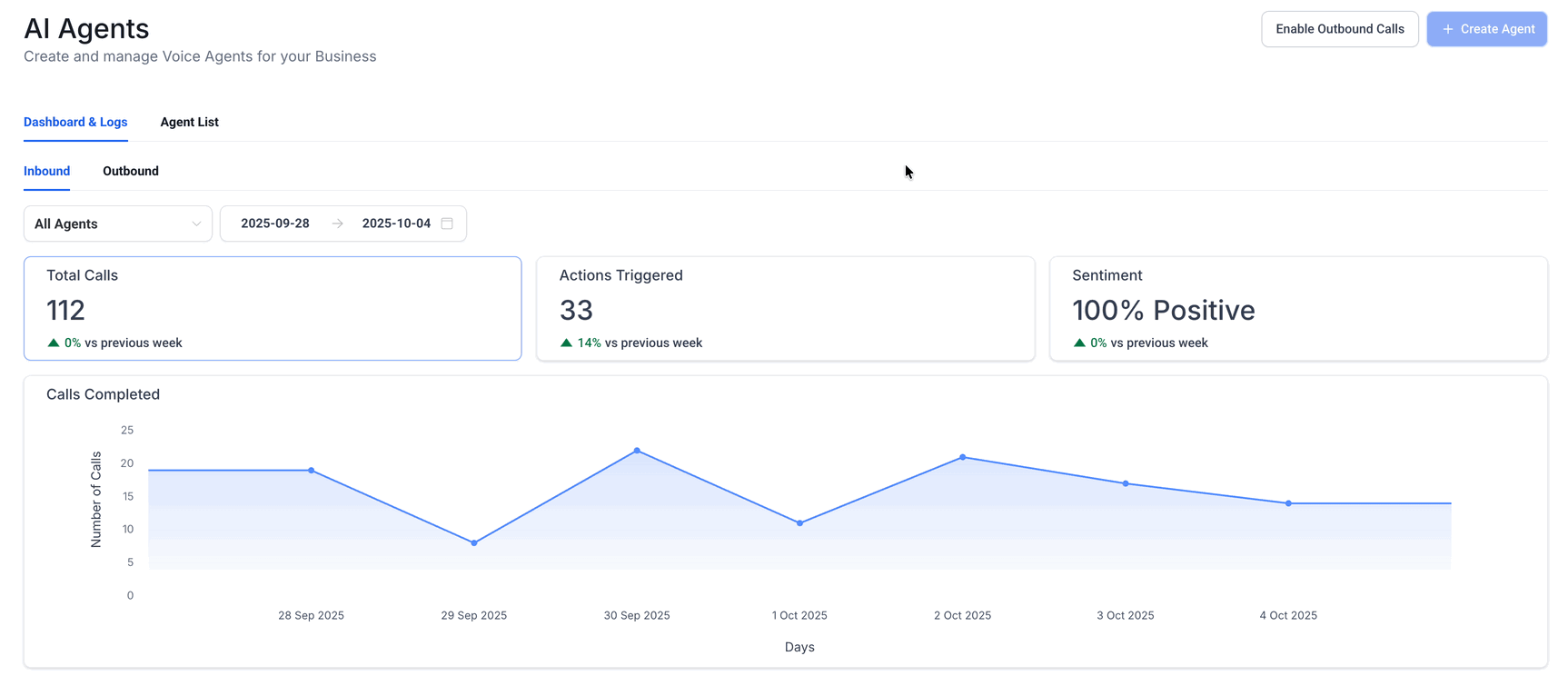
This screenshot shows where users can review Voice AI reporting from AI Agents > Voice AI > Dashboard & Logs, including the Inbound and Outbound tabs.
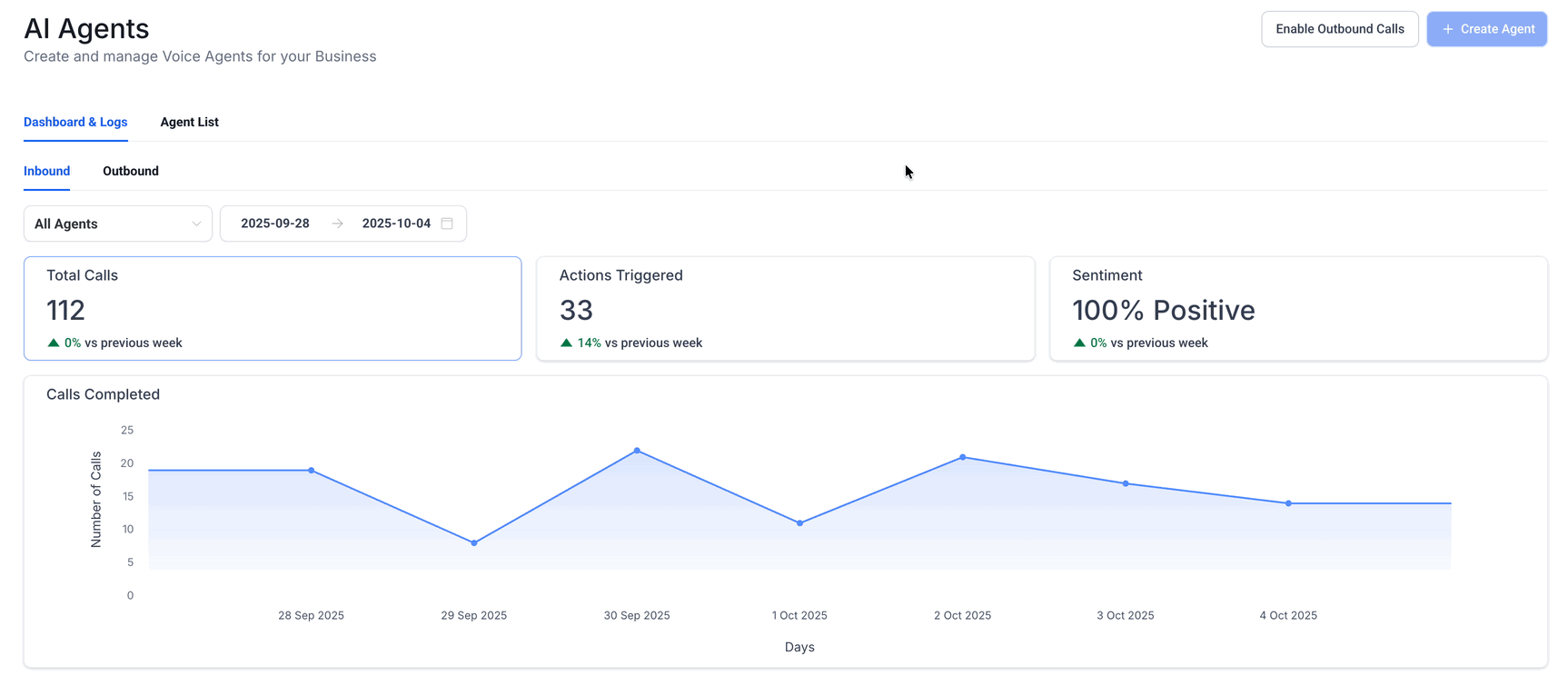
This screenshot shows outbound dashboard metrics such as attempted calls, connected calls, actions triggered, sentiment, and call status distribution.
How To Setup Voice AI Outbound Calling
Proper setup ensures the workflow can place outbound calls using the correct Voice AI agent and phone number.
Step 1: Enable Outbound Calling
- Go to AI Agents.
- Select Voice AI.
- Click Enable Outbound Calls.
- Review and accept the outbound calling terms.
- Complete KYC if prompted.
Step 2: Create a Workflow
- Go to Automation > Workflows.
- Click Create Workflow or open an existing workflow.
- Add the workflow trigger that should start the outbound call flow.
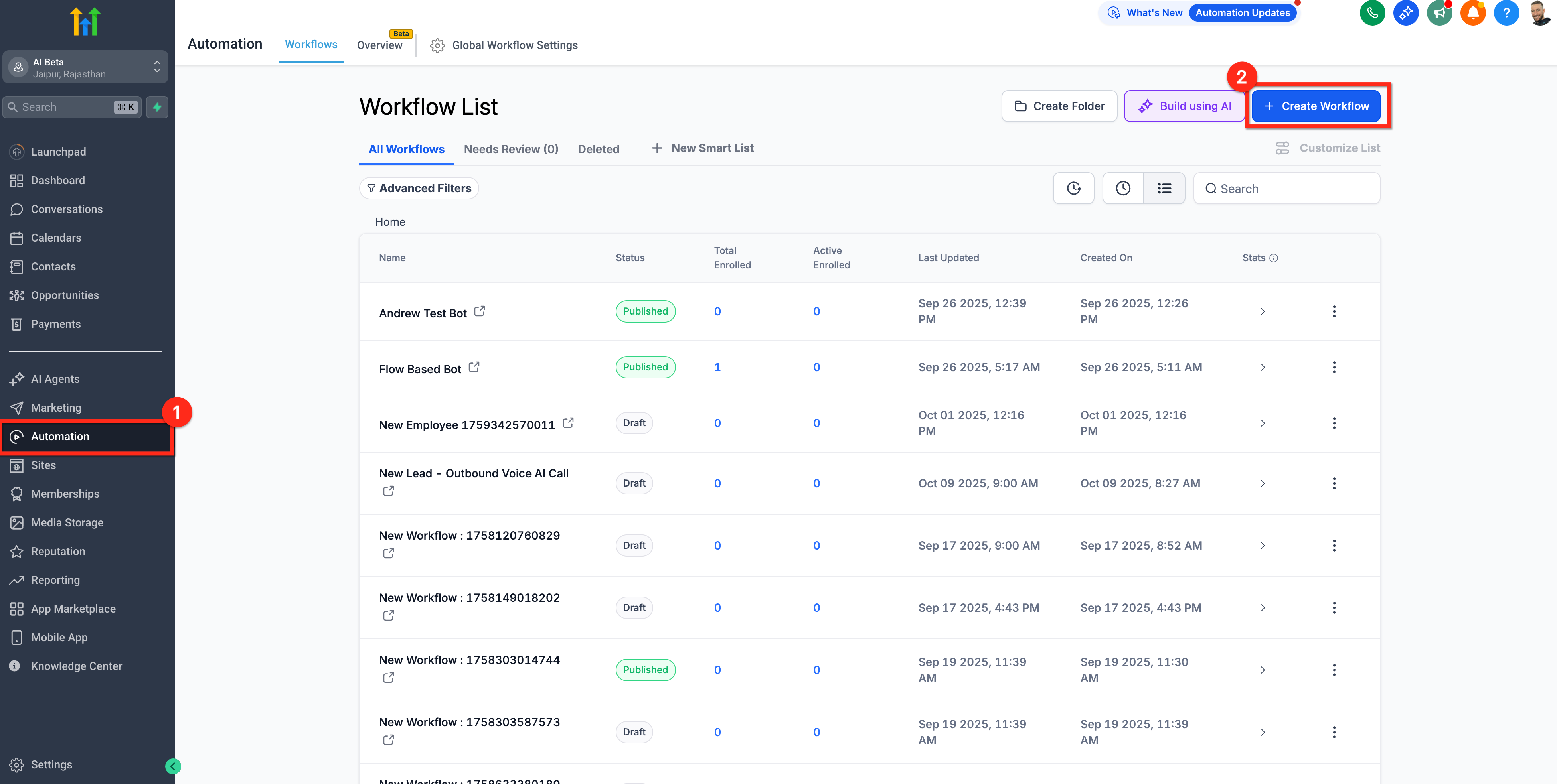
This screenshot shows where users create a workflow for outbound Voice AI calling.
Step 3: Add the Voice AI Outbound Call Action
- Open the workflow builder.
- Click the + icon where the call should happen.
- Search for Voice AI Outbound Call.
- Select the action.
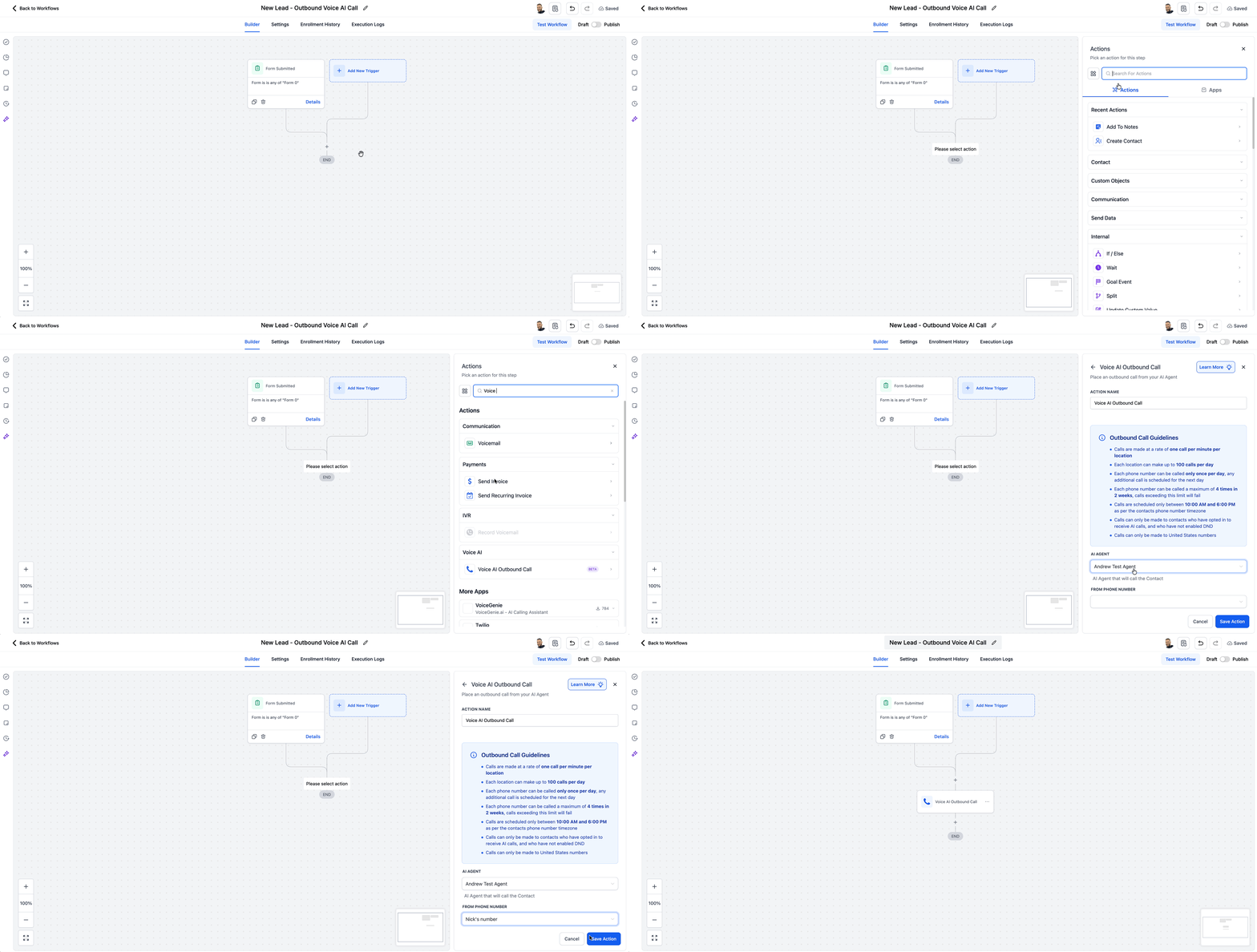
This screenshot shows the workflow builder with a trigger added and where users can add the next action.
Step 4: Configure the Action
Configure the required fields:
- Action Name: Name the workflow action.
- AI Agent: Select the Voice AI agent that will place the call.
- From Phone Number: Select the phone number the agent will call from.
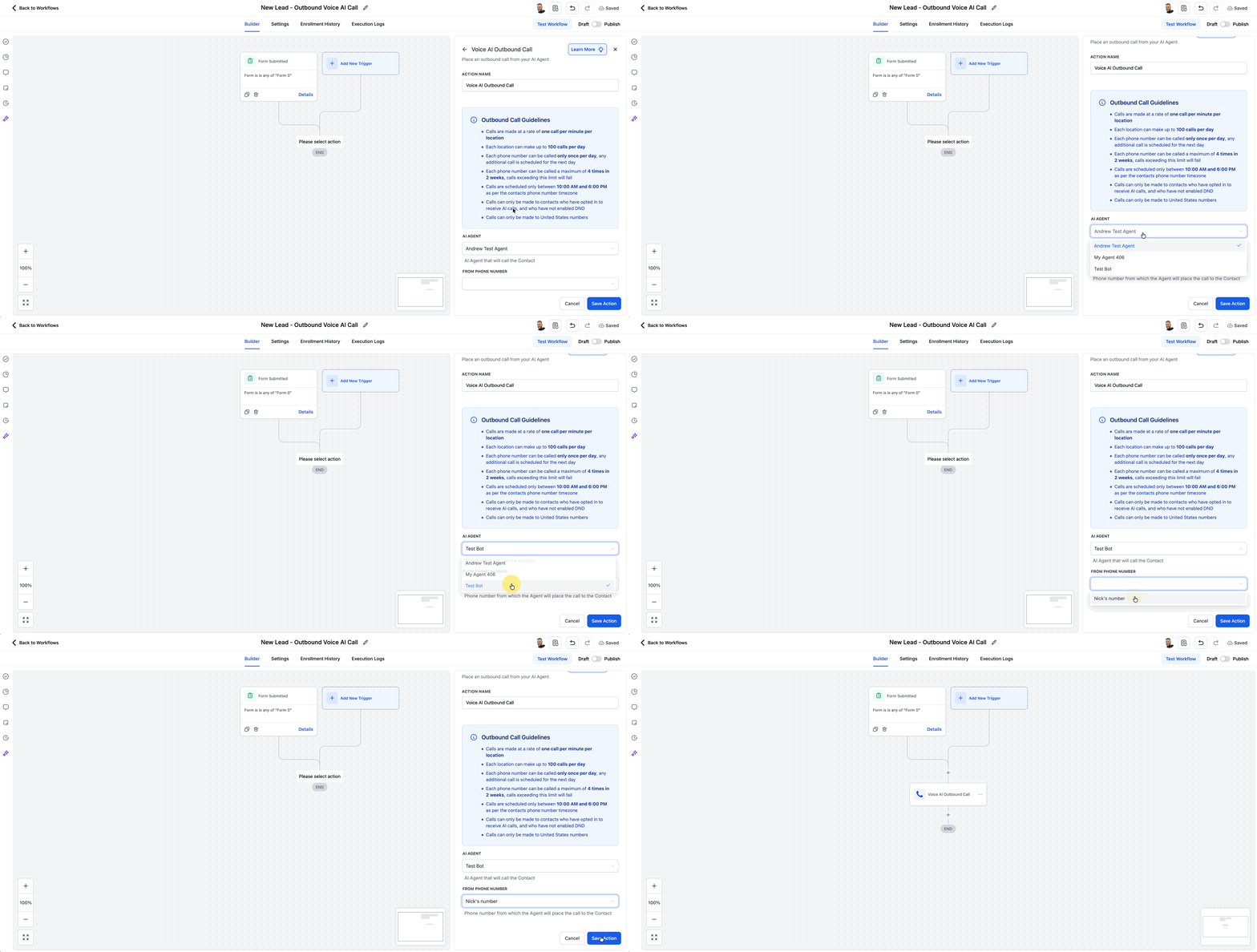
This screenshot shows the action configuration panel with the AI Agent and From Phone Number fields.
Step 5: Save, Publish, and Test
- Save the action.
- Publish the workflow.
- Add yourself or an internal test contact.
- Confirm the call is scheduled and placed.
- Review the call in the Voice AI dashboard and logs.
Frequently Asked Questions
Q: Where do I enable Voice AI Outbound Calling?
A: Go to AI Agents > Voice AI and click Enable Outbound Calls. You may need to accept outbound calling terms and complete KYC.
Q: Can outbound Voice AI calls be placed outside workflows?
A: No. Outbound Voice AI calls are placed using the Voice AI Outbound Call action inside workflows.
Q: Can the same Voice AI agent handle inbound and outbound calls?
A: Yes. The same agent can be used for both, but its prompt should support the correct call type.
Q: How many outbound Voice AI calls can a location place per day?
A: Each eligible location can place up to 1,000 outbound Voice AI calls per day.
Q: How fast can outbound Voice AI calls be placed?
A: Calls can be placed at up to 10 calls per minute per location.