
SourCherry’s redesigned Conversations experience delivers a faster, clearer inbox with four flexible panels, upgraded filtering (including tags + AND/OR), and a modern email composer. Teams can triage, collaborate, and act without leaving the thread. This article explains what’s new and how it helps.
TABLE OF CONTENTS
- What is the New Conversations Experience?
- Key Benefits of the New Conversations Experience
- Navigation and Layout
- 1. Inbox Panel
- 2. Chat List Panel
- 3. Message History Panel
- 4. Right Panel
- Tags Filter
- AND / OR Operators
- Email Composer Enhancements
- Keyboard Shortcuts
- Frequently Asked Questions
- Related Articles
What is the New Conversations Experience?
The Conversations module has been completely redesigned to offer a faster, more intuitive, and user-friendly experience. Every element of the interface has been refined for clarity and responsiveness, allowing teams to manage messages, collaborate, and access context seamlessly. The new design introduces significant performance improvements, advanced filtering options, and a refreshed email composer for a smoother, more efficient communication experience.
The redesign introduces a four‑panel layout, a unified right panel for contact context, advanced filtering (tags + AND/OR), and an upgraded email composer that supports full‑screen drafting or inline replies.
Google review conversations can include the associated Google Business Profile page name in the thread. This makes it easier to identify the source page when you manage reviews from multiple connected pages.
Key Benefits of the New Conversations Experience
Understanding the benefits helps admins and agents decide when to enable the new UI and how to use it day‑to‑day to move faster with higher accuracy.
Performance improvements: Measurable gains across the module.
Better responsiveness: Actions now respond ~70% faster, meeting Google’s “good” web‑vital benchmarks.
Quicker navigation: Page navigation is ~35% faster.
Lower memory usage: Memory consumption is reduced by ~18%, improving performance across all devices.
Single‑screen context: Contact details, documents, payments, and activities live alongside the thread for fewer clicks.
Precision filtering: Tags plus AND/OR operators create focused queues you can save as views for one‑click access.
Flexible composing: Full‑screen email for long drafts; inline replies for quick responses.
Measured memory improvements: Overall memory usage reduced from ~1.7 GB to ~0.45 GB. Memory stays under ~450 MB after switching between ~50 contacts.
- Consistent date formatting in timelines: Dates now use a clear, consistent format that includes the month name (for example, Jan 5). This avoids confusion from numeric formats (mm/dd vs dd/mm) and makes conversation timelines easier to scan.
Built‑in collaboration: Internal comments and @mentions keep team discussion private and organized.
Catch Up on Unread Messages Faster
Unread messages can get buried in long threads, especially when conversations include campaign logs, activities, and other timeline events. The unread message indicator helps you find the exact point where new messages begin so you can respond faster and avoid missing important replies.
When you open an unread conversation, SourCherry automatically takes you to the first unread message in the thread. A New divider marks where unread messages begin.
How it works:
1. Open an unread conversation.
2. The thread automatically scrolls to the first unread message.
3. A New divider appears where unread messages begin.
Important behavior:
- The New divider remains visible until you reply or manually mark the conversation as read.
- The divider continues to appear even if you leave the conversation or refresh the page.
- The New divider is shown only for messages received after April 23, 2026.
This makes it easier to catch up on unread replies without scrolling through long activity-heavy conversations.
Navigation and Layout
The redesigned Conversations module introduces a four-panel layout for improved organization and clarity. These panels are collapsible, so you can adjust your workspace based on your preference:
To collapse or expand the Inbox Panel, click the collapse icon located in the middle of the left panel.
To collapse or expand the Right Panel, click the tab icon on the right edge of the screen.
This flexibility helps you create more reading or reply space when needed.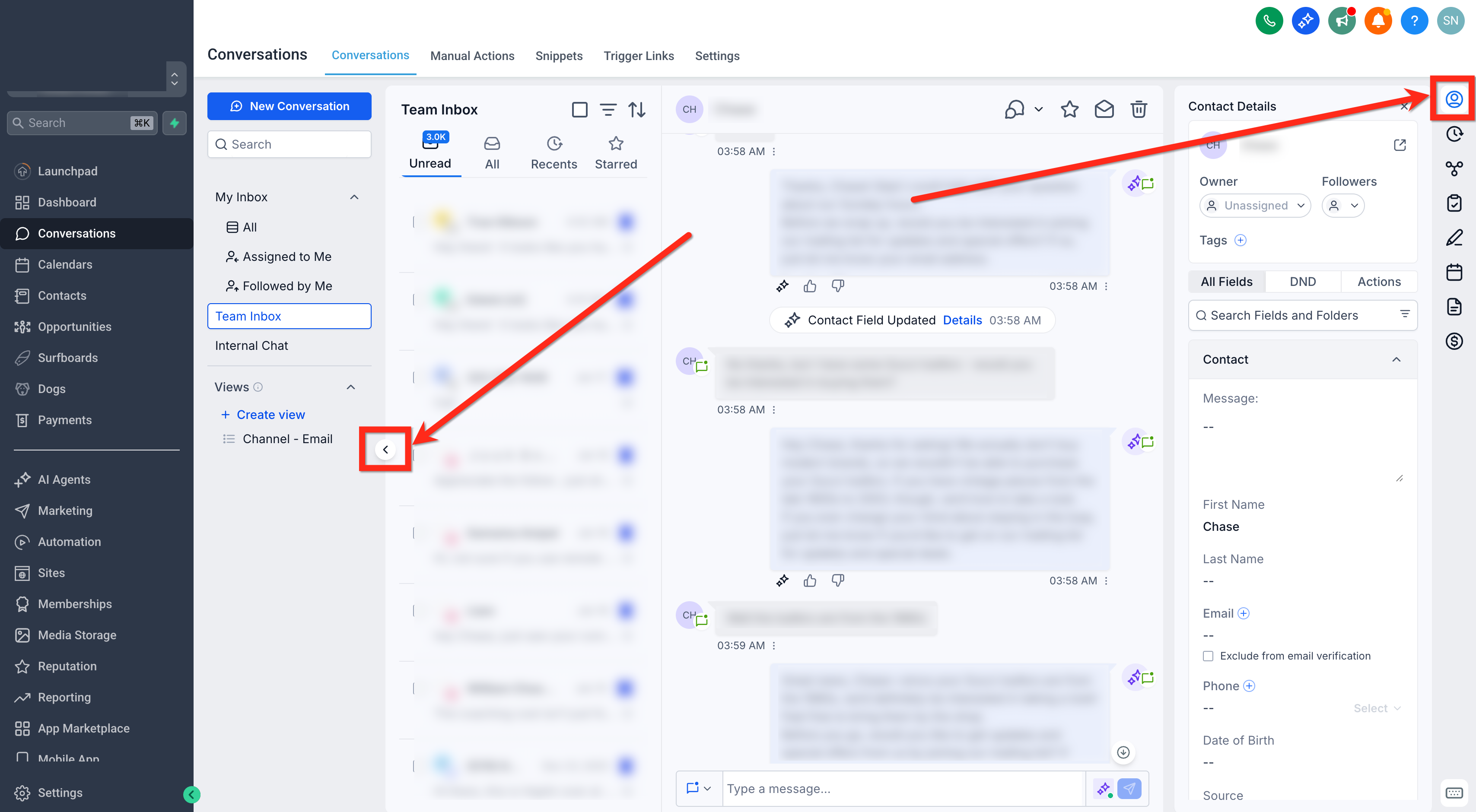
1. Inbox Panel
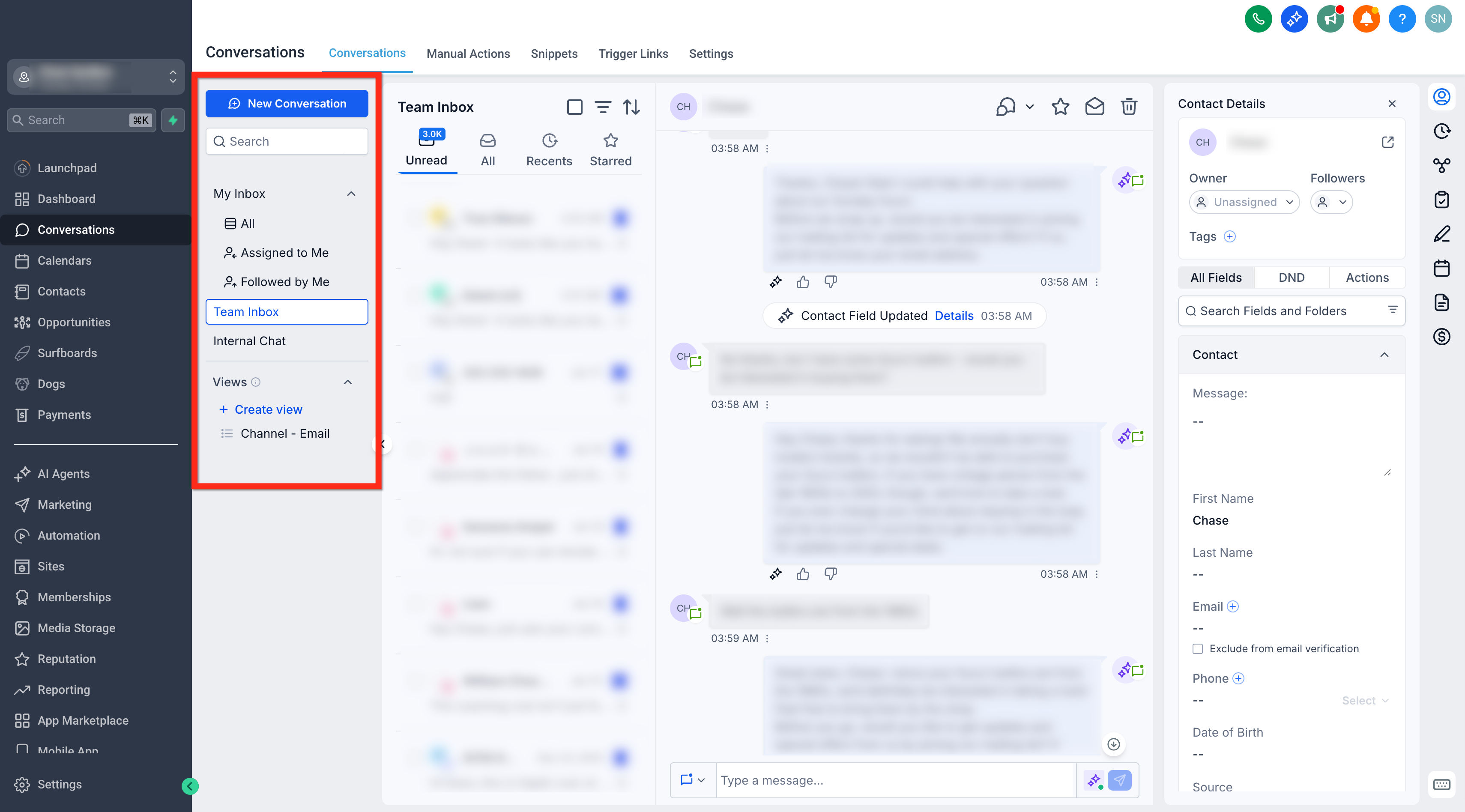
The Inbox Panel controls which set of conversations you’re viewing—personal, team, or internal chat—so you can switch context quickly without changing pages.
My Inbox: Conversations assigned to you or followed by you.
Team Inbox: All conversations within the account (requires full data access).
Internal Chat: Private, team‑only discussions separate from customer threads.
Access notes:
Accounts with Assigned Data Access see My Inbox and Internal Chat (not Team Inbox).
Users with full access permissions can view/manage all three
The Chat List Panel is the second column in the Conversations layout. It displays a list of all conversations based on the inbox, folder, or filter you’ve selected from the Inbox Panel. The Chat List Panel shows the threads matching your current inbox, folder, or saved view so you can scan, select, and take bulk actions quickly.
Check the select box at the top to enable bulk actions: Mark as Read/Unread, Star/Unstar, Delete.
Sort by newest/oldest activity.
Use the Filter icon for channel, tags, owner, and date filters—supports AND/OR combinations.
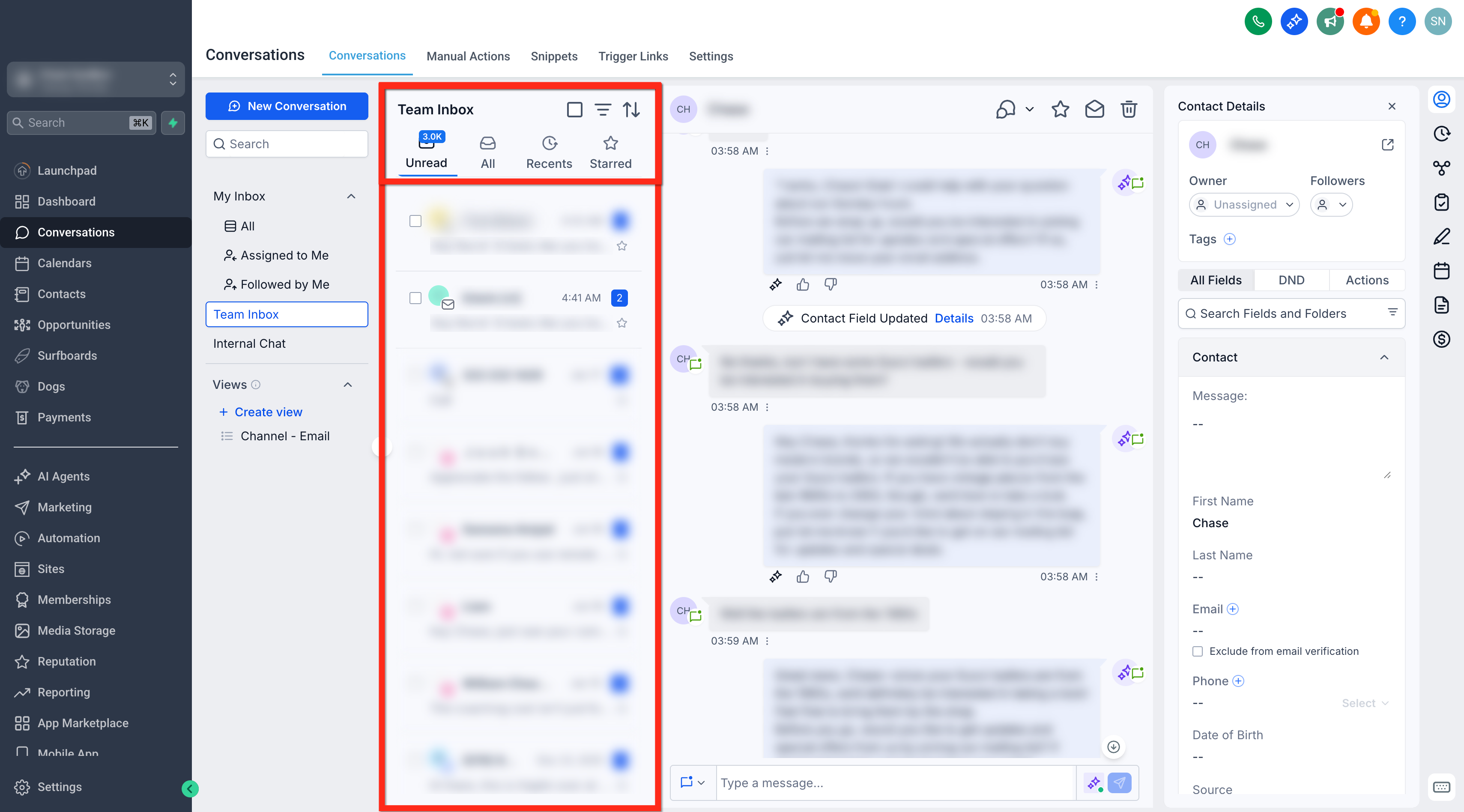
The unread conversation count now updates in real time and remains visible across all tabs within the inbox.
- The count updates instantly when new messages arrive
- It decreases immediately when conversations are marked as read
- The unread badge remains visible even when viewing tabs like “All” or “Mine”
This eliminates the need to switch to the Unread tab to monitor new messages and helps teams respond faster.
3. Message History Panel
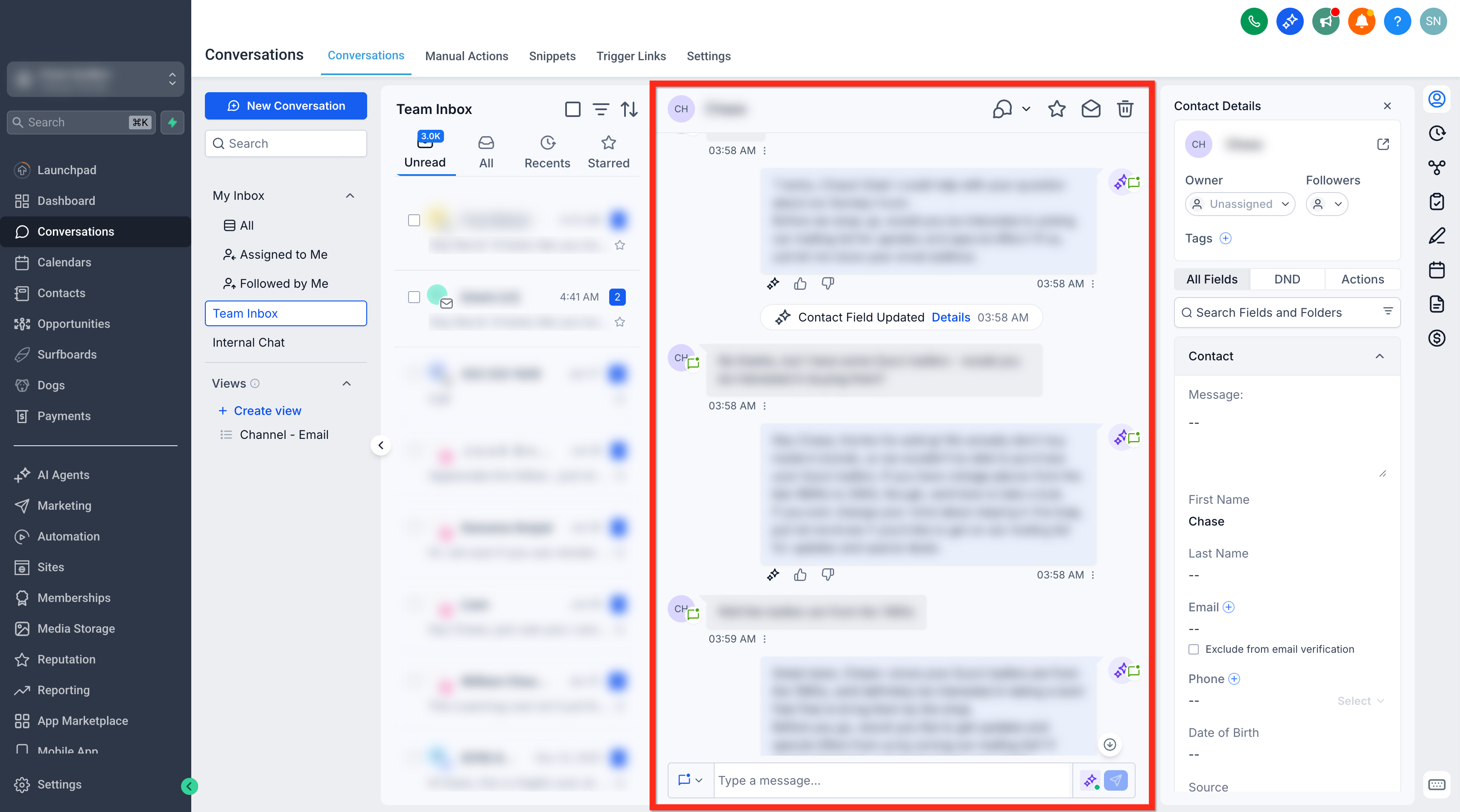
The Message History Panel is your main reading and reply area. It supports multi‑channel timelines, quick replies, and message‑type filtering to find context fast.
Read the full history across Email, SMS, WhatsApp, Facebook/Instagram messages, and Internal Comments.
Filter the visible timeline to focus on specific items (see next section).
Real-time channel updates:

If you add or update a contact’s email address in the Right Panel, the composer updates immediately. You can switch to Email without refreshing the page.
View call transcripts while editing contact details
Call transcripts open in the Message History Panel. This keeps the Right Panel available so you can update contact details while reviewing the transcript.
1. Open Conversations and select a conversation with a recorded call.
2. On the call card, click View Transcript.
3. Review the transcript in the Message History Panel.
4. In the Right Panel, update contact fields (for example, Email or Phone) without closing the transcript.
5. Click Hide Transcript when you are done.
Switching Between Channels
Choose the best channel for each reply without leaving the thread—ideal for moving a conversation from SMS to email, or adding internal notes.
Open the channel selector in the composer to switch between available channels.
Channel selection persists on collapse/expand: If you collapse and reopen the composer within the same conversation, Conversations remembers the last channel you selected so you can continue where you left off.
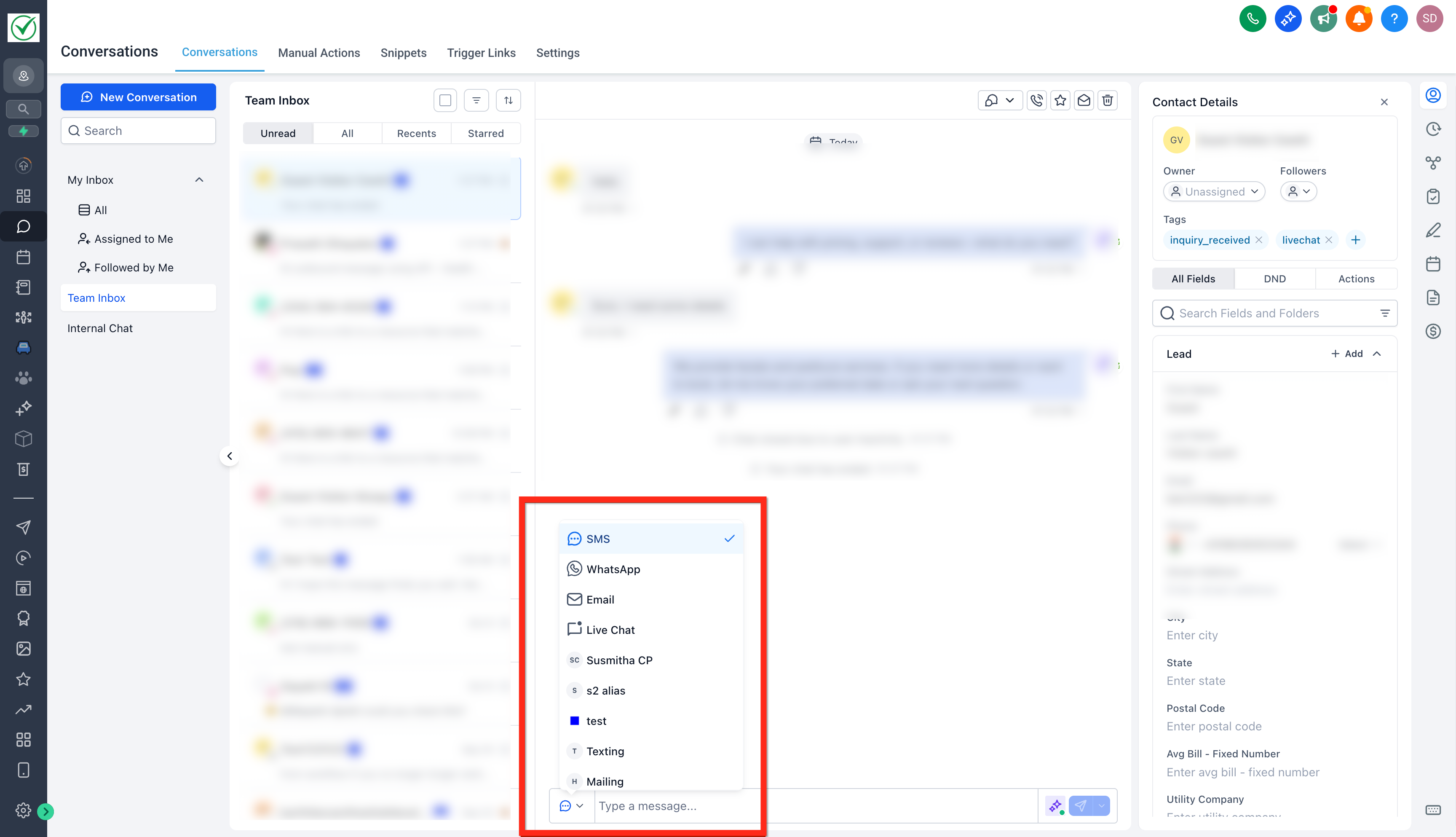
- Select Internal Comment to add a private note (customer will not be notified).
- Internal comment drafts persist across channel switches, composer collapse/expand, and conversation changes.
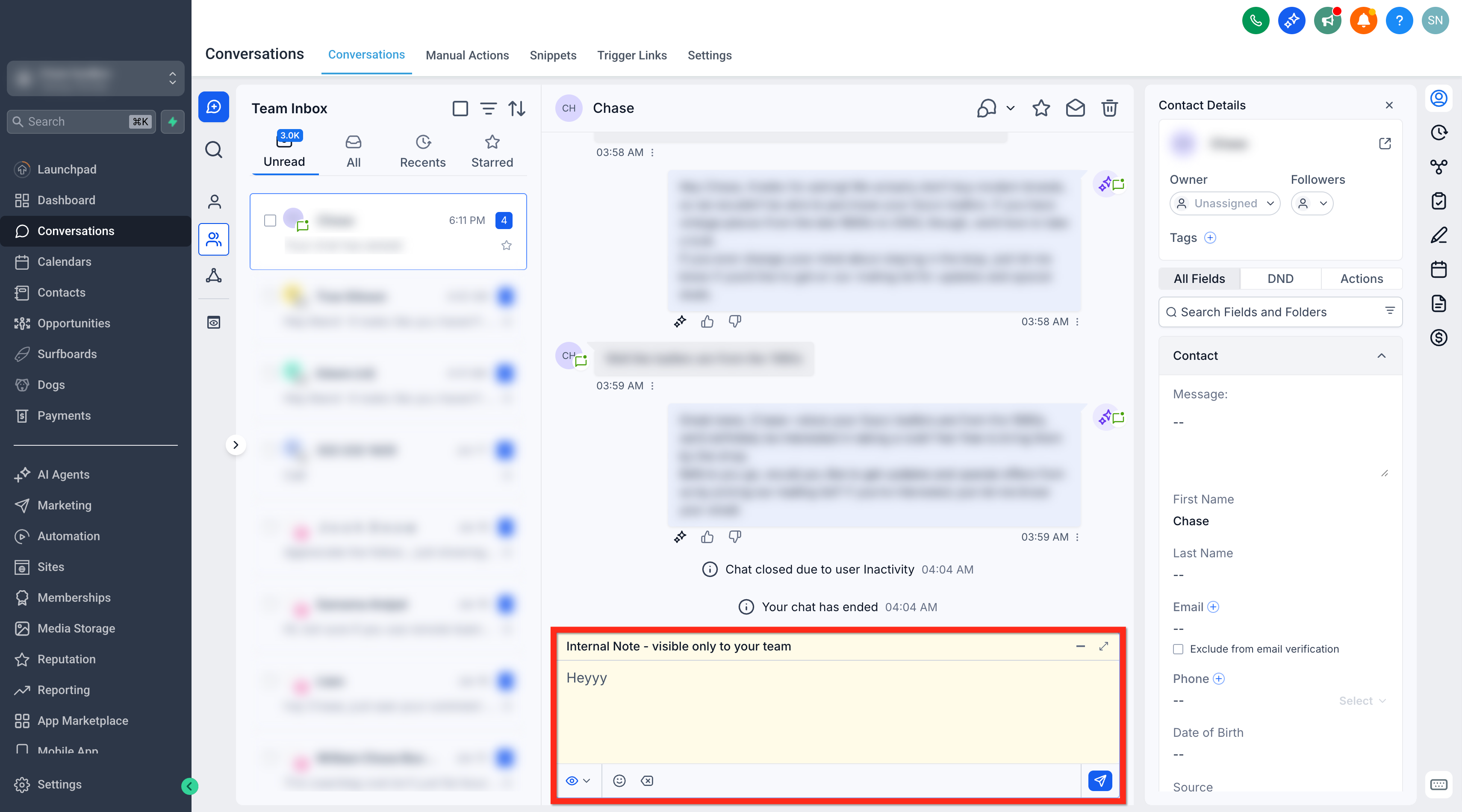
Message Composer
The composer provides the tools to write clearly, attach files, and send through the correct channel—all from the bottom of the conversation.
Text formatting and Inline Reply Composer opens directly below the active message, keeping context visible while replying.
Full-screen mode for long replies
File attachments and links
Paste files or images directly from your clipboard into the composer to attach them quickly (Ctrl + V on Windows, Cmd + V on Mac).
Quick send using the send icon on the right
Replies send via the selected channel in the composer
Click Internal Comment in the composer to switch between a customer reply and an internal note without leaving the conversation.
Filtering Messages Within a Conversation
Timeline filters help you isolate specific parts of a long thread—like only emails, only internal notes, or only activities—so you can find context quickly.
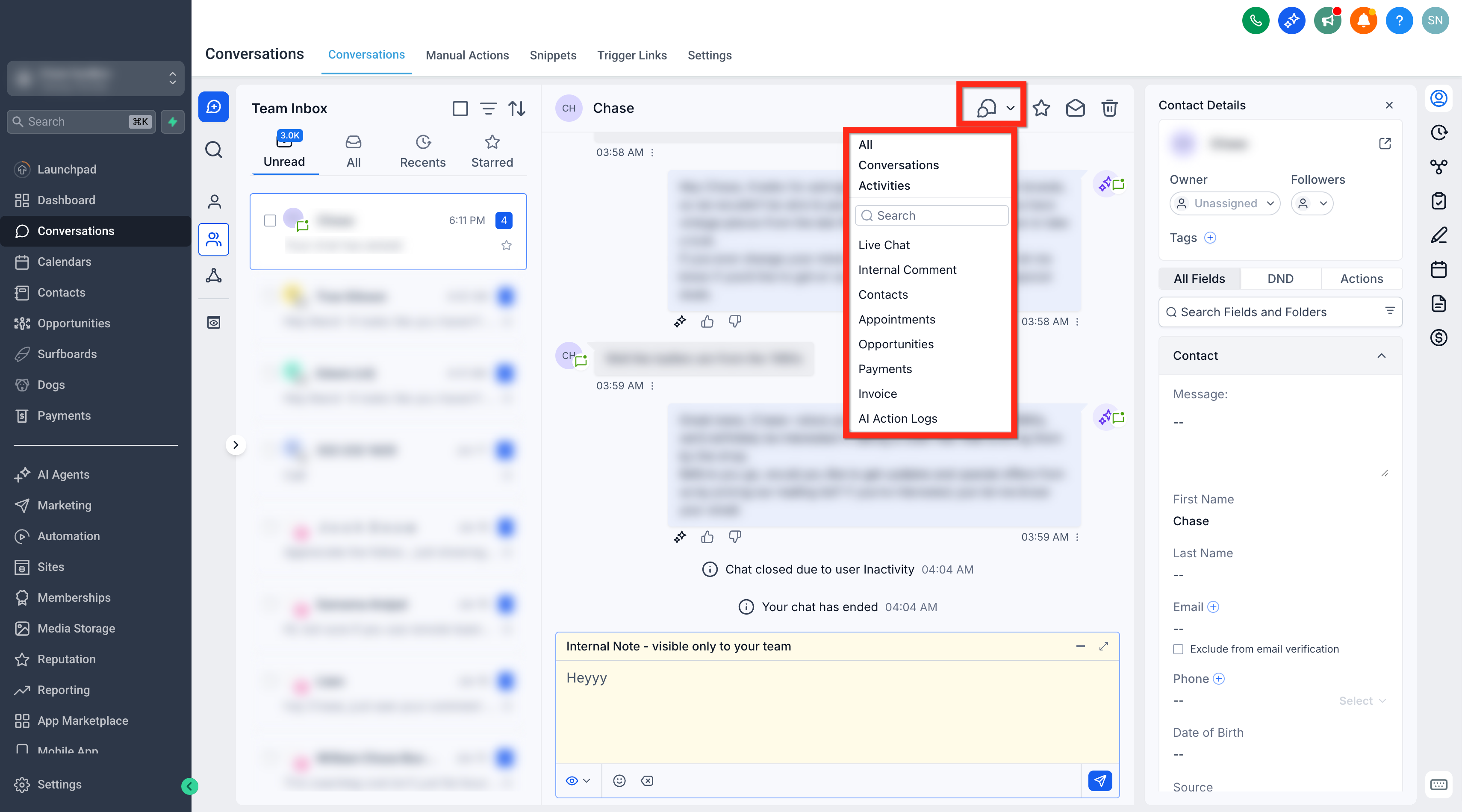
Use the message filter at the top‑right of the timeline to show:
All messages
Conversations (direct exchanges with the contact)
Activities (appointments, updates, etc.)
Email / Internal Comment / Contacts / Opportunities / Payments / Invoices / AI Action Logs
Use the search bar within the filter menu to locate message or activity types faster.
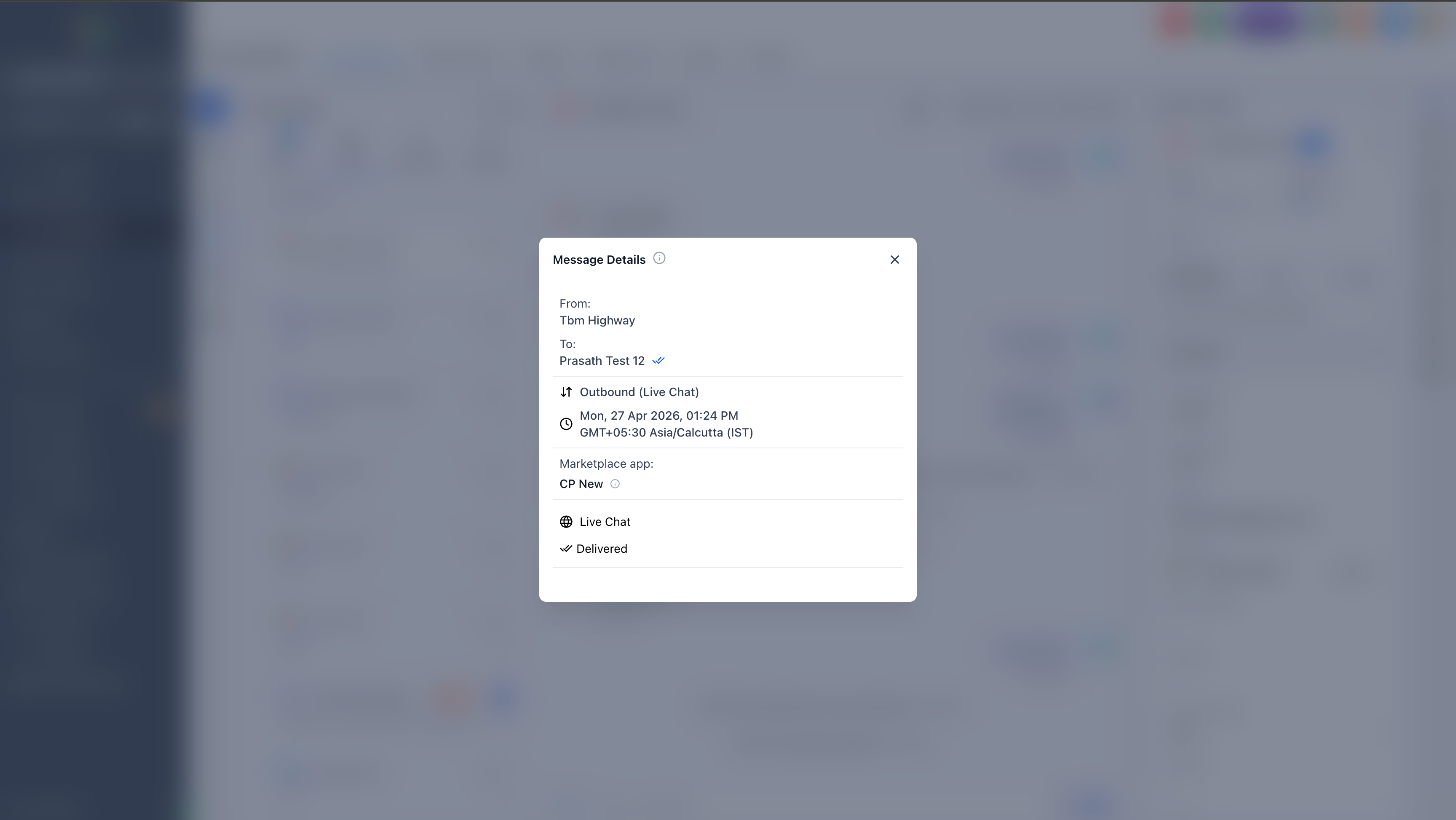
View Message Source in Message Details
Message details help you understand where a message came from, which is especially useful when a message was triggered by an integration instead of being sent manually.
For messages sent through a Marketplace App or custom provider, the message details panel can show the source app information so you can identify which integration sent the message.
To review message source details:
1. Open Conversations.
2. Select the conversation you want to review.
3. Open the message details for the sent message.
4. Review the available source information, such as the Marketplace app name and related app details.
This makes it easier to troubleshoot unexpected messages and understand which integration triggered the send.
4. Right Panel
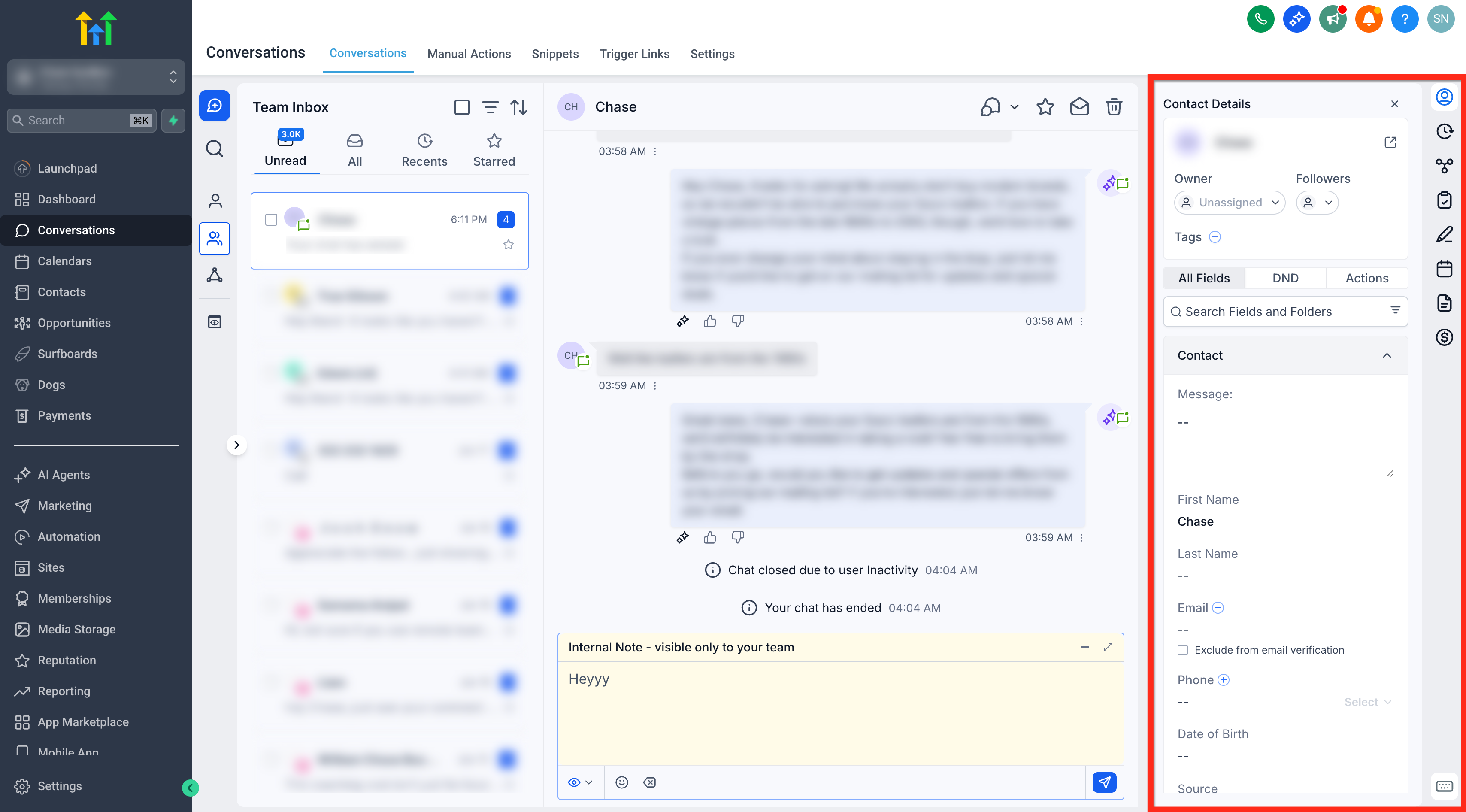
The Right Panel centralizes contact context so you can view and edit details, files, payments, and related records without leaving the conversation. Everything that was available on the Contacts page - including custom fields, folders, and actions — is now integrated into this panel, giving you full control and visibility while chatting with a customer.
What you can do from the Right Panel:
View and edit contact fields, custom fields, folders, tags, and owner
Create/view opportunities, appointments, invoices, and payments
Switch tabs such as Contact, Activities, Associations, Documents, and Payments
Tags Filter
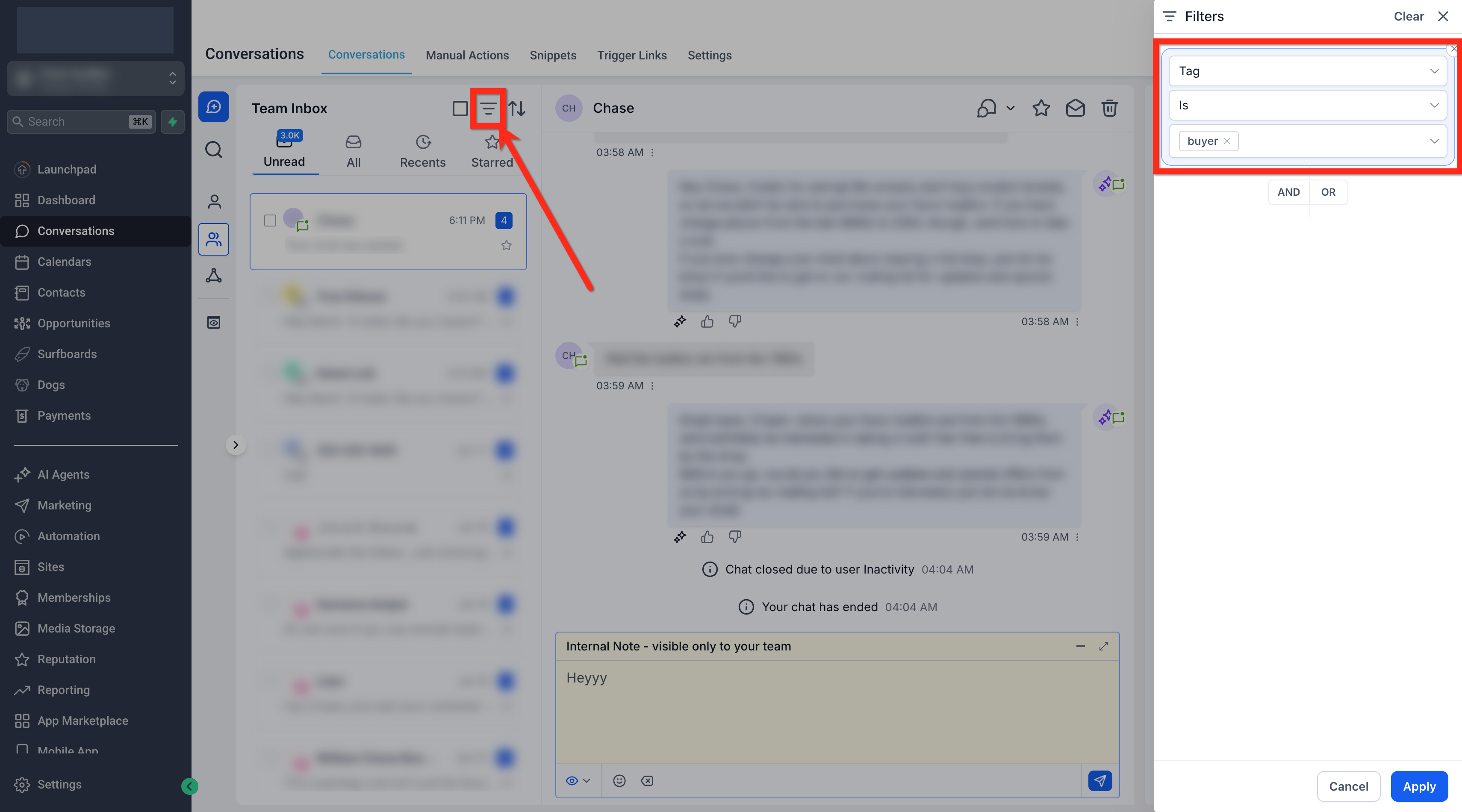
You can now filter conversations based on tags, allowing precise segmentation by category or workflow.
Examples:
View all conversations tagged as High Priority
See all leads marked with Follow-up Required
Multiple tags can be applied simultaneously for refined control.
AND / OR Operators
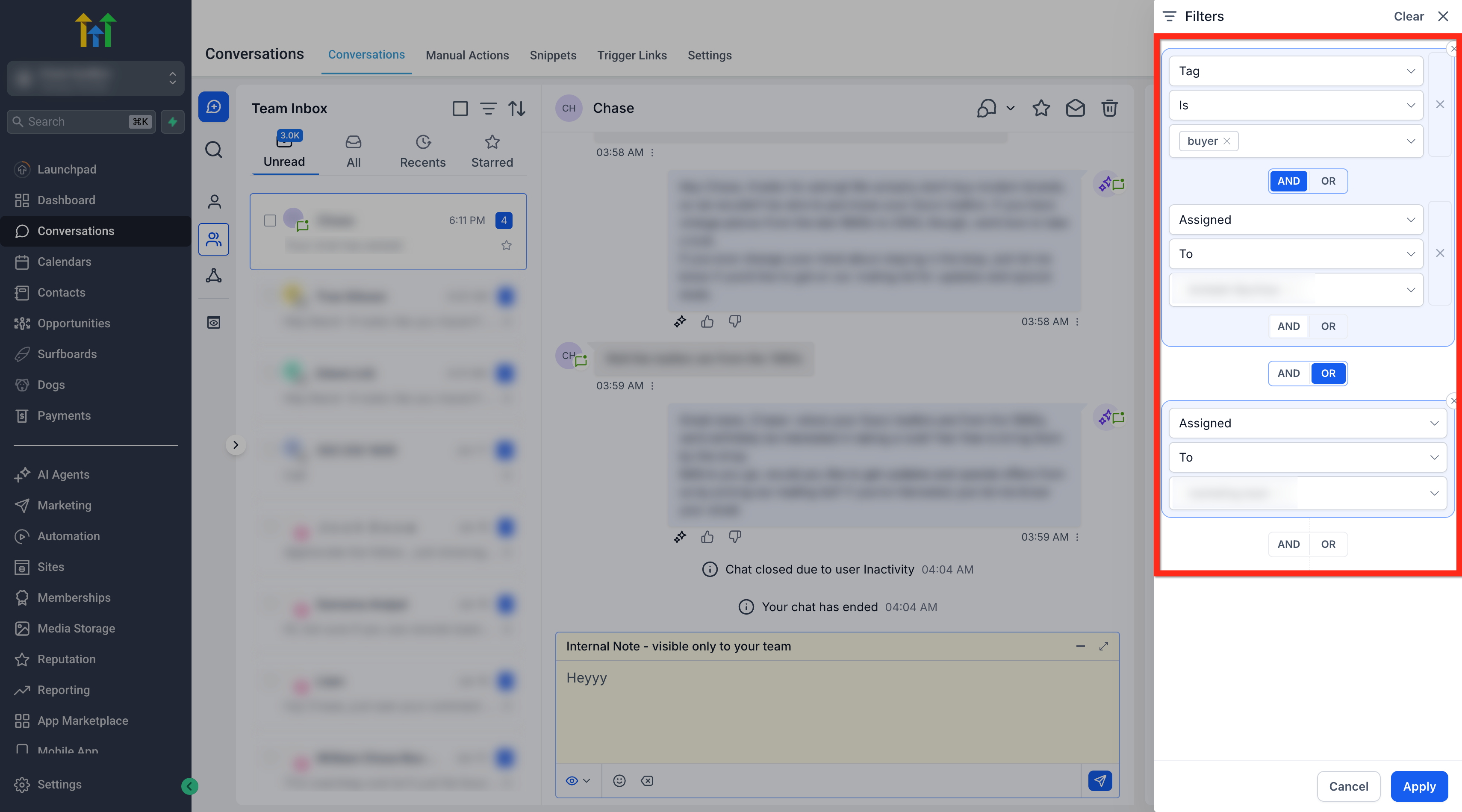
The new filtering system supports conditional operators, giving you flexibility to combine multiple criteria:
Use AND to display conversations that meet all selected conditions.
Example: Conversations tagged High Priority AND assigned to you.
Use OR to display conversations that meet any of the selected conditions.
Example: Conversations from Email OR WhatsApp channels.
This makes it easier to build complex filters that match your specific workflow — from isolating urgent support requests to reviewing multi-channel campaigns.
Email Composer Enhancements
The email composer in the redesigned Conversations module has been upgraded for a clearer, smoother, and more flexible writing experience.
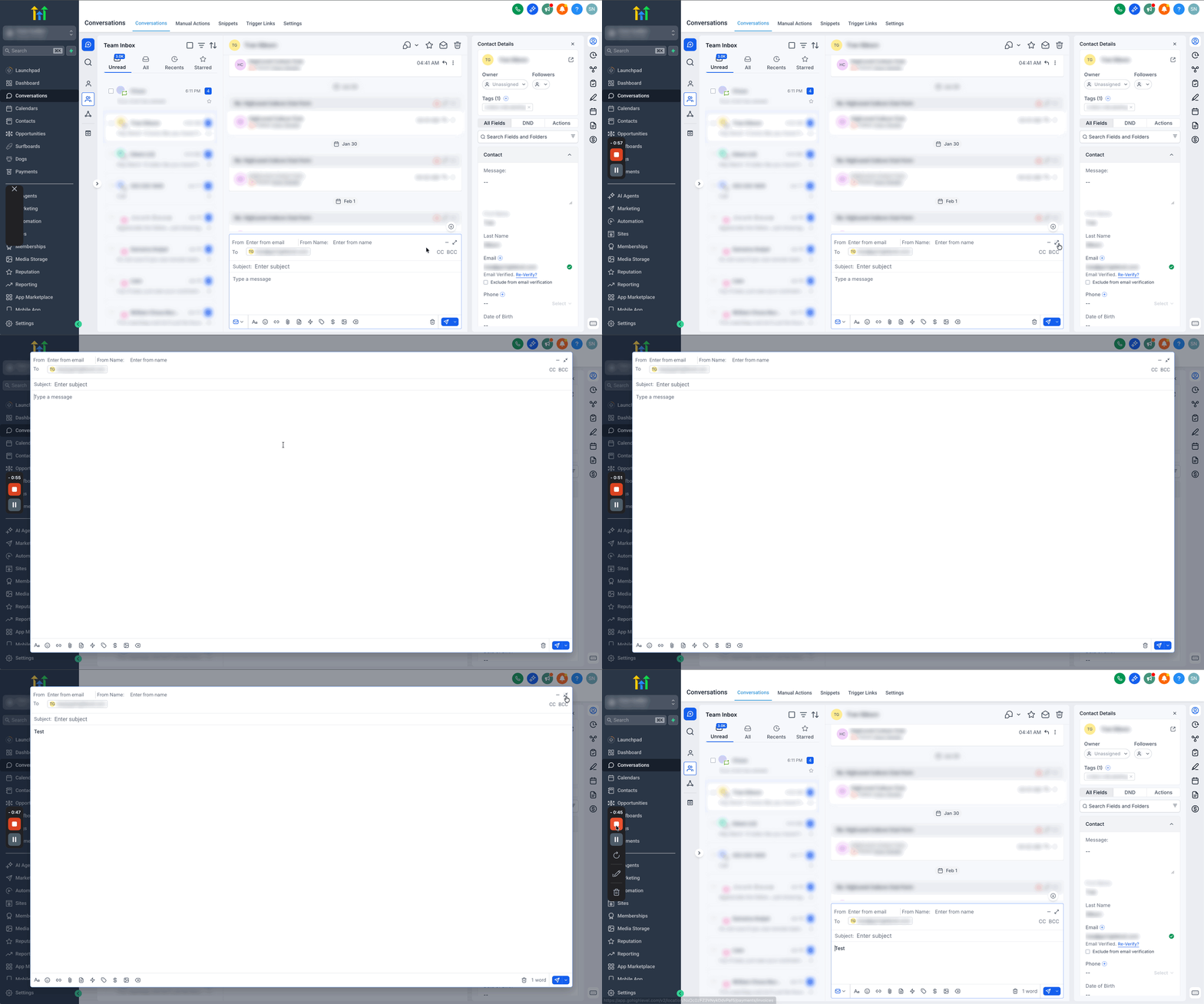
Full-View Composer
You can now expand the composer into a full-view layout to draft longer or more detailed emails comfortably.
This provides more space for formatting, adding attachments, and reviewing your message before sending.
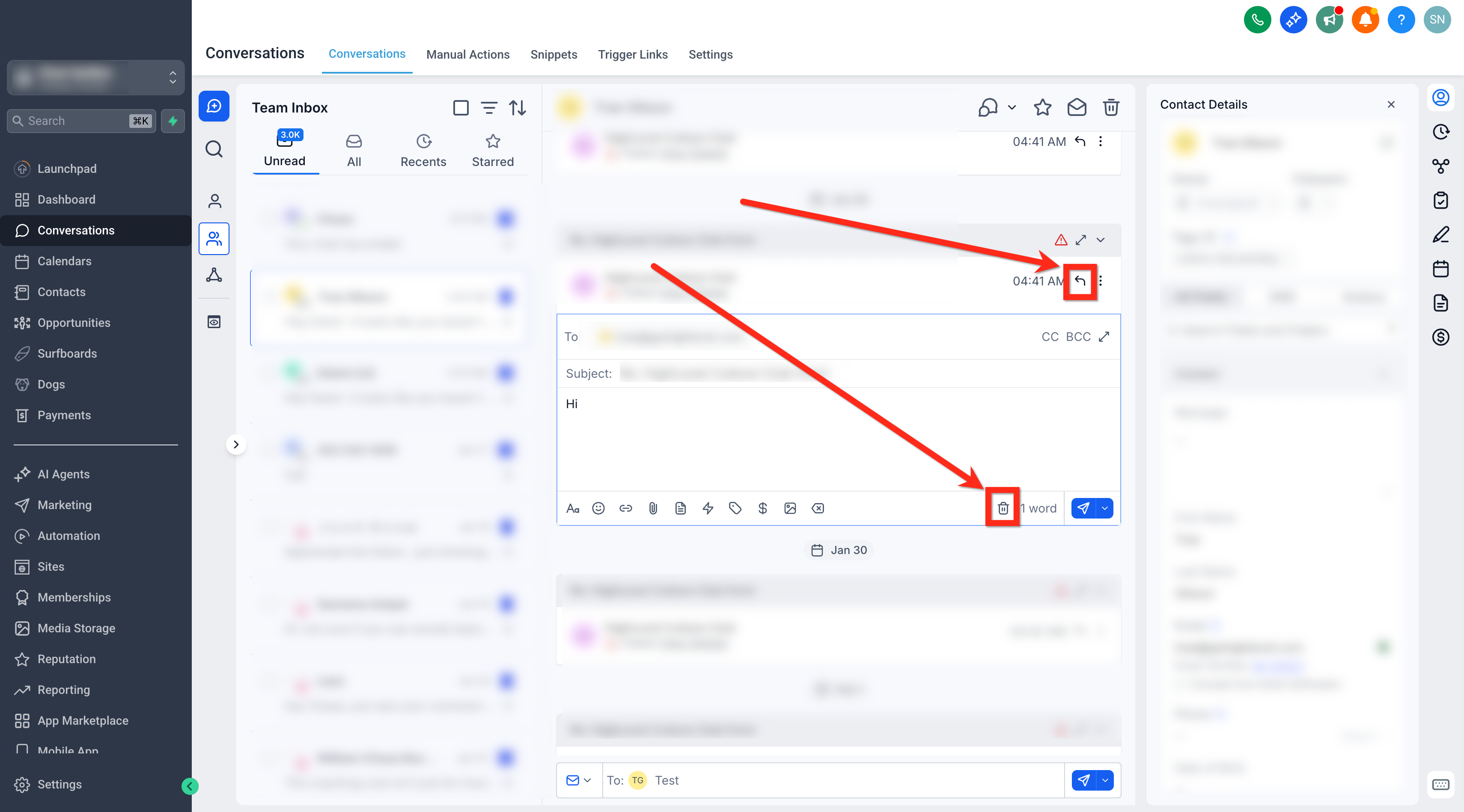
Inline Reply Experience
When replying to an existing email thread, the composer automatically opens directly below the active email.
This layout keeps the context visible while you type, helping you stay focused on the conversation history.
To close or exit the reply composer, click the delete icon (?) on the right side of the composer toolbar.
Keyboard Shortcuts
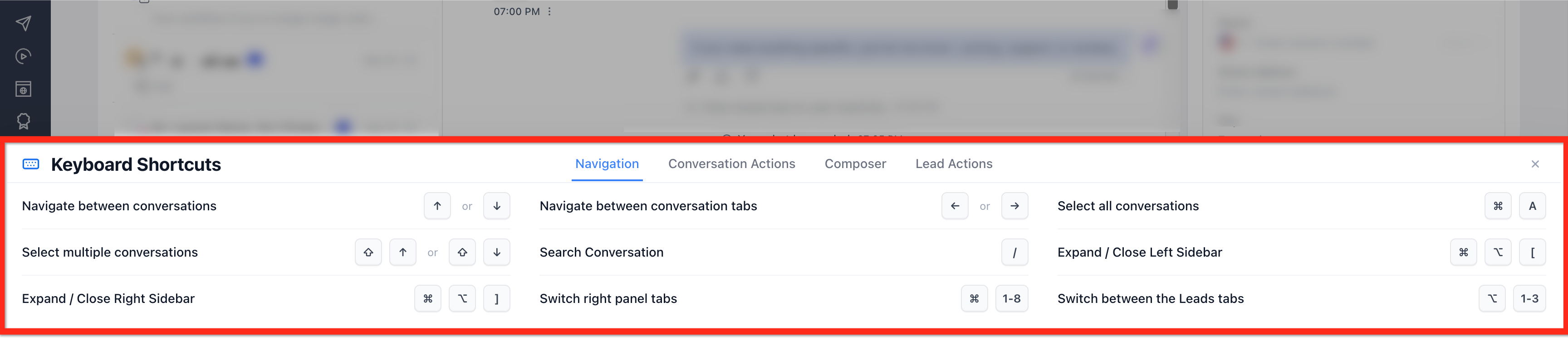
Keyboard shortcuts speed up navigation and replies. Open the shortcut panel anytime to discover available actions and, where supported, customize mappings.
⌘/Ctrl + K — Global search
⌘/Ctrl + Enter — Send message
⌘/Ctrl + Shift + E — Toggle full‑screen composer
Press ? in Conversations to open the full shortcut list
Frequently Asked Questions
Q: Do my saved replies, templates, and signatures carry over?
Yes. Existing canned responses, templates, and signatures continue to be available in the new composer.
Q: Can I customize keyboard shortcuts?
Press ? to open the shortcut list and is not customisable.
Q: Are filters available for all channels, and can I filter by channel?
Yes. Use the Filter icon to include/exclude channels (Email, SMS, WhatsApp, etc.). Combine with tags and owners using AND/OR.
Q: Can teams share Saved Views created from filters?
Saved Views can be created for quick access. Sharing/visibility depends on your workspace configuration and permissions.
Q: Does the new experience change workflow automations or triggers?
No. Workflows and campaign triggers tied to Conversations continue to function as before.
Q: Where do I find Internal Comments and mentions?
Choose Internal Comment from the channel selector to add a private note and use @mentions to notify teammates.
Q: Why is my unread conversation count different from before?
The unread counter now updates in real time and remains visible across all inbox tabs. Previously, the count only refreshed when switching tabs or performing actions, which could cause delays in updating.