
Manual and Smart Collections in SourCherry let you organize products efficiently—either by manually selecting them or automatically grouping them using rule-based logic. These options simplify catalog management, ensure consistent product organization, and keep your storefront automatically up to date.
TABLE OF CONTENTS
What Are Manual & Smart Collections?
Manual and Smart Collections are two methods of grouping products in SourCherry Stores.
A Manual Collection allows you to hand-pick products, while a Smart Collection uses predefined rules—such as price, title, or inventory—to automatically include products that match those conditions.
Both methods improve catalog structure, reduce manual updates, and maintain accurate product organization across your store.
Key Benefits of Manual & Smart Collections
Using collections simplifies store management and enhances how products are presented.
Flexible organization: Choose between curated or rule-based collections.
Automated updates: Smart Collections refresh automatically when product data changes.
Product overlap: Products can appear in multiple collections.
Improved SEO: Add SEO titles and descriptions for better discoverability.
Faster merchandising: Reuse collections across store pages, emails, and workflows.
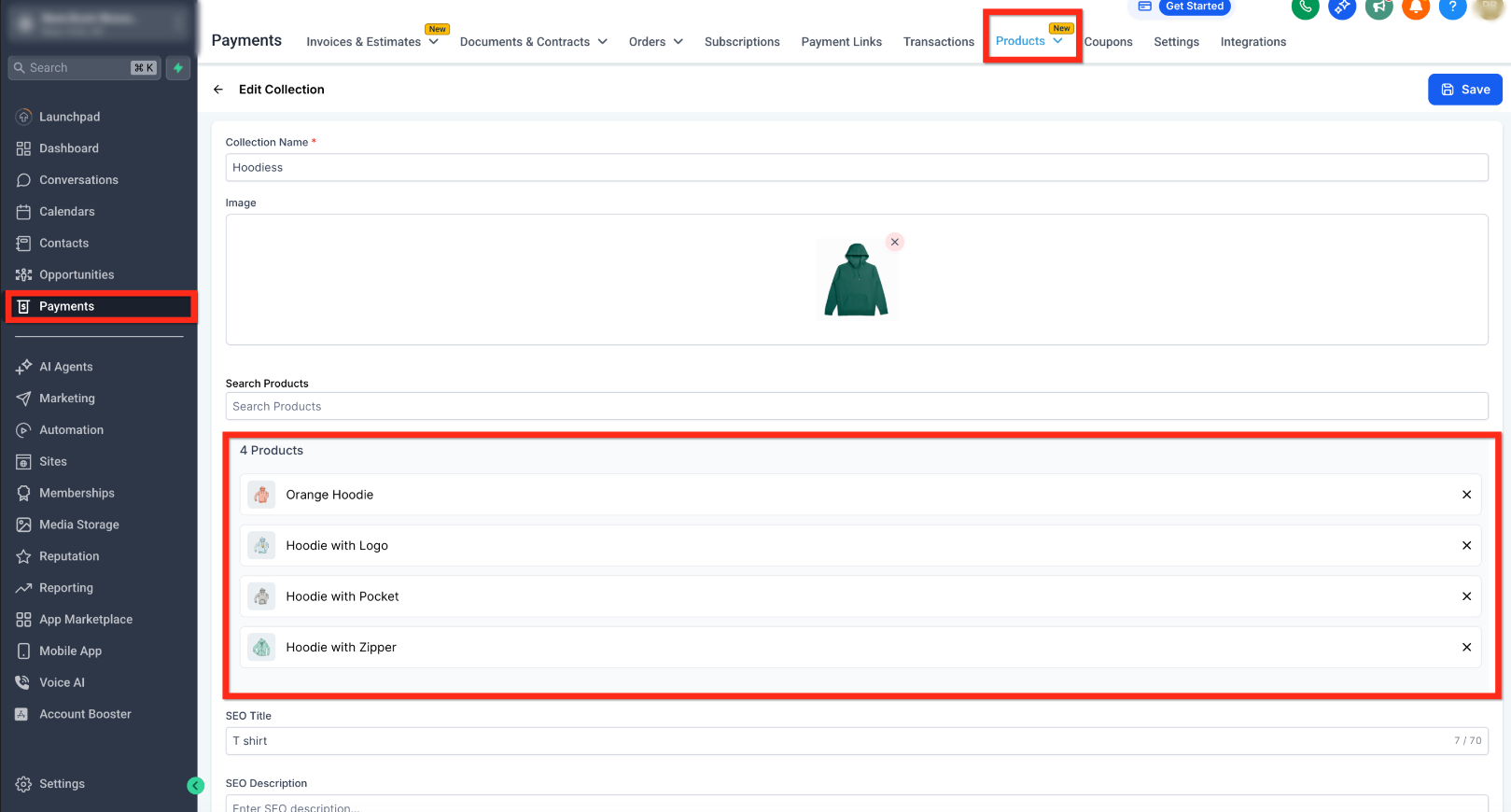
Manual Collections
Manual Collections are curated lists of products that you select manually. They are best for seasonal promotions, special themes, or custom assortments where specific control is required.
Key Details:
Products can be added or removed at any time.
Items can be manually ordered via drag-and-drop.
Ideal for fixed product sets or campaigns.
Smart Collections
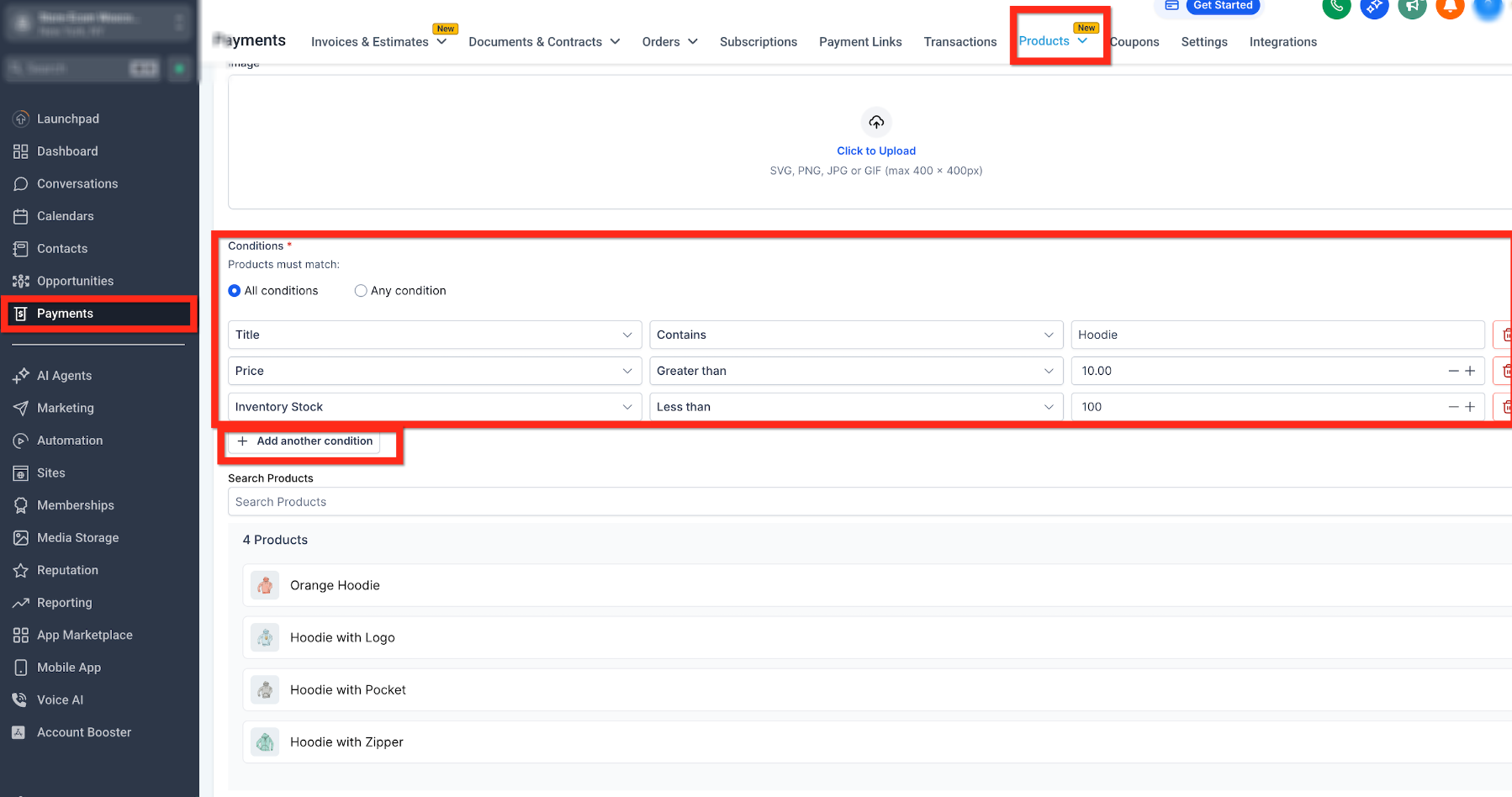
Smart Collections automatically include products based on saved conditions. They are designed for dynamic categories—such as products under a certain price, or items currently in stock.
Key Details:
Conditions can be based on Title, Variant Title, Price, or Inventory.
A product qualifies if any variant or price row matches the saved logic.
Invalid or conflicting conditions (e.g., “Price > 100 AND Price < 50”) are blocked at save.
Smart Collections update automatically in the background within a few minutes.
Manual edits (additions/removals) are disabled to maintain accuracy.
Collection Rules and Operators
Smart Collections depend on rule operators to determine which products are included. Creating valid rules ensures accurate results and prevents errors.
Supported Operators:
Equals
Not Equals
Greater Than / Less Than
Contains / Does Not Contain
Multiple conditions can be combined using AND or OR logic for more precise control.
Permanent Collection Type
Once created, the collection type—Manual or Smart—cannot be changed.
If you need to switch types later, create a new collection and replace the old one in your pages or workflows.
Configuring Manual and Smart Collections
Setting up collections correctly ensures products appear where intended.
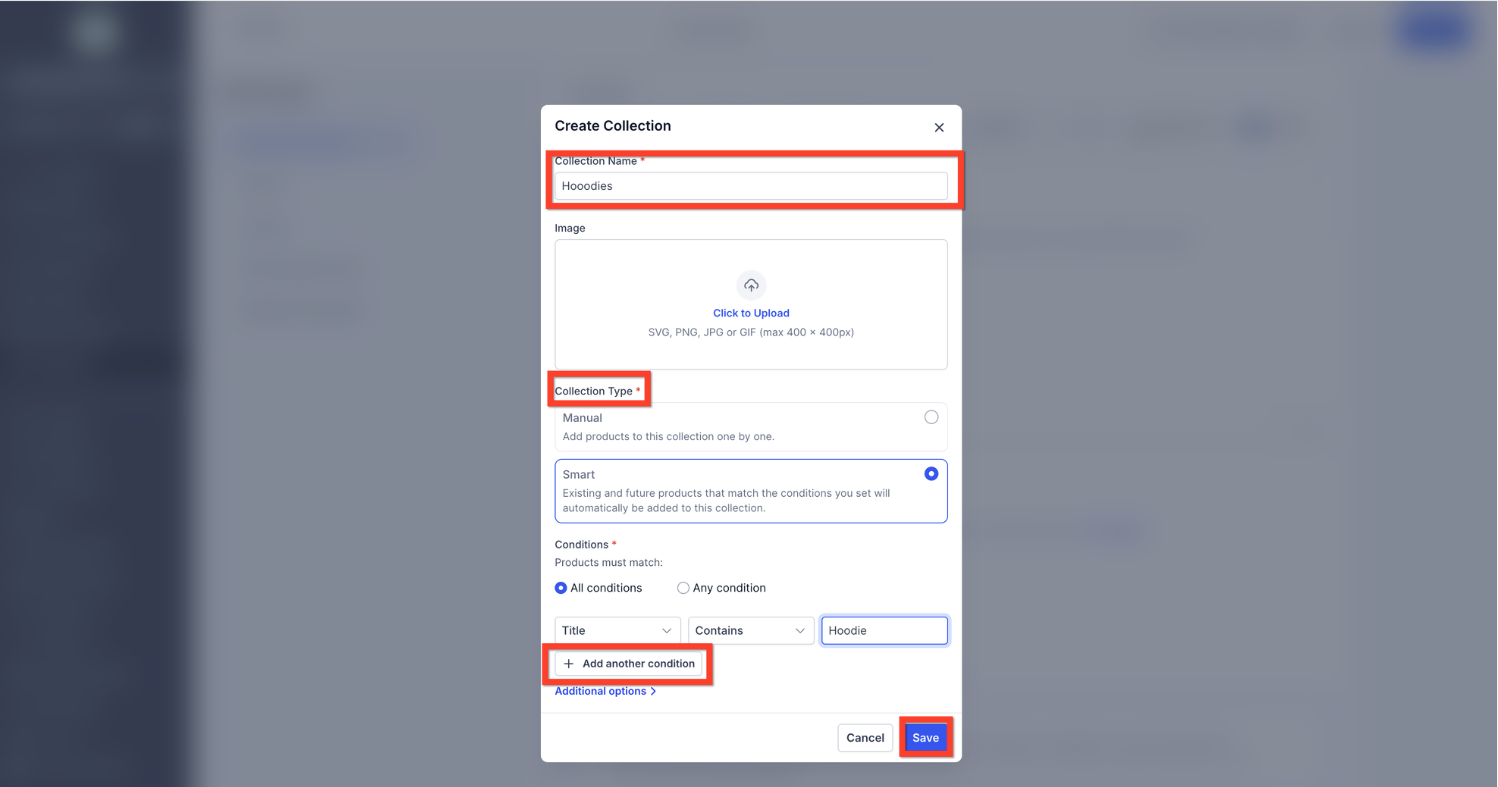
Go to Payments → Products → Collections.
Click Create Collection.
Enter a Name, optional Image, and SEO details.
Select a Collection Type:
Manual: Search and select products manually.
Smart: Define one or more rules (for example, Price less than $50).
Choose whether to apply All or Any conditions.
Click Save.
Smart Collections will process and update automatically in the background.
Frequently Asked Questions
Can I switch a Manual Collection to Smart (or vice versa)?
No. Once created, the collection type cannot be changed.
What happens if no products match a Smart Collection rule?
The collection will remain empty until a product satisfies the conditions.
Can products belong to multiple collections?
Yes. A product can appear in multiple collections based on selection or rule matching.
Can I manually remove a product from a Smart Collection?
No. Smart Collections automatically manage inclusion based on rule logic.
How often do Smart Collections update?
Updates occur in the background and complete within a few minutes.
Where can I display collections?
Collections can be displayed in Store Pages, Email Templates, and Workflows for filtering or automation.
Related Articles
How to Sort and Filter Products in SourCherry Ecommerce Site Builder
WooCommerce: Import and Sync Products and Collections for E-commerce Stores
How to Suggest Related Products in Your Product Details Page