
Create, schedule, and share beautiful data stories in minutes—no design skills required. Launch polished, presentation‑ready reports faster with the Custom Reports Template Library in SourCherry. Choose a pre‑built layout, personalize branding, and automate delivery—without manual page formatting. This guide covers availability, setup, usage, and governance so your team can standardize reporting at scale.
TABLE OF CONTENTS
- What is the Custom Reports Template Library?
- Key Benefits of the Custom Reports Template Library
- Adding a Custom Report to the Template Library
- How To Use the Custom Reports Template Library
- Frequently Asked Questions
- Related Articles
What is the Custom Reports Template Library?
The Custom Reports Template Library is an in‑app gallery of professionally designed report layouts for Reporting › Custom Reports. Instead of building from scratch, you can start with a template, tailor branding, and schedule PDFs or emails. Templates help agencies enforce design standards and accelerate client reporting.
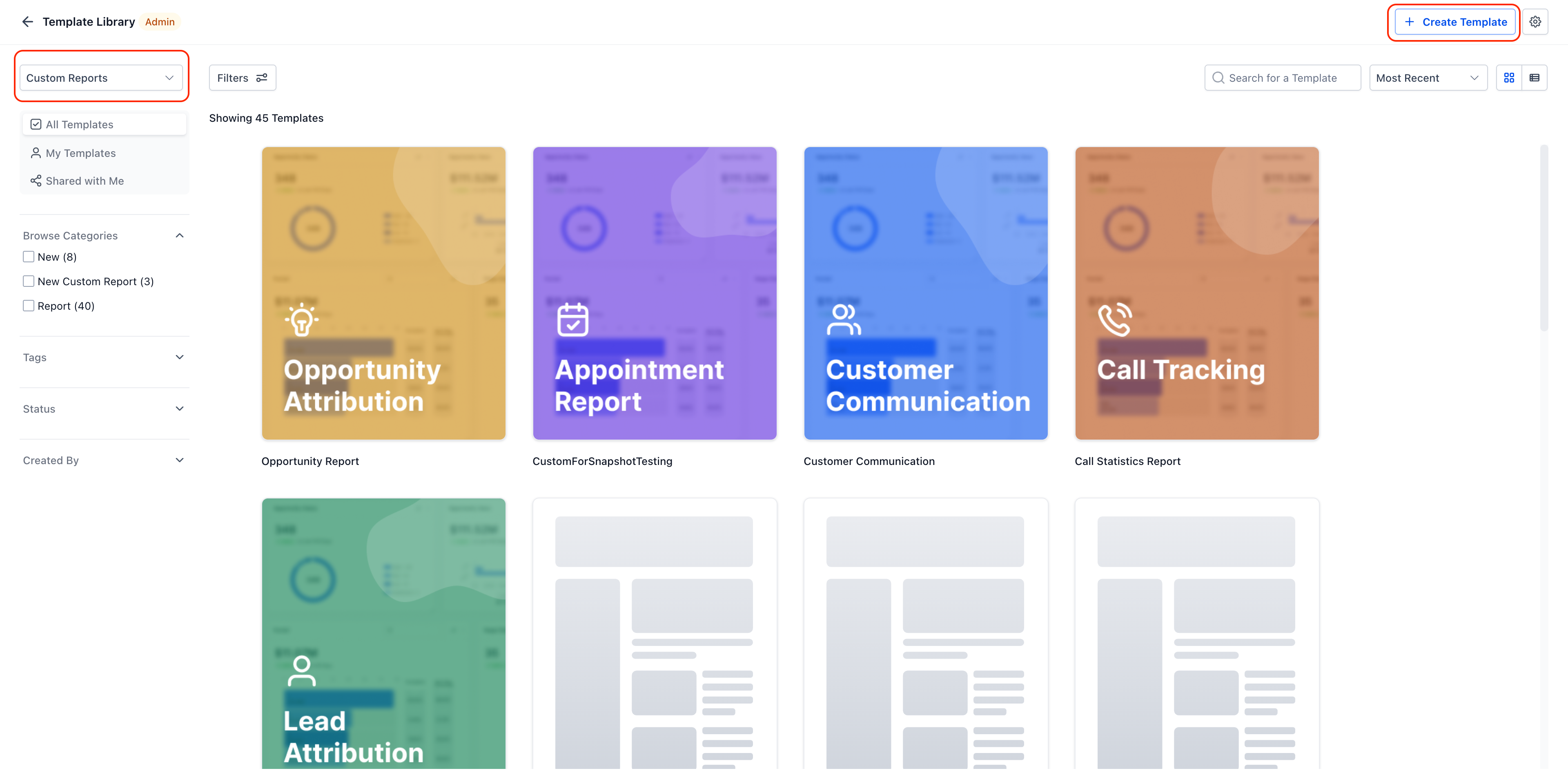
The library appears when creating a new custom report. From there, you can browse, preview, and apply a template so the full report opens with pages, widgets, and themes preconfigured.
Key Benefits of the Custom Reports Template Library
Using templates ensures consistency and speed while reducing setup errors. The benefits below focus on outcomes that matter to agencies and client‑facing teams.
Brand consistency: Keep fonts, colors, and layout uniform across clients.
Faster Report Creation: Build and deploy new reports in minutes using ready-made templates.
Proven Best Practices: Each template is designed by data and business experts to ensure accuracy and efficiency.
Continuous Updates: Access a growing library as new templates are added regularly based on industry trends and user feedback.
Customization Flexibility: Every component—metrics, filters, visuals, and layouts—can be edited to fit your exact reporting needs.
Reduced Learning Curve: Ideal for users new to reporting or teams standardizing how analytics are built.
Time Savings: Eliminate repetitive setup work and focus on analyzing data instead of formatting it.
Adding a Custom Report to the Template Library
Converting a finished, reusable report into a template lets every team reuse the same layout and branding. Set the right permissions first, then upload the report as a template so it’s available across sub‑accounts.
Set minimum access permissions
From Reporting › Custom Reports, find your finished report on Reports Overview.
Click the ⋮ (three dots) next to the report name and select Manage permissions.
Grant at least Read access to the following roles: Agency User, Account Admin, and Account User.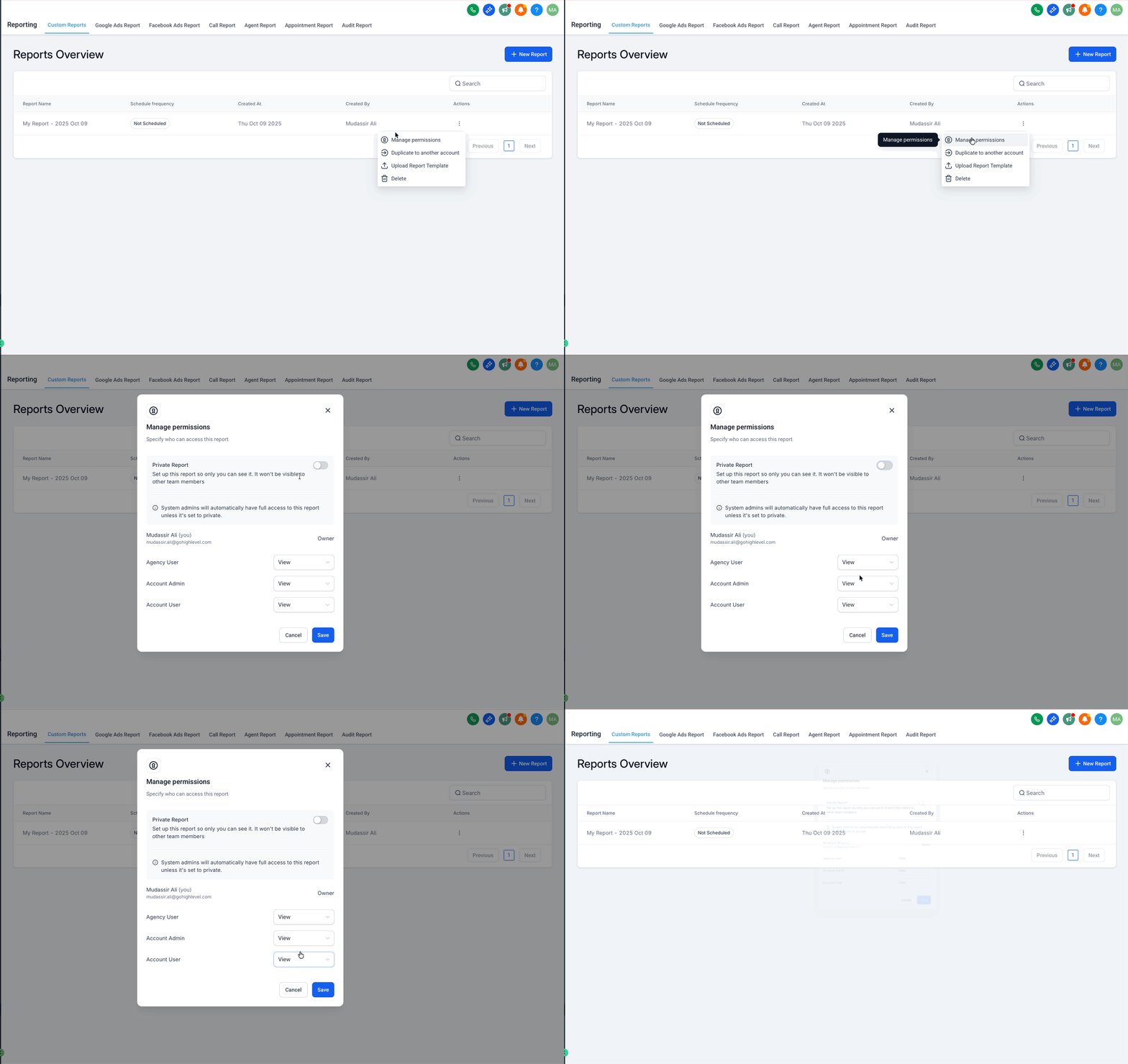
Before you upload — make a template‑ready report
Finalize layout, branding, and page order.
Replace any client‑specific text or screenshots with generic copy/placeholders.
Normalize date ranges and widget settings you want reused.
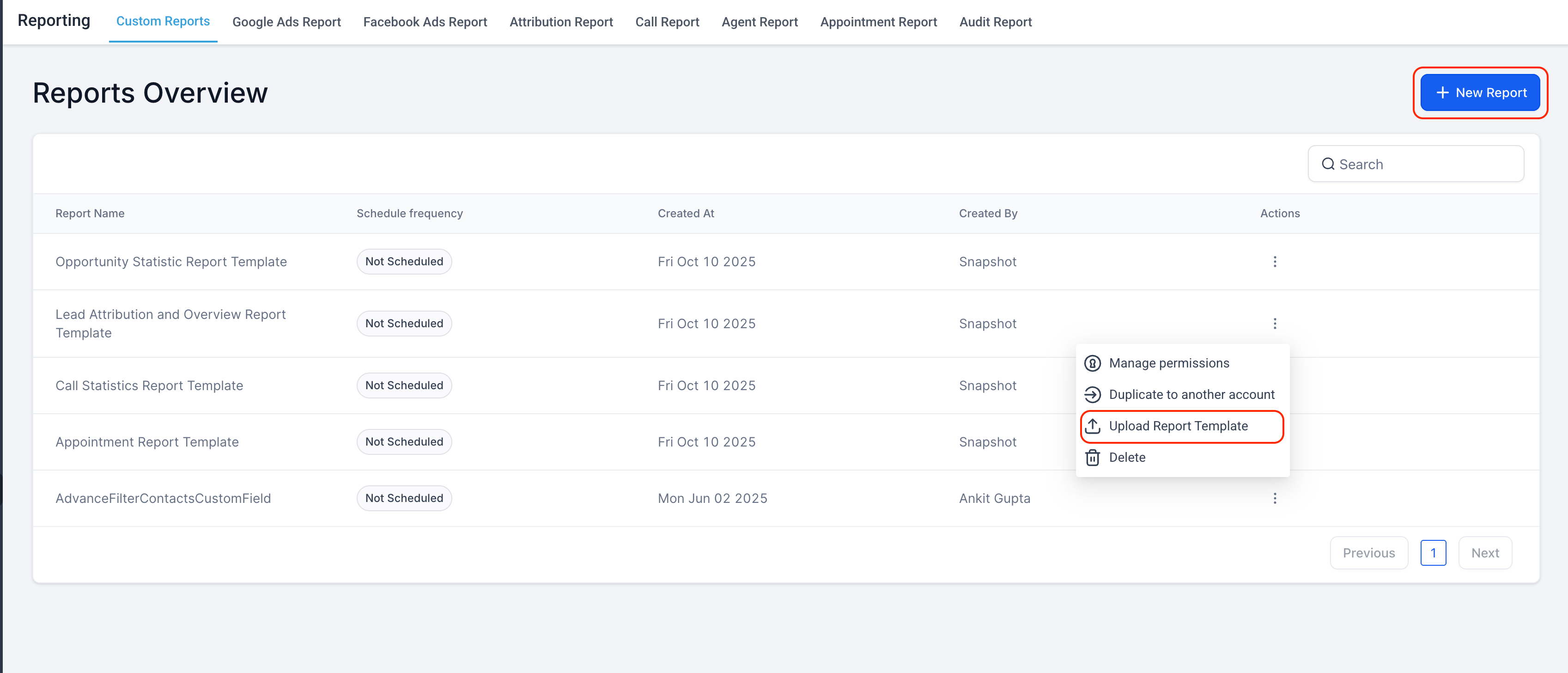
Click on ⋮ (three dots) and select Upload Report Template
How To Use the Custom Reports Template Library
The quickest way to operationalize reporting is to start from a ready‑made template, preview it with live metrics, and put it on a predictable schedule. The steps below keep your team in the reporting flow from selection to delivery.
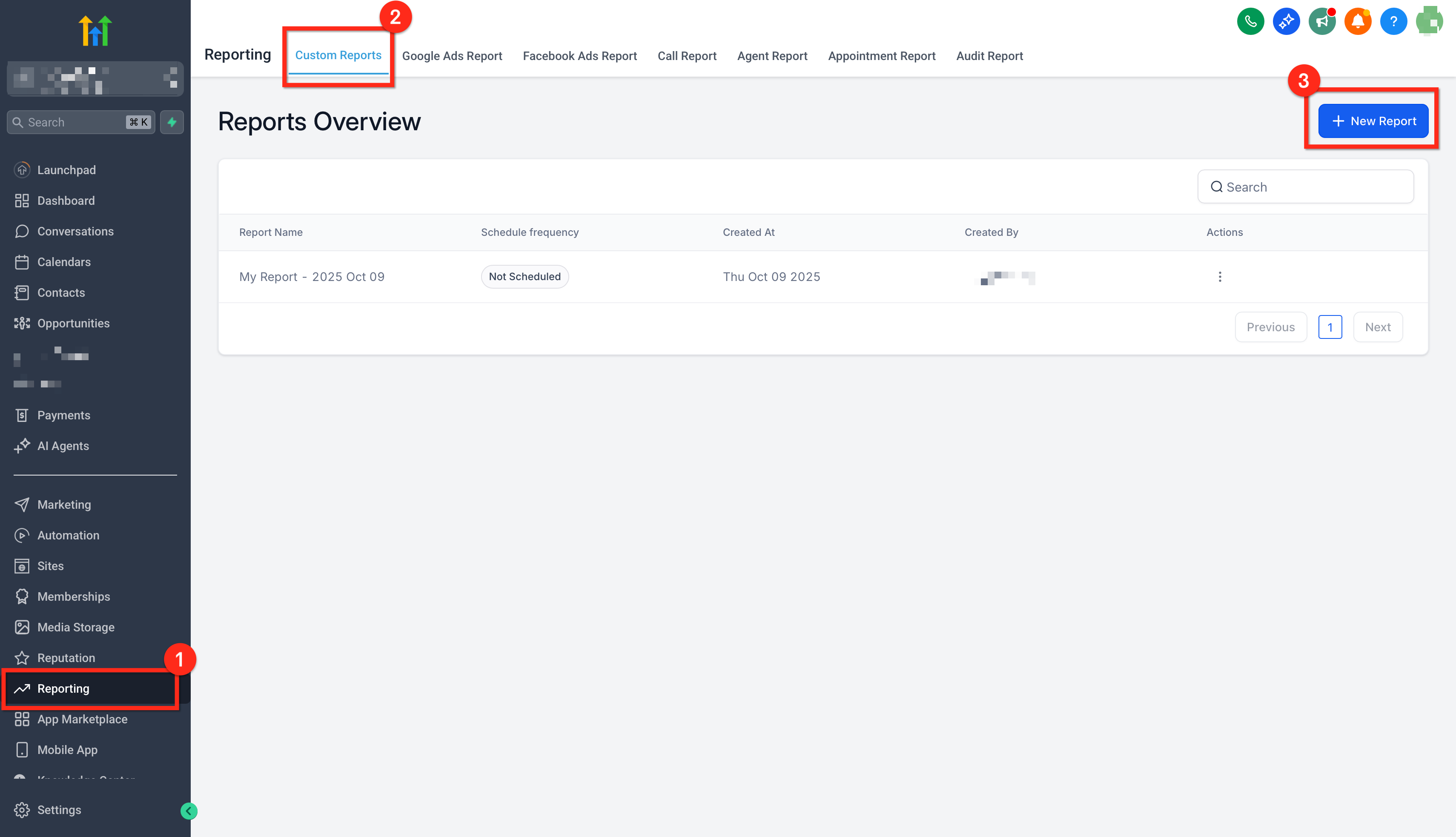
Navigate to Reporting: Open the target sub‑account and go to Reporting › Custom Reports and Click New Report: Start a new report from the standard creation modal.
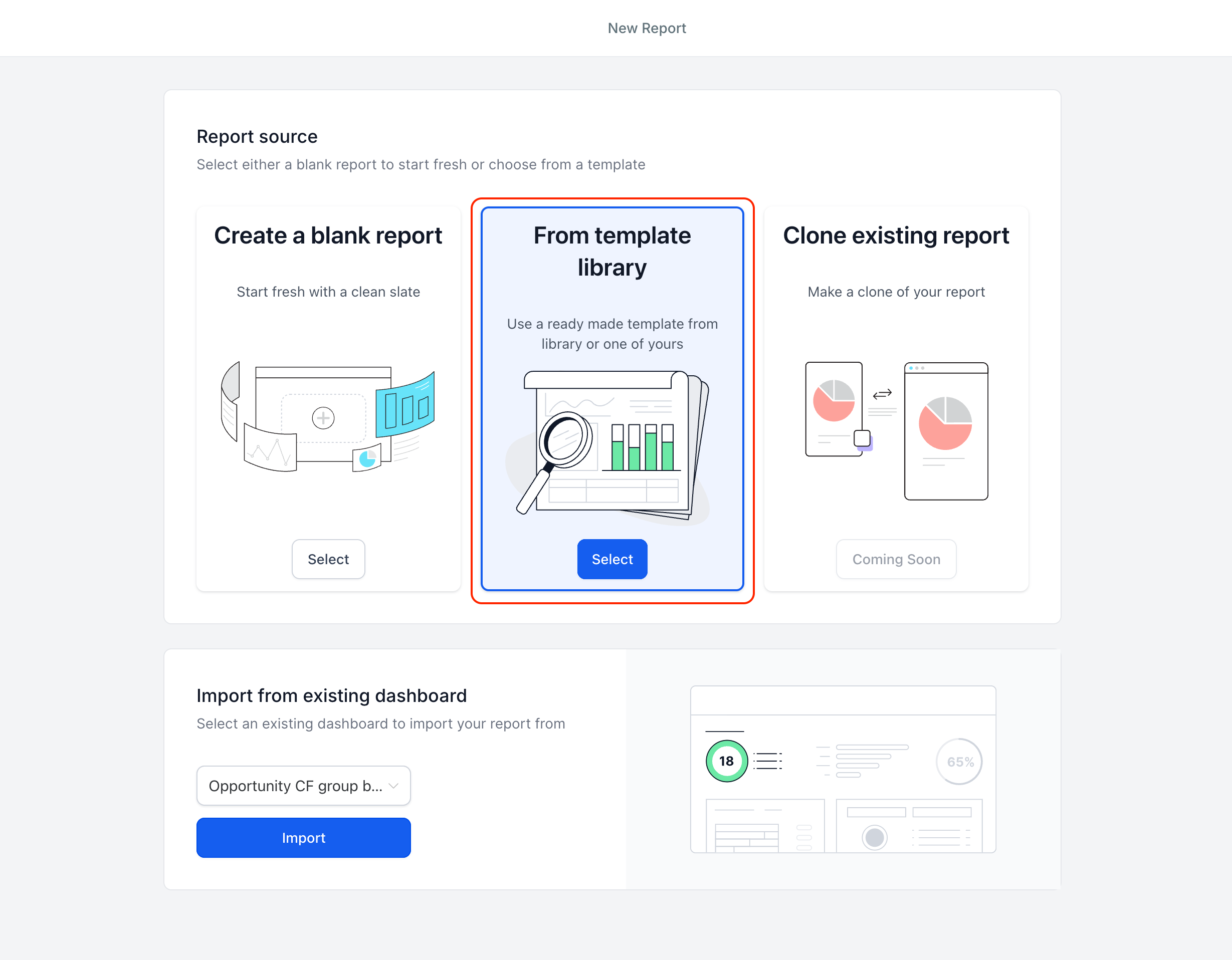
Choose your starting point: Select From Dashboard, From Scratch, or From Template Library. Pick From Template Library to browse curated designs.
Filter and select a template: In the library, filter by niche and tags to quickly find a suitable layout. Click a template to preview and then Use Template to apply it.
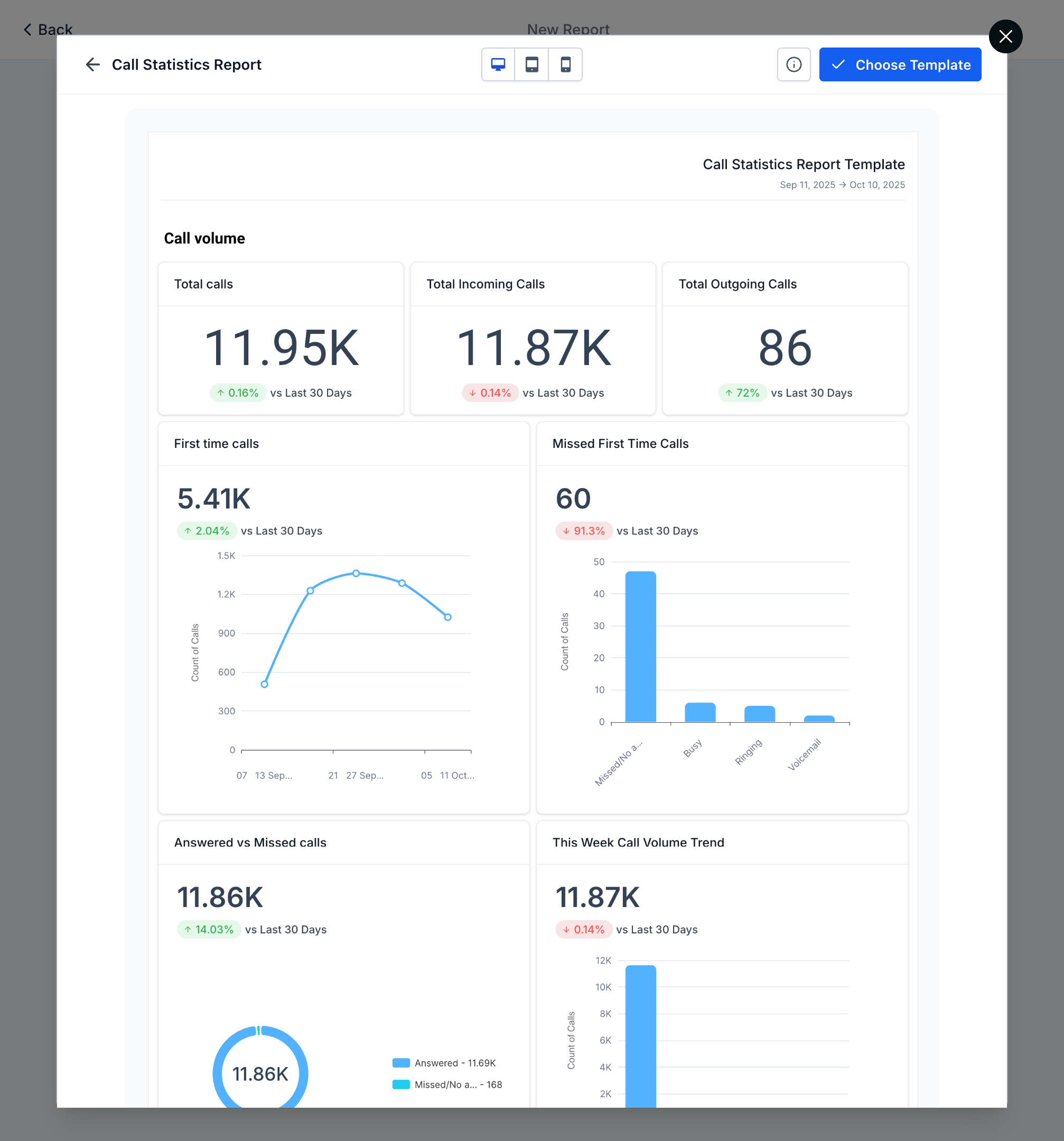
Preview with real data & schedule: After applying, a live data preview appears. Click Save → Schedule to set delivery on a specific day or weekly cadence. (You can also Send immediately or Download a PDF if needed.)
Frequently Asked Questions
Q: Will editing a template update reports already created from it?
No. Templates are a starting point. Edits affect future reports created from that template; existing or scheduled reports remain unchanged.
Q: Can I hide specific templates from certain sub‑accounts?
You can’t hide a single template directly. Use a hidden category and ensure templates you want hidden are not in any visible categories.
Q: Why do numbers sometimes differ between the builder, email preview, and ads widgets?
Timezones. The builder uses your browser timezone; scheduled email previews use the sub‑account’s timezone; connected ad platforms (e.g., Google/Facebook) follow their own account timezones.
Q: Are images included in downloaded PDFs?
Images and iframes may appear in previews/emails but are not included in downloaded PDFs due to security restrictions.