
The Enhanced Web Crawler gives SourCherry Conversation AI an new power, learning from interactive websites just as easily as static pages. By automatically harvesting up to 50 % more on-page content (including tabs, accordions, and lazy-loaded sections), your bot can answer more questions with greater accuracy.
TABLE OF CONTENTS
- What is Enhanced Web Crawler?
- Key Benefits of Enhanced Web Crawler
- Intelligent Dynamic Content Extraction
- Advanced Link Discovery
- Universal Website Support
- How To Use the Enhanced Web Crawler
- Frequently Asked Questions
- Related Articles
What is Enhanced Web Crawler?
Enhanced Web Crawler is the upgraded website-ingestion engine inside Bot Training. It mimics real visitor interactions, opening accordions, clicking tabs, scrolling, and revealing dynamically loaded data—to extract every nugget of information your website hides. This richer knowledge is then added to the bot’s training set, alongside existing Exact-URL, Domain, and Path crawling options.
Key Benefits of Enhanced Web Crawler
- Deeper text capture: Extracts 30–50% more on-page content from modern SPAs (React, Vue, Angular, Gutenberg, etc.).
- Hidden content awareness: Reads accordions, tabs, modals, lazy-load and infinite-scroll sections.
- Fast multi-strategy parsing: Runs 12+ content-detection strategies in parallel for speed.
- Safe interaction engine: Avoids risky clicks like forms, filter changes, and cart actions.
- Parallelized extraction: Shortens total crawl time on large, complex sites.
- Actionable crawl metrics: Tracks time, interactions, content length, and memory to troubleshoot and optimize.
Intelligent Dynamic Content Extraction
- Automatically expands accordions, clicks through tabs, triggers lazy-loading, and reveals hidden content
- 2+ smart detection strategies (semantic content, structured data, metadata) running in parallel for blazing-fast extraction
- Safe interaction engine that avoids disruptive actions like form submissions or filter changes
Advanced Link Discovery
- Recursive sitemap crawling: Recursively discovers and processes nested sitemaps to improve URL discovery on multi-level site structures.
- Zipped sitemap support: Supports compressed sitemap files (for example, `.xml.gz` and `.gzip`) to reduce bandwidth usage and improve crawl efficiency.
- Navigation guard: Detects navigation boundaries to reduce crawler drift and keep discovery within the intended knowledge base scope.
- Multi-source detection: HTML parsing + JavaScript evaluation + interaction-based discovery
- Discovers links hidden behind expandable sections and dynamic content
- Intelligent deduplication while preserving descriptive link text
Universal Website Support
- Works with any website type: static HTML, WordPress, React SPAs, Vue apps, Angular applications
- Faster crawling through parallel content extraction
- Complete observability with detailed metrics (processing time, interactions, content length, memory usage)
How To Use the Enhanced Web Crawler
Step 1: Navigate to Knowledge Base
- Click on AI Agents from your sub-account.
- Click on the Knowledge Base tab.
- Create a new Knowledge Base or Edit an existing one.
- Click on the + Add Source button.
- Click on Web Crawler.
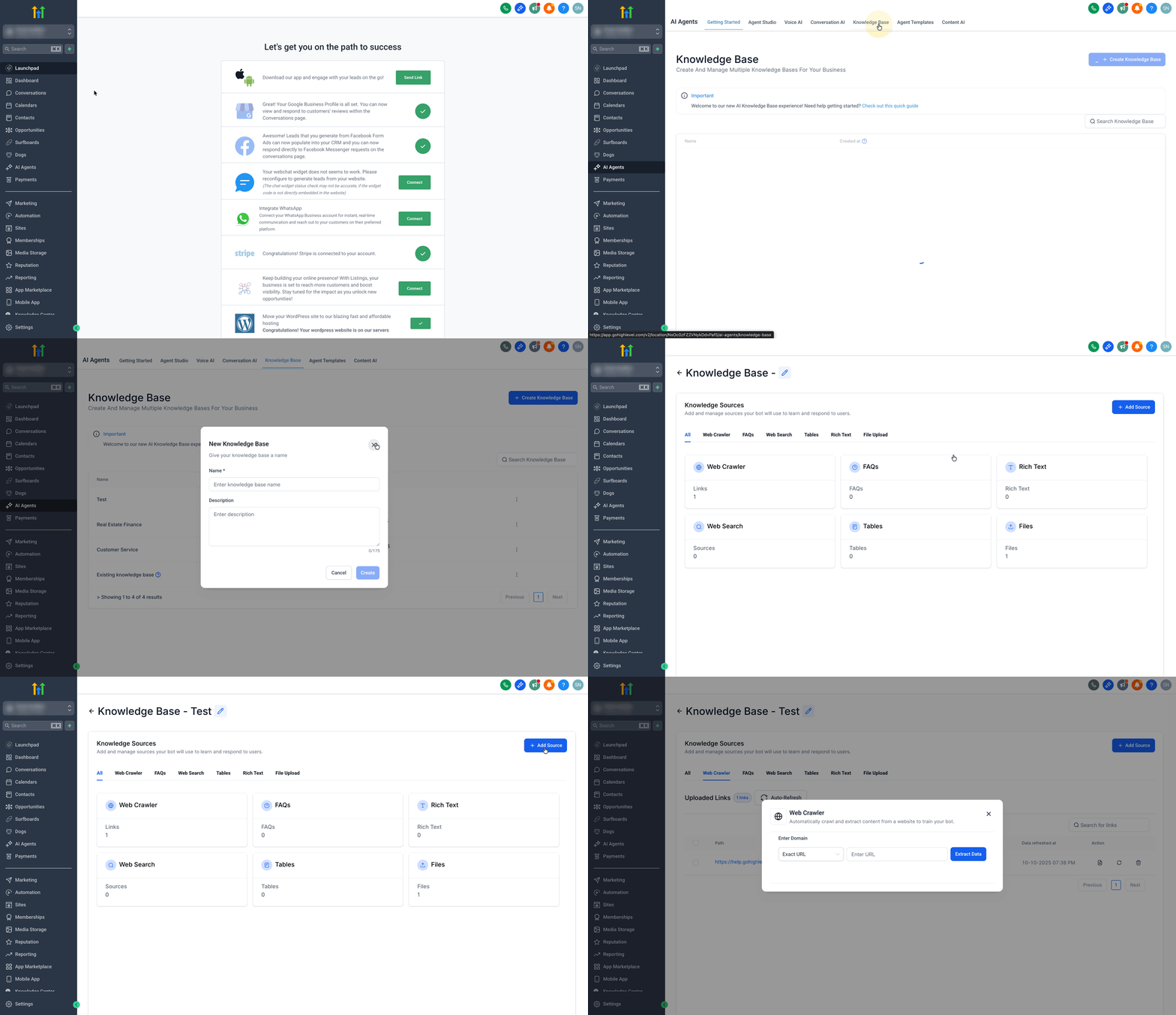
Step 2: Enter Domain Type and Enter Domain
- There are multiple domain types that you can crawl when training your bot. The domain type that you choose will dictate how many URLs will be crawled to train your bot.
- Exact URL: Crawls a specific webpage to use its data for training. For example, entering https://www.SourCherry.com/ limits the crawl to that exact webpage.
- All URLs with the Path: Crawls all pages within a specific path. For example, entering https://www.SourCherry.com/marketing includes all pages using that URL path, such as /marketing/offers or /marketing/promotions.
- All URLs in this Domain: Crawls all pages within a domain. For example, entering https://www.SourCherry.com/promo includes all pages with the root domain www.SourCherry.com.
- Exact URL: Crawls a specific webpage to use its data for training. For example, entering https://www.SourCherry.com/ limits the crawl to that exact webpage.
- Add the URL.
- Click on the Extract Data button.
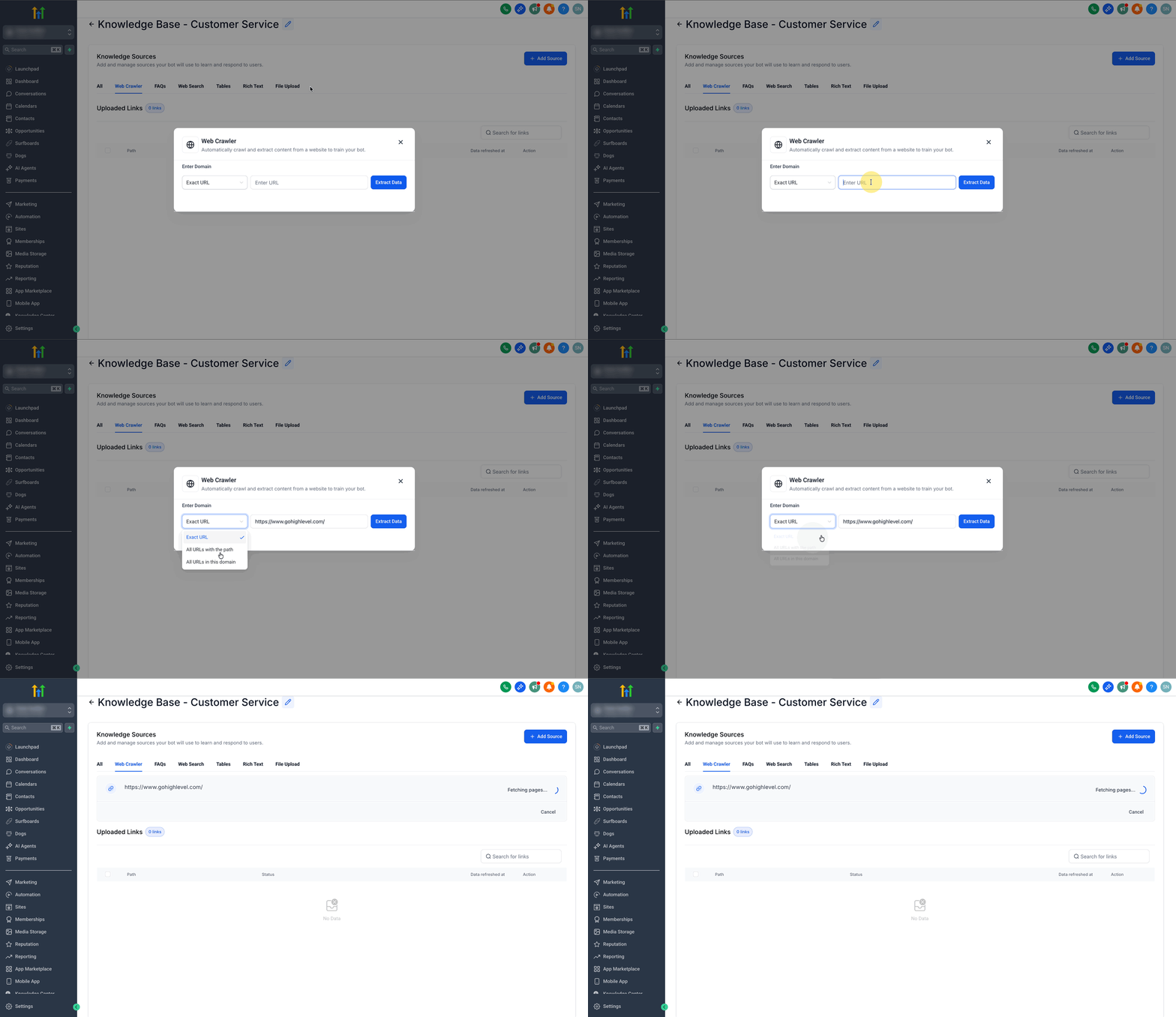
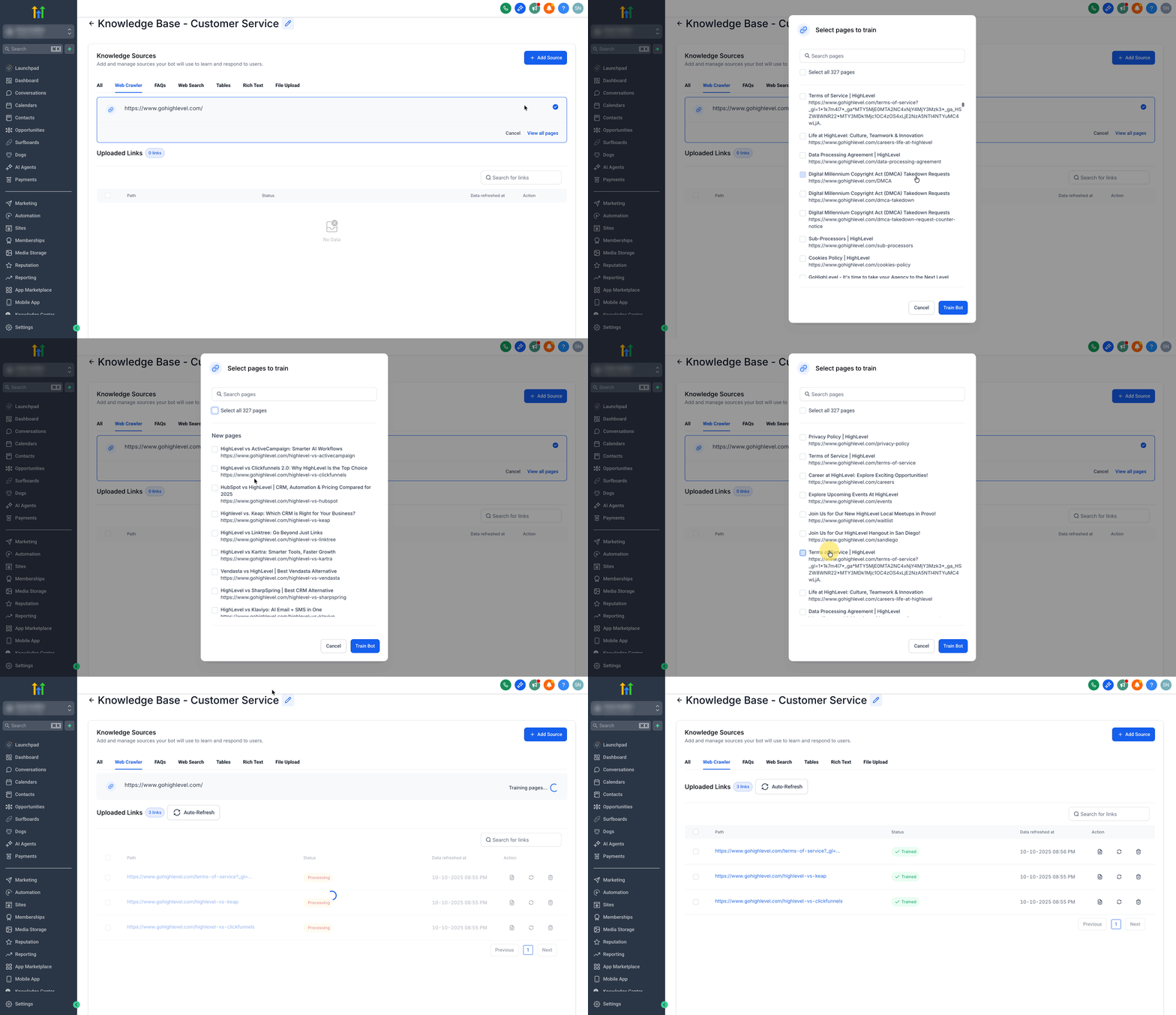
Step 3: Select Crawled URLs
- Once the URL crawling is complete, click on View All Pages option.
- You can "select all" URLs, or select individual URLs by clicking the checkbox next to the URL you want to add into your training data.
- After selecting, click on the Train Bot button.
Frequently Asked Questions
Q: What does “smarter content discovery” mean?
The crawler now captures up to 5.2× more website content, including testimonials, features, contact details, and service descriptions that were often missed before.
Q: How reliable is training with the new crawler?
Success rate improved from 81.6% to 94.7% across site types—business, ecommerce, and modern interactive—so ingestions fail far less often.
Q: Do I need to configure anything to extract key sections?
No. 6+ parallel detection strategies auto-find hero sections, testimonials, product descriptions, team bios, pricing tables, and contact info.
Q: Can it read interactive or hidden content?
Yes. It expands accordions, navigates tabs, and reveals lazy-loaded/hidden sections to capture full testimonials and detailed service info.
Q: What structured data does it pull, and why does it matter?
It extracts 94% more structured data (business hours, contact details, pricing, services), giving your AI a richer, more precise understanding of your business.
Q: Will it click on checkout buttons or submit forms?
No. The safe-interaction engine ignores form elements, ensuring no accidental submissions occur.
Q: What happens if the crawler can’t reach a hidden section behind a login?
The interaction engine only works with publicly accessible content. Private or login-gated data will not be crawled.