
The Transcript Generated workflow trigger enables intelligent post-call automation by activating workflows the moment a call transcript becomes available. It works across Voice AI, IVR, and LC Phone calls, allowing you to automate follow-ups, update CRM data, create tasks, and leverage insights from real conversation content — all without manual intervention.
If Voice AI Translation is enabled for your agent, workflows triggered post-call can receive both:
Translated transcript
Translated summary
Use these translated fields to route internal notifications, generate localized follow-ups, or write standardized outcomes to CRM records.
Note: If translation is not enabled, workflows use the default transcript/summary generated for the call.TABLE OF CONTENTS
- What Is the Transcript Generated Trigger?
- Key Benefits of the Transcript Generated Trigger
- How to Set Up the Transcript Generated Trigger
- Frequently Asked Questions
What Is the Transcript Generated Trigger?
The Transcript Generated trigger automatically activates a workflow as soon as SourCherry finishes transcribing a recorded call. Once fired, it passes a rich set of call details including the full transcript, duration, direction, caller location, timestamps, and more into your automation so you can launch downstream actions immediately.
This trigger supports:
- Voice AI Calls – Transcription is enabled by default.
- LC Phone Calls – Requires transcription to be enabled in Phone Settings.
- IVR Calls – Requires transcription to be enabled in IVR Settings.
By connecting call intelligence with workflow automation, this trigger helps businesses respond faster, personalize communication, and reduce administrative workload.
Key Benefits of the Transcript Generated Trigger
- Instant Post-Call Automation: Trigger follow-up actions seconds after a call ends, eliminating manual delays.
- AI-Powered Personalization: Feed transcript data into AI Decision Maker or GPT Actions to tailor next steps based on sentiment, intent, or key phrases.
- Actionable Insight Capture: Automatically record buying intent, objections, or keywords directly in the contact record.
- Comprehensive Data Access: Use call metadata (duration, direction, timestamps, location, and user info) for precise automation logic.
- Omnichannel Support: Works seamlessly across Voice AI, IVR, and standard LC Phone calls.
- Operational Efficiency: Streamline repetitive post-call admin tasks and let your team focus on meaningful engagement.
How to Set Up the Transcript Generated Trigger
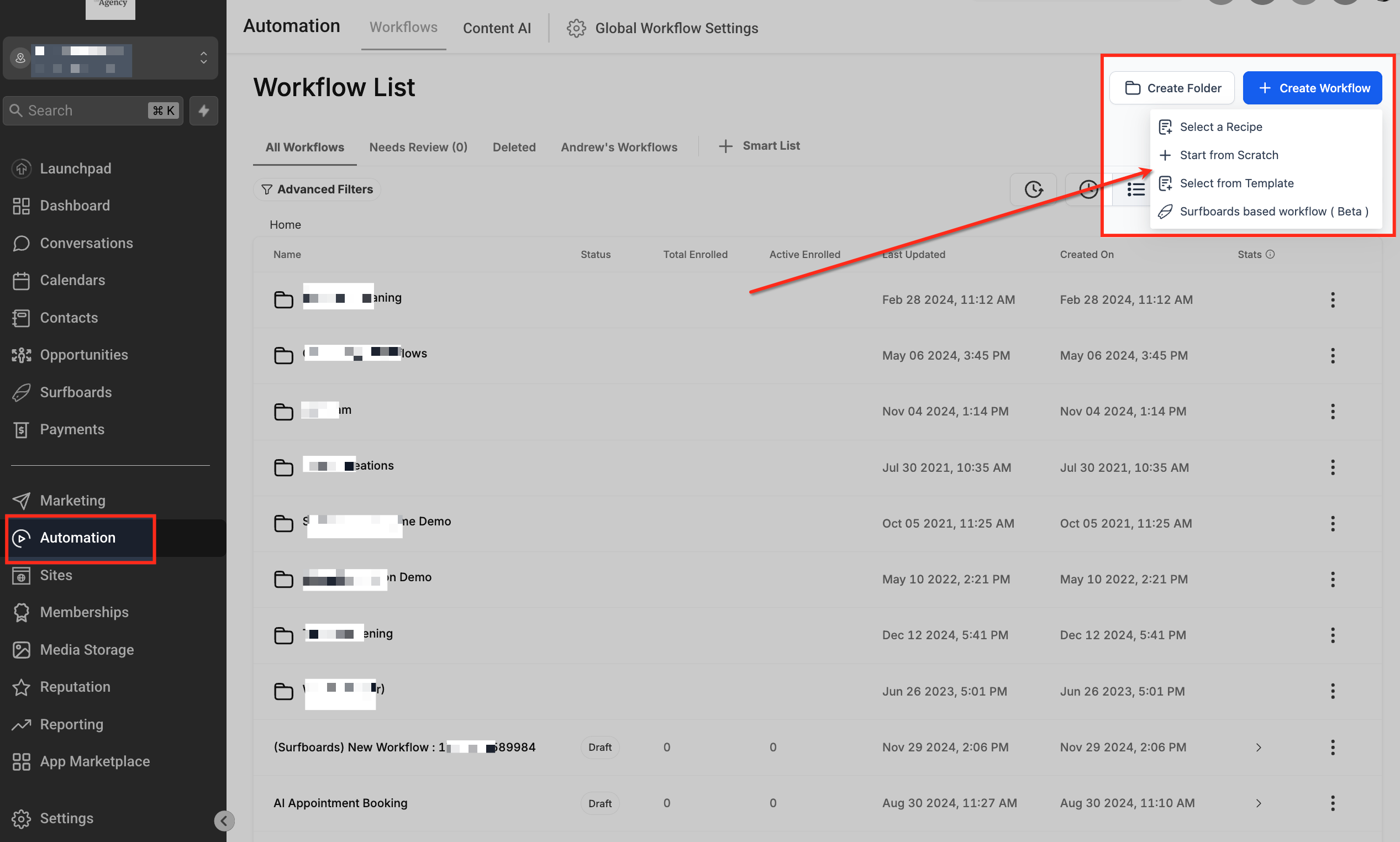
Step 1: Create or Edit a Workflow
Navigate to Automation > Workflows, and click + Create Workflow.
Choose Start from Scratch or open an existing workflow.
Step 2: Add the Transcript Generated Trigger
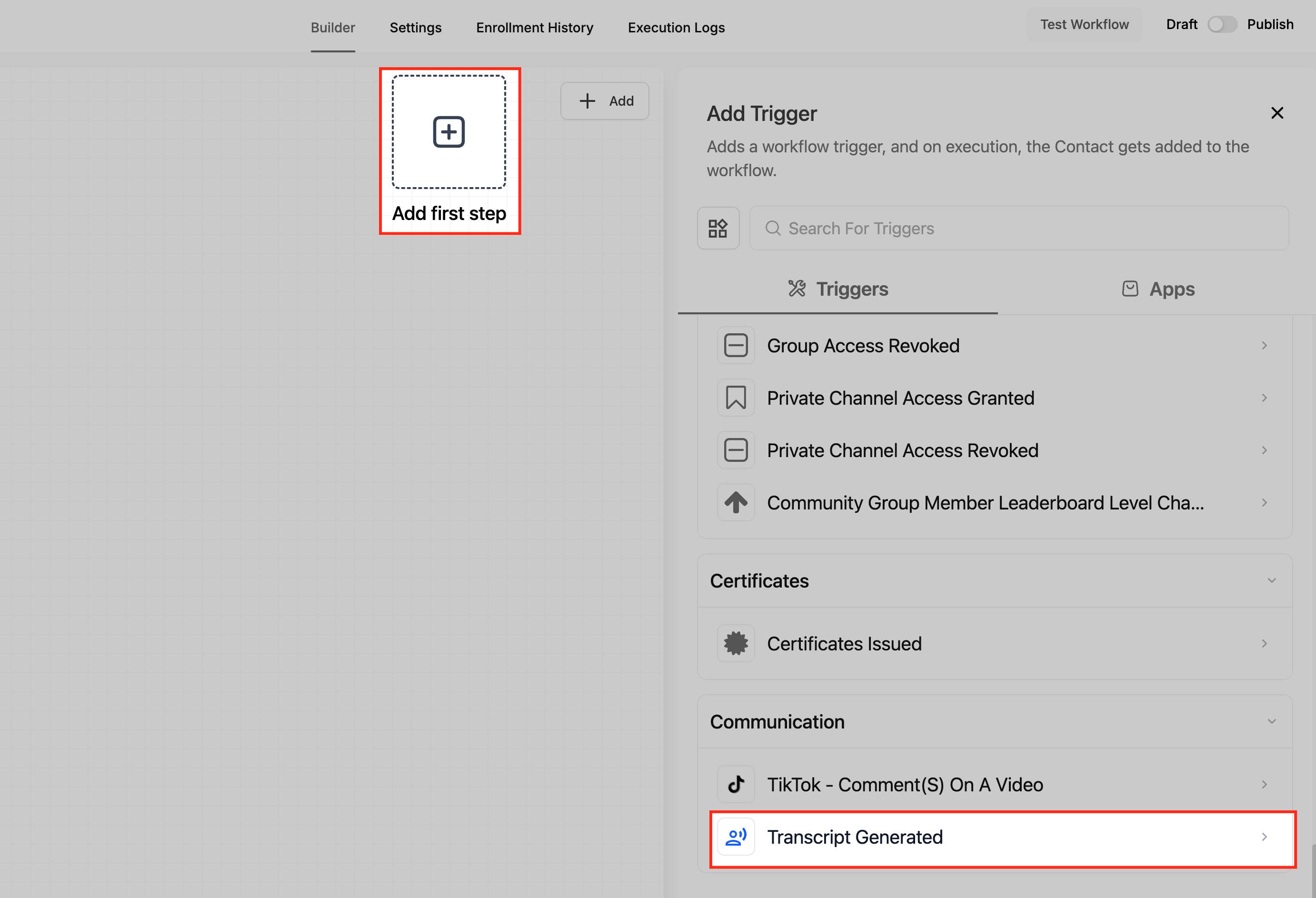
Click Add New Trigger and select Transcript Generated from the trigger list.
Step 3: Enable Transcription
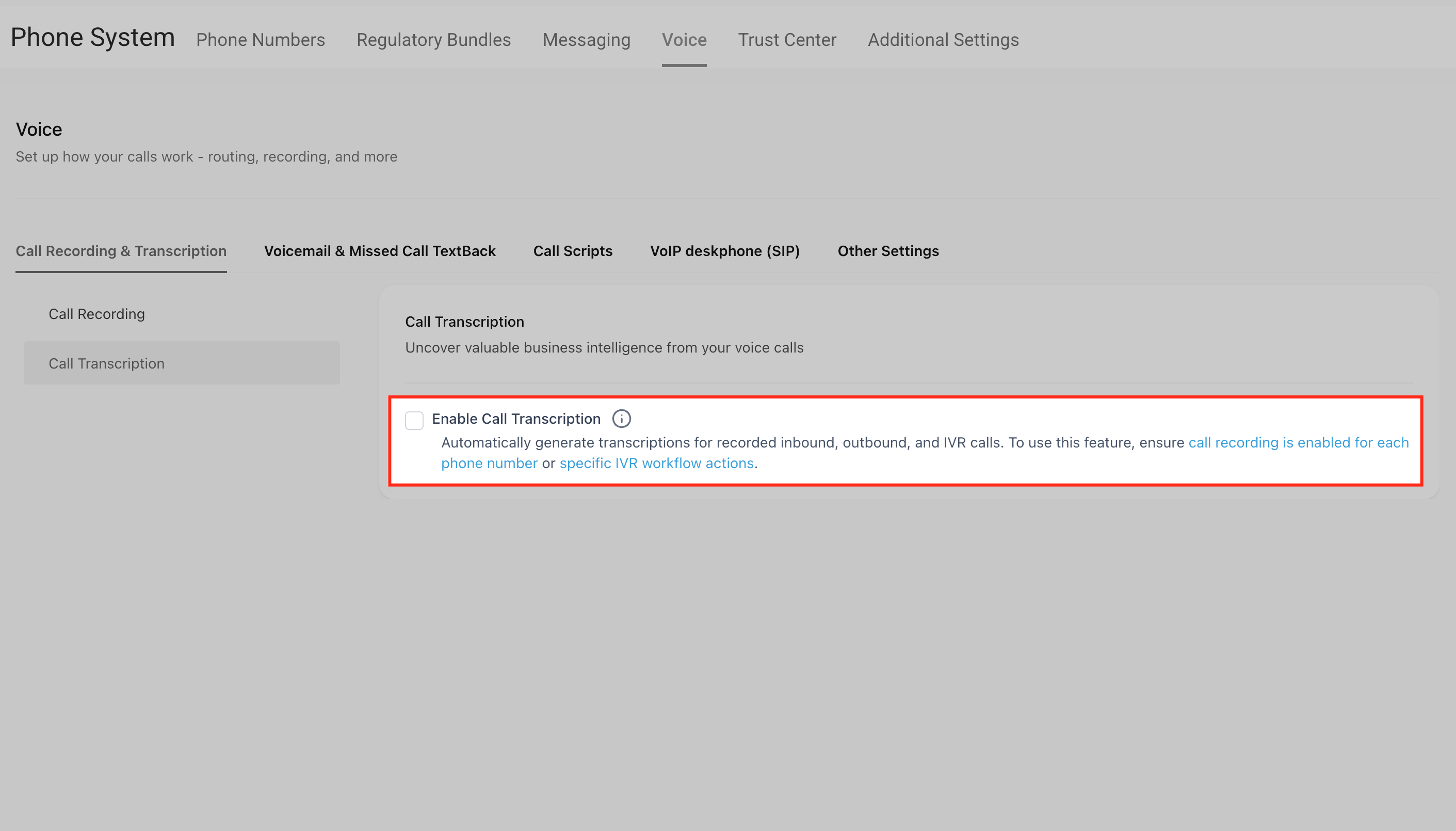
Transcription must be enabled for the trigger to function.
- Voice AI: Enabled by default.
- LC Phone: Click the CTA link within the trigger configuration to enable transcription in Phone Settings.
- IVR: Click the CTA link within the trigger configuration to enable transcription in IVR Settings.
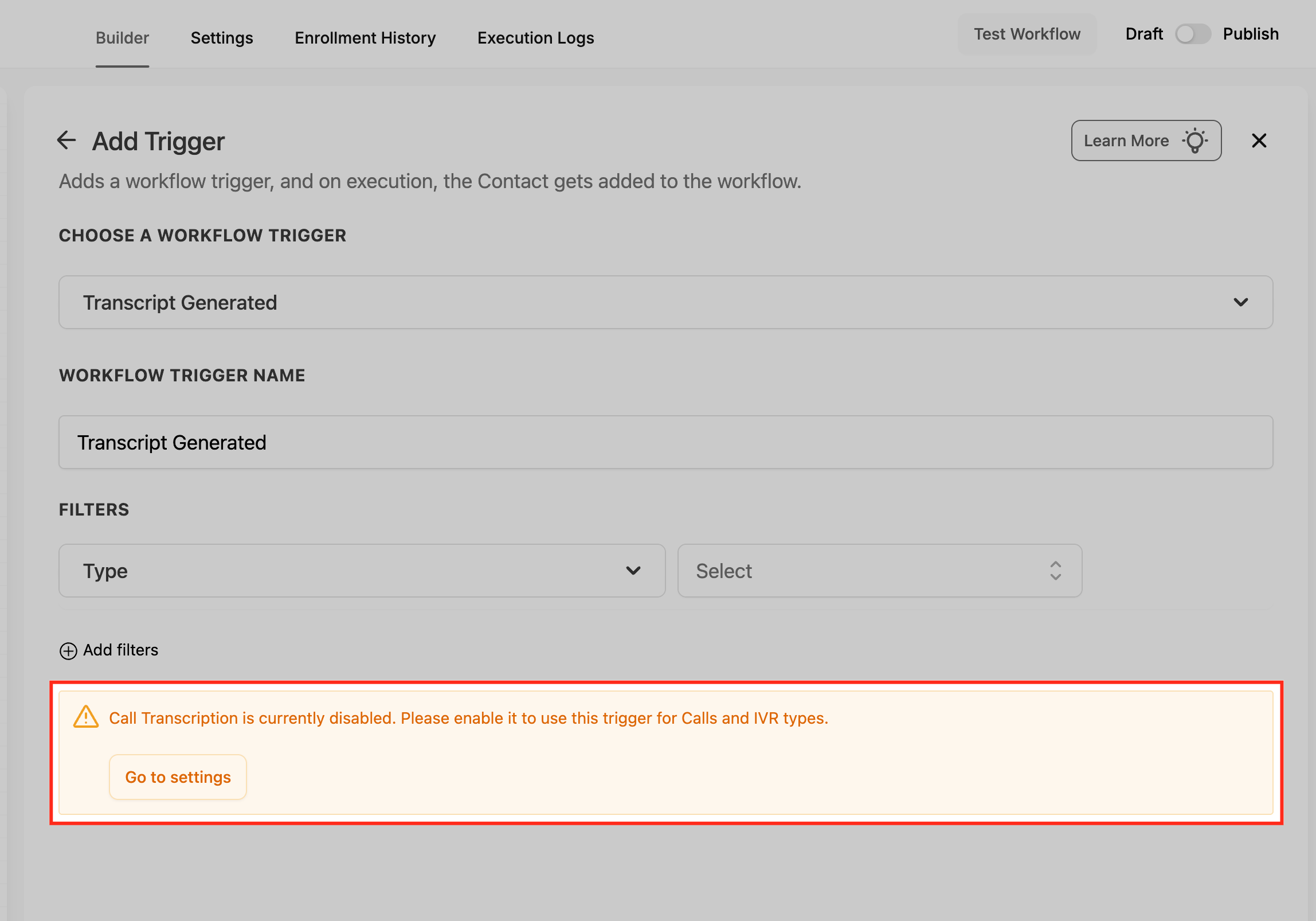
If transcription is not enabled, the workflow will display a prompt to go to settings and enable it.
Step 4: Apply Filters
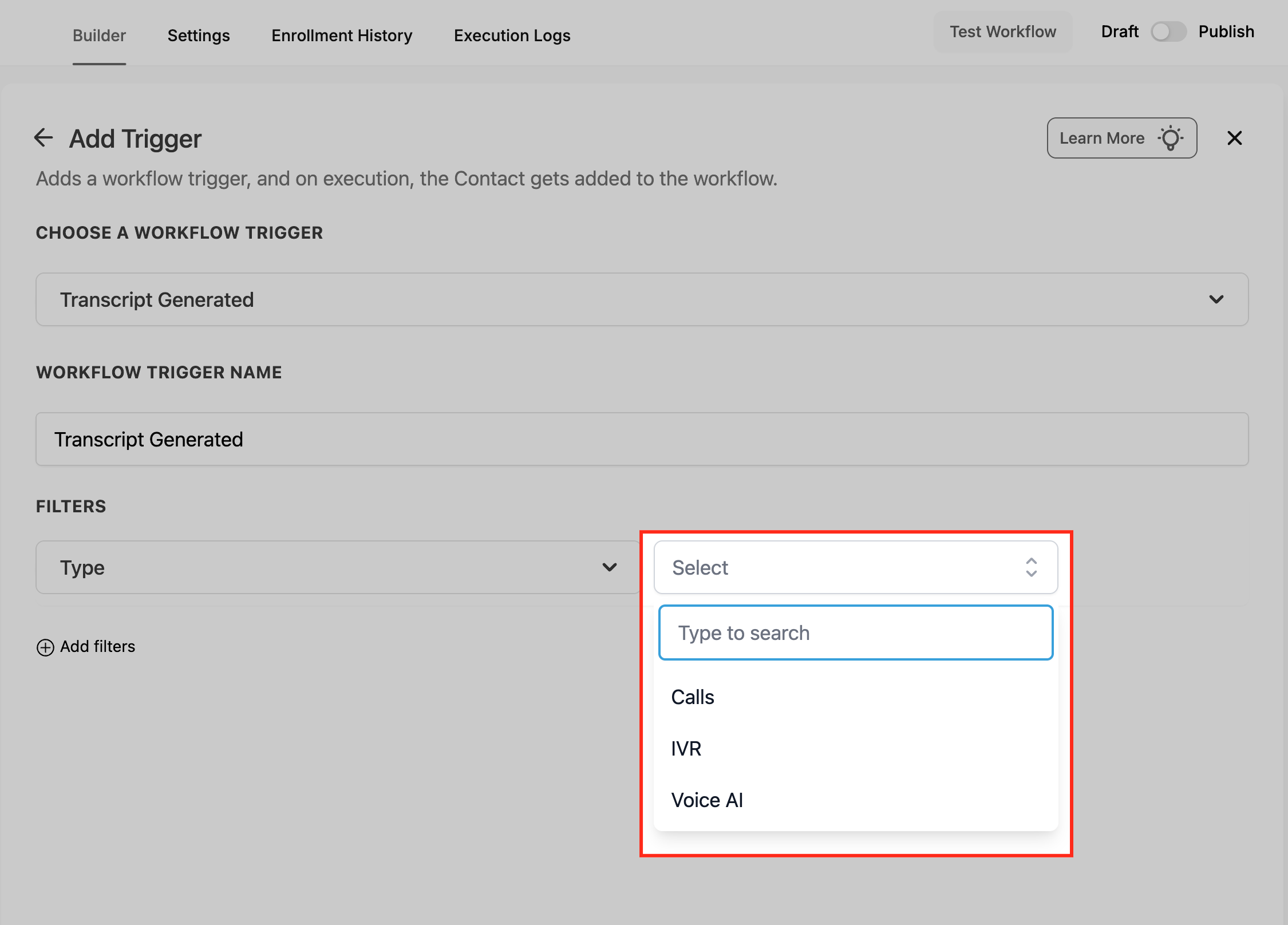
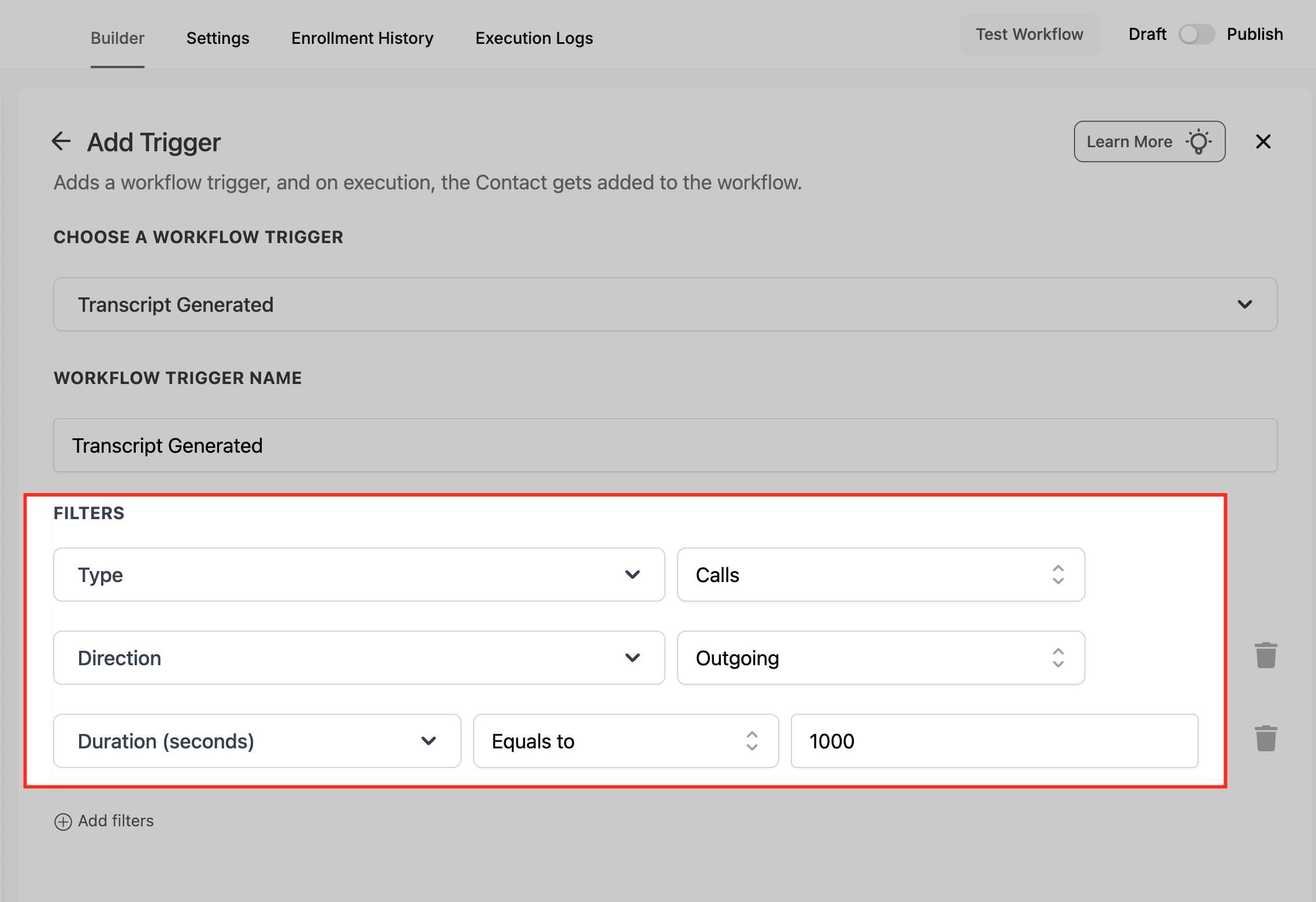
Fine-tune when your workflow fires by applying filters such as:
- Call Type: Choose Voice AI, IVR, or Normal Calls.
- Call Direction (Optional): Filter by inbound or outbound calls.
- Call Duration (Optional): Set a minimum duration to exclude short or incomplete calls (e.g., greater than 30 seconds).
Step 5: Save and Publish
Once configured, click Save Trigger, add your desired workflow actions, and toggle the workflow from Draft to Publish to activate it.
Frequently Asked Questions
Q: What happens if transcription fails or only partial audio is available?
If a call fails to transcribe completely (e.g., poor audio quality, missing recording segment), the Transcript Generated trigger will not fire. SourCherry only fires this trigger when the system confirms a successful transcript is generated. For partial transcripts, the workflow fires normally, but missing text segments appear as blank in the {{full transcript}} custom value.
Q: Can multiple workflows use the same transcript event simultaneously?
Yes. The “Transcript Generated” event can trigger multiple workflows if each has its own condition (e.g., different filters or call directions). However, ensure filters don’t overlap unnecessarily to avoid redundant automations, such as duplicate emails being sent.
Q: How is transcript data stored and secured?
Transcripts are securely stored within SourCherry’s infrastructure and associated only with the corresponding contact record. Access is governed by user permissions. Admins can view, delete, or export transcripts. Transcript text is not exposed externally unless shared through workflow actions (like sending it via email or webhook).
Q: Can this trigger work with calls imported or synced from third-party systems (like Twilio or custom Voice AI integrations)?
No. The trigger only works for calls recorded and transcribed within the SourCherry ecosystem. Imported call logs or external system transcripts do not activate this workflow trigger because they bypass the internal transcription pipeline.
Q: What happens if the same contact has multiple transcripts generated in a short period?
Each transcript event (per call) fires independently. SourCherry processes them in chronological order, so simultaneous events are queued sequentially. This ensures that automation actions (like tagging or updating contact fields) execute consistently without data collision.
Q: Is there a limit to how large a transcript can be for workflow processing?
Yes. Workflow execution can reference transcripts up to 16 KB when stored in custom fields. For longer conversations, use a note field or file URL storage (via webhook or CRM action) to avoid truncation. The workflow itself can still execute based on the full transcript, even if not stored in a field.