
The Trigger Statistics & Narration view provides insights into how your workflow triggers perform, helping you monitor activity and identify optimization opportunities within your automations.
This article covers two visibility upgrades for triggers in workflows: Trigger Narration (human-readable filter summaries right on the trigger card) and Trigger Stats (Attempted / Matched / Unmatched, plus contact-level reasons).
TABLE OF CONTENTS
What are Workflow Trigger Narration and Statistics?
Workflow Trigger Narration and Statistics give you better visibility into how workflow triggers behave. Trigger Narration explains the logic behind a trigger in a simple, readable format, while Trigger Statistics shows how many records attempted, matched, or did not match that trigger. Together, these tools help you validate trigger setup, diagnose issues faster, and make more confident workflow updates.
Workflow triggers are the conditions that start a workflow. When a workflow contains filters or multiple trigger paths, it can be difficult to quickly understand why a contact enrolled or failed to enroll. Trigger Narration helps by summarizing the trigger logic in plain language, and Trigger Statistics helps by showing actual performance data for that trigger.
Key Benefits of Trigger Narration and Statistics
- Visibility: See exactly which triggers are driving the most activity.
- Performance Analysis: Quickly identify top-performing or underutilized triggers.
- Error Detection: Find and fix triggers that fail to execute as expected.
- Optimization: Improve workflow efficiency using real data instead of guesswork.
Trigger Narration
See the “why” at a glance. Every trigger shows a human-readable narration of its filters/conditions on the trigger card.
Each trigger card shows a simple and readable summary of its filters/conditions. This makes it easy to scan logic without opening the trigger.
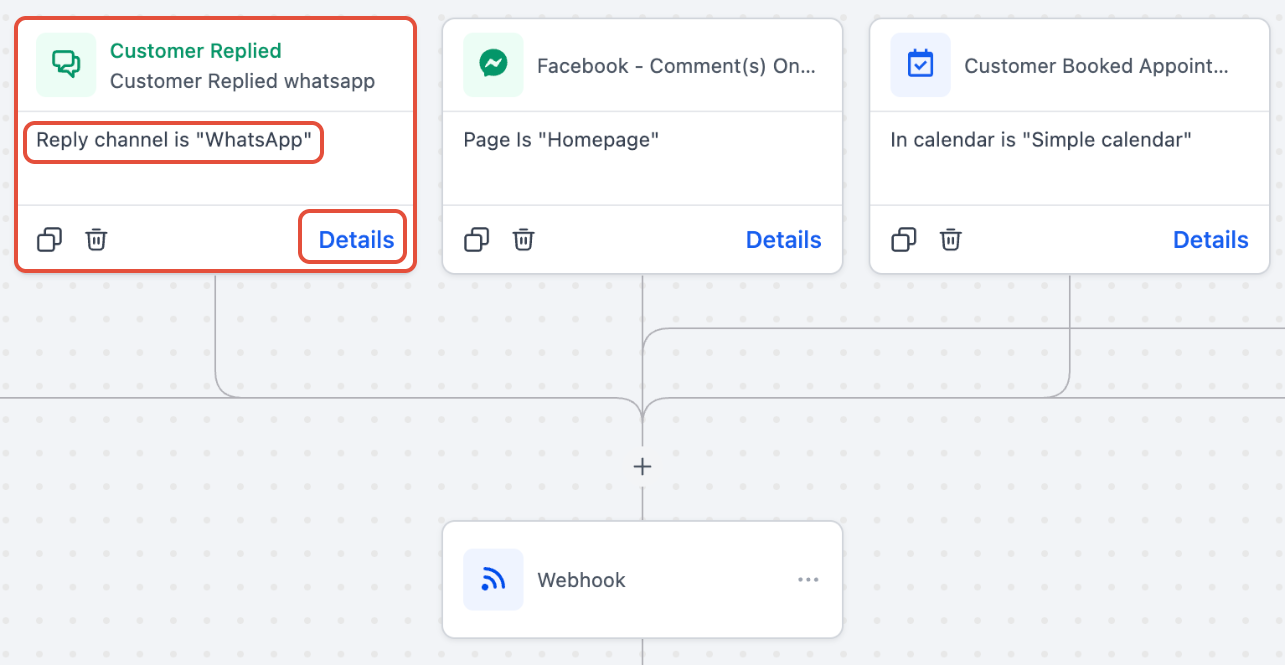
How it works
- The narration appears below the trigger name.
- For complex triggers, you’ll see a compact summary with a “+X more” link.
- Click Details to open a panel with the full filter list.
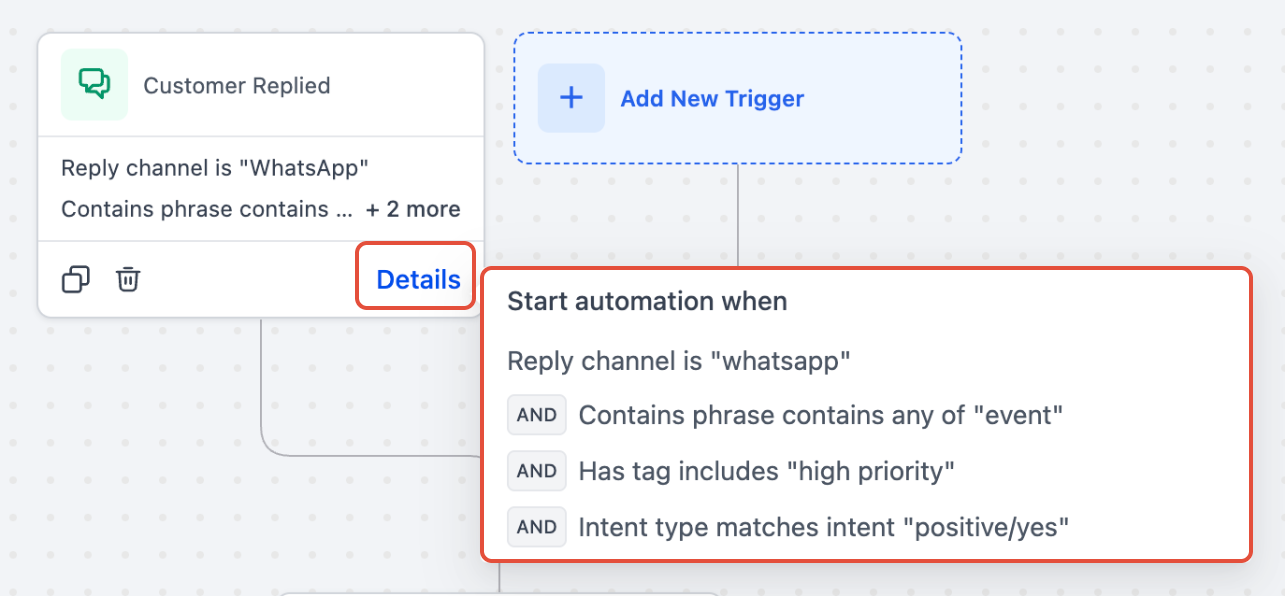
Narration helps during audits, handoffs, and reviews, especially in large canvases, because you no longer need to open every trigger just to recall its purpose.
Trigger Stats
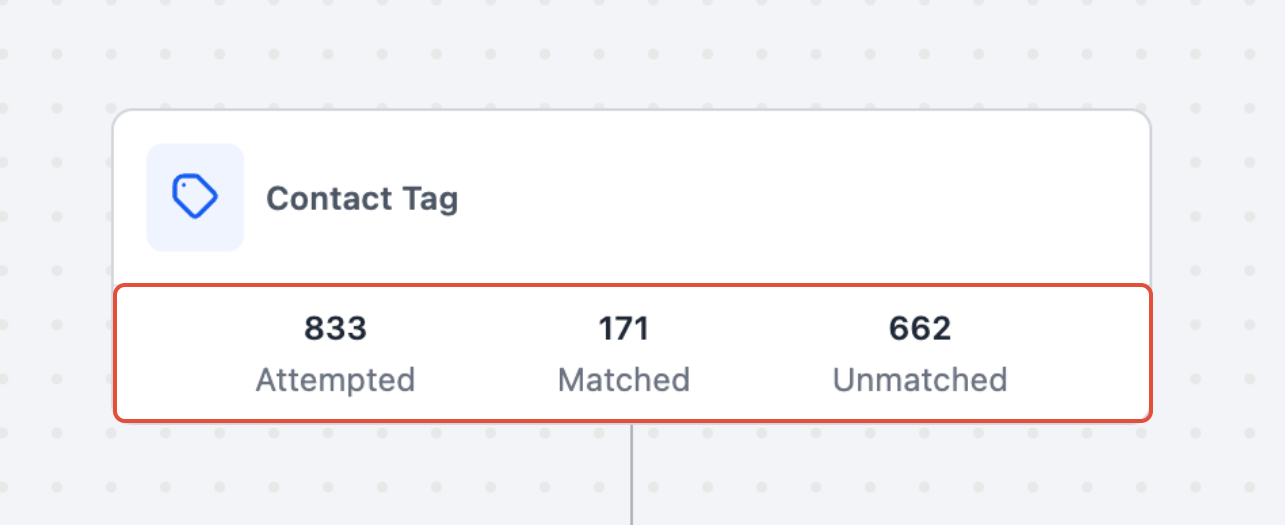
Measure what’s working in Stats View; each trigger displays Attempted, Matched, Unmatched, and lets you drill into contact-level reasons (e.g., filter mismatch, missing data).
Trigger Stats is a diagnostic view inside the Workflow Builder that measures whether contacts qualified for each trigger. It surfaces totals (Attempted, Matched, Unmatched) and lets you click into a detailed panel to see the exact reason a contact did or did not match so you can fix filters, update data, and confirm changes without leaving the builder. Trigger Stats is available in both the Standard and Advanced Workflow Builders. Open Stats View and select a trigger to review its enrollment activity without leaving the workflow.
IMPORTANT: Workflows are not editable in Stats view. Also, the Stats are only available for the last 30 days.
Trigger-Level Performance Metrics
Stats View shows per-trigger performance inside the workflow:
Attempted — total contacts evaluated by the trigger
Matched — contacts that met all conditions
- Unmatched — contacts that didn’t qualify
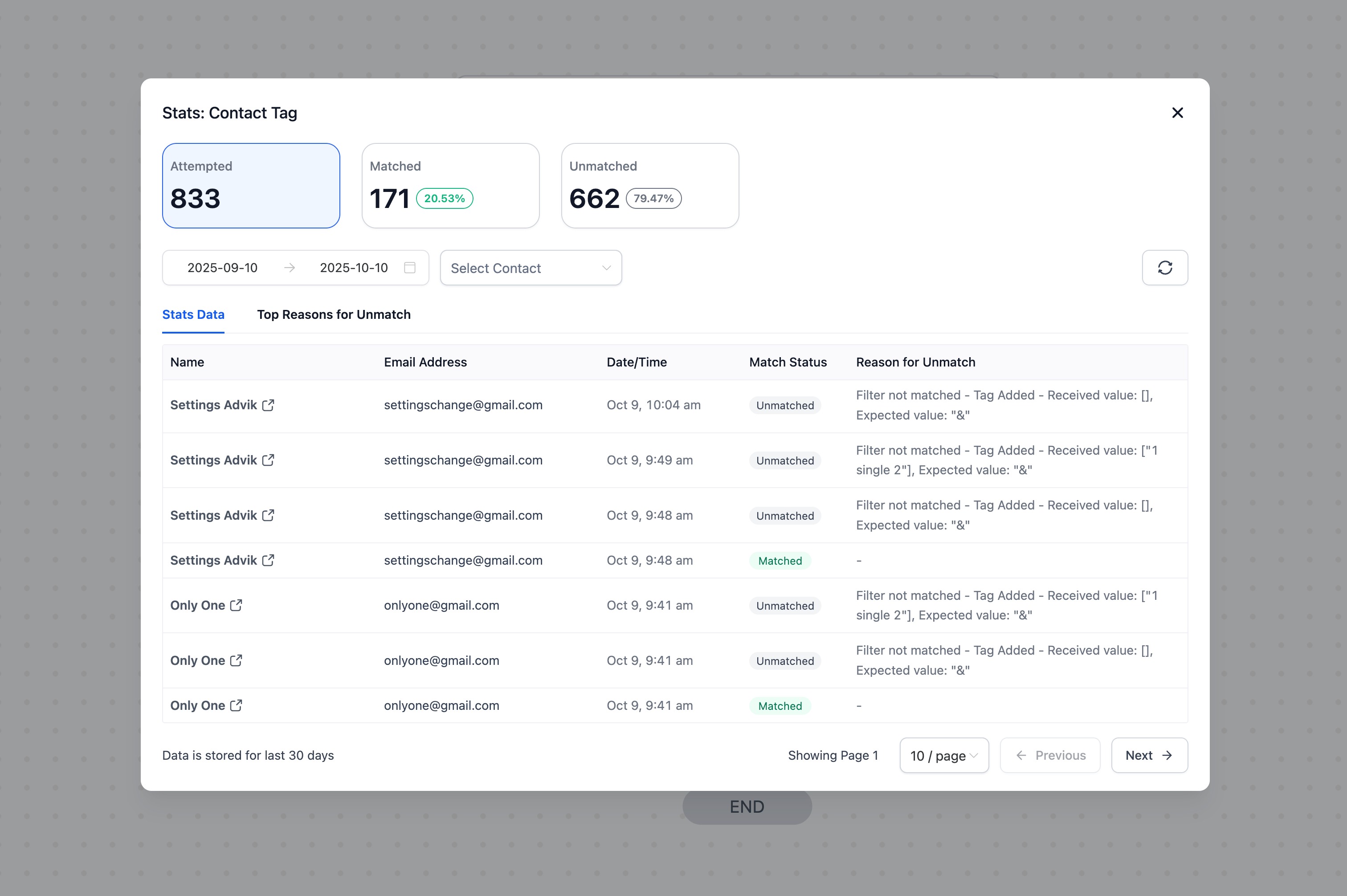
Trigger Stats Panel
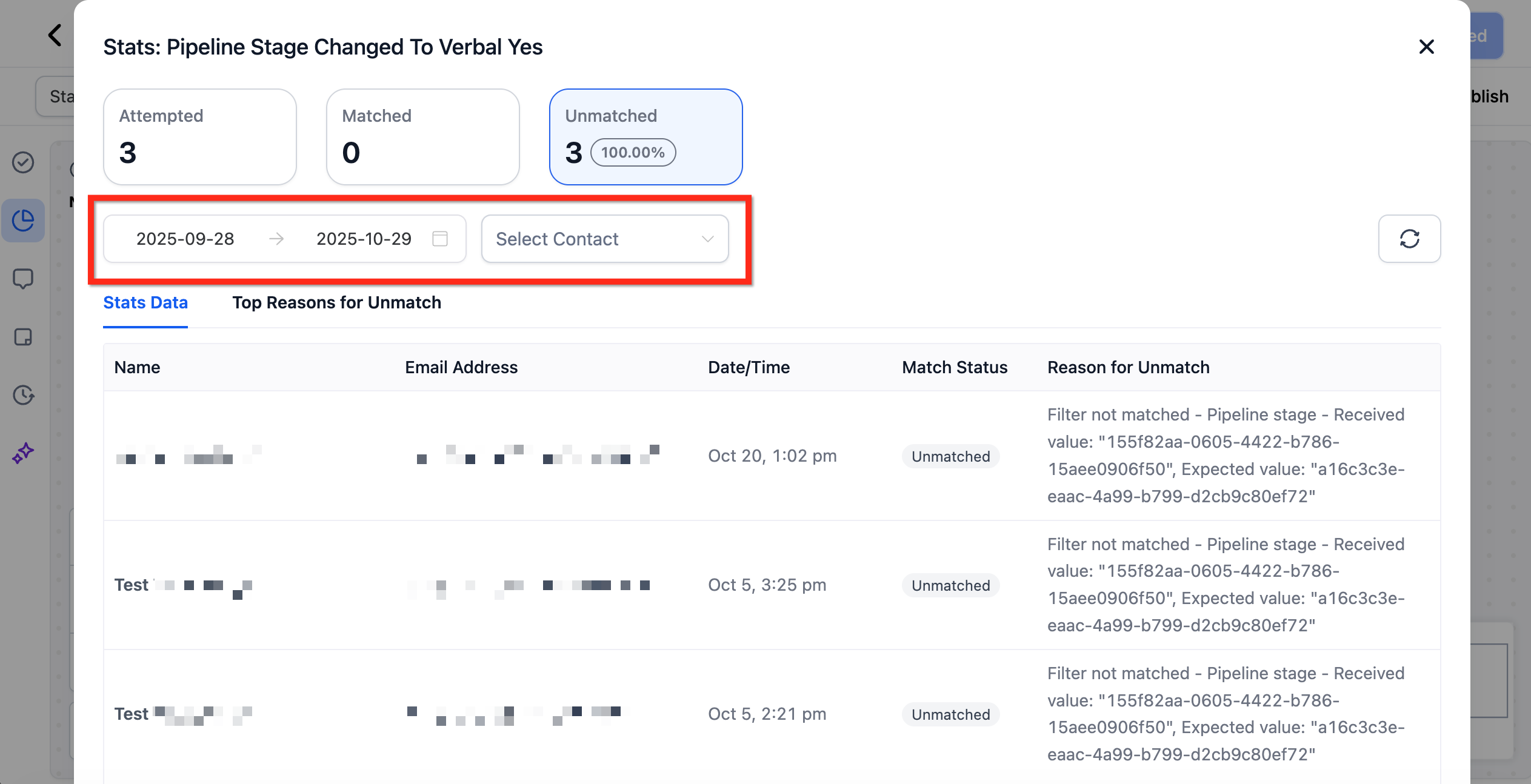
Click any stat to open the Trigger Stats Panel and see:
- Contact names, emails, and timestamps
- Match status
- Reason for Unmatch (e.g., value mismatch, missing field)
- A summary of common unmatched reasons to help identify recurring filter or contact-data issues
- Filters: date range, search by contact
Tip: This complements the broader workflow-level reporting available elsewhere in the app (e.g., list-level stats and communication metrics).
Real-Time Analysis & Smart Filters
Trigger Stats updates live as events occur, so you can test a change, watch the numbers move, and confirm your fix immediately. Use built-in date and contact filters to isolate specific timeframes or individuals, ideal for studying spikes or validating test records.
Best Practices
- Review trigger stats weekly to catch performance issues early.
- Use success rate metrics to monitor workflow health.
- Compare triggers across similar workflows to find optimization opportunities.
Frequently Asked Questions
Q: My “Unmatched” count is high—what should I check first?
Open the Trigger Stats Panel and review Reason for Unmatch. Common causes: wrong value, missing field, or the wrong trigger selected. Review your trigger type and filters (compare against the trigger’s reference in the triggers catalog).
Q: Can I filter or search inside Trigger Stats?
Yes, use date range and search (by contact) within the stats panel.
Q: Does this change how triggers start workflows?
No. Triggers and actions still follow the standard workflow model: an event (trigger) starts the flow, then actions run in sequence. Narration and Stats only add visibility; they don’t change execution.
Q: How often do the numbers refresh?
Stats update in real time; you’ll typically see new attempts within seconds of the triggering event.
Q: Does Trigger Stats change how triggers fire?
No. It only adds visibility; trigger logic and execution remain unchanged.
Q: What counts as “Attempted”?
Any contact evaluated by the trigger, whether it matched the filters or not, adds one to the Attempted tally.
Q: How long is data retained?
The Trigger Stats panel stores data for the last 30 days.