
The Global Settings page in Rentals allows you to control how your rental business operates at a global level. It standardizes key configurations—such as scheduling, notifications, branding, and payments—so that all listings and bookings follow consistent rules while still allowing listing-specific overrides.
TABLE OF CONTENTS
Overview of Global Settings
The Global Settings area centralizes all important setup options for your rental business. Here, you can:
Set business hours and booking behavior defaults.
Configure customer and staff notification preferences.
Customize the look and feel of your booking page.
Set up payment methods and security deposit handling.
These settings apply to all new listings and bookings created after changes are made.
Key Benefits of Global Settings
Consistency: Standard rules apply to new listings and bookings, improving predictability across teams.
Operational Control: Business hours and time selection settings shape when and how customers book.
Brand Trust: Booking page branding, layout, and consent text create a cohesive customer experience.
Clear Payments: Currency, Require Payment, and Deposits settings align checkout, invoices, and reconciliation.
Flexibility with Safety: Admins can override some constraints when creating a booking, while buffers & inventory remain enforced.
How to Access Global Settings
To access Global settings, navigate to Calendars → Calendar Settings → Rentals → Global Settings.
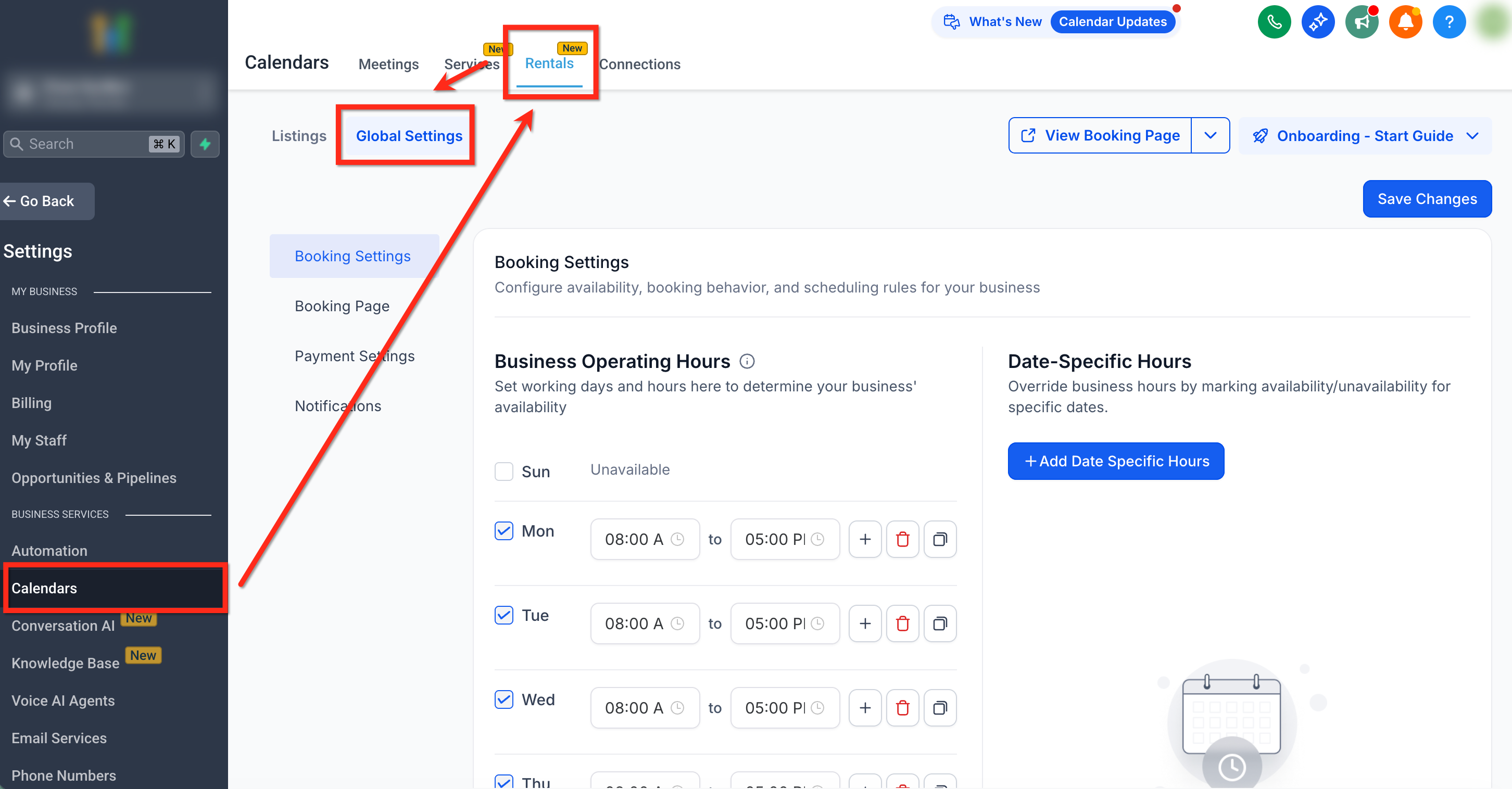
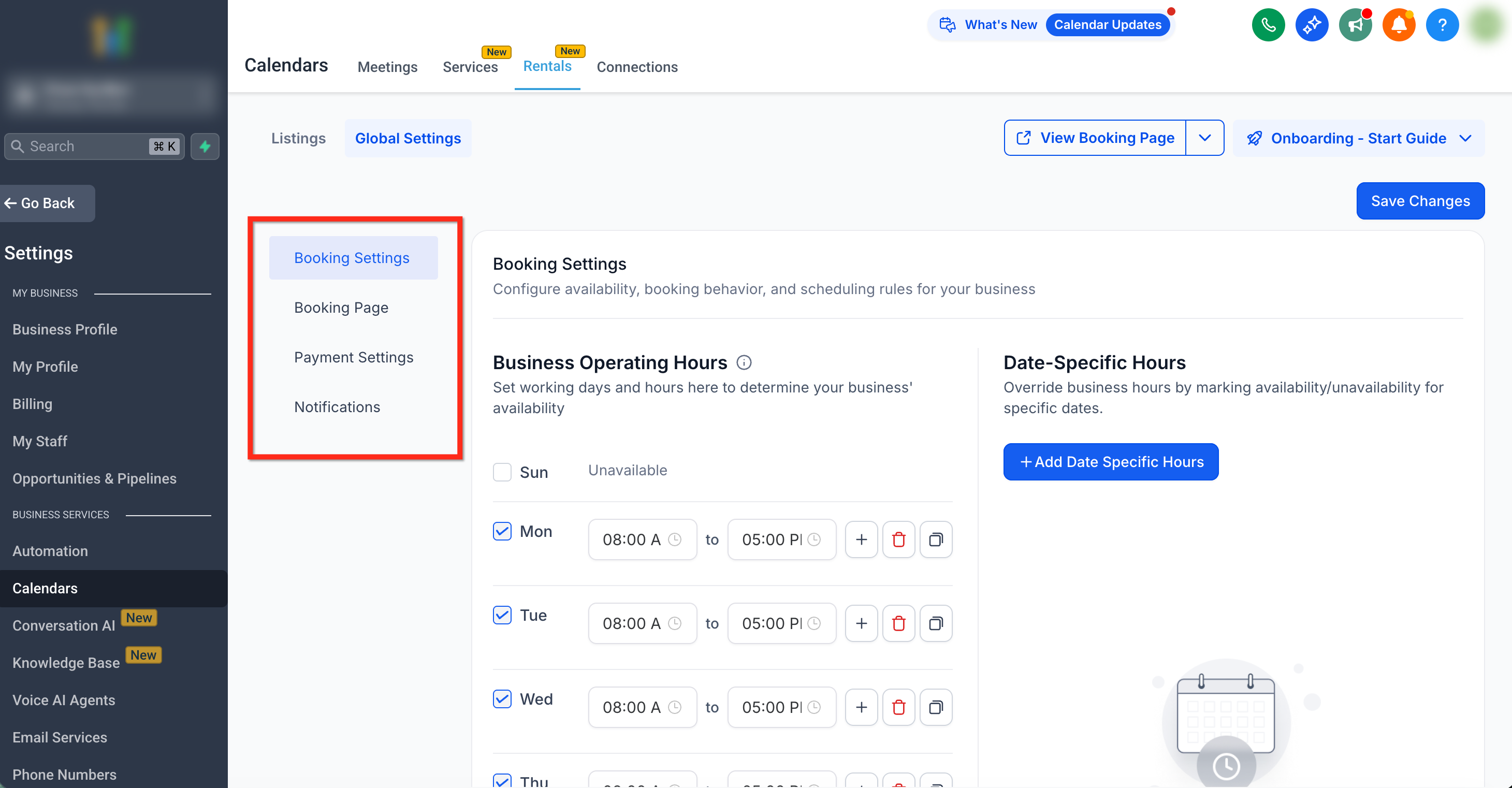
The left panel will display four main configuration tabs. Each tab manages a distinct part of how your rental business functions.
Booking Settings
Notifications
Booking Page
Payment
Booking Settings
The Booking Settings tab defines your business operating hours, scheduling behavior, and overall booking behaviors. Admins can always override global restrictions while creating bookings in-app.
Business Operating Hours
Specify working days and hours to control when bookings can be made.
Use the + button to add multiple time intervals within a single day.
Deactivate any day by unchecking it.
Note: While bookings must start and end within your defined business hours, the total rental period can still extend beyond those hours. For example, if your business closes at 11:00 PM, a booking starting at 10:30 PM can still continue past closing time.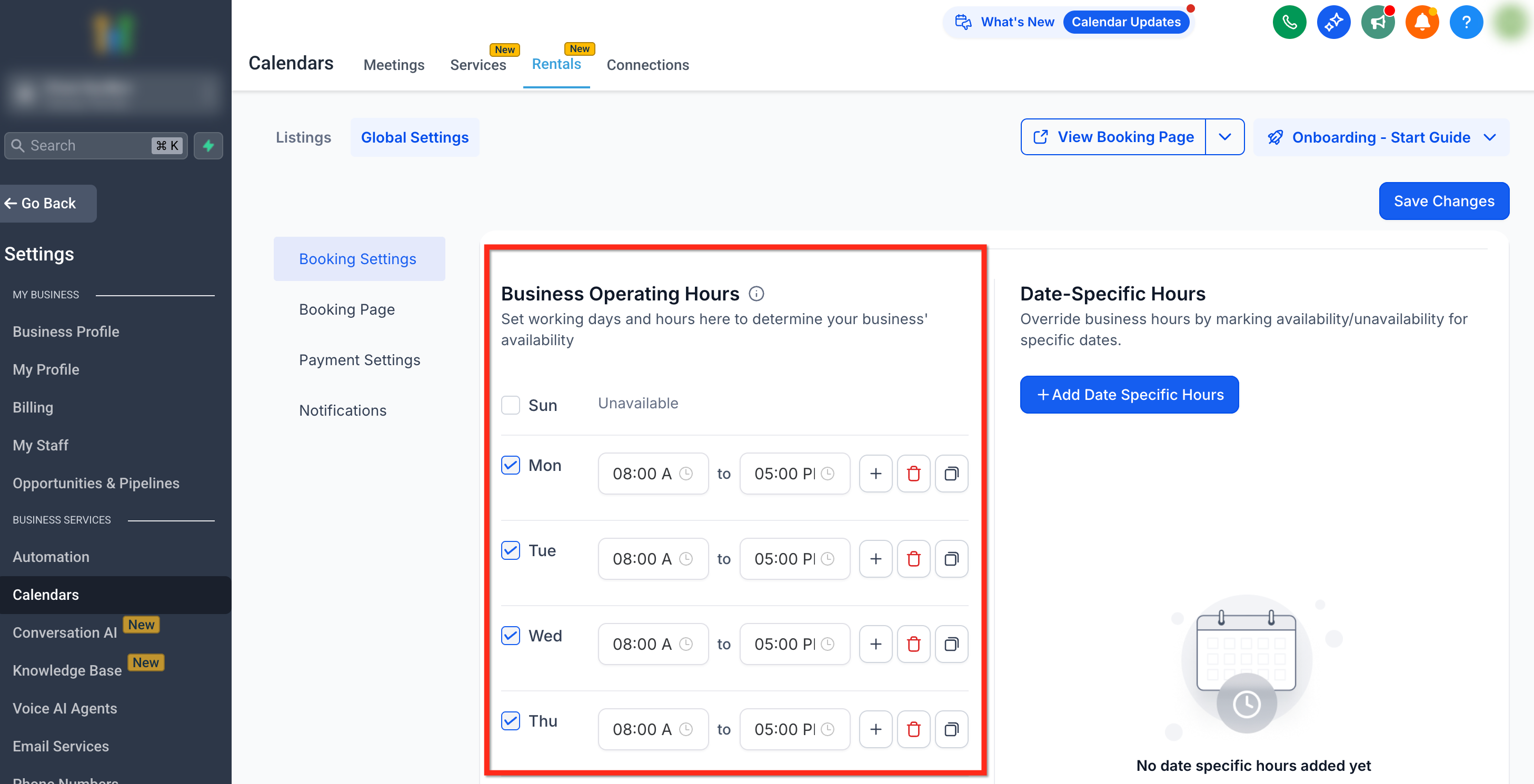
Date-Specific Hours
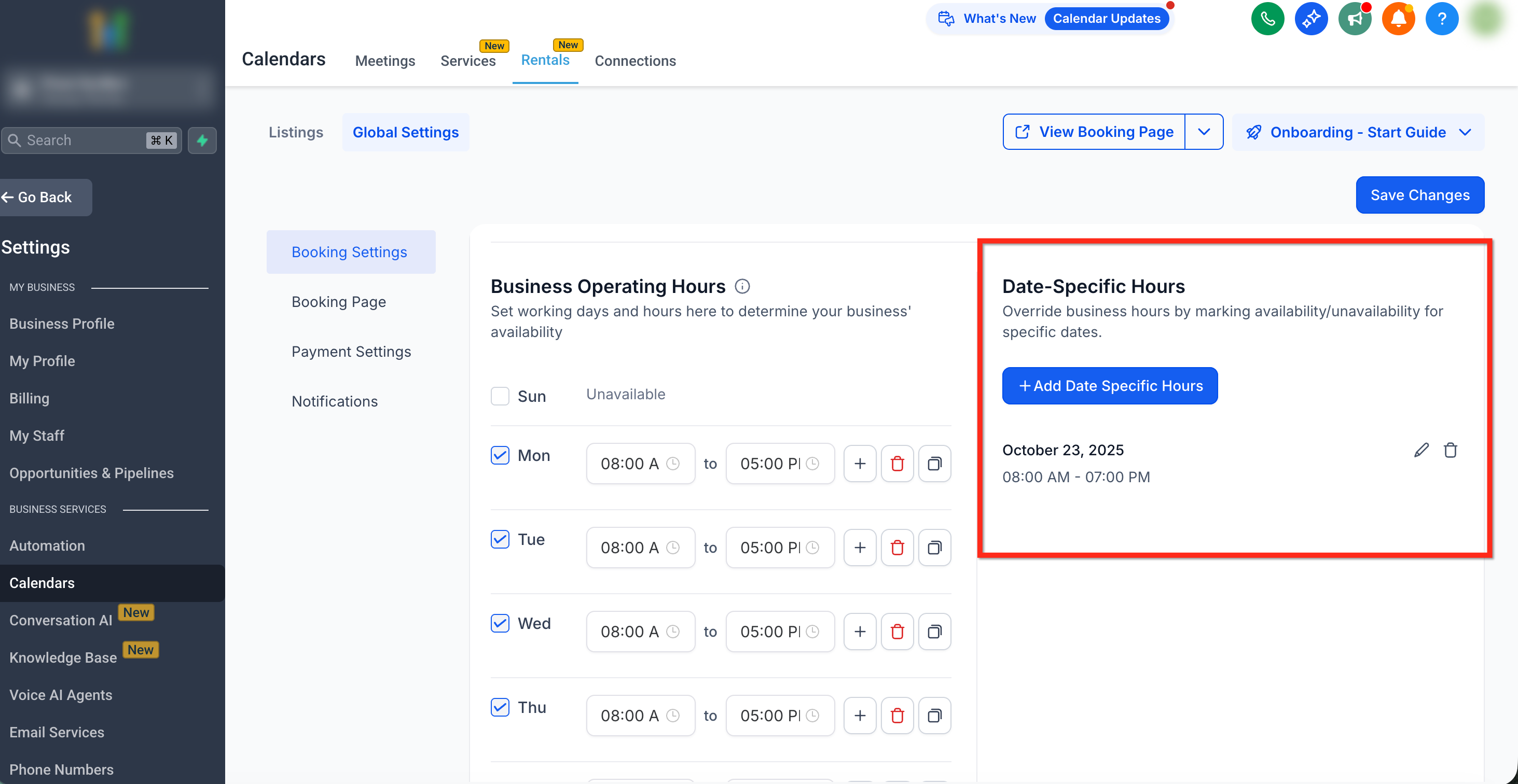
Add custom operating hours for specific dates, such as holidays or events.
Click + Add Date Specific Hours to define unique availability windows.
Hours set in Date-Specific Hours override the business availability hours for that day.
How Date Grouping Works
To keep the list clean, SourCherry groups selected dates:
Consecutive dates are grouped into one range.
Non-consecutive dates are split into separate ranges.
Each grouped range can be edited or deleted independently later.
Additional Configuration
Timezone – Set the timezone in which your business operates; this will display on the booking page and all bookings are created in this timezone.
Slot Interval – Define time increments for time selection (e.g., 15, 30, 60 minutes). It sets how frequently slots are shown on the booking page. For e.g., a 30-minute interval will display available slots every 30 minutes.
Auto-confirm Bookings – Automatically confirm all new bookings upon creation. When disabled, bookings are set to Unconfirmed by default.
Enable Multi-item Cart – Allow customers to book multiple listings in one checkout.
Away Mode – Temporarily disable all new online bookings.
Default Rental Times – Define default rental start and end times used associated with start date and end date when the time selector is disabled.
Note: Default Rental Times override Business Operating Hours, but selected business days still apply.Notifications
The Notifications tab manages customer and staff notifications triggered by booking events. Each notification can be configured to send through Email, In-App, SMS or Whatsapp channels. Use the Edit (Pencil) icon beside each type to modify the template.
Notifications Include:
Appointment Booked (Unconfirmed) – Triggered when a new booking is created but not yet confirmed.
Appointment Booked (Confirmed) – Triggered when a booking is confirmed.
Cancellation – Notifies when a booking is canceled.
Reschedule – Notifies when booking times or dates are changed.
Reminder – Sends a reminder before the booking start time.
Follow-up – Sends a message after booking completion.
Note: The notifications are triggered for booking level events and not for updates to each individual listing.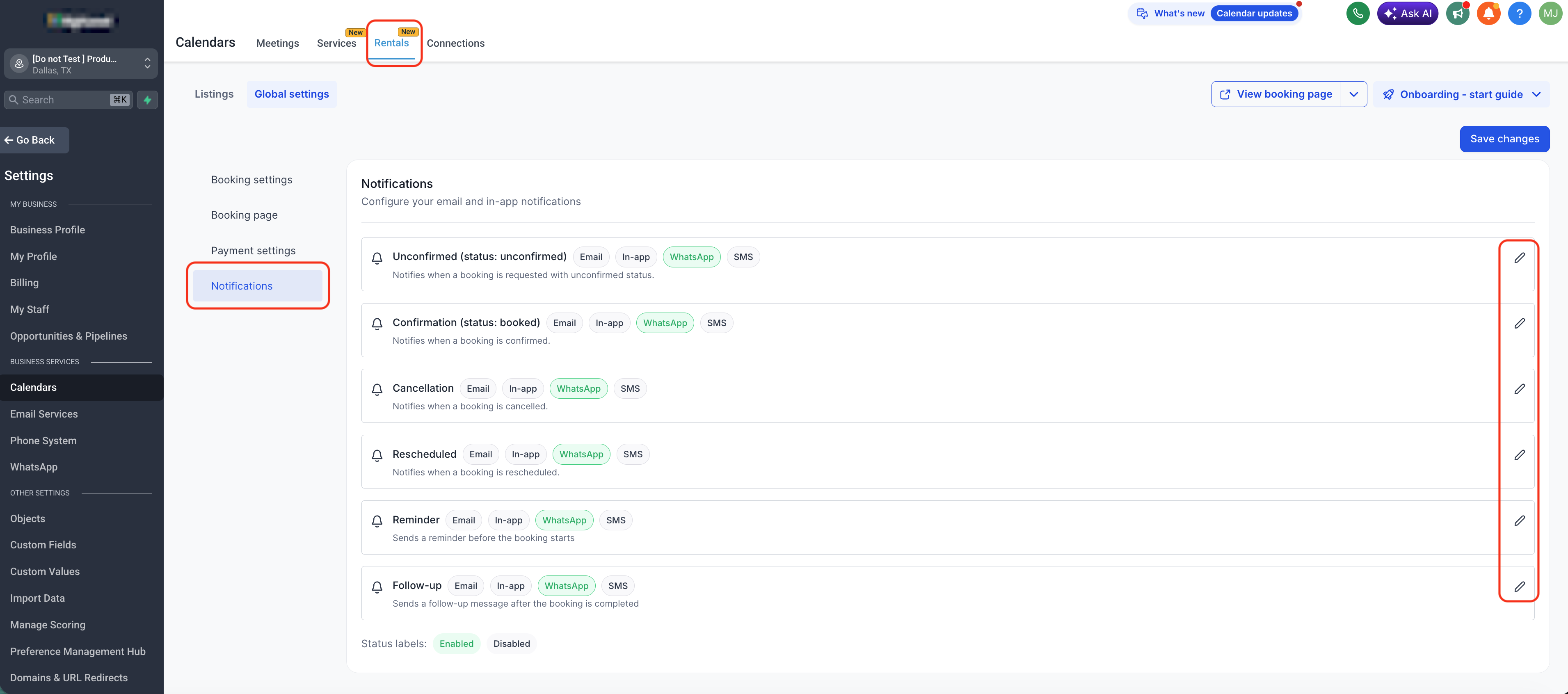
Booking Page Settings
The Booking Page tab controls how your customer-facing booking site appears and behaves.
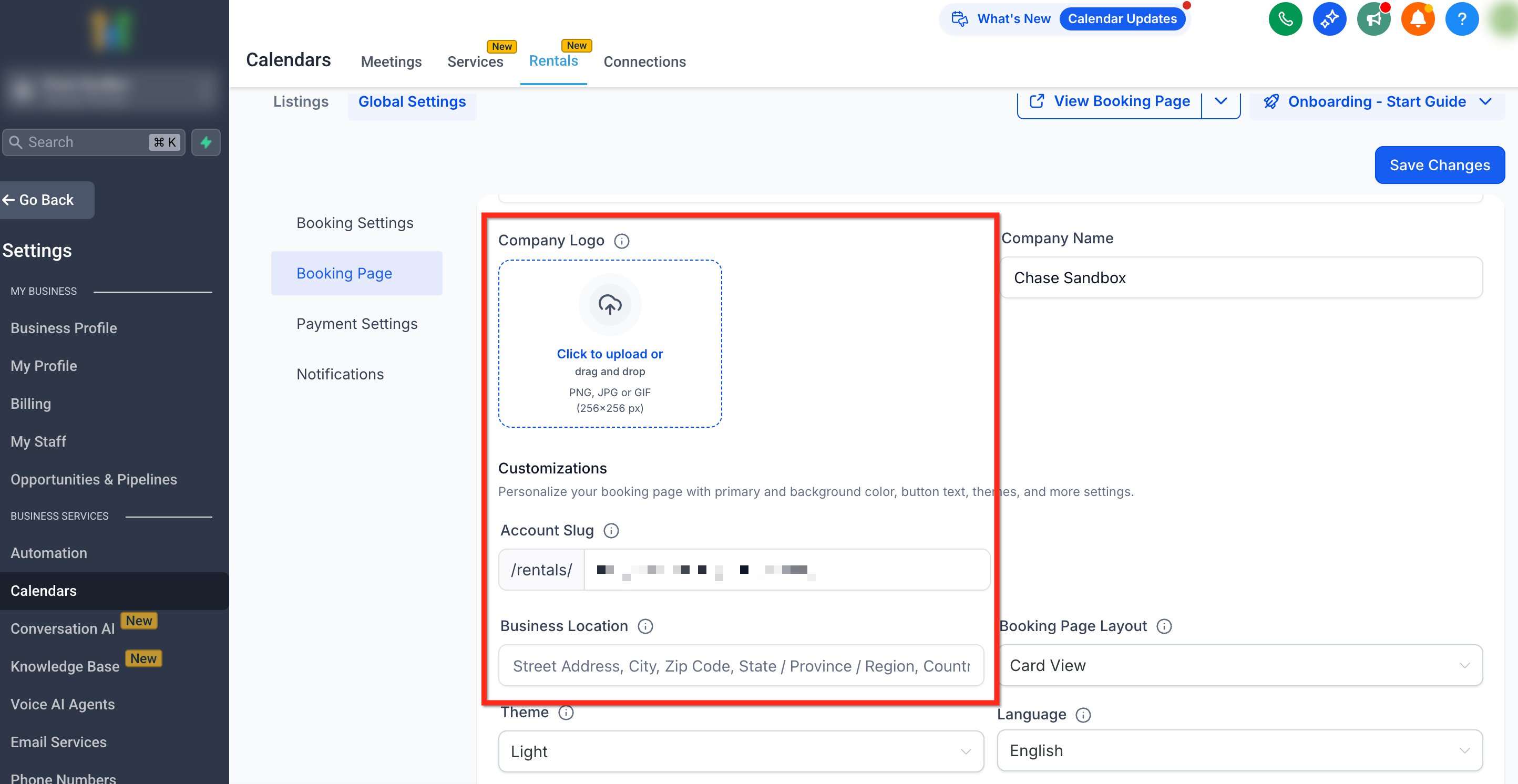
General Information
- Company Logo & Name – Add your company name and upload your company logo, which will be displayed on your booking page.
- Account Slug – Defines your booking page URL (e.g.,
/rentals/your-business-name). It is also used as the base for all your listing URLs. - Default Location – Set your rental location address.
Page Customization
- Theme – Choose between a light or dark theme for your booking page, which affects the header, footer, and widgets.
- Language – Select the language in which the booking page will be displayed to customers.
- Week Starts On – Choose the day on which the week should begin in the date picker on the booking page.
- Primary Color: Set the color for all actions like buttons and date selection.
- Background Color: Choose the color for the background of the booking page.
- Booking Page Layout – Decide how listings appear on your booking page — display them in a card view, a list view, or give customers the option to choose their preferred view in real time.
- Listing Selection Button Label – Customize the button text that appears when customers select a listing (e.g., 'View Details')
- Final Booking Button Label – Set the text for the final button on the booking page, where customers complete their booking(e.g., 'Book Now').
- Insert Custom Code – Add custom CSS to further customize the look and feel of your booking page. Simply paste your code and save to apply changes.
- Preview Booking Page – View a live preview of the page before saving changes.
Tip: Use Preview Booking Page to test how design and layout updates look before publishing.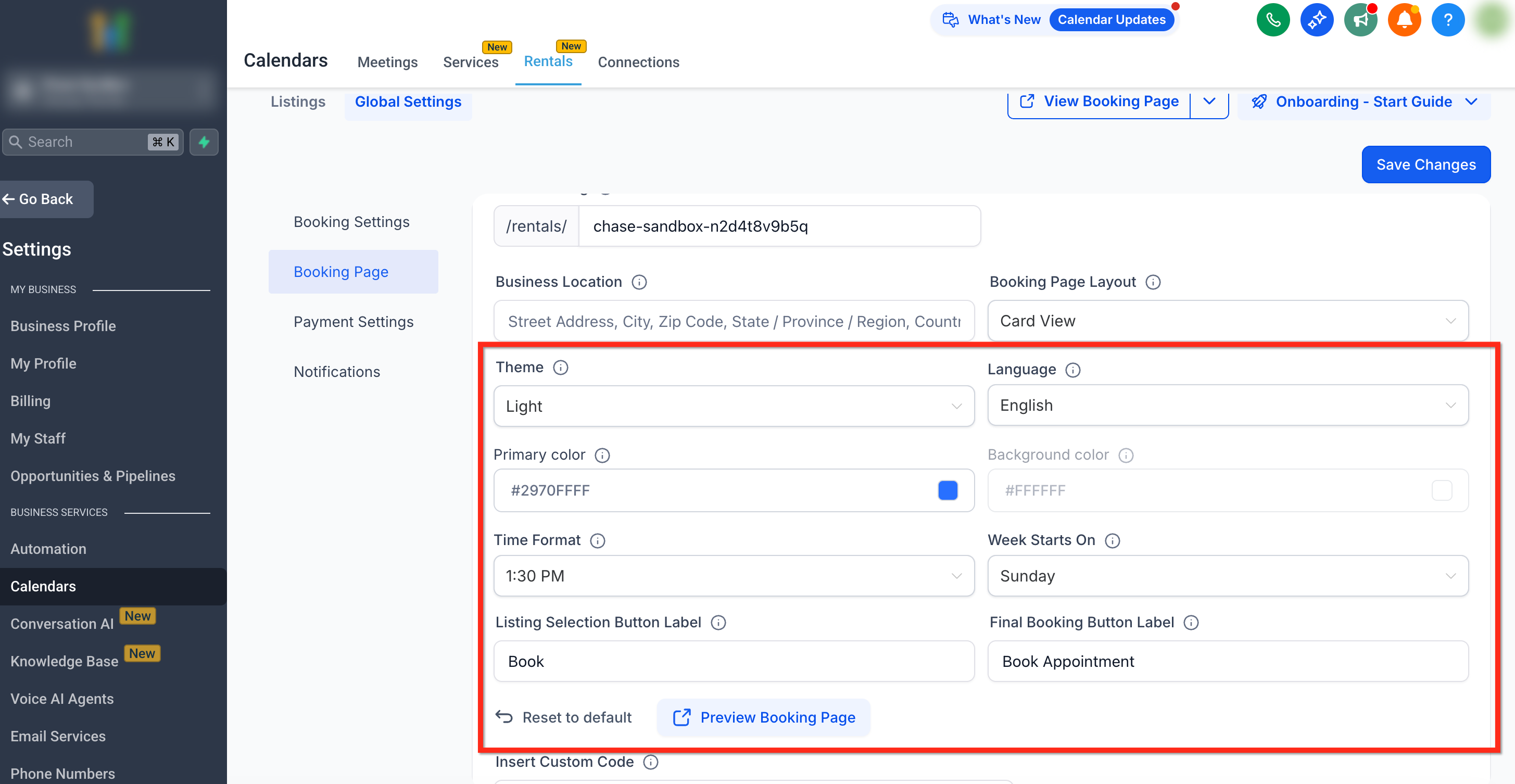
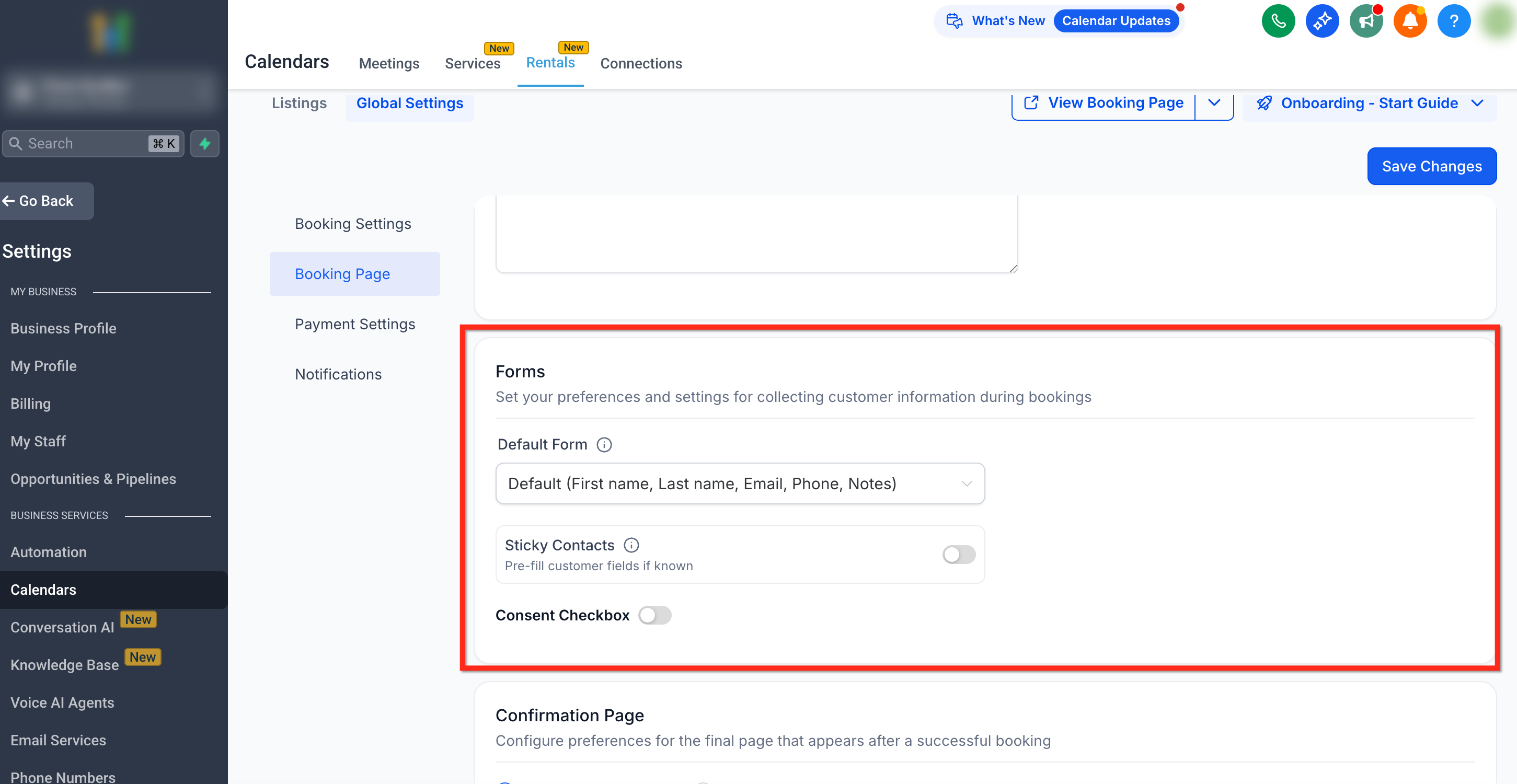
Forms and Consent
- Default Form – Choose the form that should be displayed when booking listings. You can use the Default Form (First Name, Last Name, Phone, Email & Additional Info) or create a custom form in Sites > Forms. The form helps in collecting booker's information and create a subsequent contact in the system.
- Sticky Contacts – This feature remembers customer information using browser cookies. It pre-populates the booking form for returning customers. This should only be enabled when customers are filling out the form themselves. If different customers use the same browser, the information may get overwritten.
- Consent Checkbox & Message – Enable this to obtain customer consent during the booking process. You can customize the consent message. This is only available when using the Default Form.
Confirmation Page Settings
After a booking is made, choose to show a custom message on the default confirmation page or redirect the customer to another page.
Confirmation Type – Choose between a Thank You Message or Redirect URL after booking.
Confirmation Header & Message – Customize the confirmation text shown after a booking is placed successfully (applicable when the Confirmation Type is set to Thank You Message)
Note: Branding and customization changes take effect immediately after saving and can be previewed before going live.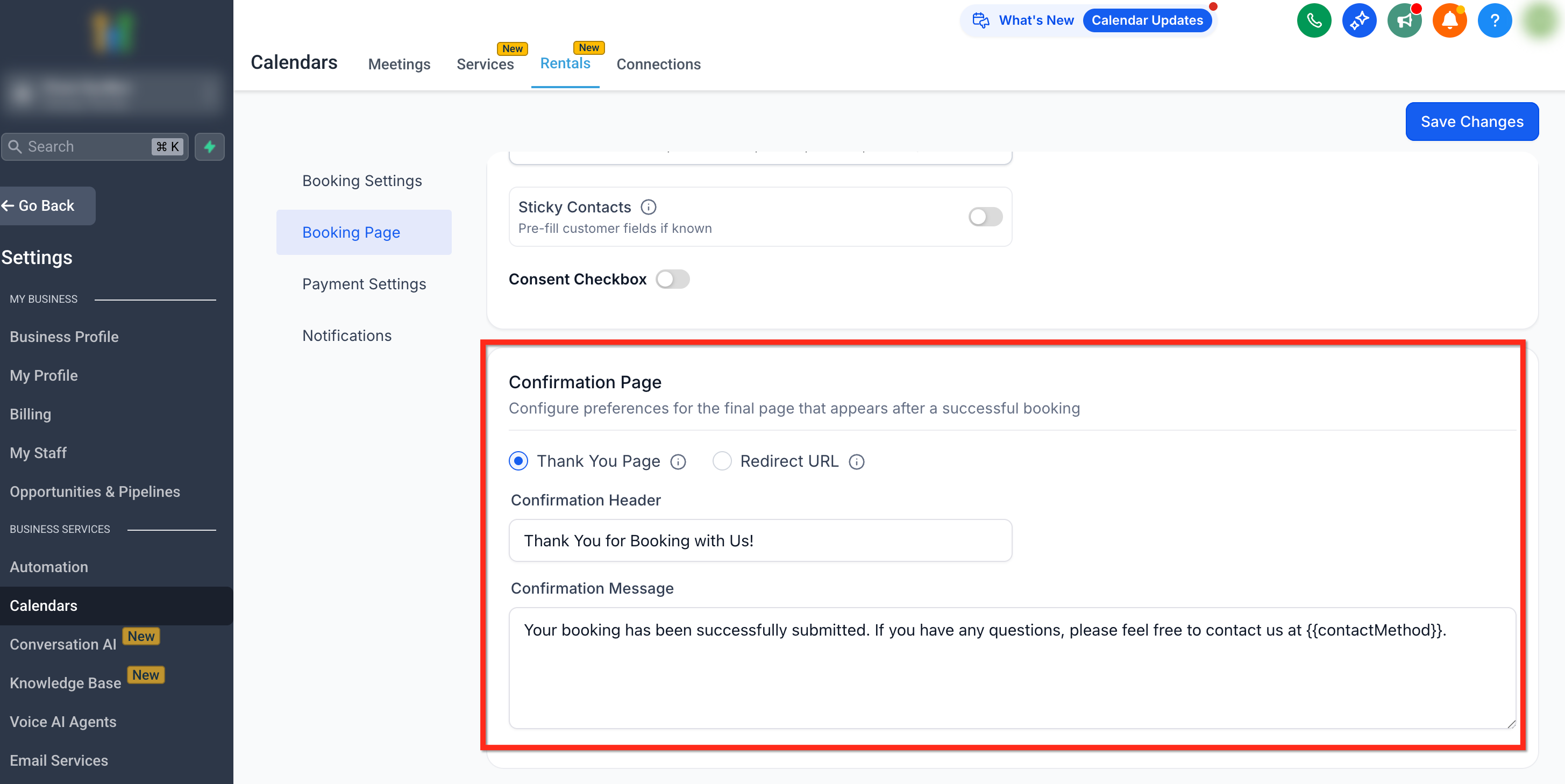
Payment Settings
The Payment tab defines how your business handles payments, deposits, and currencies.
General Payment Settings
- Currency – Select the currency in which payments will be displayed and collected. This will apply to all listings. If you are changing your currency, please ensure that the corresponding pricing for each listing is updated accordingly.
Require Payment at Booking – Decide if customers must pay during booking or can pay later. If disabled, no payments are collected online, however, total price is still shown to the customer.
Enable Security Deposits – Toggle security deposit handling for all bookings.
Security Deposit Mode:
Collect Upfront – The deposit is included in the initial booking total.
- Card on File Only – Customer’s card is saved but not charged upfront for security deposit. The deposit can be charged later manually from the Edit Booking page if needed. Customers using Card on File must pay with a credit or debit card. Other payment methods are disabled.
Note: If Online payments are toggled off, Security Deposit is included in the total due upfront and must be collected at the time of rental along with the listing total.Important: Security deposit configuration directly impacts how payments behave in the Edit Booking screen.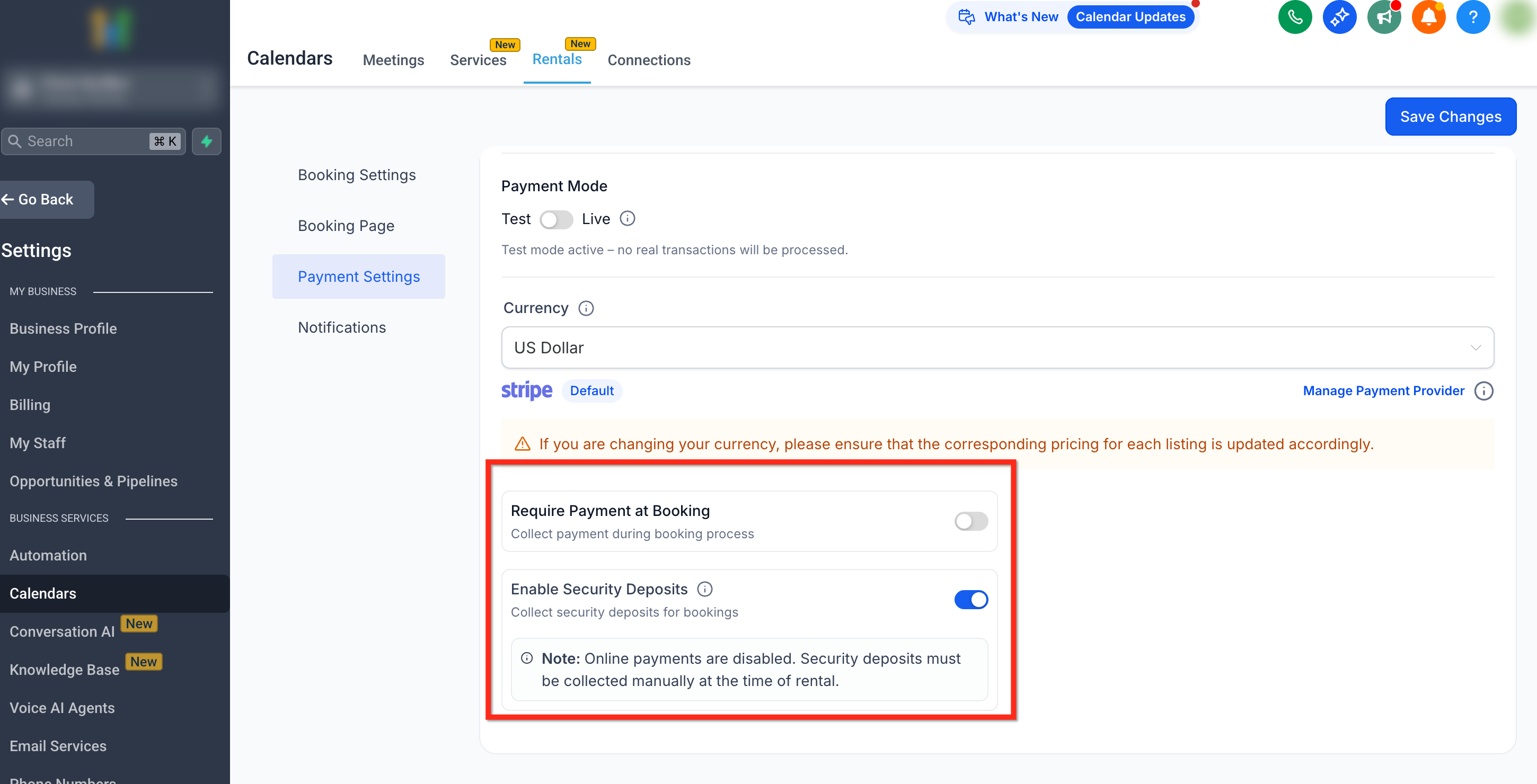
Payment Mode
Choose between Test Mode (for safe testing) and Live Mode (for actual transactions).
Connected gateways such as Authorize.net or Stripe appear here for management.
Tip: Always run test bookings in Test Mode before enabling Live Mode to verify invoice accuracy and payment flow.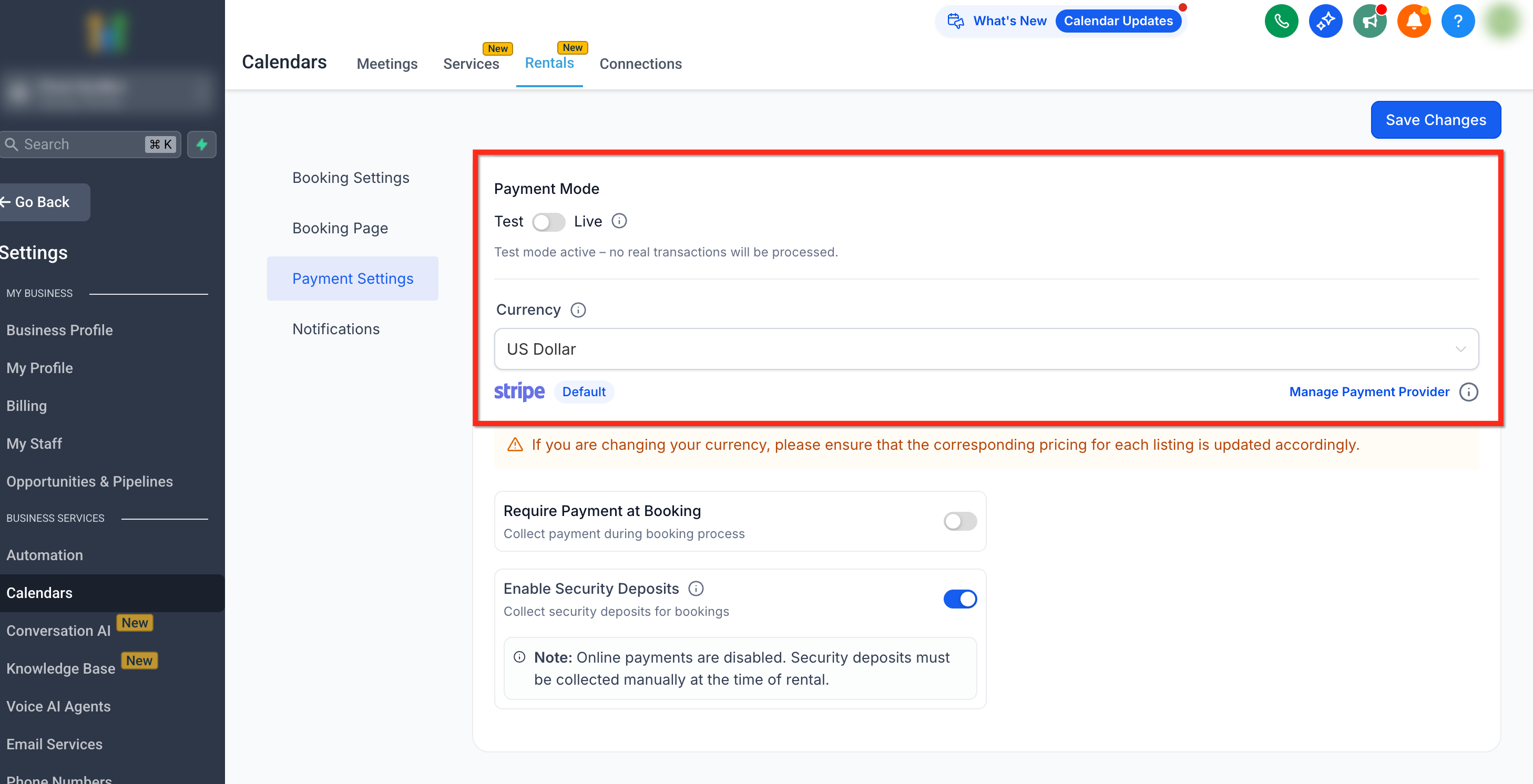
Frequently Asked Questions
Q: What does Away Mode do?
When activated, it prevents customers from making new bookings while keeping existing bookings unaffected.
Q: How do I test payment setup?
Enable Test Mode under the Payments tab to simulate transactions without charging customers.
Q: Can I redirect customers after booking?
Yes, under Booking Page → Confirmation Page Settings, you can set a custom thank-you message or redirect URL.
Q: Do direct links for specific listings or categories reflect changes made in Global Settings?
Yes. Listings and category share links are filtered views of the same booking experience, so updates to Global Settings (layout, forms, payments, notifications) apply automatically.