
Smart Tags help you visually prioritize opportunities inside your pipelines using color-coded chips. Instead of relying on filters or text labels, you can highlight deals automatically based on rules you define — such as stale deals, high-value opportunities, or new leads.This article shows you how to create, edit and manages smart tags in SourCherry.
TABLE OF CONTENTS
- What is Smart Tags?
- Key Benefits of Smart Tags
- Permissions & Access
- Limits & Validation
- How to Setup & Use Smart Tags
- Preview, Edit or Delete Tags
- Recommended Pre-Built Tags
- Best Practices
- Troubleshooting
- Frequently Asked Questions
- Related Articles
What is Smart Tags?
Smart Tags are dynamic, rule-based color chips that appear directly on each Opportunity card inside a pipeline. Powered by an easy conditional builder, these tags evaluate every Opportunity in real time, then automatically apply a colored label whenever the record meets your criteria (e.g., deal value > $10 000). The result is an at-a-glance, visual layer that eliminates the need for manual filters or tedious scanning.
Key Benefits of Smart Tags
- Immediate prioritization: High-impact deals jump off the screen.
- Less context-switching: No need to open each card or apply multiple filters.
- Consistent team focus: Everyone sees the same color cues, driving aligned action.
- Custom to every workflow: Build any combo of AND/OR conditions across Standard or Custom Opportunity fields.
Permissions & Access
- Who can create or edit Smart Tags:
- Agency Admins
- Location Admins
- Users with Pipeline Edit Permissions
- Agency Admins
- Who can view Smart Tags:
- All users (with Pipeline View Permission - even without editing permissions)
Limits & Validation
- Each pipeline supports up to 60 active Smart Tags.
- Duplicate tags in the same pipeline (same color + rule) are blocked automatically.
- Tags update automatically as deal data changes — no manual refresh required.
How to Setup & Use Smart Tags
Step 1: Find Smart Tags
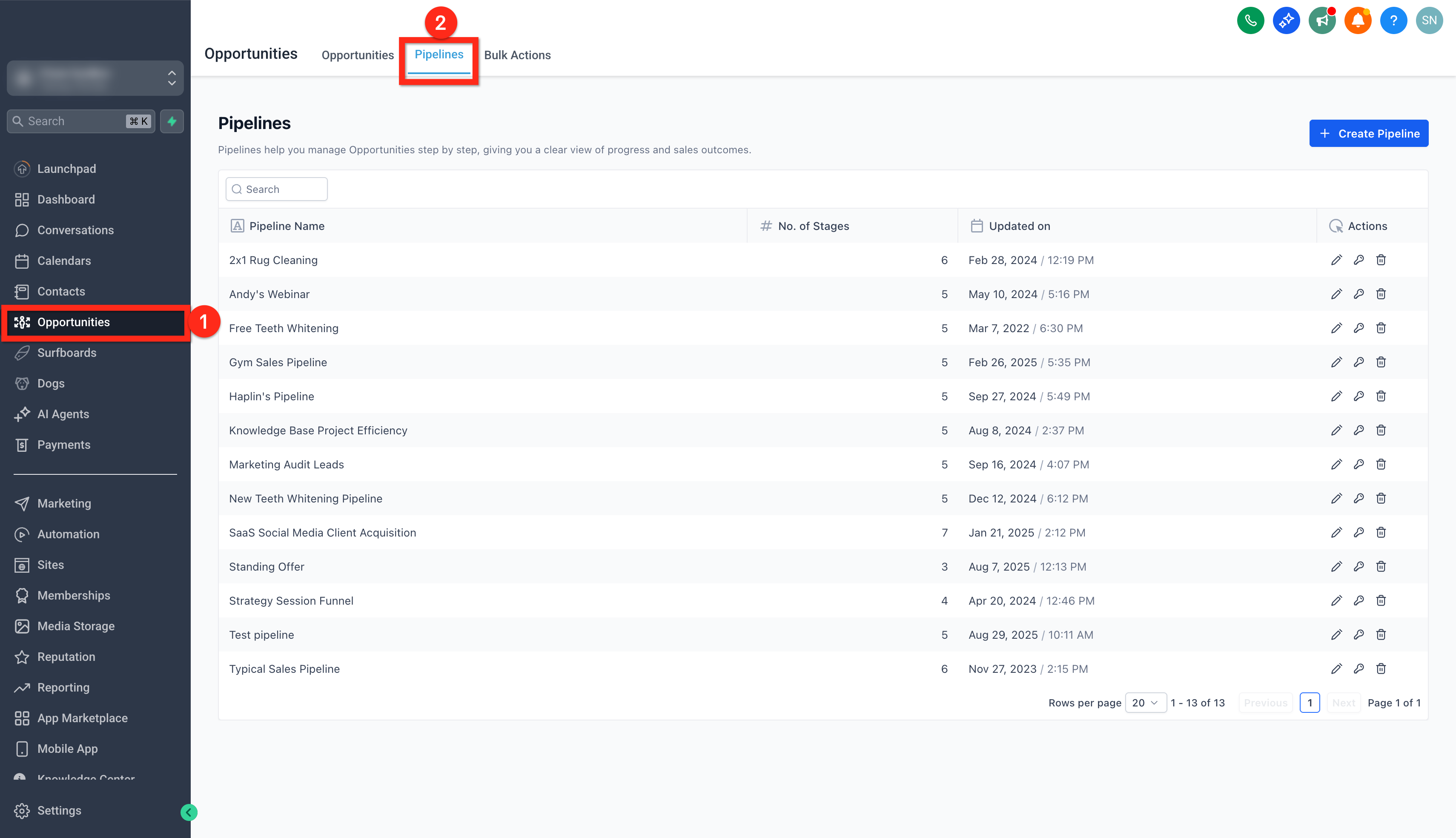
Go to Opportunities from your sub-account.
Click on the Pipelines tab.
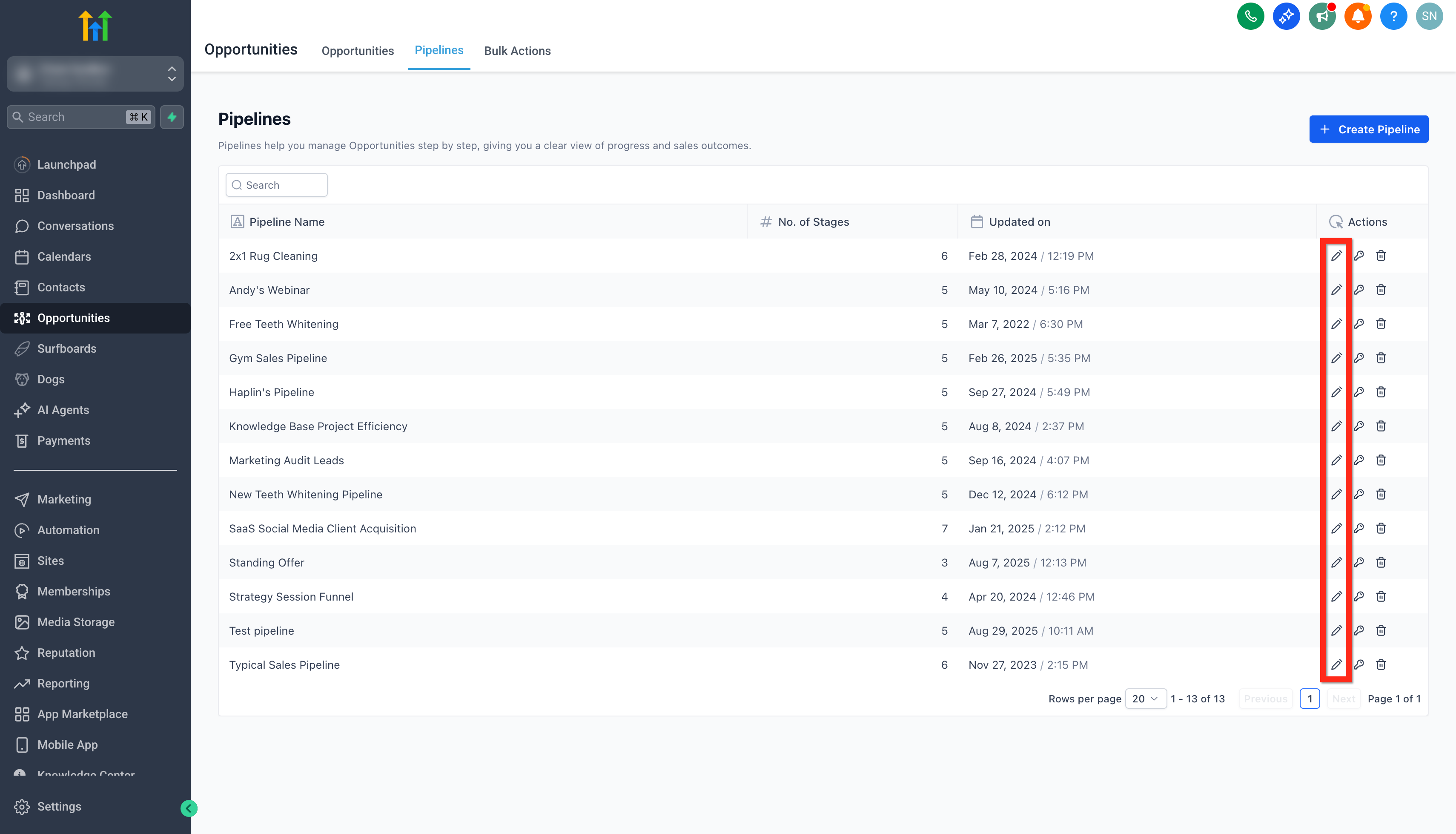
Click on Edit button on the pipeline you want to add smart tags to.
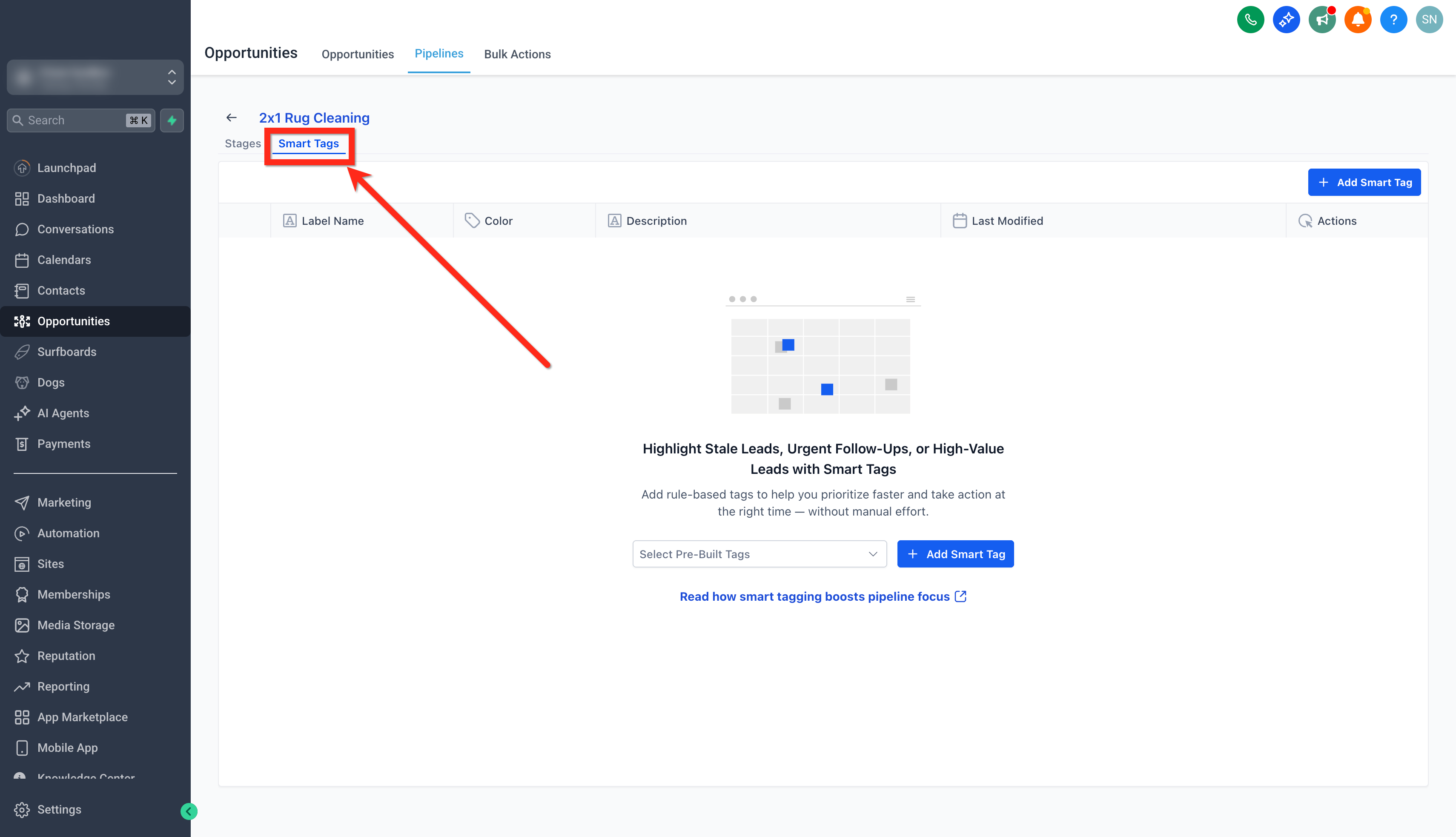
Open the Smart Tags tab.
Step 2: Creating a Smart Tag
Click Add Smart Tag.
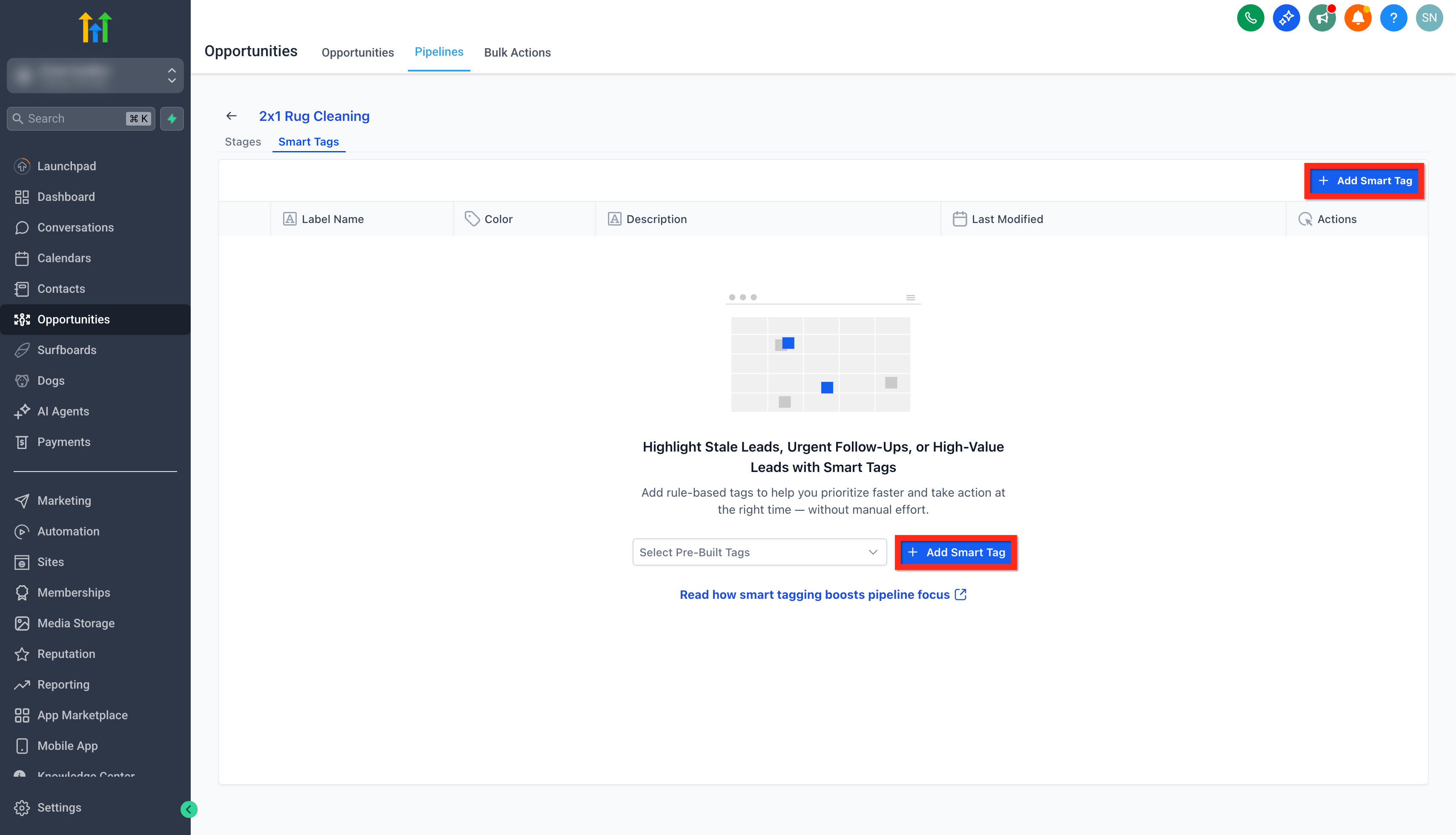
Choose between:
Create New Tag: Define your own color, name, and rule conditions.
Pre-Built Tag: Use one of our default templates (e.g., New Lead, High Value).
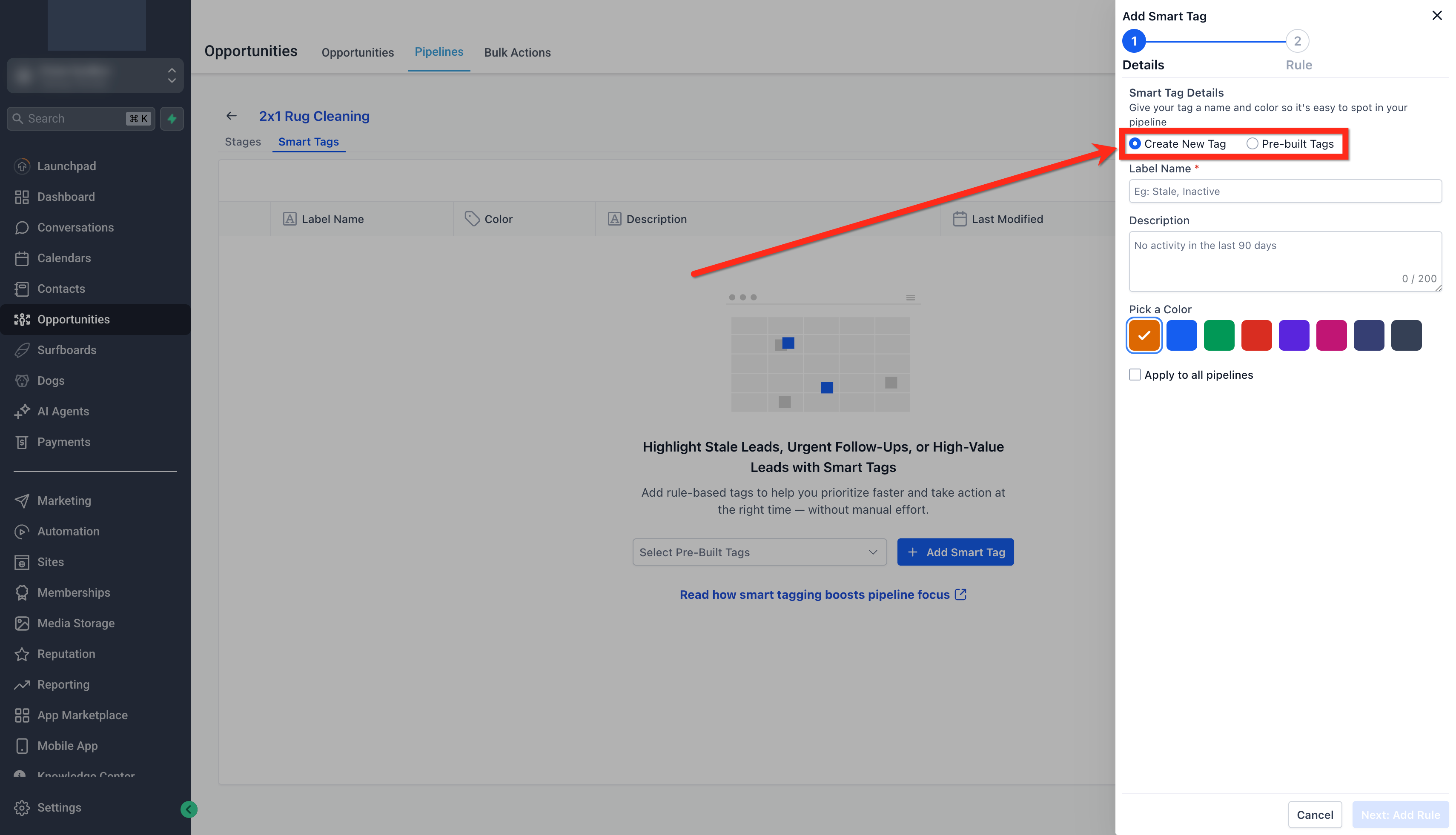
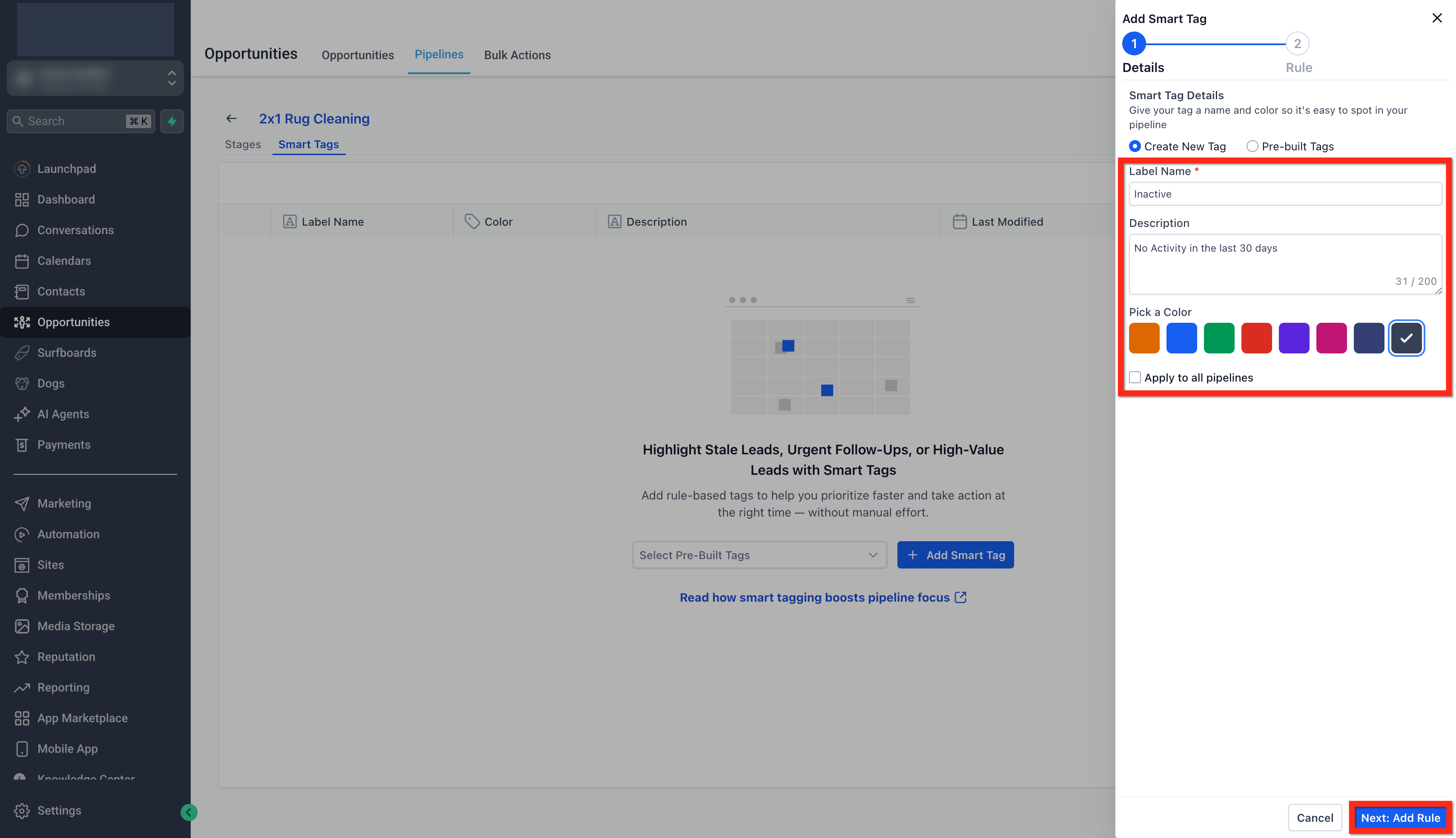
Enter a Label Name (e.g., “Stale Deal”).
Add a Description for clarity. (Optional)
Pick a Color for the tag.
Check Apply to all pipelines if you want this rule used globally.
Click Next: Add Rule.
Step 3: Defining Rules
- Use the rule builder to specify when the tag appears.
- Each tag is rule-based — for example:
- Created Date ≤ 3 days ago → “New Lead”
- Deal Value > $10,000 → “High Value”
- Created Date ≤ 3 days ago → “New Lead”
- You can:
- Combine multiple conditions with AND / OR logic
- Add nested filters for complex logic
- Use Preview Tag to see how it’ll appear on a sample card
- When done, click Save.
- Combine multiple conditions with AND / OR logic
Smart Tag rules use the same enhanced Advanced Filters experience as in the Opportunities, including:
- Grouped fields (folder-based sections) to make fields easier to find
- A Stage filter for more precise targeting
- Expanded date operators:
Is not
In the next
In the last
More than
Less than
- Relative time filtering using days, weeks, months, and years
- Nested filtering logic for more complex rule conditions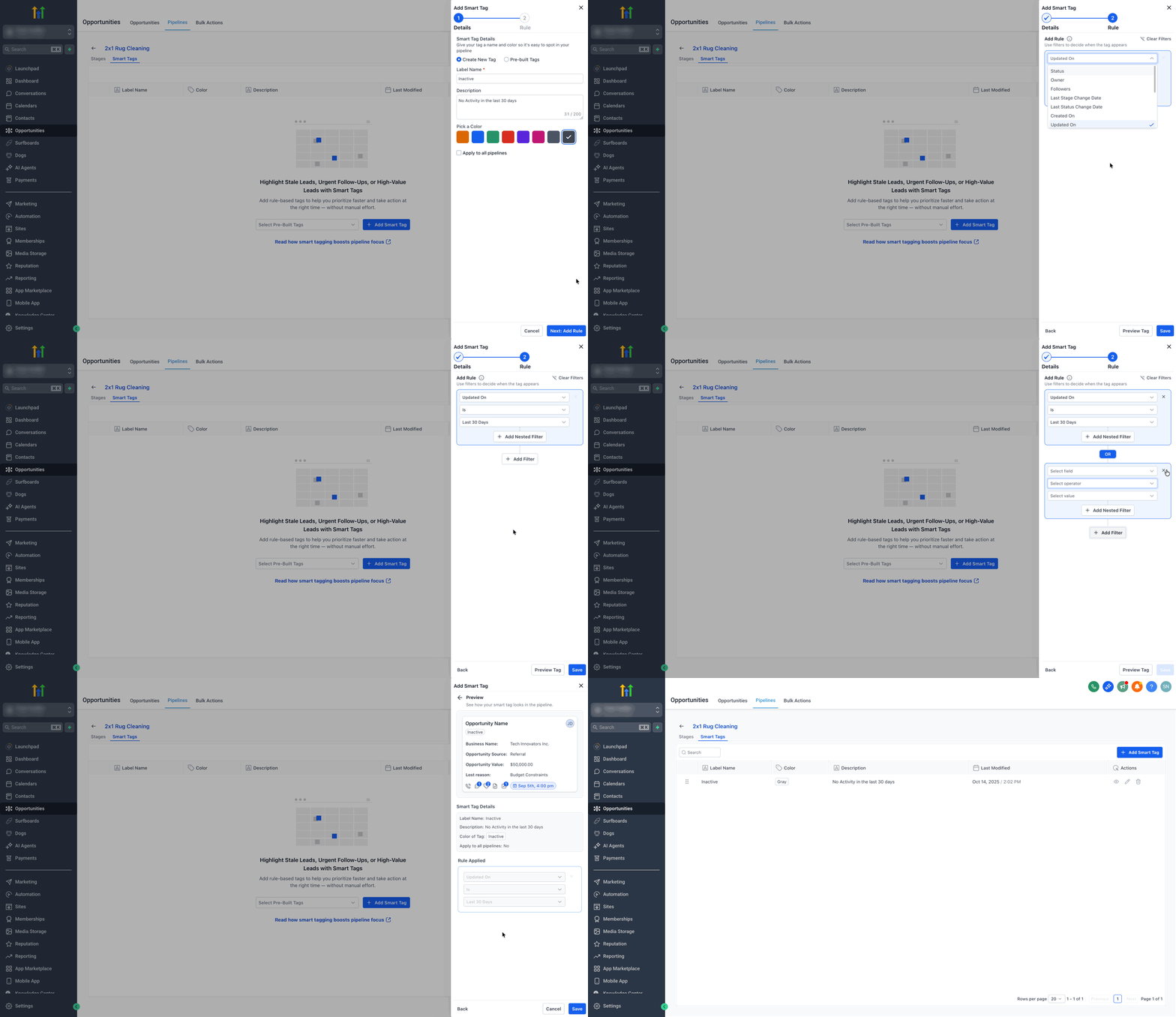
Preview, Edit or Delete Tags
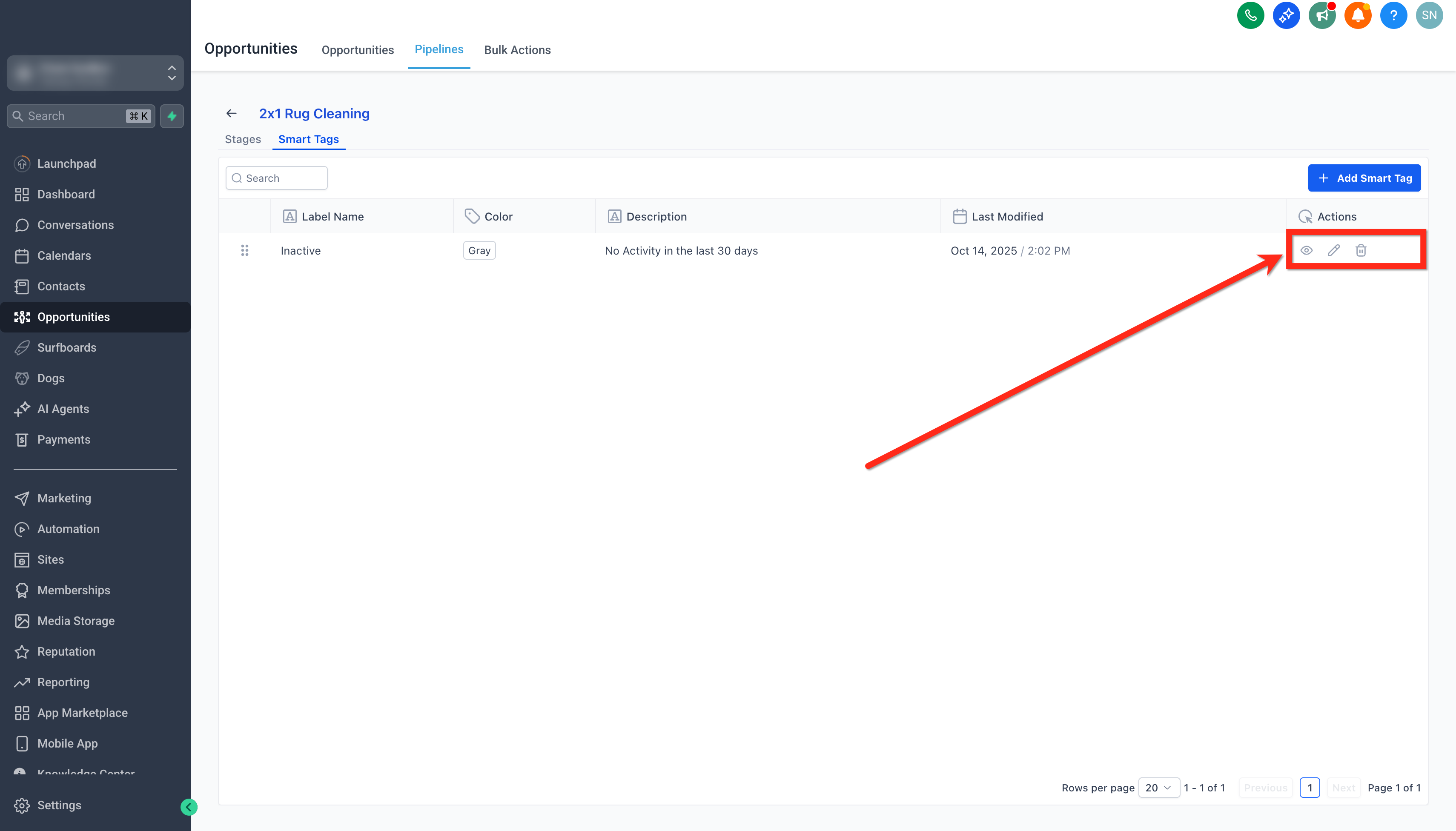
- After the tag is created, users can easily preview, edit or delete tags directly from the smart tags page.
Recommended Pre-Built Tags
| Tag Name | Color | Rule Example | Purpose |
|---|---|---|---|
| Stale Deal (Coming soon) | Grey | Last Activity before 14 days ago | Highlight neglected opportunities |
| High Value | Green | Opportunity Value > $10,000 | Flag big-ticket deals |
| New Lead | Blue | Created Date ≤ 3 days ago | Track new opportunities |
| At Risk (Coming soon) | Red | Last Stage Change > 30 days ago and Status = "Open" | Warn of deals going cold |
| Hot Deal | Orange | Created On < 7 Days and Opportunity Value > $5000 | Highlights recently created, high-ticket opportunities. |
| Unassigned Deal | Purple | Owner is empty | Spot opportunities without owners |
Best Practices
✅ Use distinct colors for your top priorities (e.g., red for urgent, green for high-value).
✅ Keep tag names short — under 20 characters.
✅ Review rules regularly to ensure relevance.
Troubleshooting
- Smart Tags not visible on cards?
- Ensure Smart Tags are added to your card layout (via Customize Card).
- Check that the rule conditions are correct and apply to the cards you’re viewing.
- Do a hard refresh to sync the changes on the pipeline.
- Ensure Smart Tags are added to your card layout (via Customize Card).
- Missing the Smart Tags tab?
- Only Admins can access tag creation and editing.
Frequently Asked Questions
Q: Do Smart Tags work across all pipelines?
Yes — if you select “Apply to all pipelines,” the tag will appear wherever its rule conditions are met.
Q: Can I duplicate Smart Tags between pipelines?
Not yet, but you can reapply the same rule manually in another pipeline.
Q: Are Smart Tags included in reports?
Currently, Smart Tags display visually in the pipeline view only.
Q: Who can create or edit Smart Tags?
Any user with permission to edit a pipeline’s settings can manage Smart Tags. Use Pipeline Permissions to restrict access if needed.
Q: Are Smart Tags evaluated in real time?
The system re-checks all tag rules whenever an Opportunity is created, updated, or when its stage/status changes.