
Give customers the option to speak instead of type. SourCherry’s Conversations AI understands voice notes and audio files across WhatsApp, Facebook Messenger, Instagram, and SMS/MMS. The bot transcribes speech to text and replies intelligently using your existing training and settings, keeping conversations fast and natural. This article covers supported audio types, channel compatibility, setup, and troubleshooting.
TABLE OF CONTENTS
- What is Audio Response in Conversations AI?
- Key Benefits of Audio Response
- Supported Audio Types
- Channel Compatibility
- How To Set Up Audio Response
- Behavior & Limitations
- Frequently Asked Questions
- Related Articles
What is Audio Response in Conversations AI?
Audio Response lets your SourCherry Conversations AI bot “hear” customers. When a contact sends a voice note or audio file, SourCherry transcribes the audio to text, passes it to your bot, and returns an intelligent, context-aware reply so customers can speak naturally without typing.
Conversations AI now supports inbound audio across popular messaging channels. Transcription happens behind the scenes, and the bot follows your existing bot settings (training, prompts, response mode, and timing) for consistent results.
What Audio Response Can Do
With Audio Response enabled, your Conversation AI can:
- Receive voice notes and audio attachments
- Automatically transcribe speech into text
- Process audio content using your existing AI training
- Generate intelligent, context-aware responses
- Handle multiple audio files within a single interaction
- Work across supported messaging channels
Prerequisites
Before using Audio Response, ensure:
- Conversation AI is enabled for your Sub-Account
- At least one AI Agent is configured
- Supported messaging channels are connected
- The AI Agent is assigned to the desired communication channels
Key Benefits of Audio Response
These advantages focus on customer experience and operator efficiency, tying audio inputs directly into how your bot already works.
Natural conversations: Contacts can speak naturally instead of typing long messages.
Faster Customer Responses: Audio messages are automatically converted into text and processed immediately.
Multi-audio intake: Customers can send one or multiple audio files; your bot processes them as a single interaction.
Omnichannel reach: Works with WhatsApp, Facebook Messenger, Instagram, and SMS/MMS for one consistent workflow.
Consistent governance: Audio replies respect your Wait Time and message-limit settings, just like text.
Supported Audio Types
Acceptable formats determine which files the bot can transcribe reliably.
| Category | Supported items | Notes |
|---|---|---|
| Voice notes (platform-native) | WhatsApp Voice Notes, Facebook Voice Notes, Instagram Voice Notes | Recorded using each app’s mic button; delivered to SourCherry as audio objects the bot can transcribe. |
| File formats (uploads/attachments) | OGG, MP3, MP4 (audio-only), AAC, M4A, MPEG | Ensure the file is audio-only. Video MP4s aren’t supported as audio inputs. |
| Multi-audio in one interaction | Supported (multiple files) | Multiple audio files sent close together are handled in a single interaction. |
Channel Compatibility
Audio Response plugs into channels where Conversations AI already operates. Ensure each channel is properly connected in SourCherry before expecting audio replies.
Facebook Messenger
Instagram Direct Messages
WhatsApp
SMS (MMS)
How To Set Up Audio Response
Proper setup ensures audio messages are transcribed and handled by the right bot on the right channels.
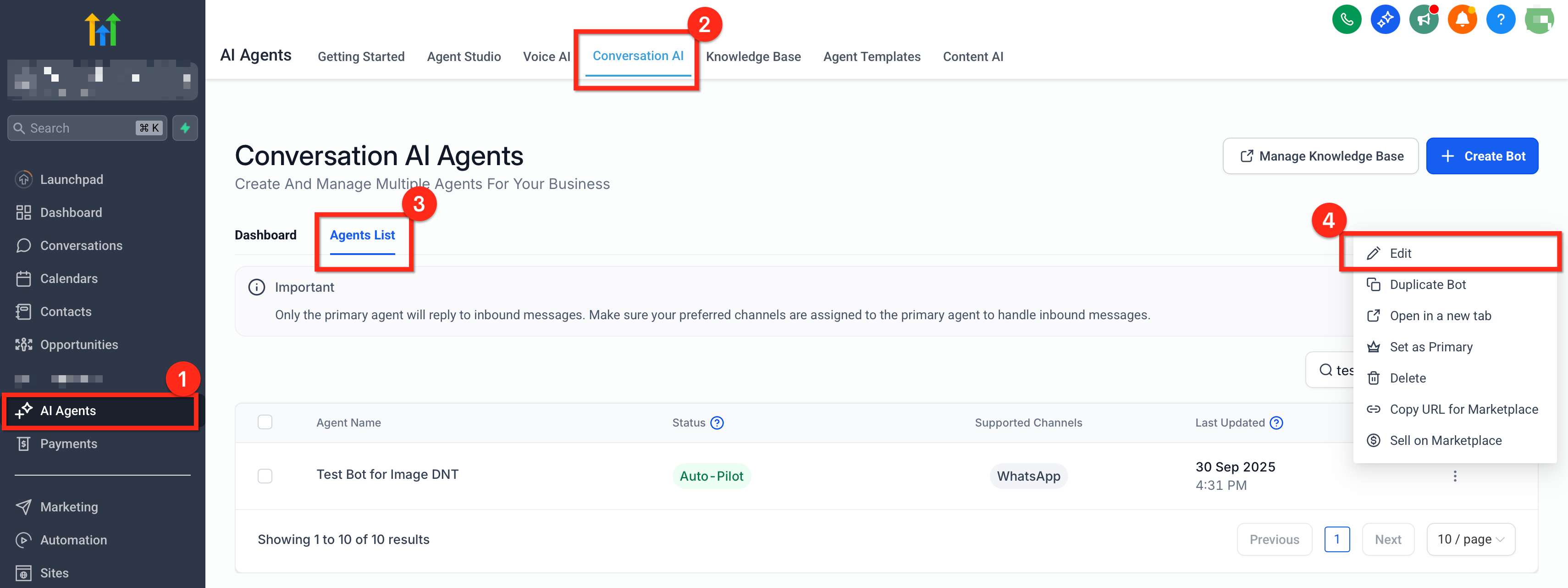
From your Sub-Account, go to AI Agents → Conversation AI → Agent List, then click the three dots (⋮) next to the bot you want to configure and select Edit to open the bot’s settings.
Enable Audio Responses
Toggle “Also allow this bot to respond to: Voice Notes.” and Save Your Changes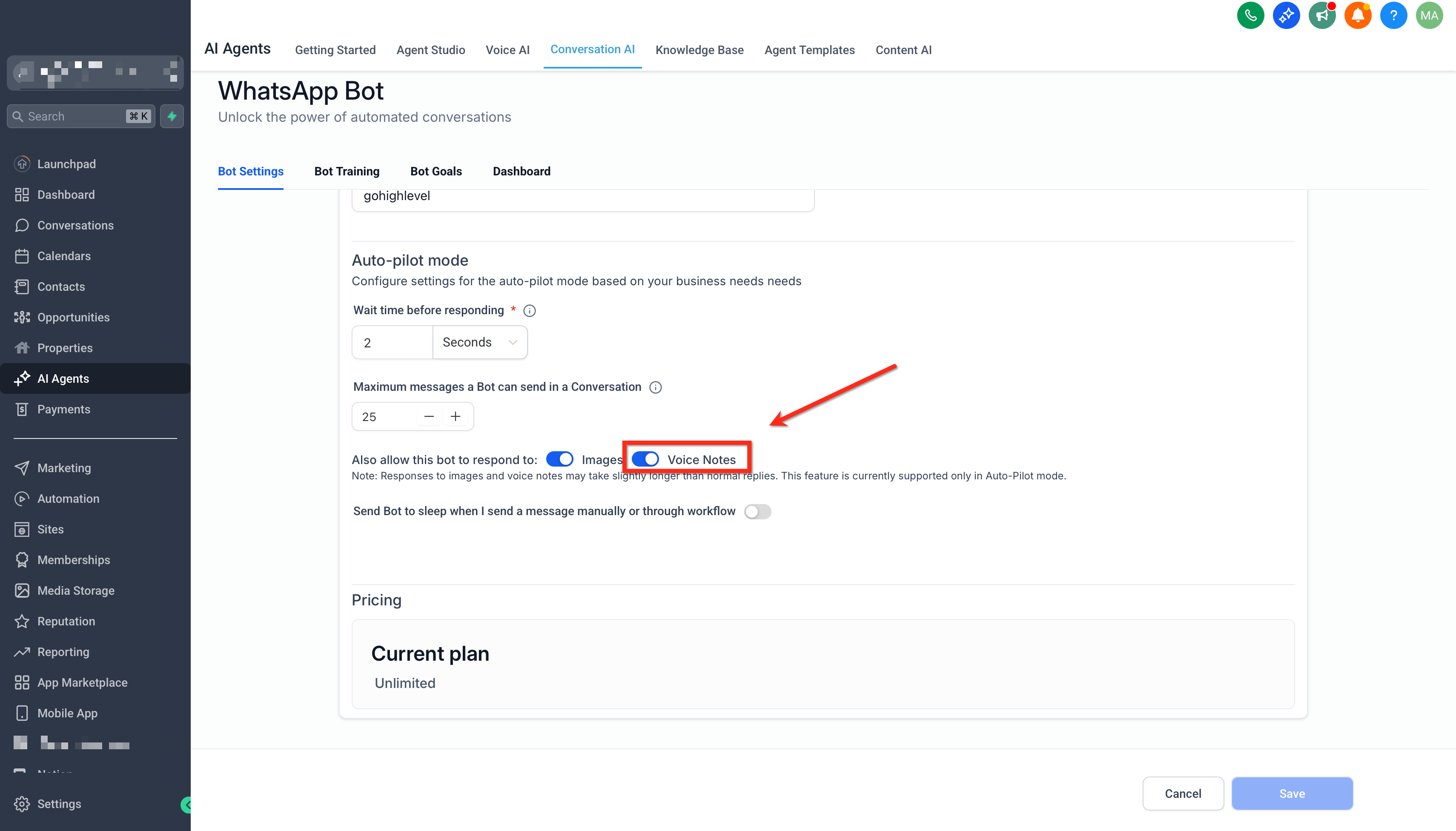
Test on a Connected Channel
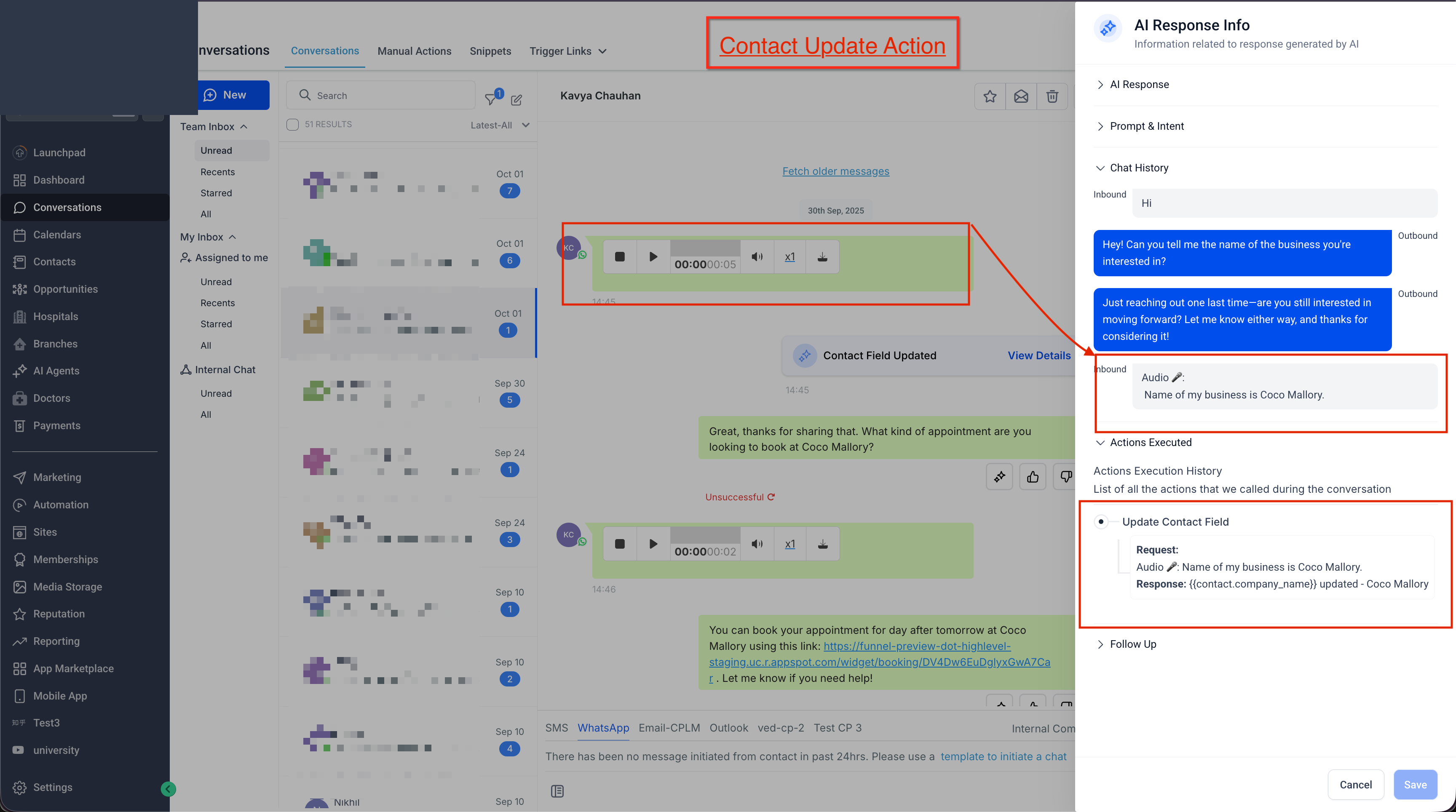
Send a Voice note from WhatsApp or a social channel to confirm the reply references the image.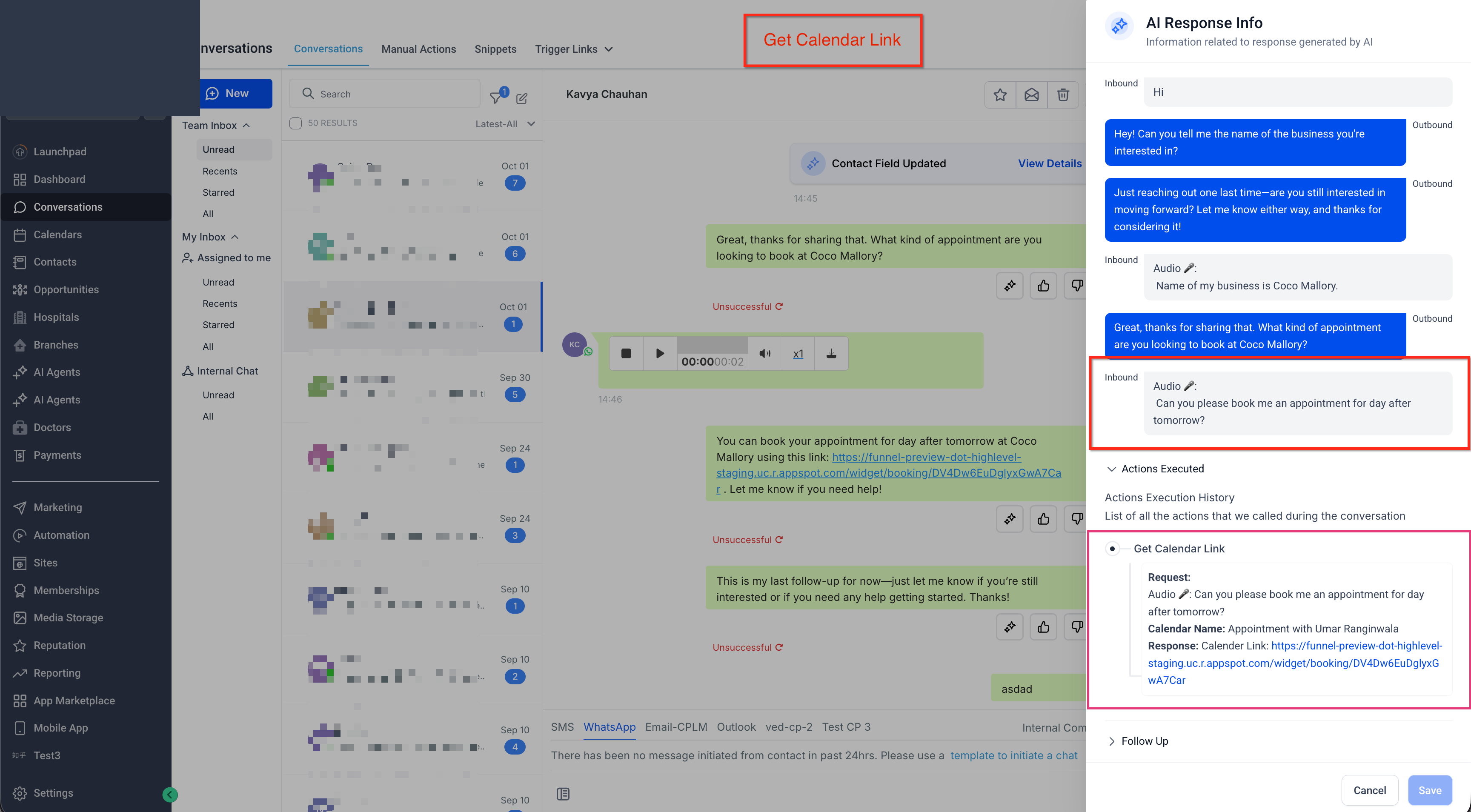
Behavior & Limitations
Understanding timing and message handling helps you design the right experience for audio-first customers.
Wait Time aggregation: Your bot waits the configured Wait Time Before Responding so it can collect multiple inbound messages (including audio + text) and send one unified reply.
Message limit: The bot follows your Maximum Message Limit; if reached, the bot sleeps until reset per your standard flow.
Transcripts & transparency: You can review AI details—including prompts, sources, and response info—from the AI Response Info sidebar in Conversations.
Channel policies: Delivery on Meta channels must comply with policy windows (e.g., 24-hour window for Messenger/Instagram). Plan flows accordingly.
Frequently Asked Questions
Q: Does Audio Response cost extra?
Usage is billed under standard Conversations AI usage and your channel’s messaging fees (e.g., SMS/MMS, WhatsApp). Agencies can configure rebilling for Conversation AI usage. See Pricing & Rebilling and SMS/MMS costs; WhatsApp has separate pricing.
Q: Will the bot reply with audio or text?
Bots send standard channel messages for maximum compatibility. Most replies are text; design flows accordingly.
Q: Can I restrict audio handling to specific channels?
Assign only the channels you want the bot to use in Bot Settings. The bot will listen/respond only on assigned channels.
Q: How are multiple audio files handled?
Multiple audios in a short window are transcribed and handled during your Wait Time window so the bot can craft a single, context-aware reply.
Q: Where do I review what the bot “saw” and why it responded that way?
Open the AI Response Info sidebar in the conversation to review the response, prompt, and training sources.