
The Unique Fields feature allows you to ensure that specific field values remain unique across all records within a Custom Object. This helps maintain data integrity, prevent duplication, and ensure that identifiers such as IDs or reference numbers are never reused accidentally. This article shows how to use unique fields in custom objects.
TABLE OF CONTENTS
- What is Unique Fields for Custom Objects?
- Key Benefits of Unique Fields
- Rules, Limits & Field Support
- How to Mark a Field as Unique in Custom Objects
- How to Modify Unique Fields
- Example Scenarios
- Best Practices
- Frequently Asked Questions
- Related Articles
What is Unique Fields for Custom Objects?
Unique Fields is a data-integrity setting that you can enable on selected custom-object fields. When a field is flagged as unique, SourCherry checks every new or updated record and blocks any value that already exists anywhere in the sub-account. This ensures every custom-object record stays truly unique and eliminates messy deduplication projects down the road.
Key Benefits of Unique Fields
- Stop duplicates: Enforce unique fields at create/update so repeats are blocked across UI, forms, workflows, imports, and API.
- Accurate reporting: Preserve true one-to-one relationships so dashboards, attribution, and metrics stay trustworthy.
- Safe automations: Protect bulk imports and workflow actions from accidental double-creates with built-in pre-checks.
- Future-ready: Establish the foundation for upcoming advanced deduplication and merge tools.
Rules, Limits & Field Support
Mark custom fields as unique during creation.
Limit of 10 unique fields per object (applies across the subaccount).
Enforced across all record creation methods — UI, Workflows, Forms, and APIs.
Supported field types:
Single Line Text
Multi Line Text
Number
Phone
Allows downgrading a unique field to non-unique (irreversible action).
How to Mark a Field as Unique in Custom Objects
Note: Once saved, this setting applies across all records within the subaccount and cannot be re-enabled once turned off.
Option 1: While Creating a New Custom Field
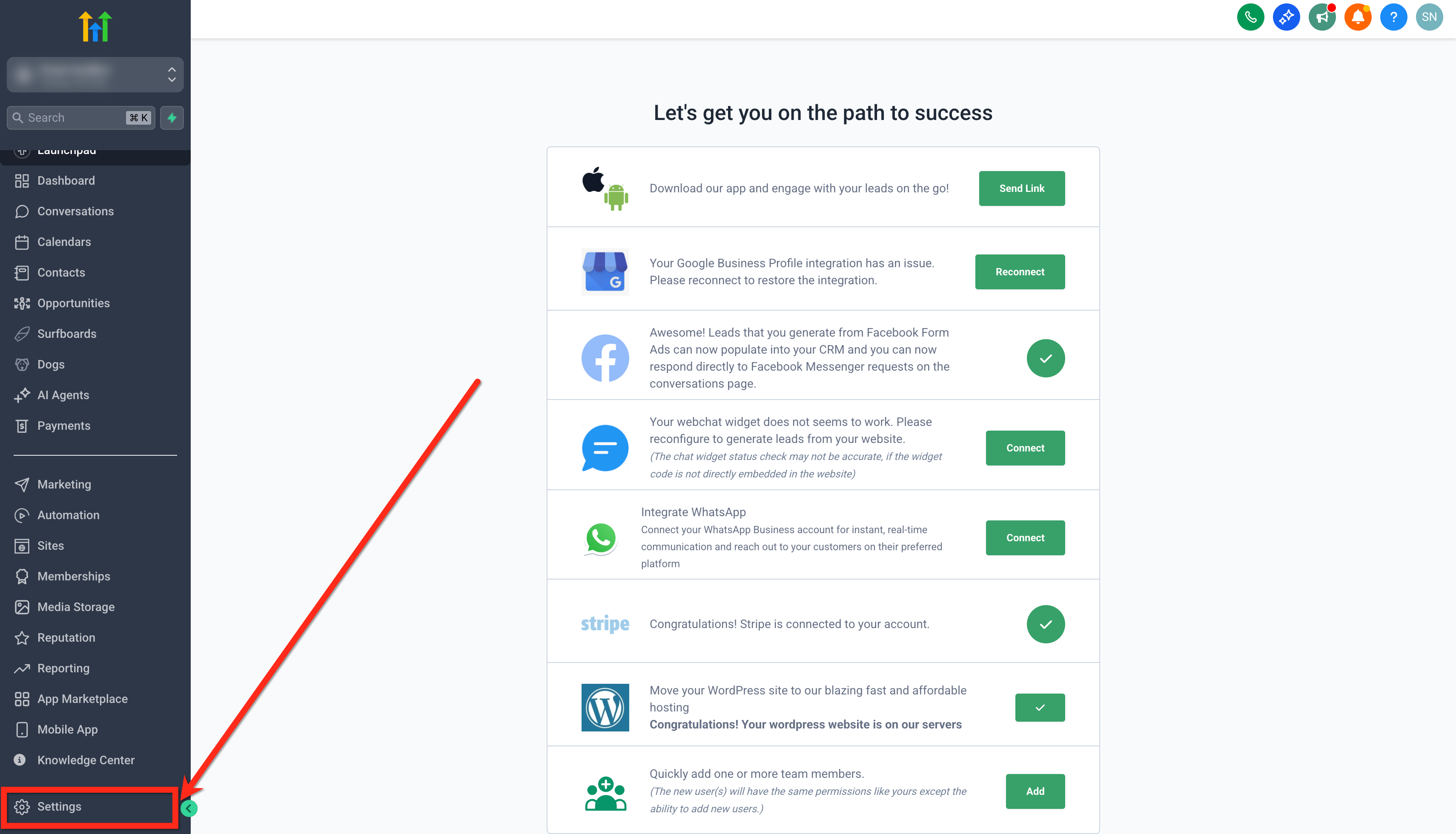
Navigate to Settings.
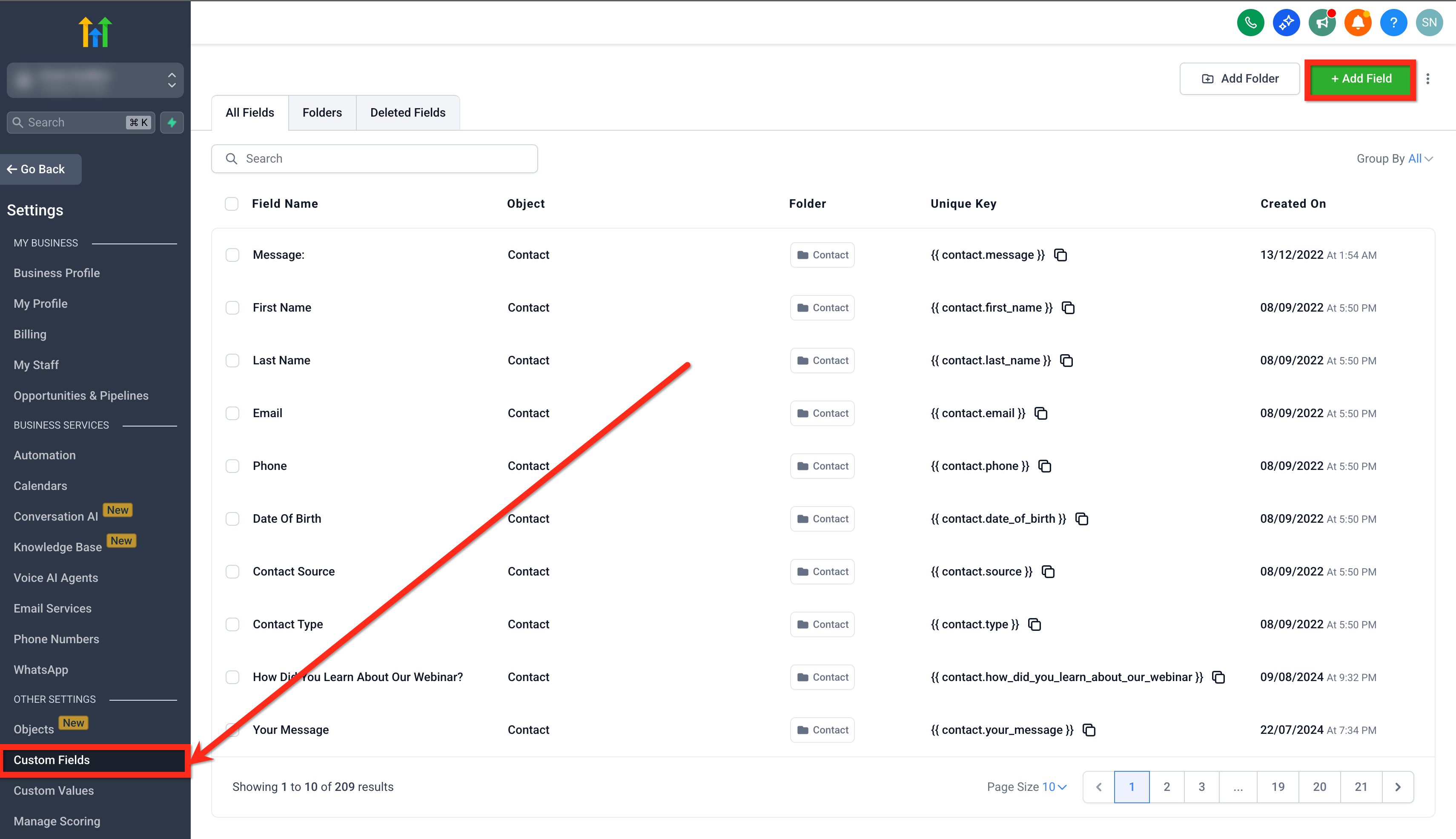
Click on Custom Fields.
Click + Add Field.
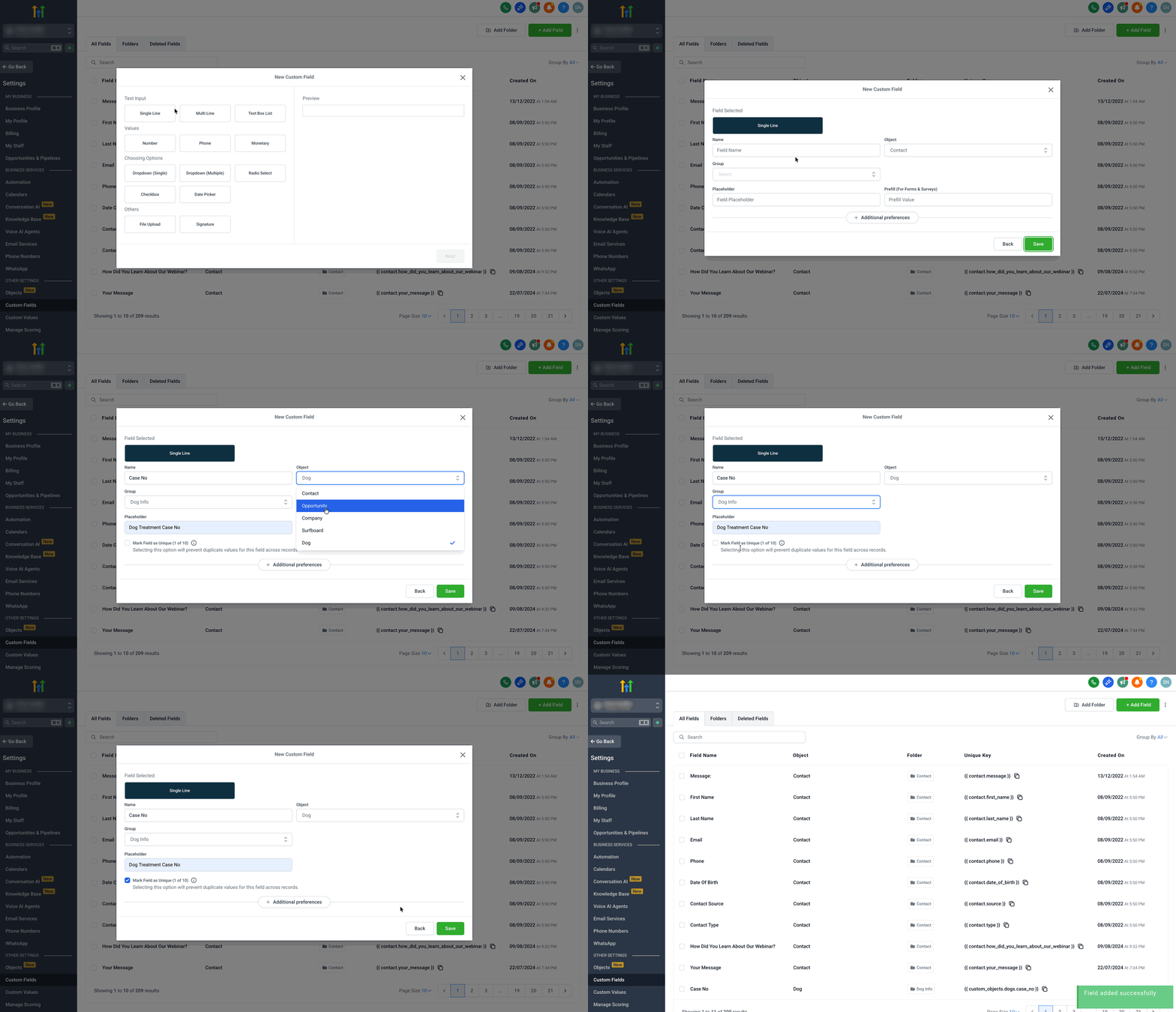
Select a supported field type (Single Line, Multi Line, Number, or Phone).
Enter the field name, object, and group.
Check the box for Mark Field as Unique.
Click Save.
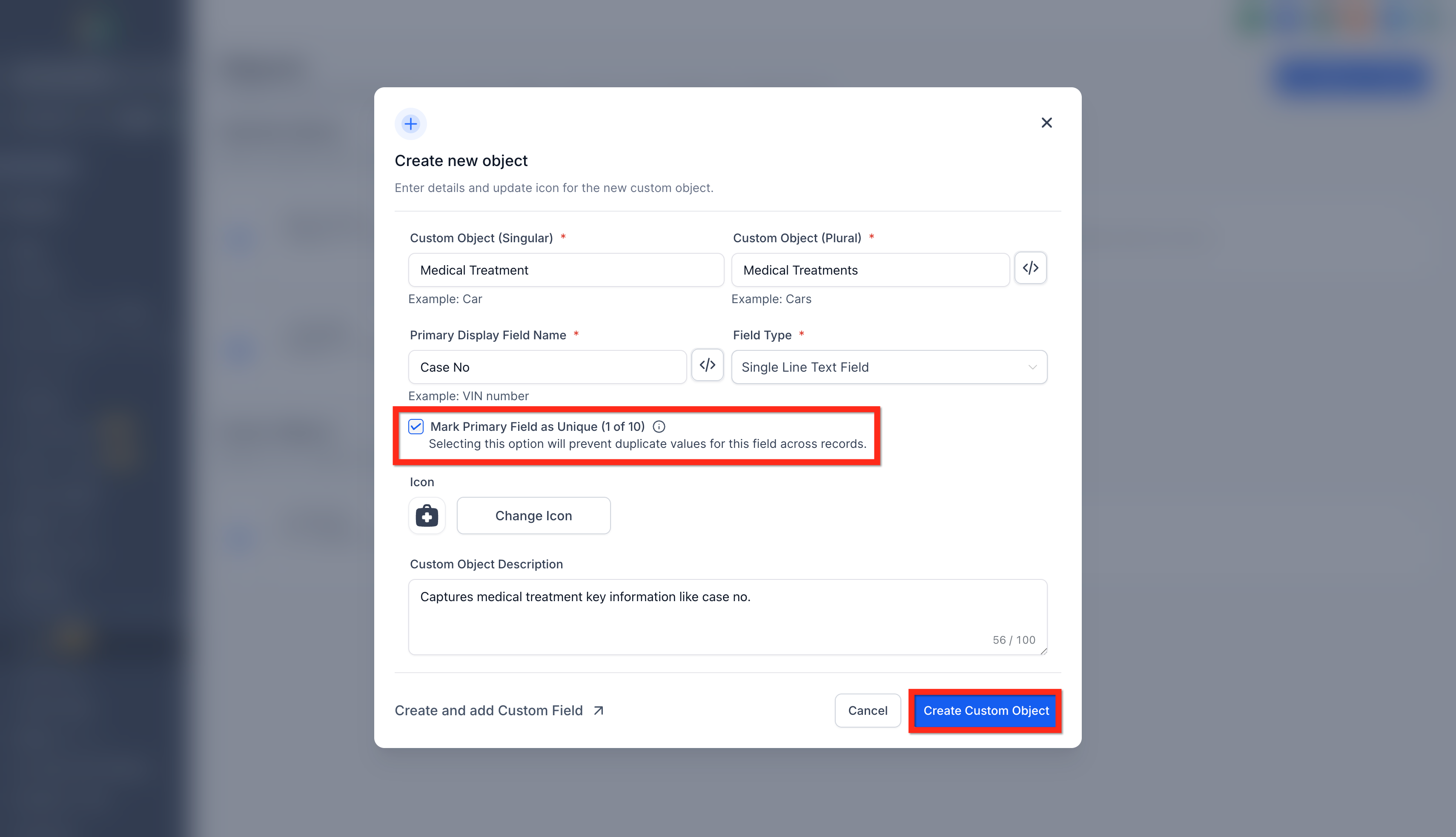
Option 2: Marking a Primary Field as Unique While Creating Custom Object
Go to Settings.
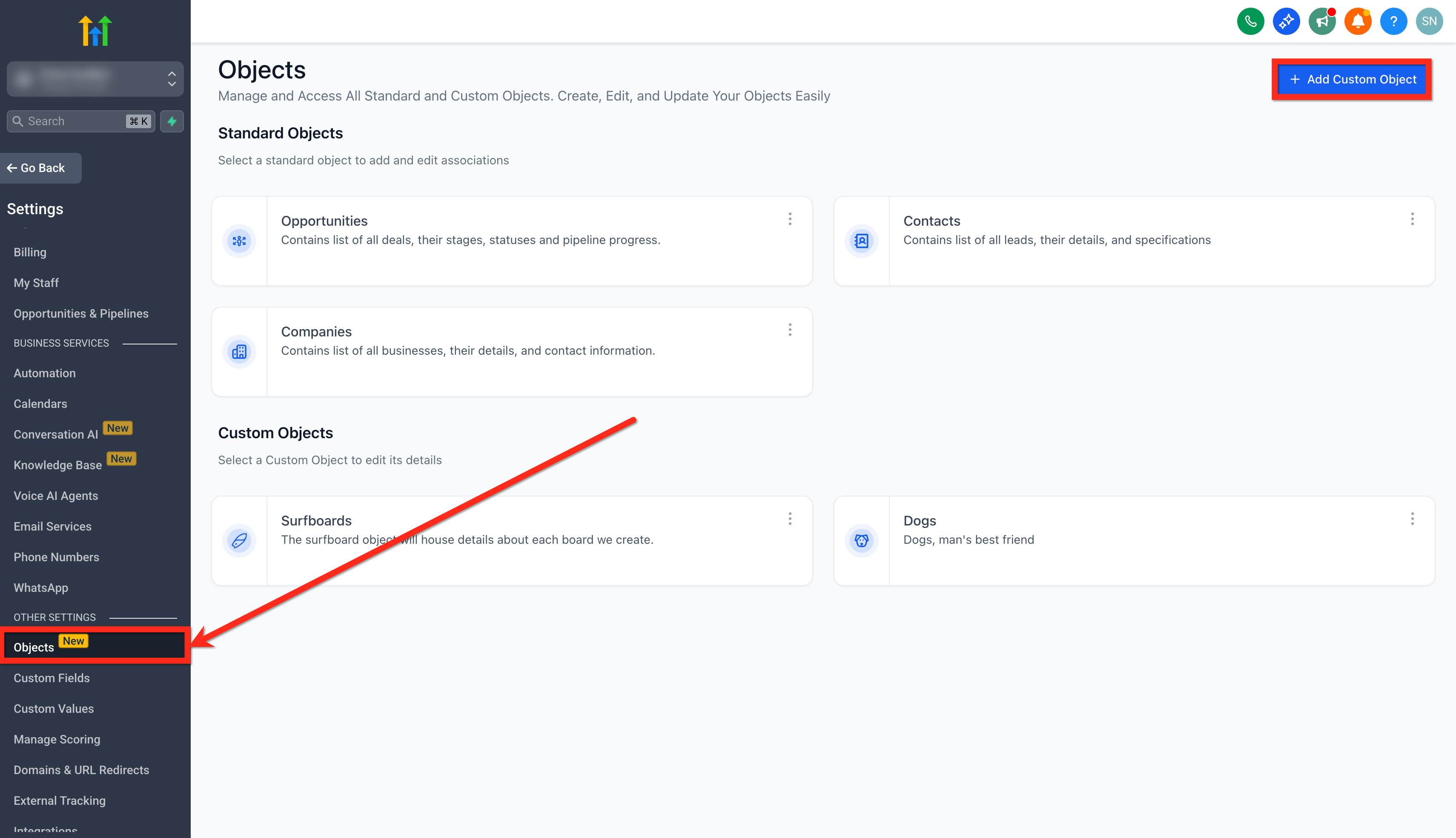
Click on Objects.
Click on + Add Custom Object.
Define the Custom Object Name and Primary Display Field.
Check Mark Primary Field as Unique.
Click Create Custom Object.
This ensures the primary field (for example, Case No. or VIN Number) cannot have duplicates.
How to Modify Unique Fields
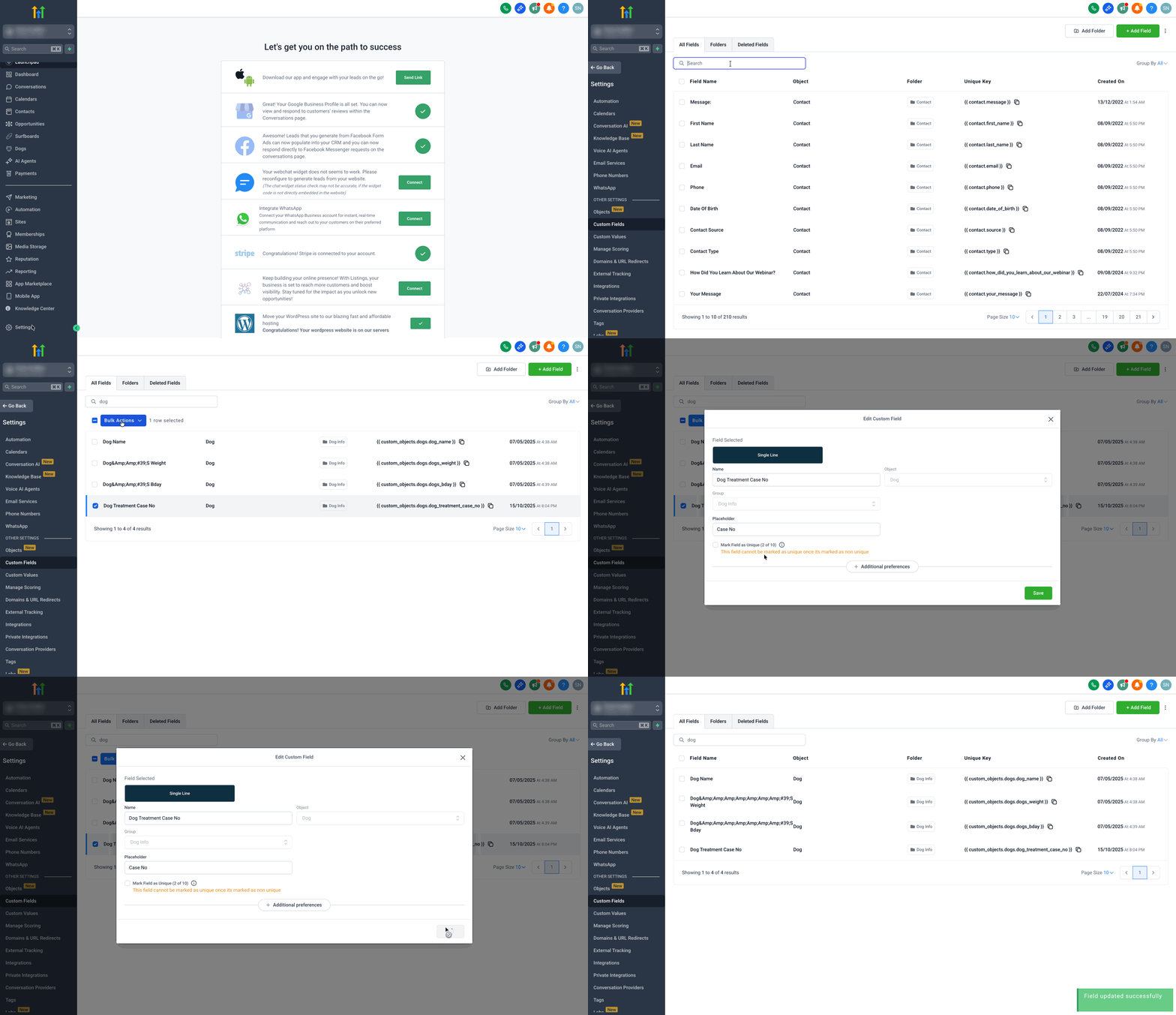
Note: Once downgraded from unique to non-unique, it cannot be made unique again.
- Go to Settings > Custom Fields.
- Find or Search the Unique Custom Field.
- Select the Field.
- Click on Bulk Actions > Edit.
- Deselect Mark Field as Unique option.
Example Scenarios
| Scenario | Action | Result |
|---|---|---|
| Two records have the same value in a Primary field | User saves | Error: “A record with the same value already exists.” |
| Two records with the same value in a non-primary unique field | User saves | Partial success – duplicate rows skipped with warnings |
| Field marked as unique, then user attempts deletion | Delete | Warning – field cannot be deleted |
| Unique field downgraded to non-unique | User saves | Allowed, but irreversible |
| API used to update with duplicate value | Update call | API returns validation error |
Best Practices
Use unique fields for identifiers or keys (for example, Patient ID, Case No., Employee Code).
Avoid marking frequently updated text fields as unique.
Before imports, deduplicate data externally to prevent import warnings or skips.
Plan field uniqueness early — re-enabling unique later is not supported.
Frequently Asked Questions
Q: Does uniqueness apply account-wide?
Yes. Uniqueness is enforced globally across the sub-account.
Q: Is the check applied on updates as well as creates?
Yes. Create and update actions are both blocked if the unique value already exists.
Q: What error do users see on a duplicate?
You’ll see a message like: “A record with the same value for <fieldName> already exists.”
Q: Where is uniqueness enforced?
Across all entry points: manual record creation, workflows/automations, and forms.
Q: Can I mark a dropdown or email field as unique?
Only Single Line, Multi Line, Number, and Phone fields are supported in this release.
Q: What happens during a CSV import if duplicates exist?
The import finishes, but rows with duplicate unique-field values fail.
Q: Do uniqueness checks slow down API bulk inserts?
No. The validation is optimized at the database layer, so performance impact is negligible even for large batches.
Q: Can two sub-accounts have the same value in a unique field?
Yes. Uniqueness is enforced per sub-account, not across the entire agency.