
Connect Typeform to SourCherry to automate lead capture, surveys, and feedback in real time. This guide covers the instant Typeform → SourCherry trigger, all Typeform actions you can run from a workflow, and step‑by‑step setup. You’ll also find best‑practice mapping tips, billing notes, and links to related resources so your team can launch confidently.
TABLE OF CONTENTS
- What is the Typeform Integration in Workflows?
- Key Benefits of the Typeform Integration
- Triggers & Actions
- How To Set Up the Typeform Integration
- Use Cases
- Frequently Asked Questions
- Related Articles
What is the Typeform Integration in Workflows?
SourCherry’s native Typeform integration lets you react to Typeform submissions instantly and perform Typeform tasks directly from a workflow. Use the New Entry (Instant) trigger to start automations the moment a form is submitted, and add Typeform actions (like creating or duplicating a form, or searching responses) to streamline onboarding, feedback collection, and CRM enrichment.
Key Benefits of the Typeform Integration
These benefits highlight how SourCherry and Typeform work together to route leads faster, reduce manual tasks, and centralize operations in one automation hub.
Instant routing: start workflows the moment a Typeform is submitted—no polling delays.
Form ops at scale: create or duplicate forms during an automation so each client/project has its own copy.
Response utilization: search historic responses to personalize follow‑ups and enrich CRM data.
Reduced context‑switching: work inside SourCherry—no jumping between tools for common form tasks.
Predictable billing: premium executions are billed per run and can be rebilled to sub‑accounts (see Workflows Pro Plan – New Pricing Tiers and How to enable and rebill Premium Features for Workflows).
Triggers & Actions
This overview consolidates the Typeform trigger and actions in one place so you can quickly compare capabilities, required inputs, and the data each step returns for downstream mapping.
| Type | Name | Description |
|---|---|---|
| Trigger | New Entry (Instant) | Fires immediately when a Typeform submission is received and enrolls the record into the workflow. |
| Action | Create Empty Form | Creates a new blank Typeform in the connected workspace and returns the new Form ID/URL. |
| Action | Duplicate Existing Form | Clones an existing Typeform (structure/logic/design) and returns the new Form ID/URL. |
| Action | Search Responses in a Form | Retrieves existing submissions for a selected Typeform so you can branch logic and map fields. |
How To Set Up the Typeform Integration
A clean connection and correct mapping ensure instant enrollments and reliable downstream actions. Use the options below to connect quickly and verify with a live test.
Connect Typeform (two paths)
From a Trigger/Action step
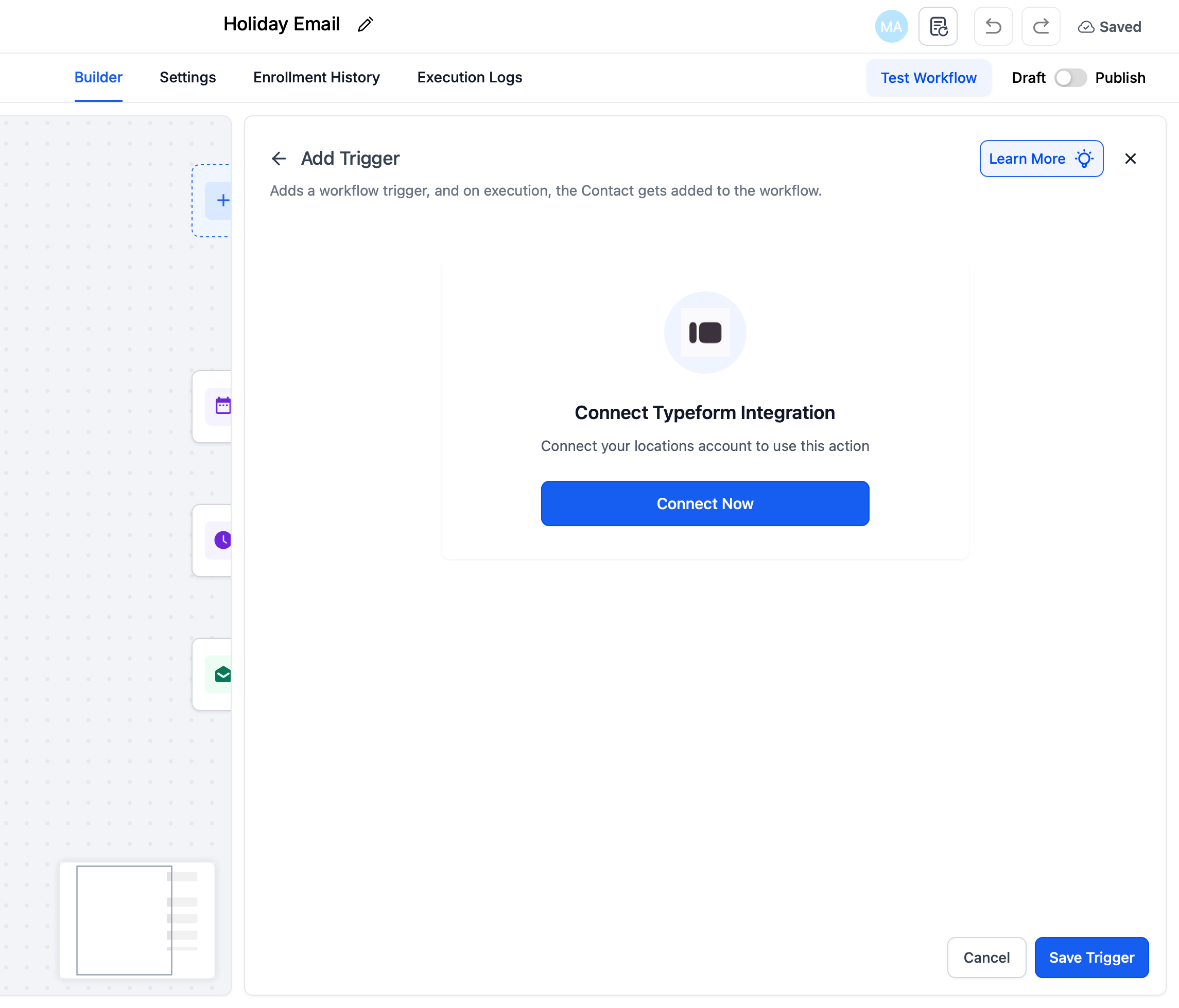
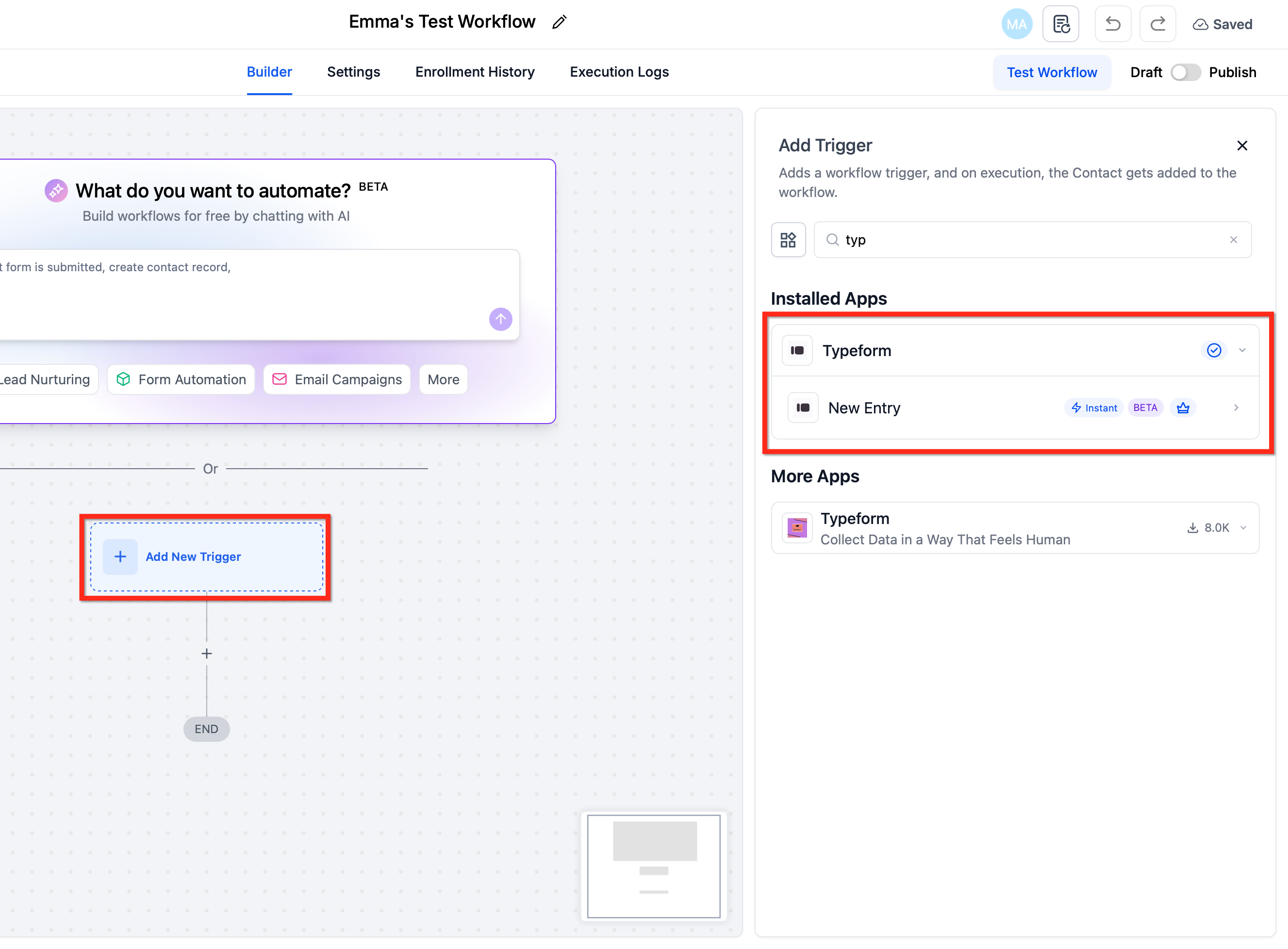
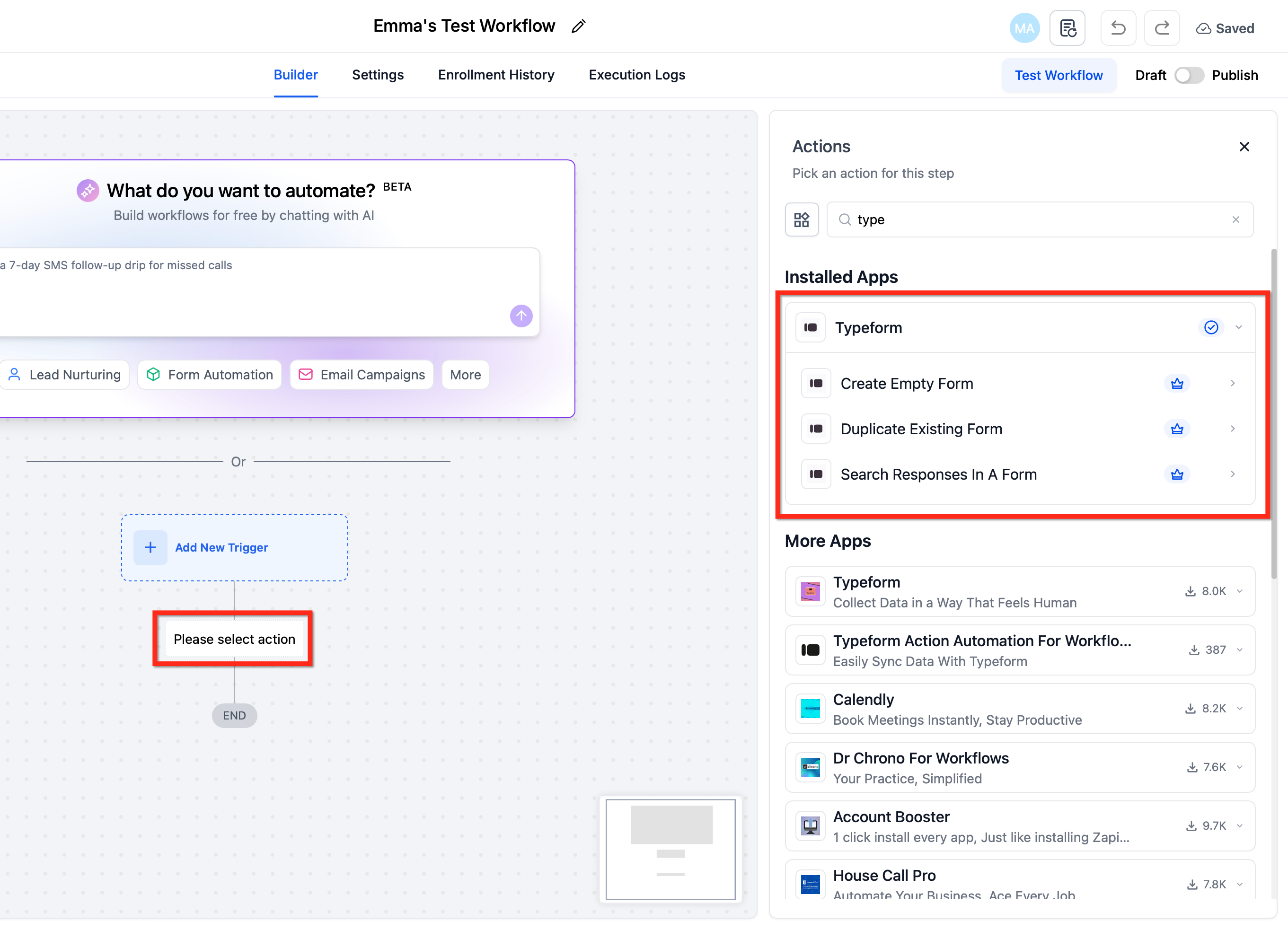
In Workflows → (Open/Create) Workflow, click + Add Trigger and search Typeform or click + Add Action and search Typeform.
Choose New Entry (Instant) (trigger) or a Typeform action, then click Connect Now.
Sign in to Typeform and authorize SourCherry.
- How to Configure
- Click on
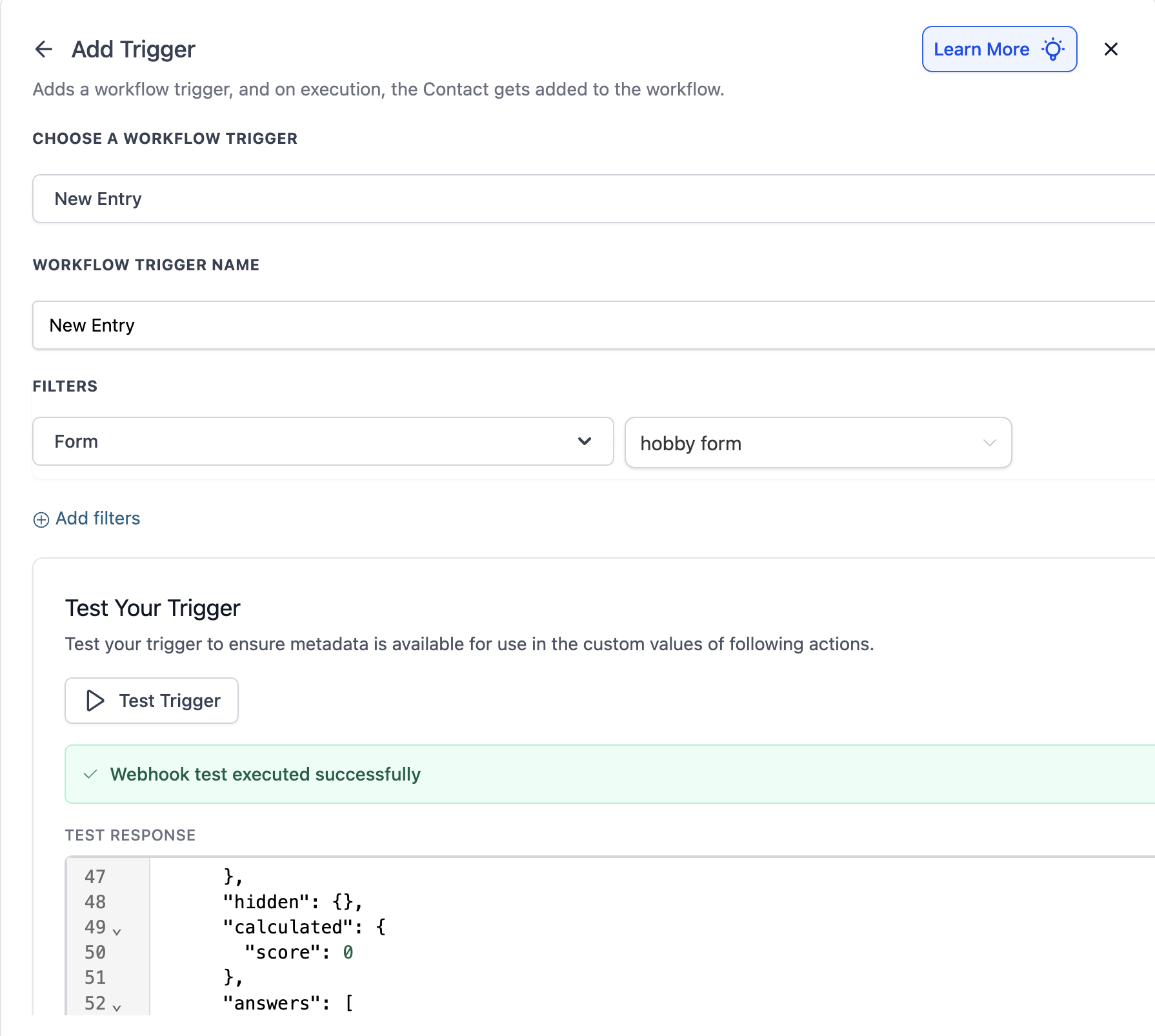
Test Your Trigger > Fetch Trigger Data-> Webhook starts waiting for a new sample payload -> User does a quick form submission -> New sample payload is detected by Test Trigger - Once payload is selected and trigger is saved, user can select the Questions by their title in the output to map the answers directly
- Click on
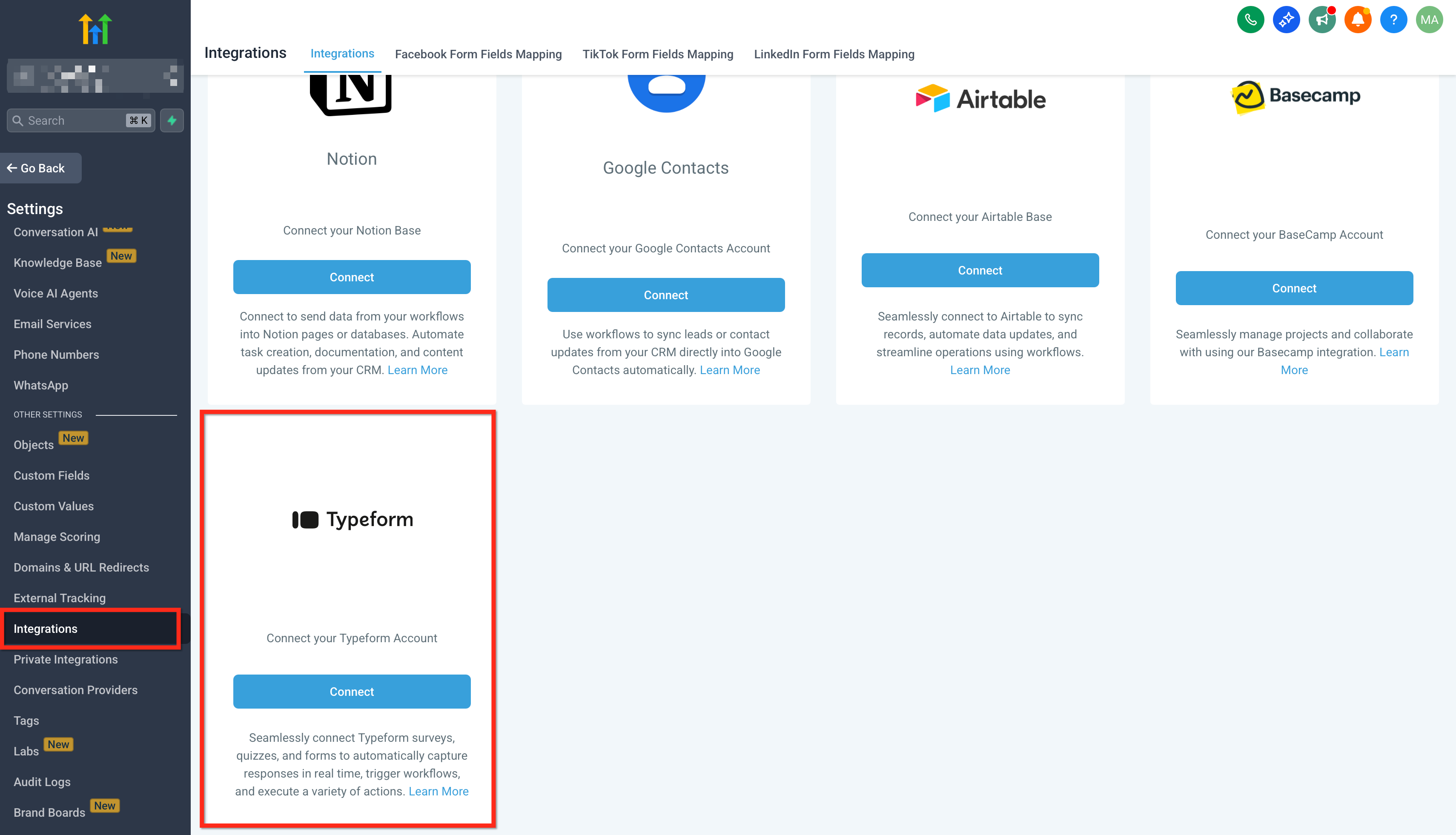
From Settings → Integrations
Go to Settings → Integrations, locate Typeform, and complete the OAuth connection (connections are per sub‑account; see Marketplace Apps – Managing External Connections).
Build your first flow:
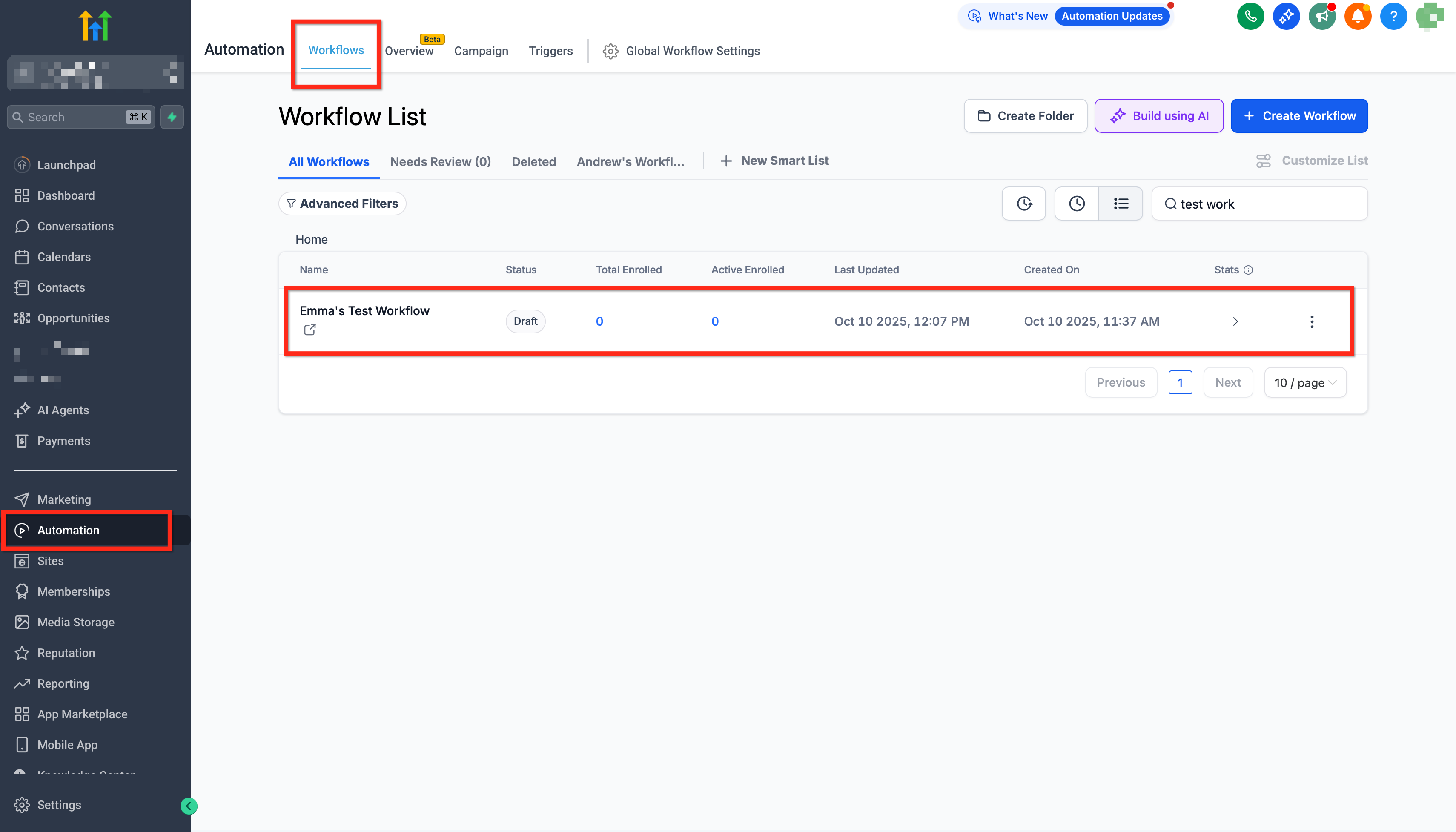
From the desired sub‑account, go to Automations → Workflows and click Create Workflow (or open an existing workflow).
Add New Entry (Instant) Trigger and select the form.
Add Typeform Actions Create/Update Contact; map email/phone from the submission.
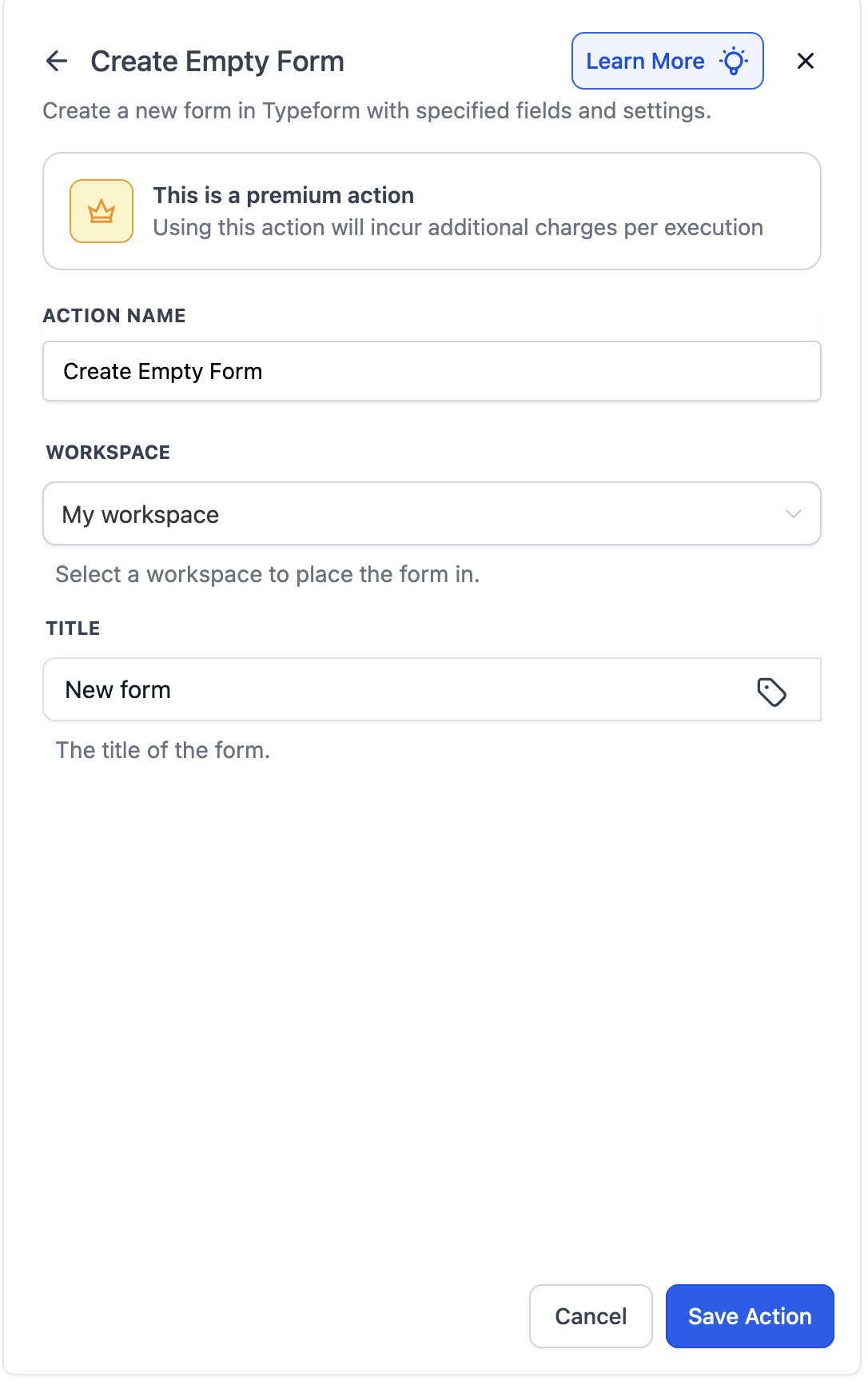
Add follow‑ups (e.g., Send Email, Notify User, Create Opportunity).
Publish and submit the Typeform once to verify entries appear in Execution Logs
Use Cases
Use Case 1: Create Tasks and Notify Team from Typeform Submissions
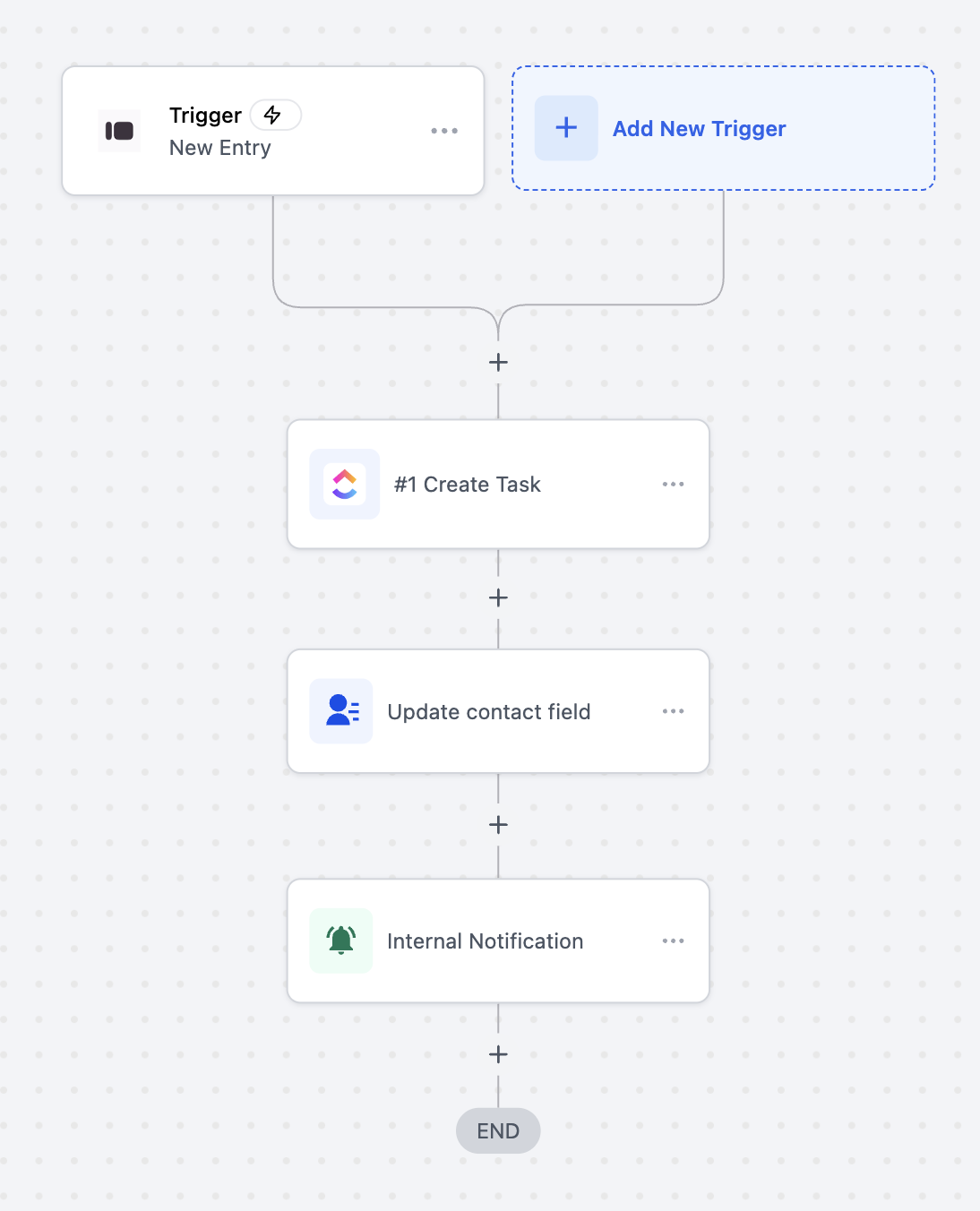
Goal: Automatically create a ClickUp task, update the contact field, and send an internal notification when someone submits a Typeform entry.
Workflow Setup:
- Trigger: Typeform → New Entry (Instant)
- Filter: Form Name = “Client Onboarding Form”
- Actions:
- Create Task (ClickUp)
- Update Contact Field (workflows)
- Send Internal Notification (workflows)
Example:
A new client fills out your “Client Onboarding Form” in Typeform. Instantly, a ClickUp task is created with the client’s details, their contact field in workflows is updated with the latest information, and your internal team receives a notification to begin the onboarding process.
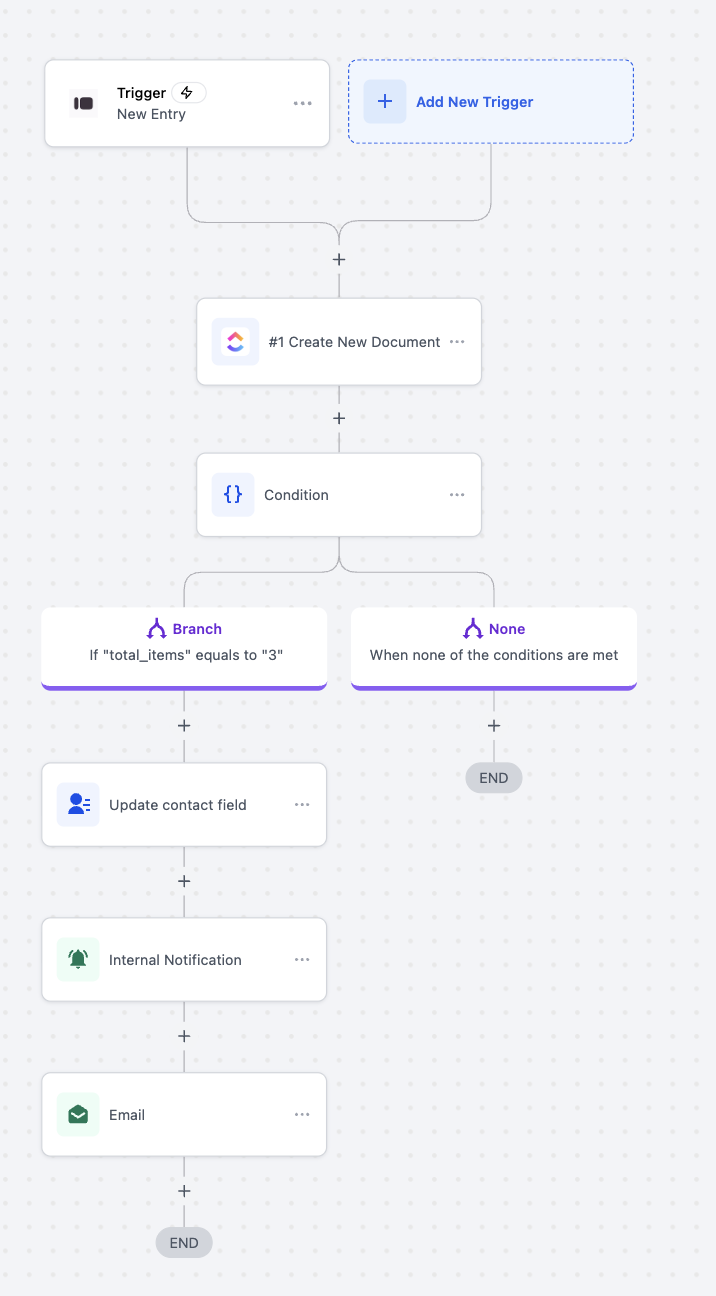
Use Case 2: Create Conditional Tasks and Send Notifications from Typeform Submissions
Goal: Automatically create a new document, check form response values, and trigger different follow-up actions based on the number of items submitted in a Typeform entry.
Workflow Setup:
- Trigger: Typeform → New Entry (Instant)
- Filter: Form Name = “Order Submission Form”
- Actions:
- Create New Document (ClickUp)
- Condition: Check if “total_items” equals “3”
- Branch (If True):
- Update Contact Field (workflows)
- Send Internal Notification (workflows)
- Send Email (workflows)
- Branch (If False):
- End Workflow
Example:
A customer submits an order through your “Order Submission Form” on Typeform. The workflow creates a new document in ClickUp with their order details. If the customer ordered exactly three items, the contact record is updated, the operations team is notified internally, and a confirmation email is sent to the customer. If the total items are not three, the workflow ends without additional actions.
Use Case 3: Automate Document Creation and Notifications on Pipeline Stage Change
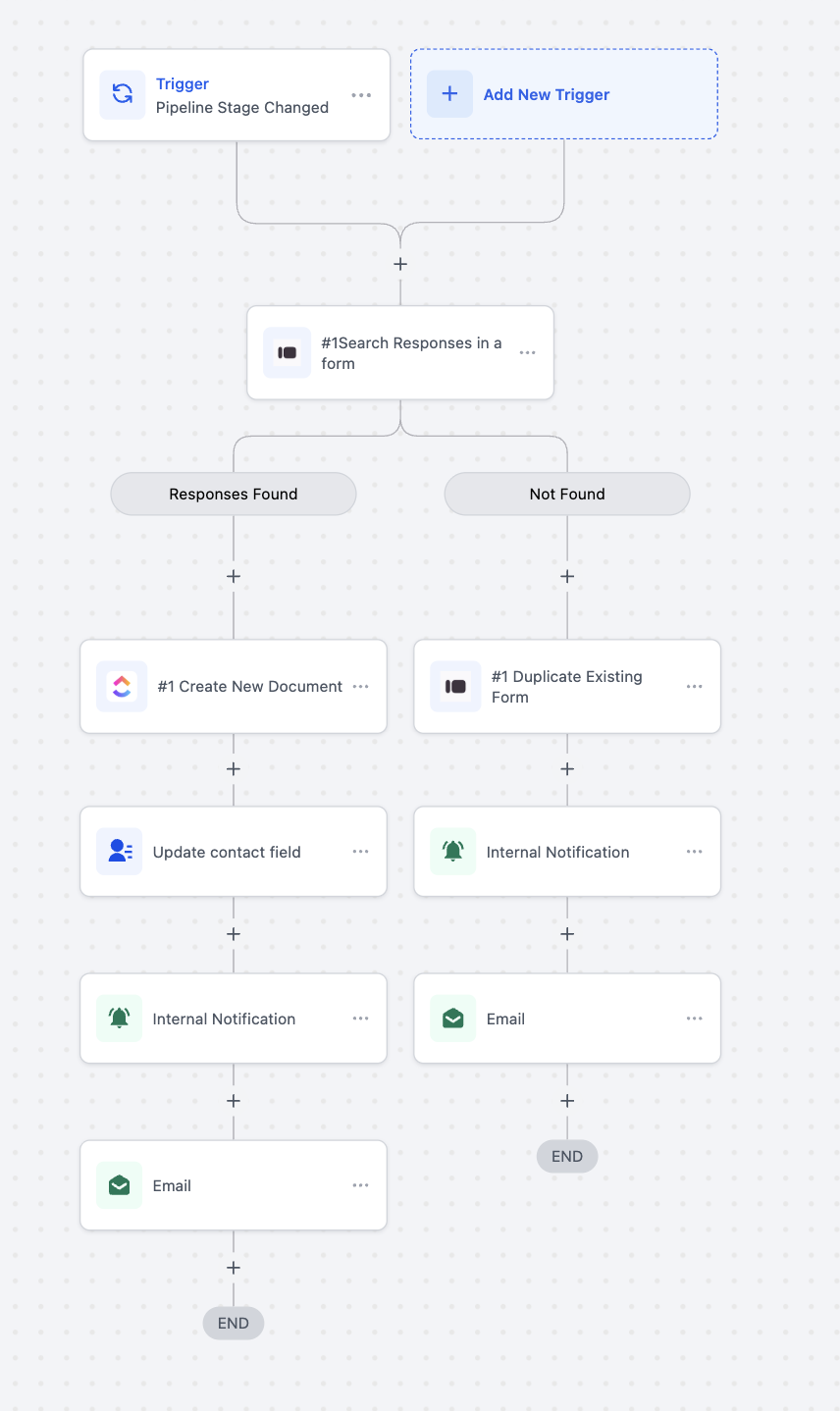
Goal: Automatically check for existing form responses when a deal’s pipeline stage changes, create or duplicate documents accordingly, and notify the team or contact based on the outcome.
Workflow Setup:
- Trigger: Pipeline Stage Changed (CRM)
- Filter: Pipeline = “Client Onboarding Pipeline”
- Actions:
- Search Responses in a Form (Typeform)
- Branch(Responses Found):
- Create New Document (ClickUp)
- Update Contact Field (workflows)
- Send Internal Notification (workflows)
- Send Email (workflows)
- Branch(Responses Not Found):
- Duplicate Existing Form (Typeform)
- Send Internal Notification (workflows)
- Send Email (workflows)
Example:
When a deal moves to the “Onboarding” stage in your CRM pipeline, the workflow searches for existing Typeform responses linked to the client.
If a response is found, a new document is created in ClickUp with the client’s data, their contact record is updated, and both your team and the client are notified.
If no response is found, a new copy of the onboarding form is created for the client to fill out, followed by an internal notification to your team and an email prompt sent to the client.
Frequently Asked Questions
Q: Do I need a paid Typeform plan?
The integration works with free and paid Typeform accounts. Typeform’s own plan limits (e.g., response caps, branding) still apply.
Q: Is this integration available to all users?
Yes, it’s available to all accounts that have access to workflows and integrations.
Q: Are the Typeform steps premium‑billed in SourCherry?
Yes. The Typeform trigger and actions are premium and billed per execution at your account’s standard rate. Agencies can optionally rebill sub‑accounts.
Q: Where do new/duplicated forms live?
Forms are created in the connected Typeform workspace tied to the OAuth account selected for that step.
Q: Can I edit questions of an existing Typeform from a workflow?
Not at this time. Current actions include Create Empty Form, Duplicate Existing Form, and Search Responses in a Form.
Q: How do I troubleshoot failures?
Check Execution Logs for the specific step error (e.g., invalid form ID, missing permissions). If authorization expired, reconnect the Typeform app and re‑run a test.