
TABLE OF CONTENTS
- What is Company-Based Workflows?
- Key Benefits of Company-Based Workflows
- Company Workflow Triggers & Actions
- Typical Use Cases
- How To Set Up Company-Based Workflows
- Frequently Asked Questions
- Related Articles
What is Company-Based Workflows?
Company-Based Workflows let you automate at the account level by targeting the Company object—rather than a single Contact. This enables onboarding, lifecycle updates, data hygiene, and reporting alignment for B2B accounts with multiple stakeholders, all from one centralized automation.
Company-Based Workflows are a workflow type in SourCherry that starts from Company events (for example, when a Company is created or updated) and runs actions that write directly to Company fields or to Contacts associated with that Company. This bridges the gap between contact-level and account-level automation, unlocking true B2B use cases in SourCherry.
Key Benefits of Company-Based Workflows
Focusing automation at the Company level improves data consistency and operational efficiency across teams. The benefits below frame the business outcomes customers can expect, with examples for real-world implementation.
B2B onboarding: Launch account-level onboarding the moment a Company is created.
Data sync: Keep Company and associated Contact data aligned to reduce manual updates.
CRM hygiene: Clear outdated Company fields on status changes to maintain clean reports.
Ownership consistency: Standardize Account Owner assignment for all related Contacts.
Works with Contact workflows: Combine Company and Contact workflows to design end-to-end automation.
Company Workflow Triggers & Actions
Use this matrix to plan when a Company-based workflow should start and what it should do. Triggers define the starting event on the Company object, while actions update Company fields, create/associate records, or optionally impact associated Contacts. Filter triggers to narrow scope, and choose actions that align with your data model and safeguards.
Company Workflow Triggers
| Name (UI label) | Starts When | Filters/Conditions |
|---|---|---|
| Company Created | A new Company record is added | Basic filters; segment by owner, tags, fields, or other attributes |
| Company Changed | One or more Company fields are updated | Field/value conditions (where available) to react only to specific changes |
Company Workflow Actions
| Name (UI label) | Available In | Primary Purpose | Key Options |
|---|---|---|---|
| Create Company or Associated Contact | Company-based & Contact-based | Create a new Company or add a Contact to an existing Company | Choose create mode; map essential fields |
| Update Company or Associated Contact | Company-based & Contact-based | Keep Company data current and optionally sync to associated Contacts | Map fields with static or dynamic values; option to apply to associated Contacts (where available) |
| Clear Fields of Company or Associated Contact | Company-based & Contact-based | Remove outdated values to maintain CRM hygiene | Select specific fields to reset |
| Create Associated Company | Contact-based only | Create and link a Company from a Contact record | Map Company fields from Contact/context |
| Update Associated Company | Contact-based only | Update the Company linked to the current Contact | Map fields; optionally gate with conditions |
| Clear Fields of Associated Company | Contact-based only | Reset selected Company fields from a Contact-based workflow | Choose fields to clear |
Typical Use Cases
Use cases translate features into repeatable recipes. Start here to design a first pass, then refine with conditions and branching as your process matures.
Onboard new client Companies: Assign Account Owner, set lifecycle stage, and notify all associated Contacts with a welcome email sequence.
Mirror lifecycle stages: When a Company’s health or status changes, update relevant flags on associated Contacts for success and retention workflows.
Data hygiene: Clear time-bound fields (e.g., promo or temporary discounts) after a set duration.
Create Companies from inbound forms: Build a Company from a B2B lead form and immediately associate the submitting Contact.
Push Company attributes to Contacts: Sync domain, industry, segment, or plan tier to Contacts for segmentation and reporting.
How To Set Up Company-Based Workflows
A clean setup ensures accurate triggers, safe field updates, and predictable outcomes. Build in a test path first, then roll out widely to production Companies.
Create the workflow
Navigate to Automation → Workflows → + Create Workflow.
Choose Company-based Workflow as the type.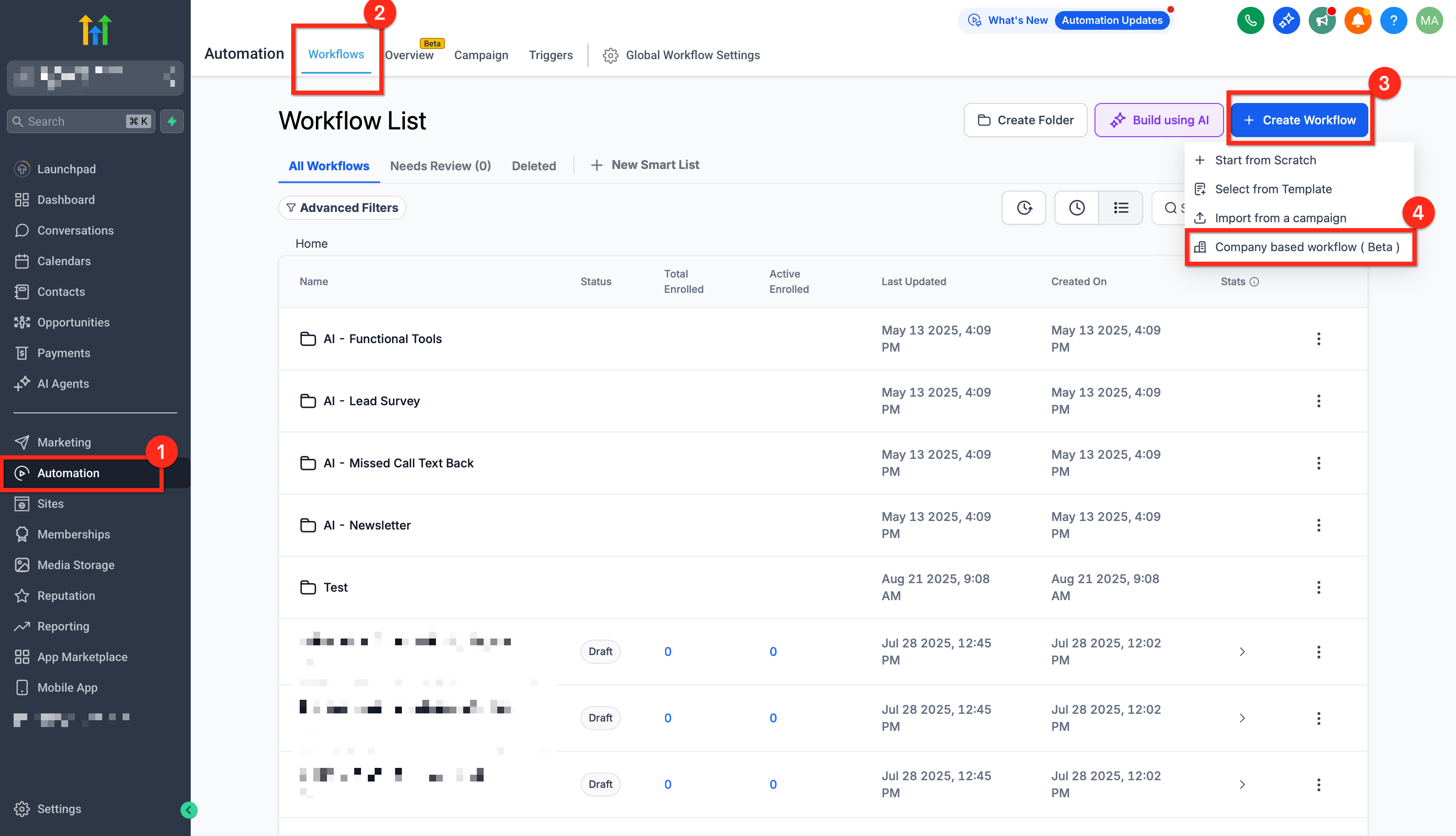
Add a trigger
Select Company Created or Company Changed.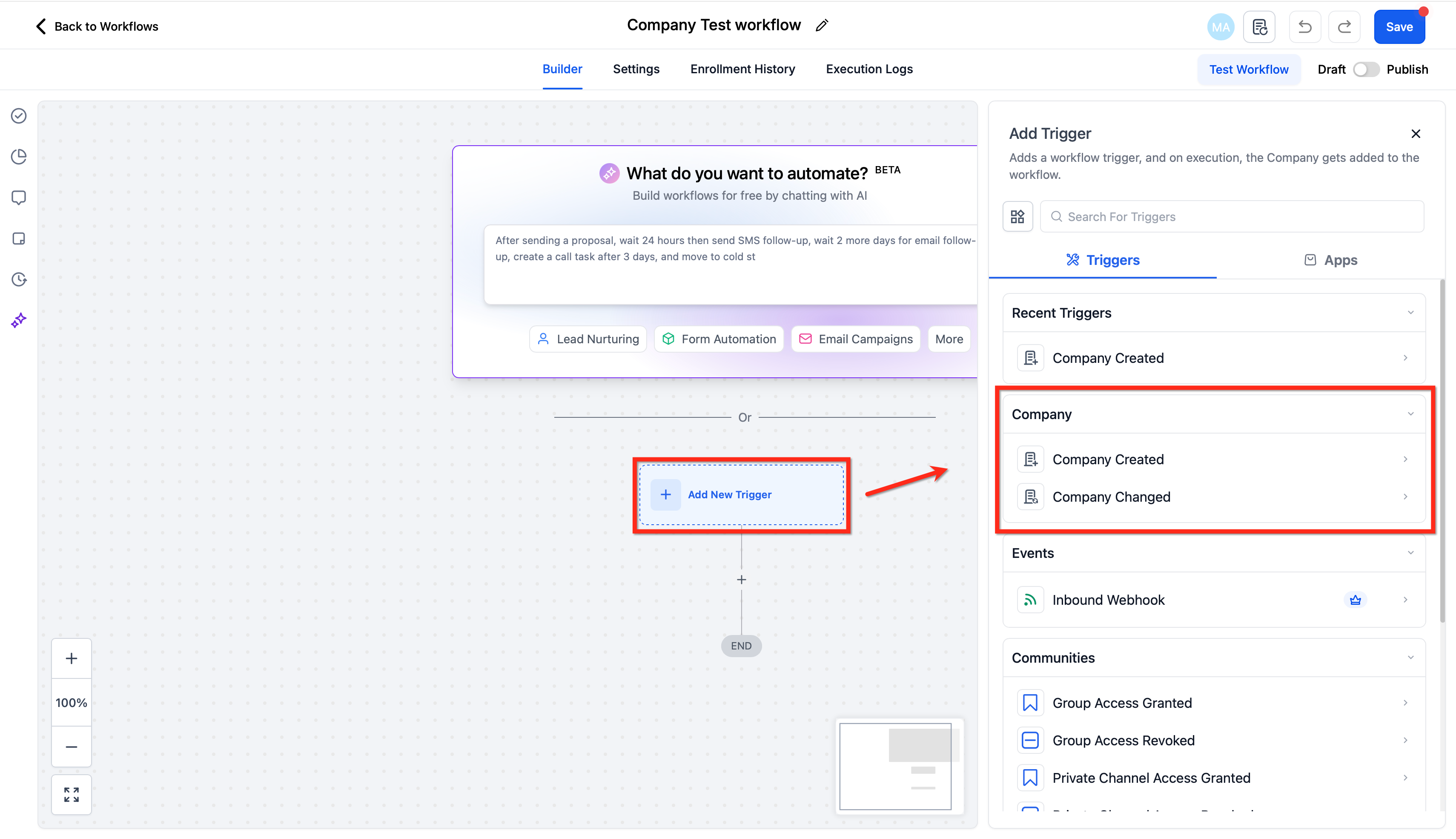
Add actions
Drag in Update Company or Associated Contact, Create Company or Associated Contact, or Clear Fields… as needed. Map fields using static values or dynamic variables.
Where applicable, choose whether to apply updates to associated Contacts.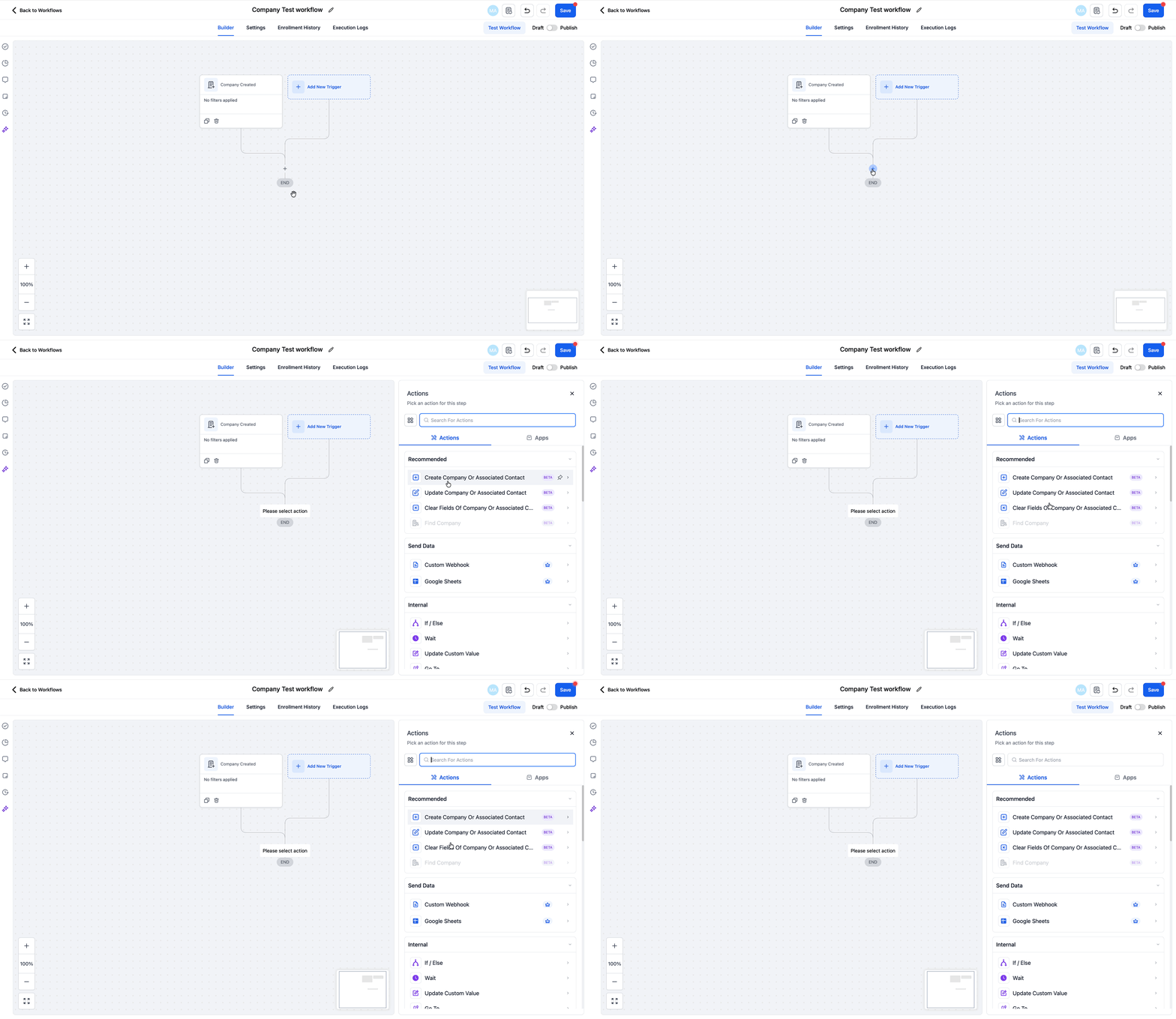
Add logic, delays, and branches (optional)
Use Conditions, If/Else, or Wait steps to control timing and scope.
Keep loops in check—avoid bi-directional “mirror” updates without guardrails.Save, test, then publish
Save and enroll a small set of Companies to validate mappings.
Review the execution log for successful actions.
Publish once validated.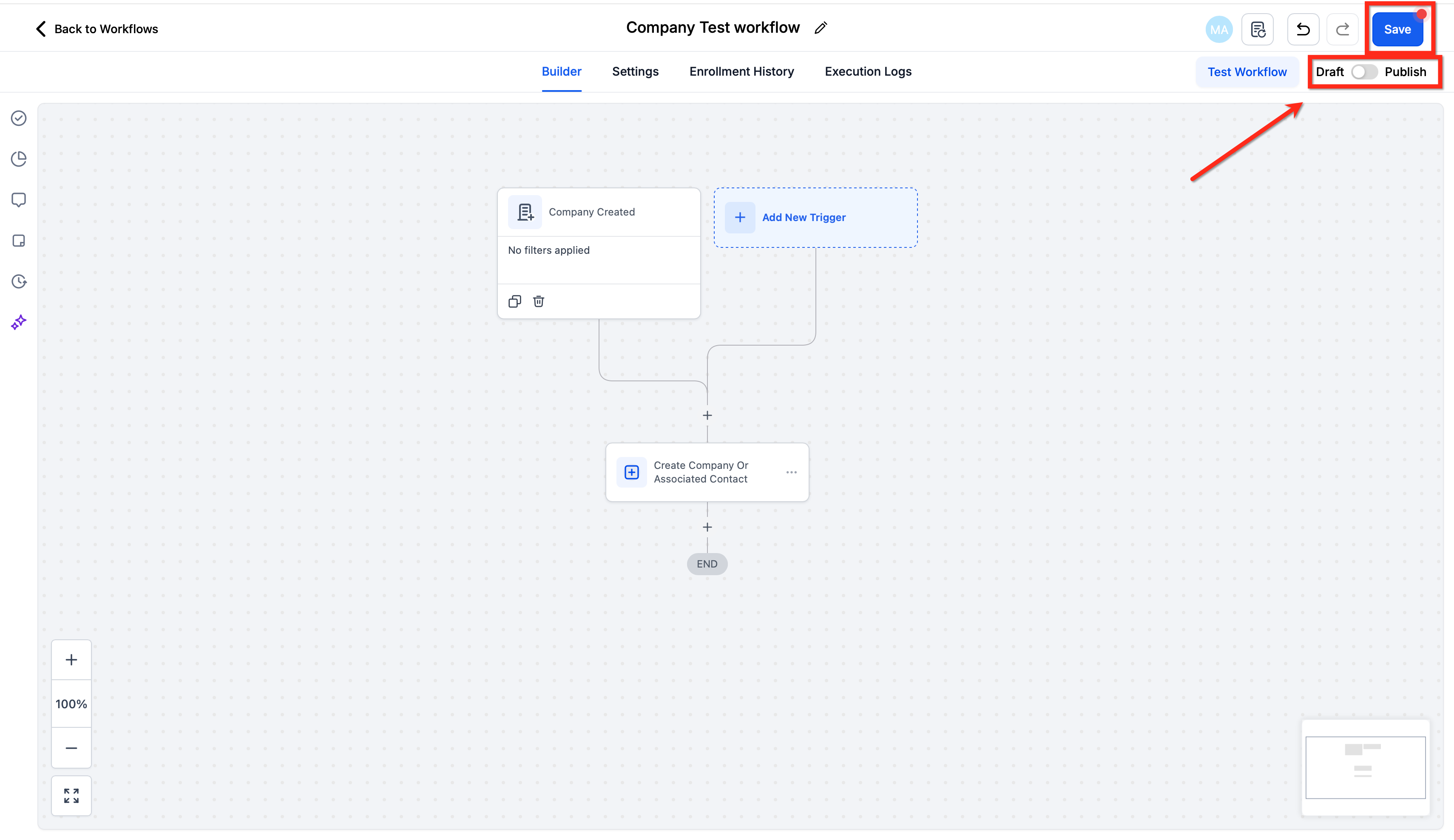
Frequently Asked Questions
Q: Can one workflow update both the Company and its associated Contacts?
Yes. Use Update Company or Associated Contact and select options to apply changes to associated Contacts where available.
Q: Can I create a Company from a Contact-based workflow?
Yes. Use Create Associated Company in a Contact-based workflow to build and link a Company record.
Q: How do I avoid update loops between Company and Contact workflows?
Use conditions (for example, a “last updated by automation” tag/field or a boolean flag) and avoid bi-directional updates without guardrails.
Q: Can I bulk-enroll existing Companies into a new Company-based workflow?
Use filters or Smart Lists to enroll a targeted set of Companies, validate on a small batch, then scale up.
Q: What permissions are required to build and publish these workflows?
Users need permissions to access Workflows and view/update Companies and Contacts in the sub-account.