
Workflow Switcher is a faster way to move between automations in SourCherry’s Advanced Builder. Open a searchable panel, find recent workflows, and launch another workflow in a new browser tab without leaving your current canvas. This article shows how to use the workflow switcher.
TABLE OF CONTENTS
- What is Workflow Switcher?
- Key Benefits of Workflow Switcher
- How To Use the Workflow Switcher
- Frequently Asked Questions
- Related Articles
What is Workflow Switcher?
Workflow Switcher is a left‑sidebar tool in Advanced Builder that lets you jump to other workflows quickly. It surfaces your recent workflows and a quick search, then opens the selected workflow in a new browser tab so your current canvas stays put—enabling safe, rapid context switching while you build.
Key Benefits of Workflow Switcher
Stay in flow: Jump to another workflow without leaving your current builder tab.
Side‑by‑side editing: Open the other workflow in a new tab to compare logic branches easily.
Faster reuse: Copy/paste actions or branches across workflows for consistent, reusable automations.
Time savings: Avoid page reloads and re‑searching; get to your next workflow in one click.
Reduced error risk: Keep your current canvas intact while exploring another automation.
How To Use the Workflow Switcher
Following these steps ensures you can find and open other workflows without breaking focus on your current build.
Go to Automations → Workflows.
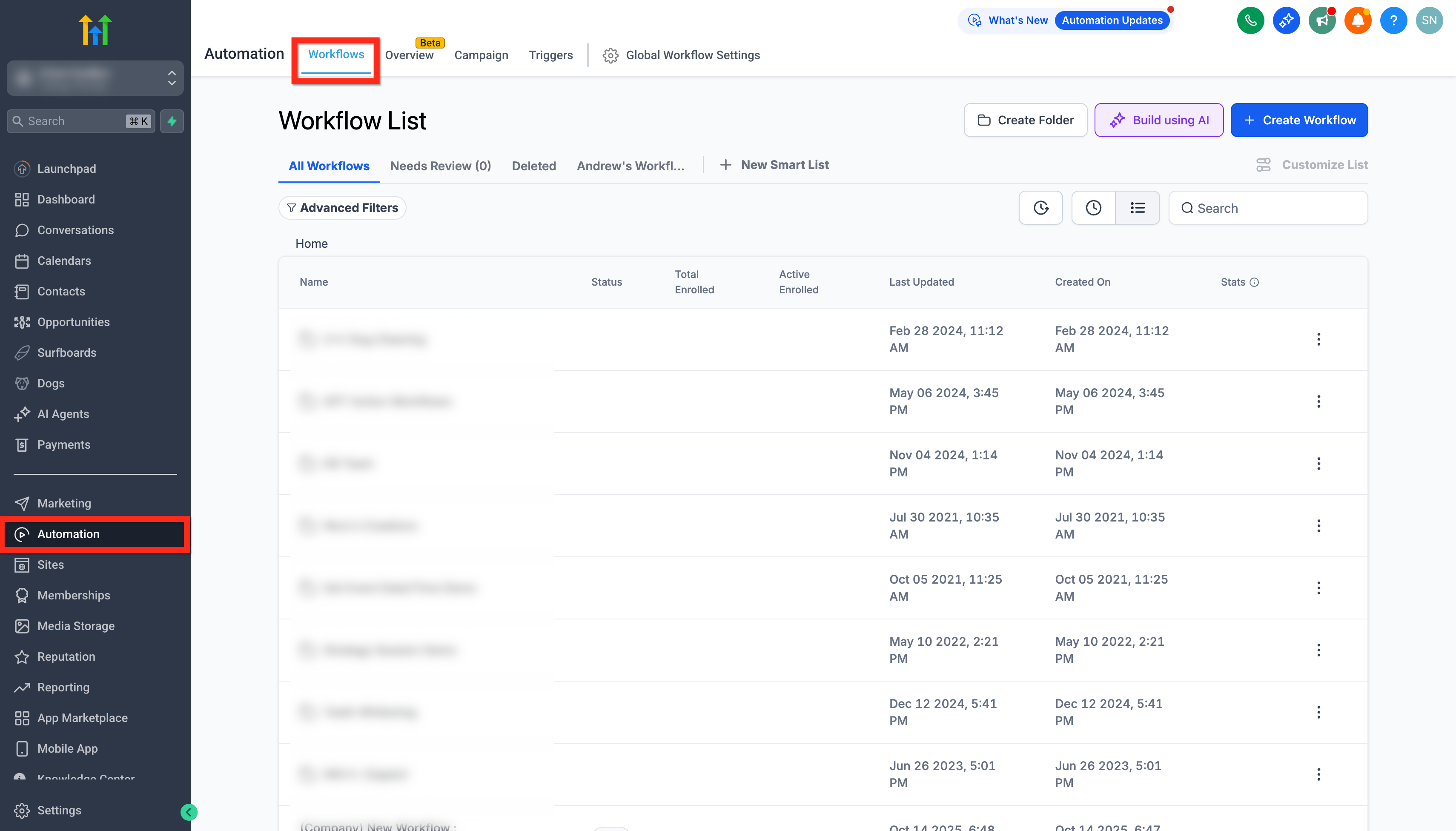
Create a new workflow or open an existing one.
Switch to Advanced Builder (ensure you’re not in the standard builder).
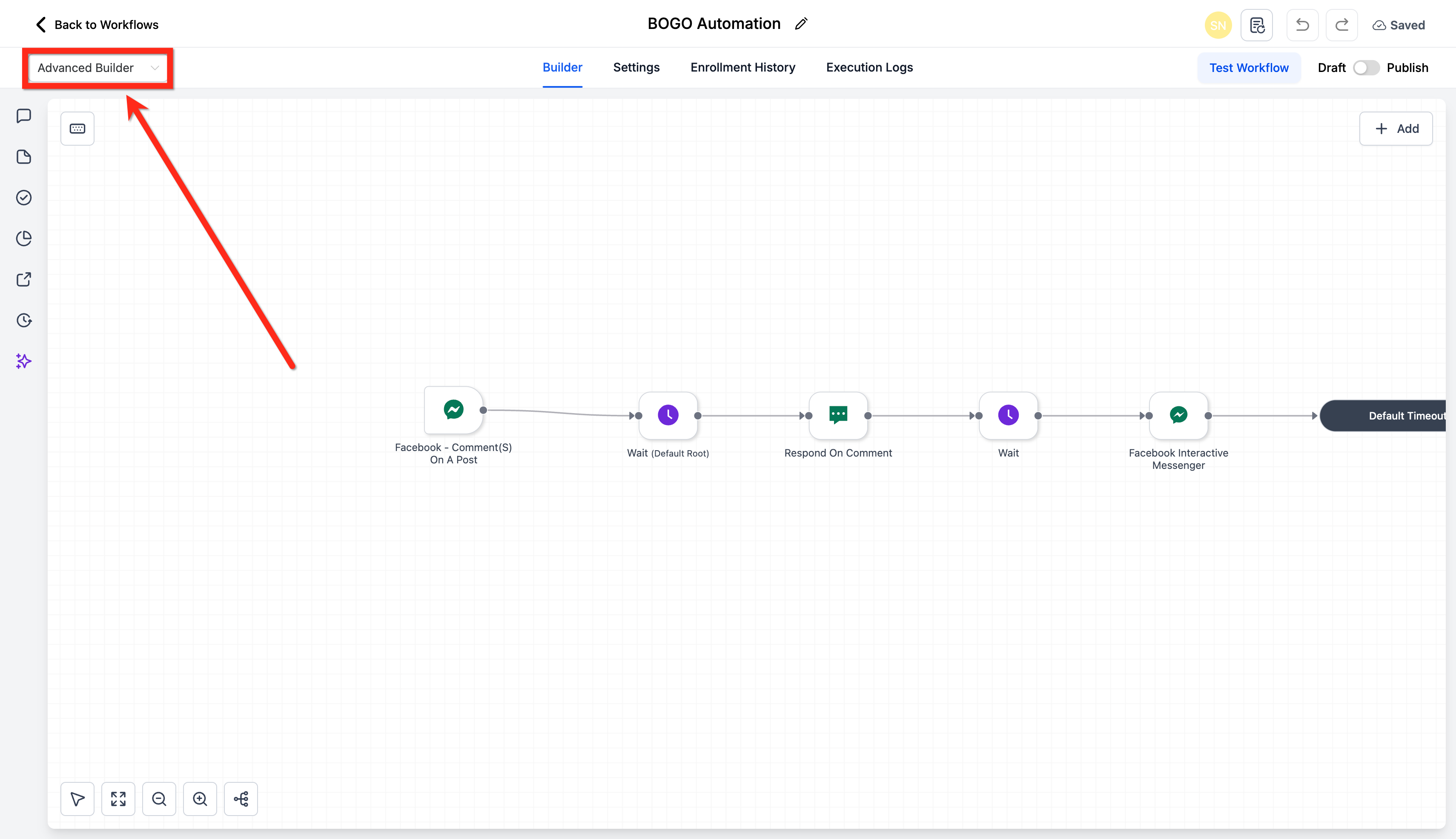
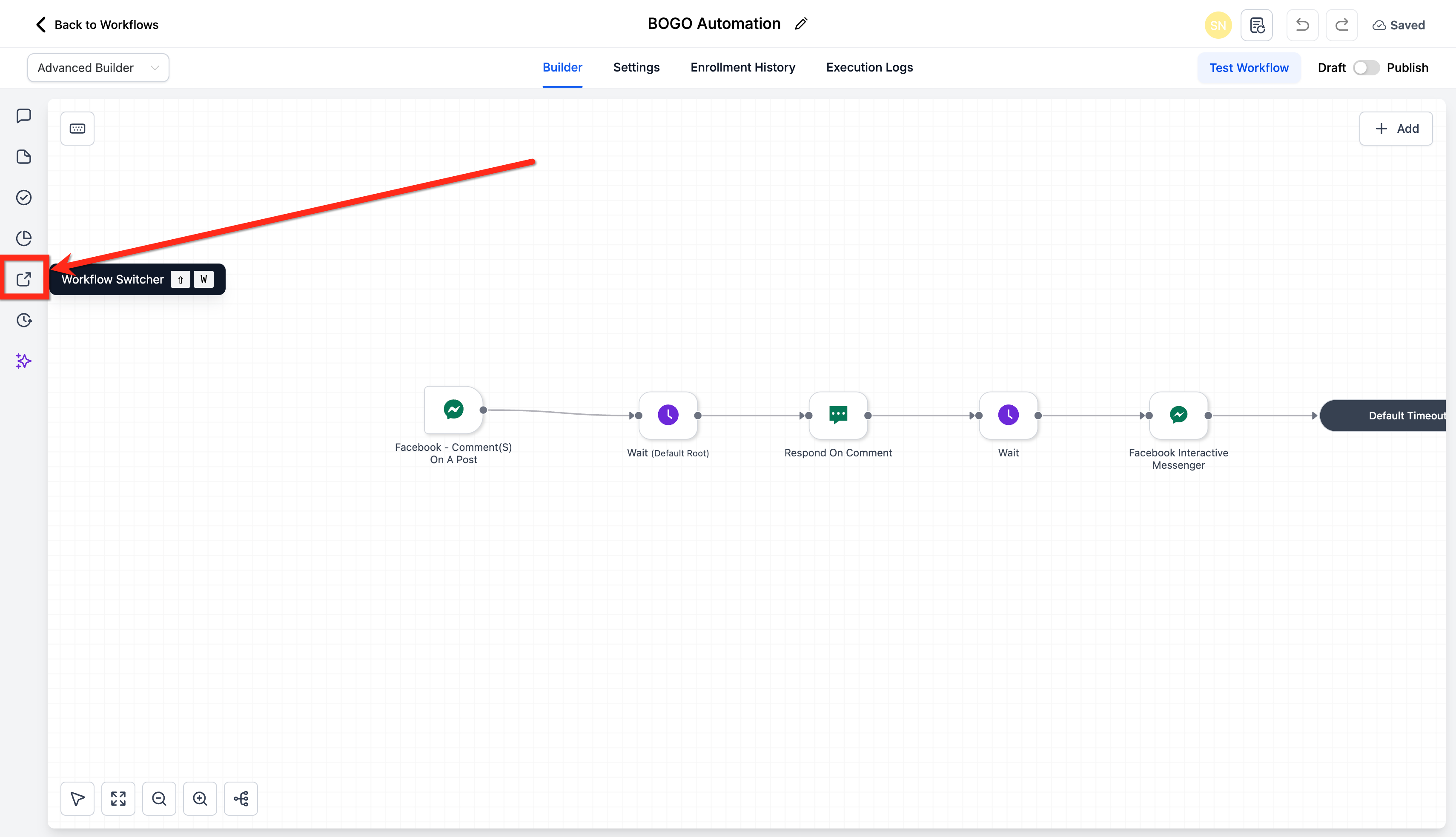
Click the Workflow Switcher button on the left sidebar or press Shift + W.
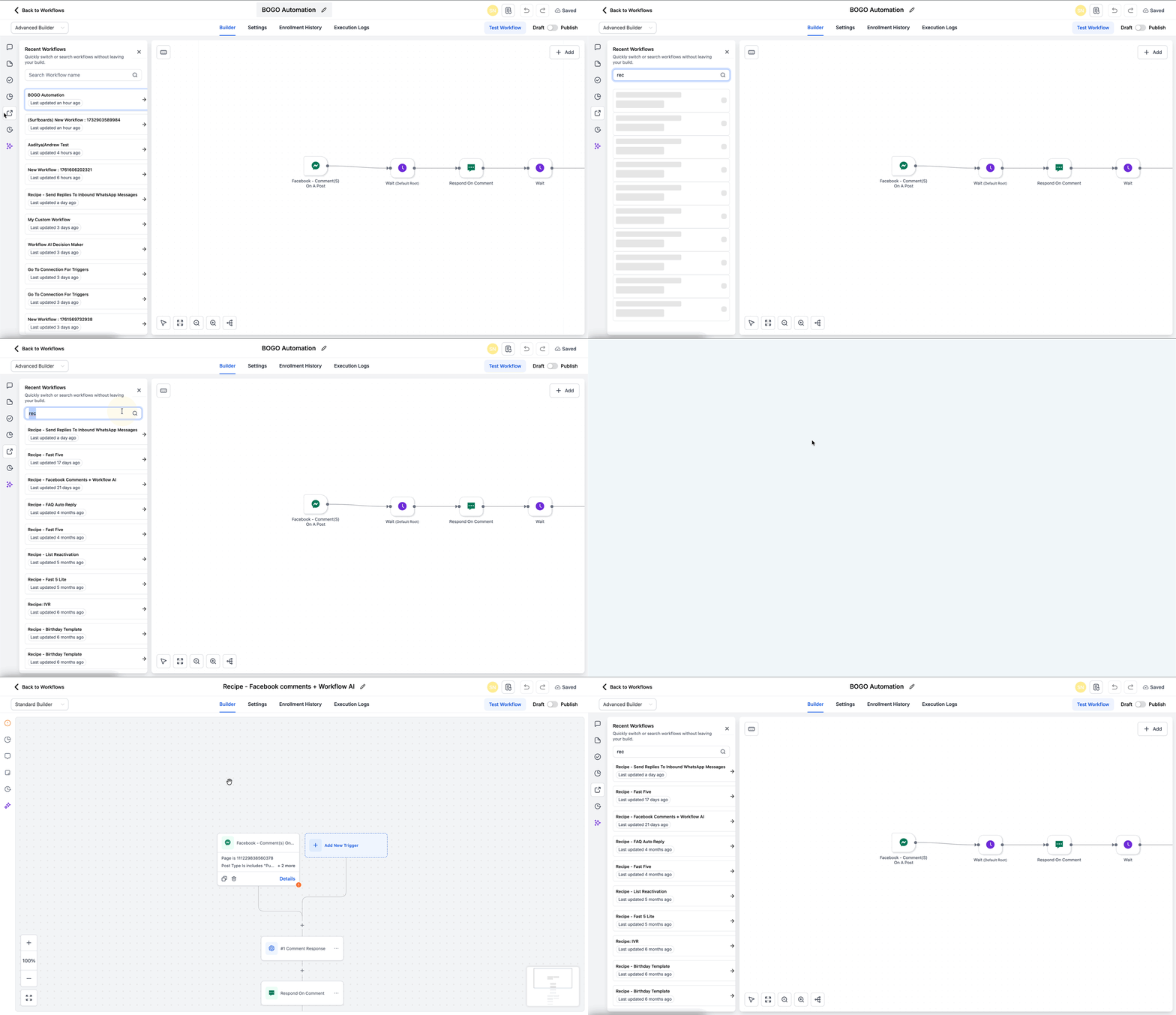
Use Quick Search or pick from Recent Workflows.
Click a workflow to open it in a new browser tab while your current canvas remains open.
Frequently Asked Questions
Q: Does Workflow Switcher work in the standard builder?
Workflow Switcher appears in Advanced Builder only.
Q: What does Quick Search look for?
Quick Search finds workflows by name so you can open them quickly.
Q: Will I lose my changes if I open another workflow?
The other workflow opens in a new tab, so your current canvas stays open.
Q: Can I copy steps between the two workflows I opened?
Yes, use copy/paste across workflows to reuse actions or branches.
Q: Is there a keyboard shortcut?
Yes, press Shift + W to open/close the Switcher panel when the builder tab has focus.