
Bring TikTok DMs and comments into SourCherry—and let workflows answer for you. The TikTok DM & Comment Automations integration routes every private or public message straight to the Conversations Inbox where automations can nurture, qualify, and convert leads hands-free.
TABLE OF CONTENTS
- What are TikTok DM & Comment Automations?
- Key Benefits of TikTok DM & Comment Automations
- Integrating your TikTok Account
- Conversations Inbox for TikTok
- Components of TikTok Automation
- TikTok DM Automation
- TikTok Comment Automation
- How to Setup Trigger: TikTok Comment(s) on Reel
- How to Setup Action: Reply in Comments
- How to Set Up Trigger: Customer Replied
- How To Setup Action: TikTok Interactive Messenger
- Frequently Asked Questions
- Related Articles
What are TikTok DM & Comment Automations?
TikTok DM & Comment Automations connects your TikTok account to SourCherry so that:
- Direct Messages (DMs) and post comments appear inside the Conversations Inbox in real time.
- Workflows can be triggered by those incoming messages to send interactive replies, assign leads, create tasks, or start nurture sequences.
- Every touchpoint is stored on the contact record, giving you a complete conversation history across all channels.
Key Benefits of TikTok DM & Comment Automations
- Unified Inbox: Manage TikTok conversations alongside SMS, Email, WhatsApp, and more in SourCherry Conversations. No tab switching.
- Faster Response Times: Use workflows to send instant, 24/7 answers that keep prospects engaged.
Automation-Driven Efficiency: Use triggers and actions to auto‑reply, route leads, and hand off to agents without manual effort.
Conversion Focus: Turn TikTok engagement into CRM contacts and nurture sequences you can track and report on.
Scale for Teams: Ideal for agencies and multi‑location brands handling high message volumes with shared inboxes and rules.
- Real-time notifications: Real-time notifications for TikTok direct messages and comments so teams can respond faster from Conversations.
Integrating your TikTok Account
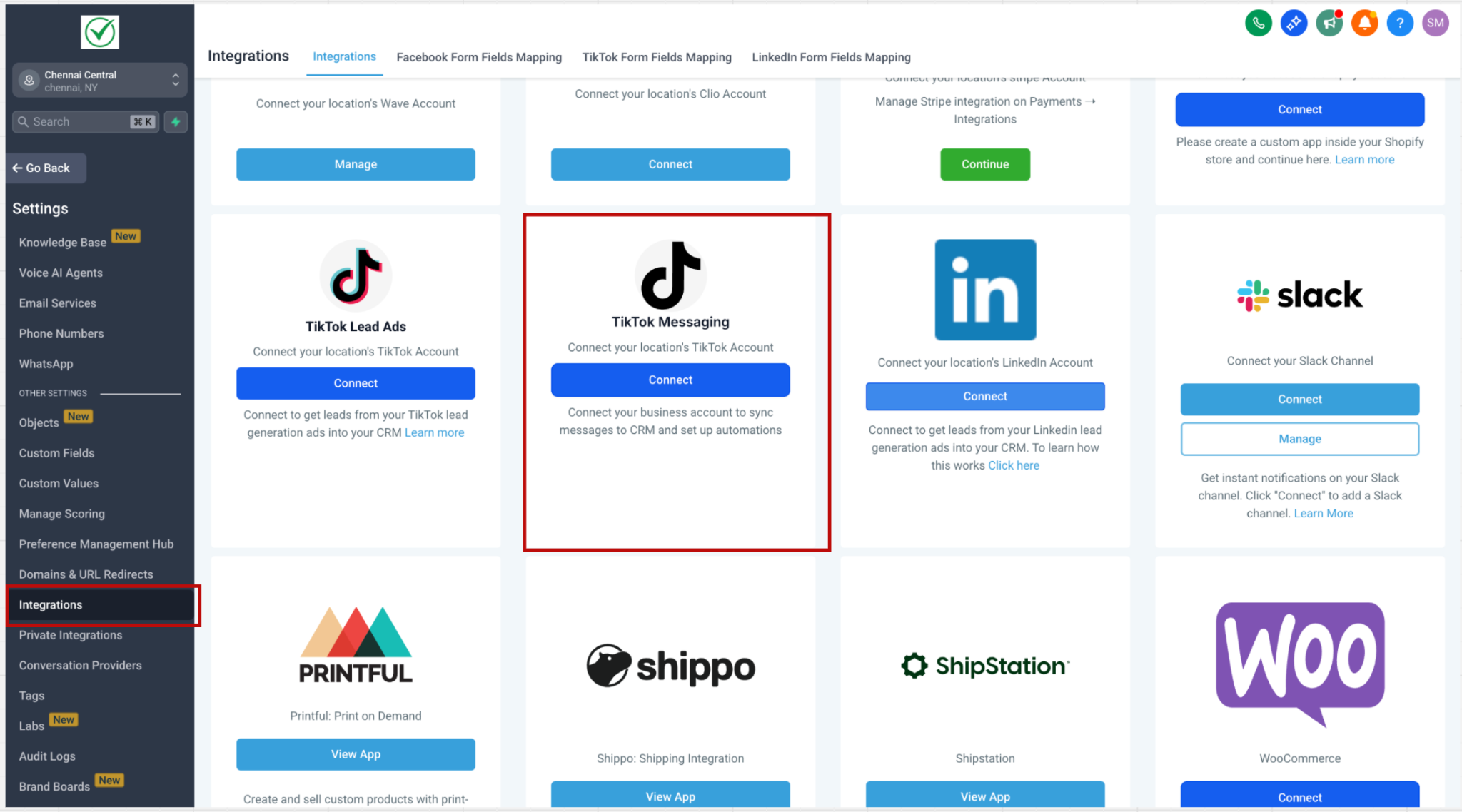
Before proceeding, make sure your TikTok accounts are integrated with your Sub-Account.
From your Sub-Account dashboard, go Settings > Integrations > TikTok card.
Conversations Inbox for TikTok
Incoming DMs and comments sync to the inbox just like any other channel, making it easy to:
- See profile photos, usernames, and message history in one thread.
- Reply manually with text, emojis, media, or saved snippets.
- Use quick-action buttons to add notes, tags, or tasks.
Delivery failure visibility (TikTok)

If a TikTok message fails to deliver, Conversations provides clearer feedback so you can identify failed sends and take corrective action.
Components of TikTok Automation
Triggers
- TikTok Comment on a Reel: workflow starts when there is a new comment on your TikTok post. Click here for more info on this Trigger.
- Customer Replied: select a reply channel like TikTok messenger. Click here for more info on this Trigger
Actions
- Reply In Comments: reply to a comment with a comment under it. Click here for more info on this action
- TikTok Interactive Messenger: automate replies or nurture sequences.
TikTok DM Automation
Automate conversational follow-ups when someone sends you a private message.
- The “Customer Replied” trigger paired with the “Reply Channel = TikTok” filter ensures the workflow fires only for TikTok DMs.
- Use the TikTok Interactive Messages action to send rich-button replies similar to WhatsApp Interactive Messages.
TikTok Comment Automation
Turn comment sections into lead magnets by:
- Triggering “TikTok Comment(s) on a Reel” for any or specific posts.
- Using the “Reply in Comments” action to answer publicly, like the comment, or tag the user.
- Following up with a DM or assigning the contact to a rep.
How to Setup Trigger: TikTok Comment(s) on Reel
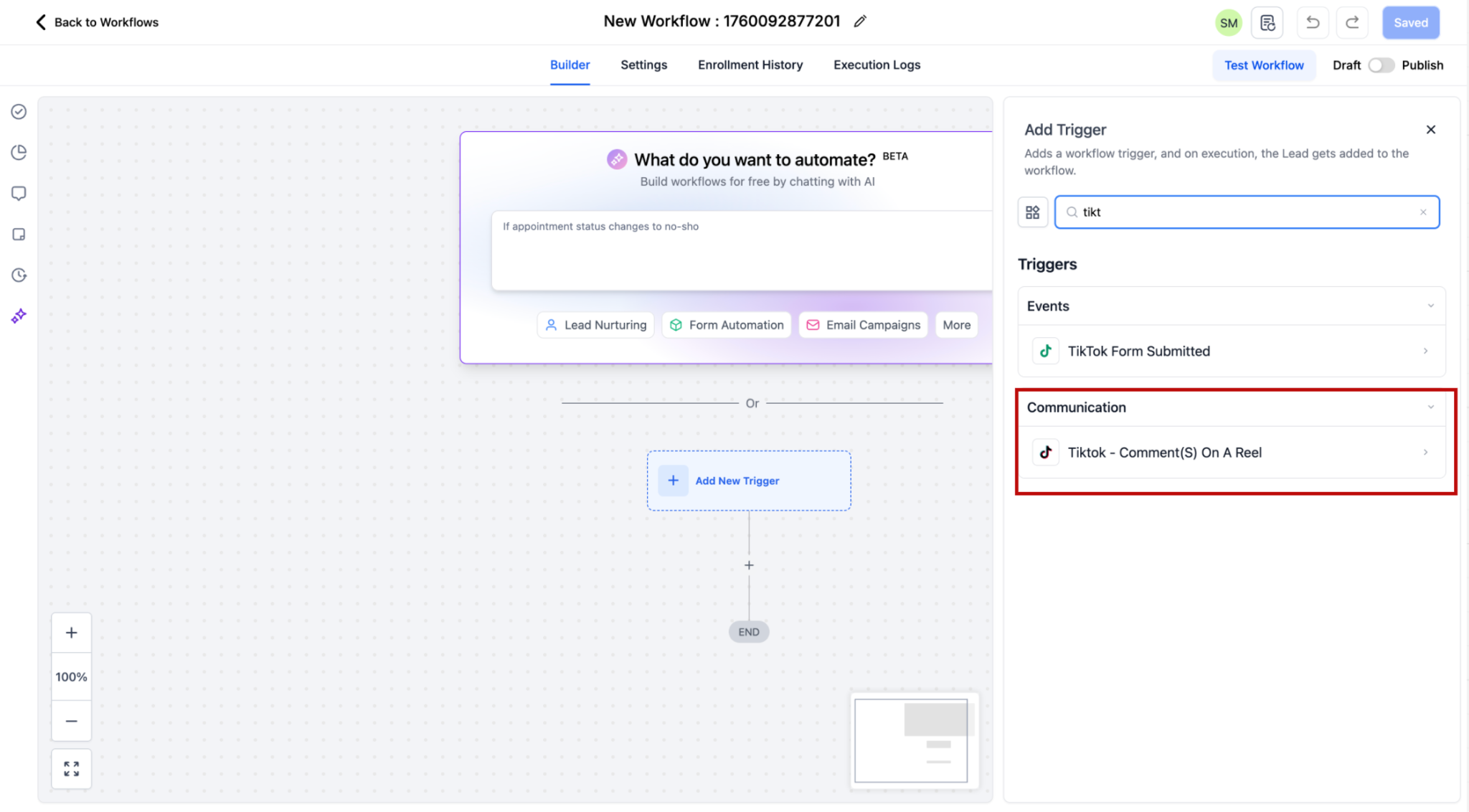
Step 1: Add Trigger
Within the Workflow builder, click + Add New Trigger. Select the TikTok - Comment(s) on a Post trigger.
Step 2: Select Account
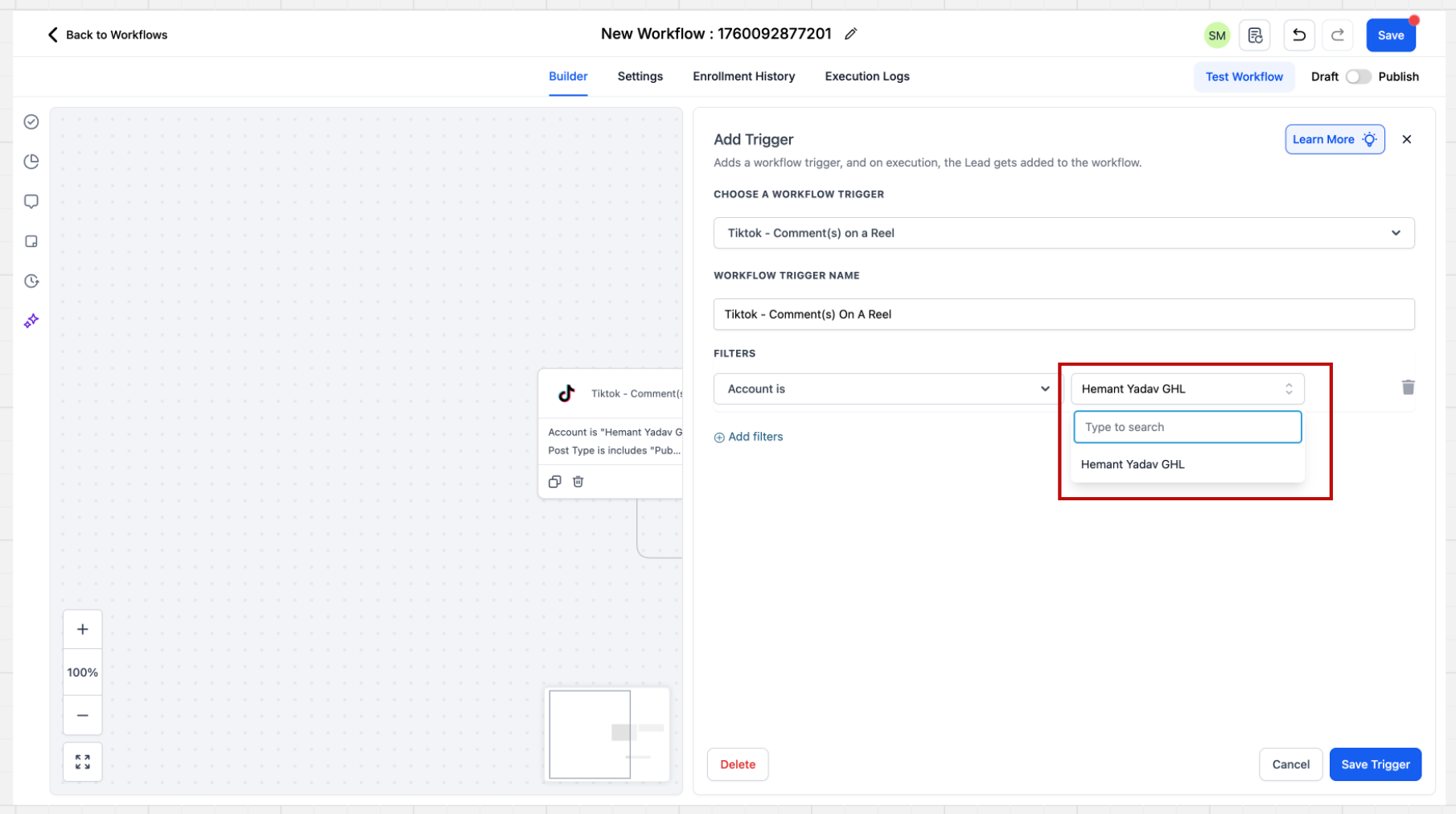
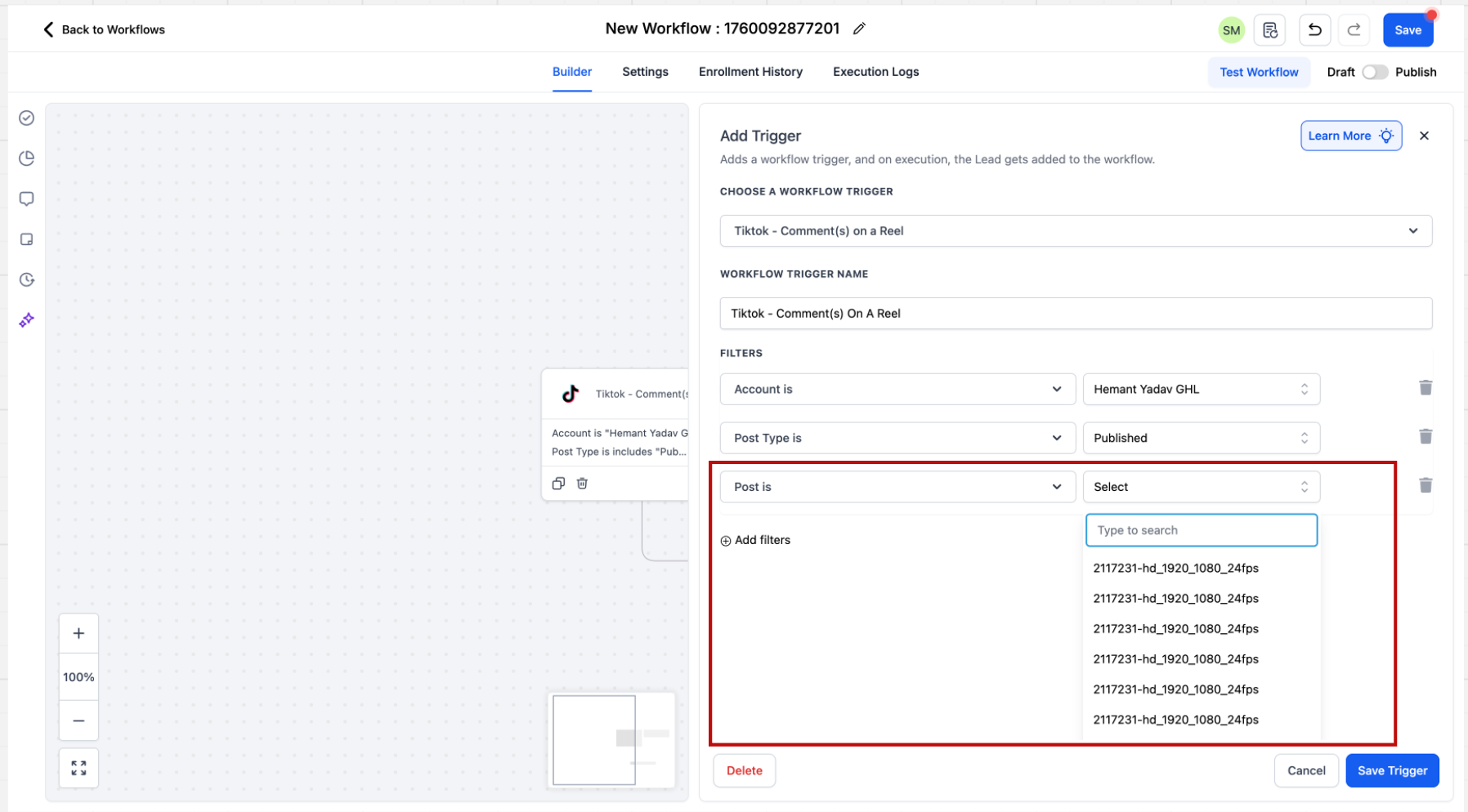
After clicking on the trigger the sidebar will open. There are multiple filters present here. The first step is to select the Account.
If a specific account is not selected in the filter, the system will automatically consider all accounts that are integrated at the location level. The automation will then execute across all these connected accounts.
Step 3: Select Post Type
After selecting the Page you have to select the Post Type. Post type can be "Published" or "Custom"
- Published Post: 'Published Posts' tab fetches all posts on your business page - basis this selection, all the posts from your account comes as a dropdown.
- Custom Post: Custom Post tab allows you to define the post you want to consider by providing an URL
Post Selection Behavior: If a specific post is not selected, the system will automatically include all posts associated with the connected TikTok account.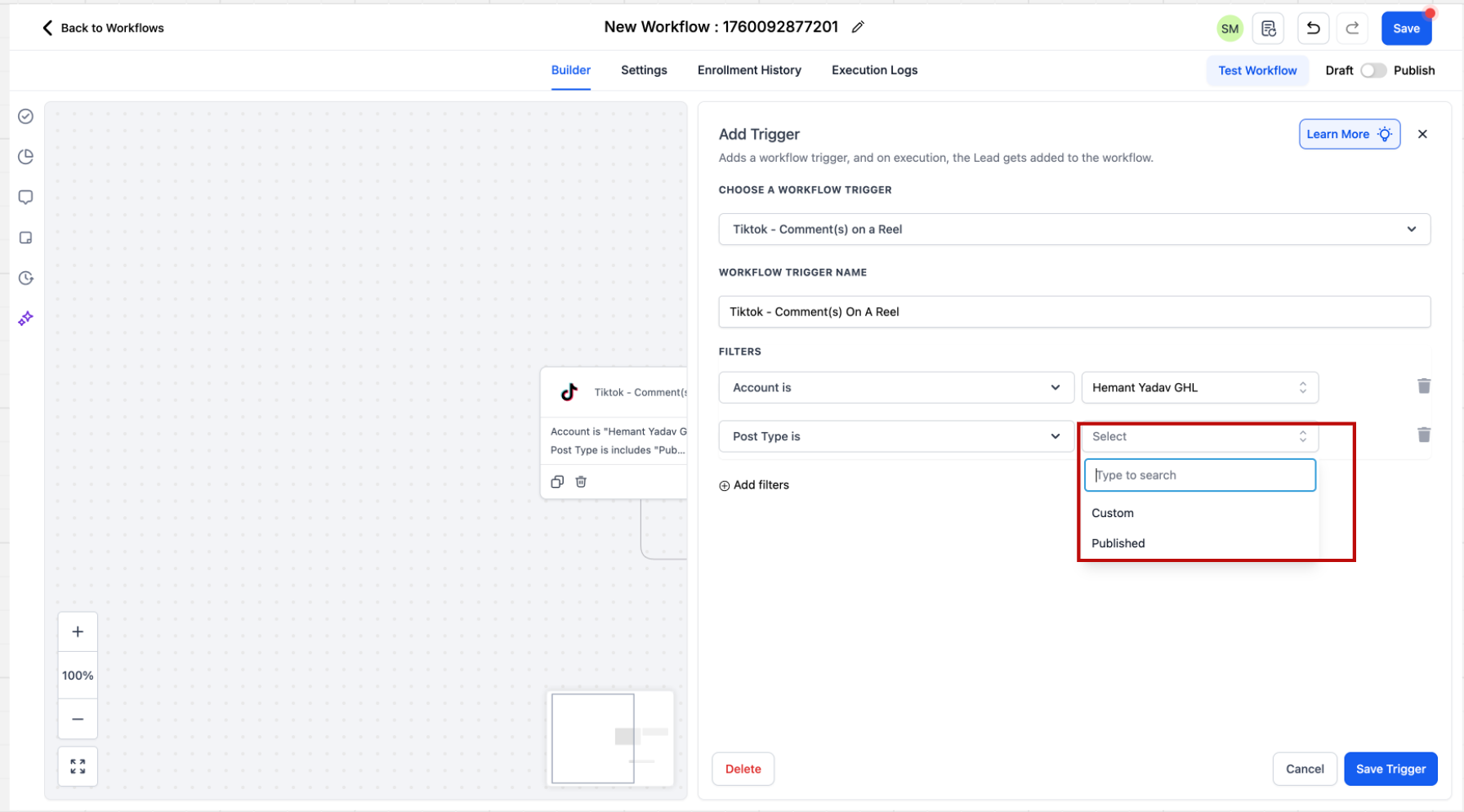
Step 4: Select Post or URL
Select the post or provide the URL of the post you would like to run the automation on.
Step 5: Specify Match Phrase
After selecting the post you have to enter what are you looking for in the comment. You can select from 2 options "Contains Phrase" and "Exact Match". Below are some examples to understand these 2 dropdown better.
- Exact Match - Price
Inbound message - Price
Result - Pass - Exact Match - Share the Price
Inbound message - Share the Price
Result - Pass
- Exact Match - Share the Price
Inbound message - Please share the Price
Result - Fail - Contains Exact Phrase - I bought from you
Inbound message - I bought from you
Result - Pass - Contains Exact Phrase - I bought from you
Inbound message - I bought from you yesterday
Result - Pass - Contains Exact Phrase - I bought from you
Inbound message - I bought one from you
Result - Fail
When a contact is coming through the trigger, it will be saved as a contact and First Name and Last Name of the contact will be stored.How to Setup Action: Reply in Comments
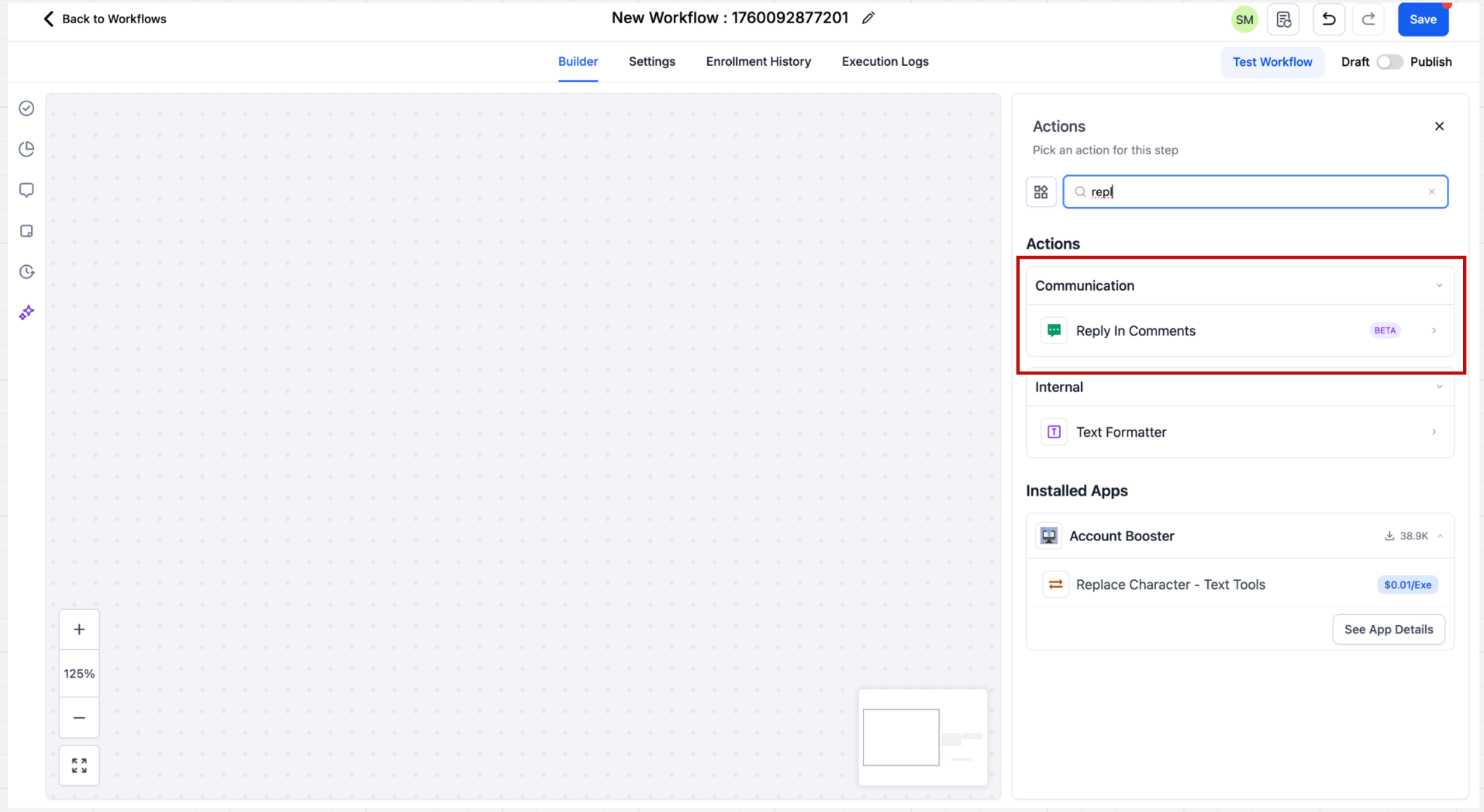
Step 1: Go to Actions
Add the “Reply in Comments” action to the workflow
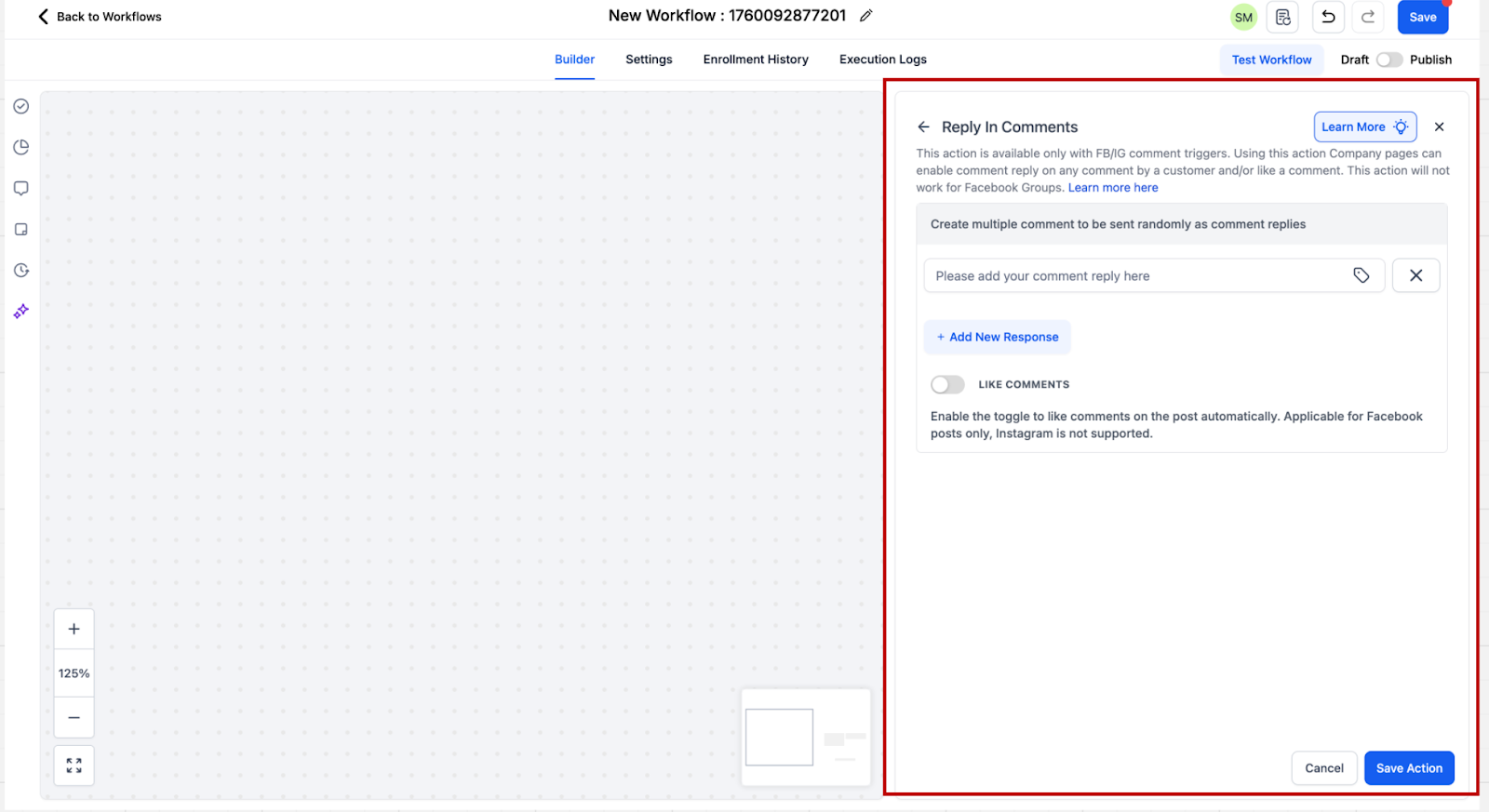
Step 2: Configure Reply Comments
Users can configure up to 10 reply comments, which will be randomly selected during execution.
How to Set Up Trigger: Customer Replied
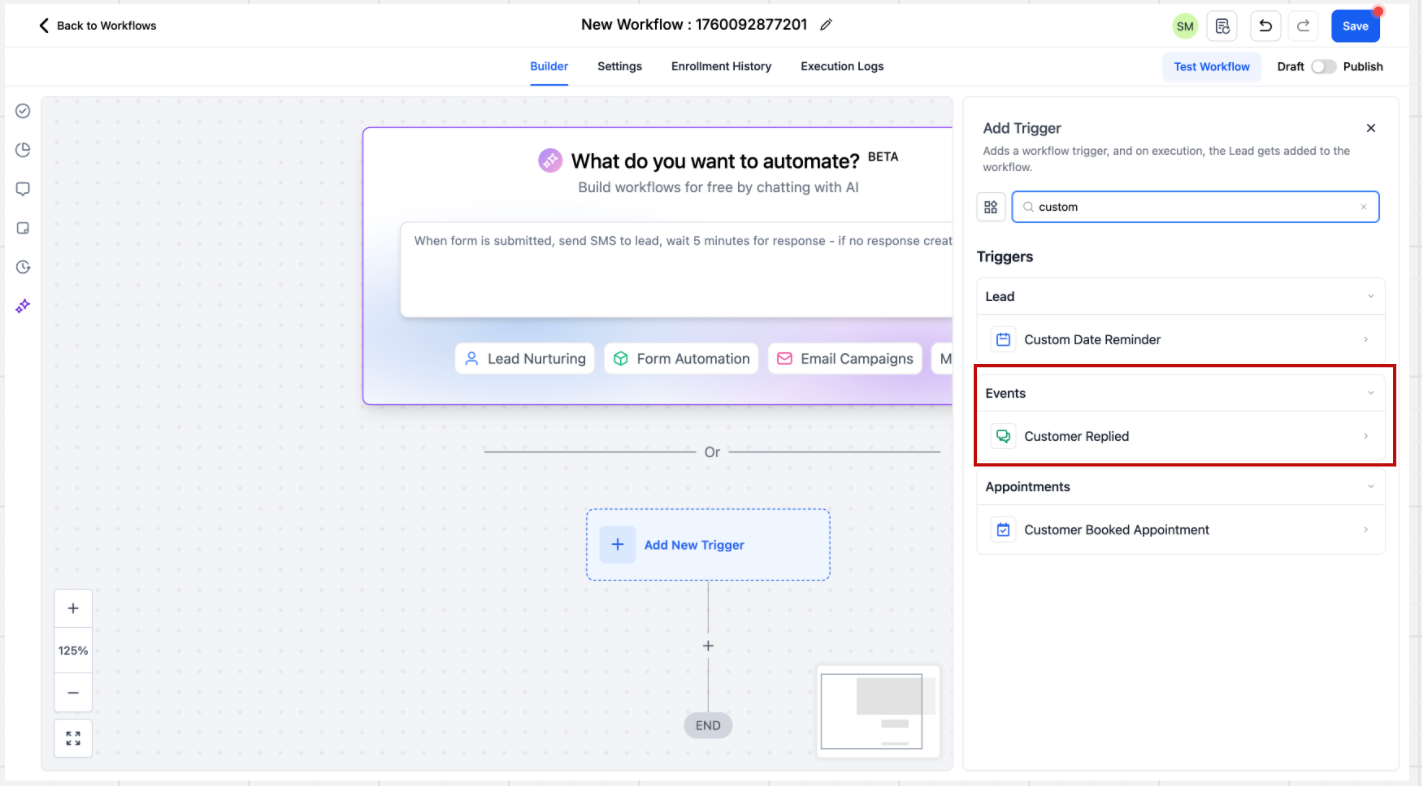
When creating a workflow click on "Add Trigger". The trigger related to DM automation “Customer replied” is present in the Events category. You can directly search for the trigger or scroll down to the category.
Step 1: Add Trigger
Go to triggers and select from the available triggers based on your use case. Here you should select Customer replied trigger
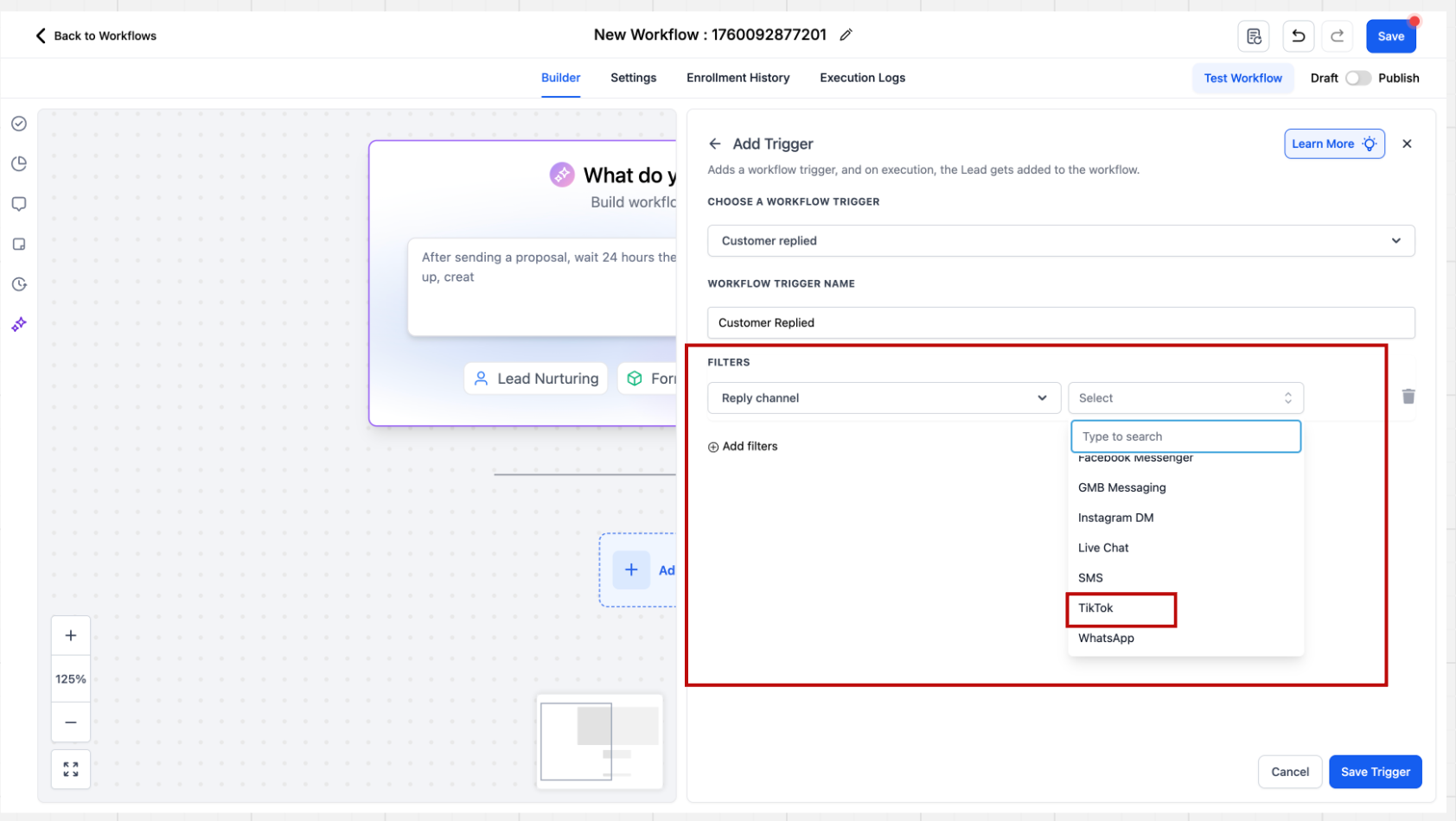
Step 2: Add Reply Channel
After clicking on the trigger the sidebar will open. There are multiple filters present here. The first step is to select the “Reply channel” filter where filter value = TikTok
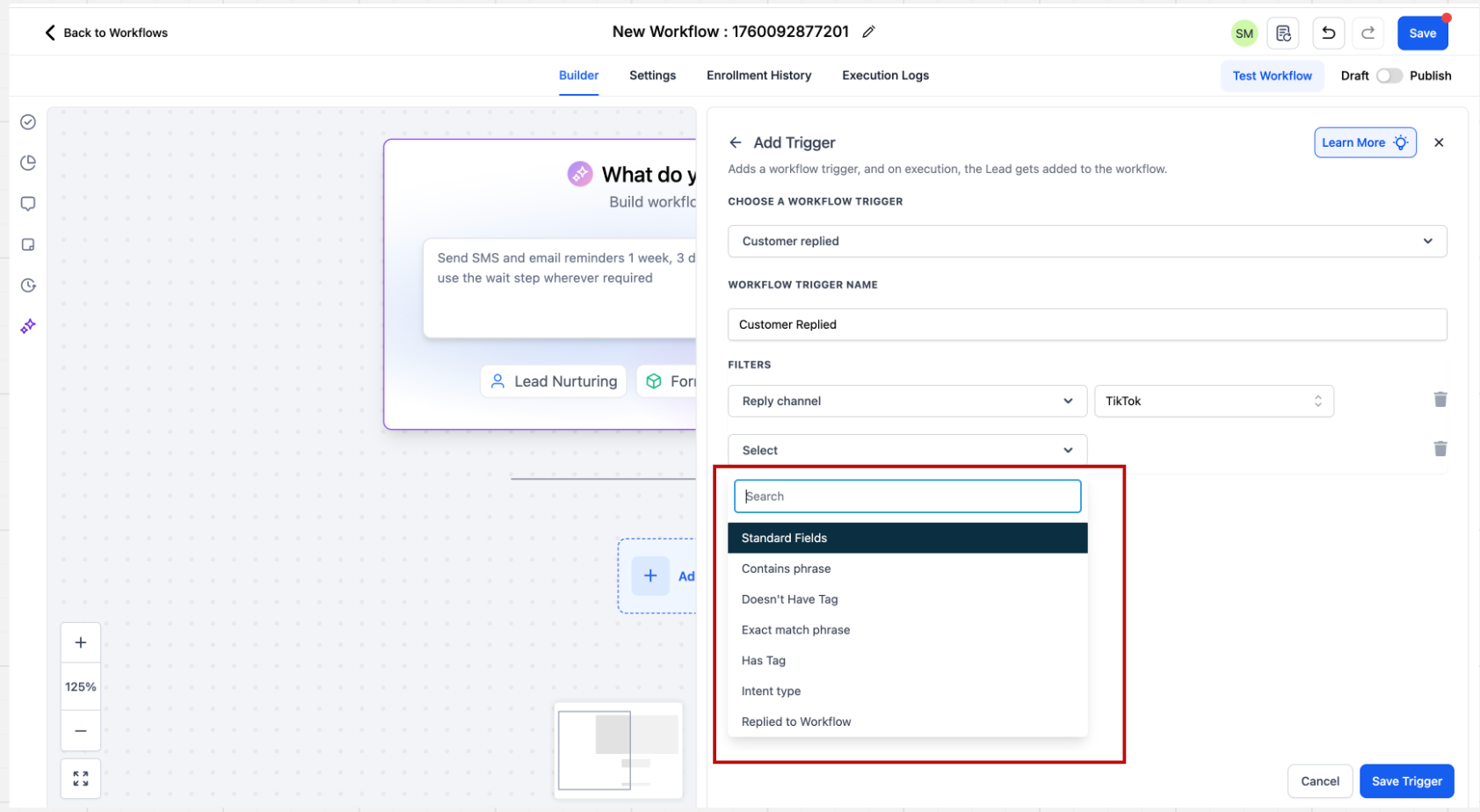
Step 3: Configure Automation Rules
Users can configure automation rules for direct messages by setting specific matching conditions, such as ‘Contains Phrase’ or ‘Exact Match Phrase.’ Based on these configurations, you can define the trigger for the automation.
How To Setup Action: TikTok Interactive Messenger
Step 1: Add Action
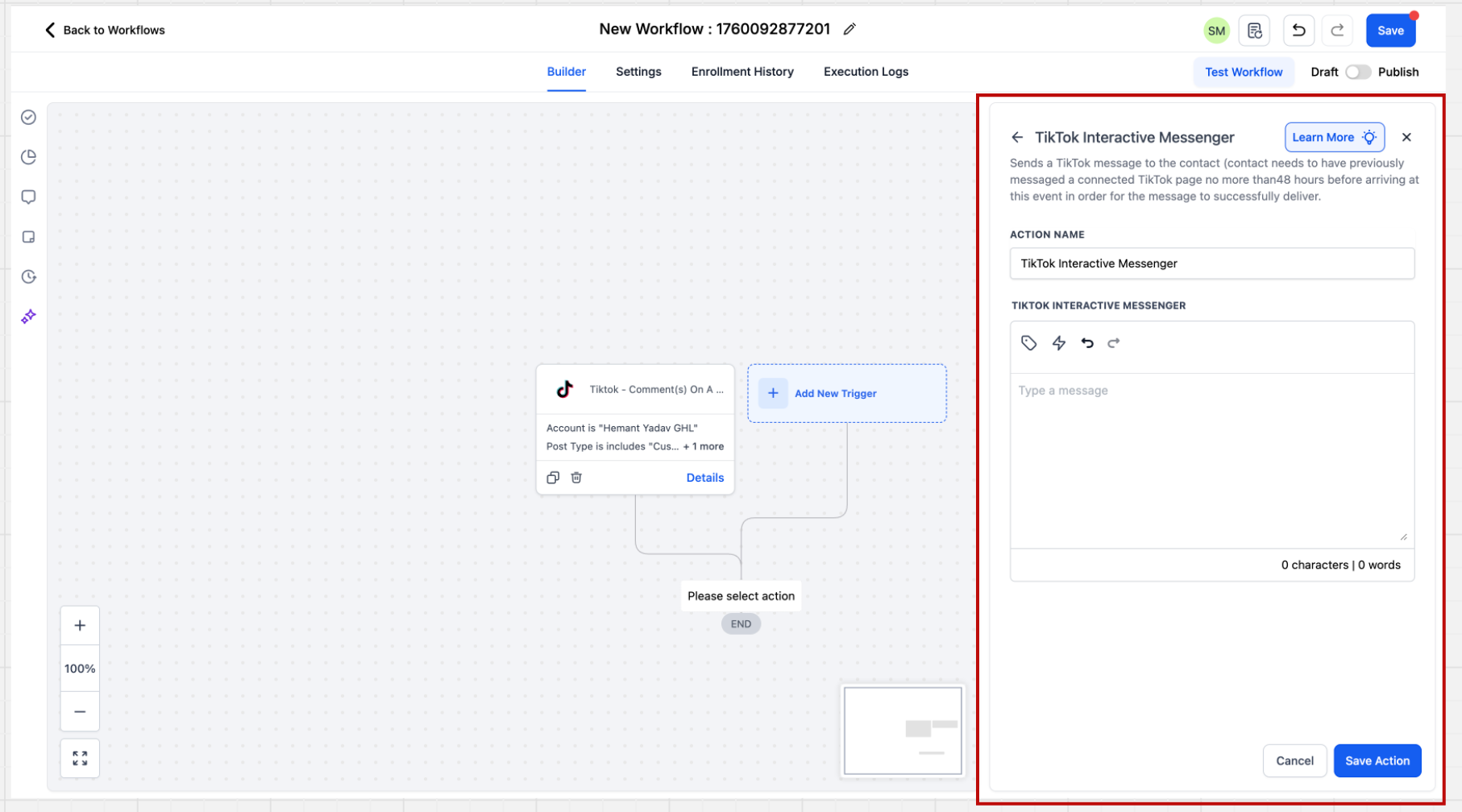
Within the Workflow builder, click + Add New Action. Select the Tiktok Interactive Messenger action.
Step 2: Provide Message
The TikTok Interactive Messenger is fairly straightforward. Here you have to provide the message you want to send to the inbound trigger defined and save the action.
Important Points to Noted:
- The TikTok Interactive Messenger action, unlike FB & IG does not support a “Reply Type” field where users could have defined values “Reply as DM”, “Reply to Comment via DM”. It will be enabled as soon as TikTok APIs starts supporting it.
- The TikTok Interactive Messenger action, unlike FB & IG, does not support Templates. It will be enabled incrementally
- The TikTok Interactive Messenger action does not support Attachments, Buttons, Quick Replies. It will be enabled as soon as TikTok APIs start supporting it.
Frequently Asked Questions
Q: How many reply variations can I add in the Reply in Comments action?
Up to ten replies, to be used in a randomized order.
Q: Can I scope automations to a specific post?
Yes. Use the TikTok – Comment(s) On A Reel trigger and select the specific video/post you want to monitor.
Q: Can multiple TikTok accounts be connected?
You can authorize the account(s) you intend to use at the sub‑account level. Scope triggers and filters to the right account when building workflows.