
The Manual Actions page in SourCherry has been refreshed with the modern HiRise interface, offering a faster, cleaner workspace for managing call and SMS tasks. With URL-based filters that automatically save your view, sharing task queues with teammates is quick and effortless.
TABLE OF CONTENTS
- What is the Manual Actions Page (HiRise Design)?
- Key Benefits of the HiRise Manual Actions Page
- Where to Find Manual Actions Page
- Frequently Asked Questions
What is the Manual Actions Page (HiRise Design)?
The Manual Actions page is where users complete call or SMS tasks generated by workflows, campaigns, or power-dialer queues. The HiRise design refresh introduces an updated layout that loads faster, surfaces key task details at a glance, and remembers your filters—making collaboration as simple as sharing a link.
Key Benefits of the HiRise Manual Actions Page
- Faster load times for large task queues—spend less time waiting, more time dialing.
- Cleaner two-column layout with a visible contact panel for faster context switching.
- URL-based filters preserve your status, user, and date filters when sharing links.
- Improved keyboard navigation speeds up high-volume call or SMS sessions.
- Consistent HiRise styling across SourCherry for a unified workspace experience.
Where to Find Manual Actions Page
Accessing Manual Actions
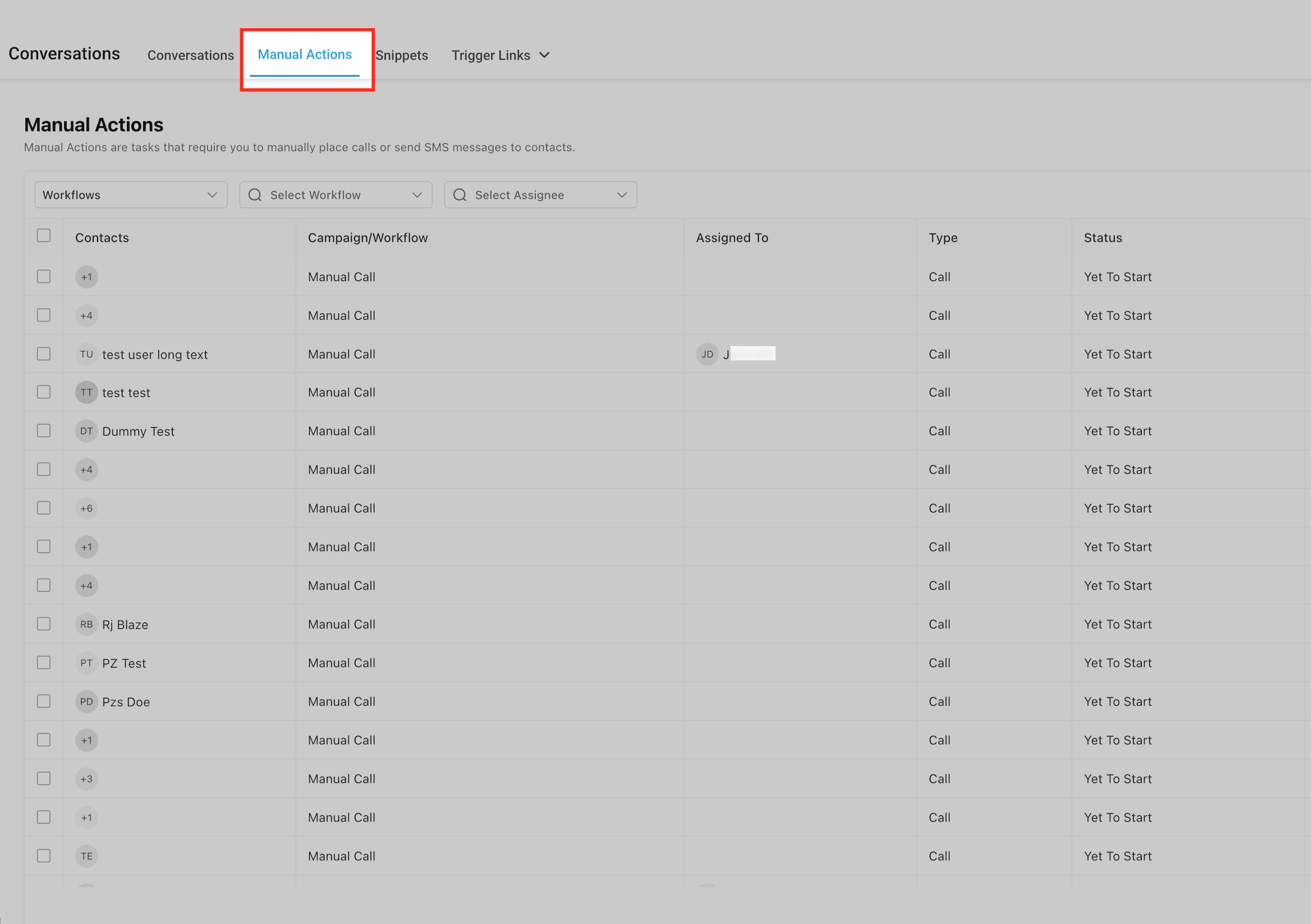
From the left navigation, click Conversations → Manual Actions.
Let's Start
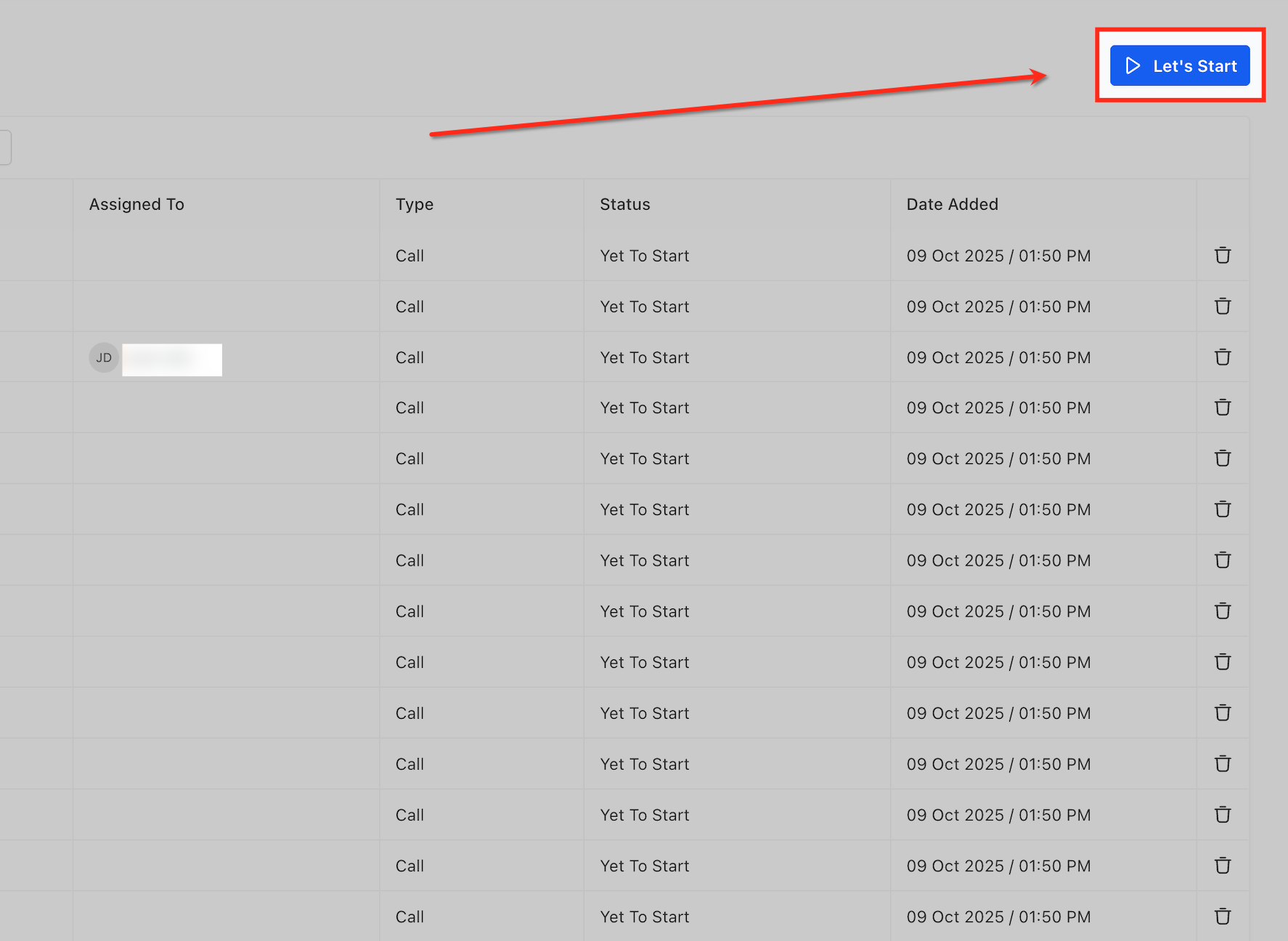
Click Let’s Start (blue button) to begin working through tasks. Log call outcomes or SMS replies in the side panel, then mark tasks as Complete, Skip, or Re-queue.
To share your current view, simply copy the browser URL—it will retain your filter selections.
Cleaner HiRise Layout
The page now includes a collapsible left sidebar for filters and a wider task table on the right, making vital details—like contact name, phone, task type, and date added—instantly visible. Colors, typography, and icons follow the HiRise standard, ensuring a consistent look and feel across the platform.
Persistent URL Filters
Filter settings—such as task status, assigned user, and date—are automatically added to the page URL. When you share or bookmark that link, anyone who opens it will see the exact same view, making it ideal for managers tracking team or campaign performance.
Using Task Filters & Statuses
Filters help you prioritize the most important tasks and keep your queue organized. You can filter by workflow source, task type (Call or SMS), status (Yet to Call, Completed, Skipped), or assignee.
Sharing Manual Actions Queues
Filter selections are stored in the URL, you can easily share filtered queues with your team by just copying the page link from your browser’s address bar. Send it via chat or email to a teammate or supervisor. They’ll see the same filtered queue when they open it.
Frequently Asked Questions
Q: Where is the Manual Actions page located?
Go to Conversations → Manual Actions, available on both web and mobile.
Q: Which task statuses are available?
Yet to Call, Completed, and Skipped.
Q: Can I bulk reassign tasks to another user?
Yes—select tasks with the checkboxes, click Bulk Actions, and choose Assign User.
Q: Do URL-based filters work on mobile?
The mobile app opens internal deep links; if unsupported, the shared link opens the queue in a mobile browser.
Q: Does the HiRise update change my existing workflow-generated tasks?
No—tasks, notes, and history remain intact; only the interface has been upgraded.
Q: How do I clear all filters quickly?
Click Reset Filters in the sidebar (or remove query parameters from the URL and reload).
Q: Is there a keyboard shortcut to start the next task?
Press Enter (or Return) while a task is selected to start the next one in the queue.
Q: Do my filters sync across devices?
Filters are stored in the URL, so as long as you open the same link, you’ll see the identical queue on any device.