
New buttons bring one-click ad creation links (“breadcrumbs”) straight into two of SourCherry’s most-used tools—WhatsApp and Social Planner—so you can turn conversations and social posts into paid ads without ever hunting for Ad Manager.
TABLE OF CONTENTS
- What are the New Buttons (breadcrumbs) for Ad Manager in WhatsApp & Social Planner?
- Key Benefits of Breadcrumbing
- WhatsApp > Create Engagement Ad
- Social Planner > Run As Ad
- Frequently Asked Questions
- Related Articles
What are the New Buttons (breadcrumbs) for Ad Manager in WhatsApp & Social Planner?
There are now buttons in WhatsApp and Social Planner that open Ad Manager in one-click preconfigured to run an ad. These context-aware “Create Engagement Ad” (WhatsApp) and “Run as Ad” (Social Planner) buttons deep-link to Ad Manager. Each link pre-loads the relevant campaign objective and post content, trimming several manual steps from the usual ad-creation flow.
Key Benefits of Breadcrumbing
• Accelerates campaign setup—pre-selected objective, destination, media, and copy cut down form-filling time.
• Boosts Ad Manager adoption by surfacing upgrade prompts exactly where non-Ad-Manager users work.
• Improves workflow continuity—marketers move from organic content to paid promotion in a single click.
• Reduces user error; the correct objective (Engagement) and channel (WhatsApp/Facebook/Instagram) are automatically applied.
WhatsApp > Create Engagement Ad
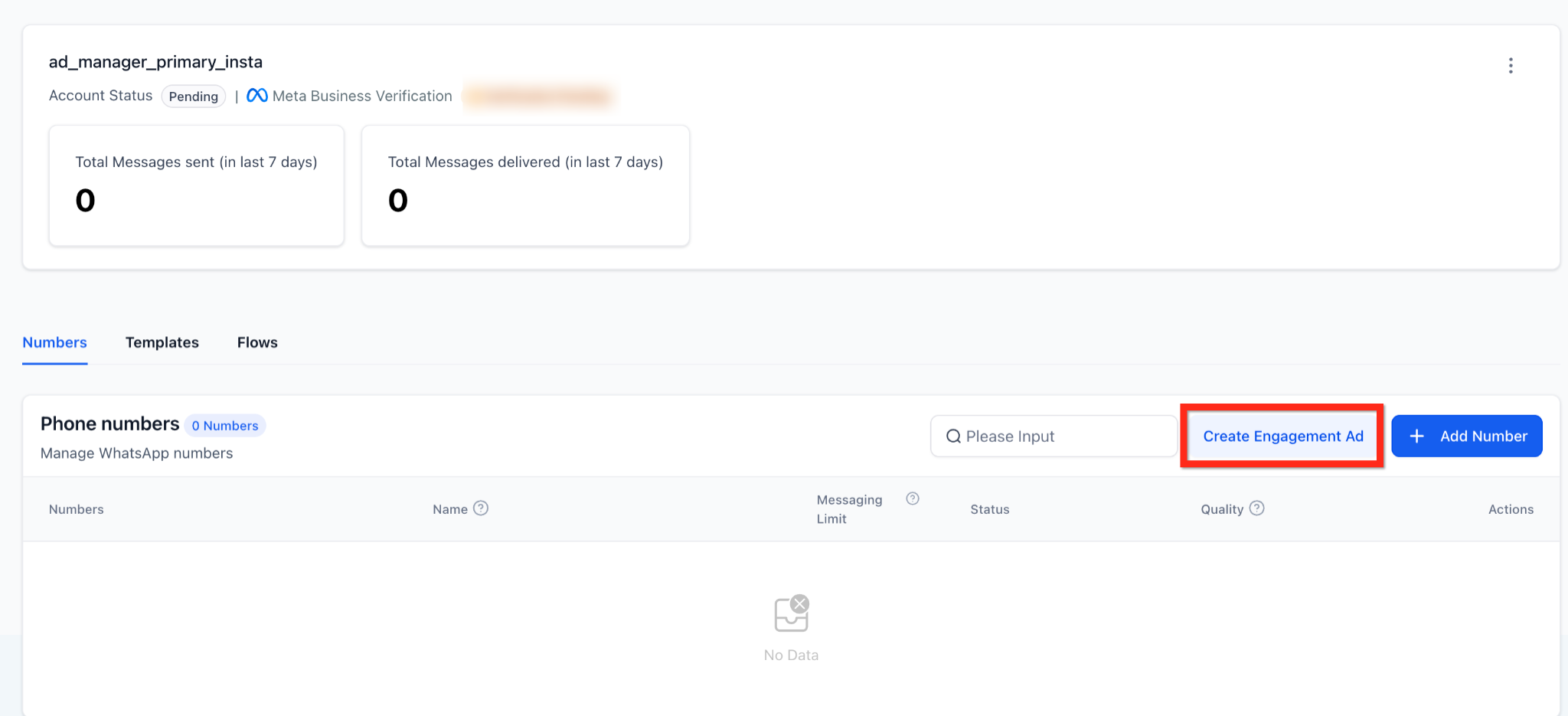
Quickly convert a WhatsApp phone number into an Engagement campaign.
• Button location: Settings > WhatsApp > Numbers tab, next to “Add Number”.
• Auto-filled in Ad Manager:
– Objective: Engagement
– Destination: WhatsApp
– Budget, audience, and creative remain editable.
• Users without Ad Manager see a subscription-benefits modal with “Connect Ad Manager” CTA.
• Users with Ad Manager but without a connected Ad Account see a button "Connect Account".
Social Planner > Run As Ad
Promote published or scheduled Facebook/Instagram posts without re-uploading assets.
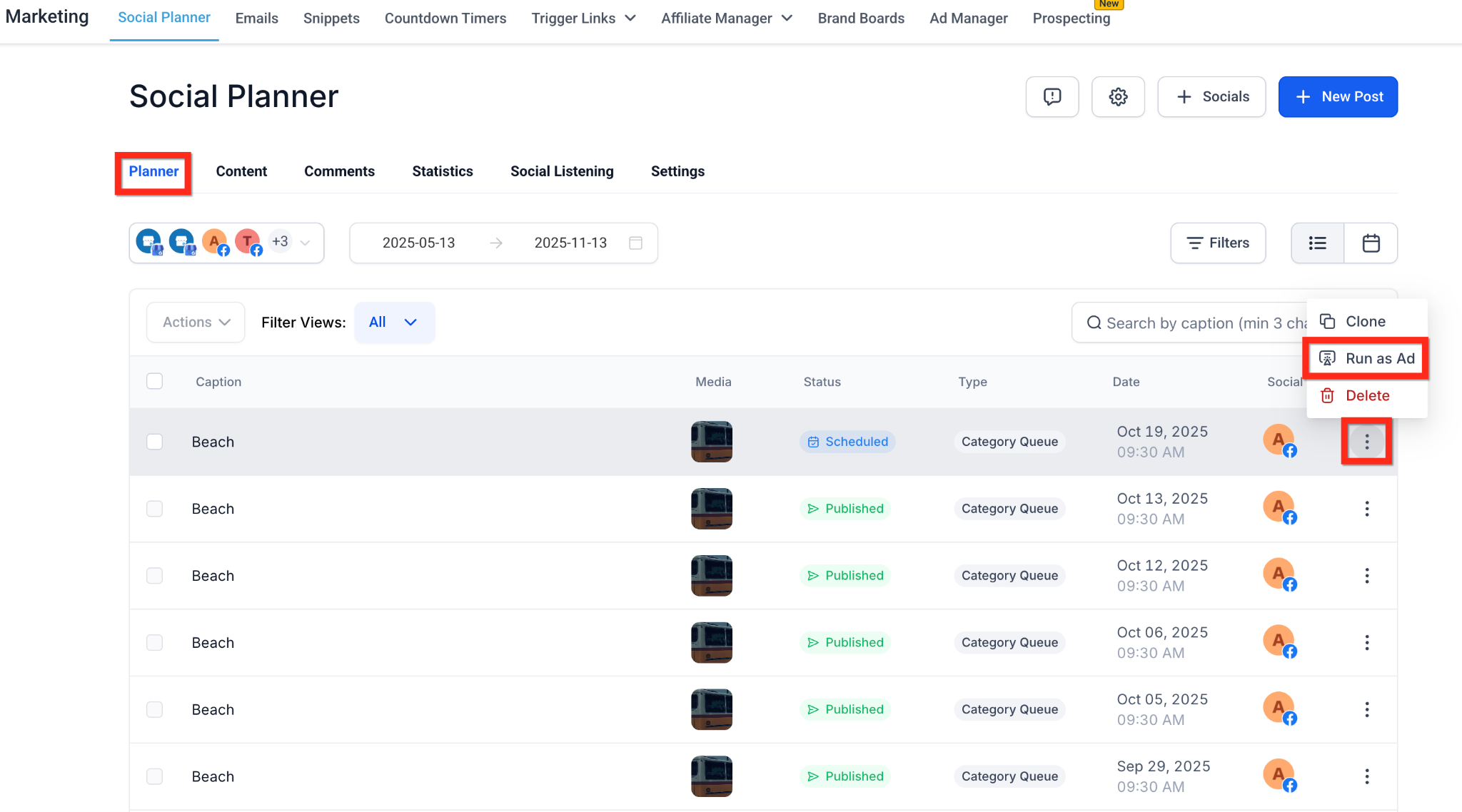
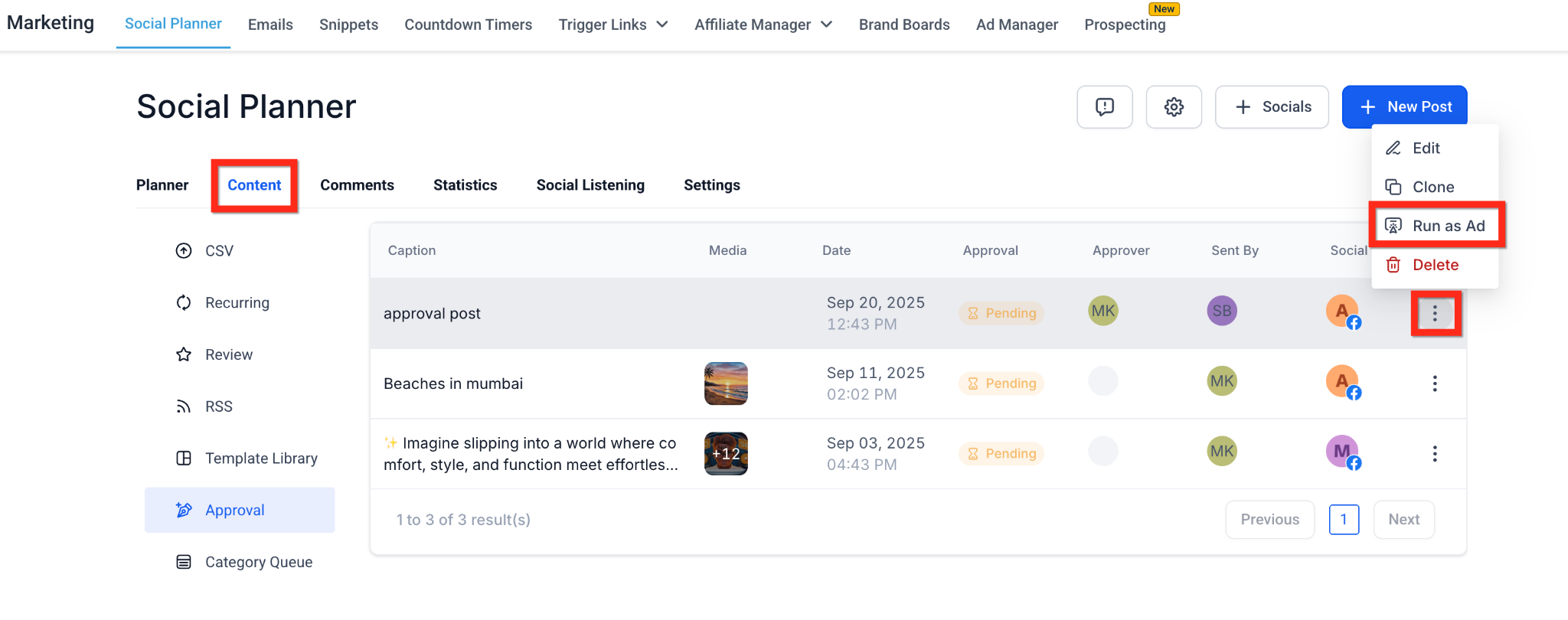
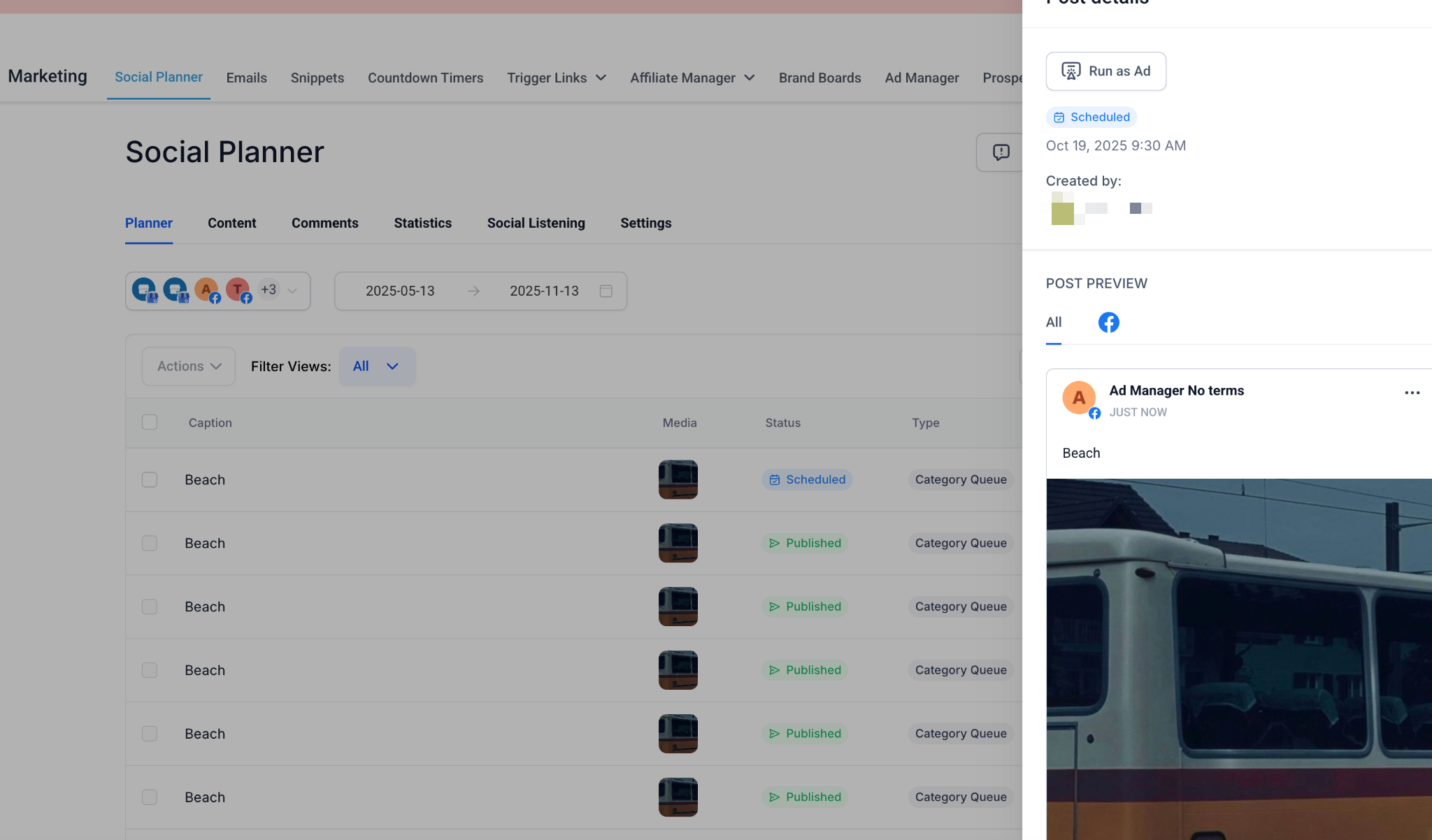
• Where you’ll see “Run as Ad”:
- Marketing > Social Planner > Planner tab > 3-dot action menu on list row
- Marketing > Social Planner > Content tab > Approval tab > 3-dot action menu on list row
- Marketing > Social Planner > post detail sidebar
• Supported post statuses: Published, Scheduled, In Review (not Draft or Recurring).
• Redirect flow: click > confirm modal > Ad Manager opens → choose Google or Meta → campaign pre-filled with media & caption (text-only posts remain editable).
Frequently Asked Questions
Q. Does breadcrumbing cost extra?
A. No. The feature is free, but the sub-account must have an active Ad Manager subscription or pay-as-you-go plan.
Q. Can I use “Run as Ad” for TikTok or LinkedIn posts?
A. Not yet. Breadcrumbing currently supports Facebook and Instagram posts only.
Q. What happens if I edit a post after turning it into an ad?
A. Changes made in Social Planner will not sync to the live ad; edit the creative directly inside Ad Manager instead.
Q. Why don’t I see the “Create Engagement Ad” button in WhatsApp?
A. Confirm you’re on the Numbers tab and that your location has WhatsApp enabled. Standard user permissions also apply.
Q. Can I bypass the confirmation modal?
A. No. The modal prevents accidental navigation and clarifies you’re entering the Ad Manager flow.
Related Articles
• How to Create a Meta Click-to-Direct (CTX) Ad for Engagement
• Overview of Ad Manager Settings
• Getting Started – Setup Social Planner