
FTP (File Transfer Protocol) is a secure and fast way to access your website’s files. You can upload, download, or edit files directly, just like managing files on your computer.
? Why You Might Use FTP:
Upload custom plugins or themes
Edit wp-config or .htaccess files
Troubleshoot white screen or plugin issues
Download backups or specific files
✅ What You’ll Need
Before connecting via FTP, grab these details from your WordPress Hosting dashboard (under Sites → WordPress → Advanced Settings → FTP Access):
Host (e.g.,
103.67.202.37)Port (usually
21)Username (e.g.,
example@ssvnXXXX.wpdns.site)Password (click “Reset Password” if not available)
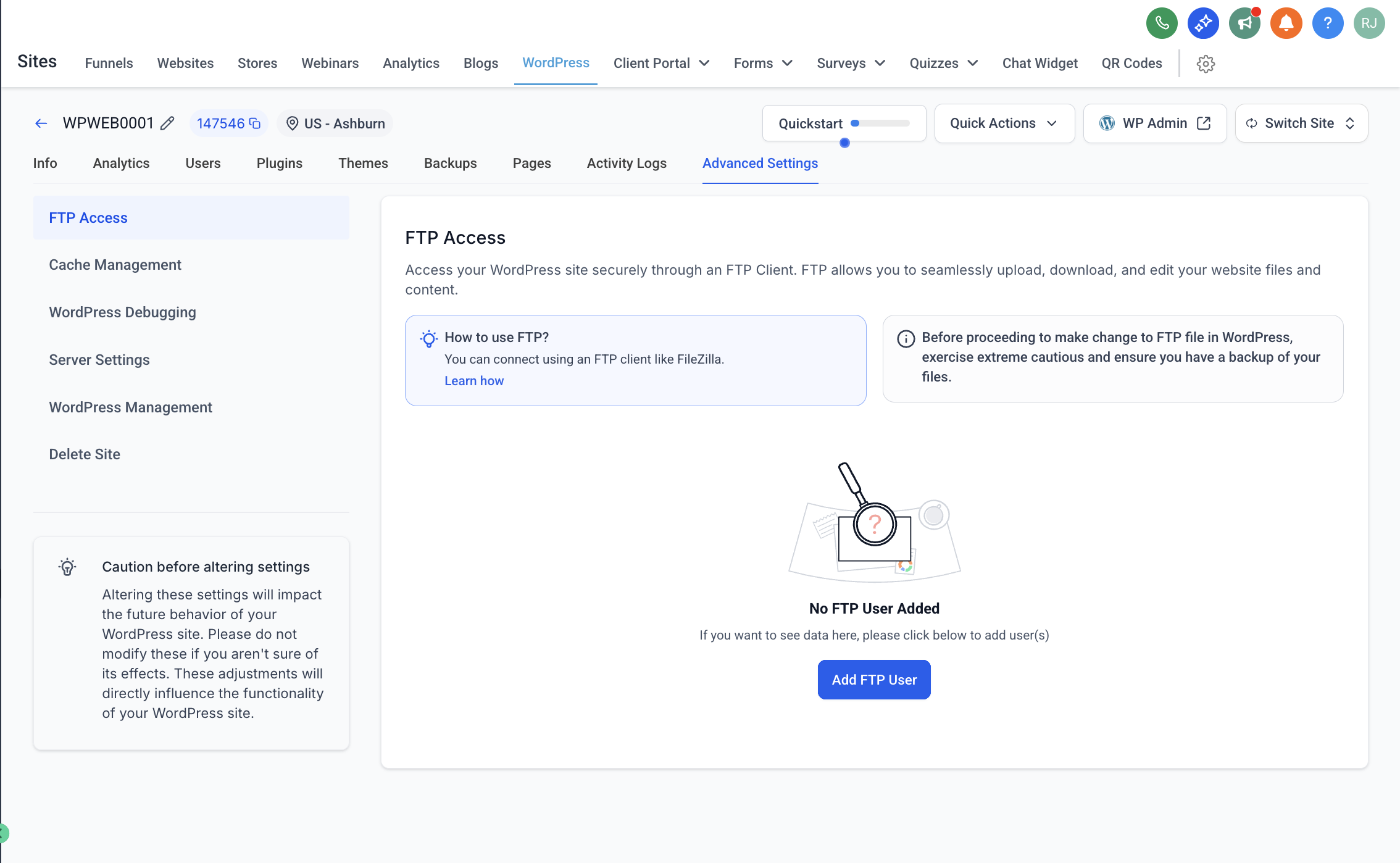
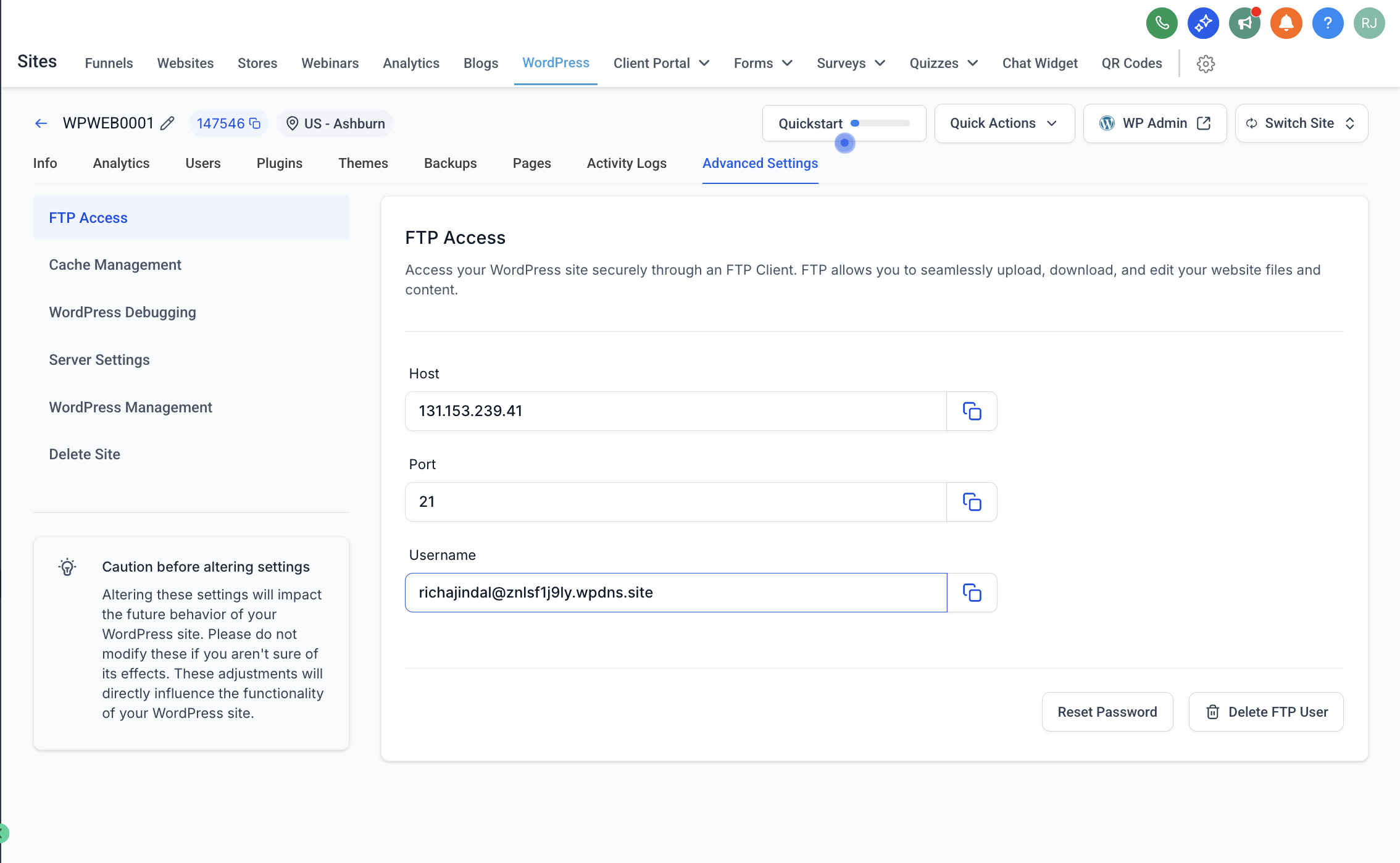
? Step-by-Step: Connect to FTP Using FileZilla
We recommend FileZilla, a free and trusted FTP client.
1. Download and Install FileZilla
Choose the version for your OS (Windows, Mac, or Linux)
- FileZilla Client Downloads
- Windows (64-bit): Download FileZilla Client for Windows
- macOS (Apple Silicon): Download FileZilla Client for macOS (Apple Silicon)
- macOS (Intel): Download FileZilla Client for macOS (Intel)
- Linux (64-bit): Download FileZilla Client for Linux
2. Open FileZilla and Enter Your Credentials
At the top of the FileZilla window:
| Field | Value |
|---|---|
| Host | Your FTP Host (e.g., 103.67.202.37) |
| Username | Provided in the dashboard |
| Password | The one you generated/reset |
| Port | 21 |
Then click Quickconnect.
3. Navigate Your Website Files
Right side = Your website files on the server
Left side = Your local computer files
You can drag & drop files between both sides.
? Pro Tips
Don’t delete files unless you know what they do.
To edit a file, right-click and select View/Edit.
Always download a backup before making changes.
❓Common Issues
| Issue | Solution |
|---|---|
| Can't connect | Double-check password, port, and host IP |
| Timeout error | Try passive mode in FileZilla → Settings |
| Permission denied | Contact your admin or reset FTP password |
? Helpful Resources
? Still need help?
If you’re stuck, reach out to your admin with the following:
Site name
Username
Screenshot of your FileZilla settings