
TABLE OF CONTENTS
- What is Dashboard Summary AI?
- Key Benefits of Dashboard Summary AI
- Dashboard AI Summary
- Generated AI Insights
- Widget‑Level AI Summaries
- How To Setup Dashboard Summary AI
- Frequently Asked Questions
- Related Articles
What is Dashboard Summary AI?
Dashboard Summary AI is a built‑in analysis tool that reviews an entire dashboard and generates a plain‑language summary of key movements, growth patterns, and potential risks. It also provides context‑rich insights and supports follow‑up questions from the summary, plus widget‑level insights when you hover a widget right inside SourCherry reporting.
Key Benefits of Dashboard Summary AI
These benefits focus on how the feature saves time and improves clarity so teams act sooner on trustworthy data.
Instant narrative: See the story behind your numbers in seconds—no manual analysis required.
Proactive detection: Surface downward trends early so you can intervene before performance slips.
Guided exploration: Ask follow‑up questions from the summary to understand drivers and anomalies.
Focused diagnosis: Hover any widget for a concise AI insight to validate setup, trends, or comparisons.
Streamlined UI: A refreshed header places key controls where you expect them for faster navigation.
Dashboard AI Summary
Running a dashboard‑wide summary is ideal for daily standups and weekly reviews; it translates dozens of metrics into a clear briefing.
Click ✨ Summarize Dashboard with AI to generate a plain‑English synopsis of the current dashboard—respecting the active date range and filters.
The summary highlights growth patterns and metrics that need attention, helping you prioritize next actions.
Generated AI Insights
Beyond “what changed,” these insights suggest “why” it might have changed and where to look next, turning summaries into decisions.
Expect context such as peaks, dips, and potential causes, plus recommended next steps you can validate with your team.
Use insights to guide deeper analysis - open the relevant dashboard or widget configuration as needed.
Widget‑Level AI Summaries
When a single KPI looks off, hover the widget and request an AI insight card to quickly validate setup, trends, and comparisons.
Hover over a chart, table, or KPI widget and select the AI icon to generate a widget‑level insight.
Use widget insights to pinpoint outliers without opening multiple reports.
If you’re still configuring widgets, see How to Create & Add Dashboard Widgets
How To Use the Dashboard Summary AI
Following these steps ensures you reach first success quickly and know where to find help later.
Enable AI Employee (Agency View)
Go to Agency → Settings → Company and toggle AI Employee ON for the Sub-Account. See AI Employee Overview.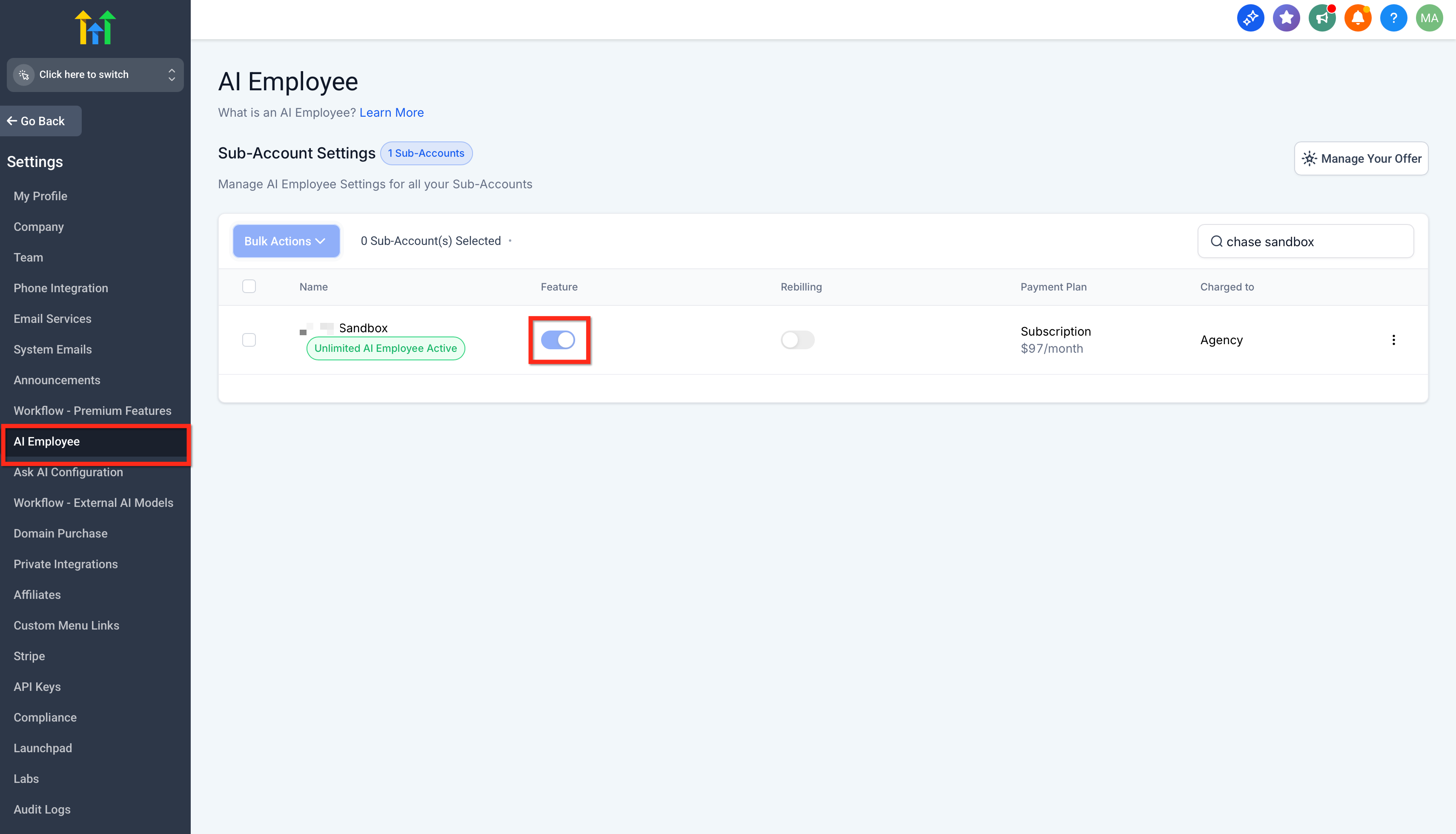
Open any dashboard and summarize
In your Sub-Account, Navigate to the target dashboard and click ✨ Summarize Dashboard with AI in the header.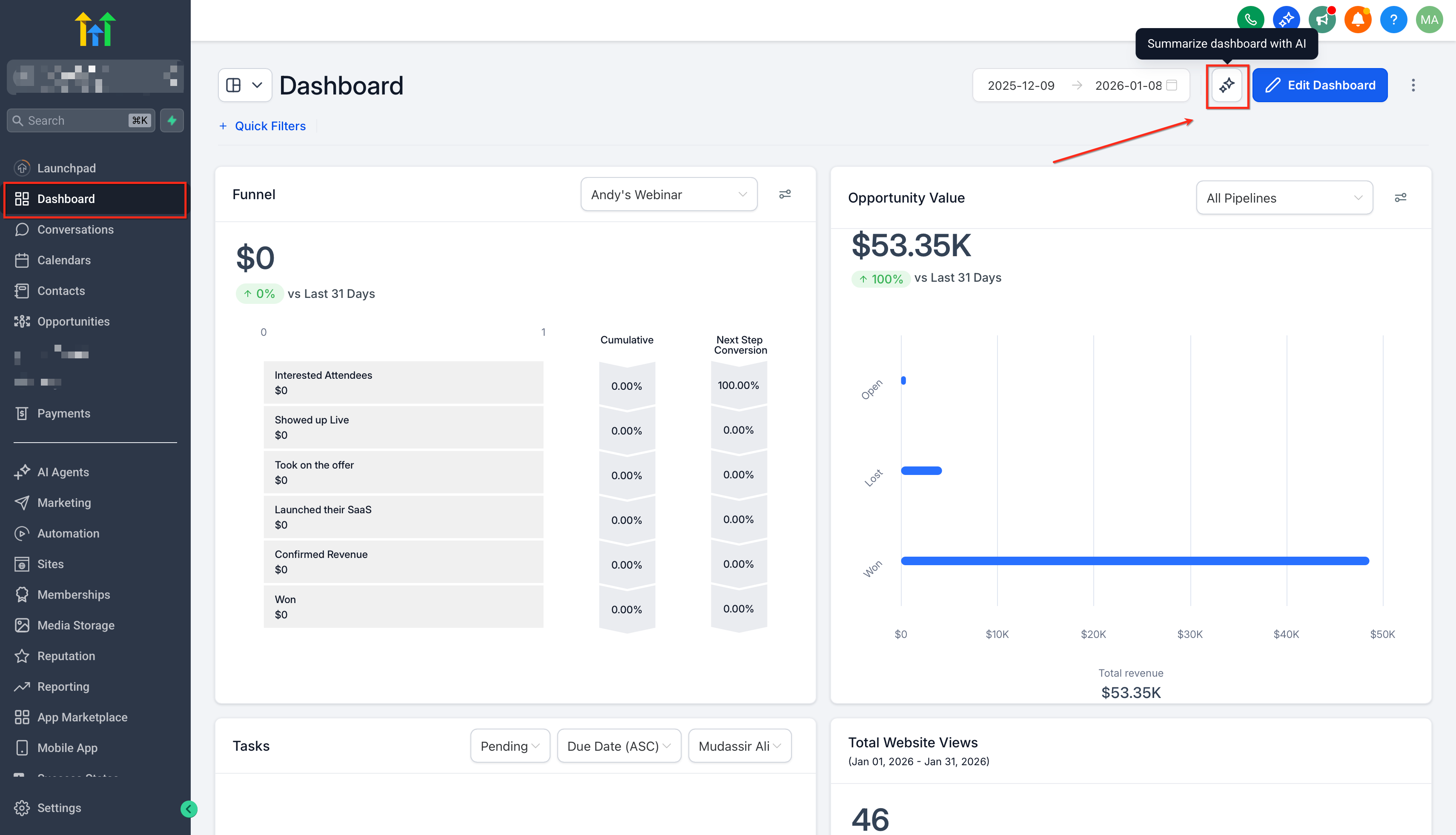
Review the summary callouts for wins, risks, and suggested next steps.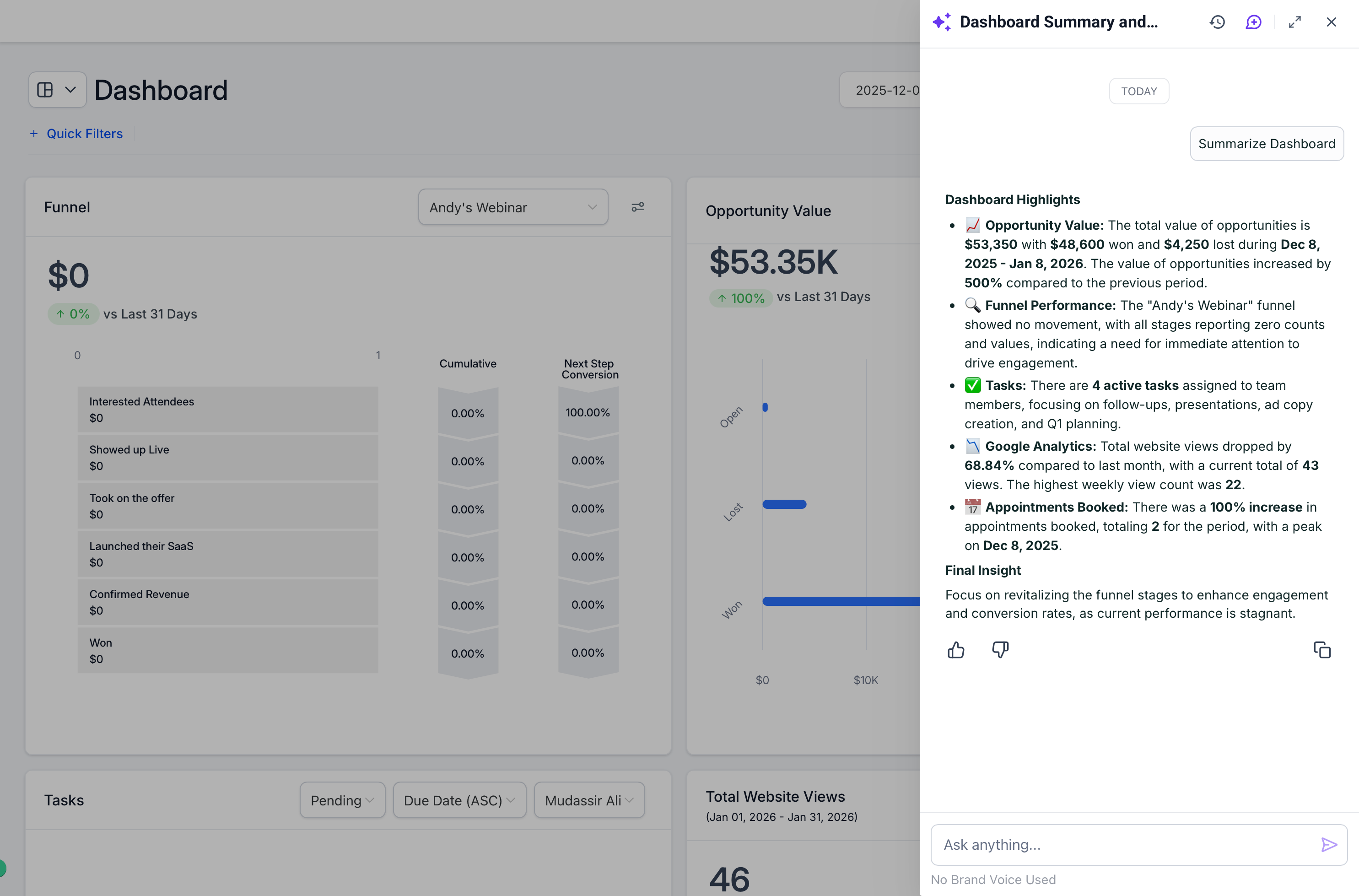
Ask follow‑ups (custom widgets only)
Use the follow‑up field to ask natural‑language questions like “What are the Key Driving Trends?”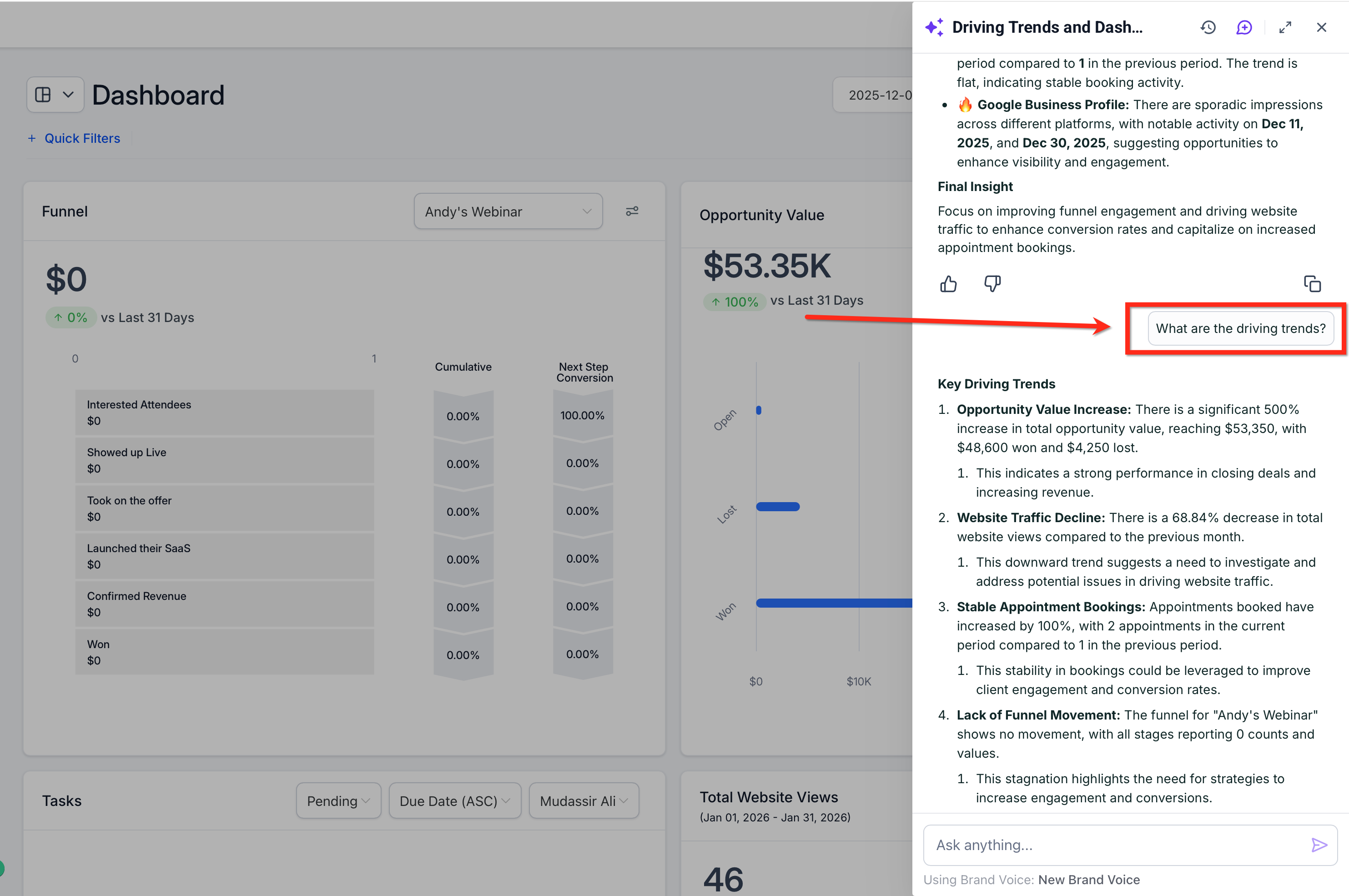
Note: Followups only work on custom widgets and not on standard widgetsGet widget‑level insights
Hover any widget, click the AI icon, and read the widget insight card.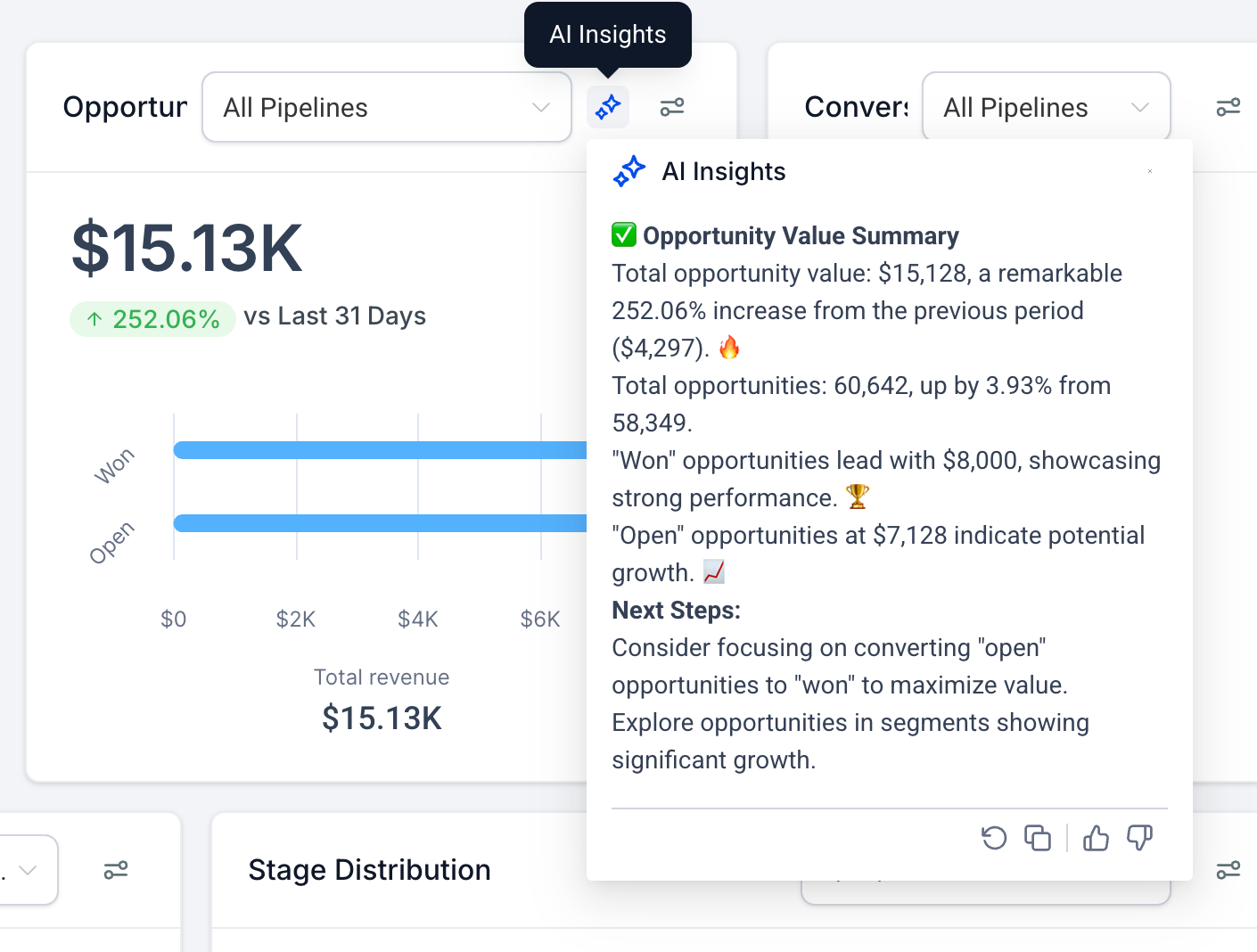
To build or adjust widgets, see How to Create & Add Dashboard Widgets
Frequently Asked Questions
Q. I don’t see the ✨ Summarize Dashboard with AI button—what should I check?
Confirm AI Employee is enabled at Agency → Settings → Company.
Q. Do summaries honor my date range and filters?
Yes. Run Summarize after changing filters or dates so the narrative reflects the current view.
Q. Why do follow‑ups only work on custom widgets?
Follow‑ups draw context from your custom widget configuration. Build or edit the needed custom widgets, then ask your question again.
Q. How is AI usage billed?
AI features are billed per current AI Employee pricing and any reseller settings. For the latest details, see AI Employee Overview (Pricing link inside)