
Invoicing is a critical part of any business, helping you track revenue and ensuring you are paid promptly for your work. You can easily create and manage invoices directly within the SourCherry system.
TABLE OF CONTENTS
- Setting up for creating an invoice
- How to Create your invoice
- How to add a discount to your invoice
- How to add taxes to your invoice
- How to add Payment Schedule
- How to add Additional options
- How to Send Invoice
- How to Get the Invoice Link
- Frequently Asked Questions (FAQ's)
Overview
You can now send invoices to your customers/clients using the Products you have created in your sub-account or by simply typing things within the invoice. There are two types of invoices available
- Invoices &
- Recurring invoices (How to Edit Recurring Invoices)
In this article we are going to see how to create an invoice.
If you are using invoicing without Stripe Connect, please see this guide : Using invoices for recording manual payments without Stripe Connect. The limitation is that you will need to manually record the payments.Setting up for creating an invoice
- Before creating an Invoice it is important to setup Global invoices Defaults (Optional, but Recommended) which enables all the features that we would like to use in the invoice.
- Go to the Payments tab and select the Invoices & Estimates tab and select All Invoices from the dropdown.
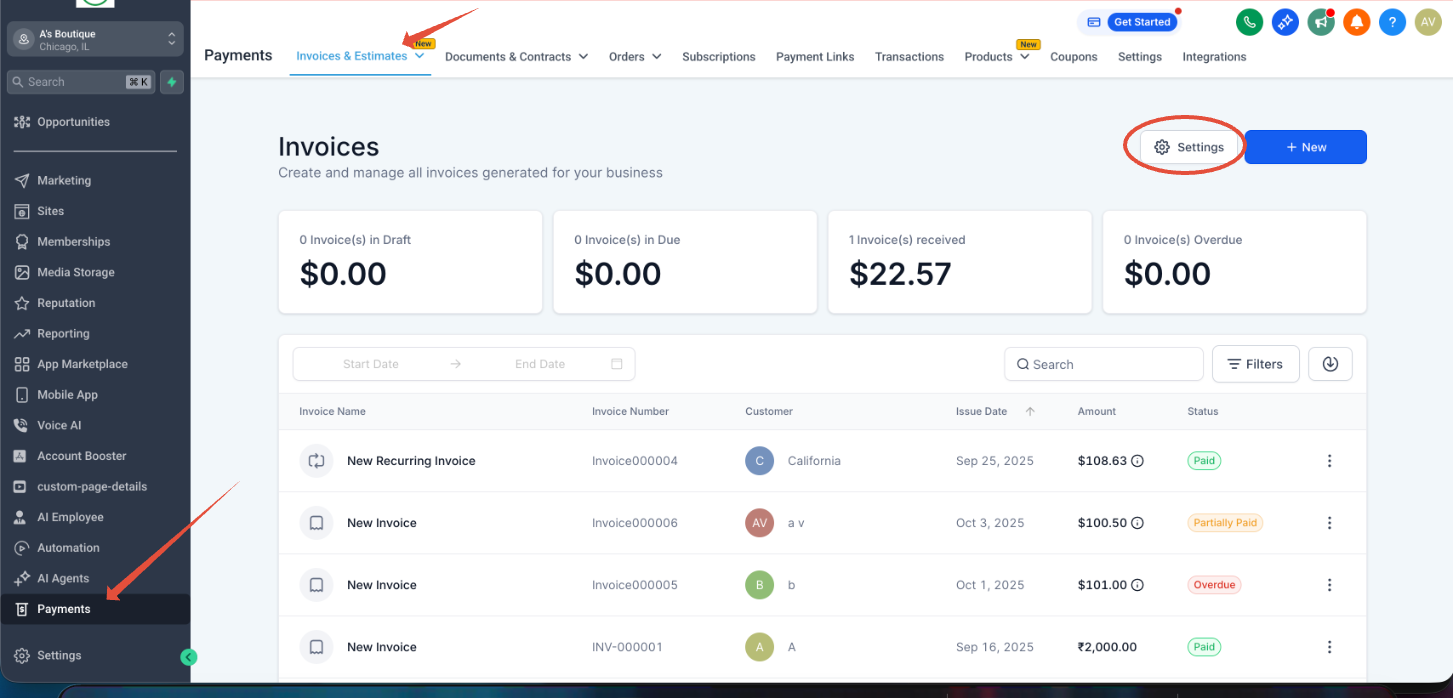
- Click on the "Settings" button (within the Invoices tab) to customize the following defaults:
Business Information:
- Add your Business Logo, Name, Phone No., Address, and Website.
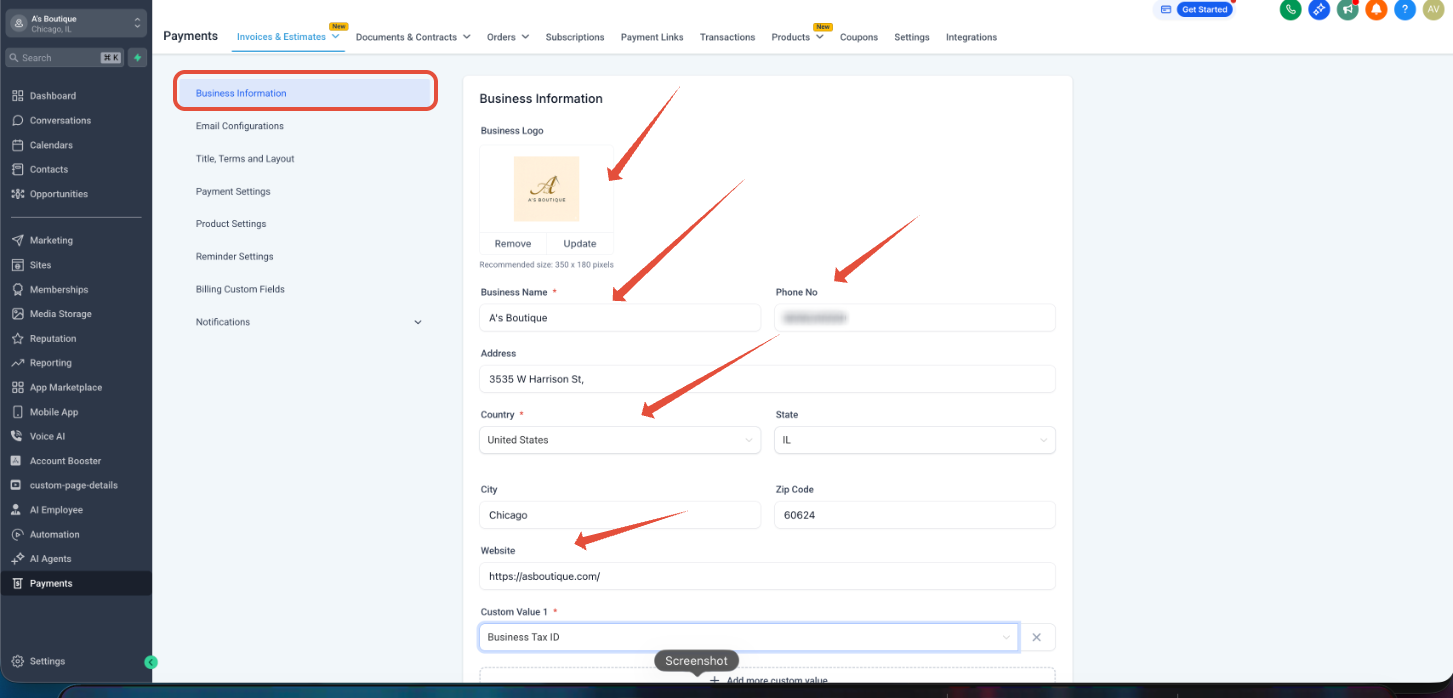
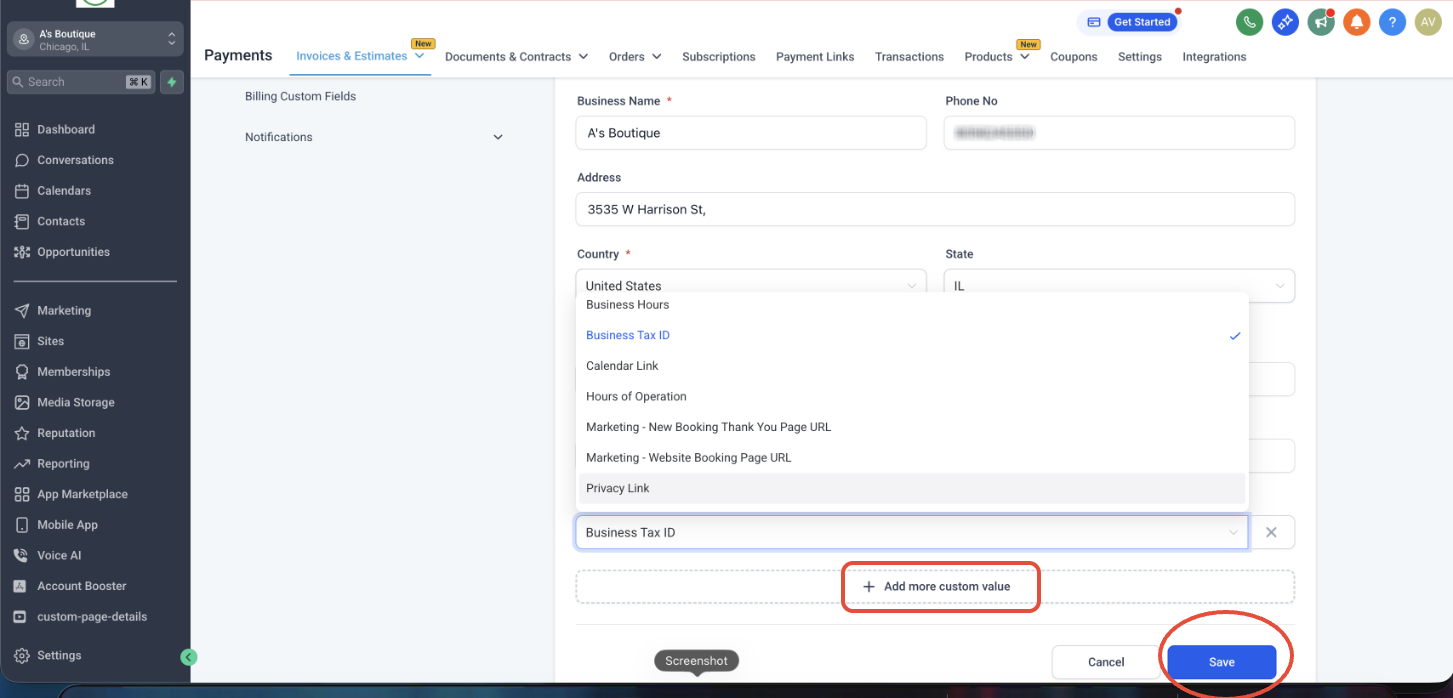
- You can also add custom information using the "+ Add custom value" option and select the required value from the dropdown and click on "Save"
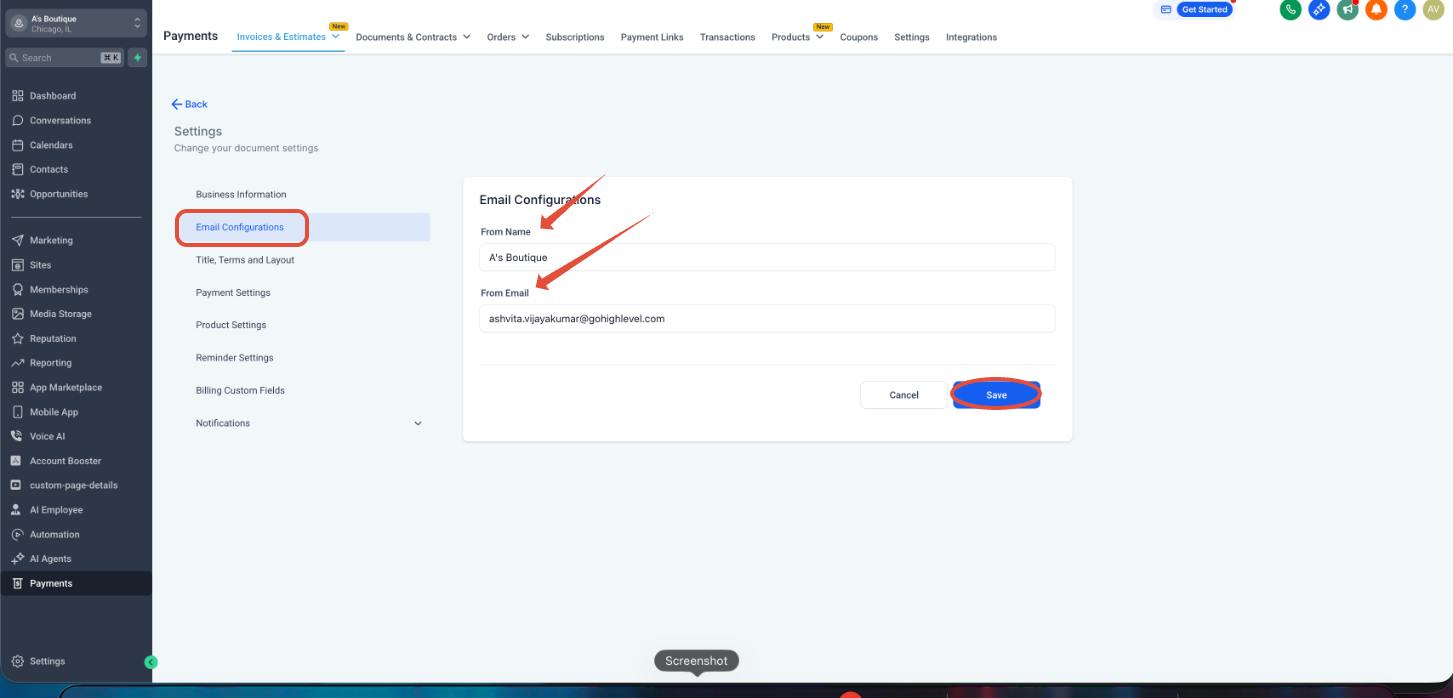
Email Configurations:
- Specify the Email ID and Name from which the invoice should be sent to the customer and click on "Save".
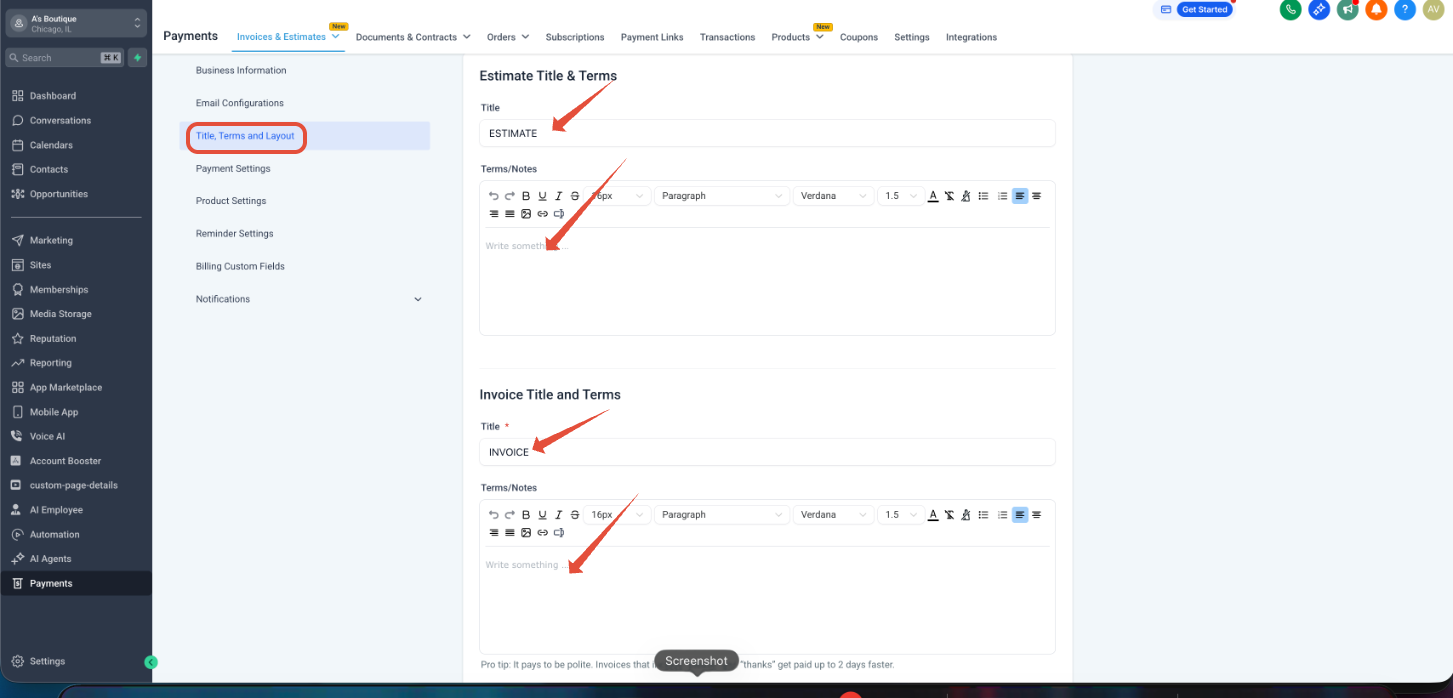
Title, Terms and Layout:
- We can edit the Invoice & Estimate's Title, Terms,
- And also customize the invoice layout and labels by clicking on "Customize Layout" and click on save.
Note: Customizing Invoice Layouts - how to customize invoices through changing button colors and text, renaming sections, and editting line-item labels. Use these tools to create professional, on-brand invoices your clients trust.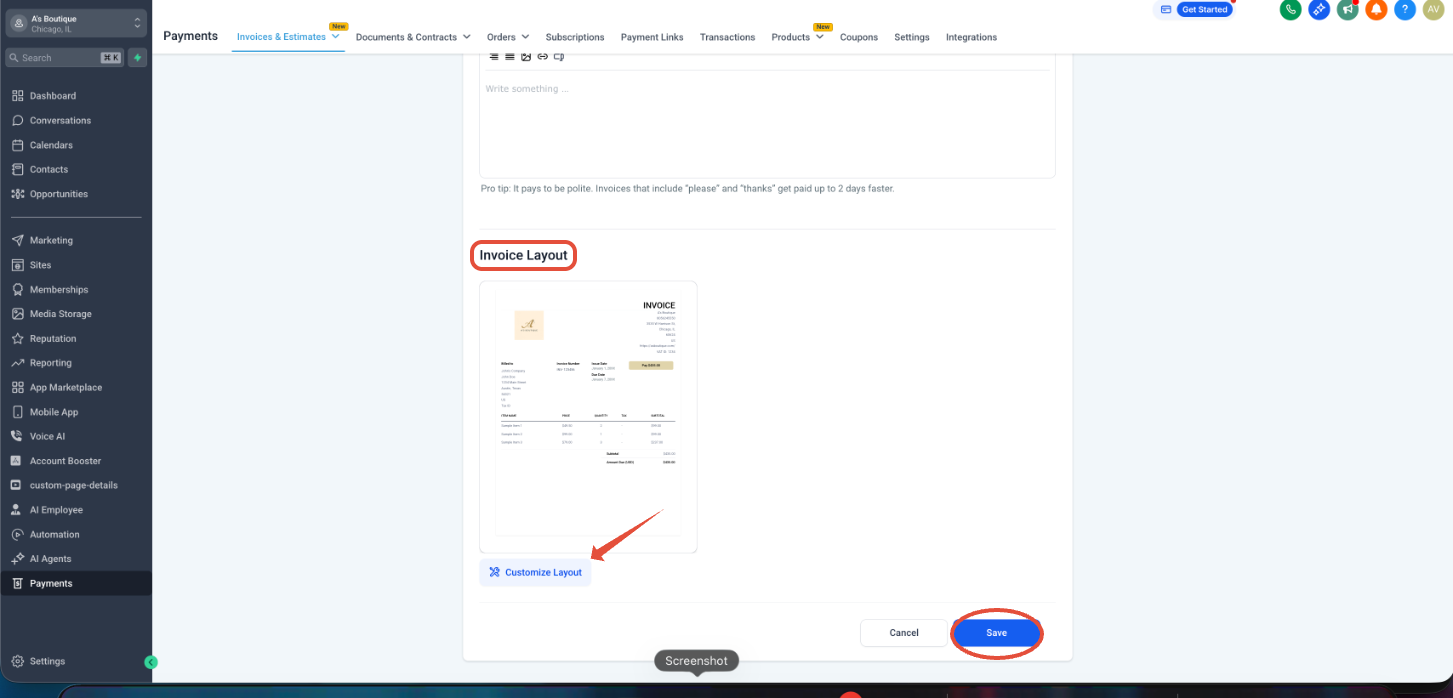
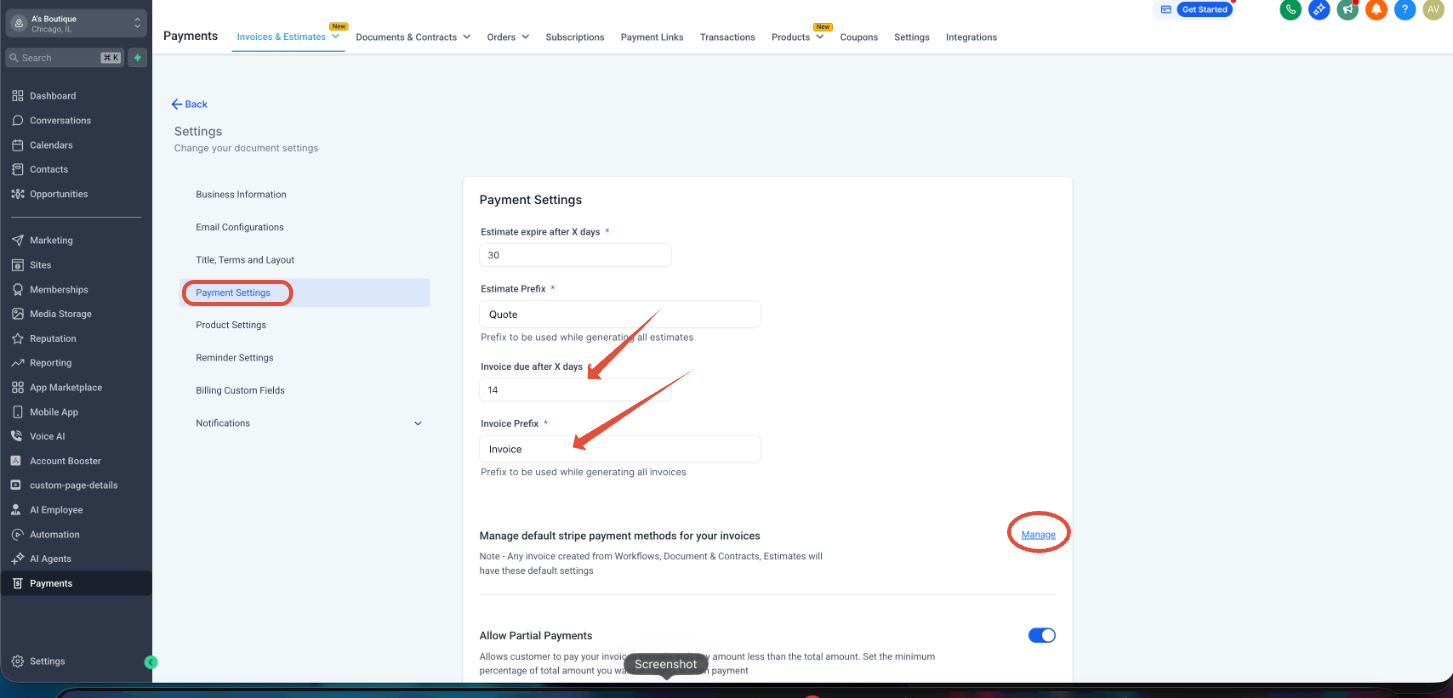
Payment Settings:
Under Payment settings you can edit and enable the below
- Set Invoice due after days
- Set Invoice Prefix
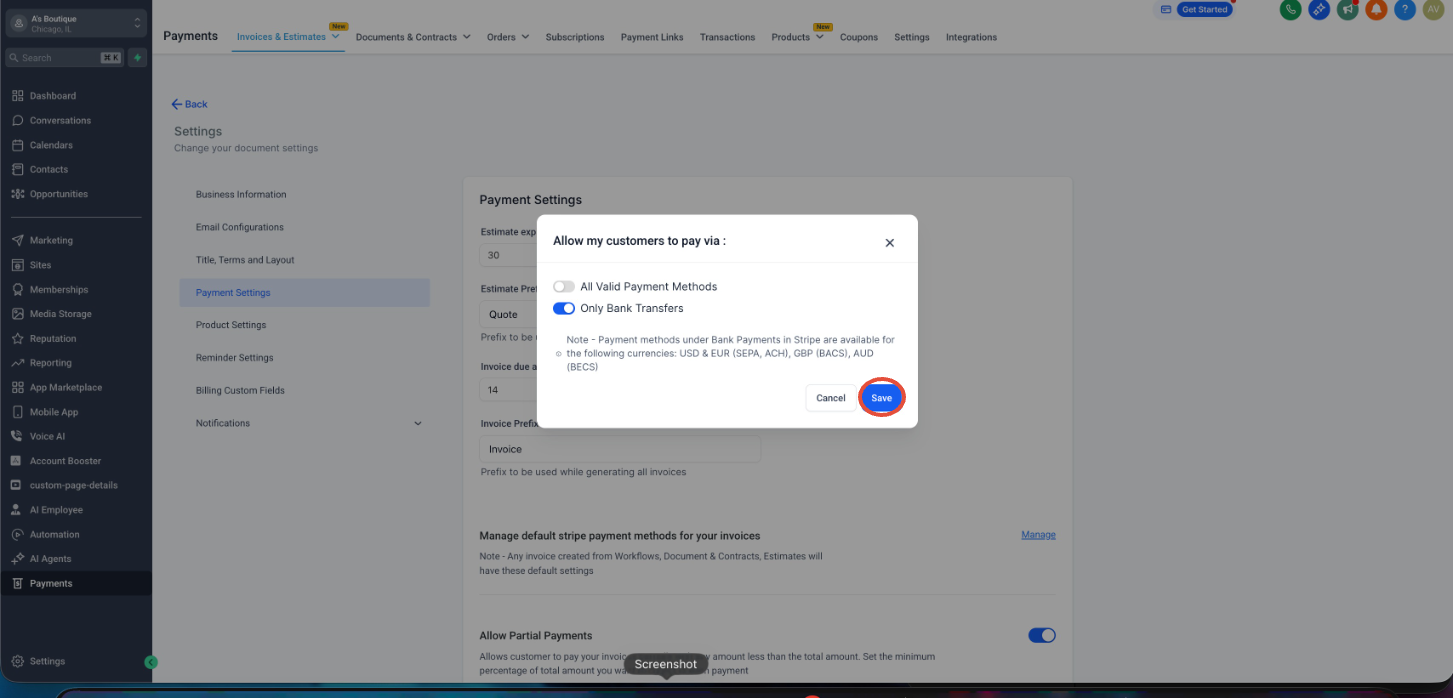
- Manage Default stripe Payment Methods for invoice - Click on Manage
- Here you can restrict if you want to allow customers to pay via All valid payment methods or Bank transfer only by enabling and disabling the toggles and click on save.
- Enable Partial payments and set minimum percentage amount to be paid in each payment How to Use Partial Payment for Invoices
- Enable option to charge late fees
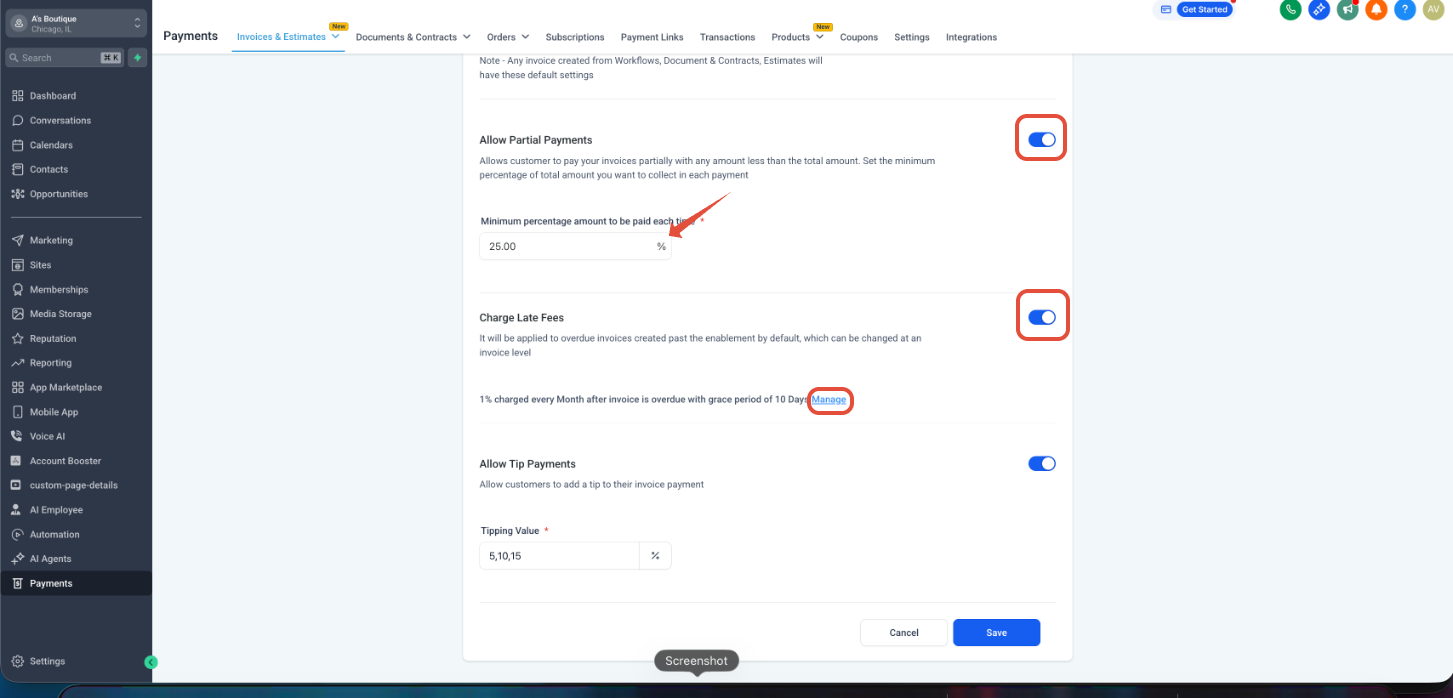
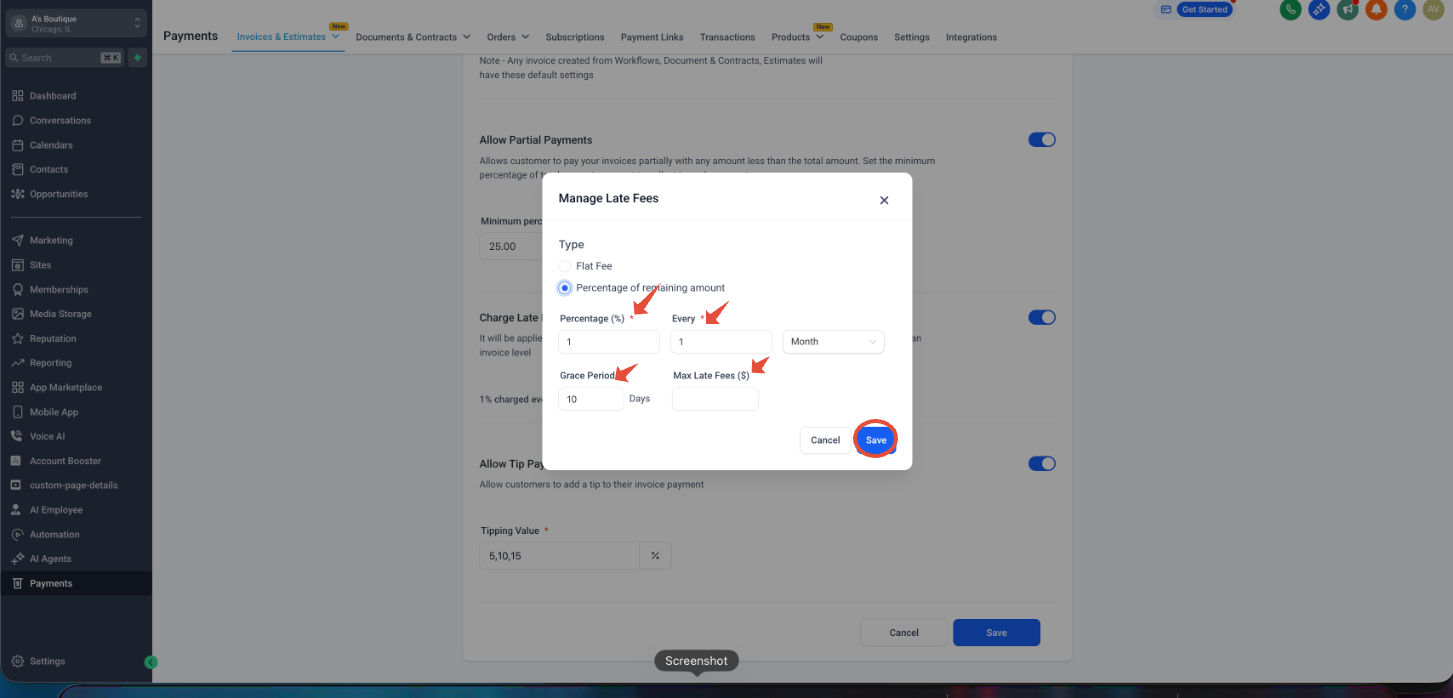
- Click on Manage you will get a Pop-up window to Manage Late fees where you can select the types between the below for the remaining amount.
- Flat fees &
- Percentage
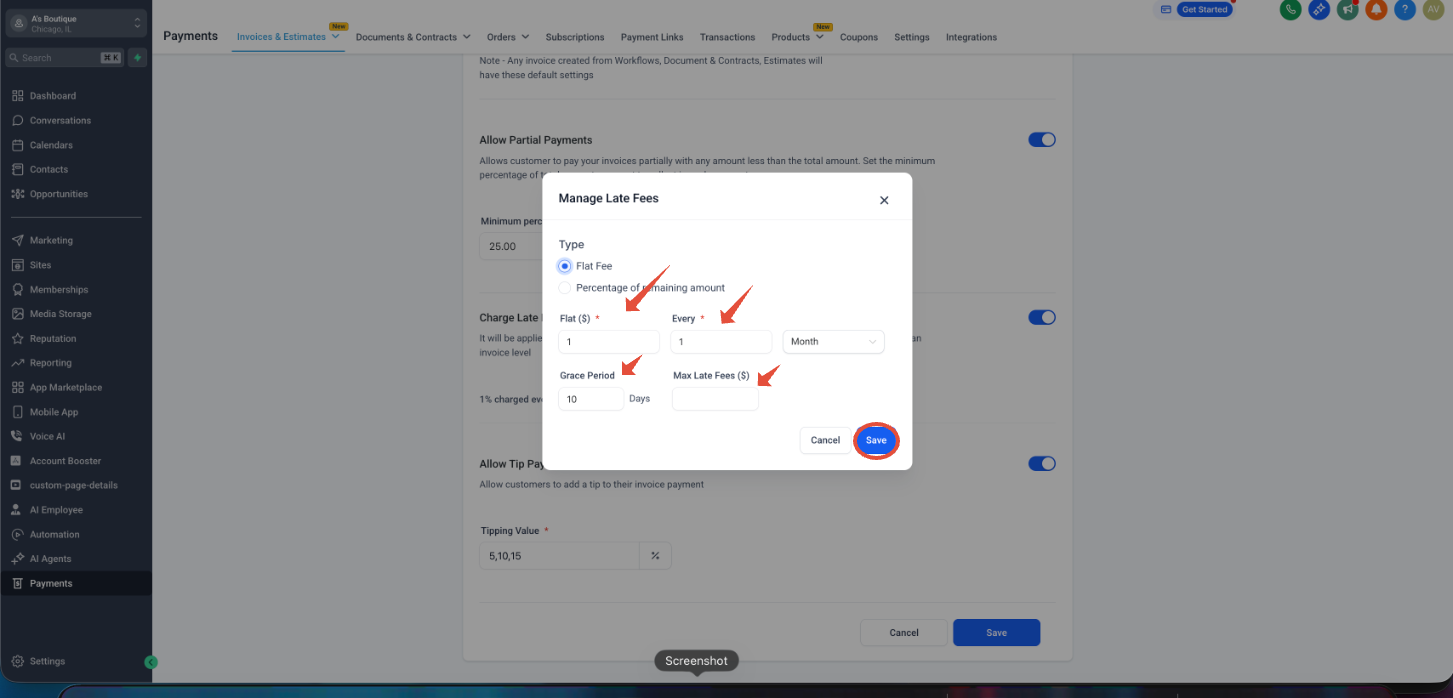
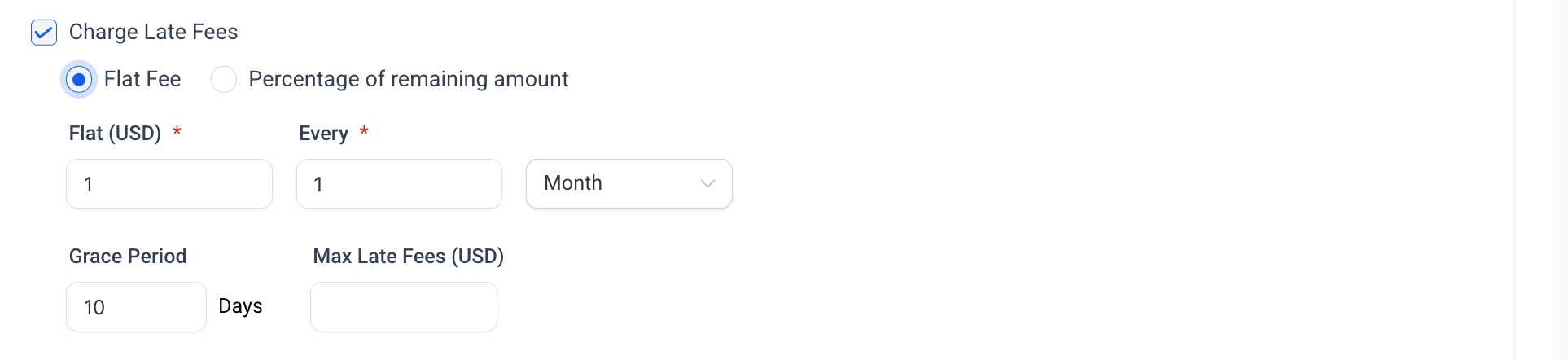
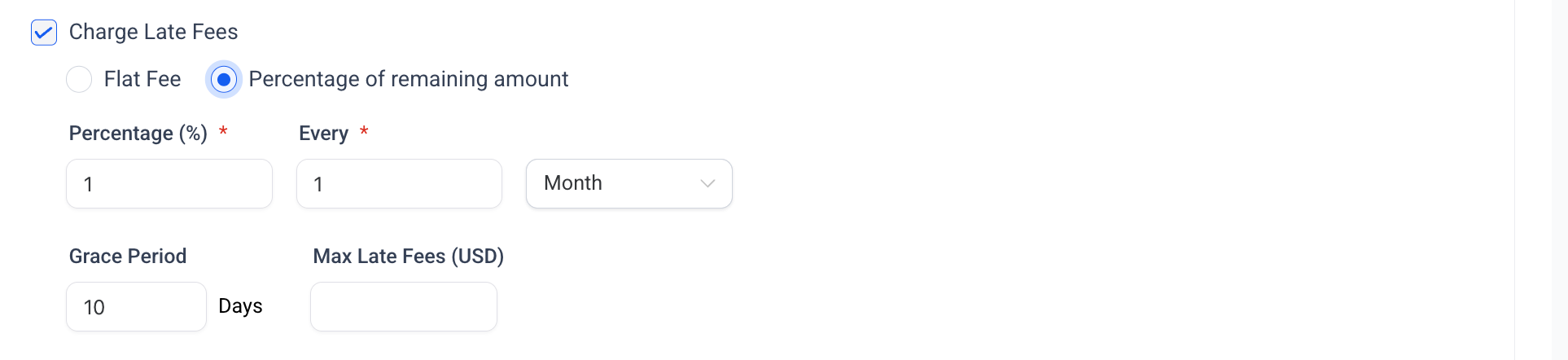
- You can mention the percentage/Amount, set intervals, grace period and maximum amount which can be collected as late fees and click on save.
- Enable Tip payments and set the Tip percentage values. and click on Save

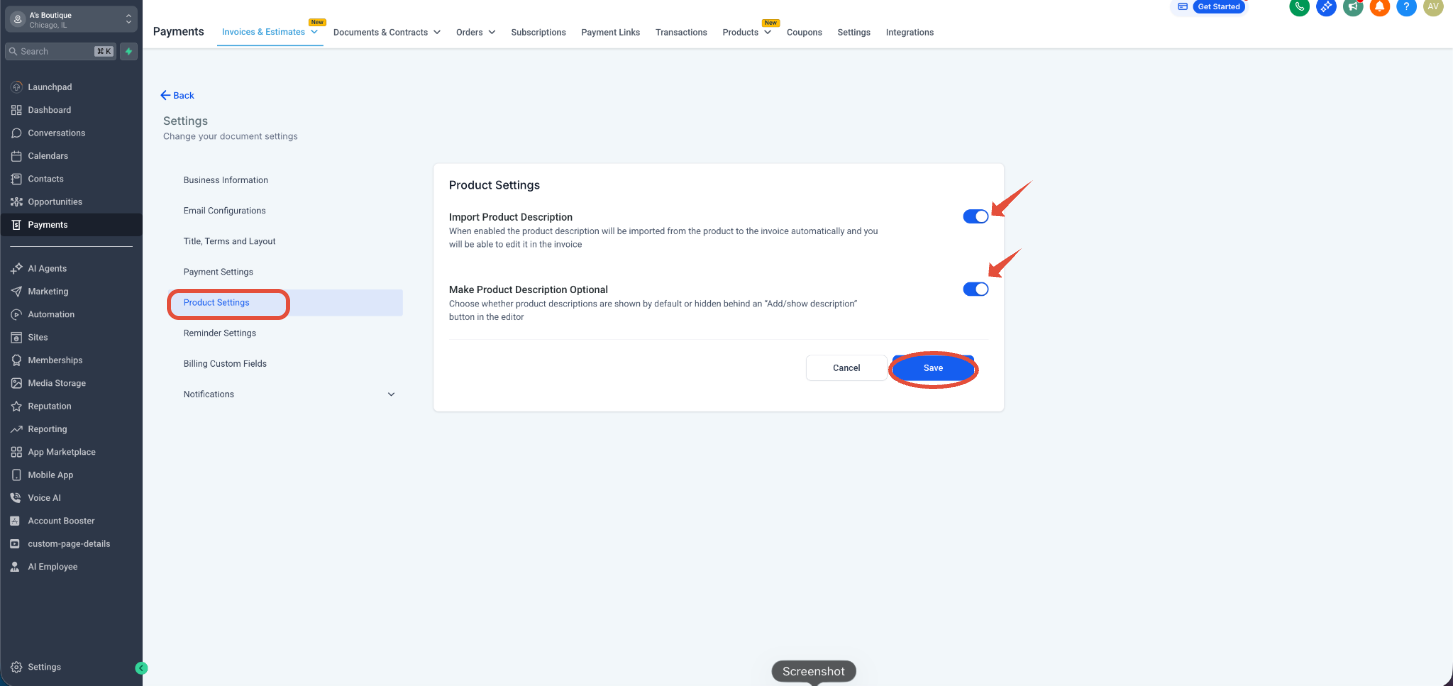
Product Settings:
- We have options to enable importing Product description and make them optional
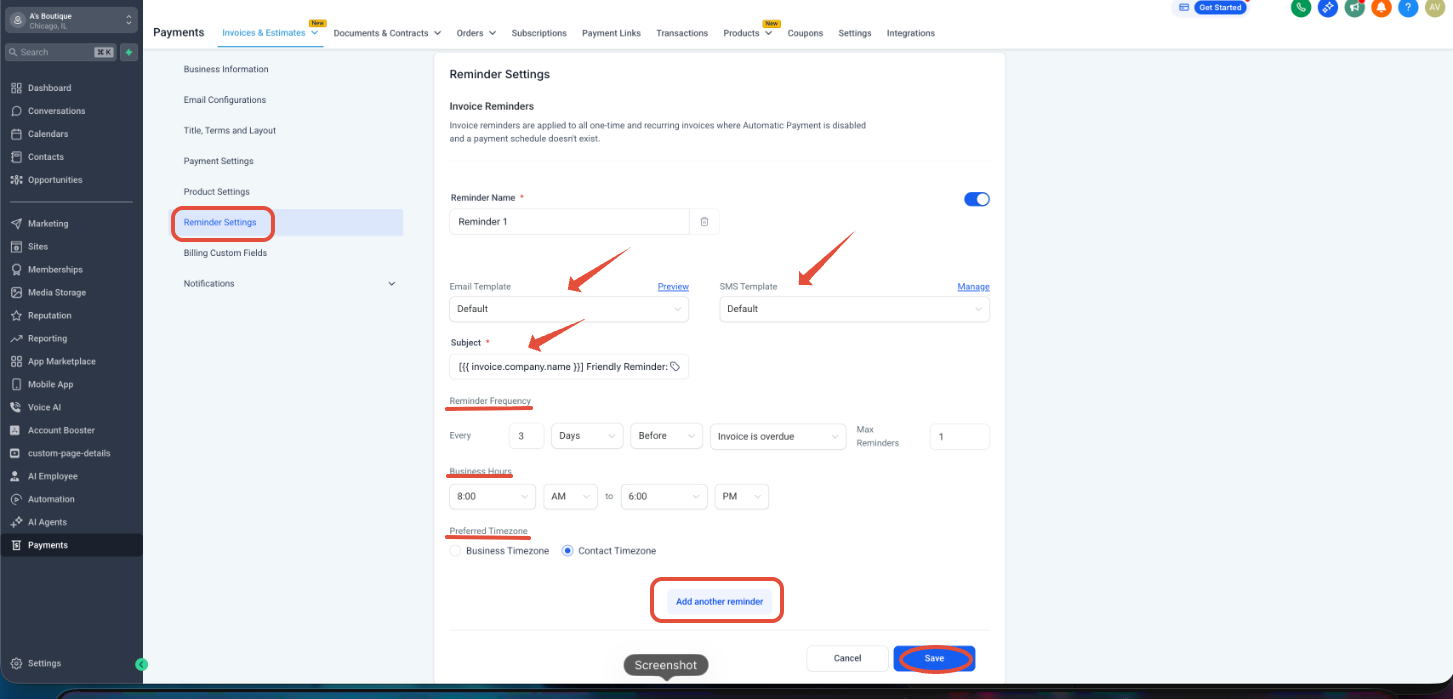
Reminder Settings:
Invoice reminders are applied to all one-time and recurring invoices where Automatic Payment is disabled and a payment schedule doesn't exist.
By default you will have one reminder for which we can modify the
- Email & SMS Template which you can modify and preview
- Edit the Subject line for the Reminder Email
- Set Reminder Frequencies
- Set Business Hours
- and which timezone we need to send the reminder
You can also send multiple reminder. To add Reminders click on "Add another Reminder" and click on "Save".
When you create an invoice, check the expiry date if it is less than 3 days, disable the 3-day reminder manually for that invoice. In the Invoice editor, scroll to the reminder list and uncheck or remove the reminder that says 3 days before.
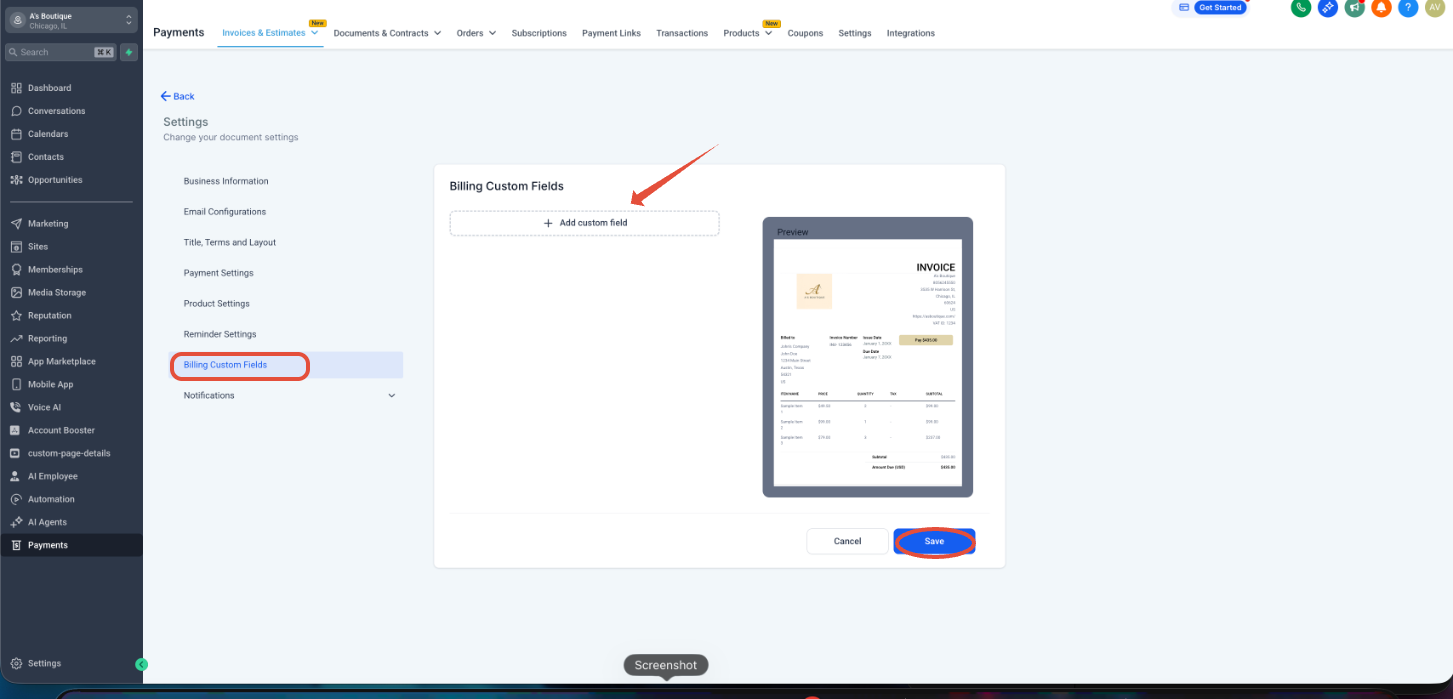
Billing Custom Fields:
- We can add custom fields by selecting "+Add Custom Field".
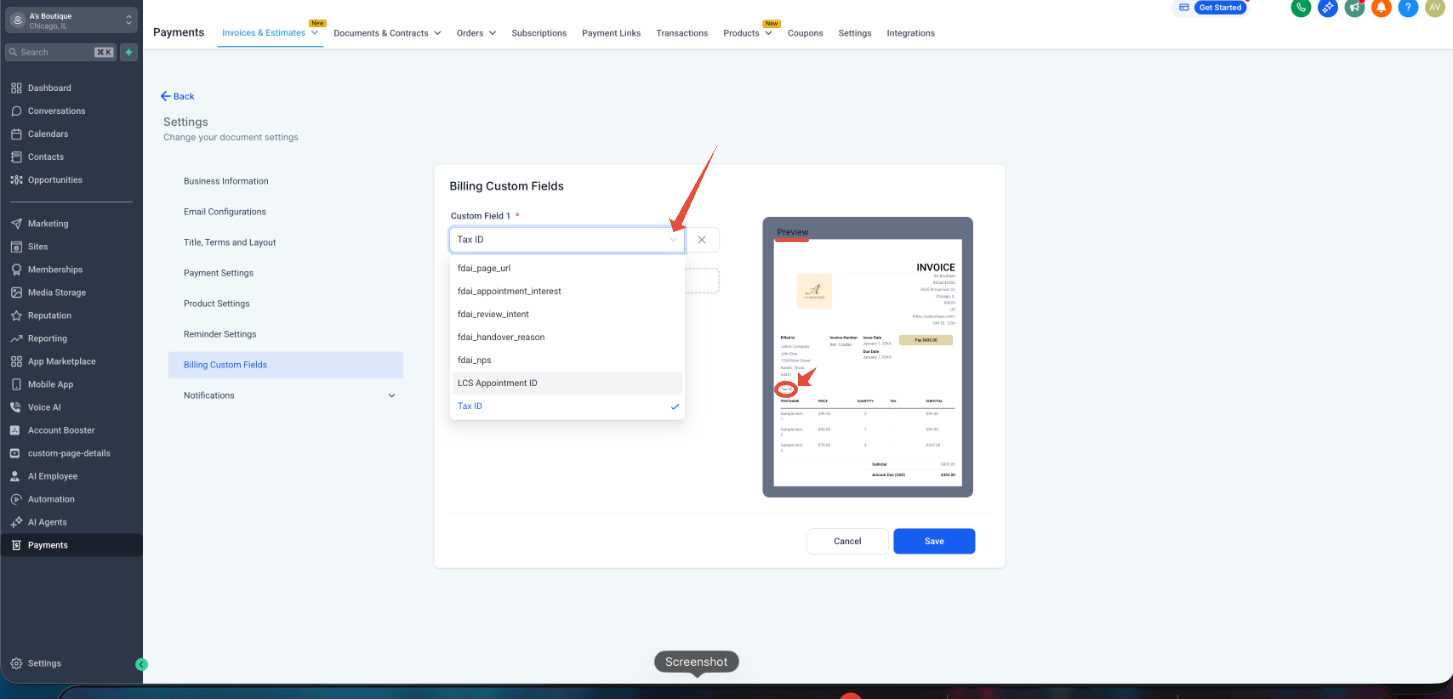
- Select the required custom field from the dropdown and click on save. You can see the preview on the right side.
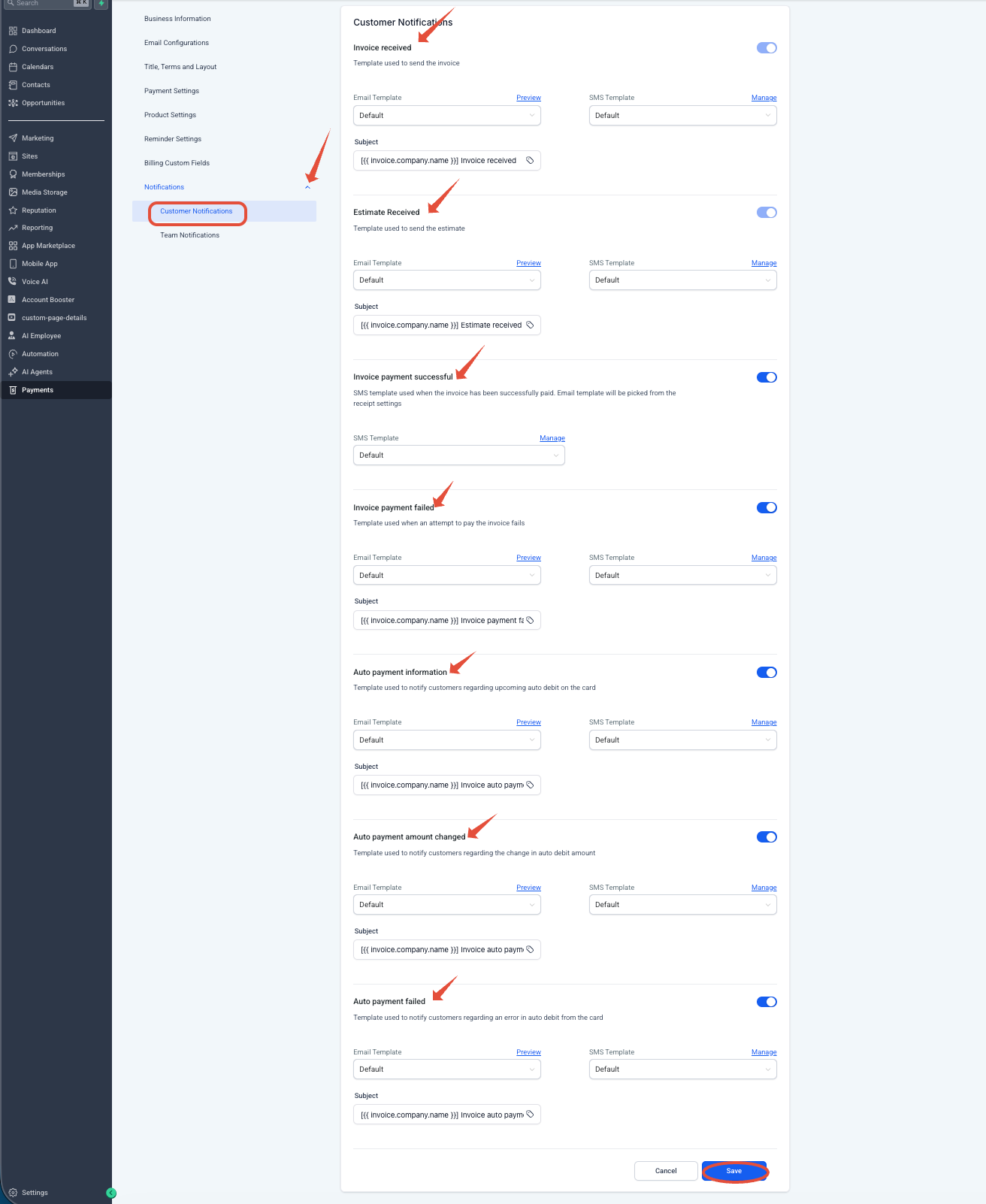
Notifications:
When you click on the Notification dropdown there are 2 types of notifications available
- Customer Notification
Under Customer Notification you will be able to enable and Manage the Email template, subject line and SMS template for the below
Invoice received
Estimate Received
Invoice payment successful
Invoice payment failed
Auto payment information
Auto payment amount changed
Auto payment failed
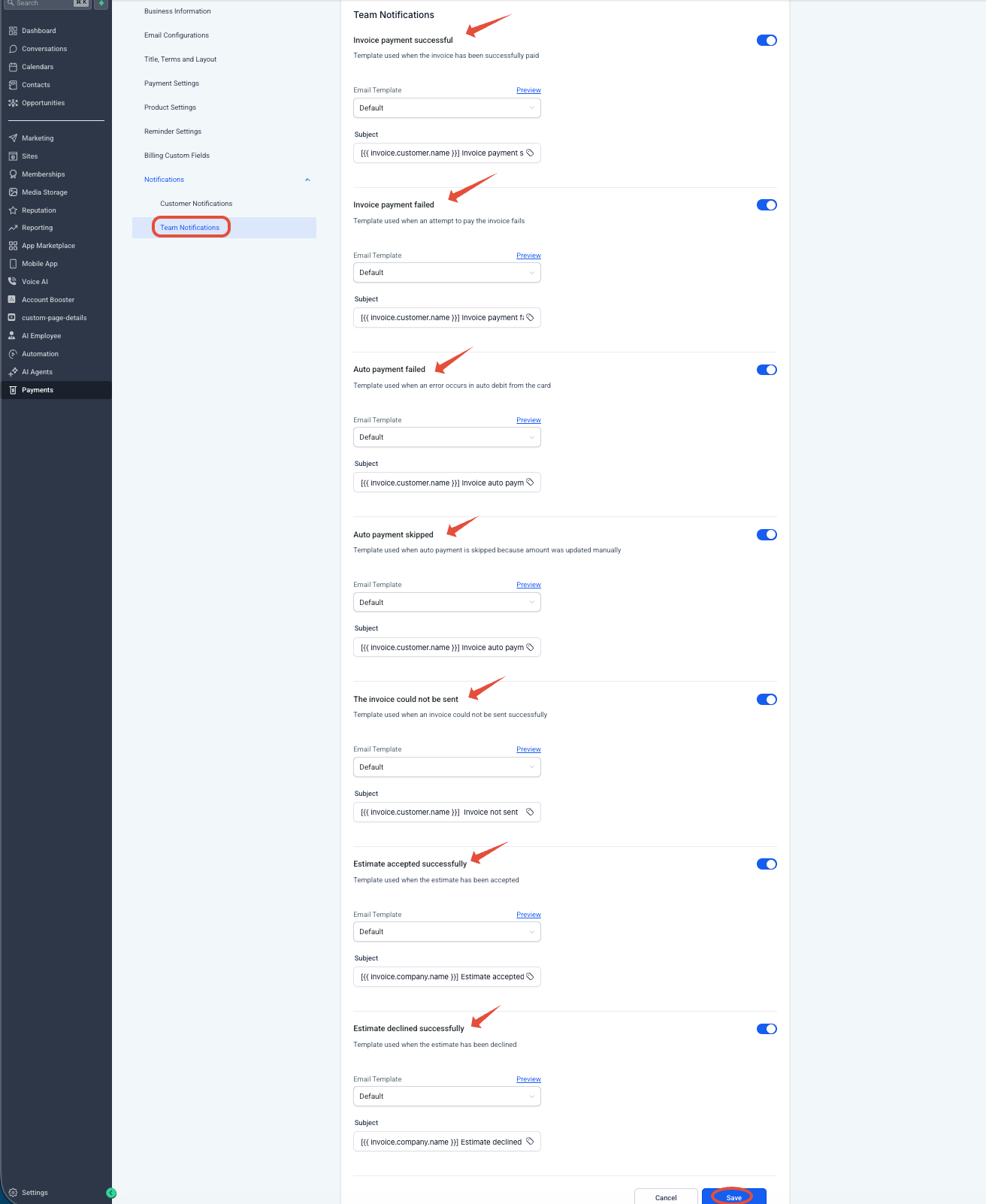
- Team Notification
Under Team Notification you will be able to enable and Manage the Email template and the subject line for the below
Invoice payment successful
Invoice payment failed
Auto payment failed
Auto payment skipped
The invoice could not be sent
Estimate accepted successfully
Estimate declined successfully
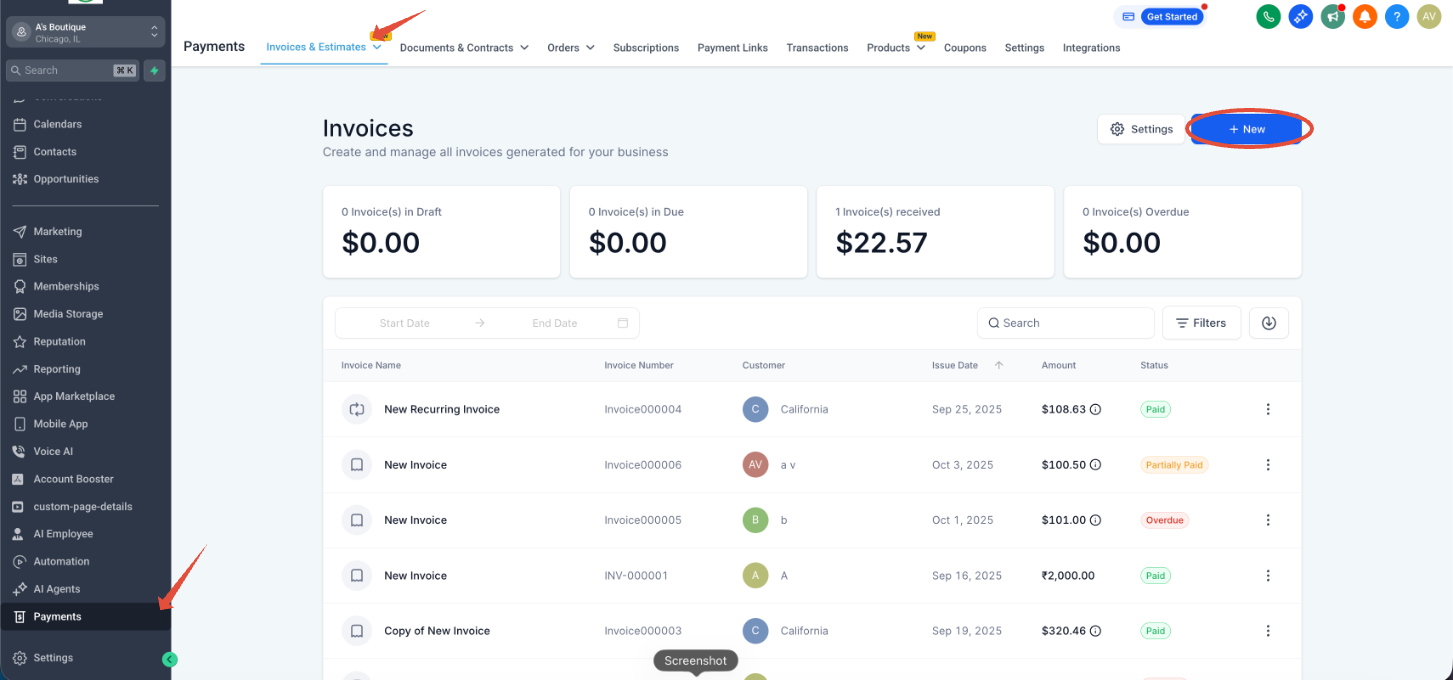
How to Create your invoice
Go to the Payments tab and click on the Invoices & Estimates dropdown and select All Invoices.
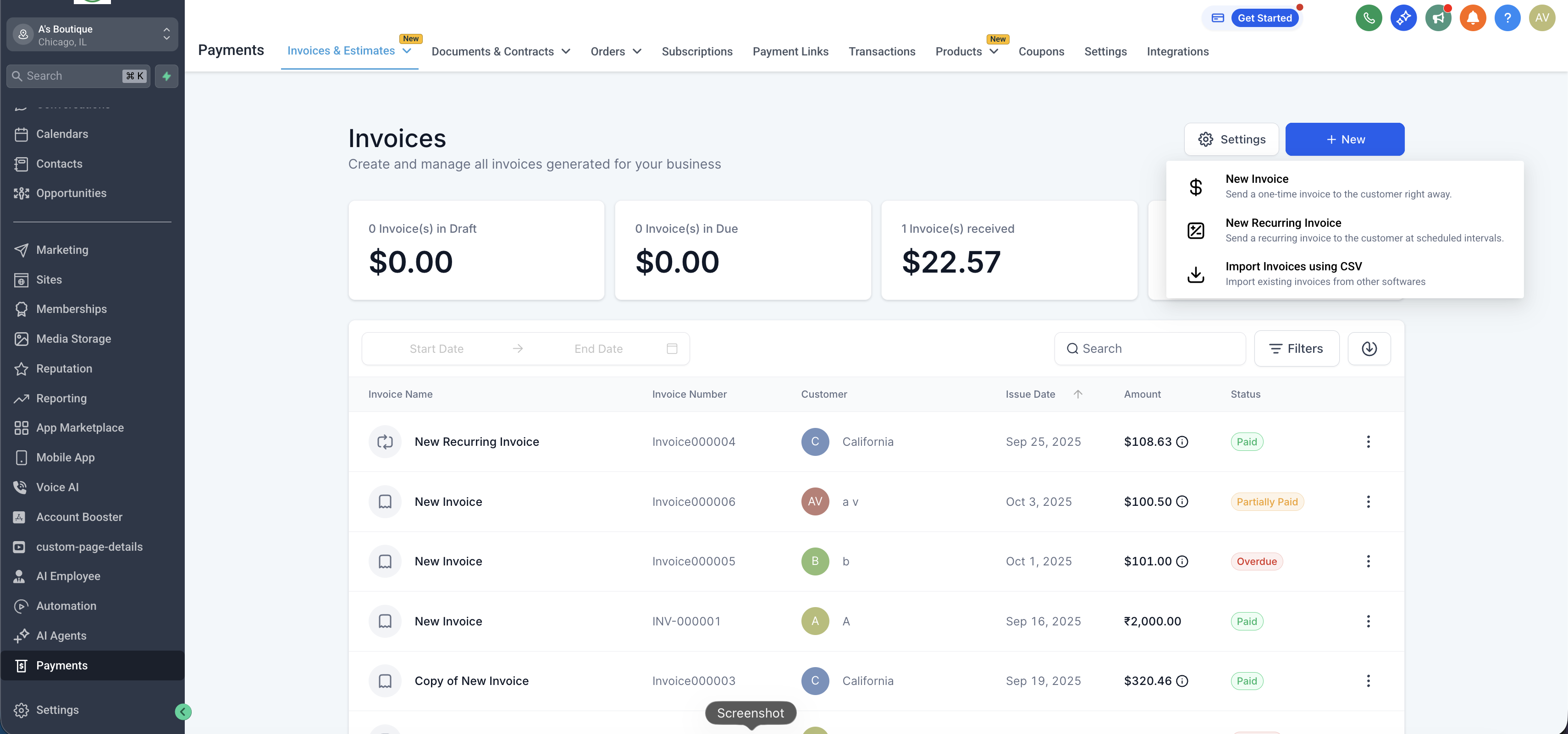
- Click on "+ New" and select New invoice from the dropdown.
Client & Schedule: You can add the client and edit the Invoice number, Issue date, and Due dates.
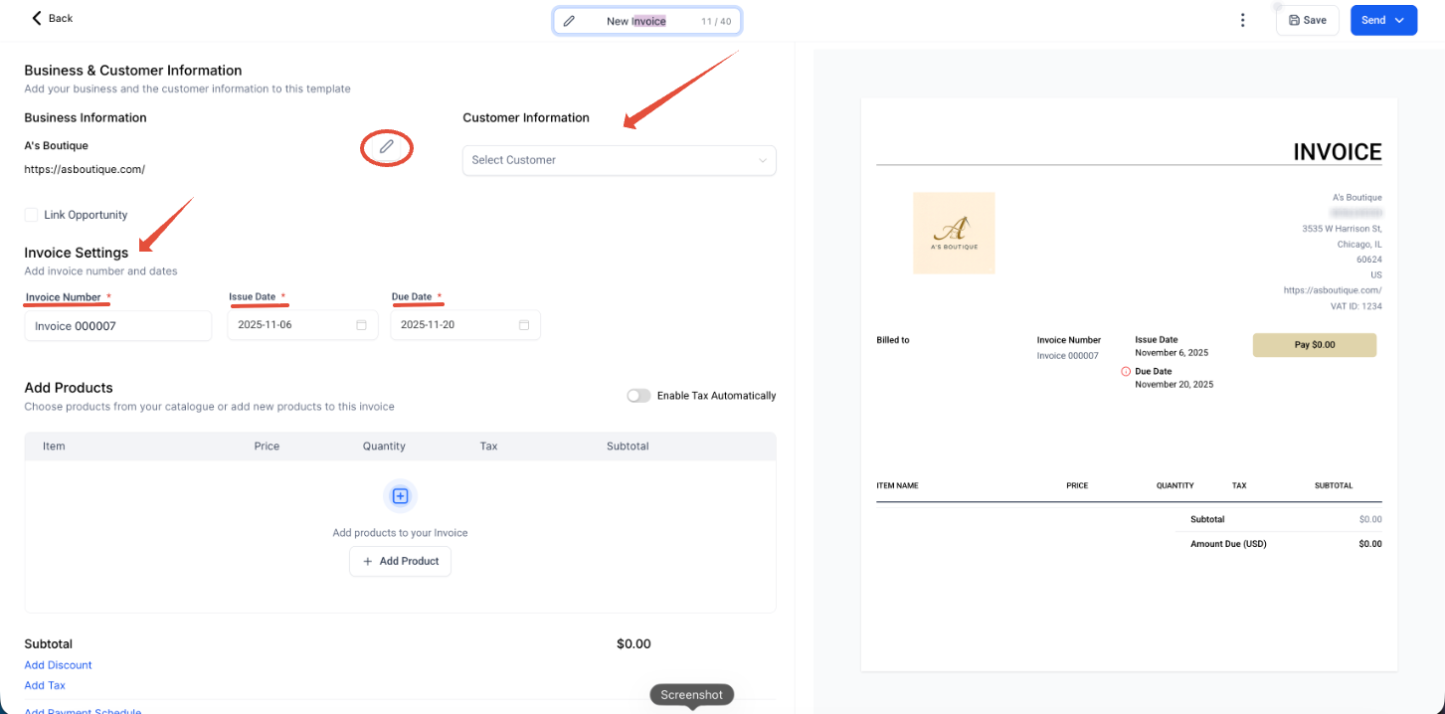
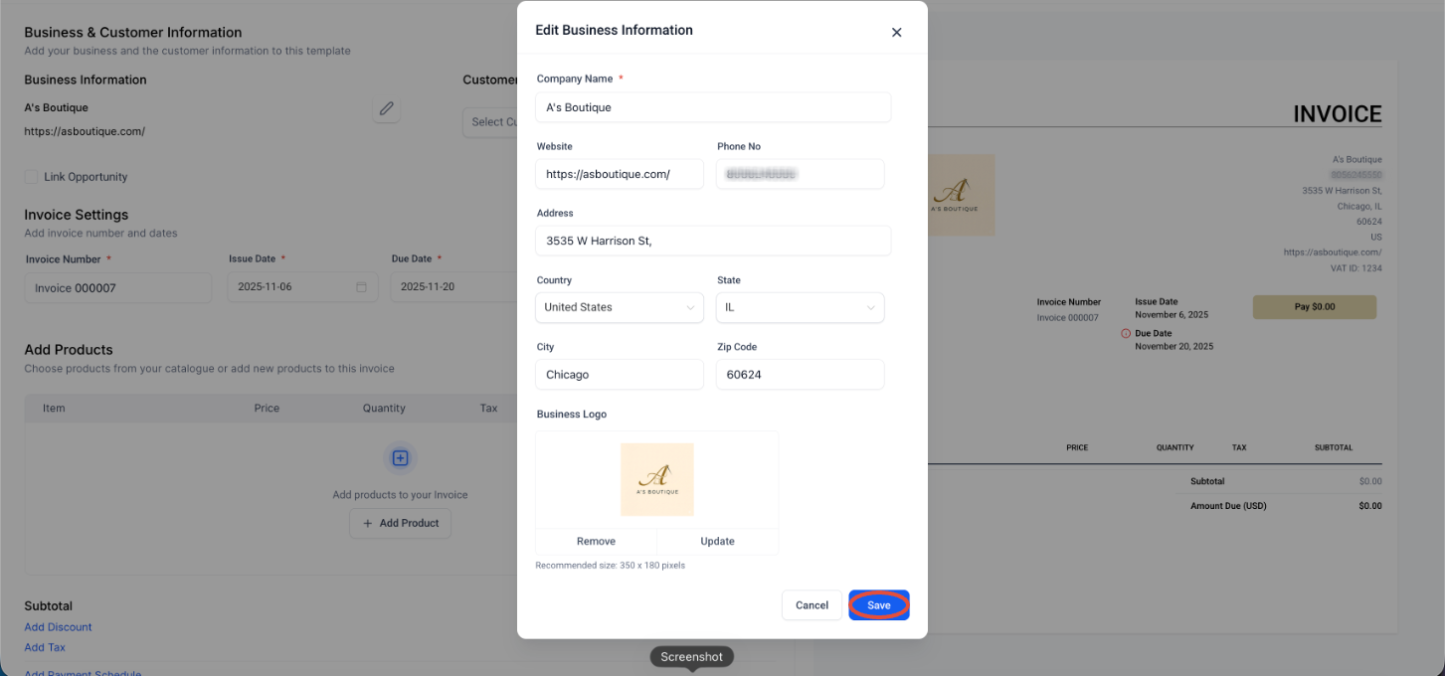
And Edit the Business information by clicking on edit and then save.
This information will be appearing in the invoice.
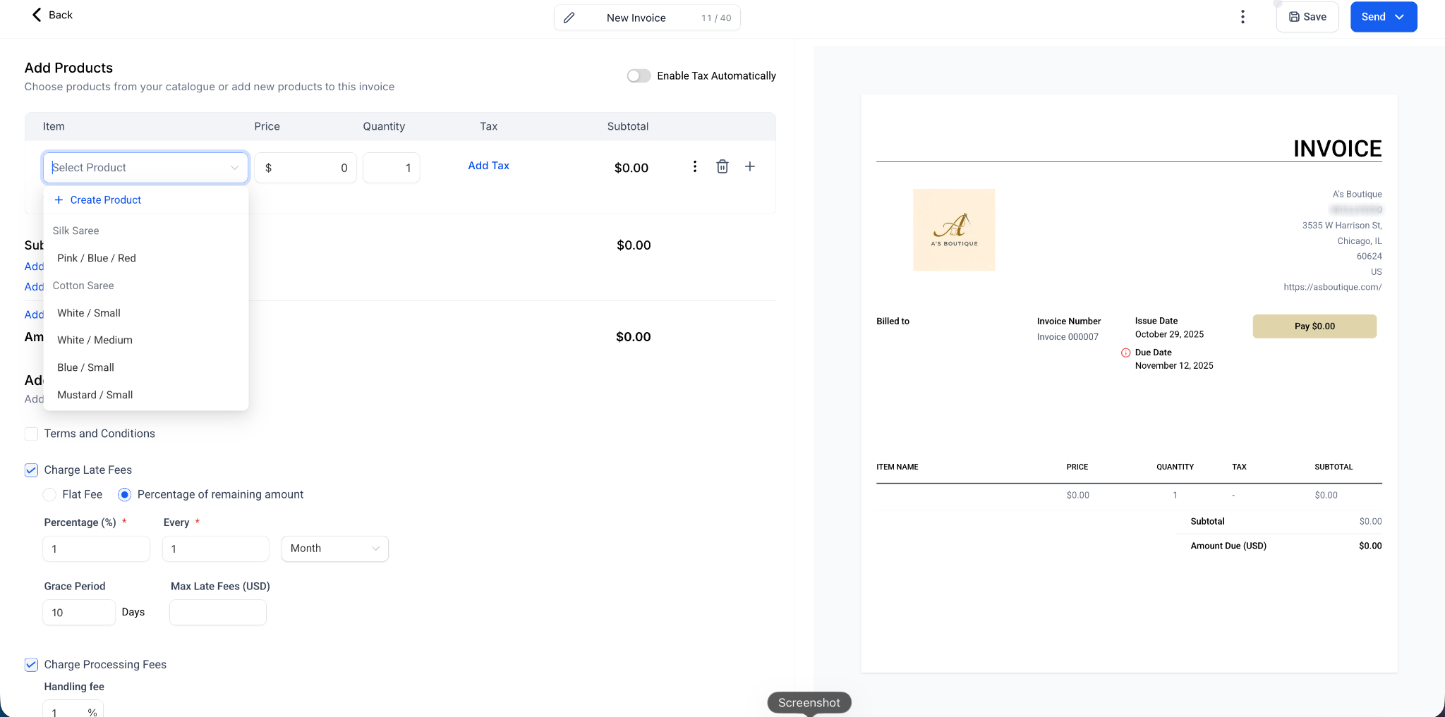
Add Products: Click "Add an item" to add the products you have created in your Products tab.
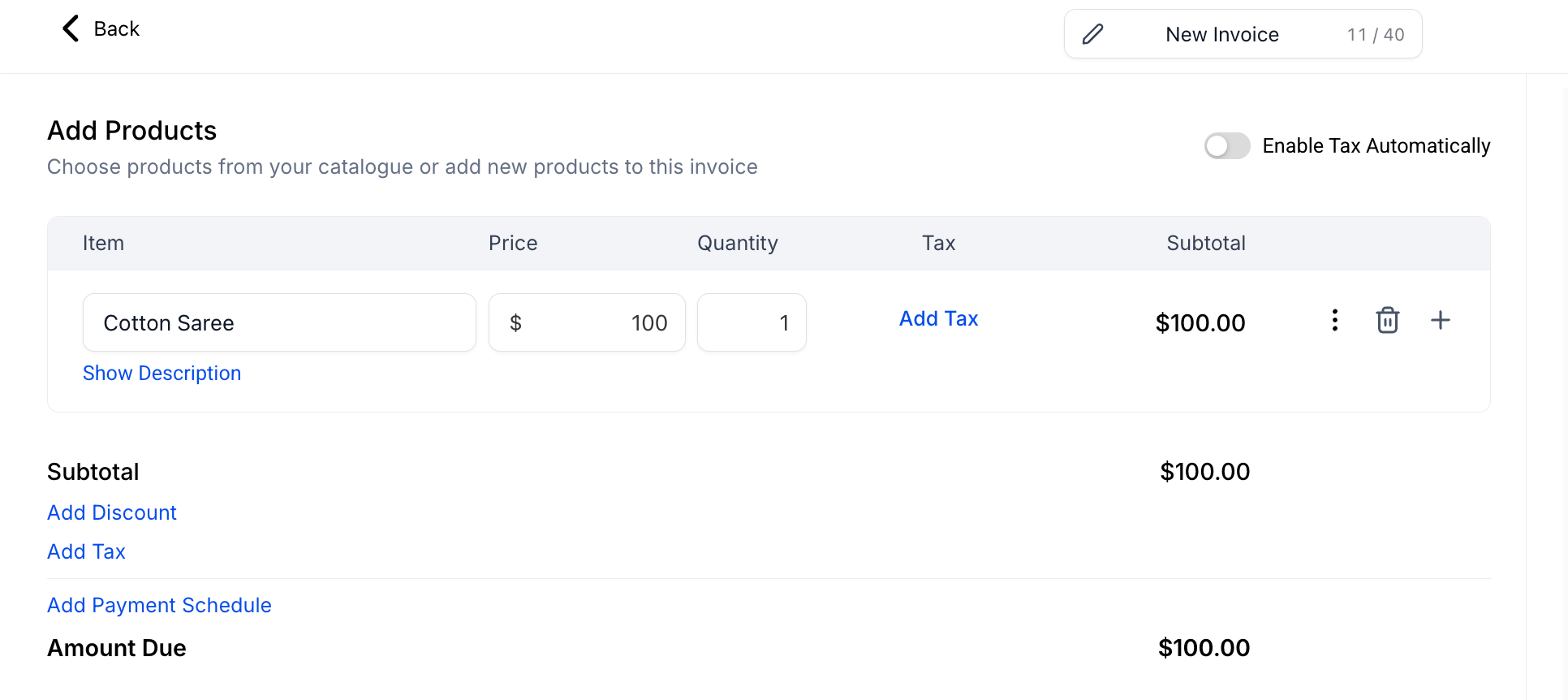
Once a product is added, you can edit the price and quantity directly on the invoice line item.
How to add a discount to your invoice
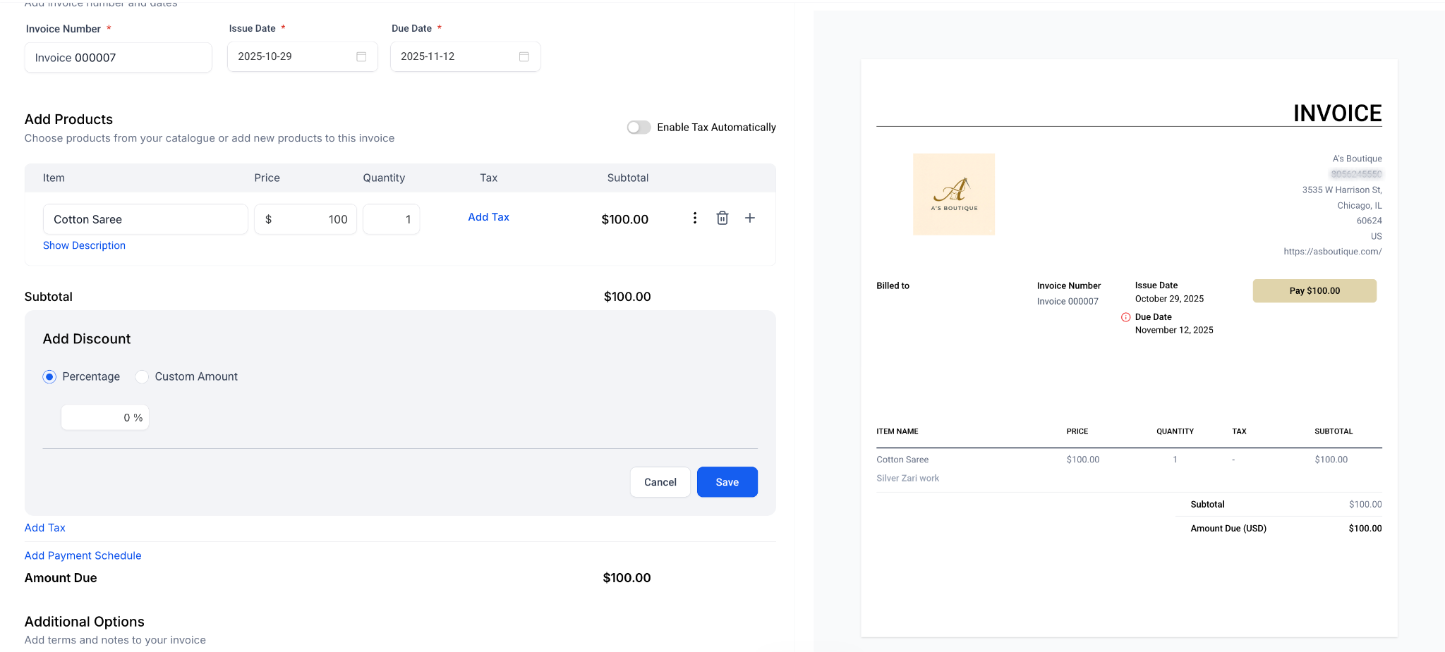
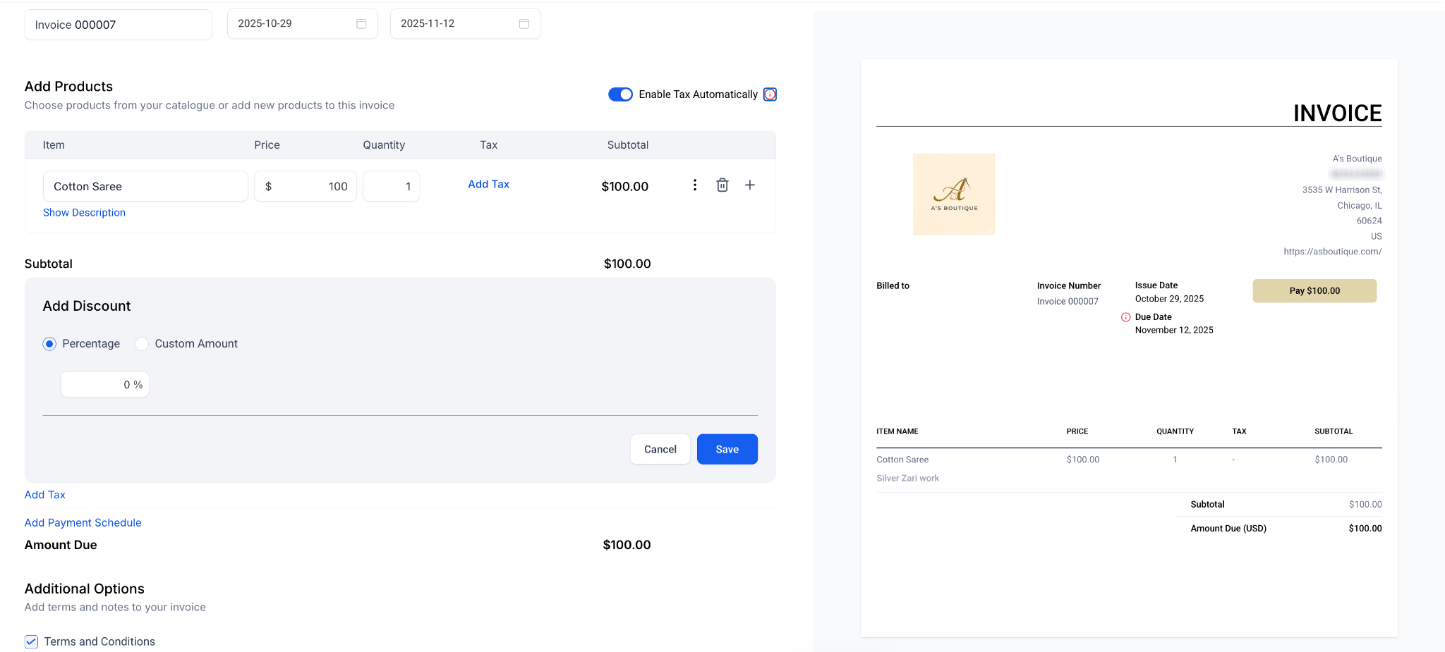
You can add a discount to an invoice by clicking the "Add discount" icon located below the subtotal.
- Choose between flat dollar amount or a percentage discount.
- Mention the value and click on Save
How to add taxes to your invoice
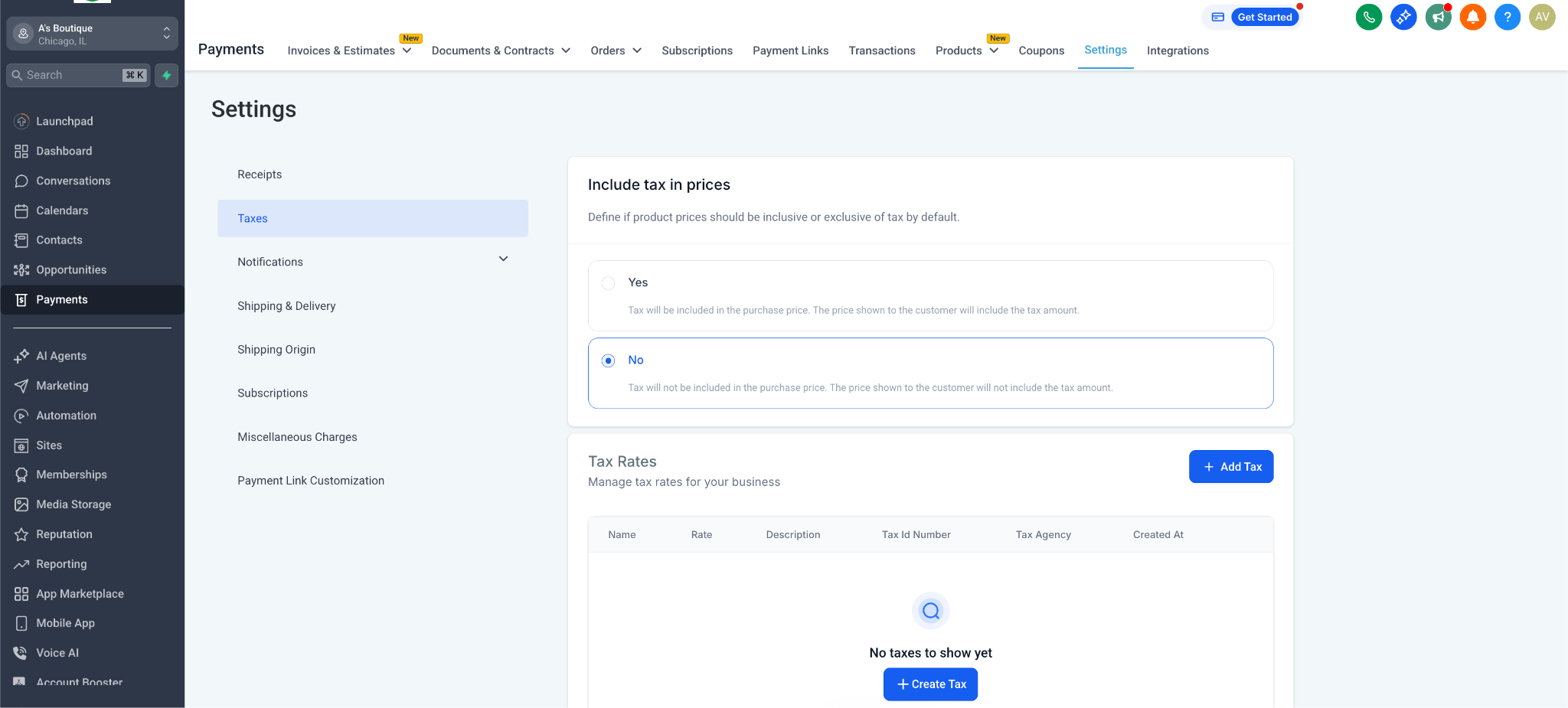
Taxes needs to be managed in 2 steps, globally & on the invoice.
Global Tax Setup
Go to Settings (on the Left Pane) and select Taxes.
Select whether you want to include the taxes in the purchase price or add them separately.
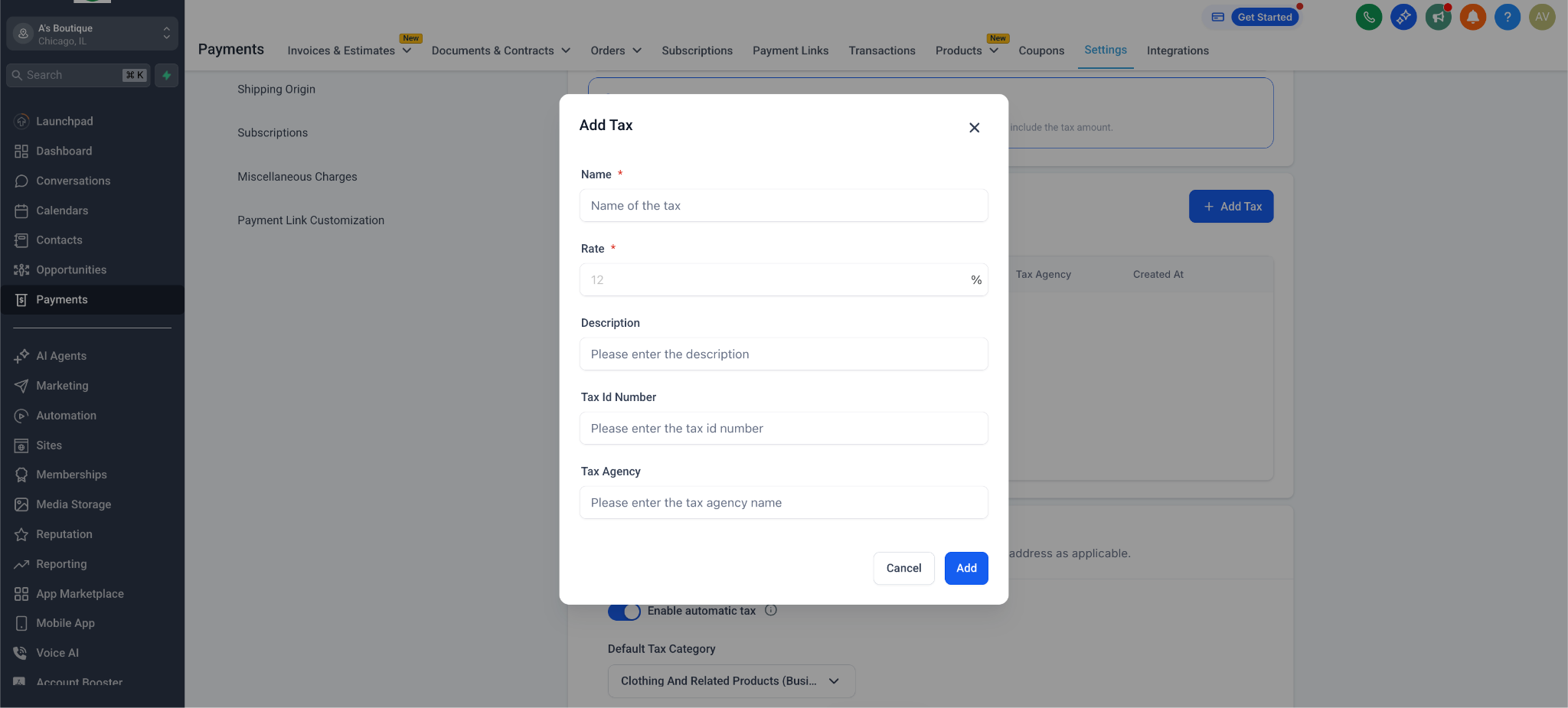
To add taxes manually, click "Add tax" or "Create Tax" and define the rate.
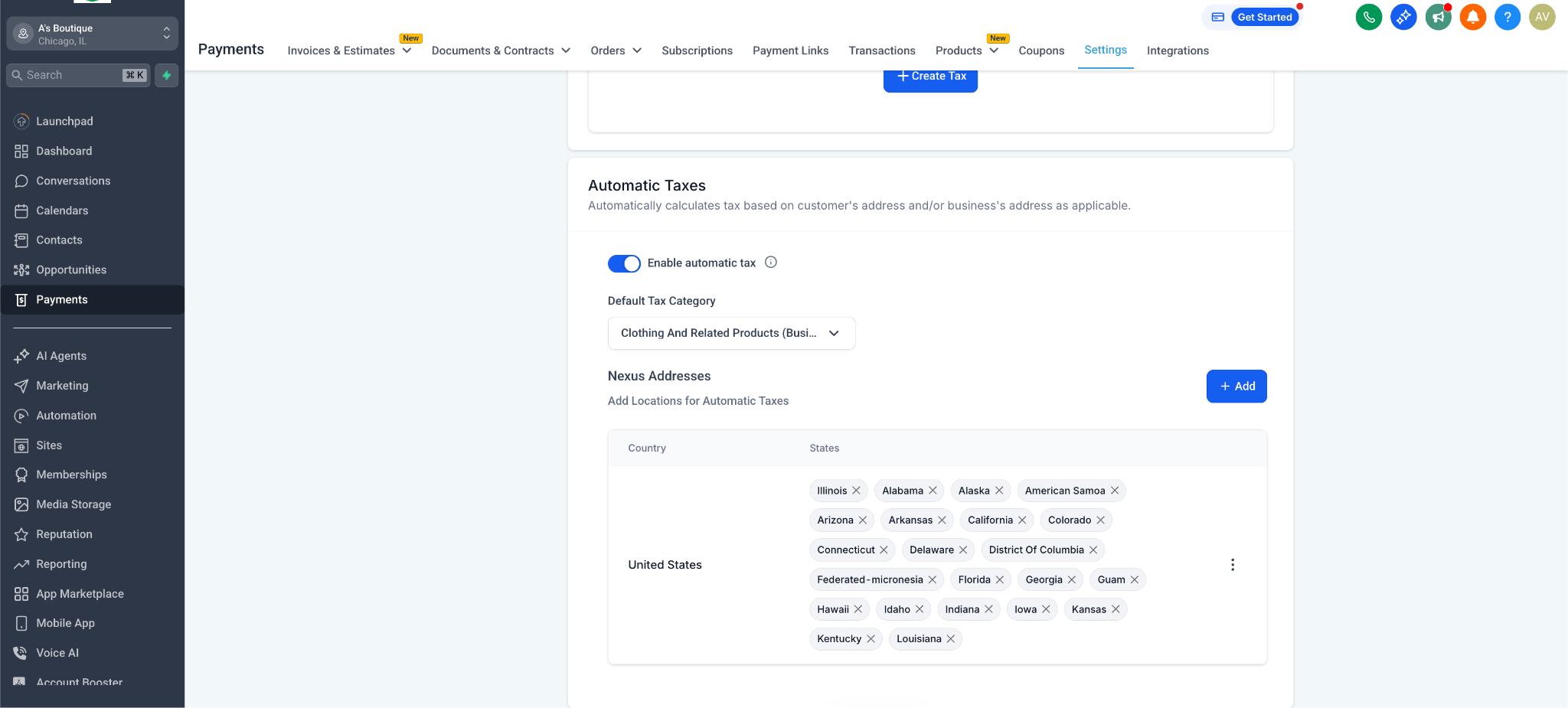
For automatic tax collection, enable Automatic Tax, select the Tax category, and add the eligible locations.
Applying Tax to the Invoice
Click on "Add Tax" below the discount area and select to add tax manually or automatically.
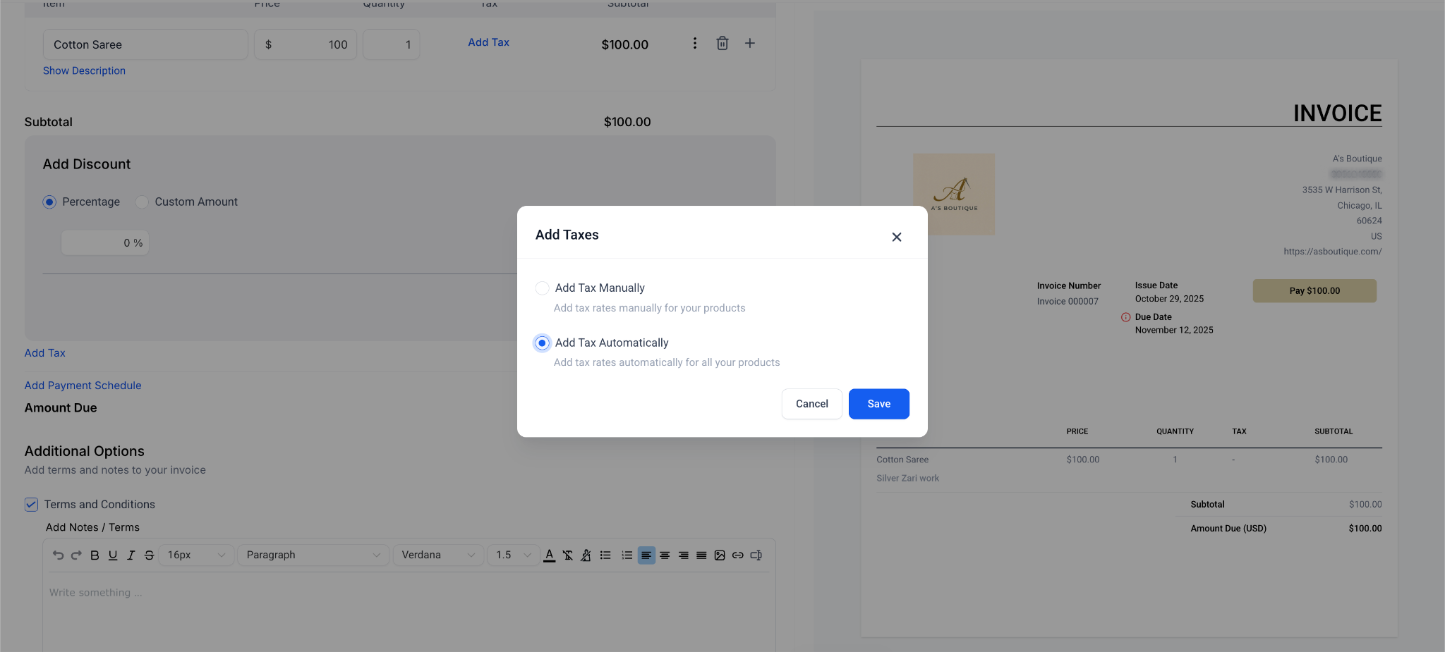
- You can also use the "Enable tax automatically" toggle located above the products list.
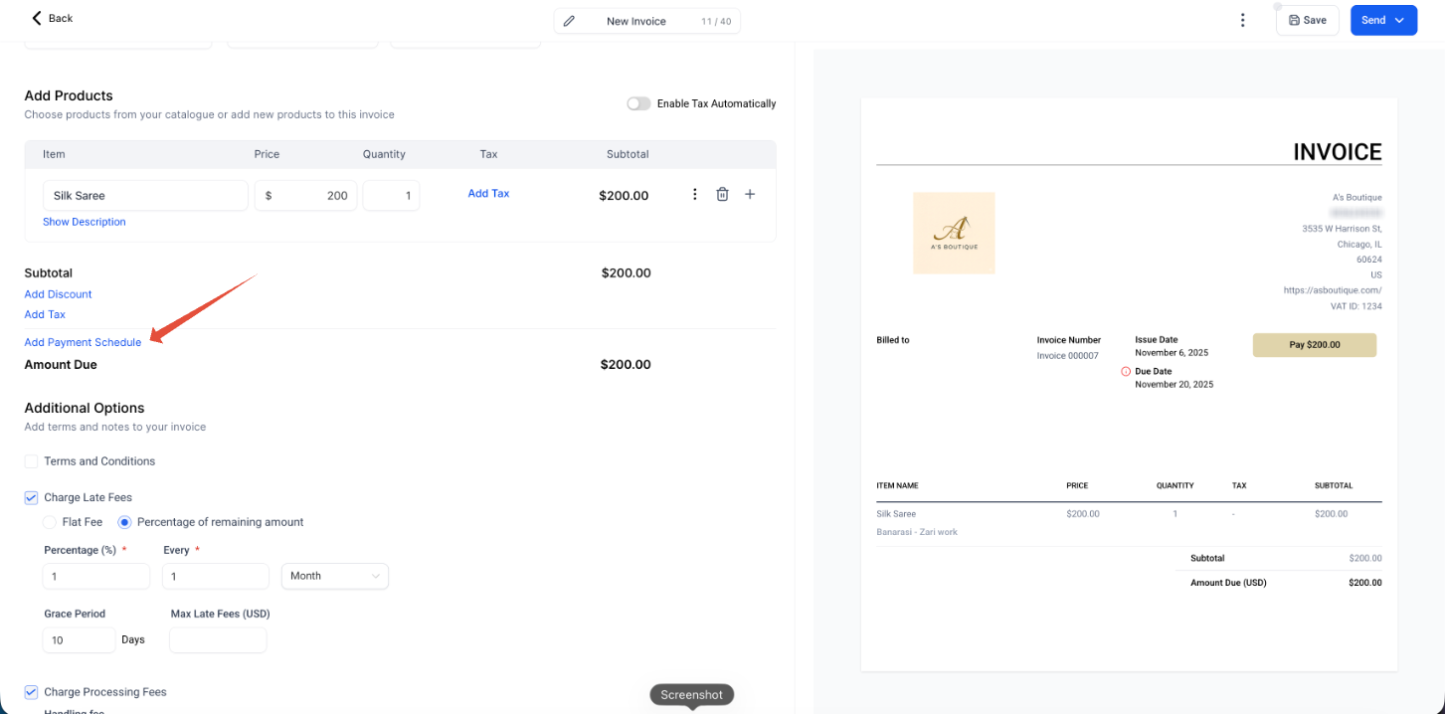
How to add Payment Schedule
- Click on Add Payment Schedule you will get a pop-up box.
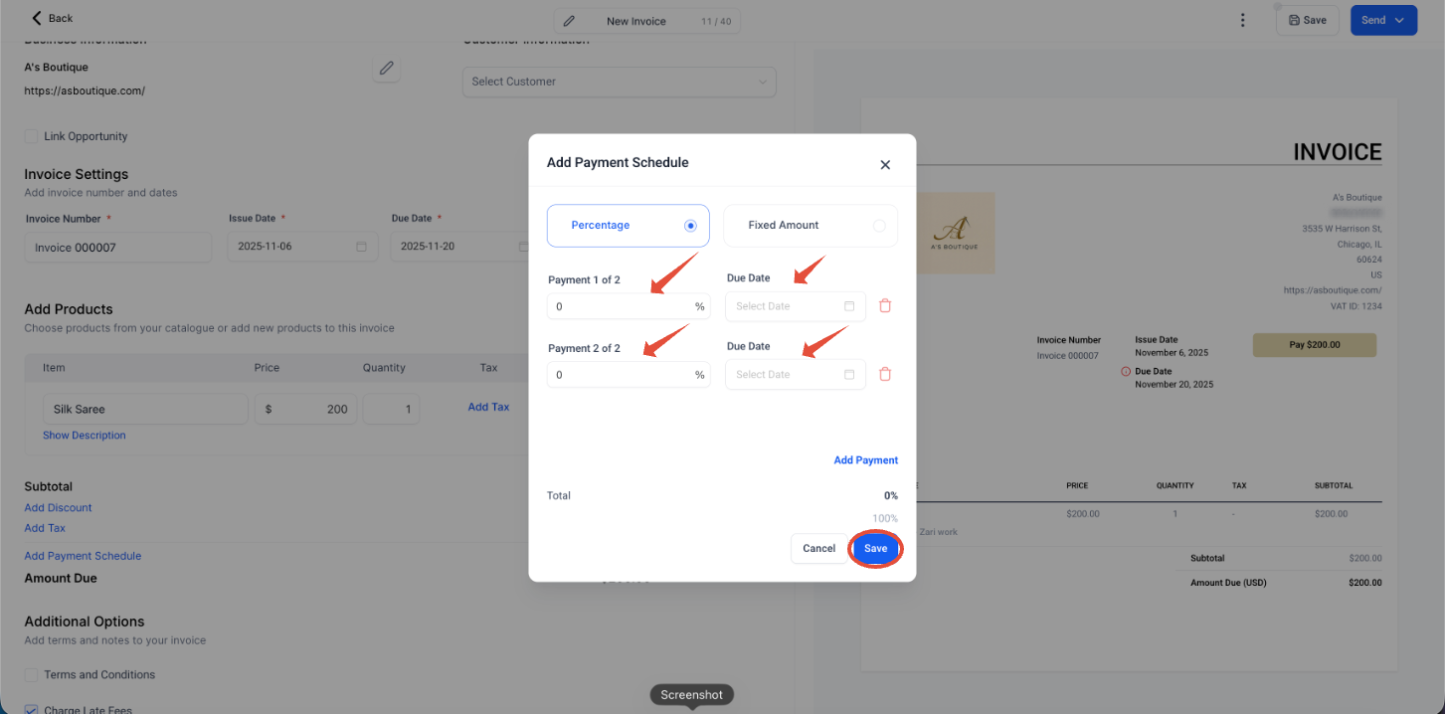
- There are 2 types of Payment Schedules available
- Percentage &
- Fixed Amount
- Enter the Percentage/Amount and due date for the payments and click on save.
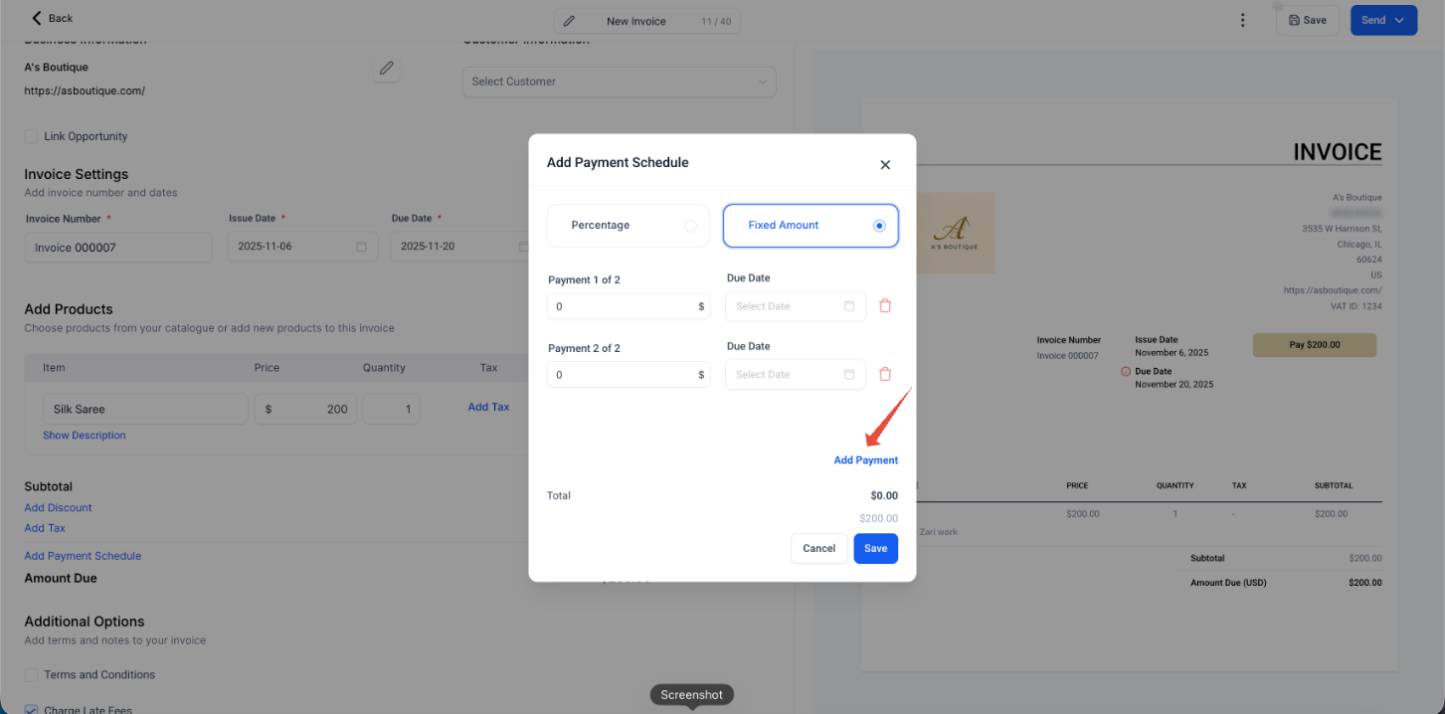
By Default 2 Payments will be added, to add additional Payments click on Add Payment.
How to add Additional options
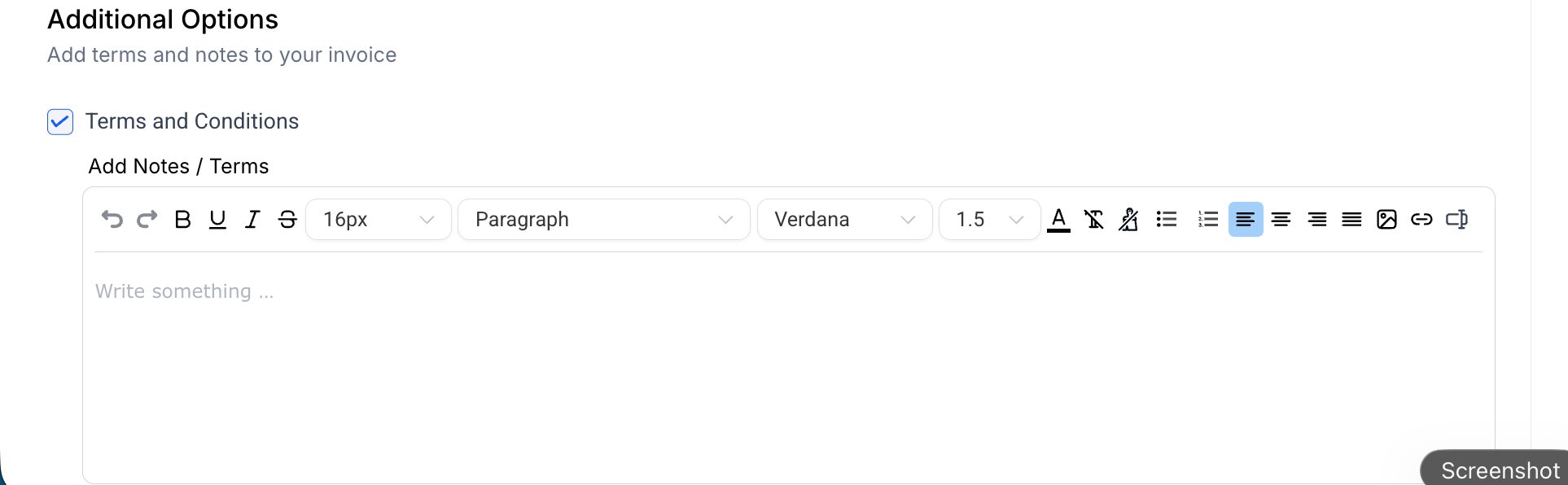
Use the "Additional Options" section on the invoice to enable specific terms or fees:
Terms & Conditions: Add your full terms of service for the client to review.
- Charge Late Fees: The late fee can be charged as a percentage or a flat fee. Mention the percentage/Amount, set intervals, grace period and maximum amount which can be collected as late fees
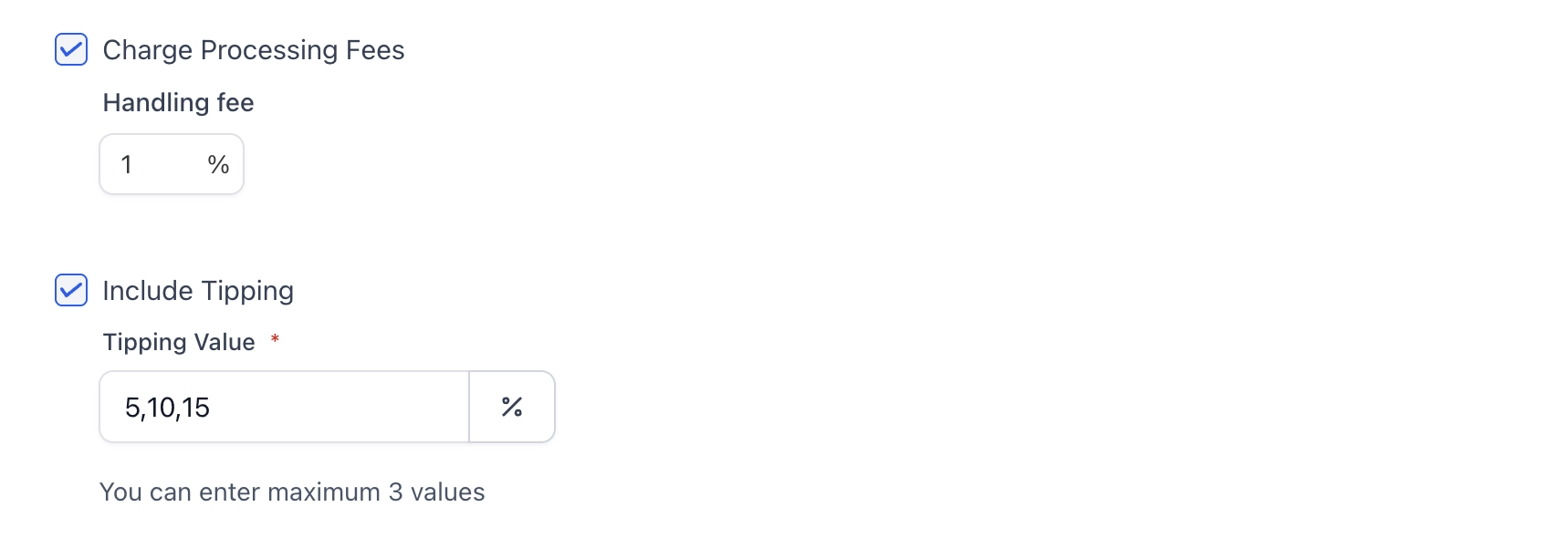
- Charge Processing Fee & Include Tipping: Mention the percentage of handling fee and the percentage range of the Tipping need to be collected. Processing fees do not appear on the invoice editor or initial preview; they are only visible once the customer clicks "Pay."
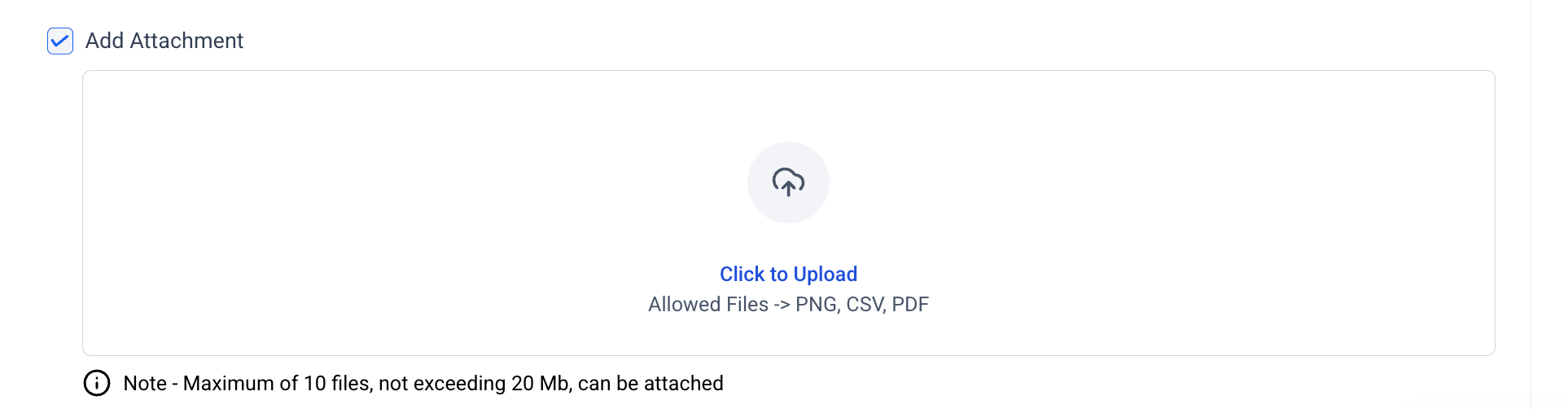
- Add Attachment: This file will be added to the invoice email sent to the customer.
Note: To allow Partial payments, collect late charge fees, and allow Tip payments, the corresponding options must be enabled in the Payment settings under the main "Settings" button in the Invoices & Estimates tab.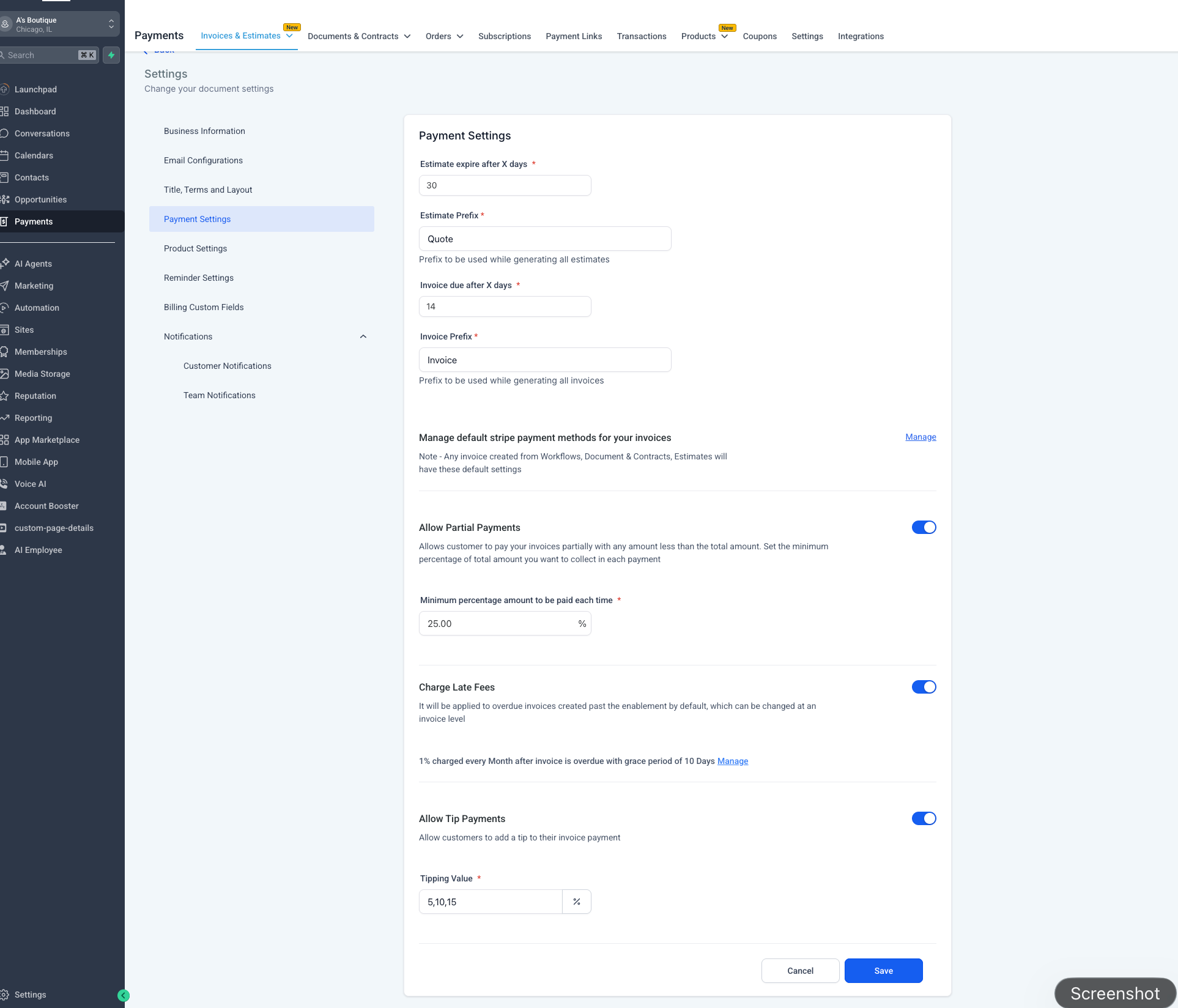
How to Send Invoice
- Before sending the invoice you can save the invoice by clicking on the save button
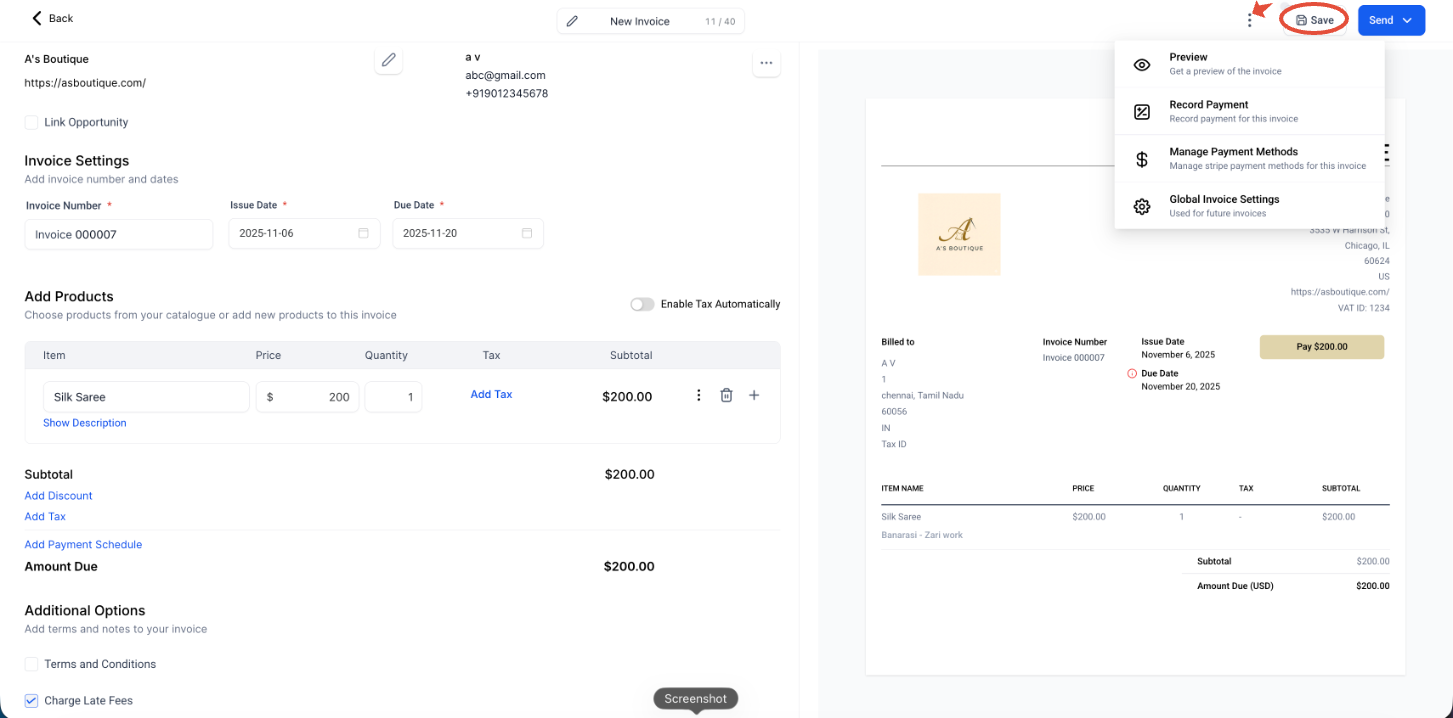
- And when you click on the 3dots next to the Save option you can Preview the invoice , Manage Payment methods and edit global invoice settings.
The invoice editor’s right-side preview is not a WYSIWYG preview. It displays placeholder sample data meant only to show layout structure.
To view the accurate final invoice layout, use one of the following:
Three dots → Preview, or
After sending an invoice: Contact → Email → View Invoice
The accurate preview will show the full invoice as recipients will see it, including proper formatting such as single-line item names when applicable.
When opening the full preview, it launches in a new browser tab. Return to the editor by switching back to the original tab.
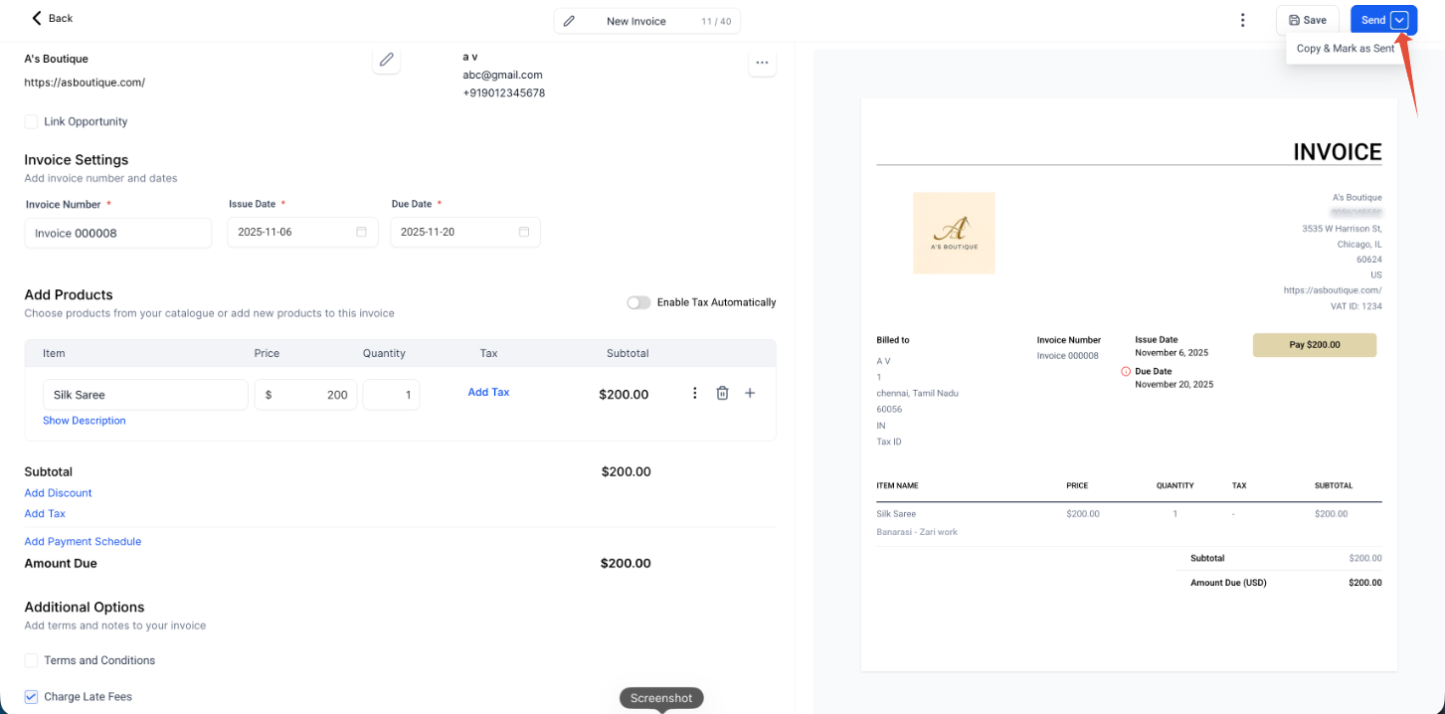
- When you click on the small downward arrow in send you get an option to copy the invoice and mark as sent.
Clicking this button moves the invoice from Draft to Sent status and immediately copies the live, dynamic payment link to the clipboard, ready to be pasted into any email template.
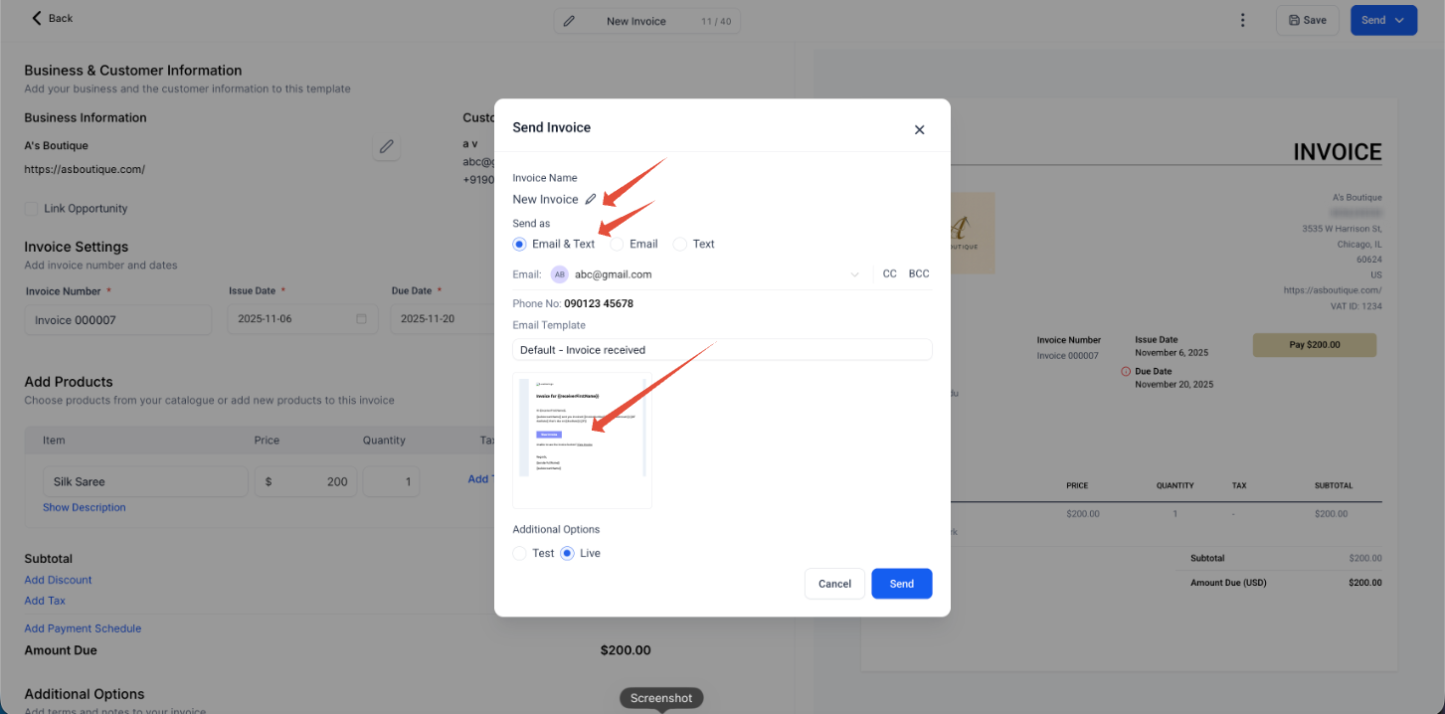
- When you click on send you get options to edit Invoice name, Send as Email or text or both, and you can edit the Email elements by clicking on the mail preview, below Email Template.
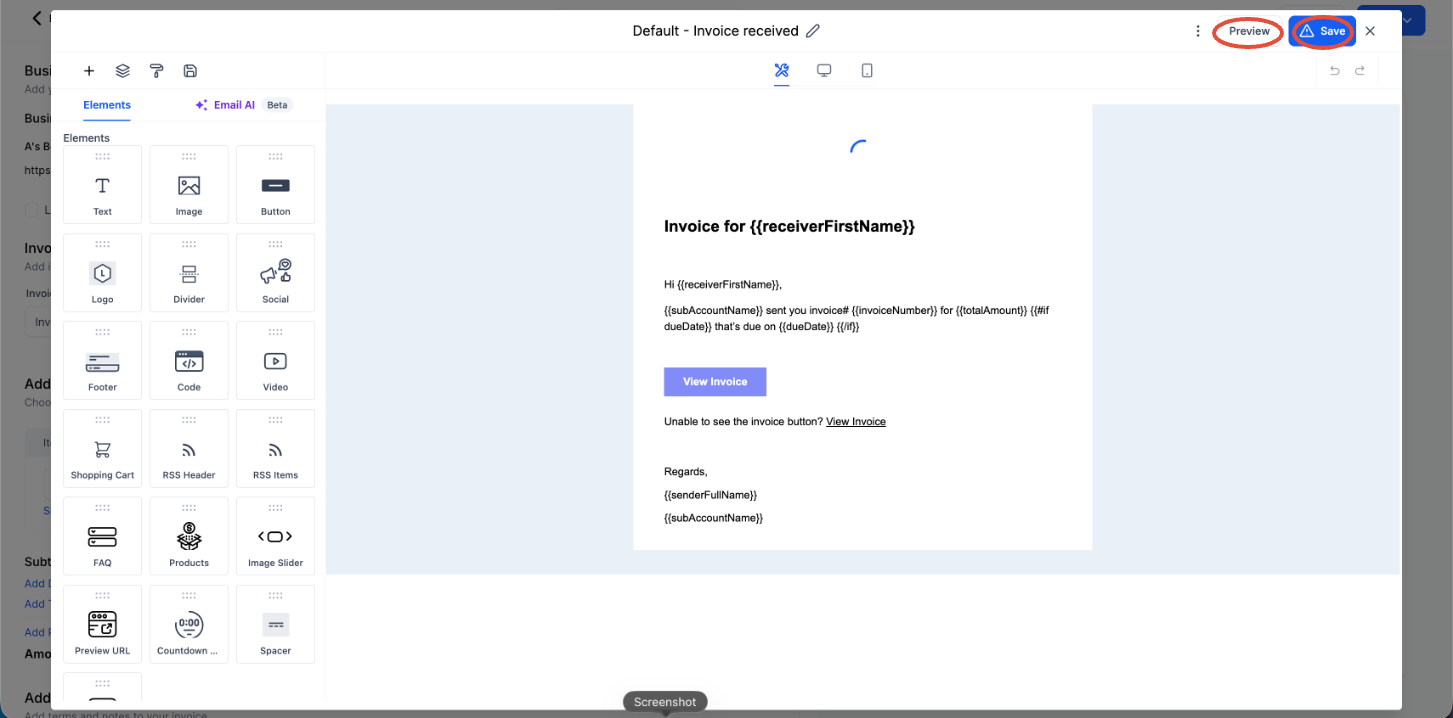
- Once you edit the elements you can see a preview and save the Template.
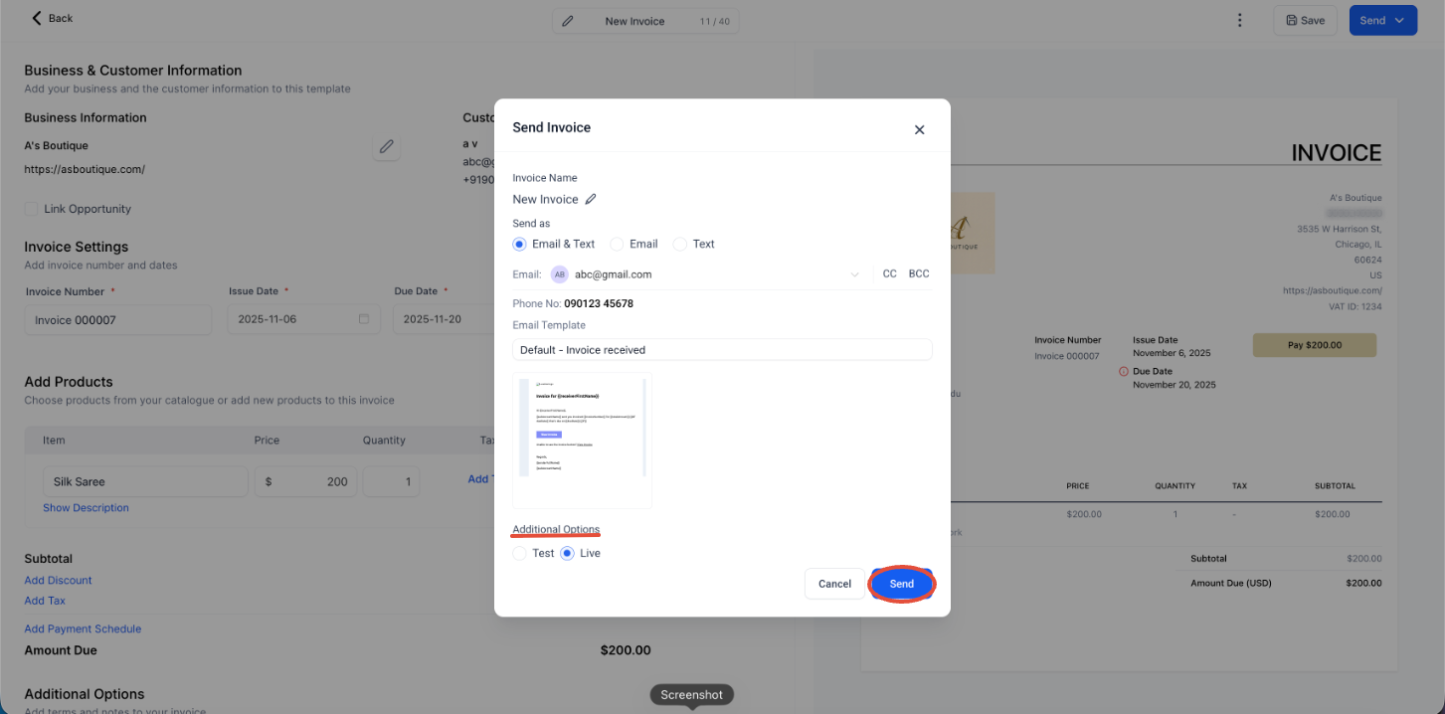
- Under Additional options you can set it to Test or Live mode, and click on Save
How to Get the Invoice Link
You can send the invoice link through Outlook or any external email platform:
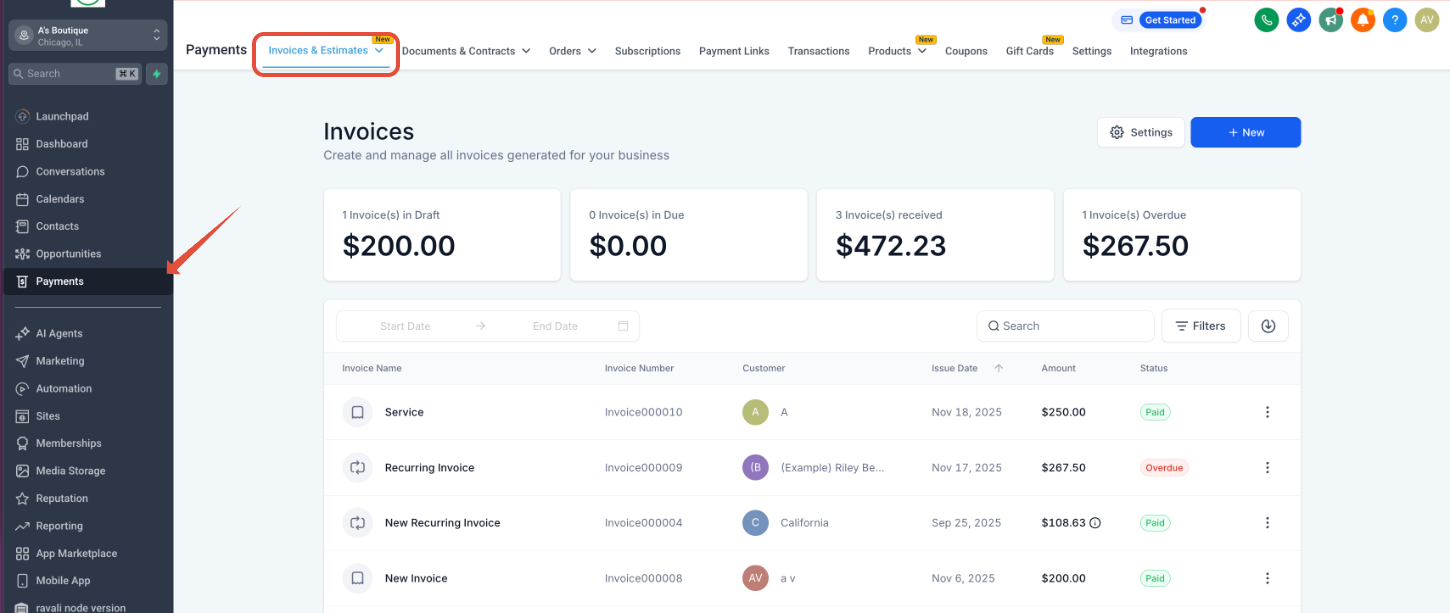
Go to the invoice.
Click the three-dot menu next to the invoice for which you need to copy the link.
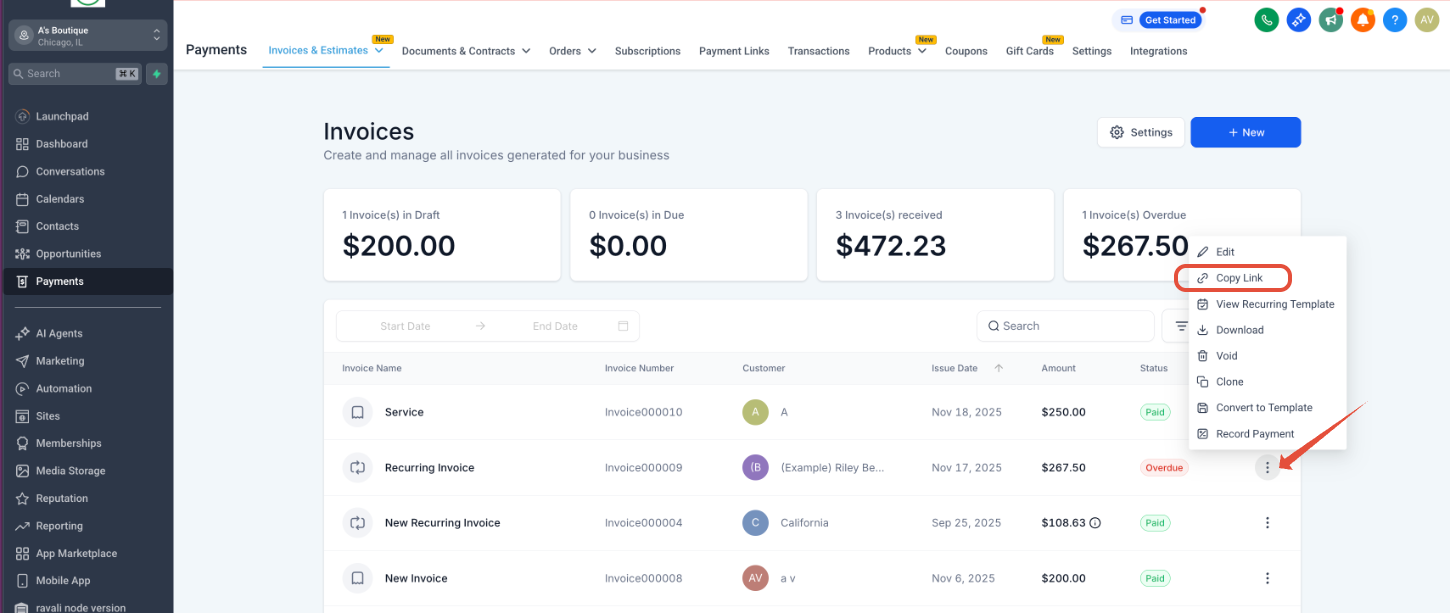
Choose Copy Link.
Paste this link directly into your Outlook email.
You can also download the invoice as a PDF and attach it to your email if you prefer.
Frequently Asked Questions (FAQ's)
Q: Why is my logo missing on older invoices, but shows up on new ones?
Your logo is missing because the original image file was deleted from your Media Library.
Invoices pull the logo from its original file location. If you delete that file, the link breaks for all existing invoices.
How to Fix It:
For New Invoices: The system is fine; it's using the current logo from your settings.
For Unpaid Invoices: Upload a new logo to your Media Library and make sure your Business Details are updated with this new image. The logo will reappear on these.
For Paid Invoices: The logo cannot be fixed because paid records cannot be edited. You would have to manually add the logo to the PDF if you need to resend a receipt.
Reference: Business Profile Settings - General Information
Q: I'm unable to enter text for my Terms & Conditions or notes in the invoice editor; only the formatting toolbar (Bold, Italic, etc.) is displayed. How do I fix it?
This issue is a local browser error that happens when the text editor fails to load correctly, usually due to a conflict with old data (cache and cookies) stored in your web browser.
To fix the missing text box:
Fully clear the cache and cookies in your web browser.
Close all tabs, then log back into your SourCherry account.
The text editor should now load correctly, allowing you to input your terms and conditions.
Q: Where to find the latest invoice linked to my account?
All invoices can be located under Payments in the Billing Dashboard from the agency view.
Q: My invoice says "Sent," but the client or agent never got it. What's wrong and how do I fix it?
Issues with email sending often stem from browser-related problems rather than system malfunctions. Specifically, outdated cached data and cookies in your web browser can create errors, leading to a false indication that an email has been sent.
To resolve this:
Instruct the team member to clear their browser's cache and cookies.
Have them log out and then log back into their account.
Attempt to resend the estimate.
If the problem persists, please contact support, as it may indicate a more significant issue with your email sending domain.
Q: How do I bill a client in USD if my account is set to another currency?
You cannot simply type the amount into an invoice. You must first go to Payments > Products, create a new product, and select USD from the currency dropdown menu. When creating the invoice, click Add Item and select that specific USD product. This ensures Stripe handles the currency conversion and processing correctly.
Q: I sent an invoice, but my client says the link is broken or they can't click it to pay. What happened and how do I fix it?
The payment link is disabled because the invoice is past its scheduled due date. The system automatically deactivates the payment option when the payment date has already passed.
To fix it:
you must send a new invoice with a corrected schedule:
Duplicate (Clone) the original invoice.
Adjust the Payment Schedule dates to a current or future date.
Resend the new invoice to your client. The link will then be active.
Q: Can I charge a one-time setup fee and a monthly subscription on the same invoice?
No. Because the system manages one-time and recurring payments using different billing logic, you must create two separate invoices to handle these charges:
One-Time Invoice: Use this to bill for the setup fee. This is a single, non-repeating transaction.
Recurring Invoice: Use this to bill for the monthly subscription. This allows the system to automatically generate new invoices and charge the client on a repeating schedule.
Q: Why am I receiving an error when trying to send an invoice via text (SMS)?
This usually happens for one of two reasons:
Invalid Number: The phone number might be incorrect, out of service, or unreachable.
DND Enabled: The recipient may have DND (Do Not Disturb) enabled on their carrier settings, which blocks automated or promotional text messages.
Q: Why does the system seem to be skipping invoice numbers ?
This typically happens when Draft invoices are deleted. Invoice numbers are reserved the moment an invoice is created, even if it is still in Draft mode.
Q: Can I reuse a skipped invoice number to keep my records sequential?
Yes. While the system will not automatically recycle the deleted number, you can manually override the invoice number field when creating a new invoice. Simply type in the skipped number to maintain continuity in your ledger.
Q: Can I "unvoid" an invoice or mark a voided invoice as paid?
No. In SourCherry, voiding an invoice is considered a final action. Once an invoice is voided, its value is set to zero for accounting purposes, and it cannot be moved back to "Sent," "Open," or "Paid" status.
Q: Where do I find the notes I added when recording a manual payment?
Notes added during a manual payment (Cash, Check, or Bank Transfer) are stored within the Transaction details of the invoice. To view them, follow these steps:
Navigate to Payments > Invoices.
Locate and click on the specific Paid invoice you want to check.
Click the three dots (⋮) at the top right of the invoice screen.
Select View Transaction from the dropdown menu.
In the transaction window that appears, look for the Notes section. Your previously recorded notes will be displayed there.
Q: How do I change an invoice from Test mode to Live mode?
Once an invoice is created in Test mode, it cannot be converted to Live. To send it live, clone the invoice and send the cloned version in Live mode.
Go to Invoices
Locate the invoice created in Test mode
Click the three dots (⋮) next to the invoice
Select Clone
Open the cloned invoice (it will be created as a Draft)
Review or edit details if needed
Click Send and Choose Live mode when sending
Q: My client says they never received their invoice. How can I verify this?
You can track the exact journey of an invoice email through the Conversations tab. This provides real-time data from the mail server that the "Sent" status in the Invoices tab cannot show.
Step 1: Go to the Contact Record for the client in question.
Step 2: Click on the Conversations tab in the center of the screen.
Step 3: Locate the outbound message containing the invoice.
Note: Ensure you are looking at the Email icon (envelope) and not the SMS icon (phone), as automated invoices are typically sent via email.
Step 4: Hover over the message and click the three dots (More Actions), then select Details.
Q: Why do I get a “Something went wrong” error when trying to send an invoice?
This error usually occurs when the invoice has not been fully saved before attempting to send it. When you click Send, the system first creates (clones) a finalised copy of the invoice for delivery via email or SMS. If the invoice is still in a draft or unsaved state, this cloning process fails and triggers the generic “Something went wrong” error.
Open the invoice you want to send.
Click Save and wait for the “Successfully Saved” confirmation message.
Once saved, click Send again.
Q: Why is the tax not calculated correctly on my invoice after I apply a discount?
This issue often occurs due to a conflict in your global Tax Inclusion Settings, which dictates how the price and tax are calculated relative to each other.
To fix this, you need to ensure the system knows that the product price should be treated as exclusive of tax before applying any discount:
Navigate to Payments → Settings.
Change the Tax Inclusion setting from the incorrect option (e.g., "Tax will be included in the purchase price") to:
"Tax will not be included in the purchase price. The price shown to the customer is not inclusive of tax."
This forces the system to calculate the tax and add it after the discounted subtotal, correcting the final invoice amount.
Q: Does a late invoice show both the original amount and the late fee?
Yes. When a late fee is applied, it is added to the same invoice, showing both the original amount and the late fee as a single total. The customer is also notified by email when the late fee is charged.
Note:
For more details, refer to”https://SourCherry.canny.io/changelog/late-fees-on-invoices-now-live”.
Q: Why am I getting an error when setting installment due dates on an invoice?
Because installment due dates must be on or before the main invoice due date. Update the invoice’s main due date first, then set the instalment dates and save.
Q: Why is the invoice not sent immediately?
If the system says the invoice will arrive “in one day” even though the due date is set to today, check the following:
Issue Date vs. Due Date
Make sure the Issue Date is set to Today. If the issue date is in the future (even by one day), the system will delay sending, regardless of the due date.Timezone Settings
Go to Settings → Business Profile and verify the account timezone. If it’s set to a different timezone (e.g. US/Eastern), “today” may not have started yet for the system.Recurring vs. One-Time Invoice
Recurring invoices are processed in scheduled batches. For immediate delivery, use a One-Time Invoice and click Send manually.
Q: How can I send an invoice to multiple recipients?
By default, invoices are sent only to the primary email address on the contact. To send it to additional recipients, click Send and use the CC option to add another email address before sending.
Q: How can I collect a client’s credit card details before a future invoice date?
Scheduled invoices do not collect credit card details until they are sent on the due date. The system only saves (“vaults”) a card when a transaction or authorization happens.
If an invoice is scheduled for a future date (e.g., February 1st), it is not sent yet, so the client has no way to enter their card details.
To collect card details in advance:
Add a small setup fee (recommended):
Add a one-time setup fee (e.g., $1). The invoice is sent immediately, the client pays the small amount, and their card is saved for the future charge.Use a trial period:
Start the recurring invoice today and add a trial period that ends on the billing date. The client enters their card to start the trial, and the full charge happens when the trial ends.Use a zero-dollar order form:
Create an order form that collects credit card details without charging. Once the card is saved, enable auto-payment on the future invoice.
How we can improve invoices: Feedback Form