
Showcase your work by adding real‑world photos, like before‑and‑after shots, to SourCherry review requests. Visual context helps customers recall results, increases response rates, and strengthens social proof.
TABLE OF CONTENTS
Overview of Adding Images to Review Requests
Attach photos to review requests from the Send Review Request modal in Reputation. Upload up to five images per request to add real‑world context, like before‑and‑after shots, that reinforces the results you delivered.
The images are sent with the message and appear in the contact’s Conversations thread for your team to reference. Customers can use these photos in their reviews as well, improving review quality and credibility!
Key Benefits of Adding Images to Review Requests
- Personalization: Add job‑specific visuals that make each request feel unique.
- Higher Engagement: Images help customers recall the work, increasing the chance they click the review link.
- Trust & Credibility: Real photos validate quality and create stronger social proof.
- Channel Flexibility: Use the same images for Email and/or SMS in one send.
- Easy to Use: Upload up to five photos directly from the review request modal
Supported Channels
Use the guide below to confirm which channels support image attachments. This helps you choose the right delivery method and keep expectations clear across your team:
- Email (Supported): Photos display below the email content as file attachments.
- SMS (Supported): Images sent as message attachments.
- WhatsApp (Not Supported): WhatsApp review requests cannot include image attachments.
Important: Adding photos to review requests is not yet supported in the Mobile App.
Supported File Types & Limits
Use compliant formats and sizes to ensure your images upload smoothly and look great for recipients.
Max Photos per Request: Up to 5.
Supported Formats: JPG, PNG, JPEG.
Max File Size: 5 mb
How To Send a Review Request with Photos
Uploading an image only takes a few clicks! Follow these steps to start sending out images with your review requests.
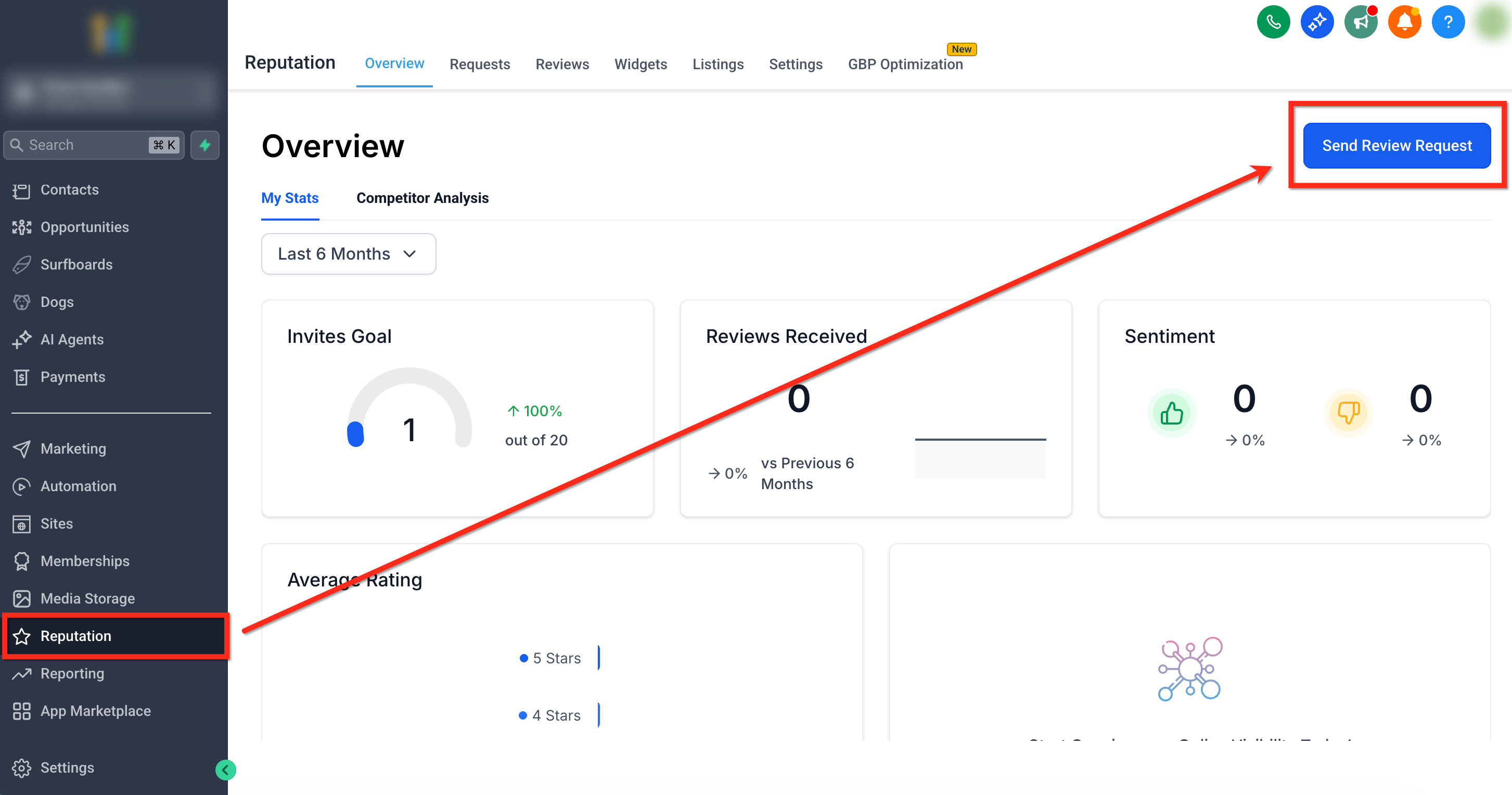
Step 1: Navigate to "Send Review Request"
From your sub‑account, select the Reputation tab in the left navigation. Then click the blue Send Review Request button in the top‑right of the screen.
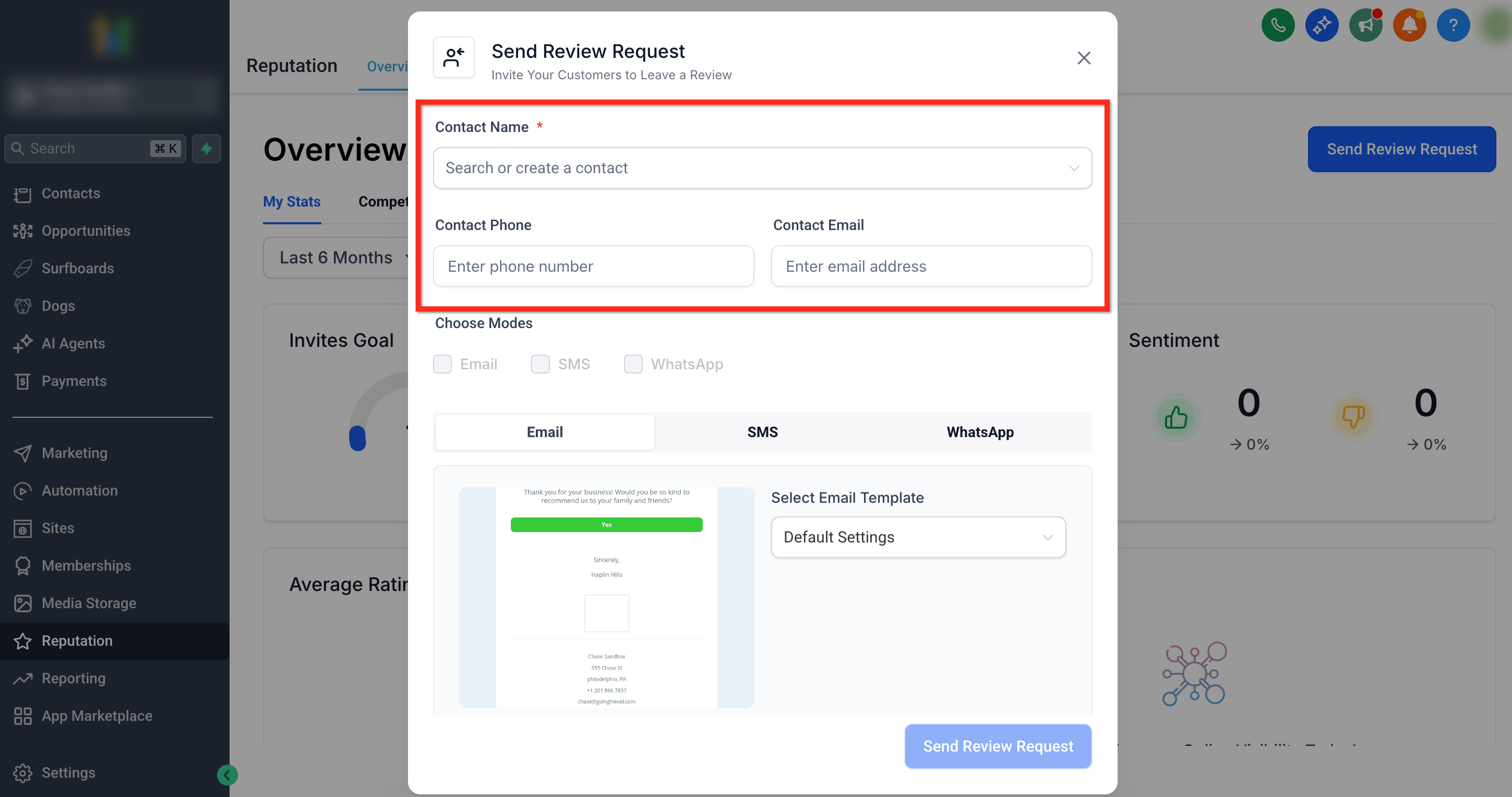
Step 2: Select a Contact
Search by Contact Name and select the correct contact record. Ensure Contact Phone and/or Contact Email are present based on the channel(s) you’ll use.
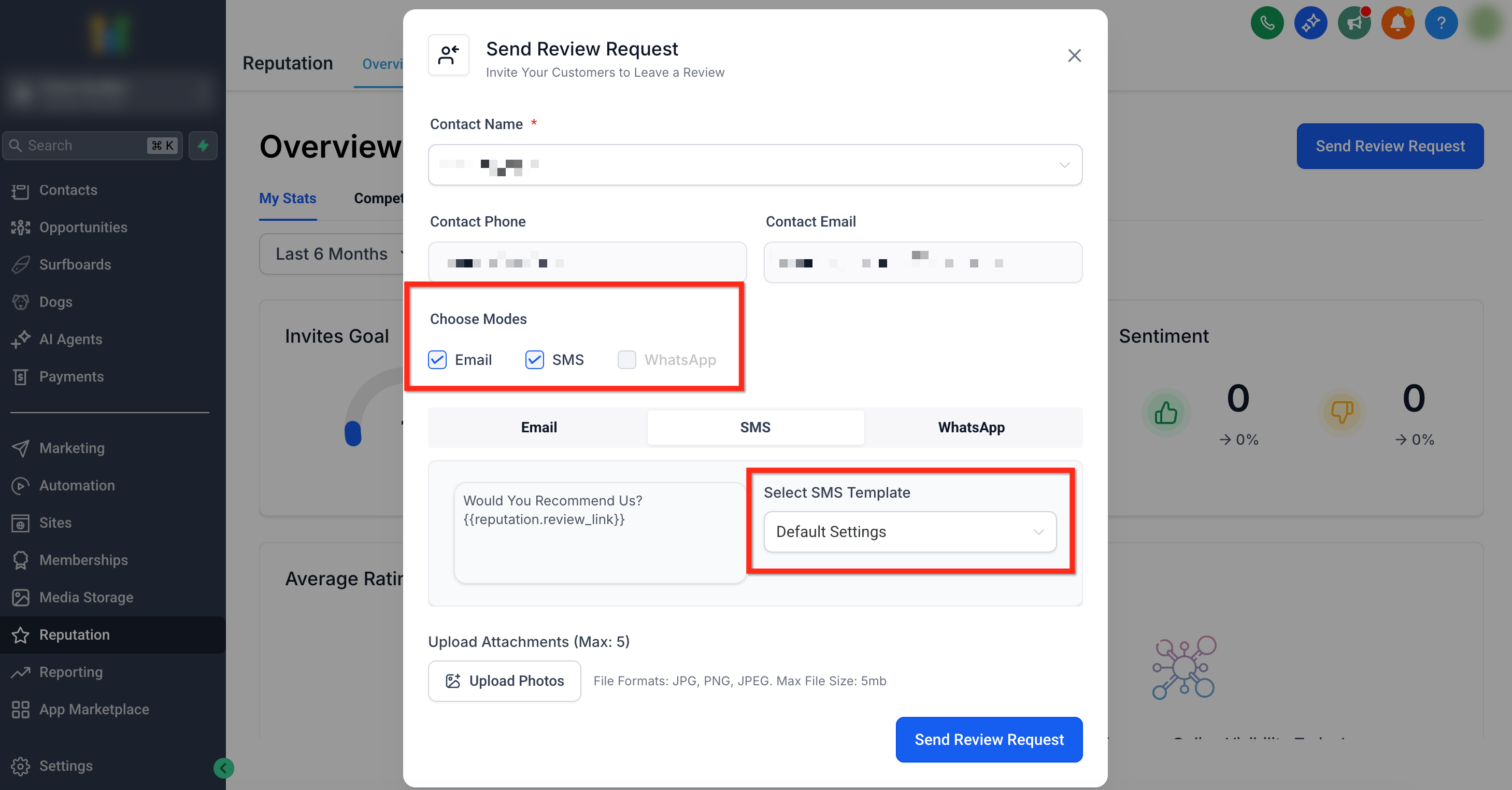
Step 3: Choose Delivery Channel & Template
Use the Choose Modes checkboxes to select your delivery channel (Images are supported on Email and SMS; WhatsApp does not support images.)
Use the Select Email Template and/or Select SMS Template dropdowns to select the review request template that will be used.
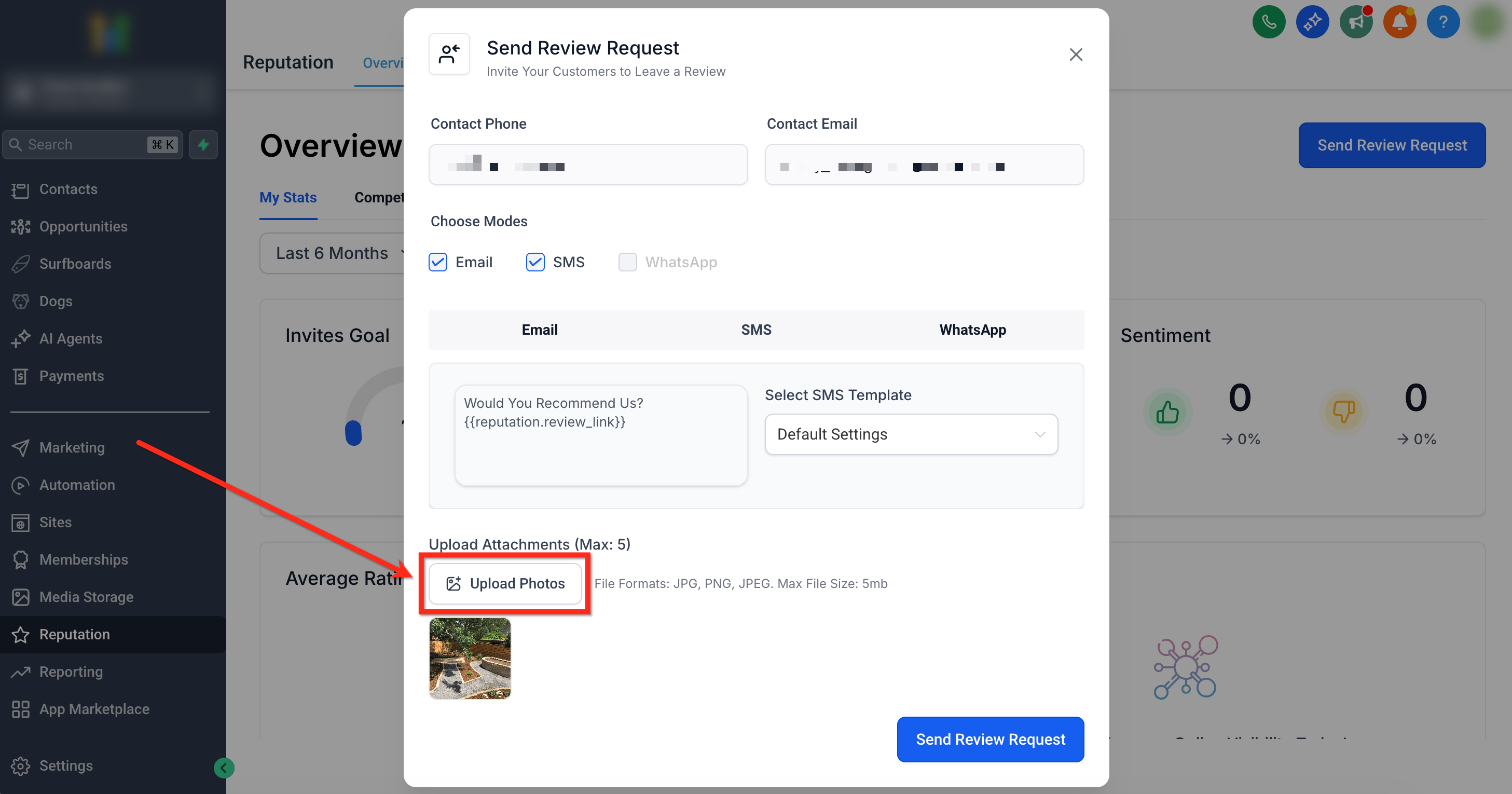
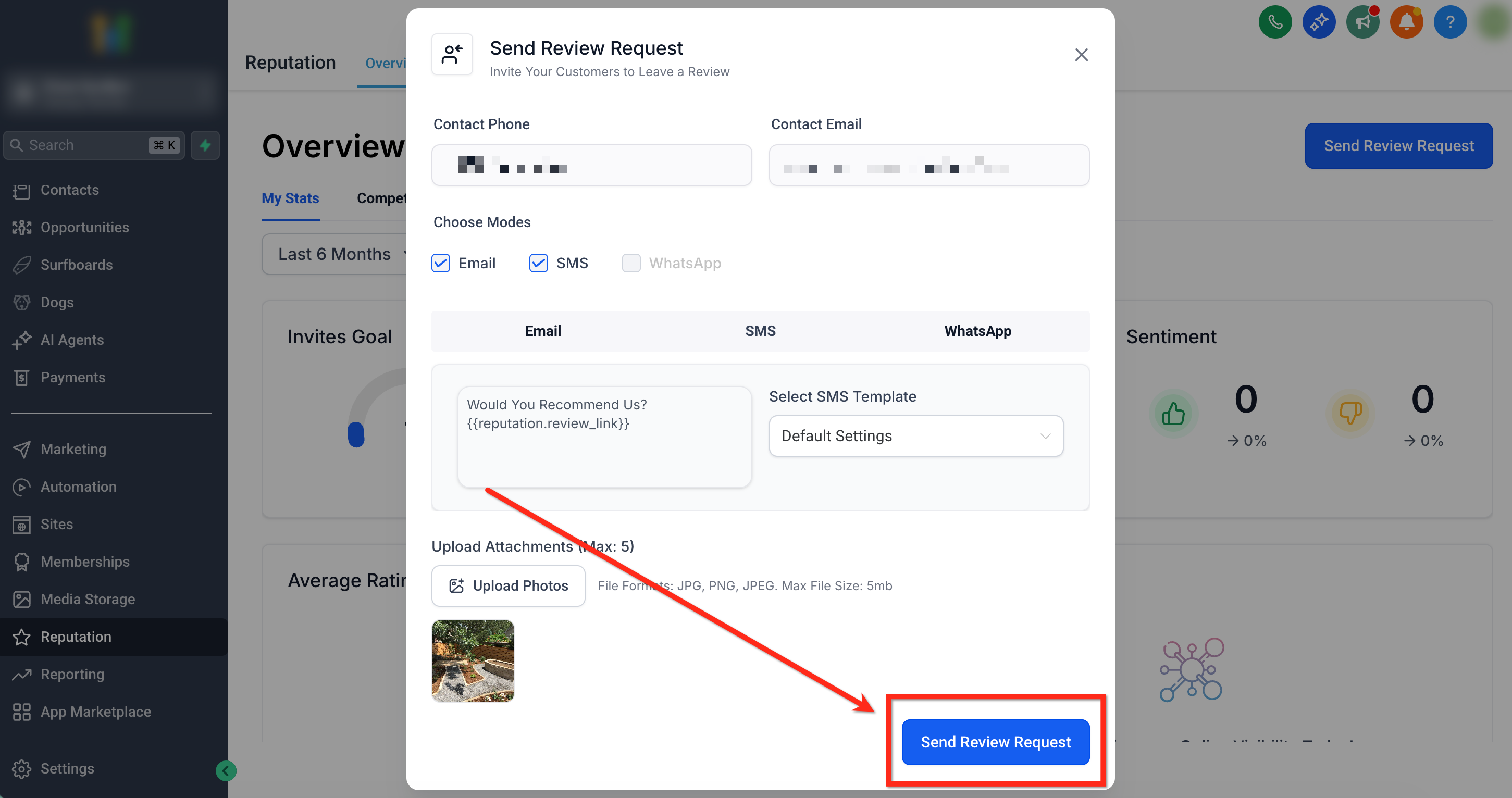
Step 4: Upload Photos
Click the Upload Photos button and select up to 5 photos to attach to your review request. A preview of the selected photos will be show directly below the Upload Photos button
Step 5: Send Review Request
Click the blue Send Review Request button to send out your request.
Frequently Asked Questions
Q: Will the same images be used if I send both Email and SMS review requests?
Yes. The same uploaded images are included for both channels when both channels are selected.
Q: Are photos saved in templates or a media library?
No. Photos are added during send and appear with the outbound message in Conversations; they are not stored in templates or the media library via this feature.
Q: Is this available on the SourCherry mobile app?
Not yet. It’s currently available in the web app, with mobile support planned.
Q: Can I automate review requests with photos using Workflows?
Not at this time. Image attachments are added manually in the Send Review Request modal.