
TABLE OF CONTENTS
- What is the Customizable Message Field in Chat Widgets?
- Key Benefits of the Customizable Message Field
- Pre-Defined Message Field Logic
- Customizing the Pre-Filled Message
- Visitor Editing Experience
- Supported Chat Widget Types
- How To Set Up the Customizable Message Field
- Frequently Asked Questions
- Related Articles
What is the Customizable Message Field in Chat Widgets?
Key Benefits of the Customizable Message Field
- Guarantees a clear, consistent first message for every chat.
- Keeps contact information inside CRM records, not exposed in the chat thread.
- Preserves flexibility—works whether your contact form already has a message field or not.
- Improves agent efficiency by giving context up front.
- Enhances marketing attribution by ensuring each transcript starts with visitor intent.
Pre-Defined Message Field Logic
- If your contact form lacks a message field, this field is mandatory and pre-populated with editable text.
- If your form already contains a message field, the field is optional—you can keep, remove, or reorder it.
- The widget saves, embeds, and generates code seamlessly in either case.
Customizing the Pre-Filled Message
- Click the Message field and type any default text (max 255 characters).
- Insert merge fields (e.g., ) for dynamic branding.
- Rearrange the field order via drag-and-drop.
- Toggle “Required” on/off when the field is optional.
Visitor Editing Experience
- Send it as-is for a quick start.
- Modify or delete the content before submitting.
- Benefit from immediate context with no extra typing.
Supported Chat Widget Types
- WhatsApp Chat Widget
- Email/SMS Chat Widget
- All-in-One Chat Widget (multi-channel)
- Voice AI Chat Widget
Note: Live Chat widgets still rely on the existing free-form message box and do not include this new field.
How To Set Up the Customizable Message Field
Open Chat Widget Settings
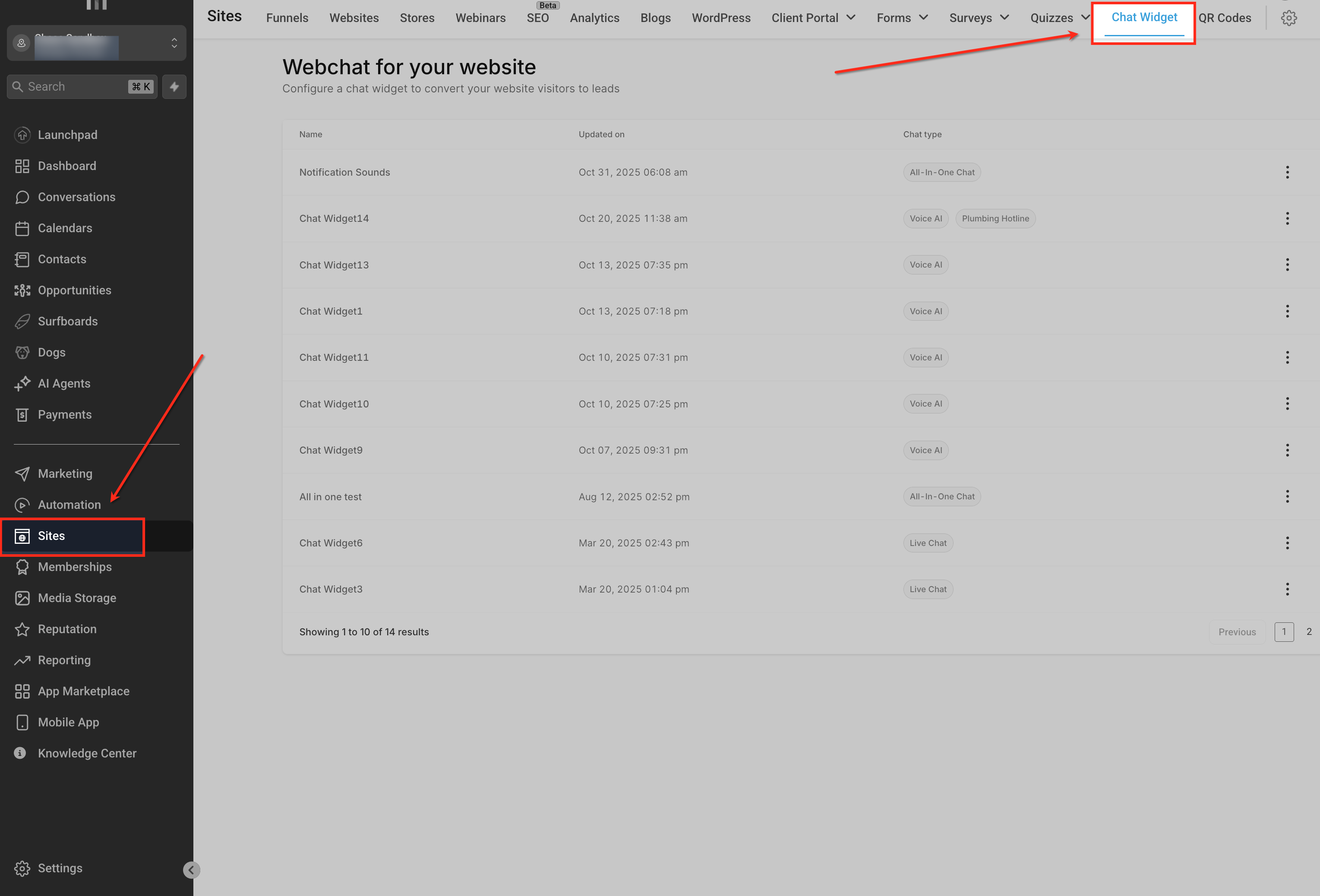
From the left-hand navigation menu, go to Sites and select Chat Widget at the top.
This opens the main dashboard where you can view, manage, and edit all existing chat widgets created for your account.
Create a New Widget
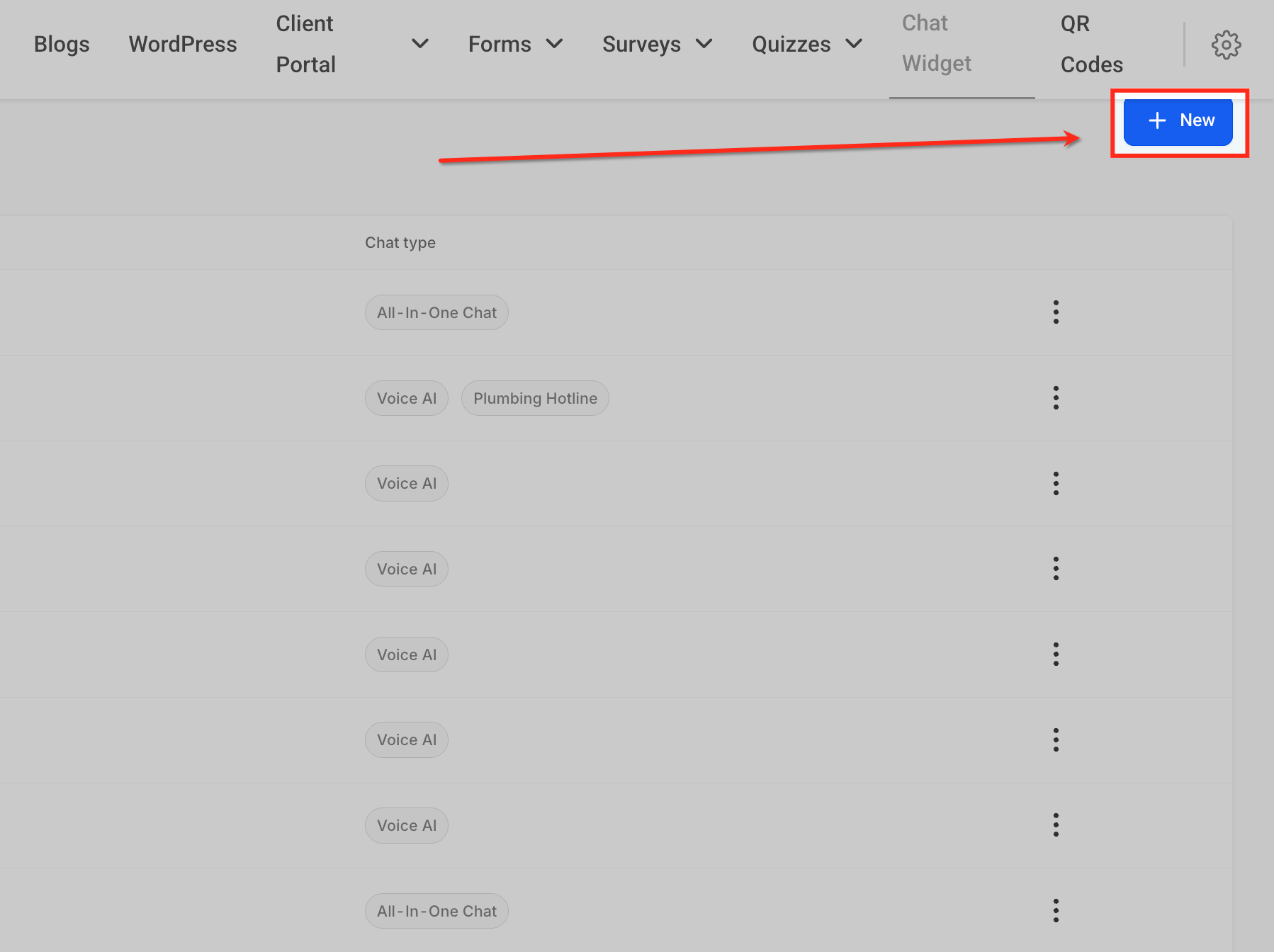
Click the + New button in the top-right corner of the Chat Widget page.
This begins the setup process, allowing you to choose the widget type (WhatsApp, Email/SMS, All-in-One Chat, or Voice AI) and start customizing its design and behavior.
Select Chat Type
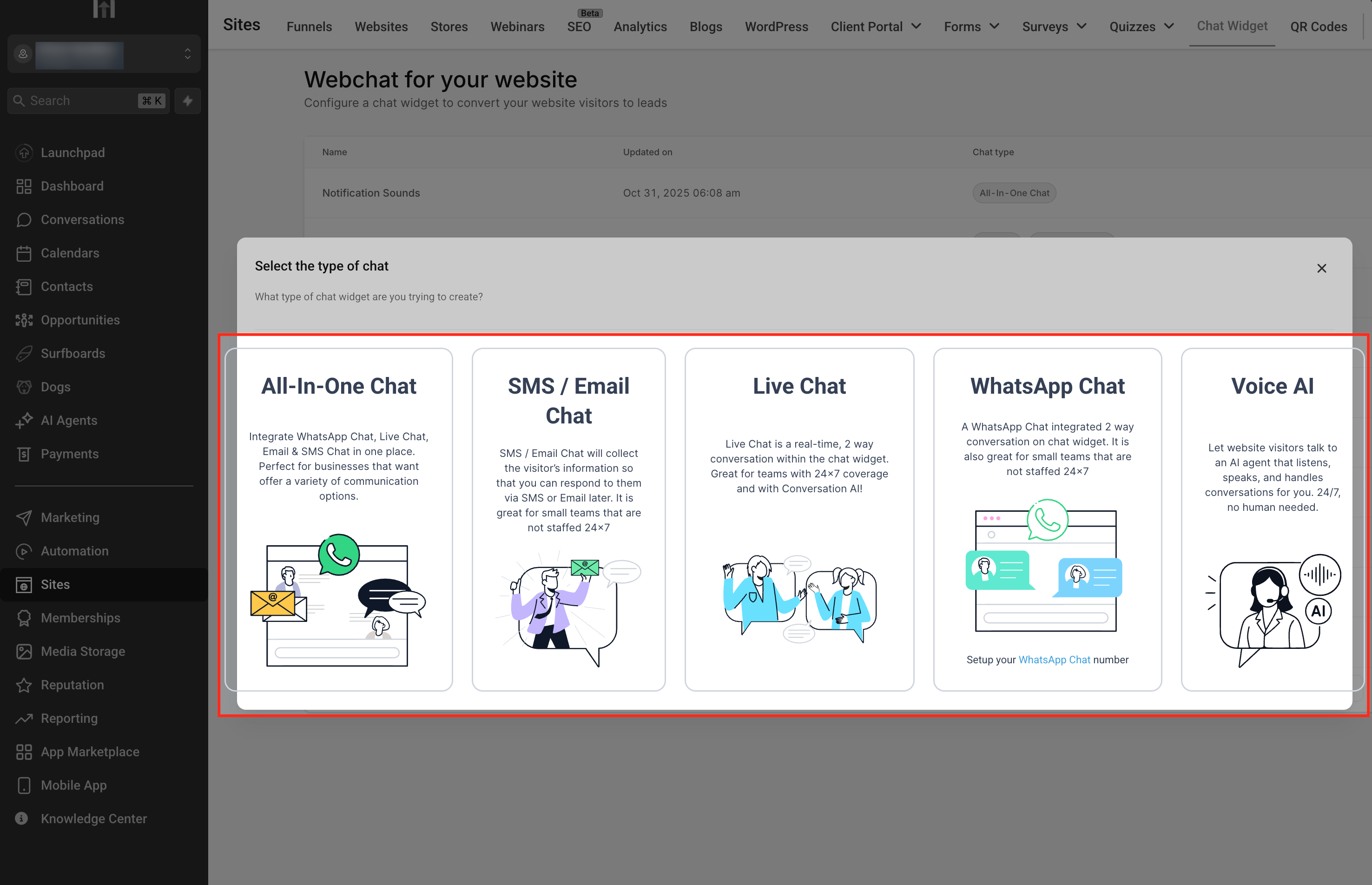
Choose the type of chat widget you want to create from the available options — All-In-One Chat, SMS/Email Chat, Live Chat, WhatsApp Chat, or Voice AI.
Each option supports different communication methods, so pick the one that best fits how you want to interact with your website visitors.
Configure Chat Window
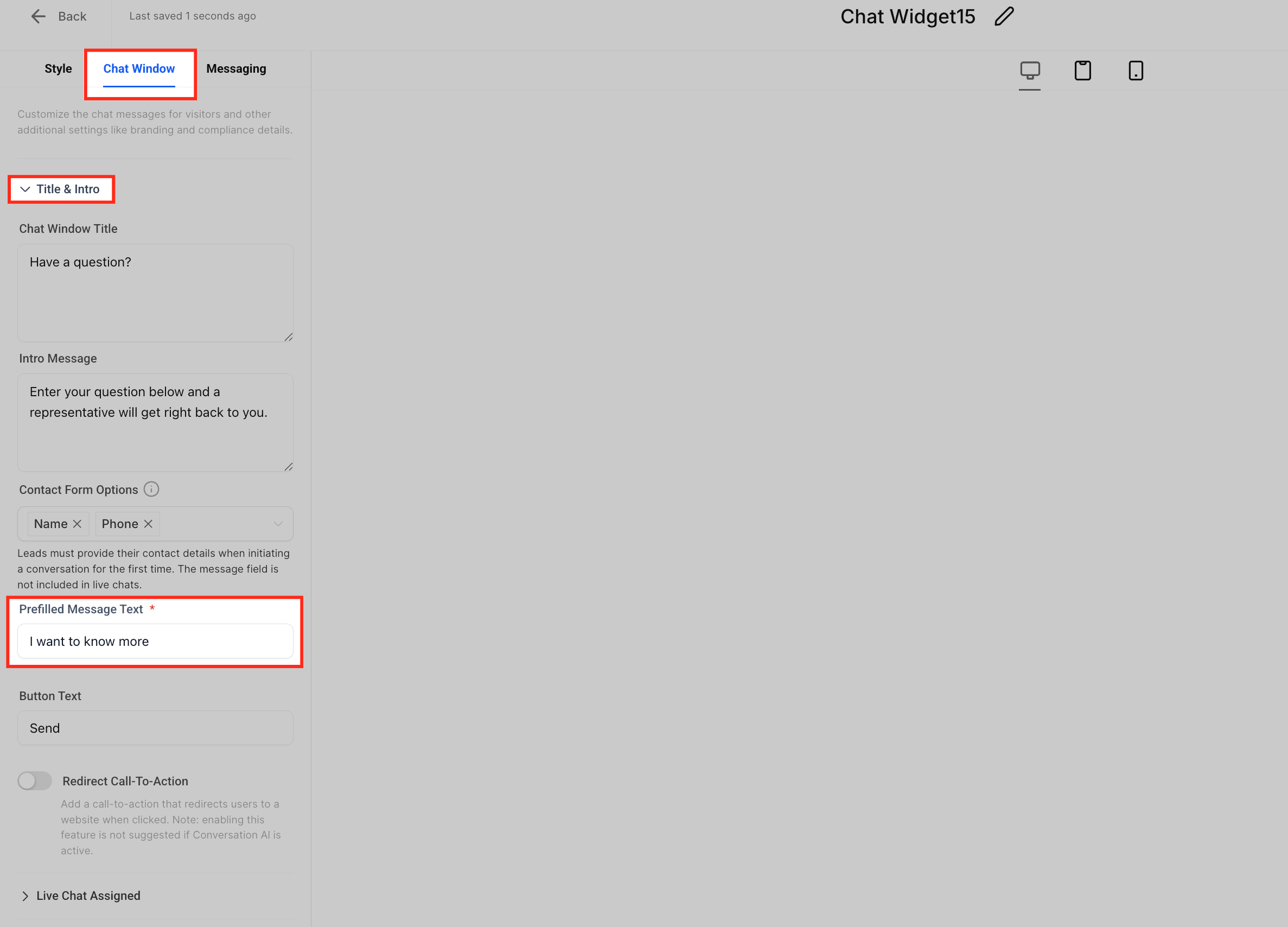
After selecting the chat type, open the Chat Window tab to customize visitor-facing details.
Here, you can edit the Chat Window Title, add an Intro Message, and define a Prefilled Message Text—a default message visitors see when starting a chat, which they can edit before sending.
Frequently Asked Questions
Q: Does this replace my existing message field?
No. If your form already has one, the new field is optional—you choose which to keep.
Q: Can I use different default messages on different pages?
Yes. Create multiple widgets with unique pre-filled text and embed each on specific pages.
Q: Is the visitor’s edited message stored in the contact record?
The final message appears in the conversation transcript; personal details remain in the CRM contact.
Q: Does Live Chat support this feature?
Not yet. Live Chat continues to use its native free-text box without a pre-filled value.
Q: Can I remove the field later without breaking my embed code?
Absolutely, edit the widget in SourCherry, remove the field, save, and the live widget updates automatically.
Q: How many characters can the default text contain?
Up to 255 characters, including spaces.
Q: Will workflows that trigger on “Customer Replied” still work?
Yes. The visitor’s first submitted message (pre-filled or edited) triggers any “Customer Replied” automation.