
Sending Gift Cards is a powerful feature that allows businesses to issue gift cards directly to any customer—without requiring a purchase or payment. This article explains how to send gift cards directly to a recipient from SourCherry.
TABLE OF CONTENTS
- What is Sending Gift Cards?
- Key Benefits of Sending Gift Cards
- Use Cases for Sending Gift Cards
- Prerequisites for Sending Gift Cards
- How to Send a Gift Card
- Delivery Methods Explained
- What Happens After a Gift Card Is Sent
- Key Behaviors & Limitations
- Frequently Asked Questions
- Related Articles
What is Sending Gift Cards?
Sending a gift card creates a one-time, prepaid credit and delivers it to a chosen recipient via email, SMS, PDF, or QR code, without requiring the contact to purchase it. This is ideal for make-goods, loyalty gestures, VIP perks, and internal tests. Redemption happens on supported SourCherry-powered checkouts where gift cards are accepted. The Send flow works exclusively in Live Mode currently, ensuring only real, fully functional gift cards are delivered.
Key Benefits of Sending Gift Cards
One-to-one issuing: send a gift card to a single recipient instantly or on a schedule.|
No checkout required: issue prepaid value without charging the recipient.
Flexible delivery: deliver via Email, SMS, PDF, or QR depending on your contact data and use case.
Frictionless redemption: recipients can redeem on supported checkouts with their code or link.
Operational visibility: track orders, code, amount, and status under Gift Card Orders.
Great for service recovery: compensate for support issues quickly and professionally.
Use Cases for Sending Gift Cards
Sending Gift Cards manually is ideal for:
- Loyalty & Rewards: Reward customers for milestones, referrals, or premium plan renewals.
- Customer Support Compensation: Issue a gift card instead of a manual credit or refund.
- Promotions: Run giveaways, holiday gifting, influencer campaigns, or targeted perks.
- Internal Testing: QA teams, admins, or developers can test redemption flows.
- Bulk Manual Distribution: Gift VIP customers or event attendees a prepaid balance.
Prerequisites for Sending Gift Cards
Before sending a gift card, ensure:
A Gift Card Product exists
The Gift Card Product is Active (not Deactivated or Archived)
The customer receiving the card has either:
An email address, or
A phone number (for SMS delivery)
How to Send a Gift Card
Step 1: Navigate to Gift Card
- Login to your sub-account.
- Go to Payments → Gift Cards.
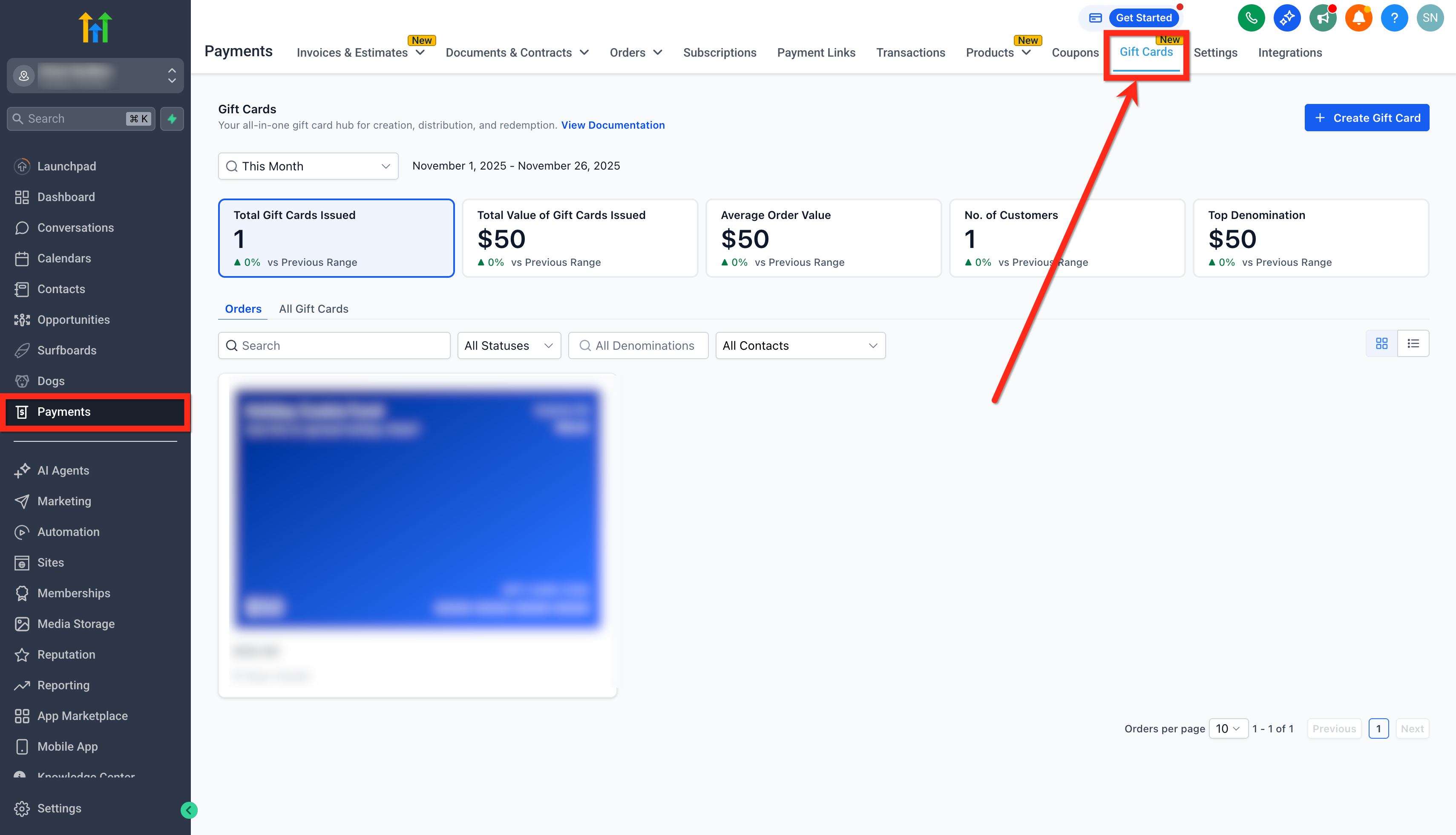
- Create a Gift Card or select an existing Gift Card from the All Gift Cards list.
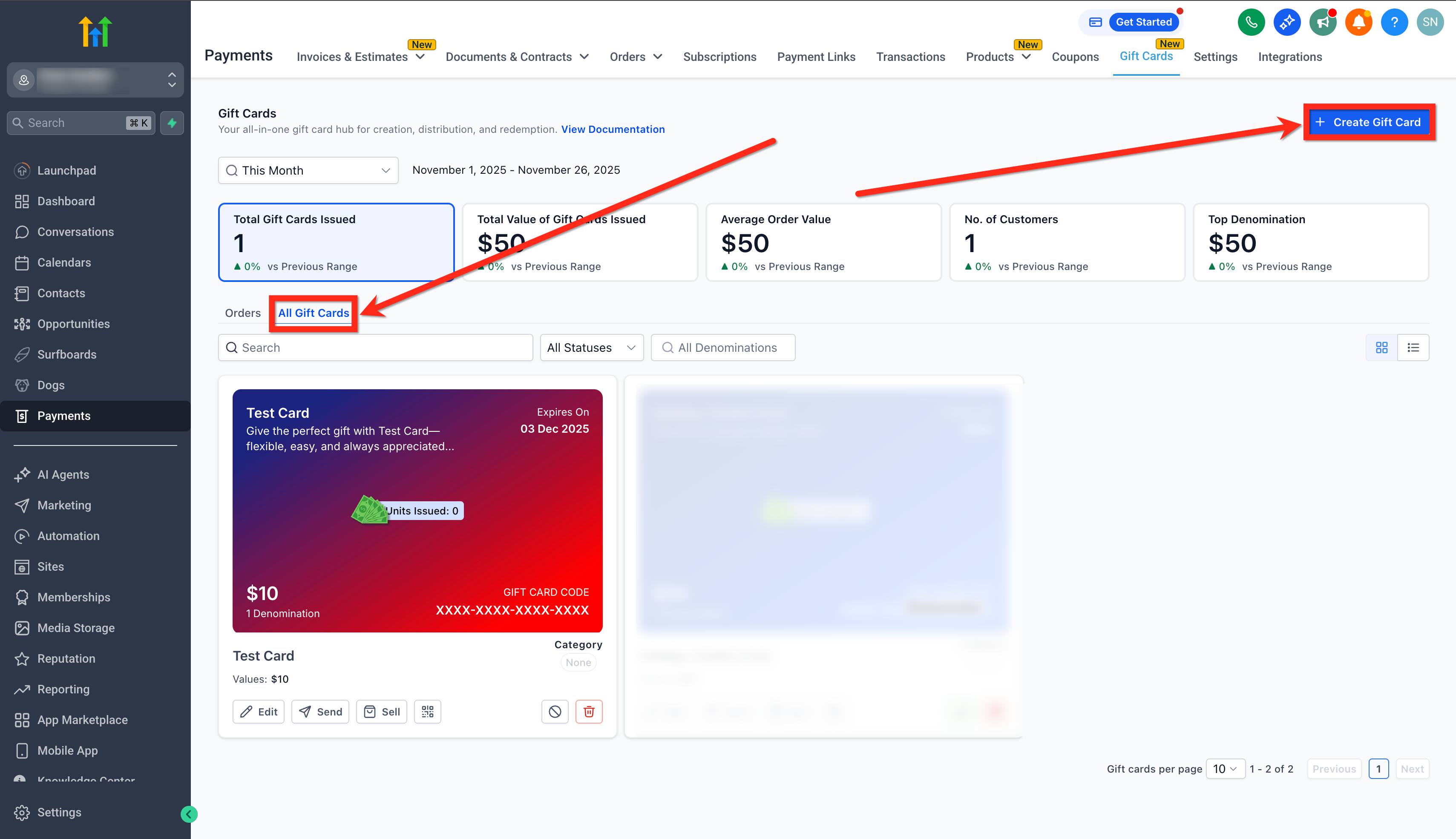
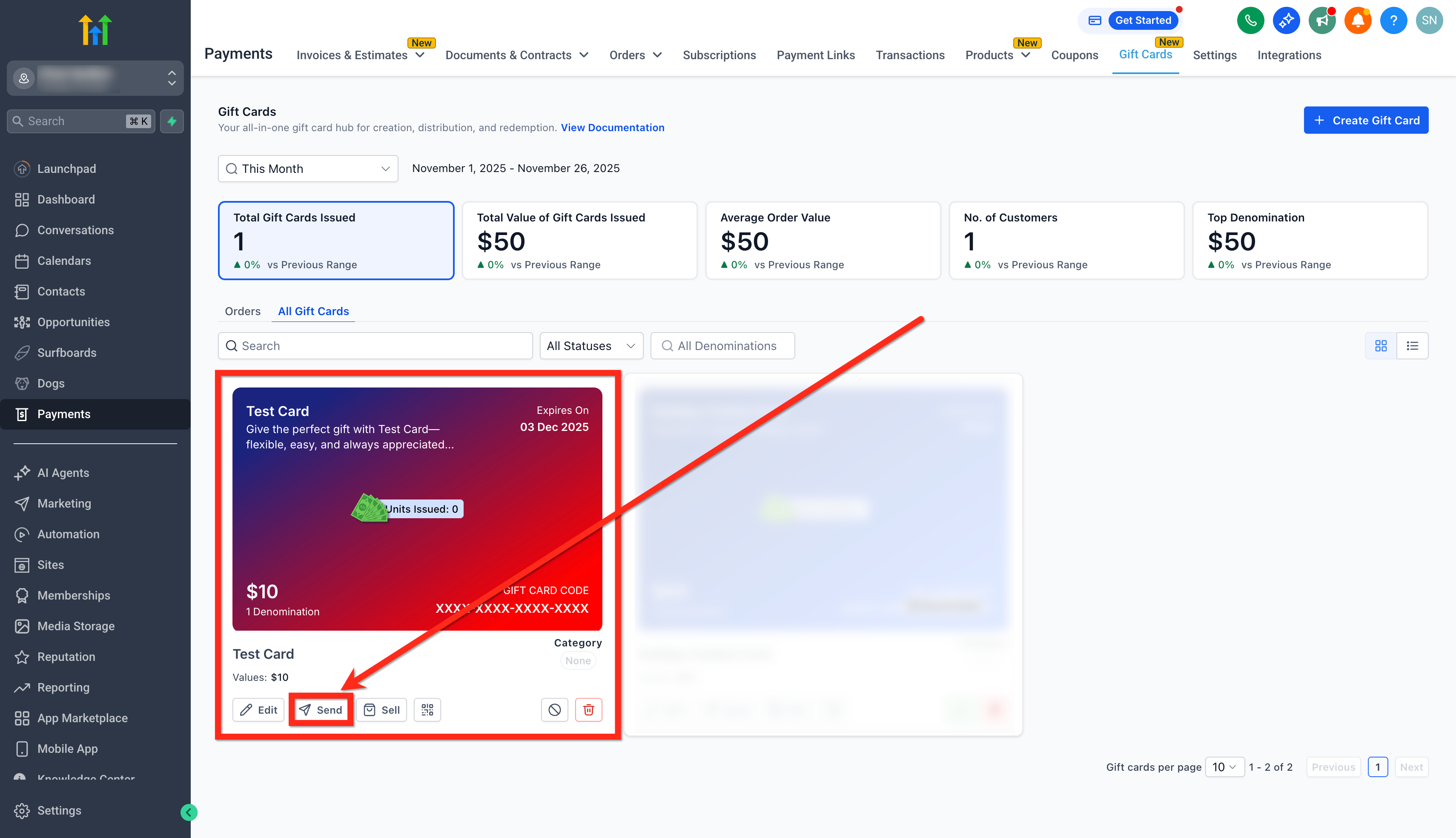
- On the Gift Card you want to send, click the Send button. You will now enter the Send flow.
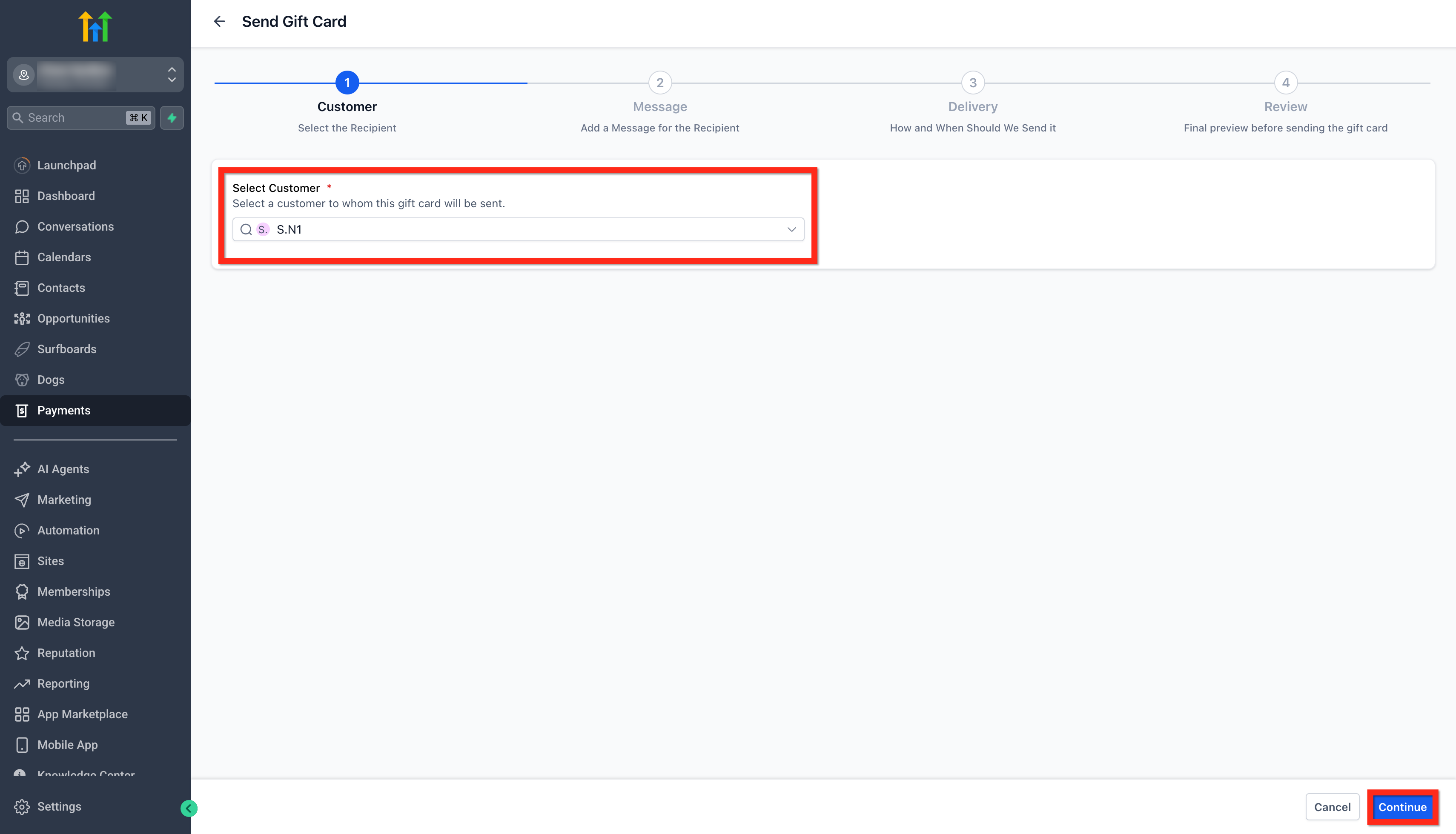
Step 2: Choose a Customer/Contact
- Choose the recipient: Select an existing customer/contact from your list.
- or Add a Contact before sending.
- Click continue.
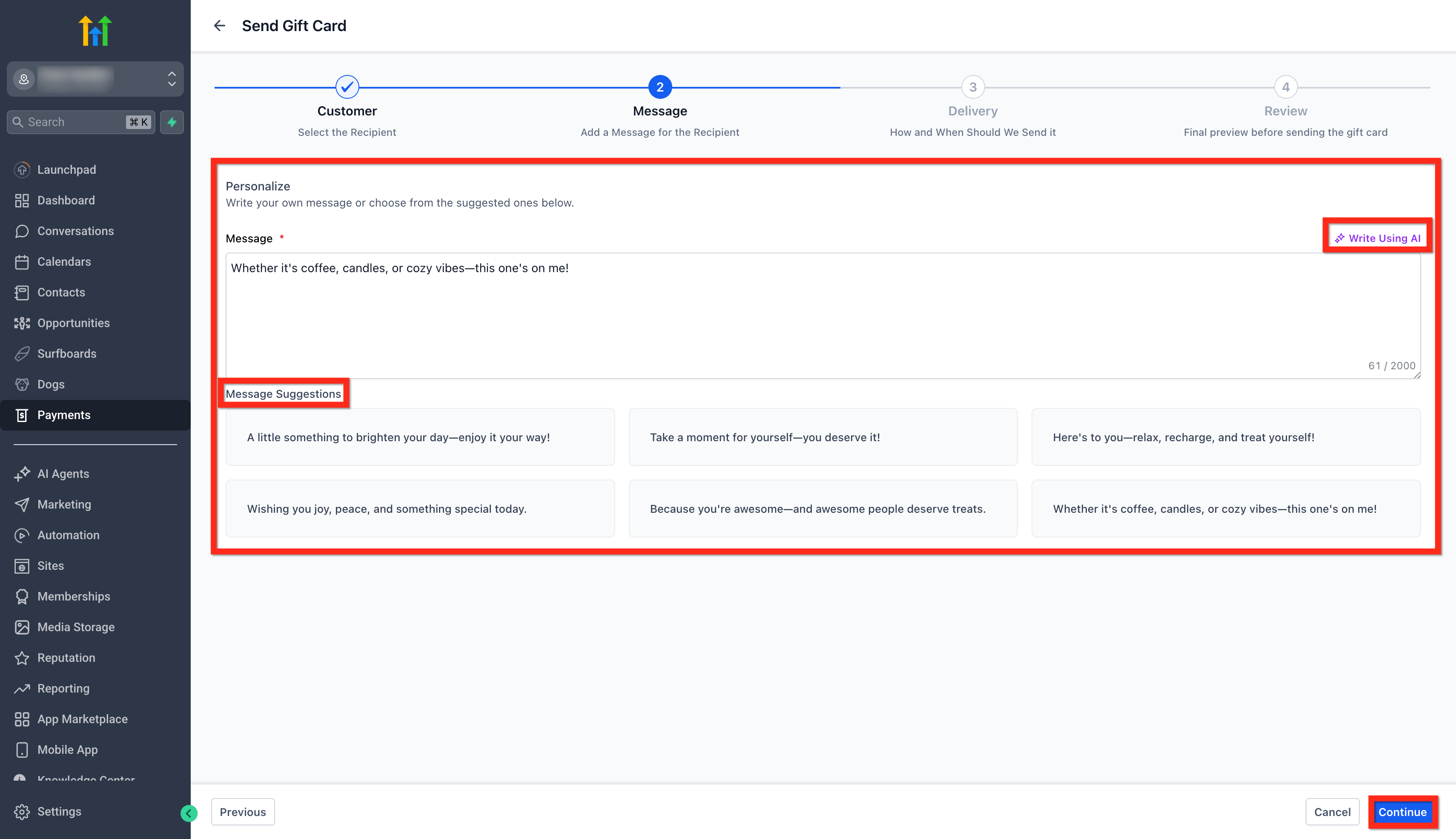
Step 3: Add a Personal Message
- A custom greeting, special instructions, or a note of appreciation.
- or a message from the pre-populated messages.
- or a message generated using Write with AI.
- Click continue.
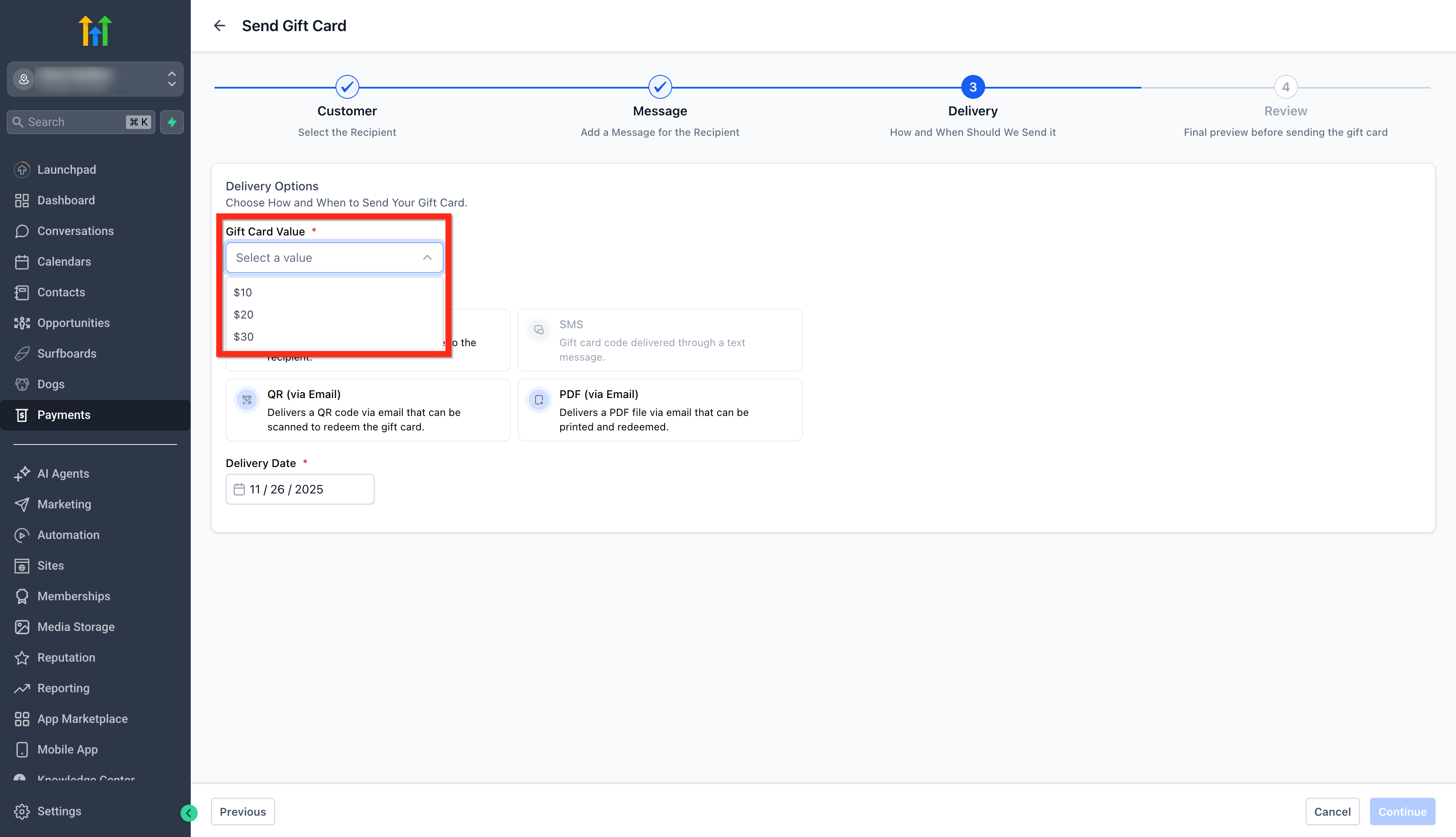
Step 4: Select a Denomination
- Choose one of the preset denominations configured for the product.
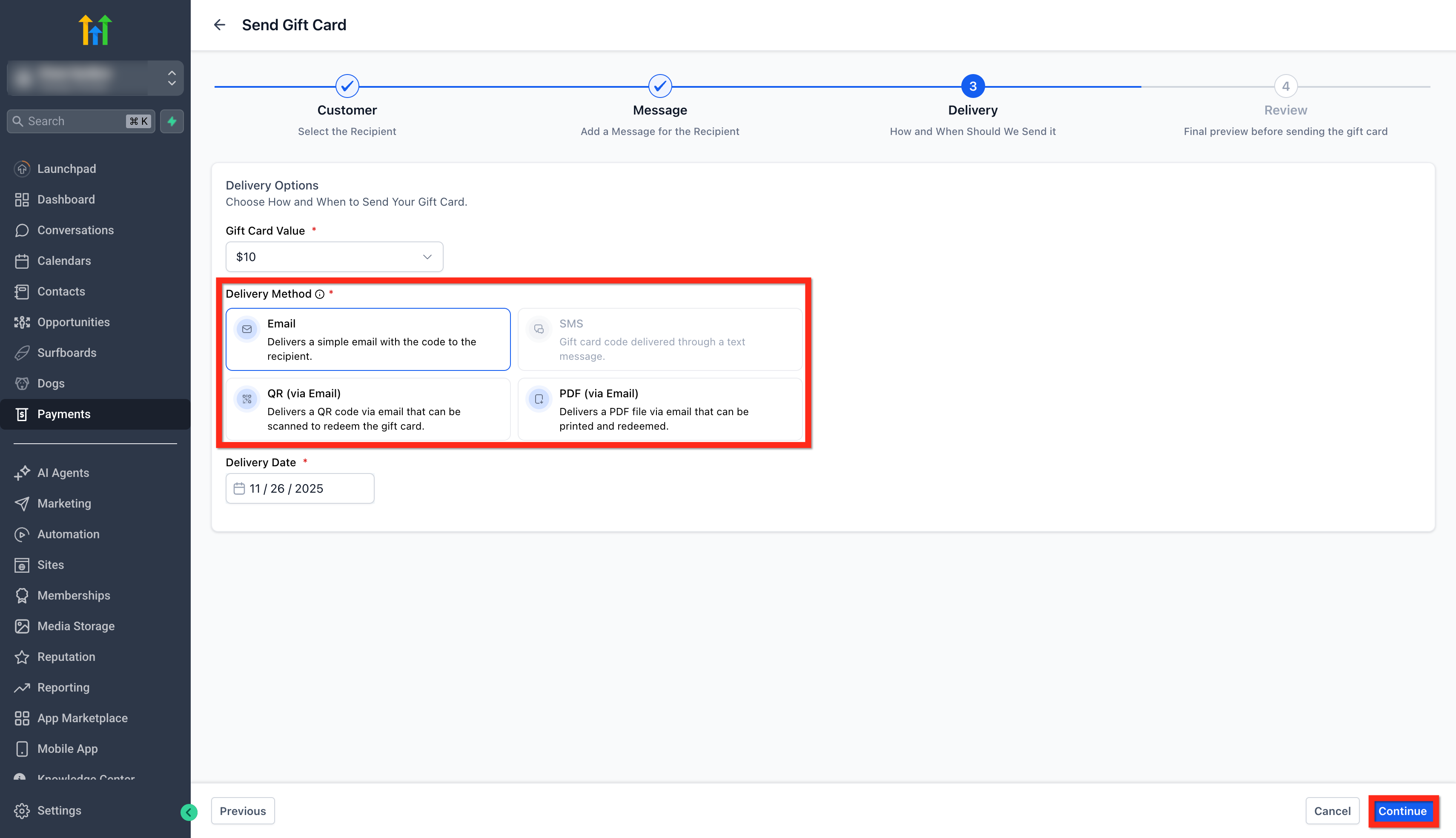
Step 5: Choose Delivery Method
Note: Only methods supported by the customer's available information (email/phone) will be enabled.
You can deliver the gift card through any one available methods:
Email
SMS
QR Code (via email)
PDF (via email)
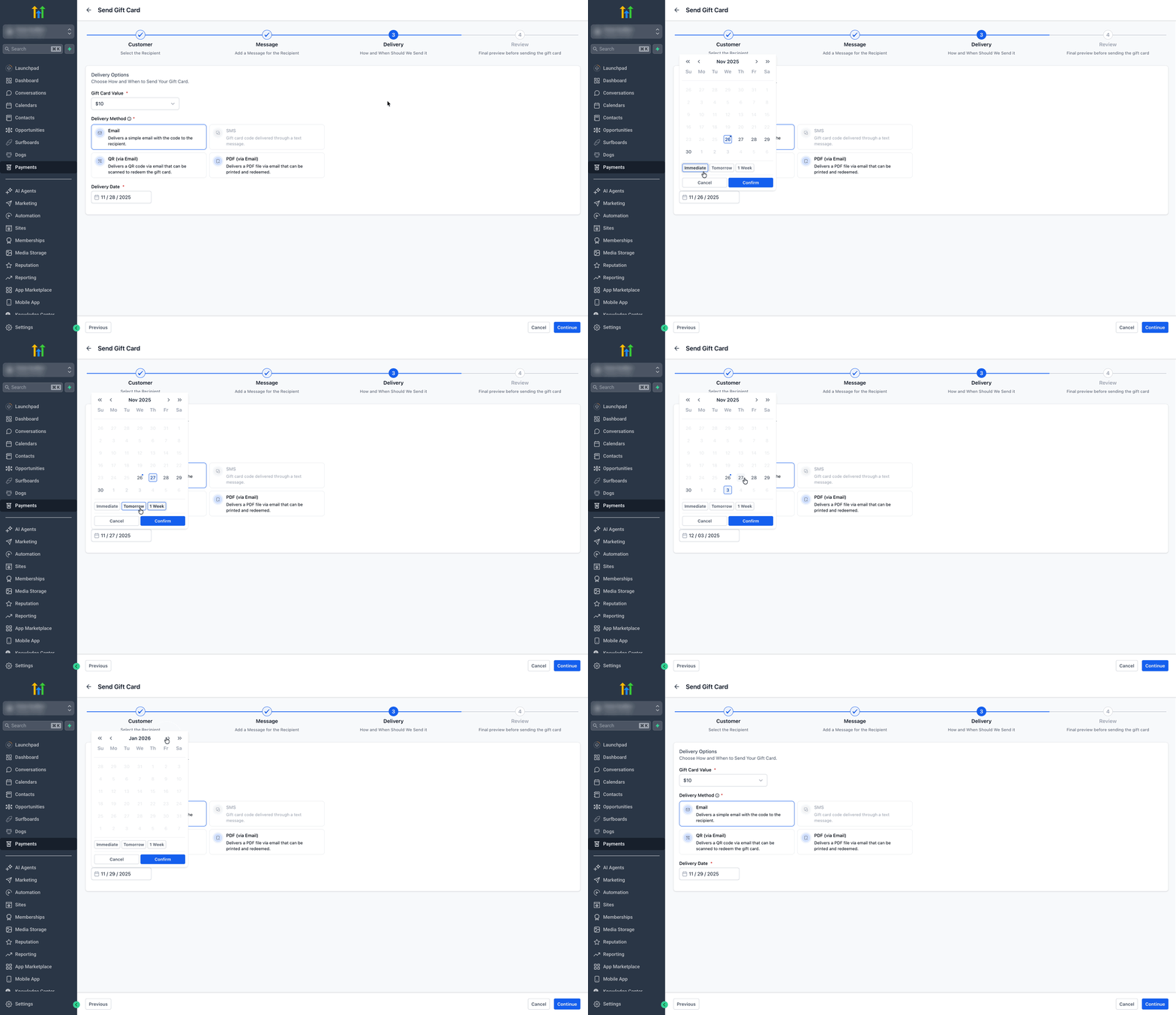
Step 6: Choose Delivery Date
Note: A gift card's available delivery date range is determined by the card’s expiry settings. If the gift card has an expiry date, the delivery date must be between today’s date and the expiry date. If the gift card does not have an expiry date, it can be scheduled for any future date.
You can either:
Presets: Deliver immediately, tomorrow or after one week.
or schedule delivery for a Future Date.
Click continue.
Step 7: Review & Send
- Before confirming, review the automatically generated email or SMS preview. This includes:
- Gift Card Amount
- Custom Message
- Expiry Date
- Redemption Instructions
- Artwork
- Gift Card Amount
- Click Send Gift Card.
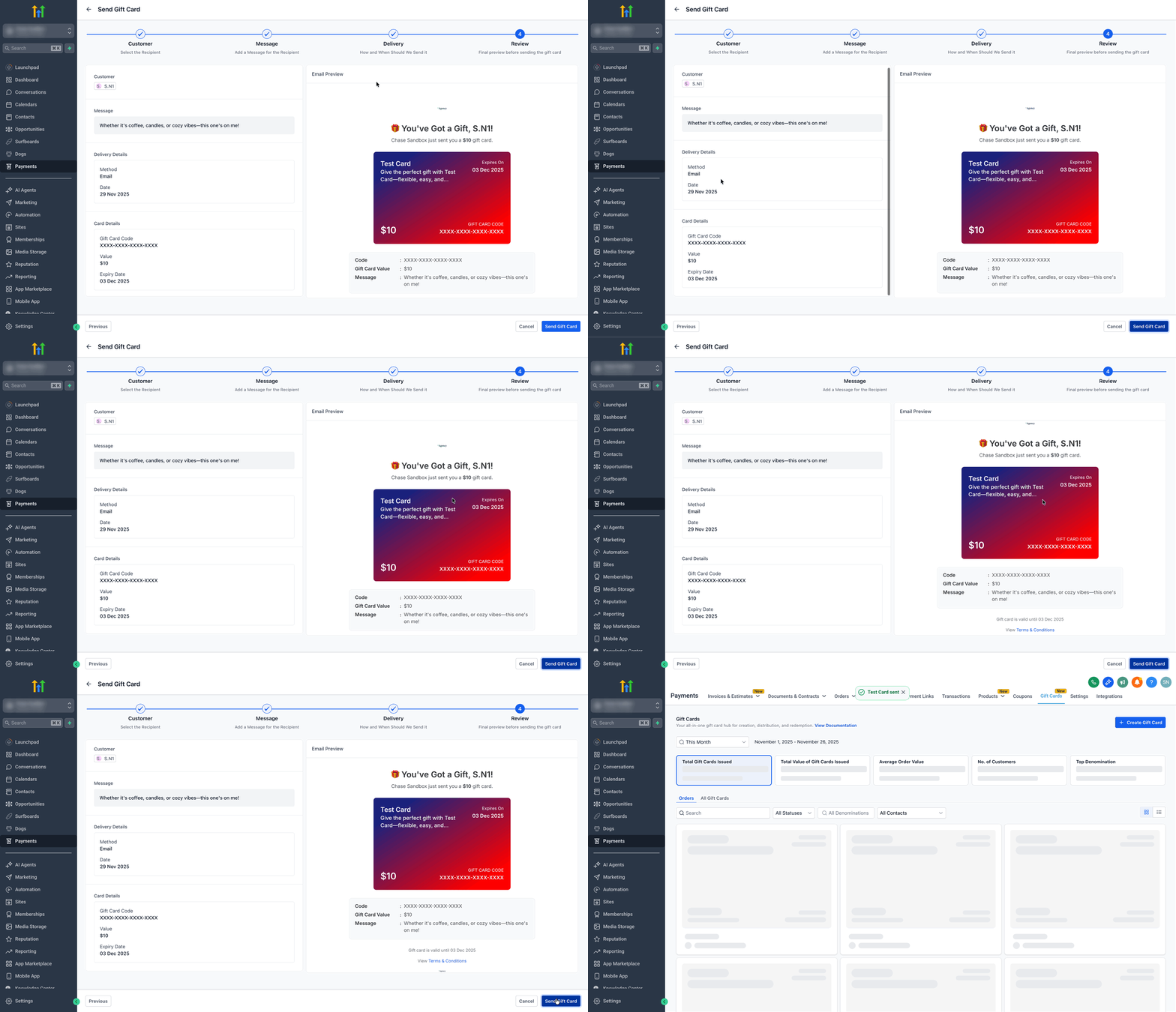
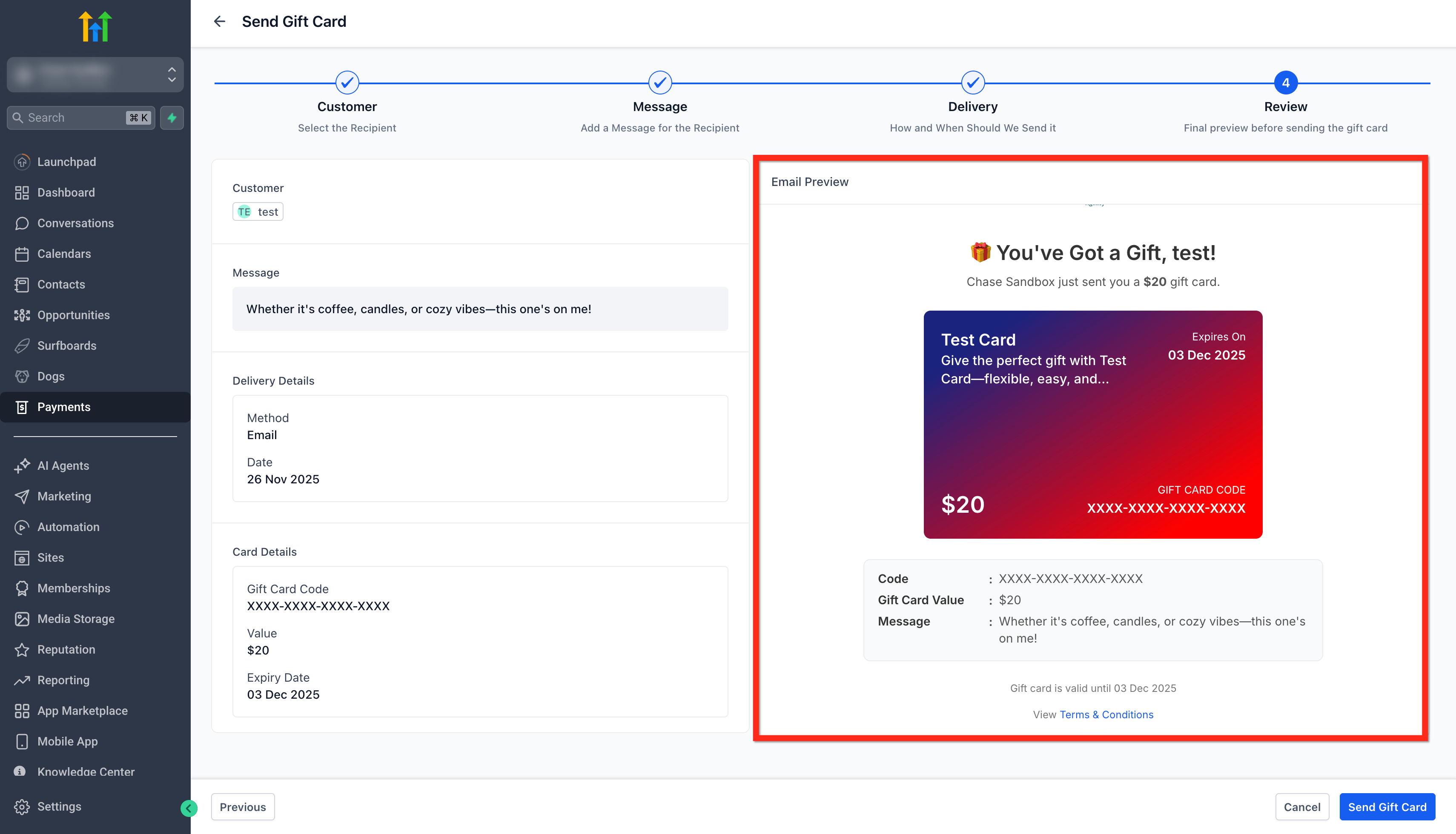
Delivery Methods Explained
- Full visual gift card with artwork.
- Includes expiry, balance, and redemption link.
- Recommended for most cases.
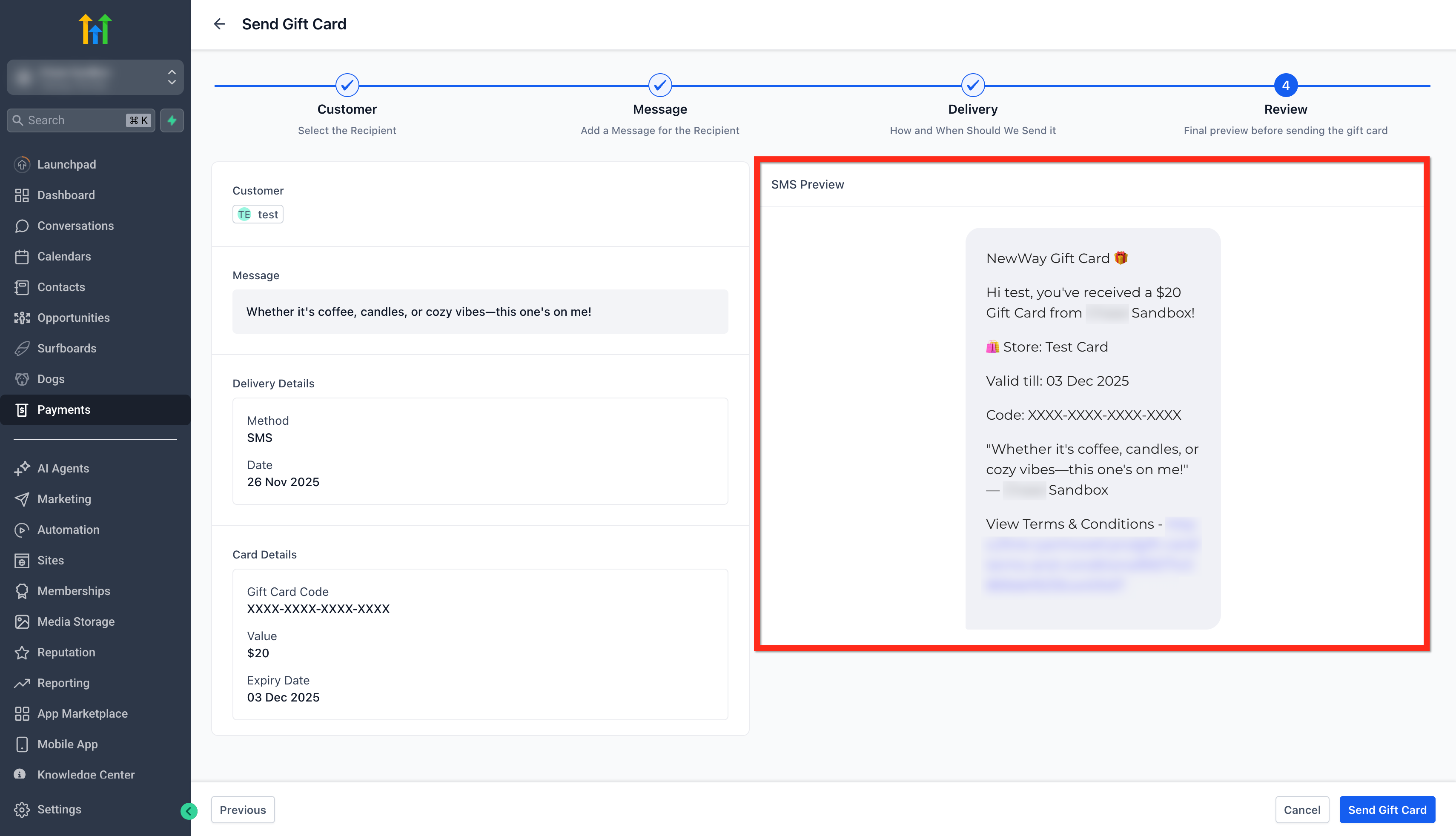
SMS
Sends a clean message with the gift card link.
Artwork not included due to SMS formatting.
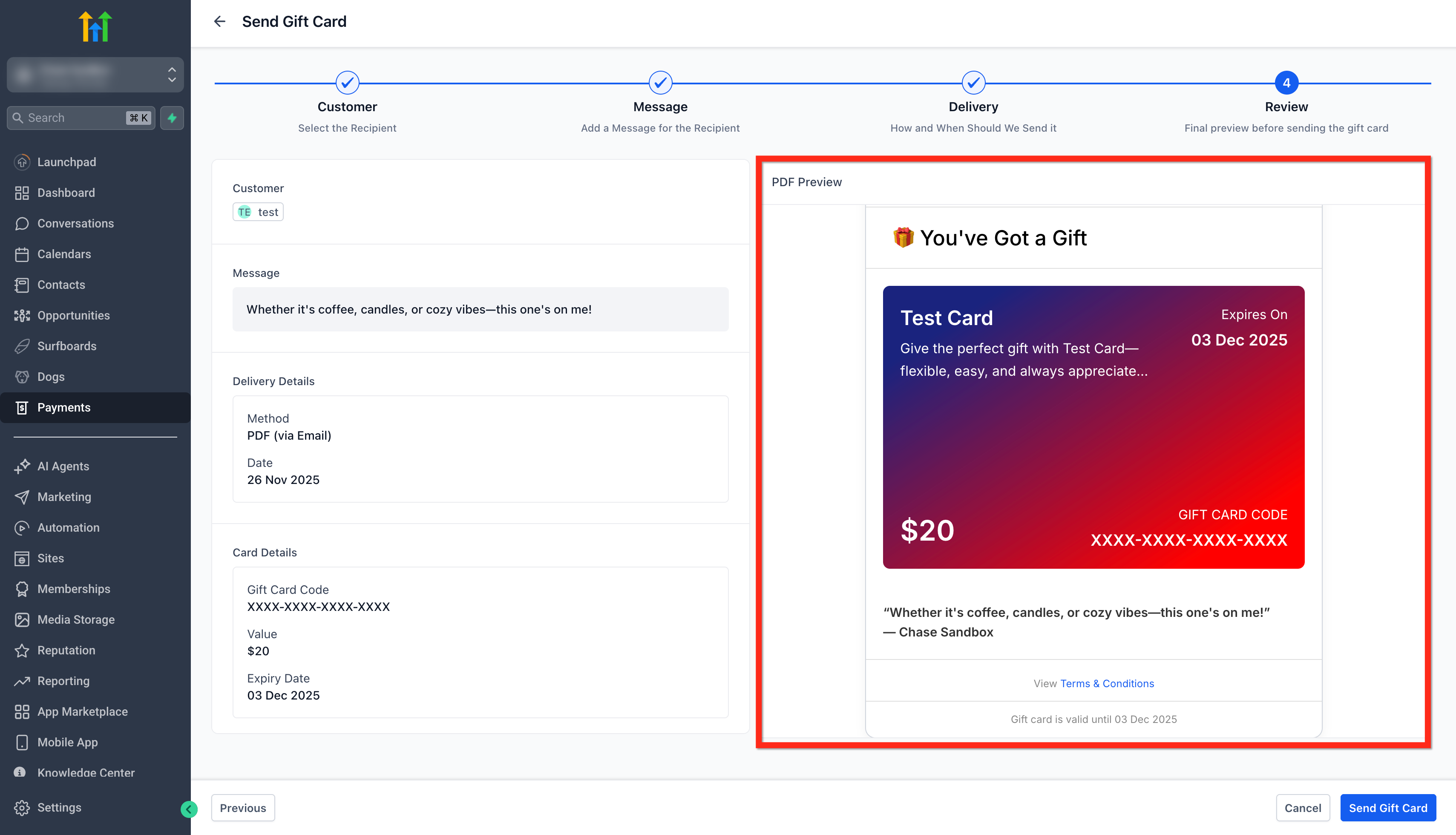
PDF (via Email)
Sends a downloadable printable PDF.
Great for in-store gifting, physical wrapping, or events.
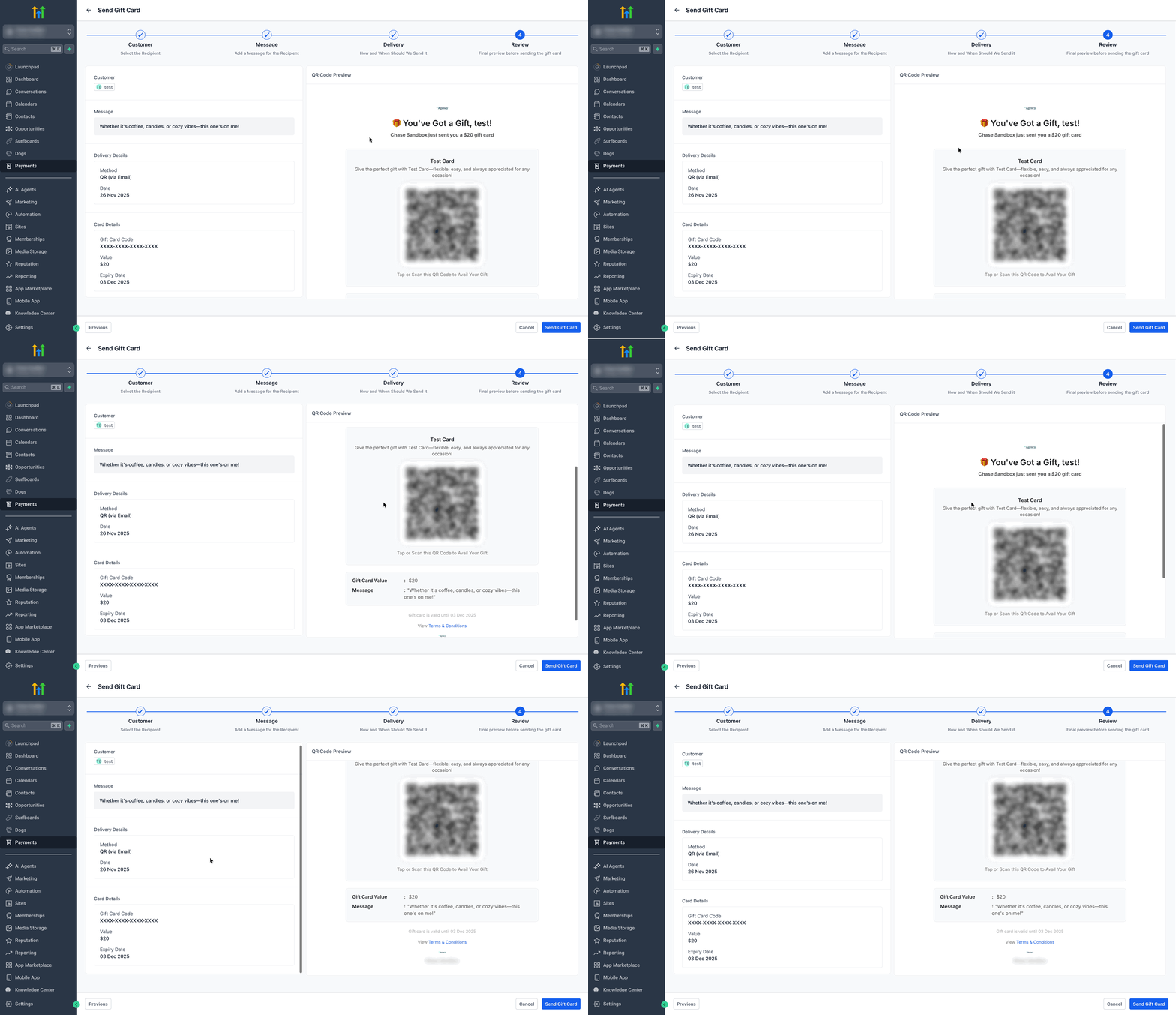
QR Code (via Email)
Sends a scannable QR that opens the gift card.
Useful for in-person gifting or events.
What Happens After a Gift Card Is Sent
Once sent, the gift card appears under:
Payments → Gift Cards → Gift Card Orders
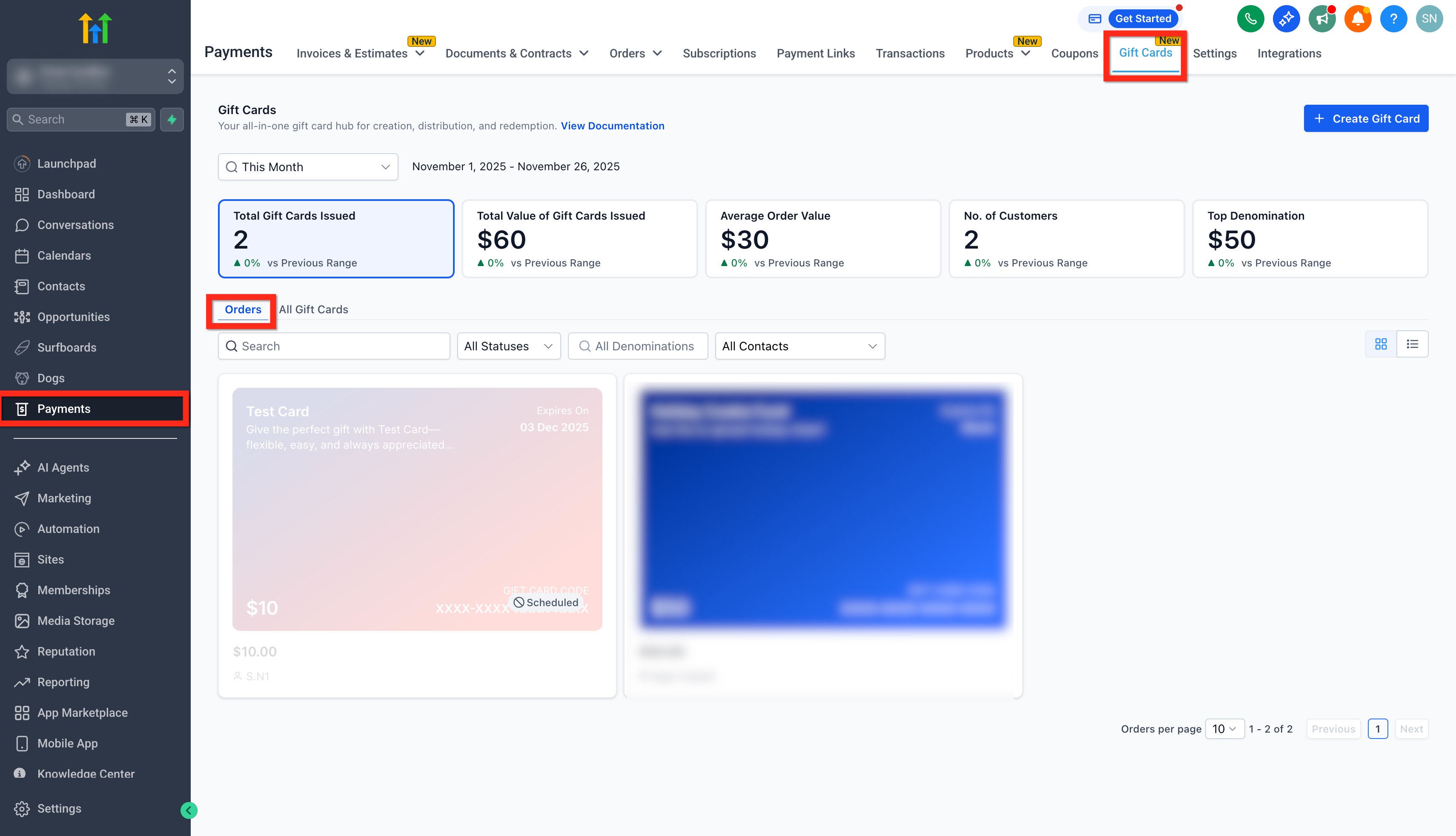
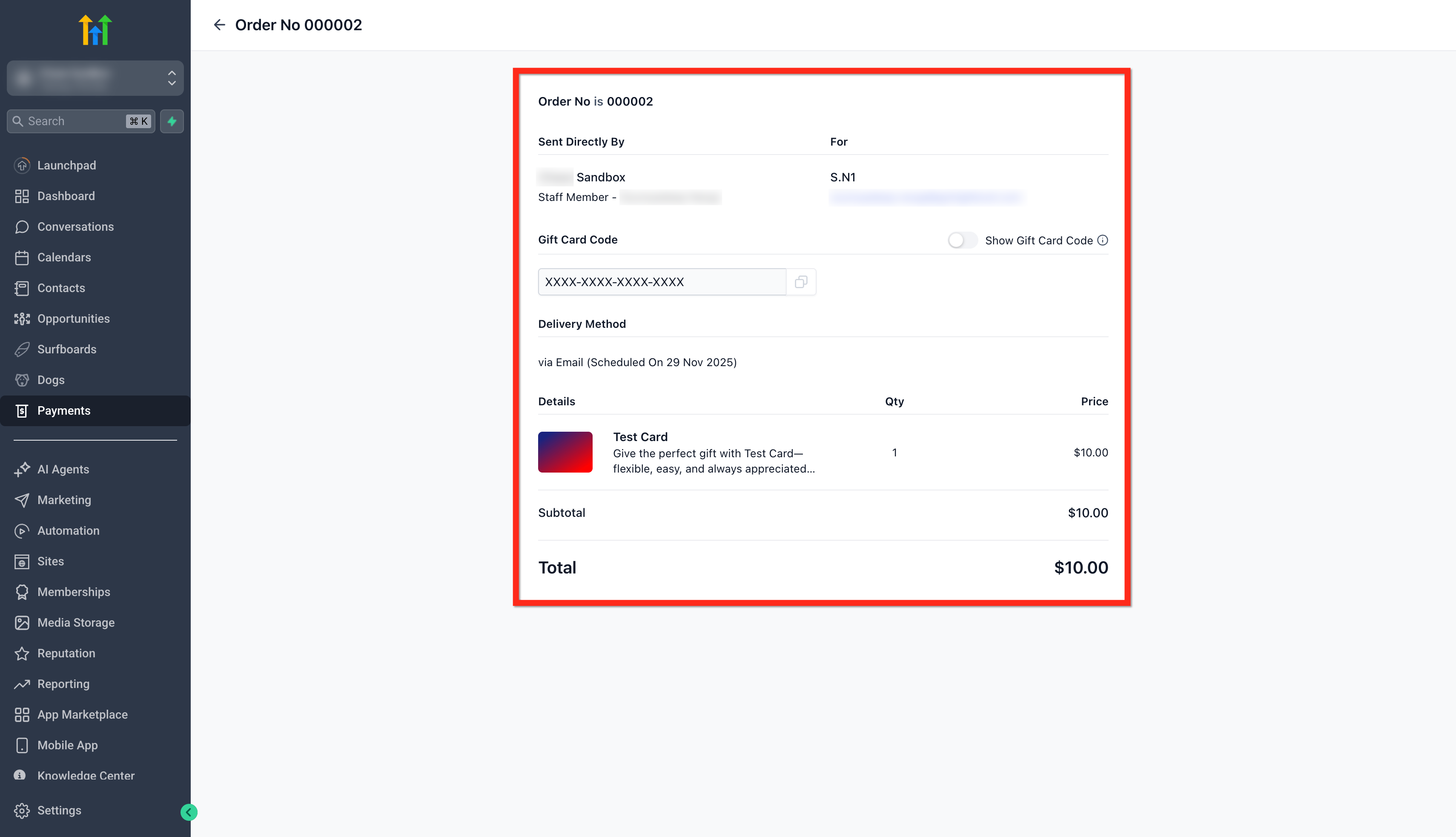
The Gift Card Order Details will contain:
Recipient details
Delivery method
Delivery timestamp
Denomination
Expiry
Remaining balance
Status: Scheduled, Active, Inactive
Hidden gift card code
Key Behaviors & Limitations
Send flow works only in Live Mode.
You can send 1 gift card to 1 customer at a time.
No payment is collected in the Send flow.
Directly sent gift cards do not appear in Payments → Orders (no order, no transaction).
Gift Cards issued via Send are fully redeemable everywhere - both fully and partially.
You must have the customer's email or phone number for delivery.
Frequently Asked Questions
Q: When will a scheduled gift card be delivered?
It will be delivered at 12:00 AM (midnight) on the selected delivery date.
Q: Can I send gift cards in Test Mode?
Not yet. Send flow supports Live Mode only. Test Mode support is coming in future releases.
Q: Why can’t I send a gift card to some customers?
The customer must have:
- A valid email, or
- A valid phone number
Otherwise, no delivery method is available.
Q: Can I send multiple gift cards at once?
Currently no. You can send one gift card to one customer per Send flow. Bulk sending is planned for future versions.
Q: Are sent gift cards redeemable everywhere?
Yes, on every checkout that supports Gift Card redemption, including:
- Funnels
- Forms
- Invoices
- Stores
- Payment Links
- Calendars (where products are supported)
Q: What happens to a scheduled gift card before the delivery time?
Until the scheduled delivery time, the gift card remains in a Scheduled state but is still active and valid for use.
Q: Can a scheduled gift card be used before its delivery time?
Yes. If someone has the gift card code and attempts to use it at checkout before the scheduled delivery time, it will work.
Q: Can I edit the email/SMS template before sending?
Templates are system-generated and currently not editable. Email & SMS template customization will be available later.
Q: Do sent gift cards appear under Orders in Payments?
No, only purchased gift cards appear under Payments → Orders. Sent cards appear exclusively under Gift Card Orders.
Q: Can I send a gift card anonymously?
Not yet. The recipient always sees the sender’s business information as configured in email/SMS templates.