
Give every voice conversation studio-quality clarity and a natural “human” feel. SourCherry’s Noise Cancellation cleans up background distractions while Back channeling adds brief acknowledgments (like “uh-huh”) to signal active listening. Enable and configure them directly in agent settings, tune a few options, and improve comprehension, confidence, and call flow in minutes.Before configuring these options on an agent, enable Voice AI – Noise Cancellation & Backchanneling from Labs.
TABLE OF CONTENTS
- What is Voice AI Noise Cancellation & Backchanneling?
- Key Benefits of Voice AI Noise Cancellation & Backchanneling
- Noise Cancellation Modes
- Backchanneling Settings
- How To Set Up Voice AI Noise Cancellation & Backchanneling
- Best Practices & Recommended Defaults
- Frequently Asked Questions
- Related Articles
What is Voice AI Noise Cancellation & Backchanneling?
Noise Cancellation and Backchanneling are audio enhancements for Voice AI calls. Noise Cancellation reduces ambient distractions so the primary speaker is easier to understand, while Backchanneling inserts short, natural listener cues during brief pauses to keep conversations flowing. Together, they make AI-handled calls clearer and more engaging without changing your existing call flows.
Key Benefits of Voice AI Noise Cancellation & Backchanneling
Understanding the practical outcomes helps you decide when to enable each setting and how to configure them for your environment, team, and brand voice.
Clarity: fewer repeats and misheard details, even in busy environments.
Professionalism: consistent, polished sound that reflects your brand standard.
Engagement: subtle cues show the caller they’re being heard and understood.
Efficiency: smoother pacing reduces “sorry, say that again” interruptions.
Customization: adjustable frequency and editable phrases to match tone.
Noise Cancellation Modes
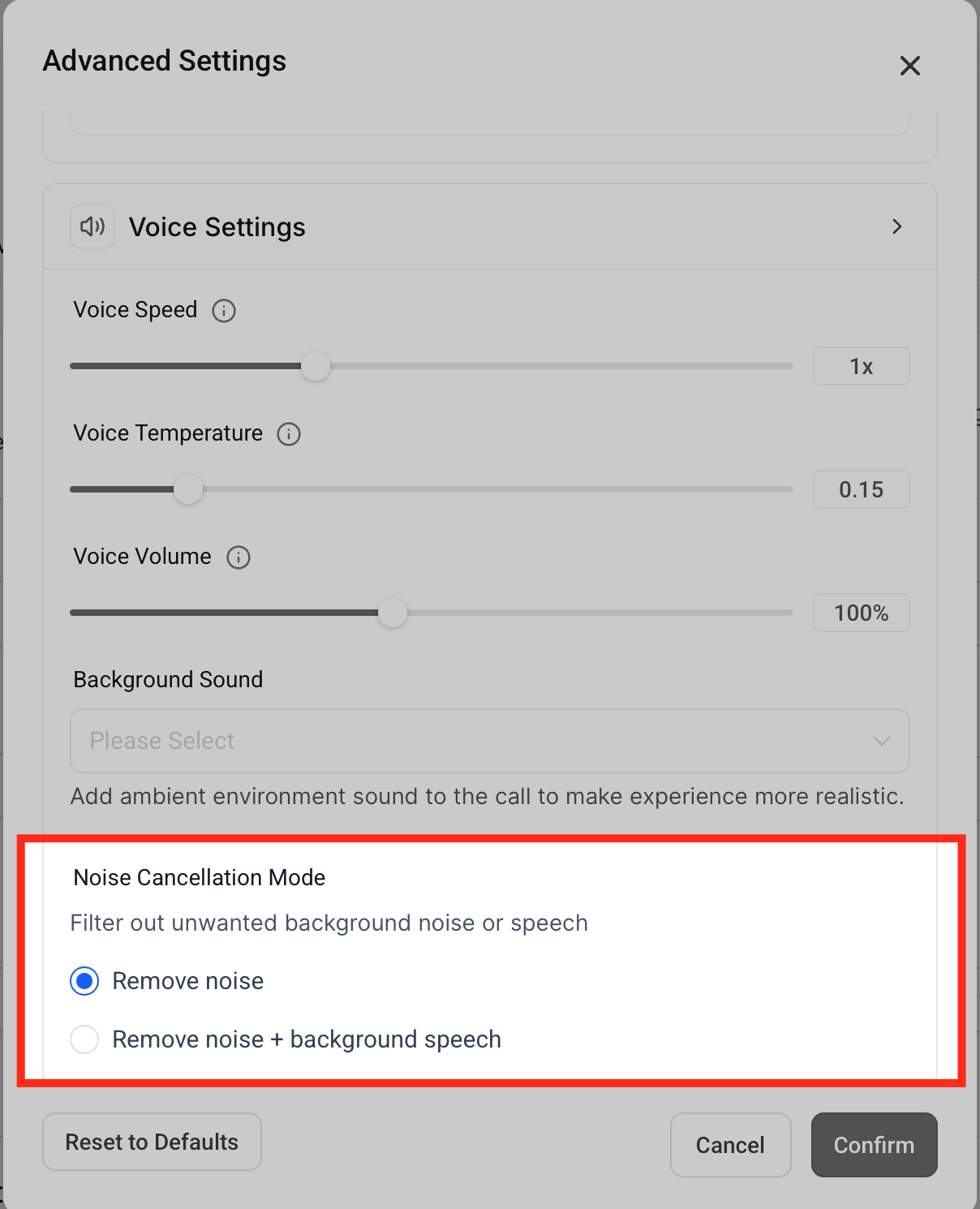
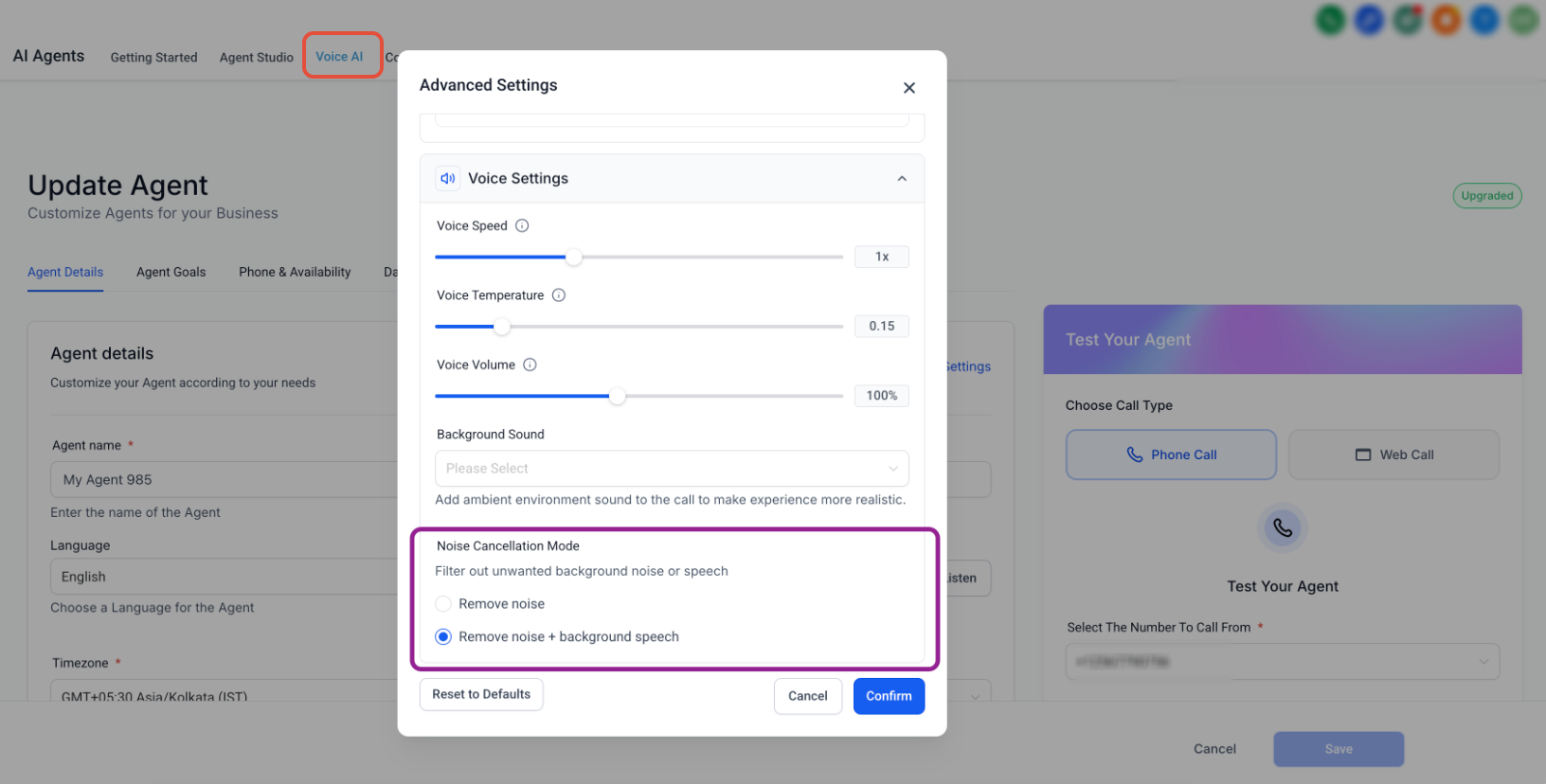
Choose the Noise Cancellation level that fits your workspace. Start with a general filter for typical office noise and escalate to suppress overlapping voices if your teams work in shared spaces or call centers.
Remove Noise: filters common ambient sounds (e.g., HVAC hum, keyboard taps, traffic).
Remove Noise + Background Speech: adds suppression of overlapping voices for maximum intelligibility in shared environments.
Backchanneling Settings
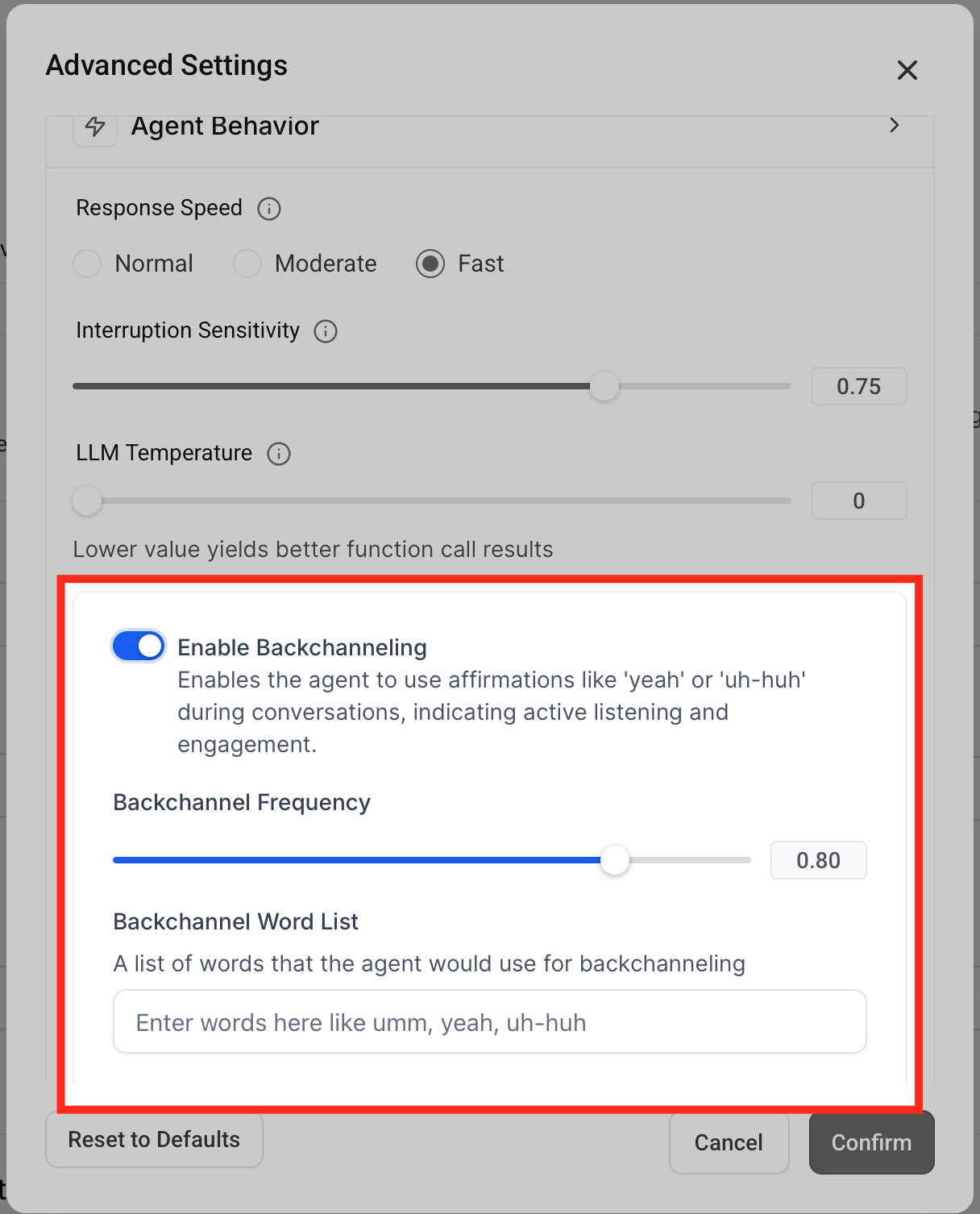
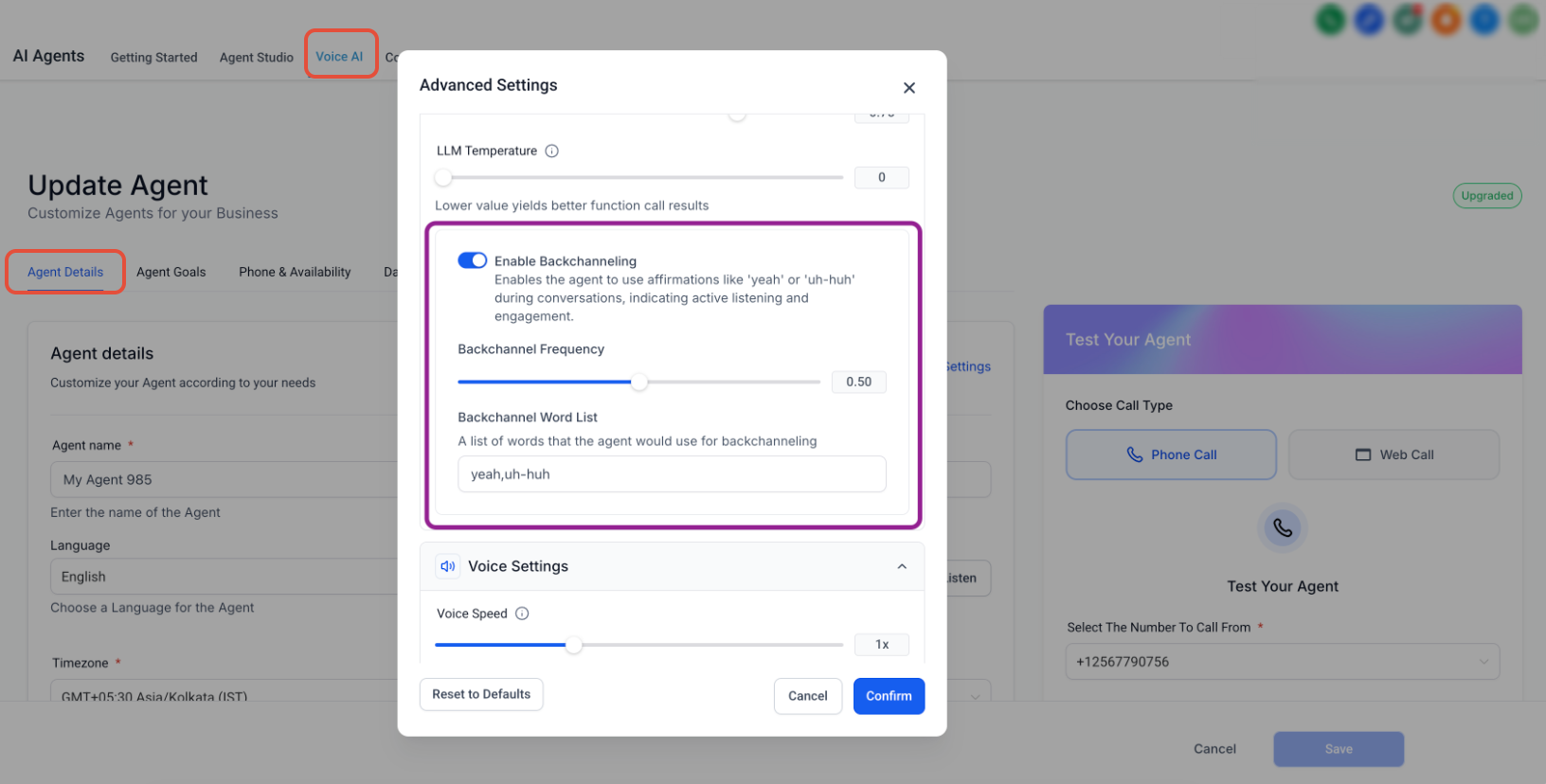
Backchanneling mirrors natural conversation by adding quick acknowledgments during micro-pauses. The right cadence and words keep the caller comfortable without interrupting their train of thought.
Backchannel Frequency: set how often brief acknowledgments occur (from rare to frequent).
Backchannel Words: edit the list of short phrases (e.g., “yeah,” “okay,” “uh-huh”) to align with your brand, language, and culture.
How To Set Up Voice AI Noise Cancellation & Backchanneling
A clean, repeatable setup ensures consistent audio quality across agents and sub-accounts. Configure at the agent level where available, then validate with a quick test call.
Enable the Feature in Labs
- Navigate to Settings > Labs.
- Locate Voice AI – Noise Cancellation & Backchanneling.
- Turn the feature on.
- Return to Voice AI > Agents to configure the feature for the desired agent.
Configure an Agent
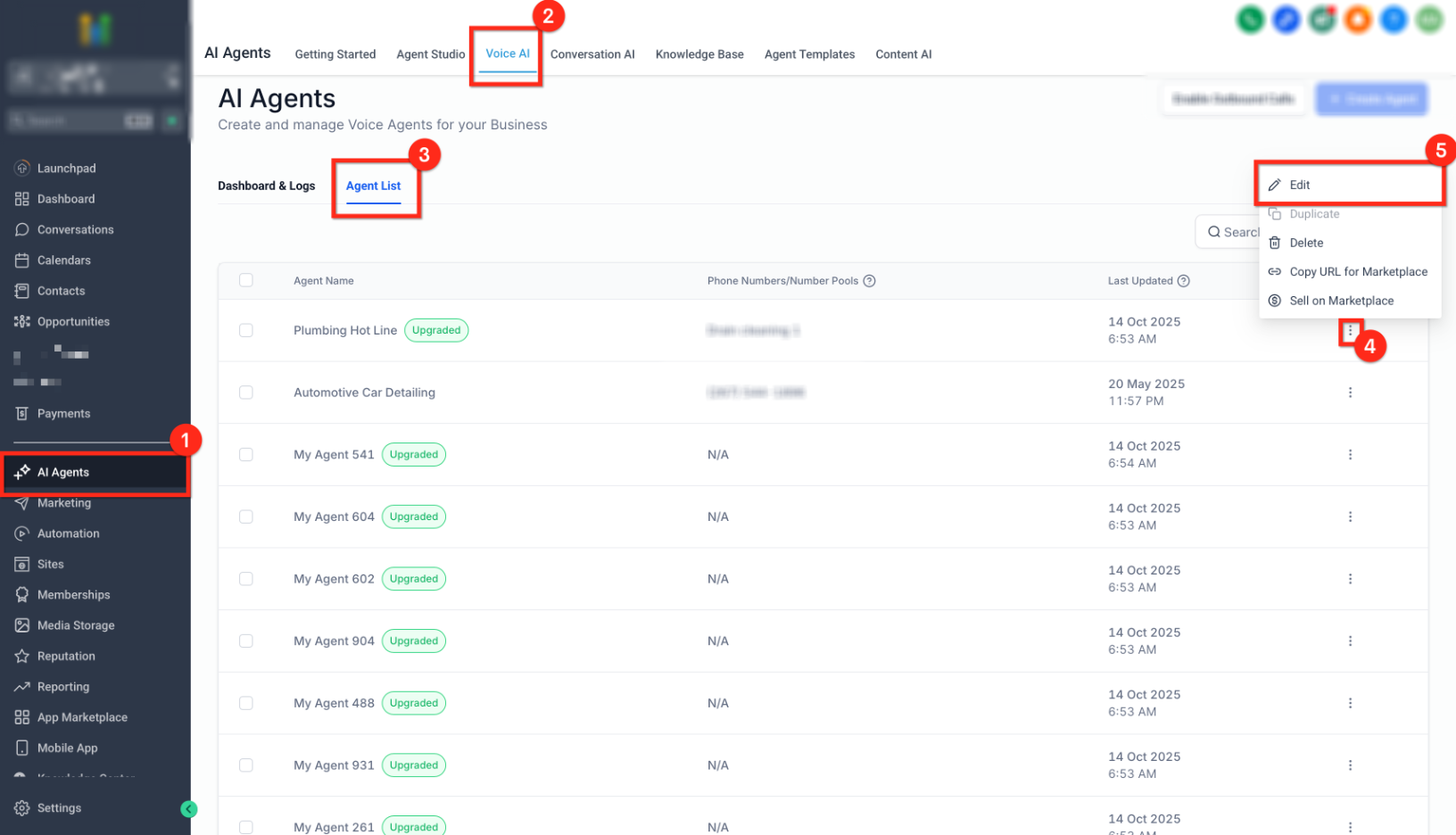
Navigate to Voice AI → Agents and select Edit on the agent you want to update.
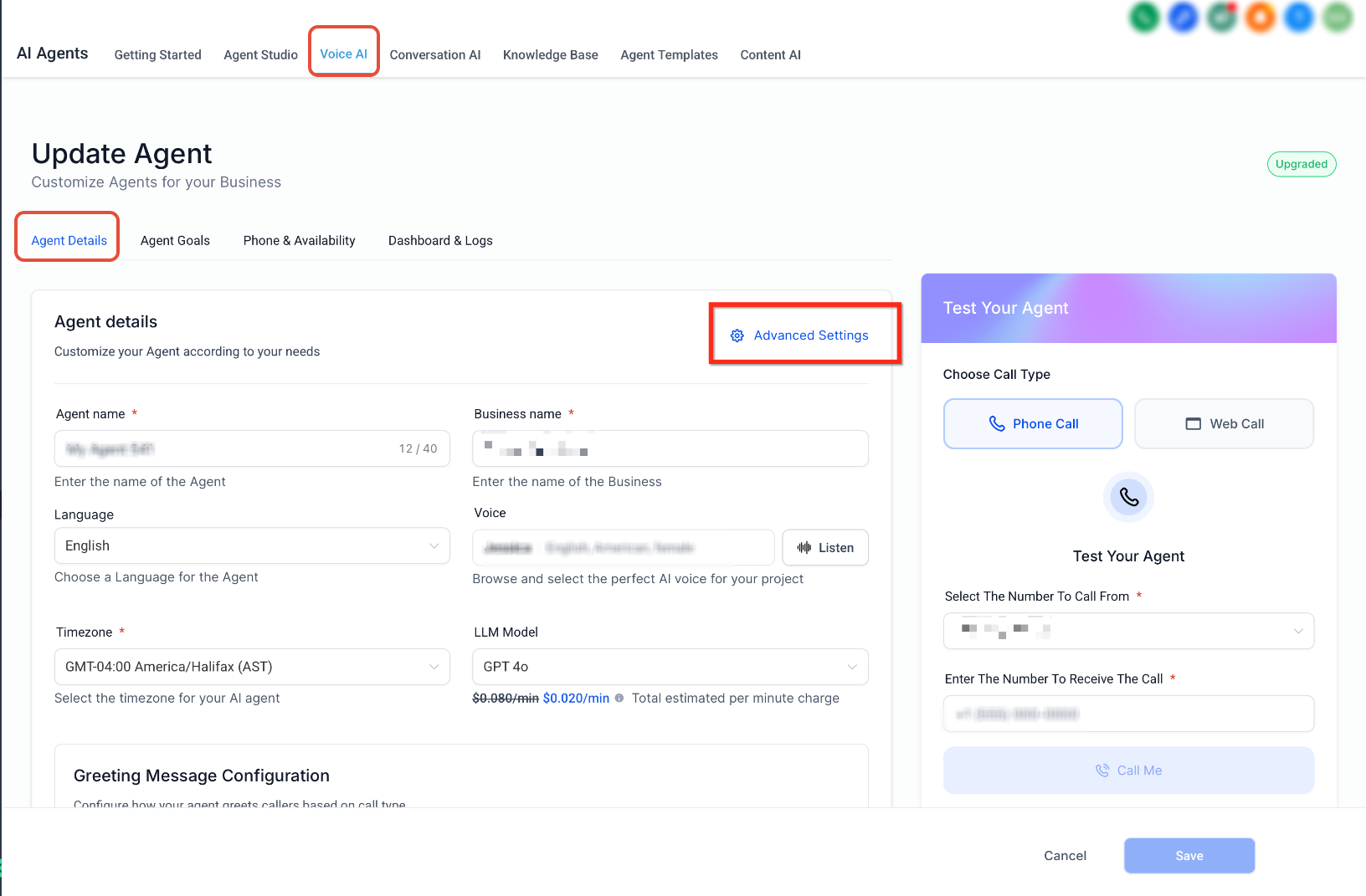
Open the Advanced Settings panel.
Choose your Noise Cancellation mode.
Enable Backchanneling, set Frequency, and adjust Backchannel Words if desired.
Click Save.
Test Before Going Live
Use the built-in Test options (e.g., Call Me or Web Call) to preview clarity and cadence.
Have a teammate speak from a typical environment (open office, car, café) to validate results.
Review the call in Voice AI → Dashboard/Logs to confirm audio quality and pacing.
Best Practices & Recommended Defaults
Default, battle-tested settings help teams see immediate gains while minimizing side effects. Adjust from here based on real call recordings and feedback.
Start simple: Remove Noise only; escalate to Background Speech suppression if nearby talk remains distracting.
Moderate cadence: set Backchannel Frequency to a middle value for natural flow.
Short, neutral phrases: keep acknowledgments brief and culturally appropriate.
Tune with other automations: if you use Idle Reminder Timer, avoid overly frequent backchannels that could crowd the conversation; consider a higher idle threshold.
Validate with real scenarios: test in the actual environments where agents work.
Frequently Asked Questions
Q: Do these enhancements affect both what the caller hears and what the agent hears?
Yes. Noise suppression focuses audio on the primary speaker, improving clarity on both sides of the call.
Q: Will Backchanneling talk over the caller?
Backchanneling inserts brief acknowledgments only during short pauses to avoid interrupting speech.
Q: Can I customize phrases by language?
Yes. You can edit the Backchannel Words list. Keep phrases short and ensure your selected voice supports the language.
Q: Can I enable different settings per agent?
Yes, when agent-level Audio Enhancements are available. Edit each agent to apply specific Noise and Backchanneling settings.
Q: What should I test before rollout?
Validate clarity in typical environments (open office, car), confirm cadence feels natural, and review recordings/logs for any suppression of intended voices.
Q: Why do I not see Noise Cancellation or Backchanneling in my agent settings?
Validate clarity in typical environments (open office, car), confirm cadence feels natural, and review recordings/logs for any suppression of intended voices.