
Elevate your online presence with SourCherry’s Listings for Food & HealthCare Add‑ons. These industry‑specific upgrades unlock specialized fields, exclusive publisher distribution (like OpenTable, MenuPix, WebMD, and Vitals), and dynamic management tools. Use this guide to understand eligibility, benefits, and setup so your restaurant or healthcare business reaches more customers and patients.
TABLE OF CONTENTS
- What is Listings for Food & HealthCare Add‑Ons?
- Key Benefits of Listings for Food & HealthCare Add‑ons
- Menu Management for Food Listings
- New Fields for Food Entities
- Extended Schema for HealthCare Entities
- General‑Purpose Fields for All Entities
- How To Setup Listings for Food & HealthCare Add‑ons
- Frequently Asked Questions
- Related Articles
What is Listings for Food & HealthCare Add‑Ons?
Listings for Food & HealthCare Add‑ons are enhancements to SourCherry’s core Listings feature that transform a standard listing into an industry‑aware profile. Once enabled for a qualifying business, the entity type updates to Food or HealthCare (Facility or Professional), revealing tailored fields, menu or provider tooling, and distribution to publishers that prioritize your industry.
What it does:
- Converts a standard listing into a Food or HealthCare entity when eligible.
- Exposes industry‑specific fields (e.g., menus, NPI, insurance) and controls.
- Distributes enhanced data to relevant publisher networks for greater visibility.
Note: The entity transformation is intentional and structured around industry needs. Confirm the correct category before upgrading.Key Benefits of Listings for Food & HealthCare Add‑ons
Understanding the practical gains helps you decide when to upgrade. The benefits below highlight visibility, relevance, and operational control—key drivers for discovery and conversion in restaurant and healthcare searches.
- Exclusive Publisher Reach: Access industry networks like MenuPix, OpenTable, WebMD, Vitals, and more for targeted visibility.
- Industry‑Specific Fields: Unlock rich attributes (e.g., Attire, Meals Served, NPI, Insurance Accepted) that increase listing relevance.
- Menu Management (Food): Create multiple menus, organize sections, and add rich details per item.
- Enhanced Provider Profiles (HealthCare): Add credentials, conditions treated, insurance, and education for patient decision‑making.
- General‑Purpose Enhancements: Payment Options and Featured Message available to all entities.
- Streamlined Upgrade Flow: Eligible businesses are prompted to upgrade with a controlled, guided experience.
- Improved Performance Potential: Richer data and industry distribution can lead to better discovery and engagement.
Menu Management for Food Listings
Restaurant discovery hinges on current, scannable menus. Use menu tools to build structured, media‑rich menus that publishers can index, helping diners evaluate options quickly.
Capabilities
- Add multiple menus per location (e.g., Lunch, Dinner, Happy Hour, Seasonal Specials).
- Organize menu items into sections (e.g., Appetizers, Mains, Desserts, Beverages).
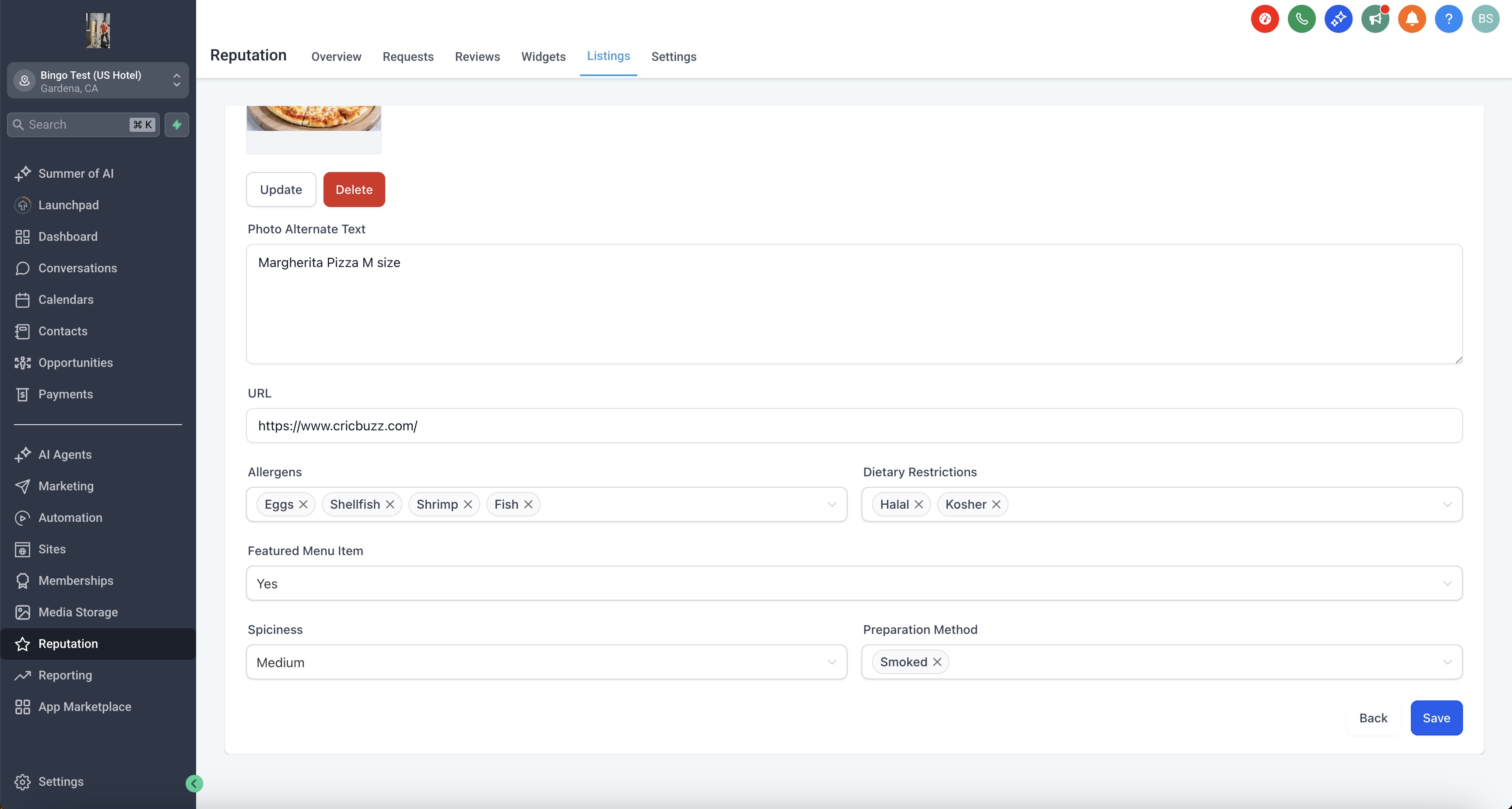
- Each item can include name, price, description, calories, allergens, spice level, and an item photo.
Recommended practices
- Keep pricing and availability current; archive seasonal menus when out of date.
- Use concise descriptions and standardize allergen and spice notations.
- Include high‑quality images with consistent aspect ratios.
New Fields for Food Entities
Adding contextual fields helps diners qualify your venue faster and improves how publishers categorize and display your listing.
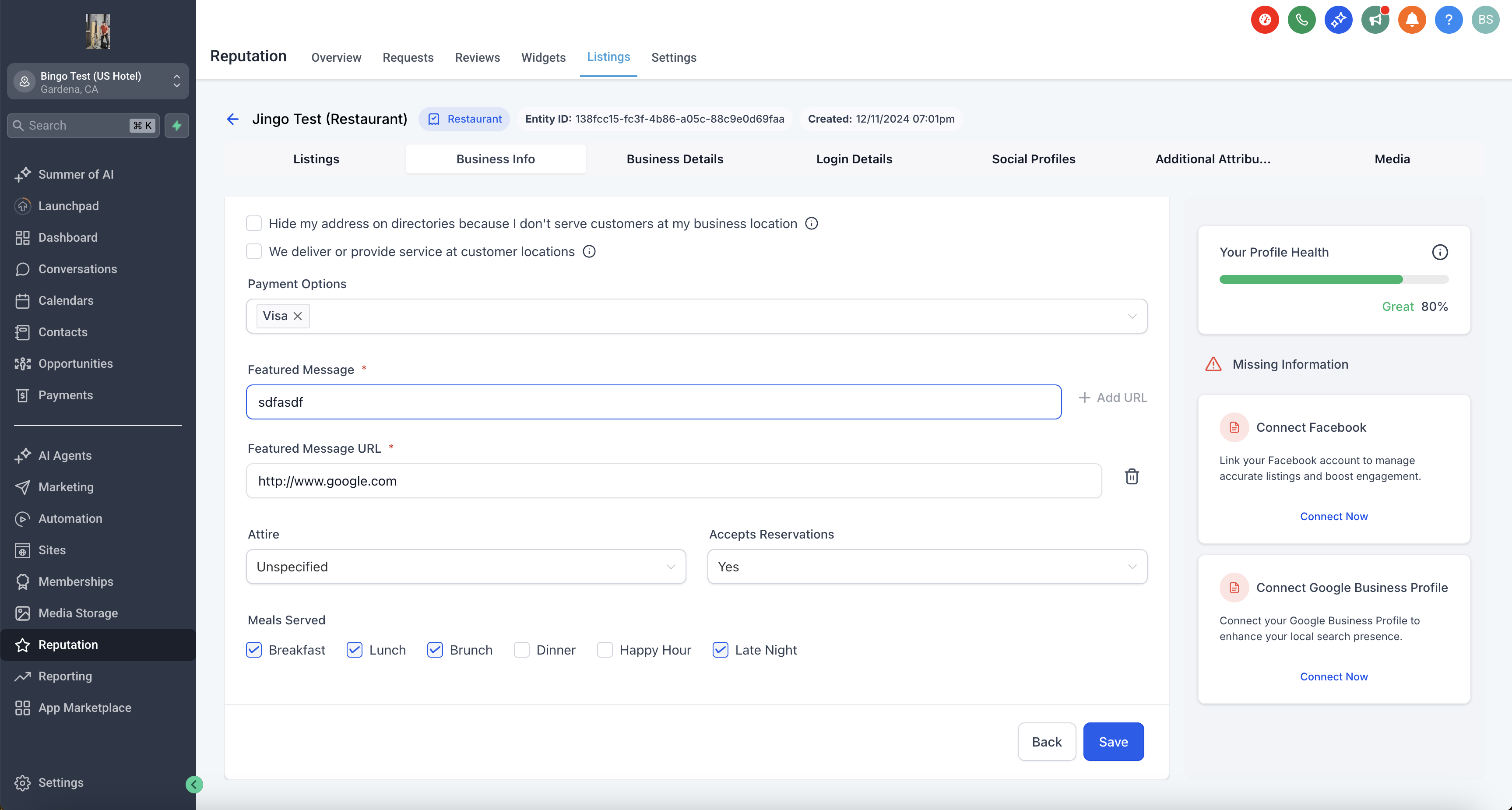
- Attire: Choose typical dress expectations (e.g., casual, business casual, formal).
- Accepts Reservations: Indicate if reservations are accepted (Yes/No). If supported, connect or reference reservation platforms.
- Meals Served: Select applicable services (e.g., Breakfast, Brunch, Lunch, Dinner, Late Night).
- Payment Options (general‑purpose): Specify accepted methods (e.g., major cards, mobile pay).
- Featured Message (general‑purpose): Promote limited‑time offers, events, or service notes.
Extended Schema for HealthCare Entities
Healthcare discovery depends on trustworthy details. Adding provider credentials and facility attributes helps patients evaluate fit, insurance coverage, and availability.
Provider fields (HealthCare Professional)
- NPI, First/Last Name, Office/Practice Name
- Headshot and Provider Bio
- Accepting New Patients, Insurance Accepted
- Education & Training, Degrees, Conditions Treated
- Admitting Hospitals (where applicable)
Facility fields (HealthCare Facility)
- Facility Name, Departments/Services, Accepting New Patients
- Insurance Accepted, Operating Hours, Contact & Location
Note: Field availability differs for Facilities vs Professionals. Complete as many fields as possible to improve match quality on healthcare publishers.General‑Purpose Fields for All Entities
Some enhancements benefit every business category. Use these fields to communicate key logistical and promotional details regardless of industry.
- Payment Options: List accepted payment methods to reduce checkout friction.
- Featured Message: Surface timely info—promotions, closings, seasonal notices, or accessibility notes.
How To Setup Listings for Food & HealthCare Add‑ons
Before You Start (Prerequisites & Roles)
- Access: You must be able to create/edit Listings for the sub‑account.
- Data prep (Recommended):
- Food: Current menus (names, sections, items), prices, calories, allergens, spice level, and 1–3 photos per popular item.
- HealthCare: Provider/facility details (NPI for professionals in the U.S.), insurance accepted, accepting‑new‑patients status, education & training, conditions treated, headshots.
- All: Payment Options and a short Featured Message (promo/notice).
- Food: Current menus (names, sections, items), prices, calories, allergens, spice level, and 1–3 photos per popular item.
- Images: Use clear, well‑lit images. Prefer consistent aspect ratios; avoid text‑heavy graphics.
Step 1 — Create or Edit a Listing
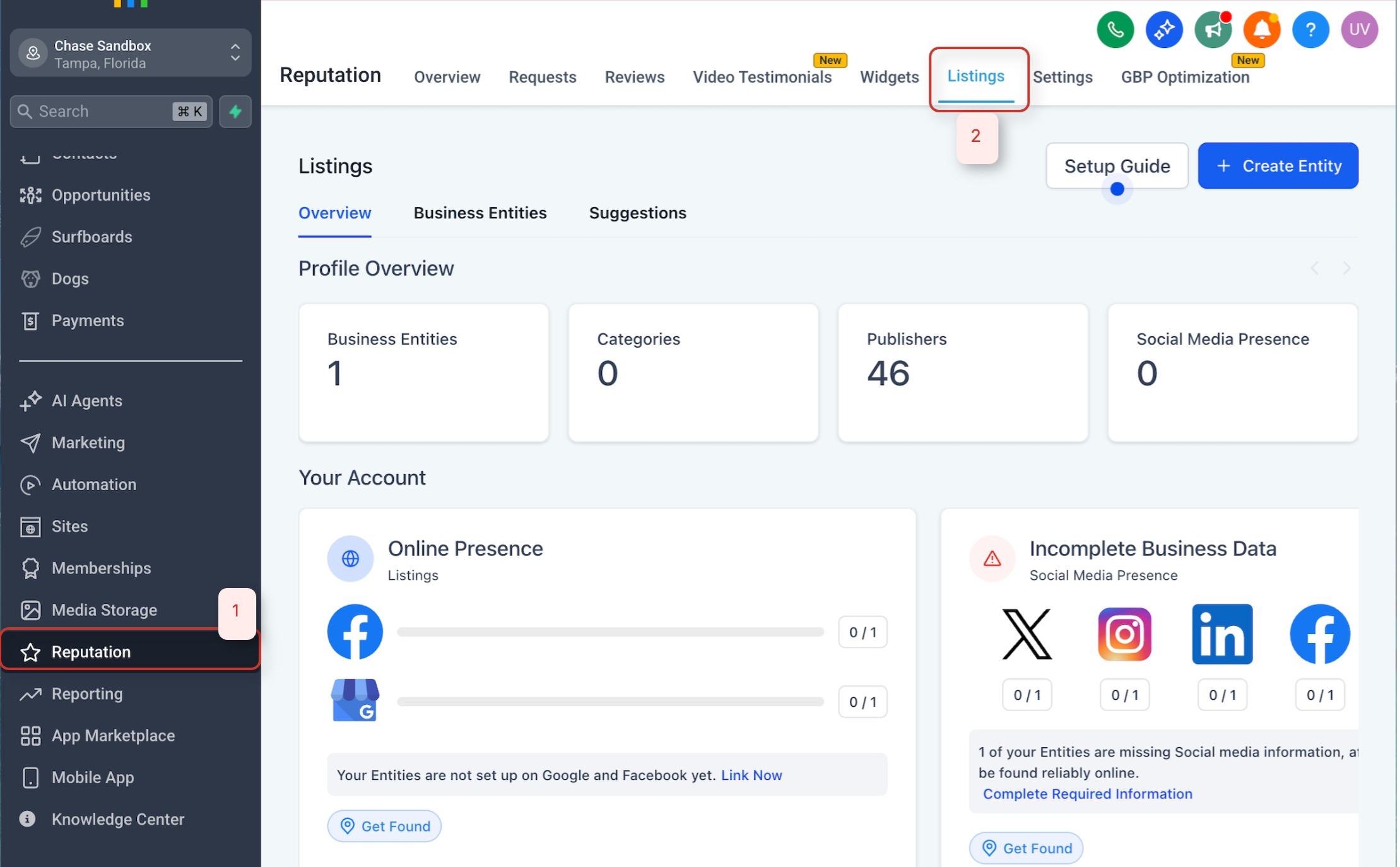
- Open your sub‑account and go to Reputation from the sidebar.
- Click Listings to create one, or select an existing listing and click Edit.
- Ensure the business category reflects either Food (restaurants/dining) or HealthCare (facility/professional).
- The category determines eligibility for the add‑on prompt.
Step 2 — Confirm Eligibility
- After saving the basic profile/category, look for the Upgrade prompt indicating Food Add‑on or HealthCare Add‑on availability.
- If you don’t see the prompt:
- Re‑check the category selection.
- Ensure the listing includes a valid address and phone.
- Save and refresh the page.
- Re‑check the category selection.
Step 3 — Upgrade the Listing (Entity Transformation)
- Click Upgrade and review the summary of changes.
- Confirm the transformation to one of the following entity types:
- Food (restaurant/food service)
- HealthCare Facility
- HealthCare Professional
- Food (restaurant/food service)
- The profile reloads with new, industry‑specific fields and controls.
Important: This change is not reversible. If you chose the wrong type, archive this listing and create a new one with the correct category.Step 4 — Configure Industry‑Specific Fields
A) Food (Restaurants)
- Open the Food Details panel:
- Attire: Select from list (e.g., casual, business casual, formal).
- Accepts Reservations: Toggle Yes/No; add reservation link if applicable.
- Meals Served: Select all that apply (Breakfast, Brunch, Lunch, Dinner, Late Night).
- Attire: Select from list (e.g., casual, business casual, formal).
- Build Your Menus:
- Click Add Menu → name it (e.g., Lunch, Dinner, Happy Hour).
- Within a menu, click Add Section (e.g., Appetizers, Mains, Desserts, Beverages).
- For each Item, add: Name, Price, Description, Calories, Allergens, Spice Level, and an Item Photo.
- Reorder sections/items via drag‑and‑drop if available.
- Click Add Menu → name it (e.g., Lunch, Dinner, Happy Hour).
- Add Payment Options (cards, mobile pay) and a concise Featured Message (e.g., seasonal menu, holiday hours).
B) HealthCare (Facilities & Professionals)
- Choose Facility vs Professional fields panel, then complete:
- Professionals: NPI, First/Last Name, Office/Practice Name, Headshot, Provider Bio, Accepting New Patients, Insurance Accepted, Education & Training, Degrees, Conditions Treated, Admitting Hospitals (if applicable).
- Facilities: Facility Name, Departments/Services, Accepting New Patients, Insurance Accepted, Operating Hours, Contact & Location.
- Professionals: NPI, First/Last Name, Office/Practice Name, Headshot, Provider Bio, Accepting New Patients, Insurance Accepted, Education & Training, Degrees, Conditions Treated, Admitting Hospitals (if applicable).
- Ensure names/credentials match official records. For U.S. providers, validate NPI formatting before saving.
- Add Payment Options and a Featured Message (avoid medical advice; use for access/notice info).
Healthcare QA Tips:
- Use professional headshots on neutral backgrounds.
- Keep bios concise and factual; avoid PHI or case details.
- List insurance networks using official names.
Step 5 — Publish and Distribute
- Click Save/Publish to commit your updates.
- Distribution to publishers begins automatically where supported (e.g., MenuPix/OpenTable for Food, WebMD/Vitals for HealthCare; availability varies by country/publisher).
- Expect standard sync windows; some publishers may take longer to reflect changes.
Step 6 — Quality Check & Ongoing Management
- Preview the listing and verify key details (menus, provider attributes, hours, contact info).
- Revisit Analytics to monitor impressions and actions after changes propagate.
- Review Suggestions from publishers; accept/reject with care, especially for menus and provider info.
- Use Audit History to track who changed critical fields (menus, NPI, insurance).
Frequently Asked Questions
Q: How do I know if my business qualifies for a Food or HealthCare Add‑on?
A: When you create or edit a listing in a supported category, SourCherry automatically prompts you to upgrade.
Q: Can I switch between Food and HealthCare after upgrading?
A: No. After transformation, switching types isn’t supported. Create a new listing if the business category changes.
Q: Are there additional costs for using these add‑ons?
A: Pricing may vary by account. Contact your SourCherry representative for add‑on pricing and billing details.
Q: Can I customize which fields appear on my listing?
A: Fields are determined by entity type and add‑on. Complete the fields that apply to your business; optional fields can be left blank.
Q: What happens if I don’t upgrade my listing?
A: Your listing remains standard without industry‑specific fields or distribution to Food/HealthCare‑exclusive publishers.
Q: How do I manage menus or provider profiles over time?
A: Use the listing’s dashboard controls to add, edit, or remove menu items and provider details as your offerings change.
Q: The upgrade prompt didn’t appear—what should I do?
A: Confirm the listing category is correctly set to a supported Food or HealthCare category, then recheck. If the prompt still doesn’t appear, contact Support.
Q: What if I upgraded by mistake?
A: Because transformation isn’t reversible, archive the listing and recreate it with the correct category.