
Universal Elements in SourCherry’s Page Builder let you design an element once and reuse it across Funnels, Websites, Blogs, Webinars, and Store pages—while keeping every instance consistent. This guide explains what Universal Elements are, how they differ from other saved items, and the safest way to create, place, and update them. You’ll also learn publishing best practices, rollback options, and tips for organizing your library for scale.
What are Universal Elements?
Universal Elements are single elements you save to the Saved Assets library so they remain linked wherever they’re used. When a linked Universal Element is updated and published, all placed instances reflect the change, helping teams maintain brand consistency and reduce repeated edits across pages and assets.
Key Benefits of Universal Elements
Understanding the core benefits helps you decide when Universal Elements are the right tool versus other saved item types. Focus on speed, consistency, and maintainability across your account.
Brand consistency: Keep typography, colors, and styles aligned everywhere without manual updates.
Faster builds: Drag from the Saved Assets library instead of redesigning common elements.
Centralized updates: Edit once and publish the affected pages so all instances reflect the change.
Organized library: Thumbnails and search in Saved Assets make frequently used elements easy to find.
Team-friendly workflows: Standardize key components so collaborators build with approved patterns.
Universal Elements vs. Element Templates vs. Universal Sections
SourCherry offers multiple ways to save and reuse content. Choosing the right option prevents confusion and avoids accidental design drift. Use this comparison to pick the best fit for each scenario.
| Saved type | Scope | Syncing behavior | Typical uses | Where to find |
|---|---|---|---|---|
| Universal Elements | Single element | Linked reuse; updates appear on placed instances after publishing affected pages | Buttons, logos, icons, menus | Saved Assets → Universal Elements |
| Element Templates | Single element | Inserted as a starting point (copy); later edits do not sync to existing placements | One-off variants, quick starting patterns | Saved Assets → Element Templates |
| Universal Sections | Section (group of elements) | Linked reuse at section level; edits can sync across placed instances after publishing | Headers, footers, announcement bars | Saved Assets → Sections (Universal) |
Tip: Use Universal Elements for small, repeating items (e.g., buttons, badges). Use Universal Sections when you need a full, reusable layout block (e.g., header/footer).How To Setup Universal Elements
Saving correctly the first time prevents rework and ensures the element is stored as a linkedUniversal Element instead of a non-syncing template.
Open a page in the Page Builder (Funnel, Website, Blog, Webinar, or Store).
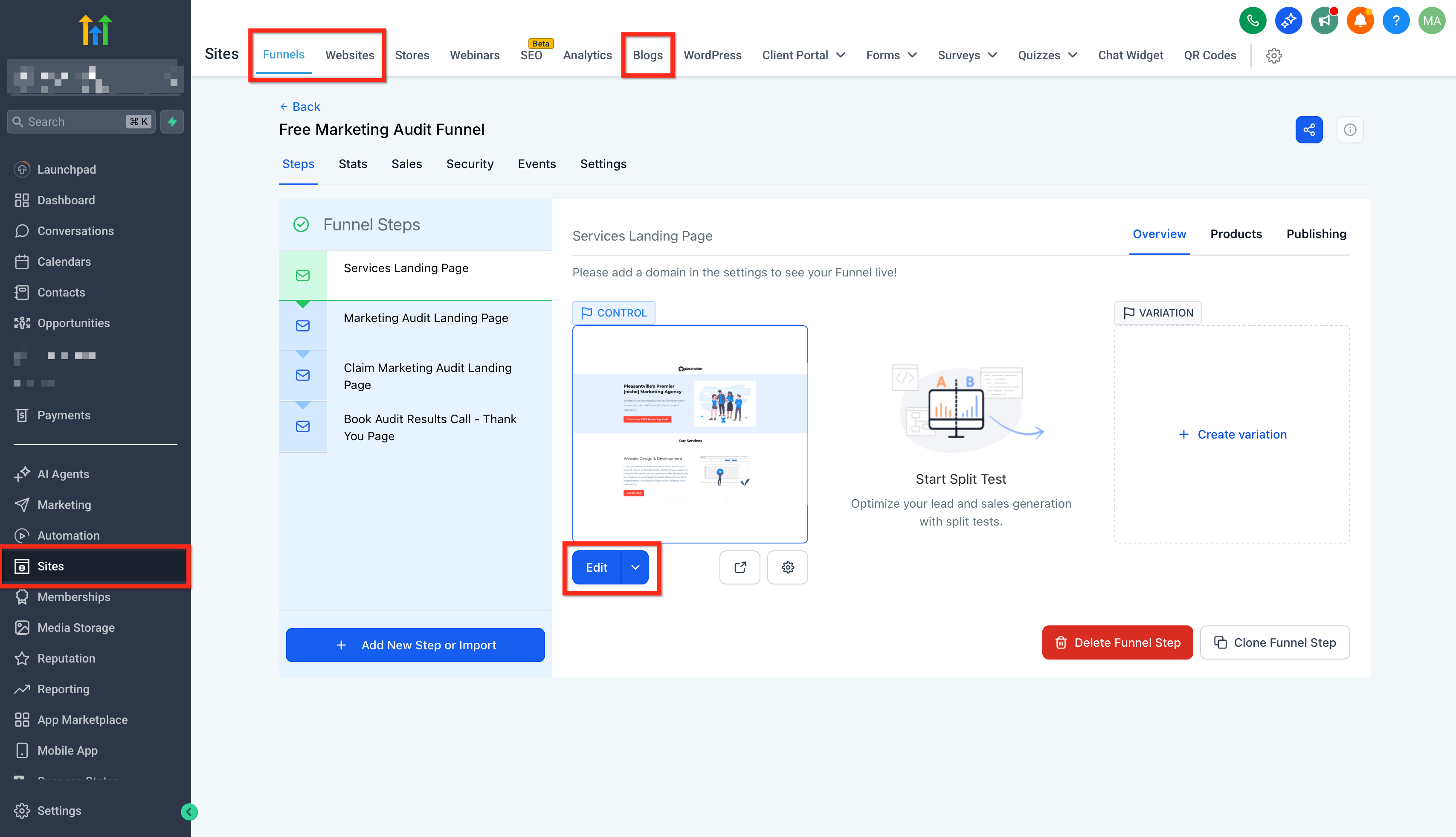
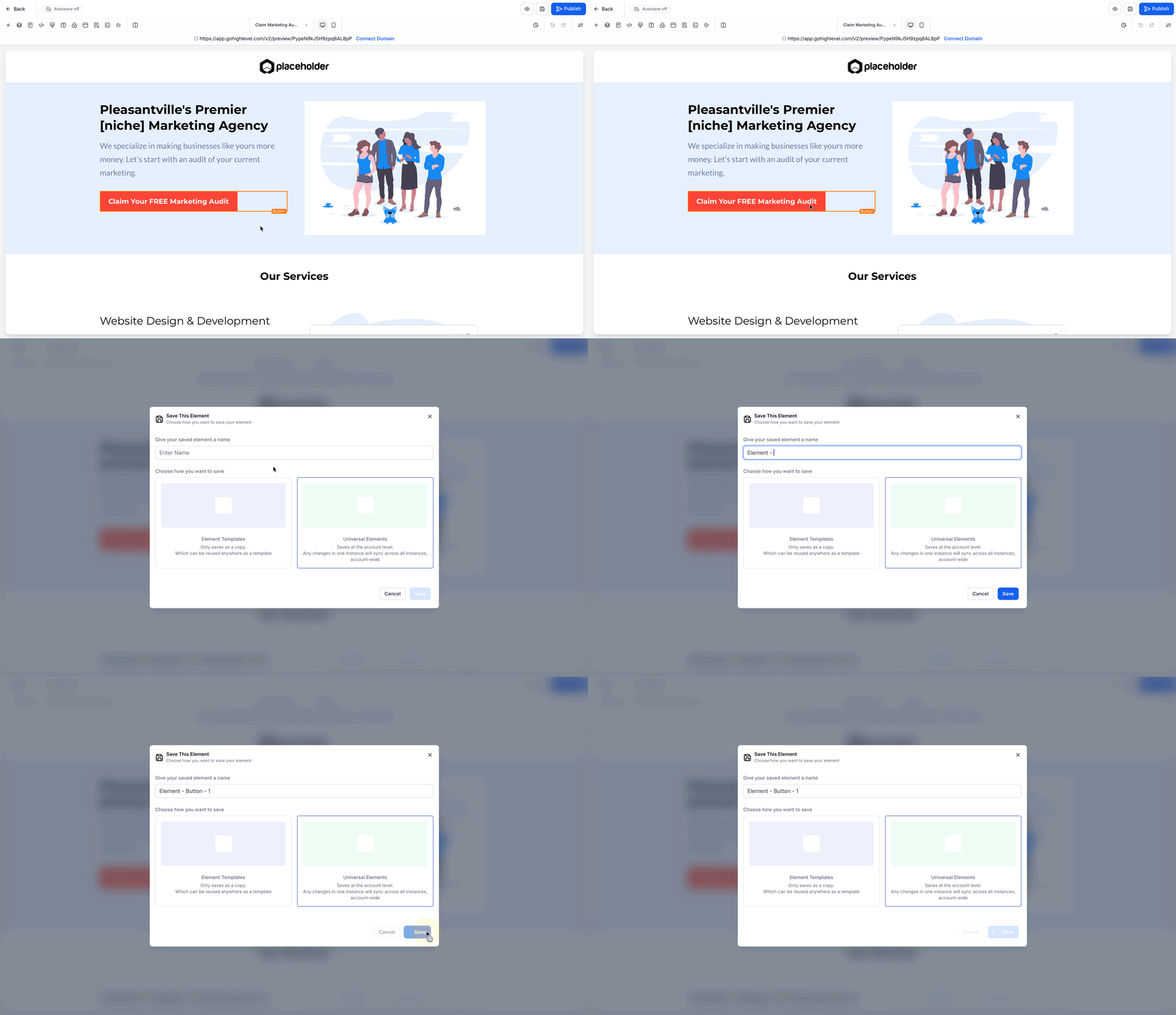
Select the element you want to reuse (e.g., button, image, icon, headline, or menu) and save it as a Universal Element from either location:
The element’s orange toolbar → Save icon
Layers panel → ⋯ menu → Save as Universal Element
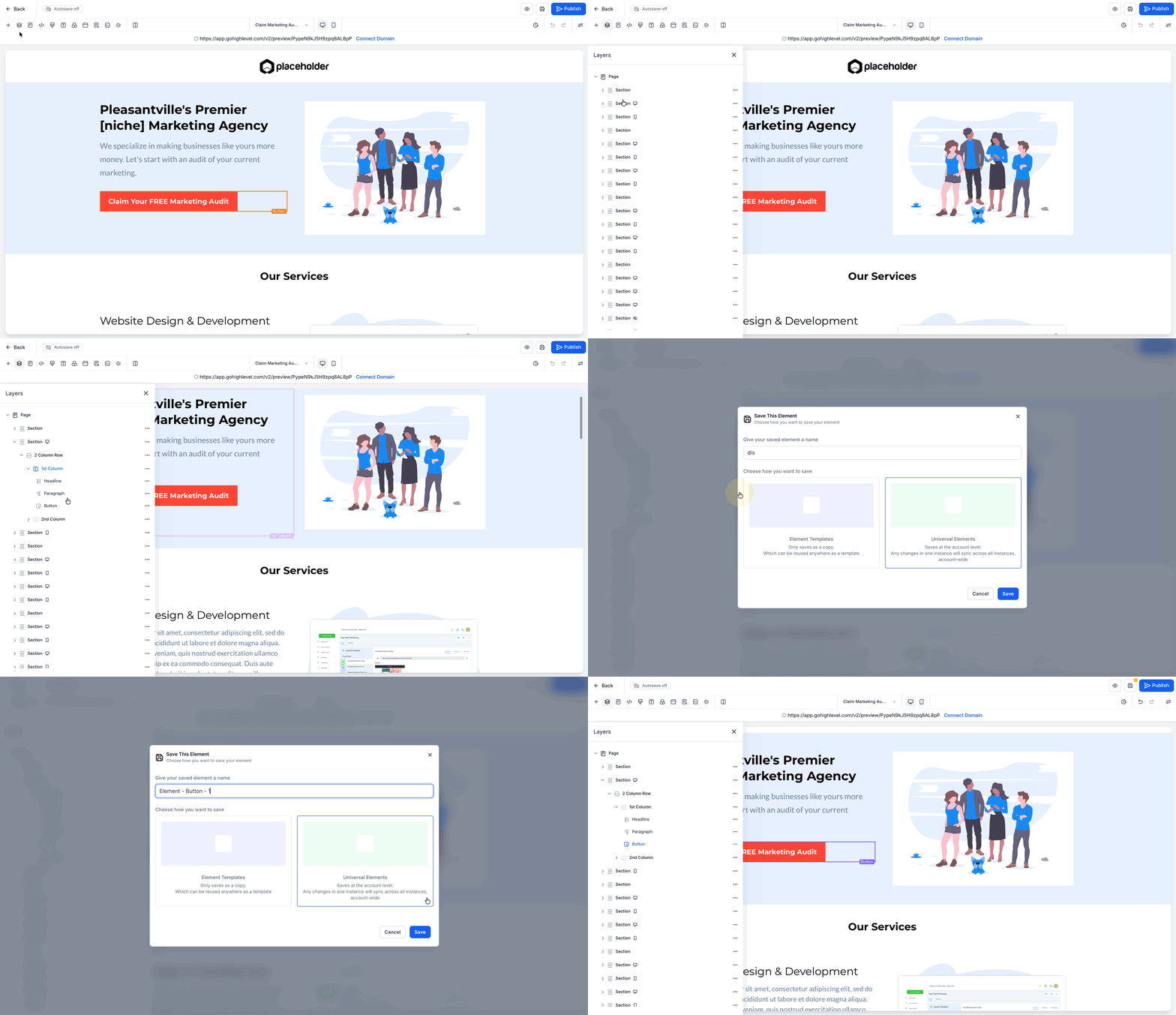
Give the item a clear, searchable name (e.g.,
Button — Primary CTA).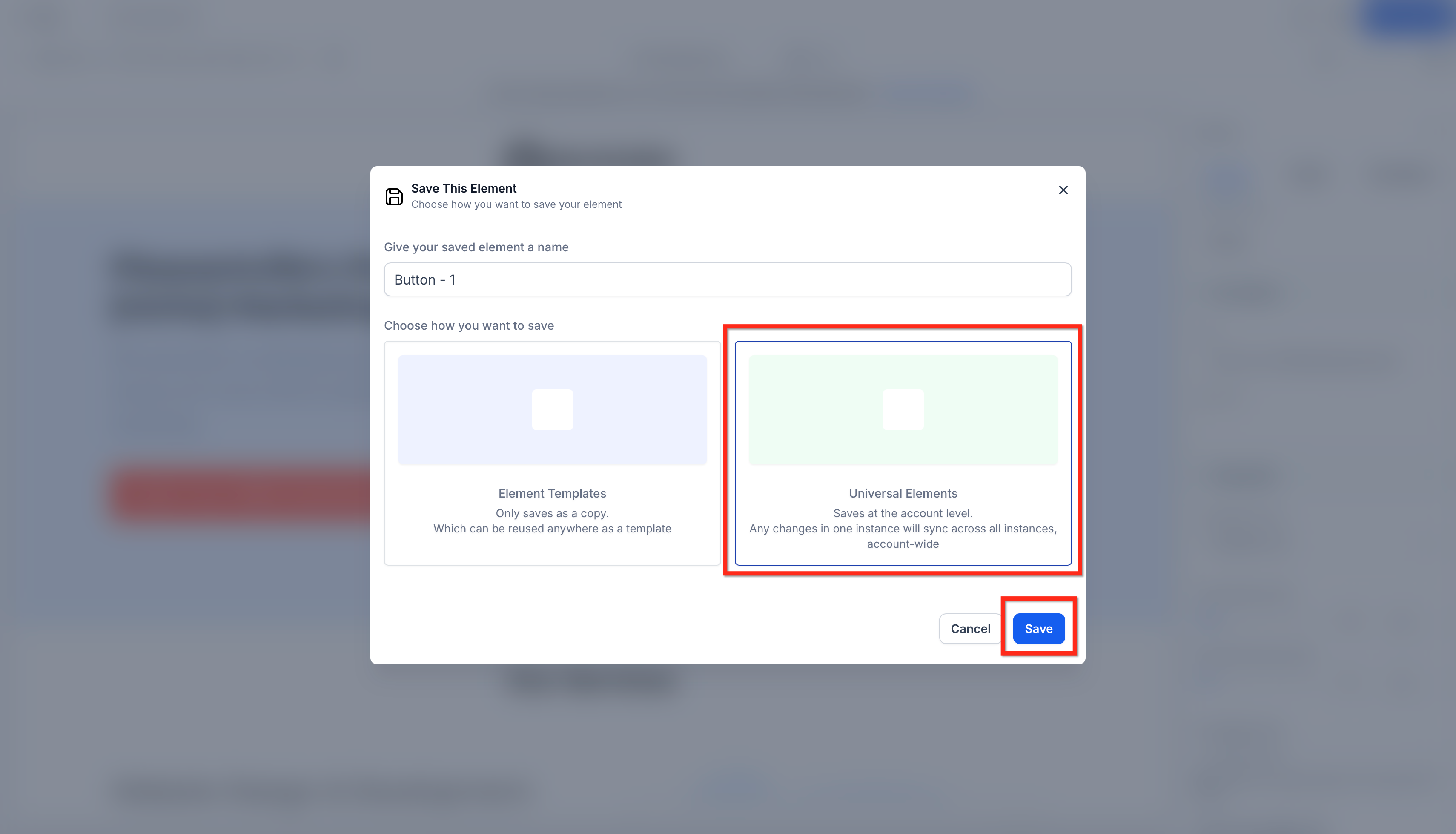
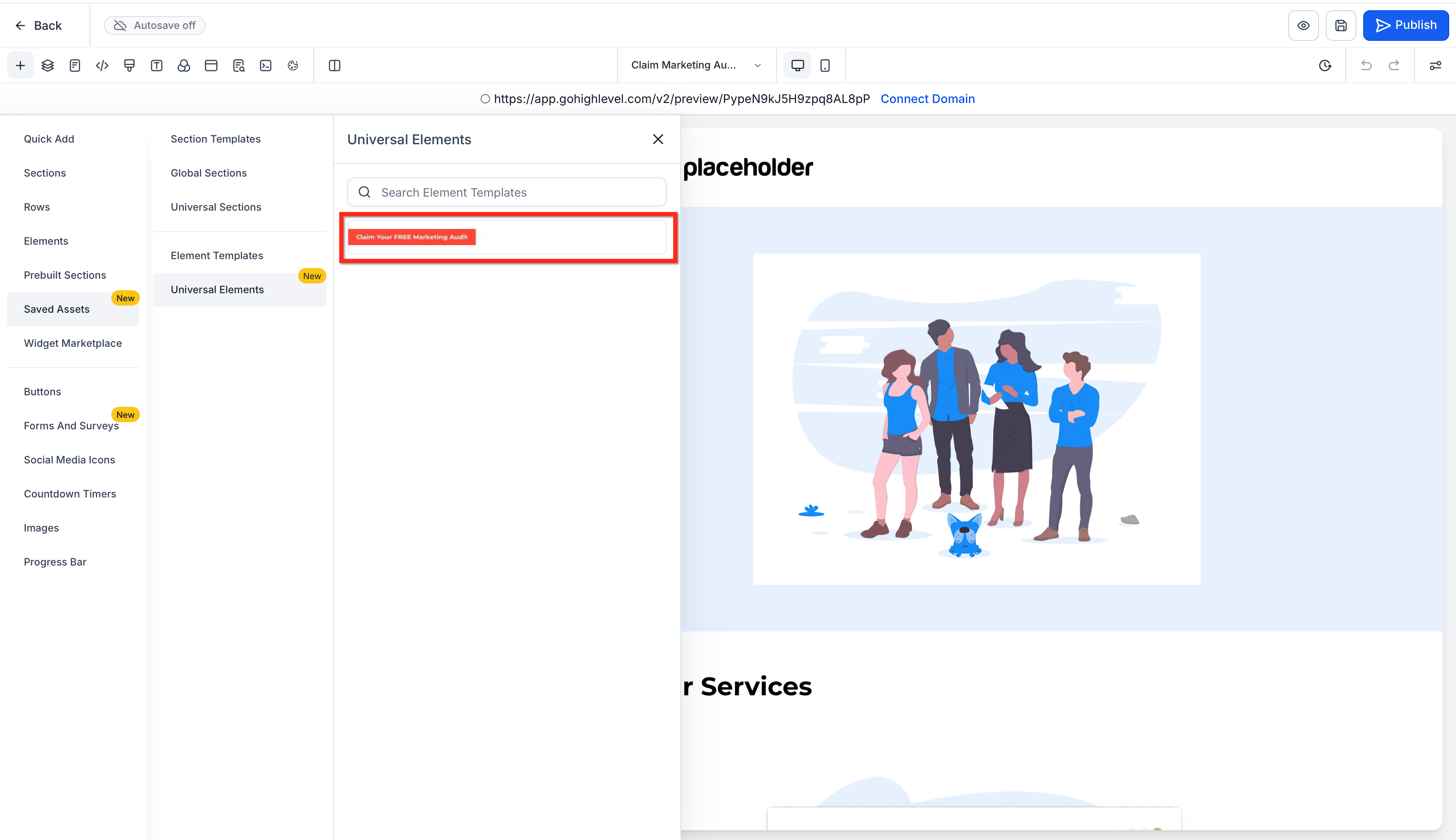
Confirm the save. The item now appears in Saved Assets → Universal Elements with a thumbnail.
Placing & Editing Universal Elements
Place Universal Elements from the Saved Assets library to ensure each instance stays linked. When you edit a Universal Element, you’ll publish changes to make them live on the affected pages.
AI Page Revisions are designed to respect linked Universal Elements and focus changes on the targeted content. When a revision runs, use the post-revision summary to verify whether a linked element was changed.
Best practices
Confirm whether your target area includes a linked Universal Element before running a revision.
If you need a page-only variant, duplicate the Universal Element locally (convert to a non-linked copy) before revising.
If a revision updates a linked element, review the change summary and publish global changes deliberately after validation.
Place a Universal Element
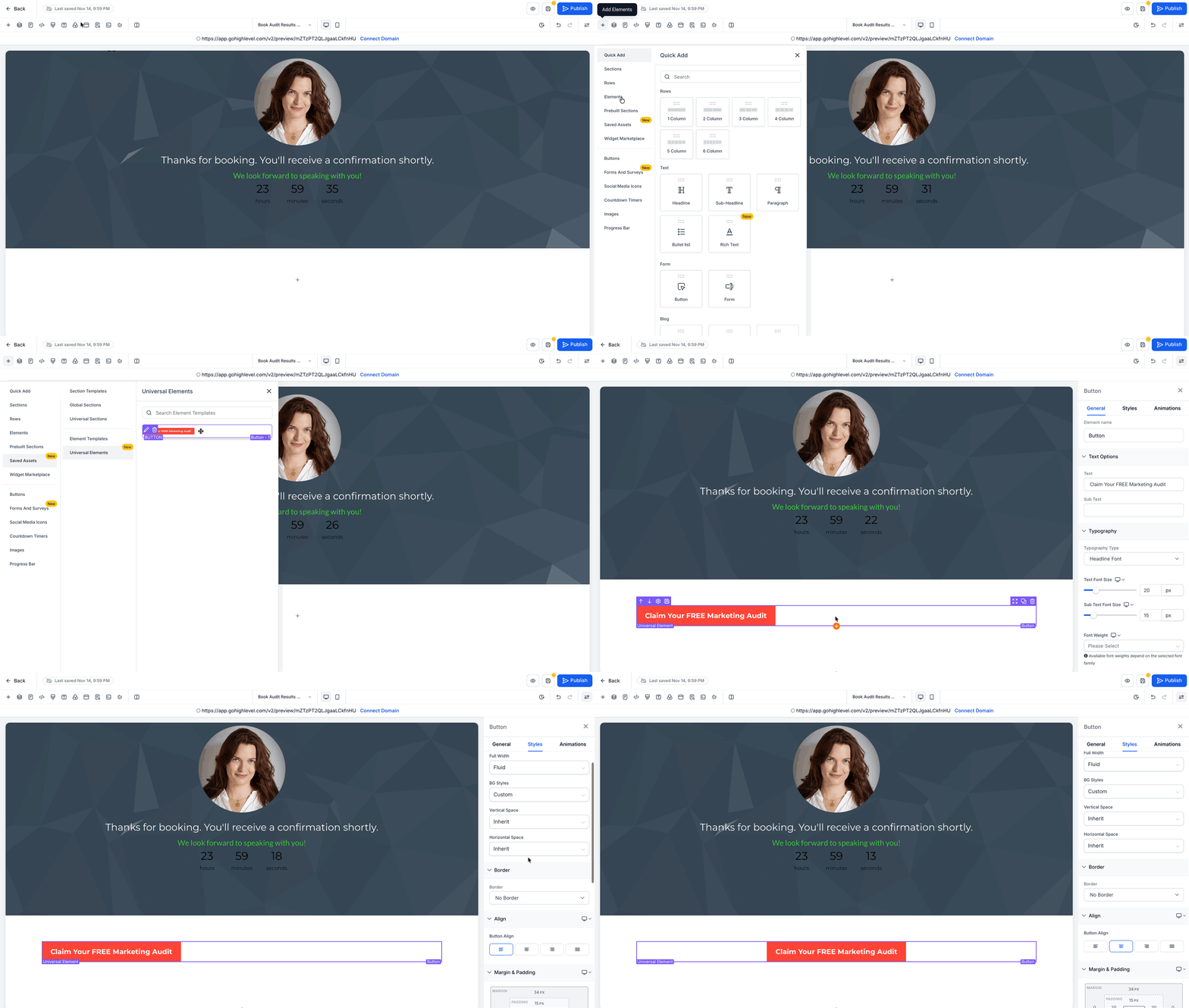
Open Add Elements → Saved Assets → Universal Elements.
Use search or browse thumbnails, then drag the element onto the canvas.
Edit a Universal Element
Select a placed Universal Element to adjust design or settings.
Save your page changes.
Publish the page so updates become visible to visitors.
Managing Saved Universal Elements
A tidy library speeds up builds and reduces mistakes. Use clear names, search effectively, and remove unused entries when appropriate.
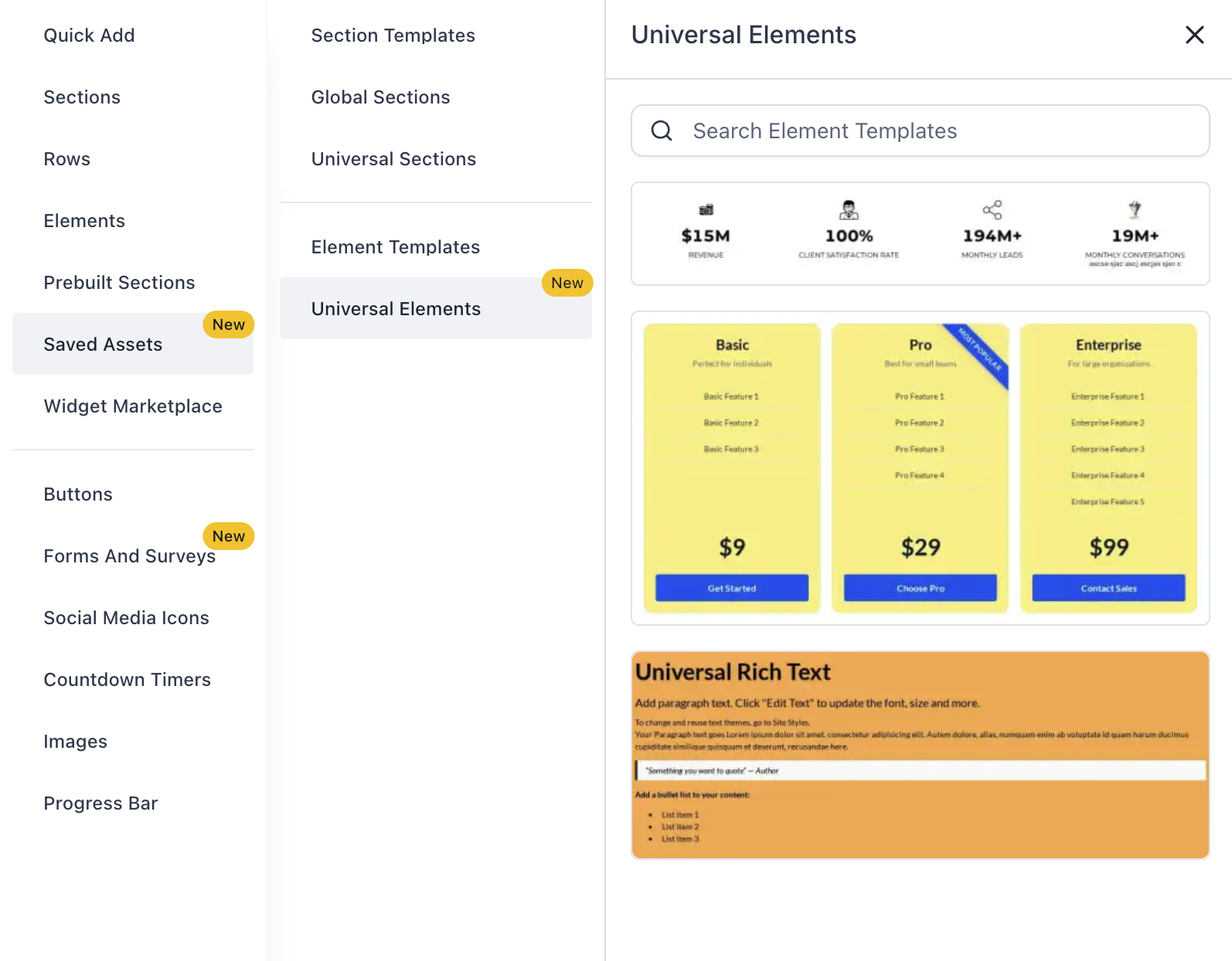
Browse & search: Add Elements → Saved Assets → Universal Elements provides thumbnails and keyword search.
Rename for clarity: Use consistent prefixes (e.g.,
Button —,Icon —,Nav —).Remove cautiously: Deleting a saved item detaches it from the library for future use. Review pages that currently rely on it before removing.
Frequently Asked Questions
Q: Do I have to publish for changes to be visible to visitors?
Yes. Saving keeps edits in the builder. Publishing the affected page(s) makes updates live.
Q: Where do I find saved Universal Elements?
In the Page Builder, open Add Elements → Saved Assets → Universal Elements to browse thumbnails or search by name.
Q: Can I rename or delete a Universal Element later?
You can rename items for clarity. Deleting removes the saved item from the library for future use; review pages that currently rely on it before removing.
Q: What if I need a one‑off variation on a single page?
Consider placing an Element Template or creating a local copy so changes don’t affect other pages.
Q: How can I revert a recent change if something looks wrong?
Use Version History on the affected page to restore a previous version, then republish.