
SourCherry now requires two‑factor authentication (2FA) whenever a user’s phone number is changed. This aligns phone updates with the existing email change + 2FA flow, closes a high‑risk account‑takeover path, and improves overall security. This article explains how it works, who it affects, and how to complete verification using Email, SMS (to an existing verified number), or an Authenticator App (TOTP).
TABLE OF CONTENTS
- What is 2FA for Phone Number Updates?
- Key Benefits of 2FA for Phone Number Updates
- Eligibility & Prerequisites
- Supported Verification Channels & Selection Logic
- Rate Limiting Rules
- Admin vs. User Update Paths
- Security & Audit Considerations
- How To Set Up and Use the Mandatory 2FA for Phone Number Updates
- Troubleshooting
- Frequently Asked Questions
What is 2FA for Phone Number Updates?
Mandatory 2FA adds a verification challenge any time a user attempts to change the phone number on their SourCherry profile. The verification must be completed using a previously verified channel—your existing email, your existing verified phone number, or a TOTP authenticator app if you’ve enabled it. This prevents attackers from swapping your number and taking over your account.
SourCherry enforces a 2FA check before saving any phone number change. OTPs/codes are delivered only to trusted, verified channels, never to the new phone number being added.
Key Benefits of 2FA for Phone Number Updates
Understanding the benefits helps teams adopt best practices and explain the change to users. The bullets below focus on day‑to‑day impact for admins and end users.
Account security: prevents phone‑swap takeovers by blocking OTPs from being sent to a brand‑new number.
Consistency: mirrors the email update + 2FA experience, reducing confusion across profile changes.
Compliance & trust: strengthens identity controls across critical profile data.
Abuse protection: daily attempt limits reduce brute‑force or spammy change requests.
Eligibility & Prerequisites
Verifying at least one secure channel beforehand ensures you can pass 2FA when updating your phone number. Use this checklist before attempting a change.
You must have at least one verified channel on your profile:
Verified Email (recommended)
Verified Phone (SMS)
Authenticator App (TOTP) enabled (optional, recommended)
You must be able to access the selected channel during the update.
Your role/permissions must allow editing your own profile; admins must have permission to edit team member profiles if performing updates on behalf of others.
Tip: If you currently have no verified channel, set up TOTP or verify your email first so you don’t get blocked during the phone update.
Supported Verification Channels & Selection Logic
SourCherry only offers verification options that are already trusted for your account. This section clarifies which options you’ll see and why.
Email (OTP to existing verified email) – always offered if your email is verified.
SMS (OTP to existing verified phone) – offered only if your current phone on file is already verified.
Authenticator App (TOTP) – offered if you previously enabled a TOTP app.
Not allowed: OTP cannot be sent to the new phone number being added.
What you’ll see in-product: A channel selection modal listing eligible options only.
Rate Limiting Rules
Rate limiting protects accounts from abuse. Knowing the limits helps users plan updates and troubleshoot lockouts.
A maximum of 5 phone/email change attempts per user per day is allowed.
When the daily limit is reached, further attempts are blocked until the counter resets.
Message copy in-app will inform you that you’ve hit the limit and to try again later.
Note: If you encounter a limit unexpectedly, confirm whether another admin or automated process attempted changes on your behalf the same day.
Admin vs. User Update Paths
The experience is similar for everyone, but admins may initiate changes on behalf of team members. Understanding who receives the OTP and where to start avoids confusion.
Self‑service (User): Start from your own profile and select a verified channel to complete 2FA.
Admin‑initiated (Team member): Begin from Settings → Team (or your team management page). The OTP is delivered to the team member’s verified channel(s), not the admin’s.
Security & Audit Considerations
These safeguards help organizations maintain a secure, trackable profile change process and quickly identify suspicious behavior.
OTPs are never sent to the new phone number being added.
Only verified channels are eligible for OTP delivery.
Changes are subject to daily attempt limits to curb brute‑force activity.
(If enabled in your plan) Review audit/activity logs to see who initiated changes and when.
Consider enabling TOTP to add a code option that works even when SMS is unavailable.
How To Set Up and Use the Mandatory 2FA for Phone Number Updates
Follow the steps below to update a phone number securely. Steps include both the self‑service flow and the admin flow, where applicable.
A) Update your own phone number (self‑service)
Go to Settings → My Profile (or your user profile page).
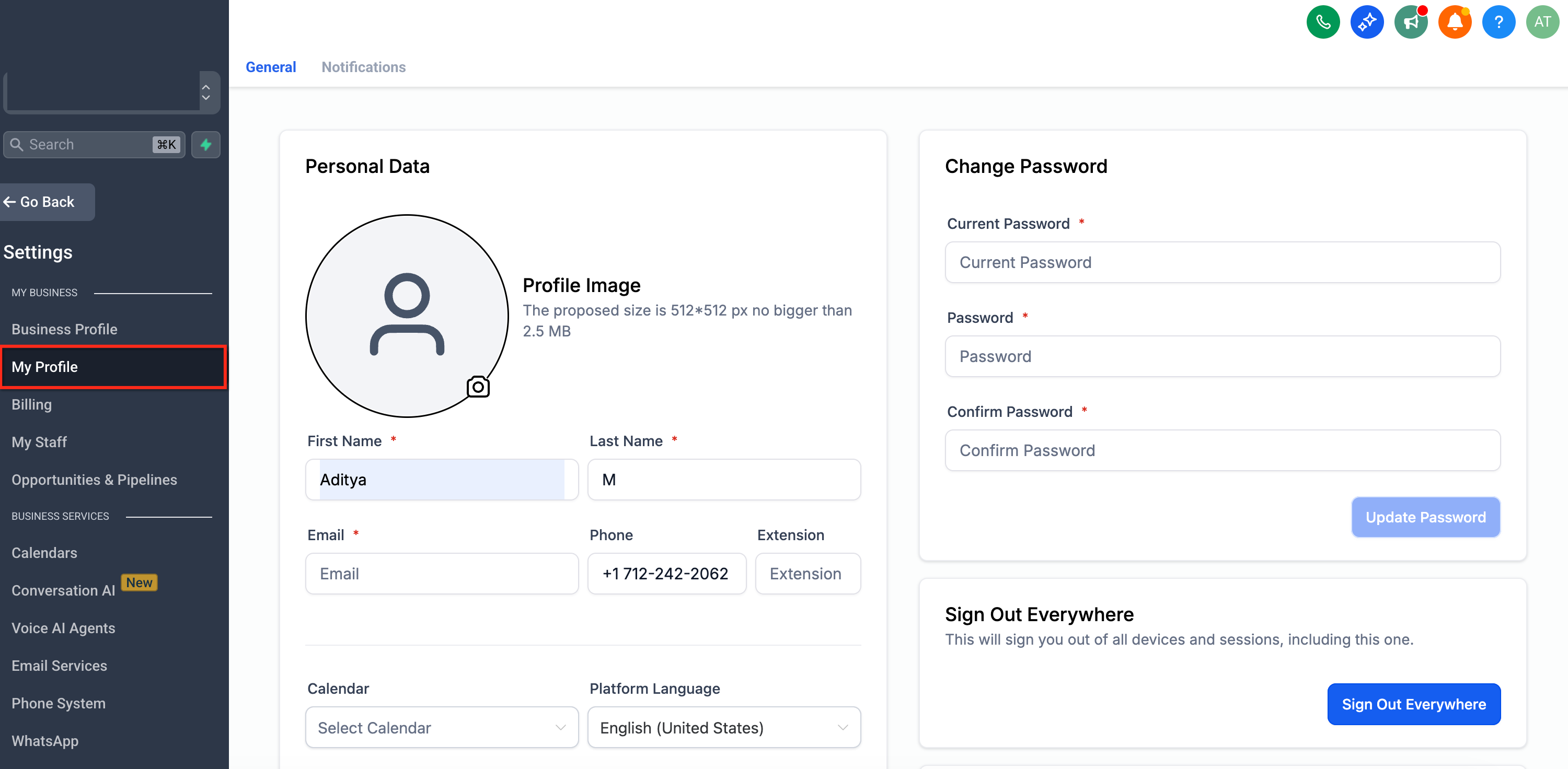
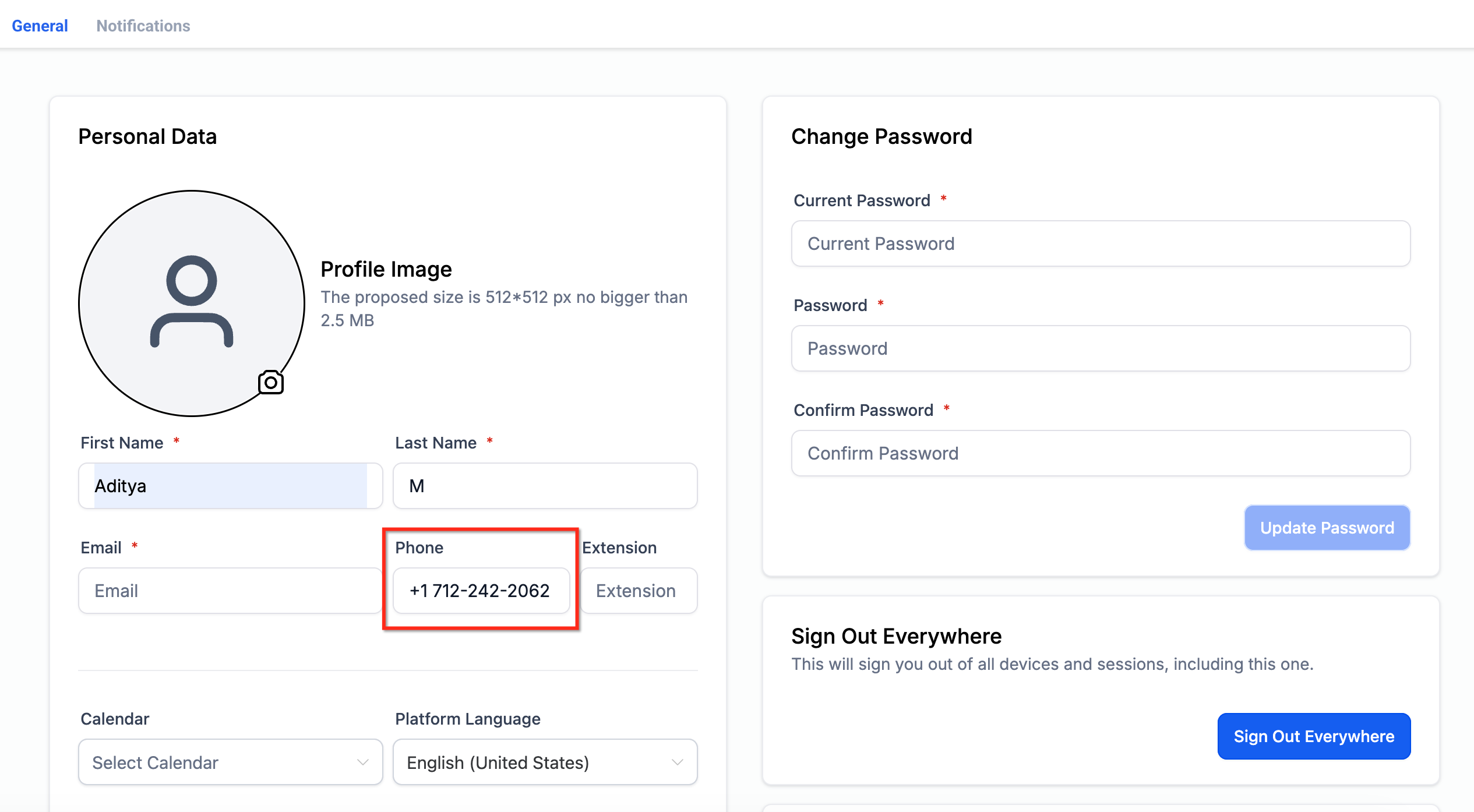
In Personal Data, edit the phone number.
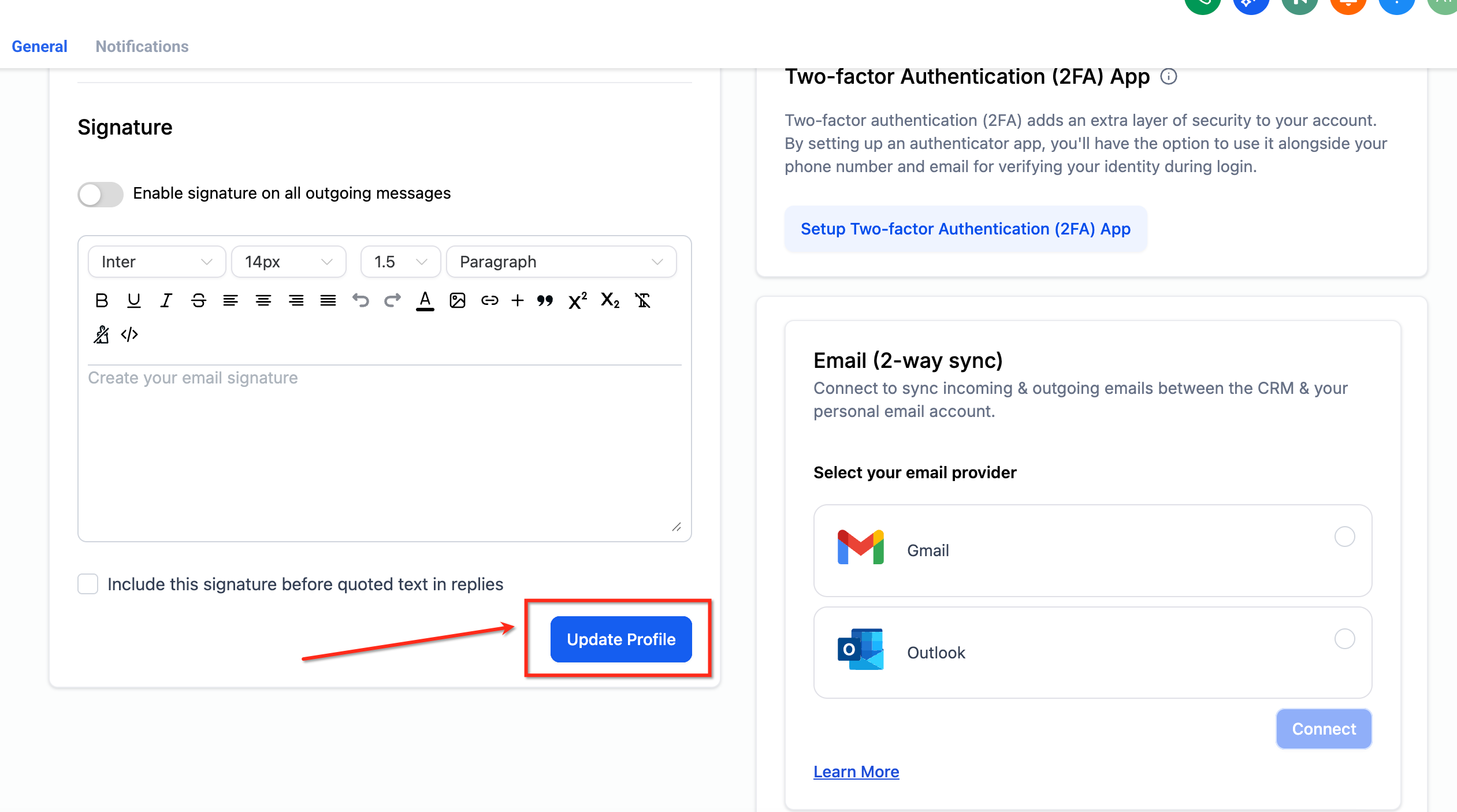
Enter the new phone number, then click Update Profile.
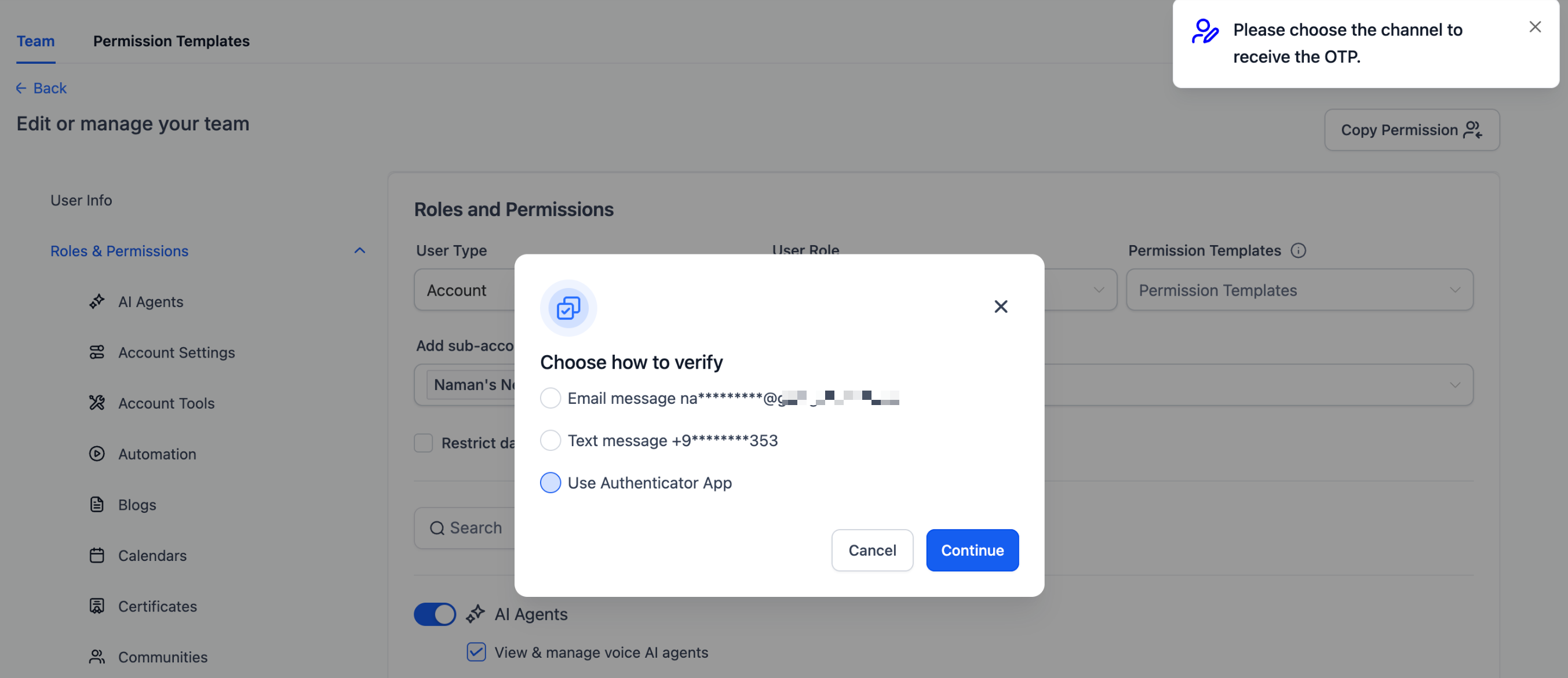
When the Choose how to verify modal opens, select one of your available channels:
Email (OTP sent to your verified email)
Text message (OTP sent to your existing verified phone)
Use Authenticator App (enter the 6‑digit TOTP)
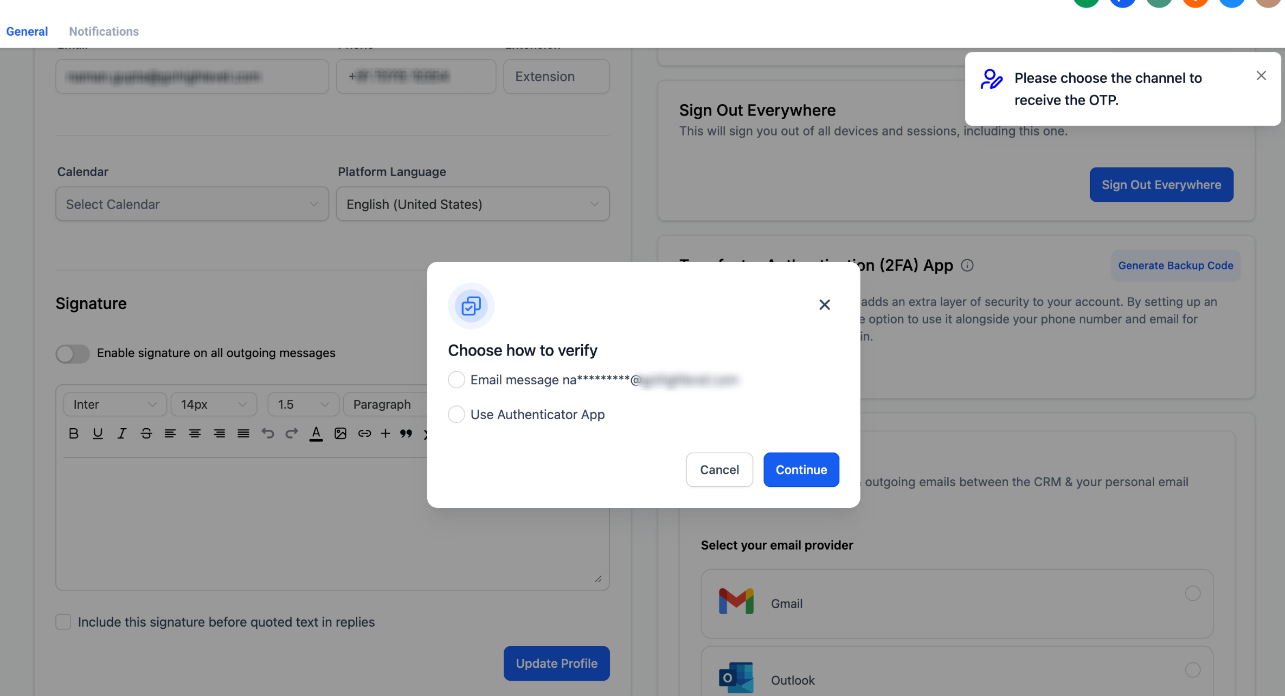
Click Continue. If you selected Email or SMS, retrieve the OTP and enter it to verify.
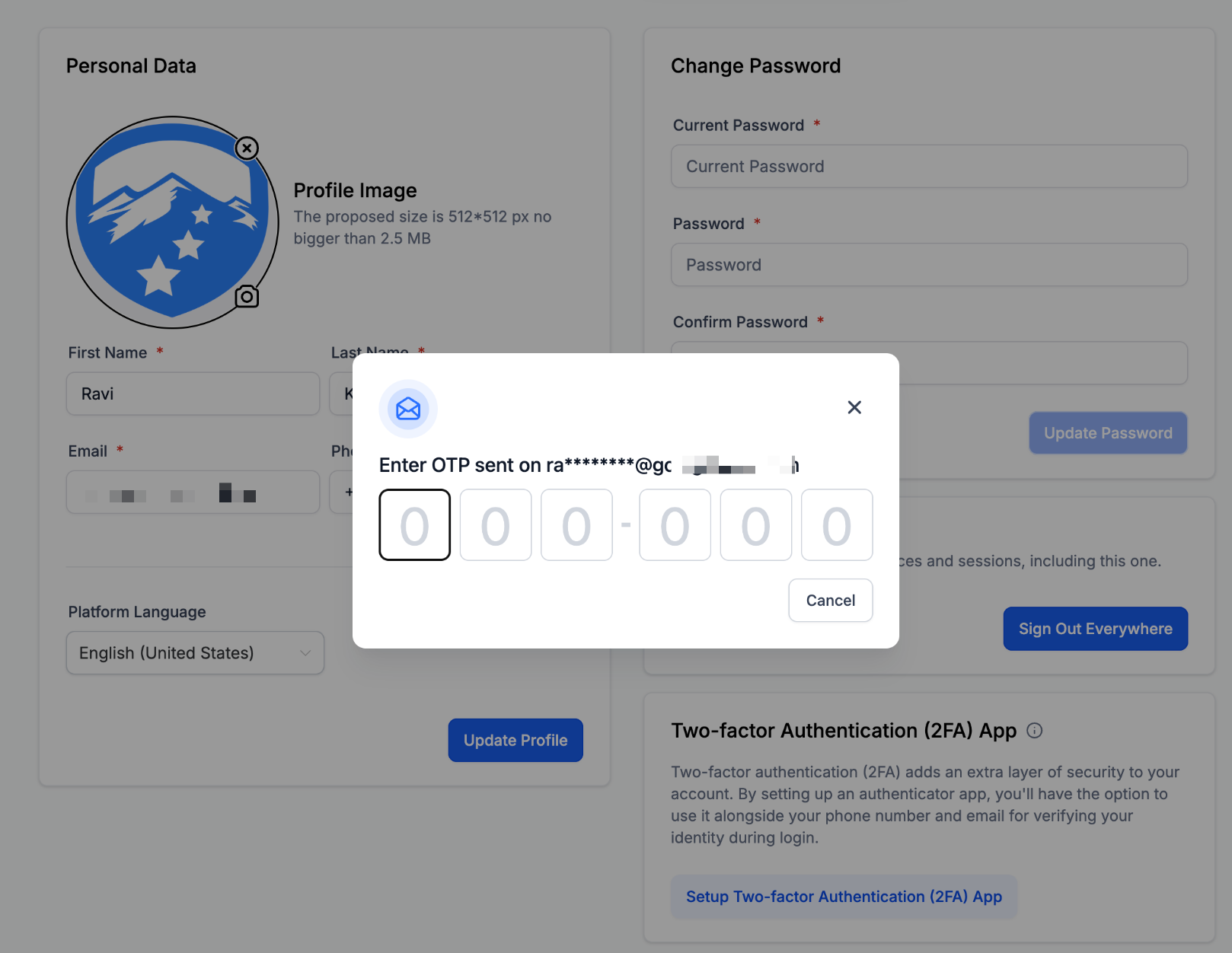
After successful verification, confirm the change. You’ll see a success message, and your profile will reflect the new number.
Important: If you don’t see SMS as an option, your current phone is not verified. Use Email or Authenticator App instead, or verify your phone first.
B) Update a team member’s phone number (admin)
Go to Settings → Team and open the team member’s profile.
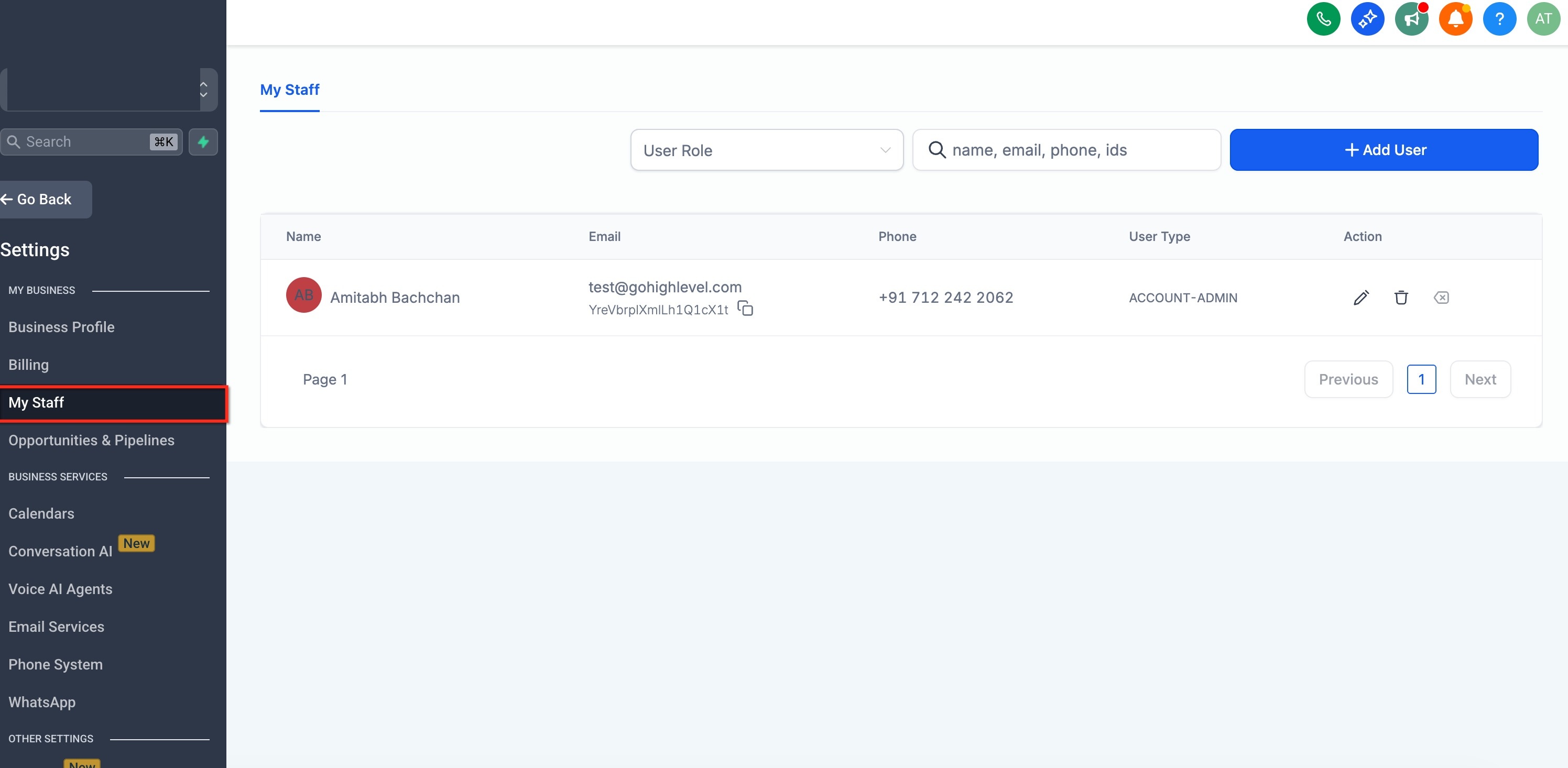
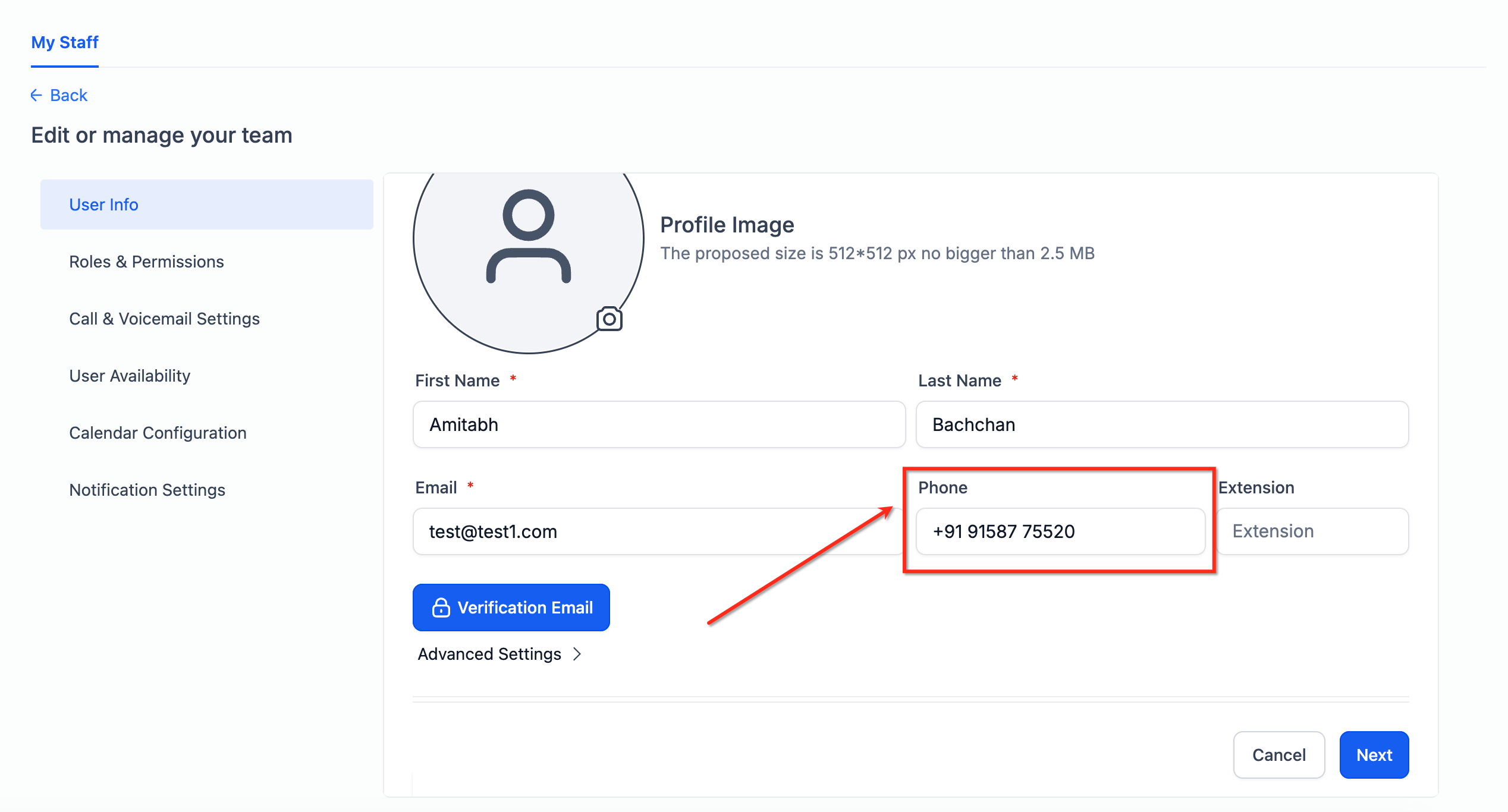
Edit the Phone number and enter the new number.
On Choose how to verify, select an available channel. The code is delivered to the team member’s verified email/phone, or they can provide the code from their Authenticator App.
Enter the OTP (or have the team member provide it securely) and click Continue to complete the change.
Security reminder: OTPs will not be sent to the new number you’re adding.
Troubleshooting
If you encounter errors or cannot complete verification, use these targeted tips to resolve common issues quickly.
No verification options available: Set up TOTP or verify your email first. You must have at least one verified channel to proceed.
Don’t see SMS as an option: Your current phone is not verified. Use Email/TOTP or verify the existing number.
OTP not received: Check spam/junk, confirm you have network coverage for SMS, and request a new code after the resend timer allows.
Daily limit reached: You’ve hit the 5 attempts/day limit. Wait for the reset and try again. Consider completing TOTP setup to reduce reliance on SMS.
Lost access to both email and phone: Use backup codes (if enabled) or contact your account owner/admin for assistance.
Frequently Asked Questions
Q. Why can’t I send the OTP to my new phone number?
For security, OTPs only go to channels already verified on your account. This blocks attackers from adding a new number and receiving the OTP there.
Q. I don’t see SMS as a verification option—what should I do?
SMS appears only if your existing phone is verified. Use Email or Authenticator App (TOTP) instead, or verify your current phone first.
Q. How many times can I attempt a change per day?
You can attempt up to 5 phone/email changes per user per day. After that, you’ll be temporarily blocked until the counter resets.
Q. Who receives the OTP when an admin updates a user’s phone?
The user being edited. OTPs are sent to that user’s verified channels, not to the admin.
Q. Can I use my authenticator app instead of Email/SMS?
Yes, if you’ve enabled TOTP for your account, you can select Use Authenticator App during verification and enter your current 6‑digit code.
Q. What if I’ve lost access to both my email and phone?
Use backup codes (if available) or contact your account owner/admin for identity verification and recovery support.
Q7. Does this change anything about updating my email address?
Email updates already require 2FA. Phone updates now follow the same security standard for consistency and safety.