
This guide explains how to scan all your lead‑capture assets for compliant consent language, review issues at a glance, and bulk‑apply standardized consent text where needed. You’ll learn where to run the audit, how the results are categorized, and how to fix non‑compliant assets quickly.
What is Audit & Fix Consent Text Across All Your Assets?
Audit & Fix centralizes consent maintenance by scanning supported assets for compliant opt‑in language and helping you correct issues in bulk. This reduces risk and keeps your capture points consistent so downstream messaging and calling respect contact preferences.
Key Benefits of Audit & Fix Consent Text
Understanding the advantages helps you decide when to run the audit and what outcomes to expect—especially if you manage many assets or multiple locations.
Complete Visibility: See consent status across Forms, Surveys, Calendars, Facebook Lead Forms* and Chat Widgets in one place.
Bulk Corrections: Apply compliant consent text to supported assets with one click to standardize language fast.
Outbound Recognition: Ensure contacts who opted in via surveys, appointment bookings, FB forms, or chat widgets are recognized for outbound calling/messaging.
Time Savings: Replace manual, asset‑by‑asset checks with a single audit workflow.
Risk Reduction: Reduce missed or inconsistent consent language that could impact deliverability or compliance.
Supported Assets
Knowing what’s covered prevents surprises and helps you prioritize which assets to fix first.
Forms
Surveys
Appointment Forms / Calendars
Facebook Lead Forms
Chat Widgets
How To Setup Audit & Fix Consent Text
A structured setup ensures that the first audit yields accurate results and that bulk fixes apply exactly as intended.
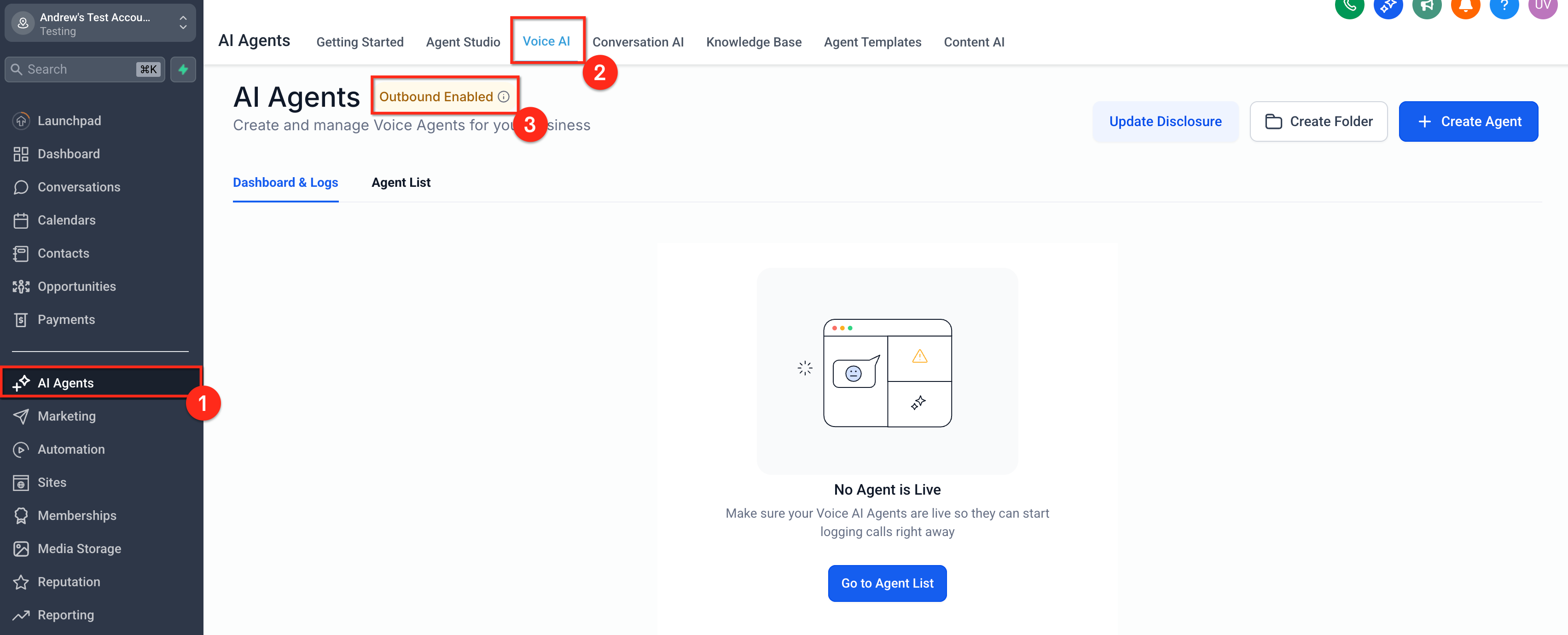
Open the Voice AI — Locate the AI Agent option in the Left Pane of your sub account and choose Voice AI Page. If Outbound is enabled, you will see the same tooltip in the page.
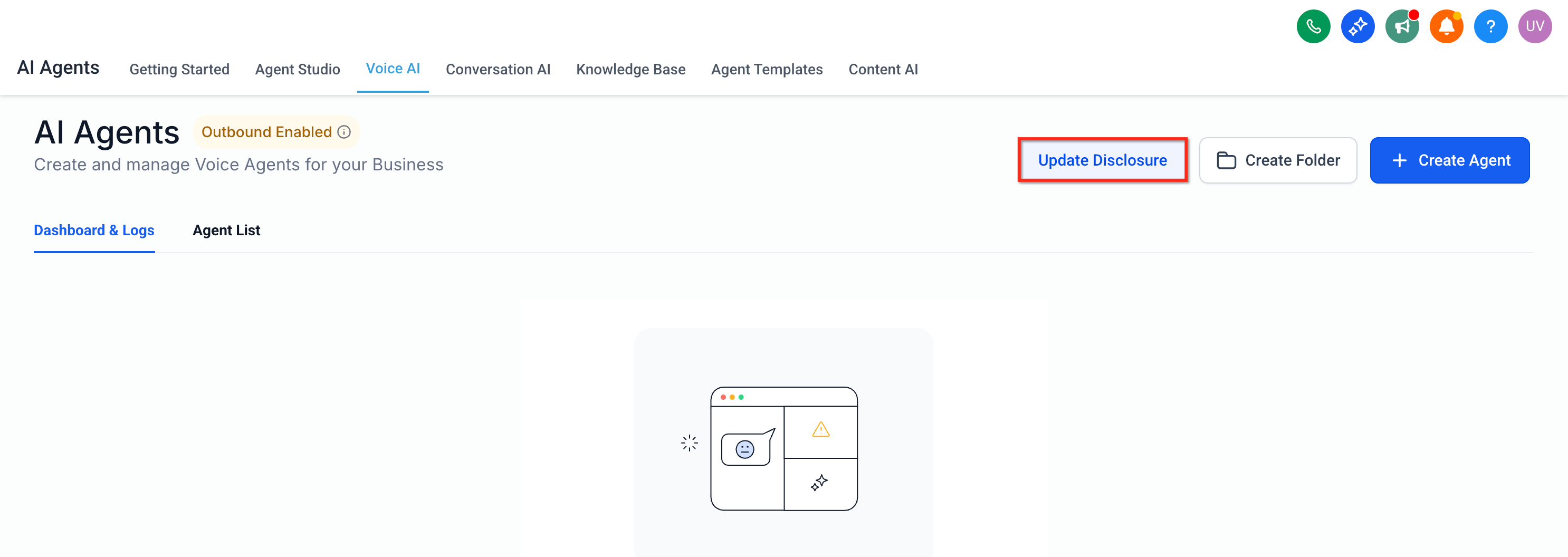
Complete Verification: If the Verification is not done before, Click on "Update Disclosure" to complete the verification process.
Run Audit — Select location(s) and asset types to include. Start the scan and wait for the results to populate.
Review — Filter by Needs Attention. Click an asset to preview its current consent language.
Select assets — Check the boxes for the assets you want to update now.
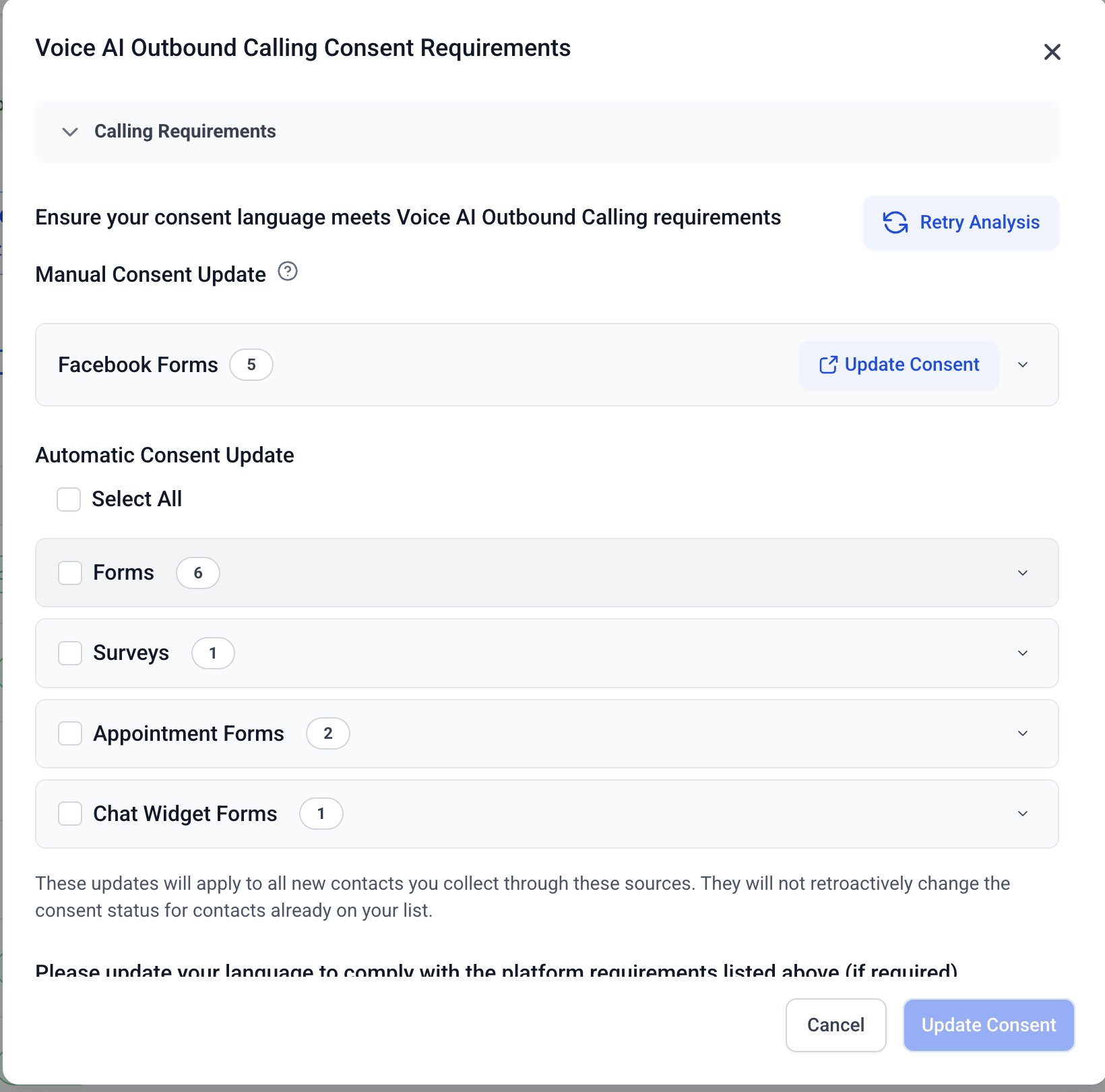
Preview fix — Open the Bulk Fix modal to review the standardized consent text and placement.
Apply — Confirm to apply compliant text to the selected assets.
Verify — Spot‑check a few assets and, if needed, re‑run the audit to confirm status.
Facebook Lead Forms — Edit consent on Facebook; then return and re‑scan to refresh status.
Frequently Asked Questions
Q: Does the audit change my existing custom legal language?
A: You can choose whether to replace or append when applying a bulk fix. Review the preview before confirming.
Q: Can I undo a bulk fix?
A: If your account offers change history or versioning for the asset type, revert there. Otherwise, manually edit the asset to your preferred text and re‑run the audit.
Q: Are Facebook Lead Forms auto‑fixed by the tool?
A: No. They appear in results for visibility, but you must update their consent language directly on Facebook.
Q: How often should I run the audit?
A: Run after creating or importing new assets, after major policy updates, and periodically as part of compliance hygiene.
Q: Does the audit evaluate language for every region’s law?
A: The tool checks for standard elements of compliant consent. Because laws vary, confirm final wording with legal counsel.
Q: Will this update double opt‑in settings?
A: The audit focuses on consent language in assets. Manage double opt‑in and related messaging settings in your messaging/compliance configuration.
Q: Where do I see a contact’s consent status once captured?
A: Check the contact record and any outbound messaging/calling eligibility indicators supported by your account.
Q: Can I exclude certain assets from bulk updates?
A: Yes. Use selective apply—only the assets you select are updated.