
Exporting Companies to CSV makes it easy to share, analyze, and back up company records in SourCherry without copying data manually. Company Export lets you download multiple selected companies—or the full company list—directly from the Companies screen. This is helpful for reporting, offline review, and sending structured data to stakeholders.
TABLE OF CONTENTS
- What is Company Export?
- Key Benefits of Company Export
- Export Options
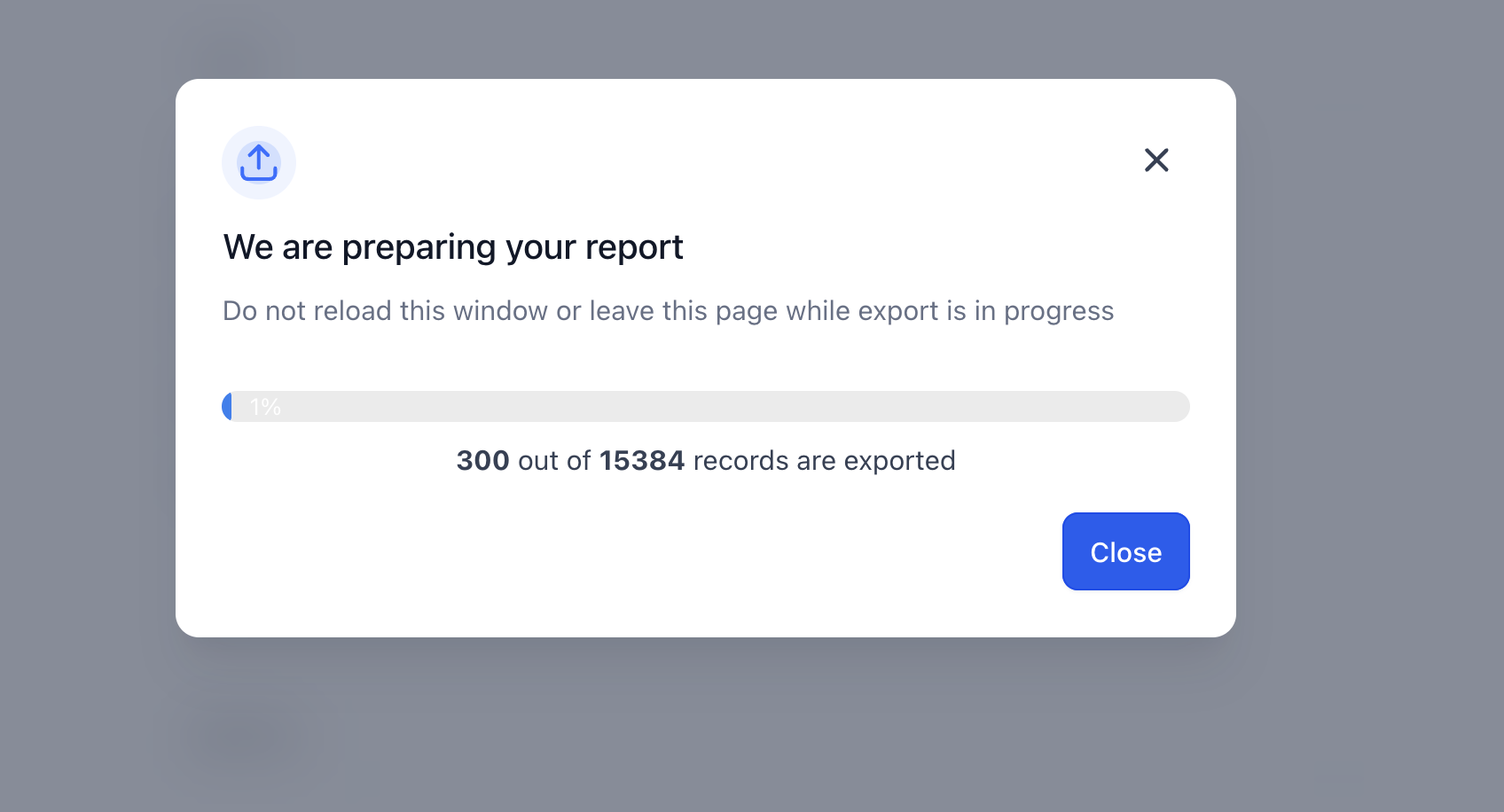
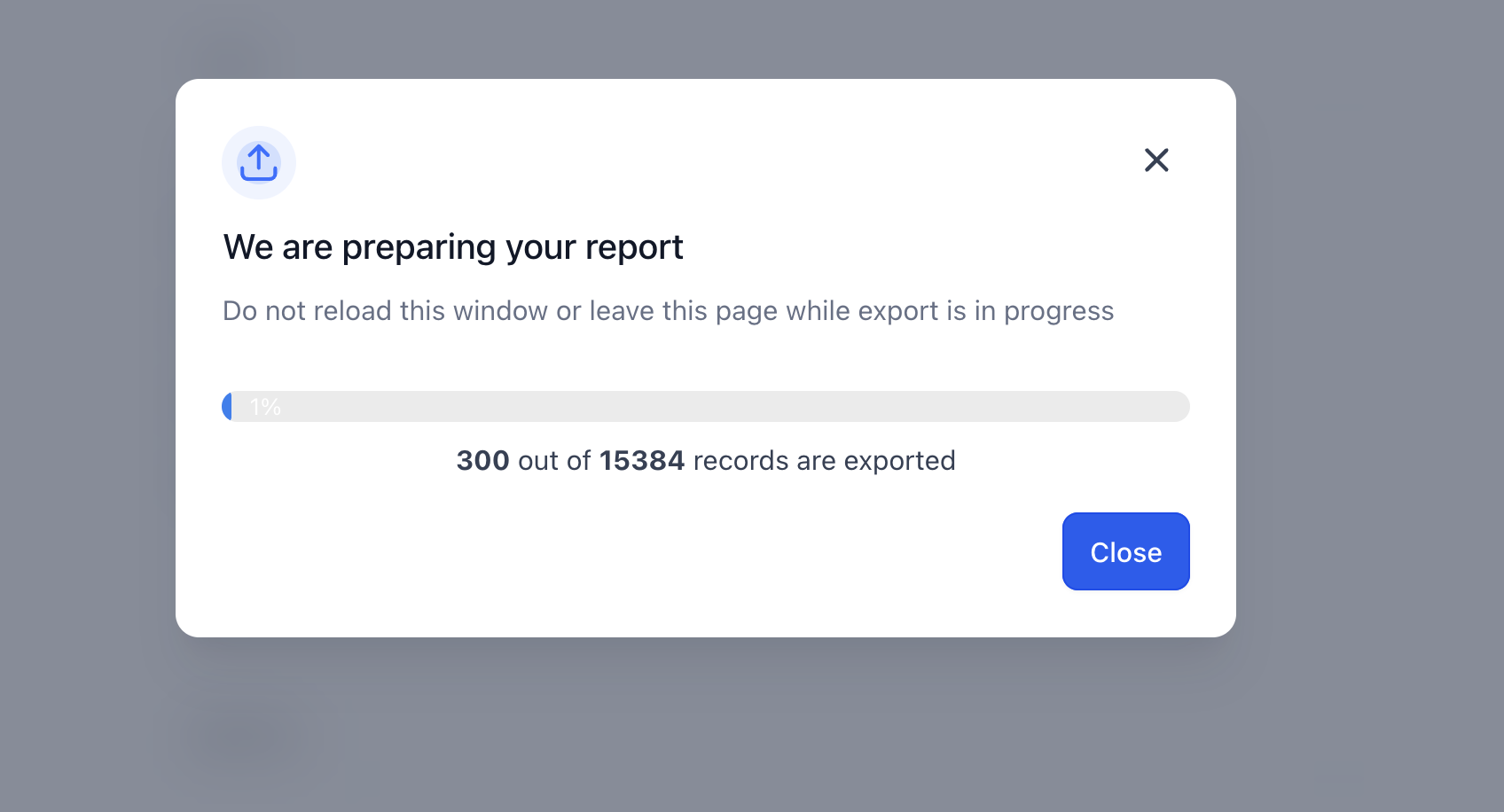
- Real-Time Export Progress Modal
- CSV File Structure & Fields
- How To Setup Company Export
- Frequently Asked Questions
- Related Articles
What is Company Export?
Company Export is a SourCherry feature that downloads company records from Contacts → Companies as a CSV file. Exporting to CSV helps you work with company data in tools like Excel or Google Sheets while keeping the information organized in a consistent spreadsheet format.
Key Benefits of Company Export
Having a fast, repeatable way to pull company data improves reporting and reduces manual work—especially in B2B setups where companies are a core part of the CRM.
Bulk exporting: Download multiple company records at once instead of copying details record-by-record.
Shareable format: Use CSV to share company data with teammates or external partners in a standard spreadsheet format.
Offline analysis: Review, filter, and sort exported company data in spreadsheet tools for audits or reporting.
Flexible workflows: Export either a targeted set of companies or a complete list depending on your goal.
Export Options
Understanding the two export paths helps you choose the quickest workflow based on whether you need a subset of records or the full dataset.
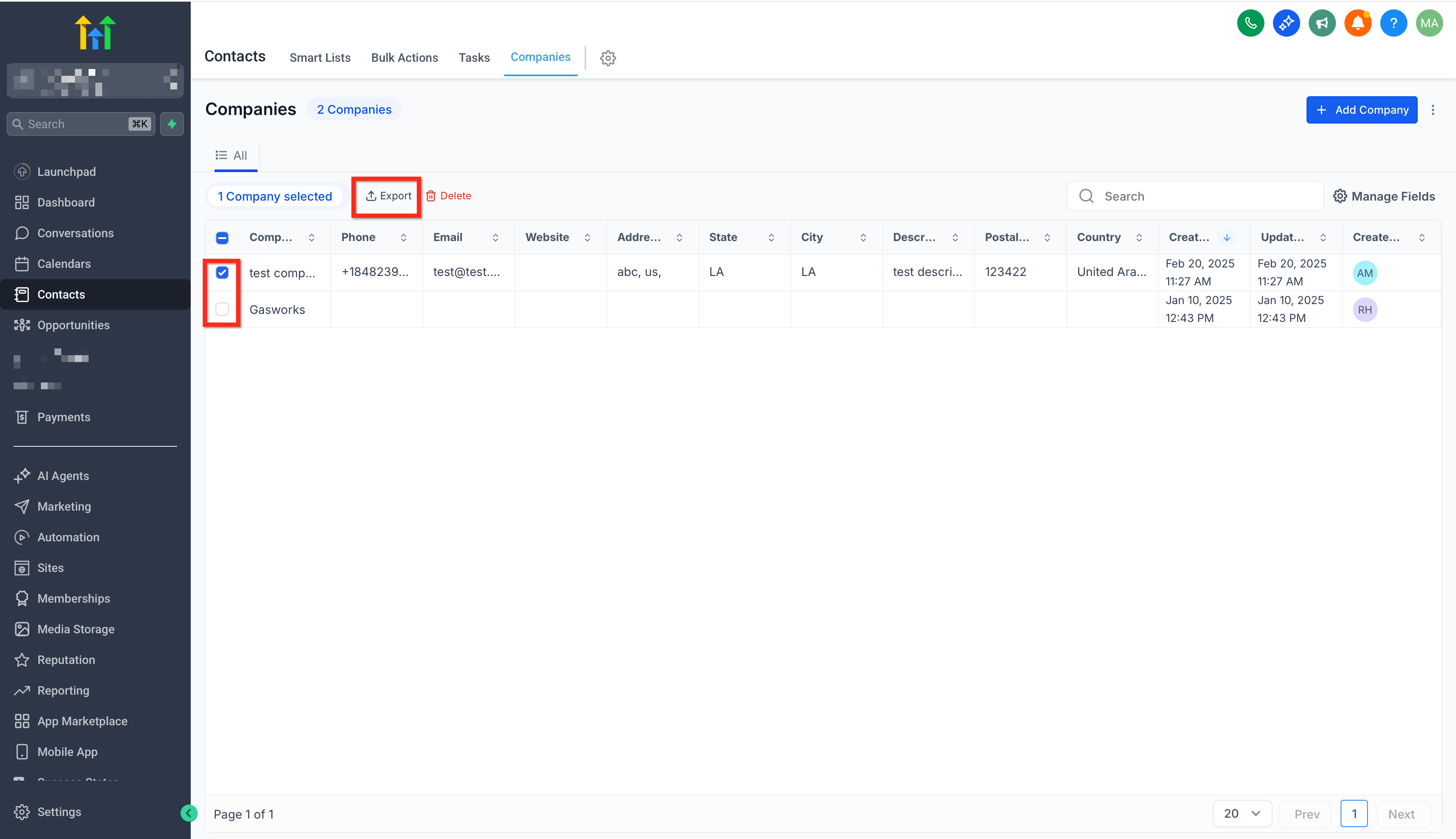
Export selected companies (from the table): Select one or more companies using checkboxes, then export from the action bar.
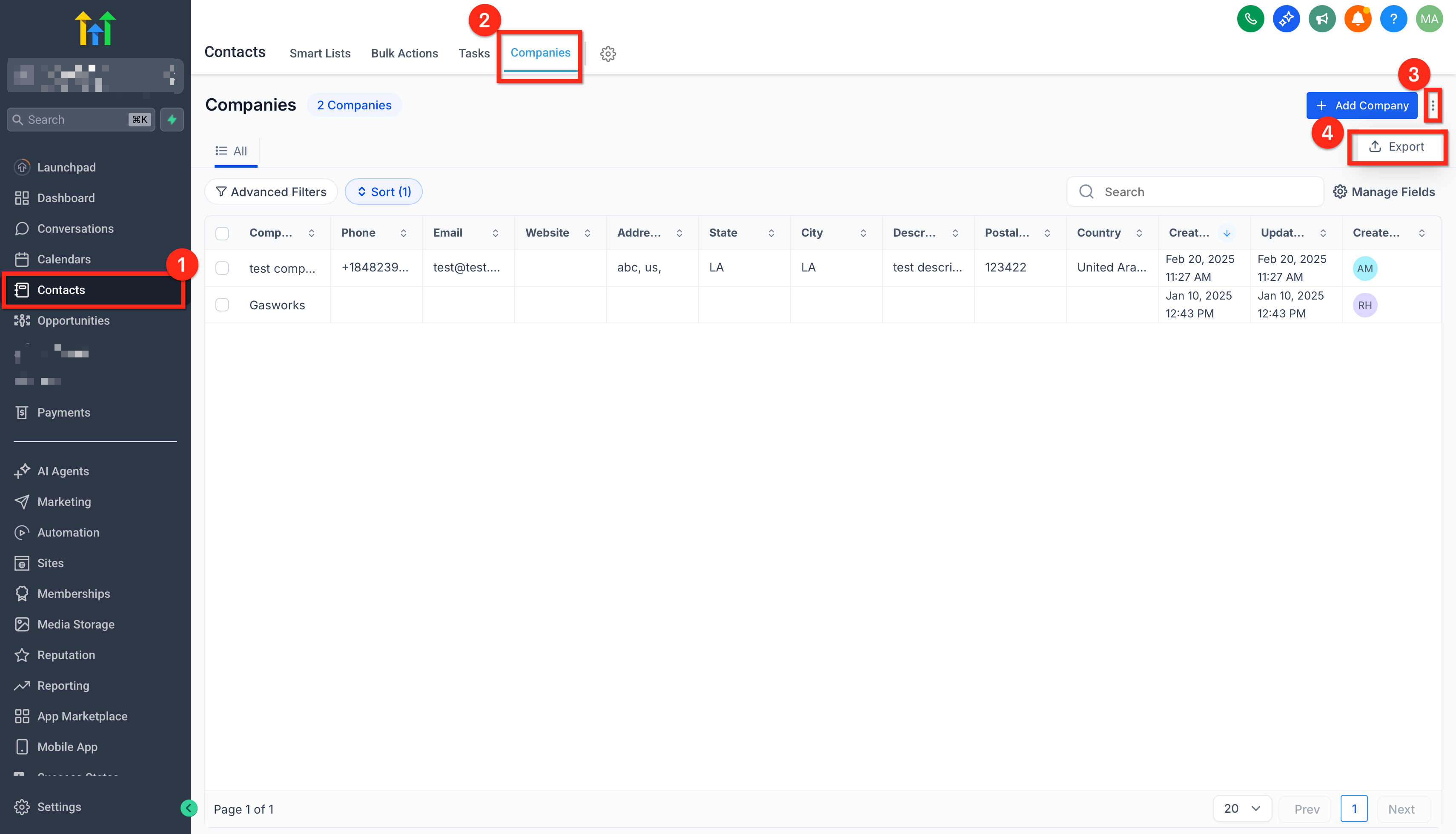
Export all companies (from the menu): Use the three-dot (⋮) menu on the Companies page to export the full list.
Real-Time Export Progress Modal
A progress modal helps you track export generation so you can confidently export large datasets without guessing when the file is ready.
During an export, SourCherry displays a progress indicator that shows:
Record count (how many records have been processed)
Percent complete (overall completion progress)
CSV File Structure & Fields
Knowing what to expect in the CSV helps you prepare for reporting, cleanup, or importing into another system.
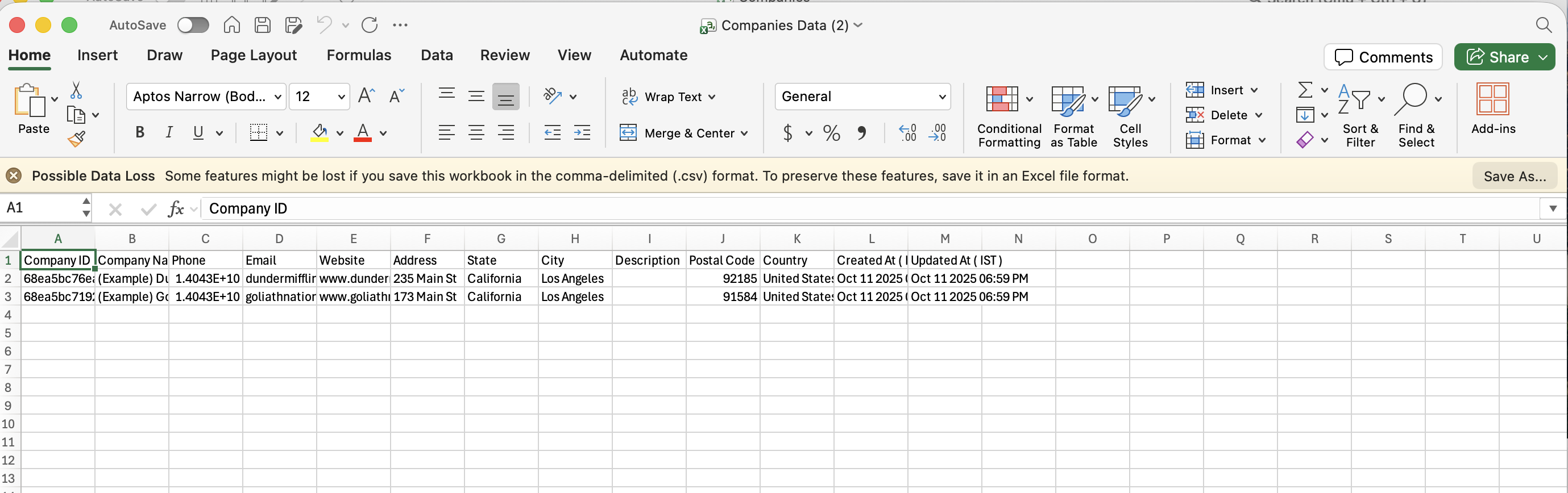
The export is delivered as a CSV (comma-separated values) file.
The CSV includes company record data in columns so it can be filtered, sorted, and reviewed in spreadsheet tools.
If your account uses company custom fields, verify whether those fields appear as columns in your export (recommended before relying on the file for downstream reporting).
How To Setup Company Export
Exporting does not require setup, but following a consistent export process helps ensure you download the right records (especially when filters are applied).
Export selected companies
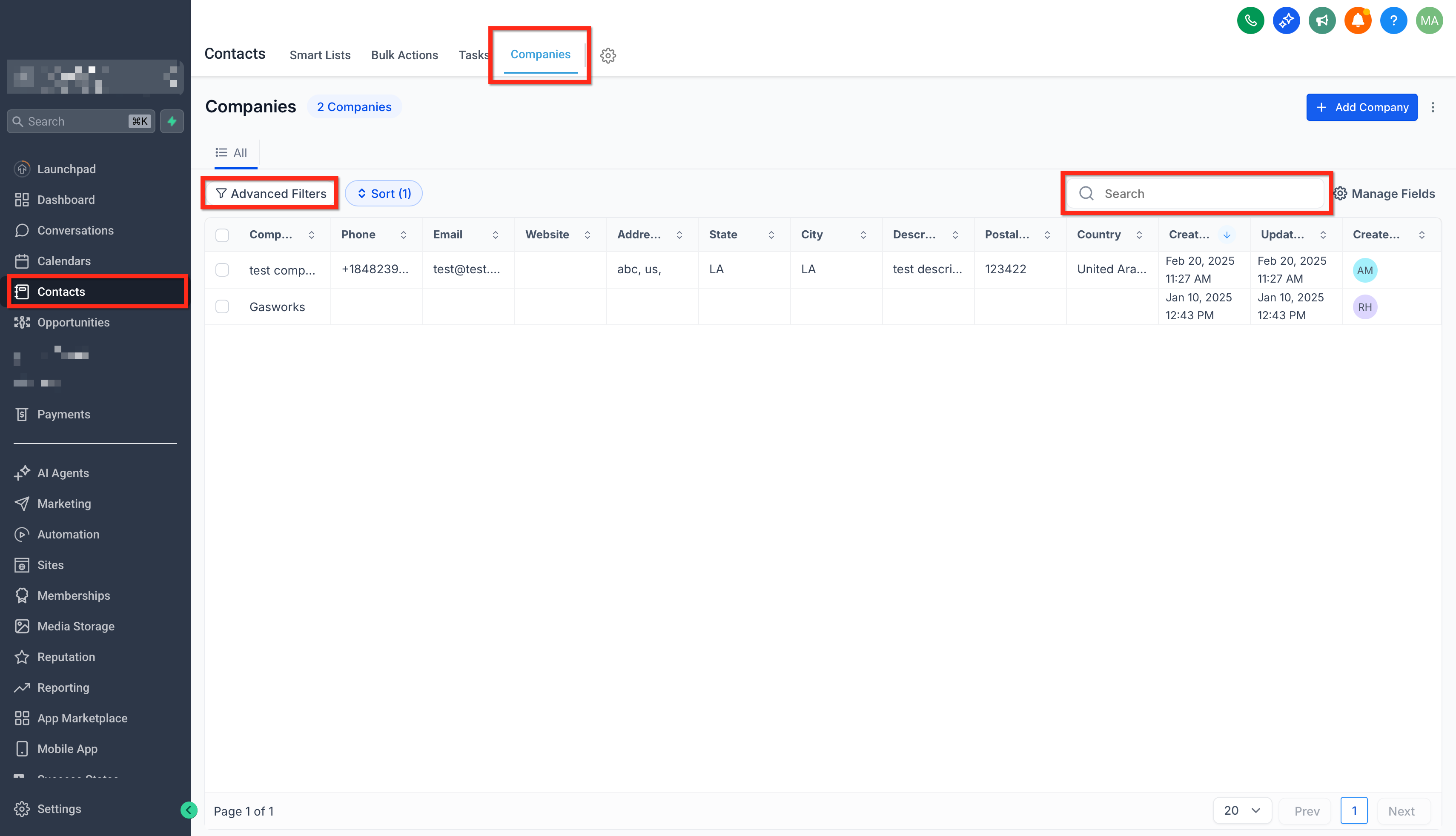
Go to Contacts → Companies. (Optional) Use search or filters to narrow the list.
Select one or more companies using the checkboxes in the table. Click Export in the action bar.
Watch the progress modal until the export completes.
Download/open the CSV file when it becomes available.
Export all companies
Go to Contacts → Companies. Click the three-dot (⋮) menu in the top-right and Select Export.
Watch the progress modal until the export completes.
Download/open the generated CSV file.
Frequently Asked Questions
Q: Can I export only a few companies instead of the entire list?
Yes. Select the companies using the checkboxes in Contacts → Companies, then export from the action bar.
Q: Does the export include custom company fields?
Yes. All visible company fields, including custom fields, are included in the export.
Q: What file type is generated?
The export is provided as a CSV file.
Q: My team member can’t see the Export option, why?
Their user role may not have export access for company data. Review their role permissions and ensure they have access to Companies and any related export/download permissions.