
Manage rental bookings in SourCherry with transparent manual taxes in Rentals. This guide article what the feature is, who it’s for, how it works, and how totals appear across the booking page, booking details, invoices, and reports.
TABLE OF CONTENTS
What are Taxes for Rentals?
Taxes in Rentals allow you to present a clean, itemized checkout experience while keeping reporting accurate. Each listing automatically creates a linked product. You can attach manual tax rate(s) to that product.
Tax rates are configured in Payments and then applied directly to Rental Listings. When a rental booking is created, the selected tax rate(s) automatically calculate and appear in:
- The public booking page
- The booking detail view
- Rental invoices
- Receipts and exports
If multiple listings are included in one booking, taxes are calculated per listing and combined into the final total.
Key Benefits of Rental Taxes
These benefits focus on transparency, compliance, and reporting accuracy across rental transactions.
- Manual Tax Control: Configure manual taxes for rental listings using the linked product in Payments.
- Transparent Pricing: Help customers see more accurate booking totals when taxes apply to a rental booking.
- Variant-Level Flexibility: Apply different tax configurations when each variant has its own linked product.
- Operational Efficiency: Eliminate manual tax calculations and reduce workarounds during booking management.
- Better Financial Visibility: Ensure taxes appear in booking-related totals, invoices, and related reporting views where supported.
Manual Taxes in Rentals (v2)
Manual taxes are attached to a Product, not directly to the listing. Because each listing has a linked product, assigning tax rate(s) to that Product ensures the correct taxes are added to the booking total every time the listing is booked.
How it works
- Each listing auto-creates a linked product.
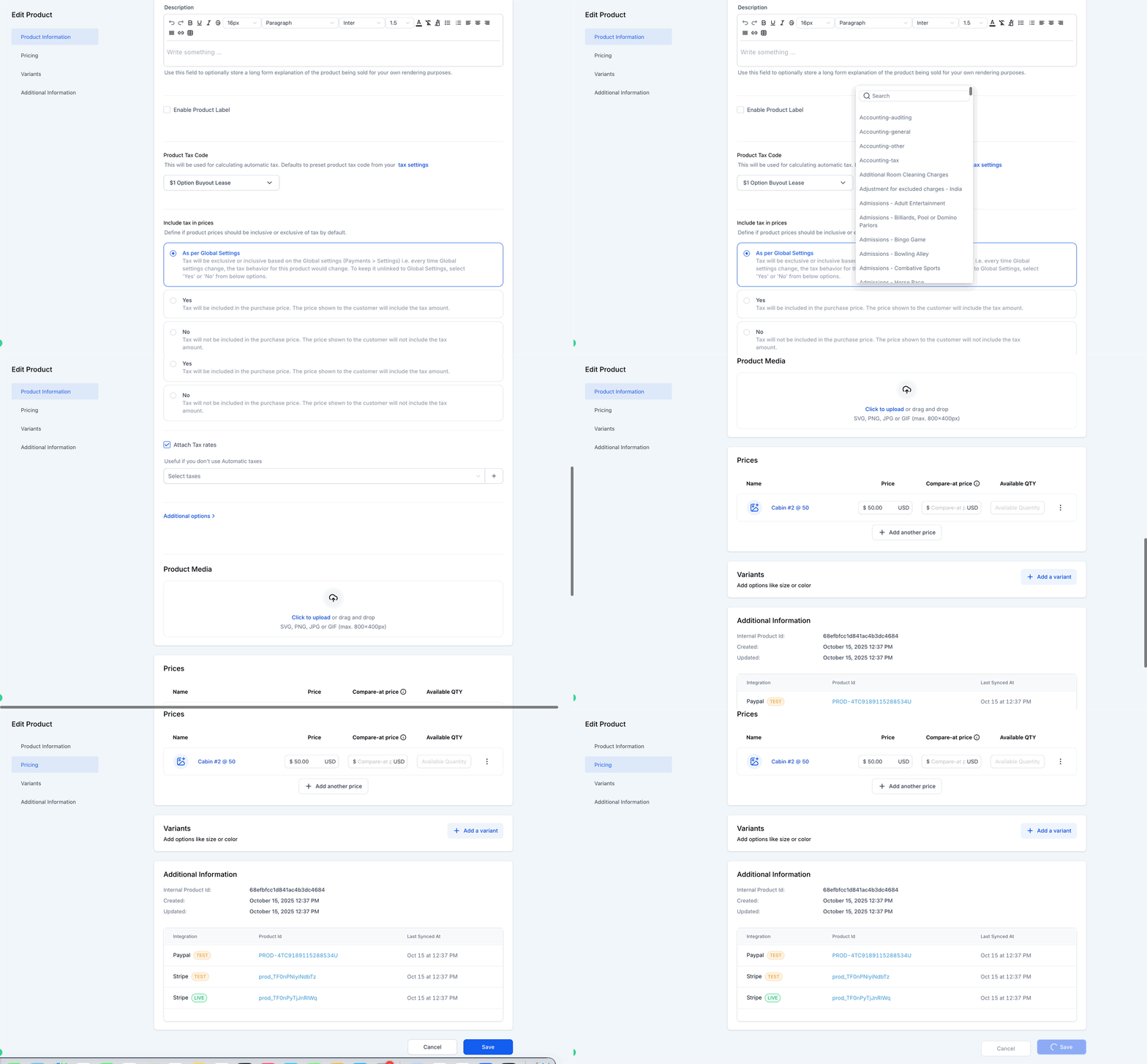
- Add one or more tax rate(s) to that Product in Payments → Settings → Taxes.
- When the listing is booked, those tax rate(s) are applied automatically.
If tax settings are inclusive in Payments, the system extracts the tax portion from the listing price. If exclusive, the tax is added on top of the rental subtotal.
Visibility in Bookings & Invoices
Knowing where taxes appear helps verify totals and respond to customer questions.
You’ll see taxes:
- On the public booking page (itemized above the total)
- Inside the booking edit view in Rentals
- Inside the payments tab of the booking
- On generated Invoices
The same totals carry across the Rentals module for internal reporting and reconciliation.
How To Apply Taxes to Rental Listings
Proper setup ensures every booking reflects accurate totals, reduces customer confusion, and speeds up reconciliation. Follow these steps to configure both taxes and fees.
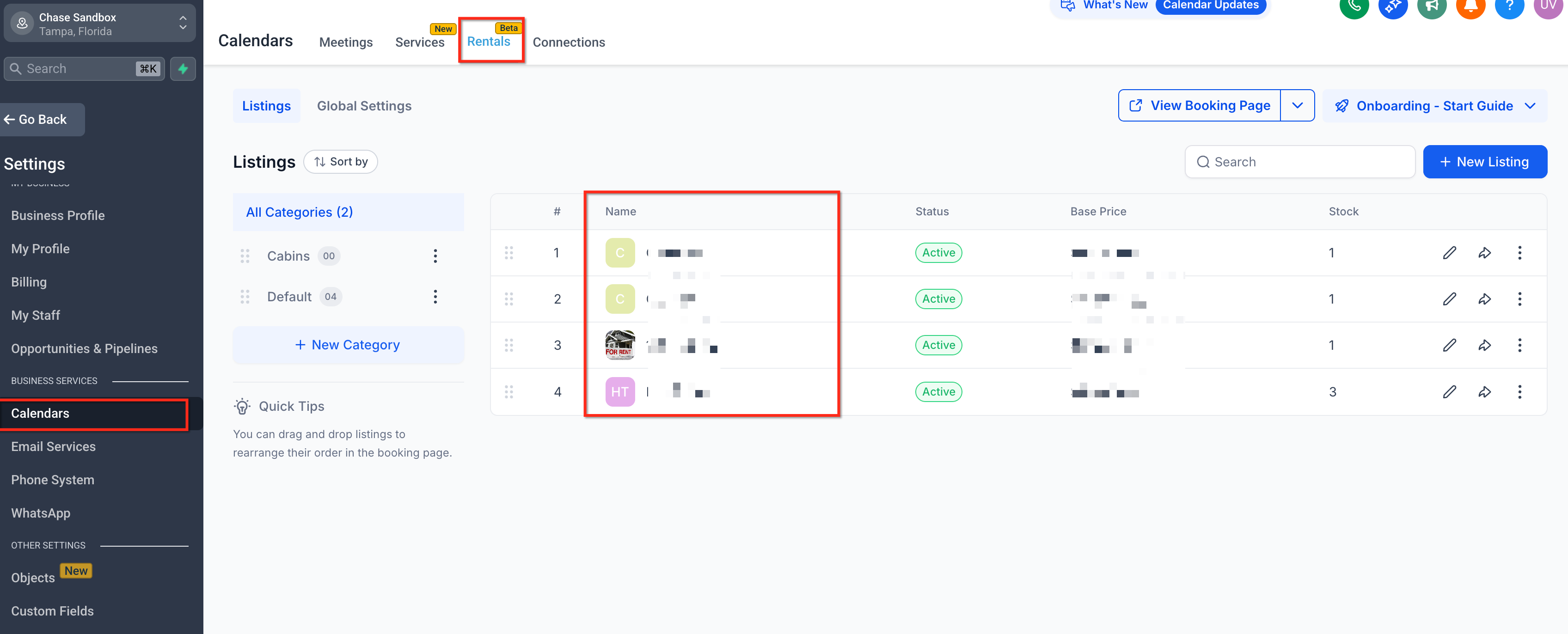
- Go to Calendars → Calendar Settings → Rentals → Listings and open the listing you want to update. The Rentals listing editor includes the advanced configuration areas used to manage inventory, pricing, and related options.
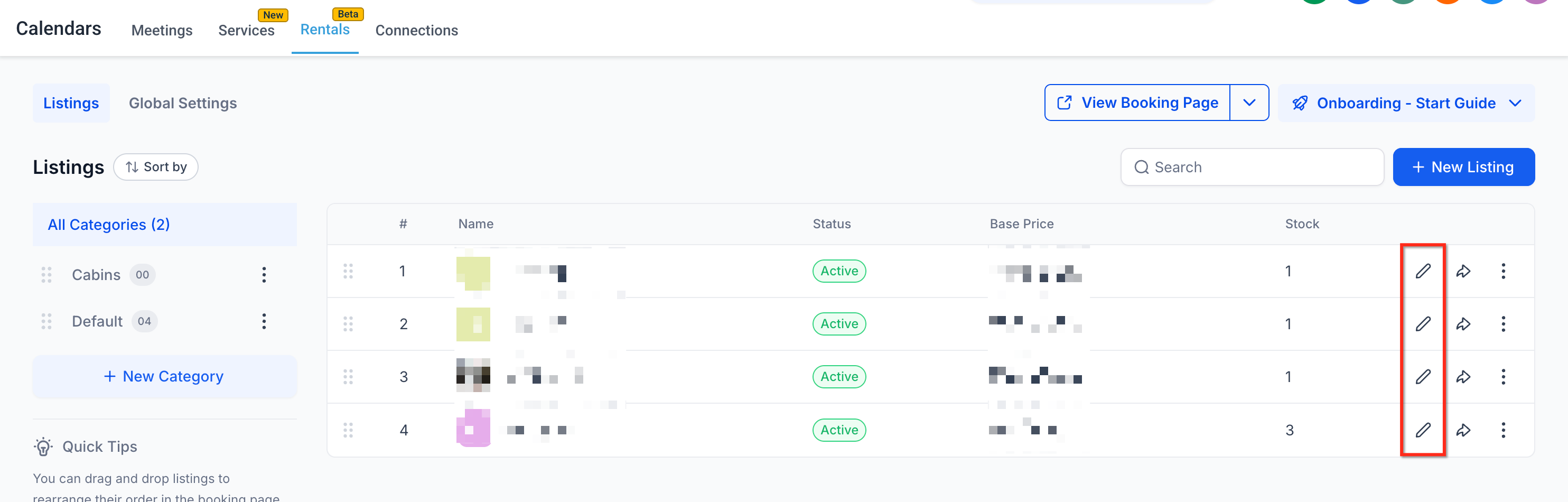
- Click Edit Listing
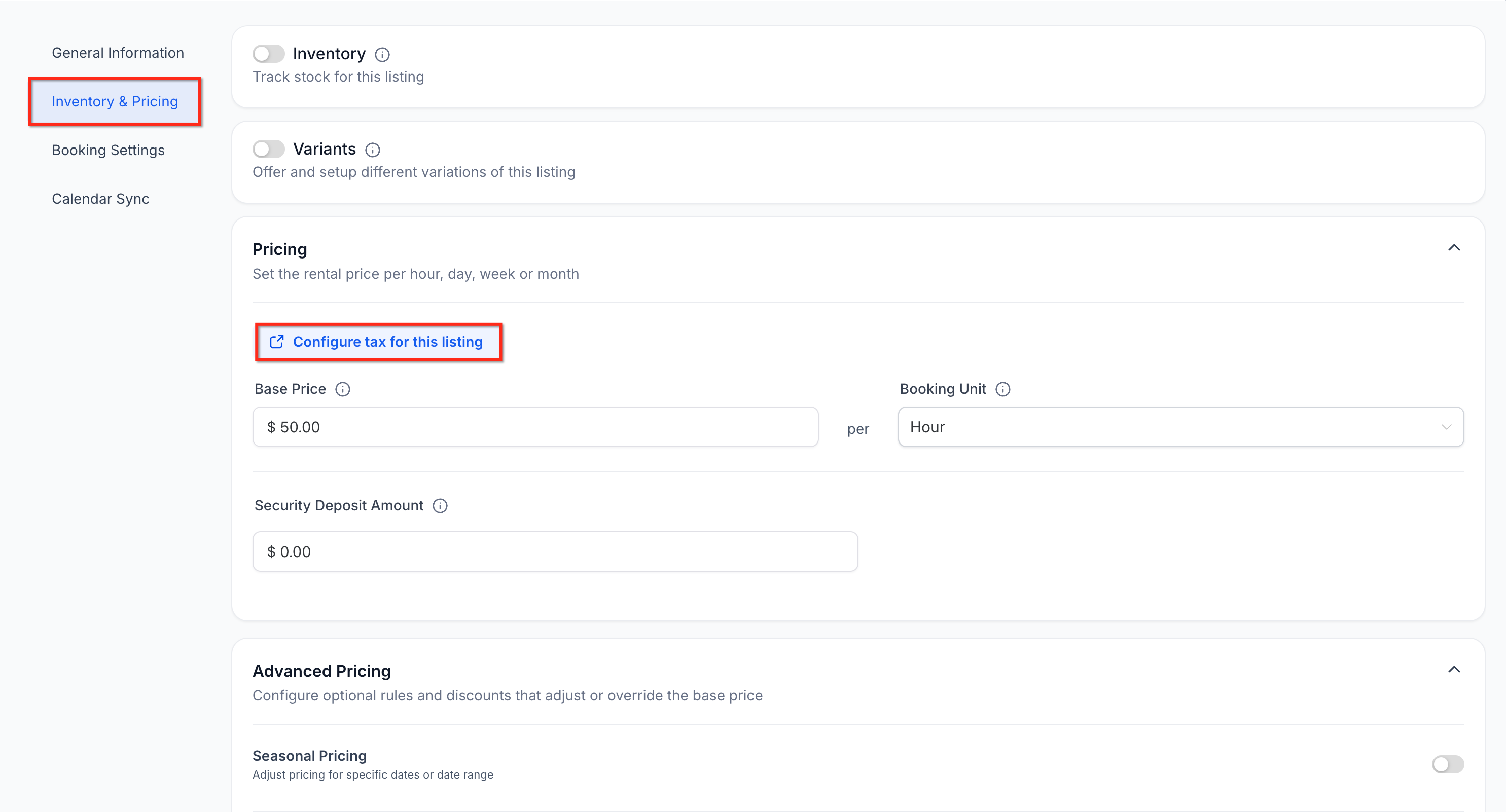
- Navigate to the Inventory & Pricing tab then click Configure Taxes for This Listing.
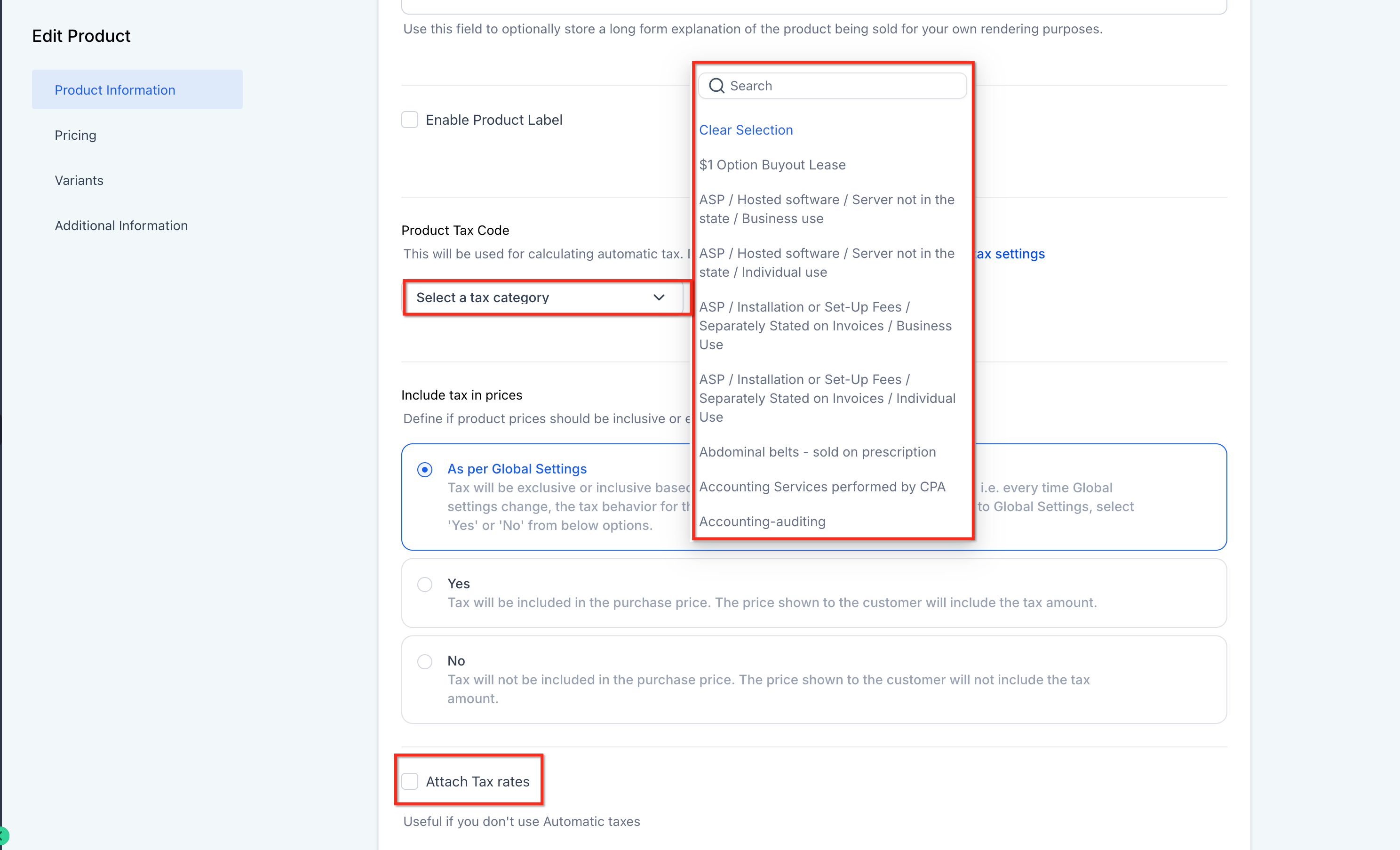
- SourCherry redirects you to the linked product under Payments > Products. Add or update the manual tax for the linked product. Click Save.
- Create a new booking or review a future booking total to confirm that tax is being applied as expected. Taxes apply to future bookings after configuration is saved.
Frequently Asked Questions
Q: Can I use different tax rates for different listings?
Yes. Taxes are configured per Rental Listing, so each listing can have its own tax rate(s).
Q: Do tax changes affect past bookings?
No. Changes apply to new bookings going forward. Existing bookings remain unchanged unless modified.
Q: How are taxes handled in multi-listing bookings?
Each listing calculates its tax independently. The system then combines all tax amounts into the final booking total.
Q: Are the taxes applied on the associated security deposit too?
No. The taxes are exclusively applied to the listing only.
Q: Does Rentals support automatic taxes?
No. Rentals currently supports manual taxes only.
Q: Do taxes apply to the security deposit?
No. Taxes are applied to the listing only, not to the associated security deposit.
Related Articles
- Create & Edit Rentals Listings
- Pricing & Discounts for Rentals
- How-to add Taxes Overview
- Create a Rental Booking