
This guide provides a comprehensive walkthrough for configuring workflows that execute when a customer replies through an All-in-One Chat widget using the customer replied trigger in workflows. It explains trigger configuration, filter logic, widget scoping, and advanced implementation strategies to ensure your automation runs precisely where intended.
Objective & Functional Overview
This article explains how to:
Configure a workflow that triggers when a customer replies via an All-in-One Chat channel
Narrow the trigger to a specific Chat Type (Chat Widget or Live Chat)
Further restrict execution to a particular widget configuration
Implement structured routing, tagging, assignment, notifications, escalation, and qualification logic
Maintain clean automation architecture when managing multiple chat entry points
By the end of this article, you will be able to confidently build reply-based workflows with precise targeting controls.
Conceptual Model: How the Trigger logic works
The configuration follows a layered filter structure:
Layer 1 : Event
Customer Replied
The workflow activates when a customer sends a reply message.
Layer 2 : Reply Channel
All-in-One Chat
Limits execution to replies originating from unified chat widgets.
Layer 3 : Scoped Filters (Dynamic)
Once All-in-One Chat is selected, additional filters appear:
Chat Type
Chat Widget
Live Chat
Specific Configuration
If Chat Type = Chat Widget > select the exact widget
If Chat Type = Live Chat > select the exact Live Chat configuration
The workflow runs only when all selected conditions are met.
Prerequisites
Before configuring automation:
At least one All-in-One Chat widget must be configured.
You must have access to Workflows/Automations.
If using assignment logic, ensure users/teams are set up.
If using tags or pipeline routing, confirm naming conventions are established.
Step-by-Step Configuration Guide
Step 1 : Create or Open a Workflow
Navigate to Automations > Workflows
Click Create Workflow (or open an existing one)
Select Add Trigger
Step 2 : Select the trigger event
Choose Customer Replied
The trigger configuration panel will open
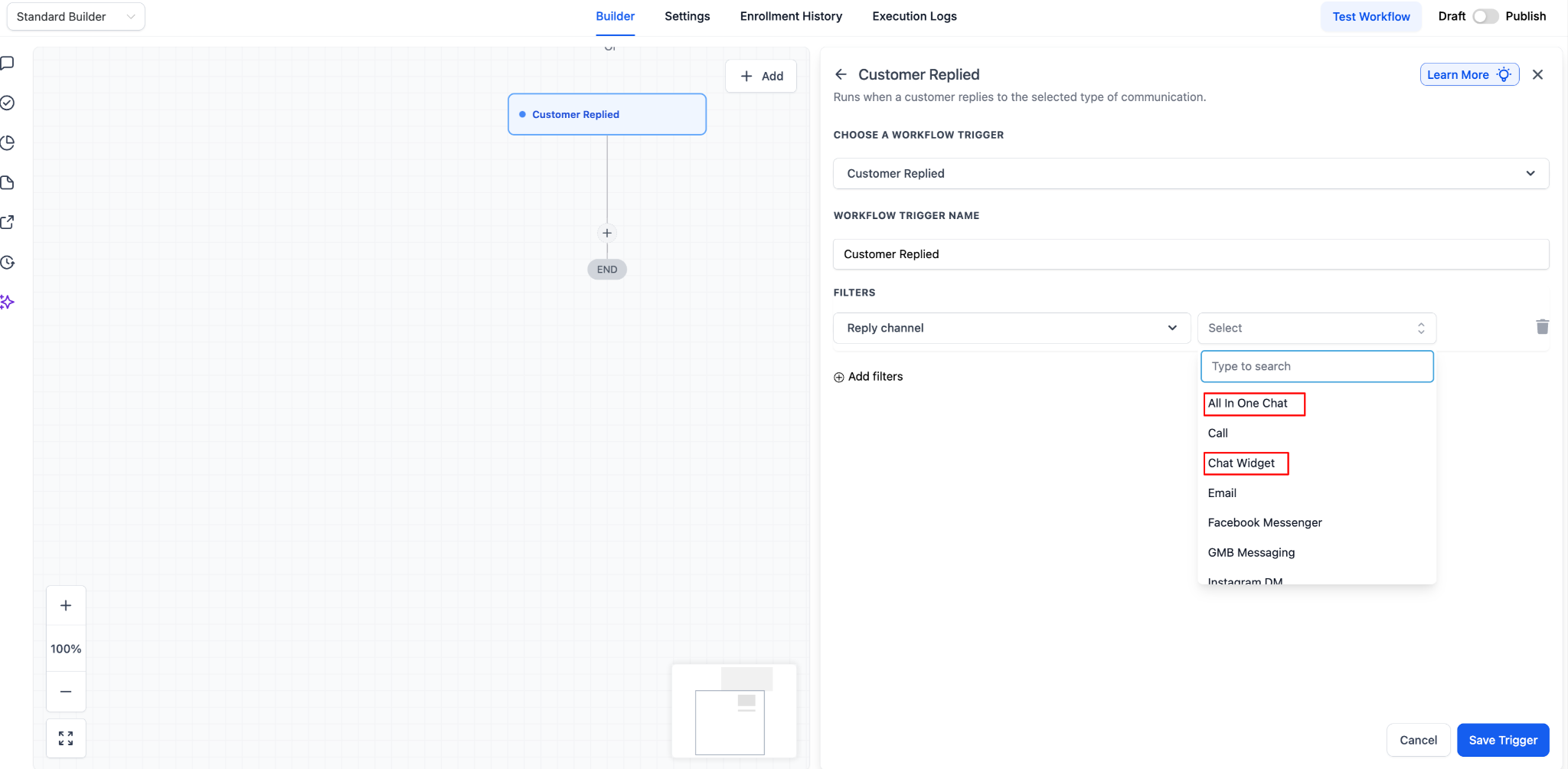
Step 3 : Configure Reply Channel
Locate the Reply Channel dropdown
Select All-in-One Chat
Selecting this activates advanced filtering controls.
Step 4 : Define chat type
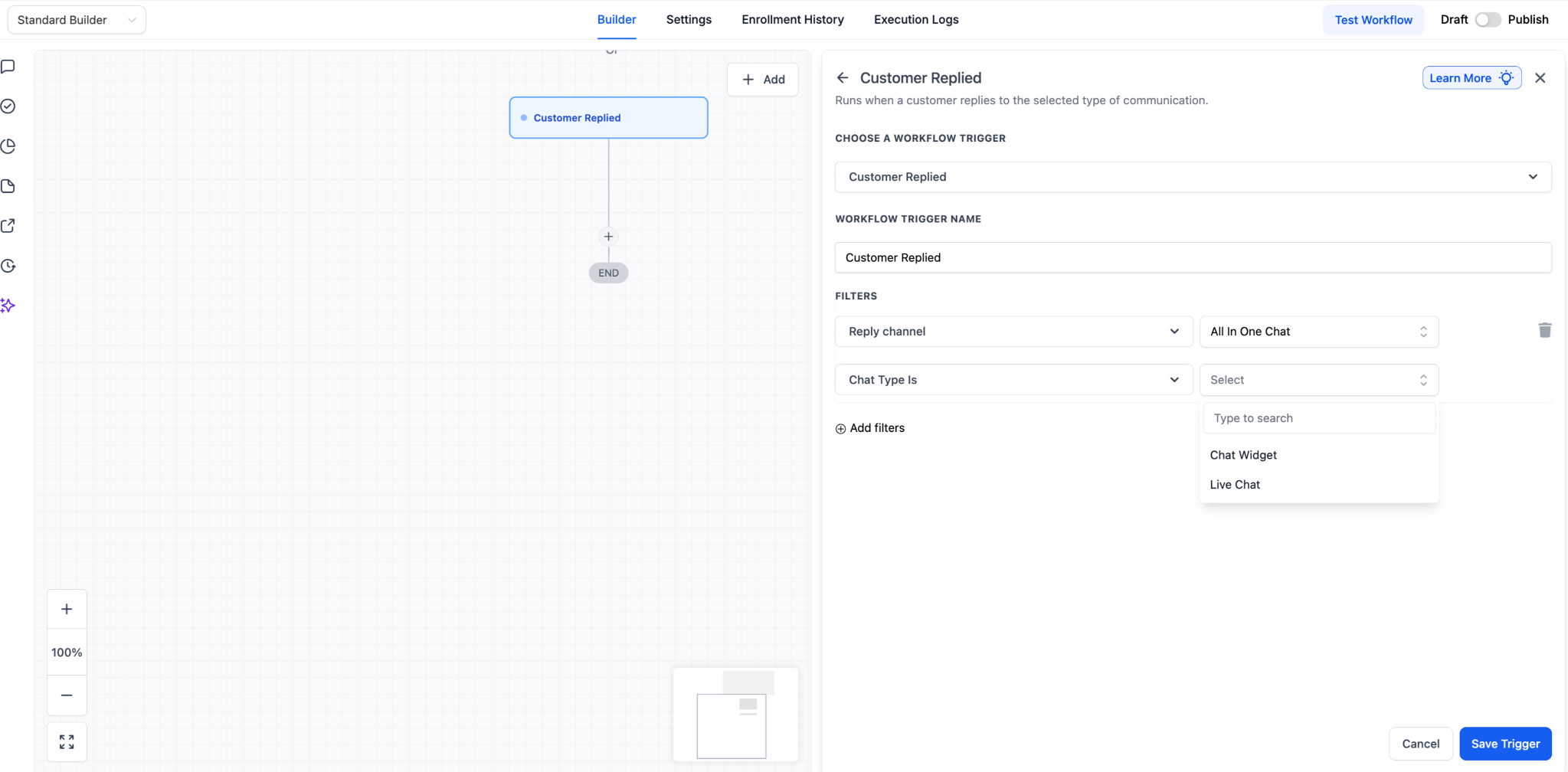
Under Chat Type, choose one:
Option A - Chat Widget
Use this when you want to target replies that originate from the widget interface.
Option B - Live Chat
Use this when targeting replies specifically associated with live chat configurations within the unified chat system.
Your choice determines which configurations appear next.
Step 5 : Select the specific configuration
The final dropdown dynamically adjusts based on Chat Type.
If Chat Type = Chat Widget
> Select from the list under Chat Widget is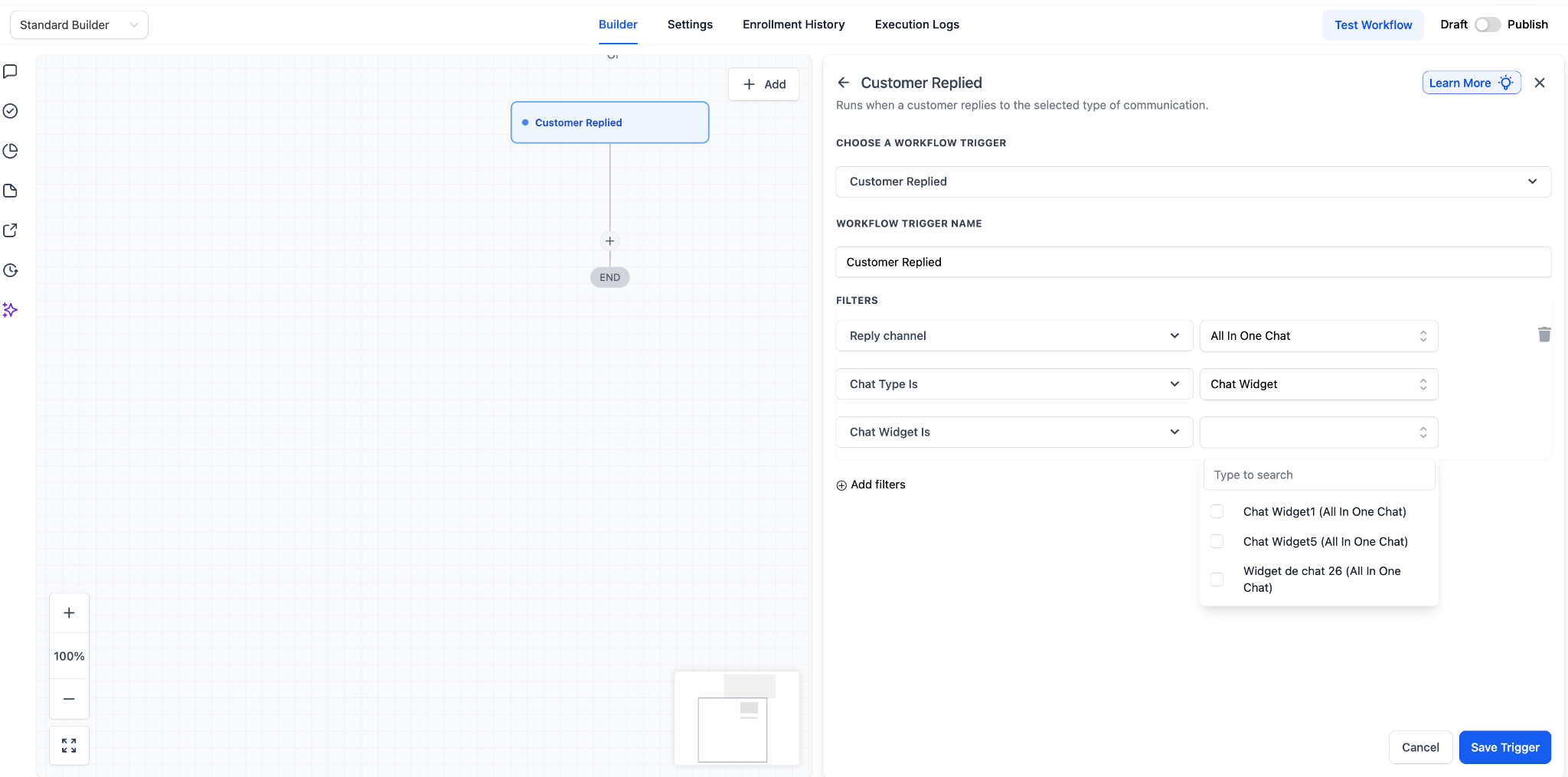
If Chat Type = Live Chat
> Select from the list under Live Chat is
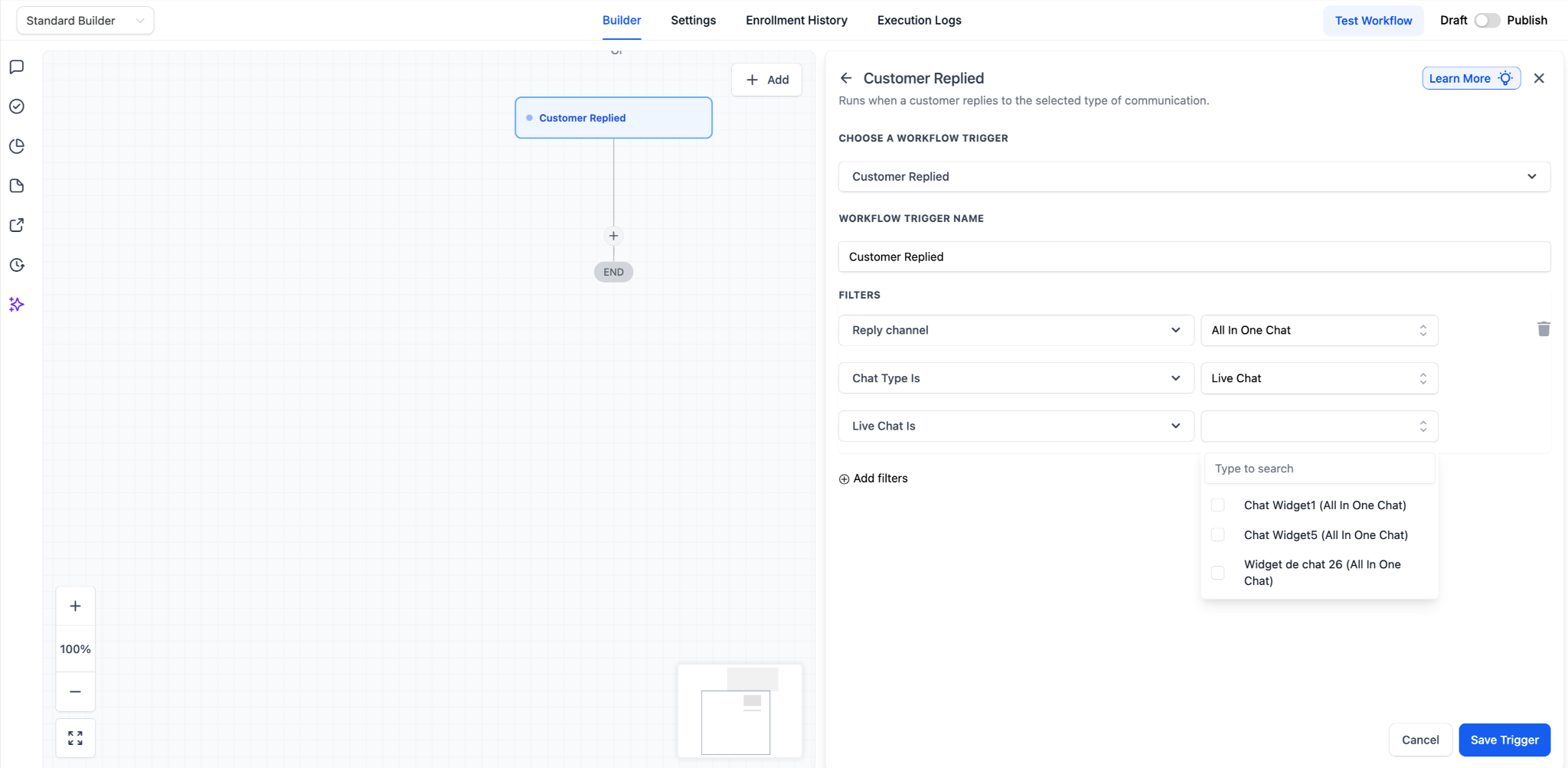
Only relevant configurations are displayed.
This step ensures the workflow runs exclusively for replies from the selected widget setup.
Step 6 : Save the Trigger
Click Save Trigger.
The workflow is now scoped to customer replies from the selected All-in-One Chat configuration.
Implementation patterns & use cases
Below are structured examples demonstrating how this trigger can be implemented in live setups.
1. Automated Acknowledgement System
Use Case
Send an immediate confirmation message when a customer replies.
Trigger
Customer Replied
Reply Channel = All-in-One Chat
Chat Type = Chat Widget
Chat Widget is = Support Widget
Actions
Send message: “We’ve received your message and will respond shortly.”
Assign conversation/contact to a team member
Add tag:
Reply ReceivedOptional: Create internal task
Recommended Best Practice
Keep the acknowledgement concise and non-automated in tone.
2. Department-Based Routing (Sales vs Support)
Objective
Direct replies from different widgets to appropriate teams.
Workflow A : Sales Widget
Trigger scoped to: Sales Widget
Actions:
Assign to sales representative (or round robin)
Add tag:
Sales InquiryCreate opportunity
Send internal alert to sales channel
Workflow B : Support Widget
Trigger scoped to: Support Widget
Actions:
Assign to support agent
Add tag:
SupportCreate service task
Send acknowledgement message
This ensures routing occurs immediately upon reply.
3. High-Priority Alert Workflow
Objective
Notify leadership when key widget replies occur.
Trigger scoped to: Executive or VIP Widget
Actions:
Send internal notification
Create high-priority task
Add tag:
VIPEscalate assignment to senior team member
4. Reply-Based Qualification Logic
Objective
Use replies to segment intent.
Trigger scoped to: Main Chat Widget
Actions:
If message contains “price” or “cost” > add tag
Pricing InterestIf message contains “cancel” or “refund” → add tag
Retention RiskRoute to appropriate team
Send contextual follow-up question
5. Escalation Workflow (No Response Handling)
Objective
Escalate if a reply is not handled promptly.
Trigger scoped to: Live Chat configuration
Actions:
Wait 10 minutes
If no action taken (based on your chosen indicator):
Notify backup user
Reassign conversation
Send message offering callback
6. Multi-Widget Enterprise Setup
When managing multiple websites, funnels, or brands:
Create one workflow per widget
Name workflows clearly (e.g.,
Reply - Support Widget - Routing)Maintain consistent tagging conventions
Avoid combining unrelated widgets in a single workflow
This structure improves long-term maintainability.
Operational Best Practices
Always select the specific widget/configuration if multiple widgets exist.
Keep routing logic modular.
Avoid combining Live Chat and Chat Widget logic unless intentional.
Audit workflows quarterly to ensure no overlap.
Maintain naming standards for easy troubleshooting.
Troubleshooting
All-in-One Chat does not appear in Reply Channel
Confirm:
The trigger selected is Customer Replied
An All-in-One Chat widget exists in your system
Expected widget does not appear
Switch Chat Type (Chat Widget vs Live Chat)
Confirm the widget configuration exists and is active
Workflow triggers unexpectedly
Verify specific configuration selection
Check for duplicate workflows
Review overlapping trigger conditions
Summary
Using the Customer Replied trigger with All-in-One Chat filtering allows you to:
Precisely target replies from unified chat experiences
Scope automation by widget type and configuration
Route conversations intelligently
Trigger acknowledgement, escalation, qualification, and internal alerts
Maintain clean, scalable workflow architecture
When properly configured, this trigger becomes the foundation for real-time, reply-driven automation across chat channels.