
Search for Facebook Post Sync and enable the feature for your sub-account.
Facebook Post Sync brings your existing Facebook posts into Social Planner so you can view past content and insights in one place. This article explains what the feature does, what gets synced, how setup works, and where to find synced posts and performance data.
TABLE OF CONTENTS
- What is Facebook Post Sync in Social Planner?
- Key Benefits of Facebook Post Sync
- Facebook Post Sync Settings and Behavior
- What Gets Synced
- How To Enable Facebook Post Sync
- Frequently Asked Questions
- Related Articles
What is Facebook Post Sync in Social Planner?
Facebook Post Sync allows SourCherry to import your existing Facebook Page posts into Social Planner so you can view, manage, and analyze past content alongside newly scheduled and published posts. This helps make Social Planner a more complete source of truth for social publishing and analytics. To use this feature, your Facebook account must be connected.
Key Benefits of Facebook Post Sync
- Centralized post management: View past Facebook posts inside Social Planner instead of managing historical content separately in Facebook.
- No manual recreation: Bring recent existing posts into Social Planner without recreating them one by one.
- Better performance visibility: Review synced post insights in Statistics to understand how past content performed.
- Improved reporting accuracy: Keep more Facebook publishing history inside one reporting workflow.
- Faster onboarding: Connect accounts and quickly bring in recent post history when setting up a new location or client.
Facebook Post Sync Settings and Behavior
A few setup and platform behaviors affect what users see after enabling sync, especially during the first import and during future refresh cycles.
Facebook Post Sync only works for connected Facebook Pages.
The standard sync window includes the last 30 days of posts.
The first sync may retrieve additional historical posts where available.
Sync continues automatically in the background after setup.
Insights refresh every 24 hours rather than continuously.
Reconnecting Facebook access may be required if permissions expire.
What Gets Synced
Facebook Post Sync imports recent Facebook Page content and processes supported media automatically so your existing posts can be viewed inside Social Planner.
Posts from the last 30 days are synced into Social Planner.
Posts are synced up to the current day based on UTC time.
The initial sync may fetch additional historical posts where available.
Text, images, and videos are supported.
Media is processed automatically during import.
Media processing uses batch handling to support smoother imports.
Video sync is supported up to platform limits.
How To Enable Facebook Post Sync
A proper setup ensures your Facebook account is connected, sync is enabled correctly, and historical posts can begin importing without interruption.
Method 1: Enable Post Sync While Connecting a Social Account
You can enable Post Sync directly while connecting your Facebook account.
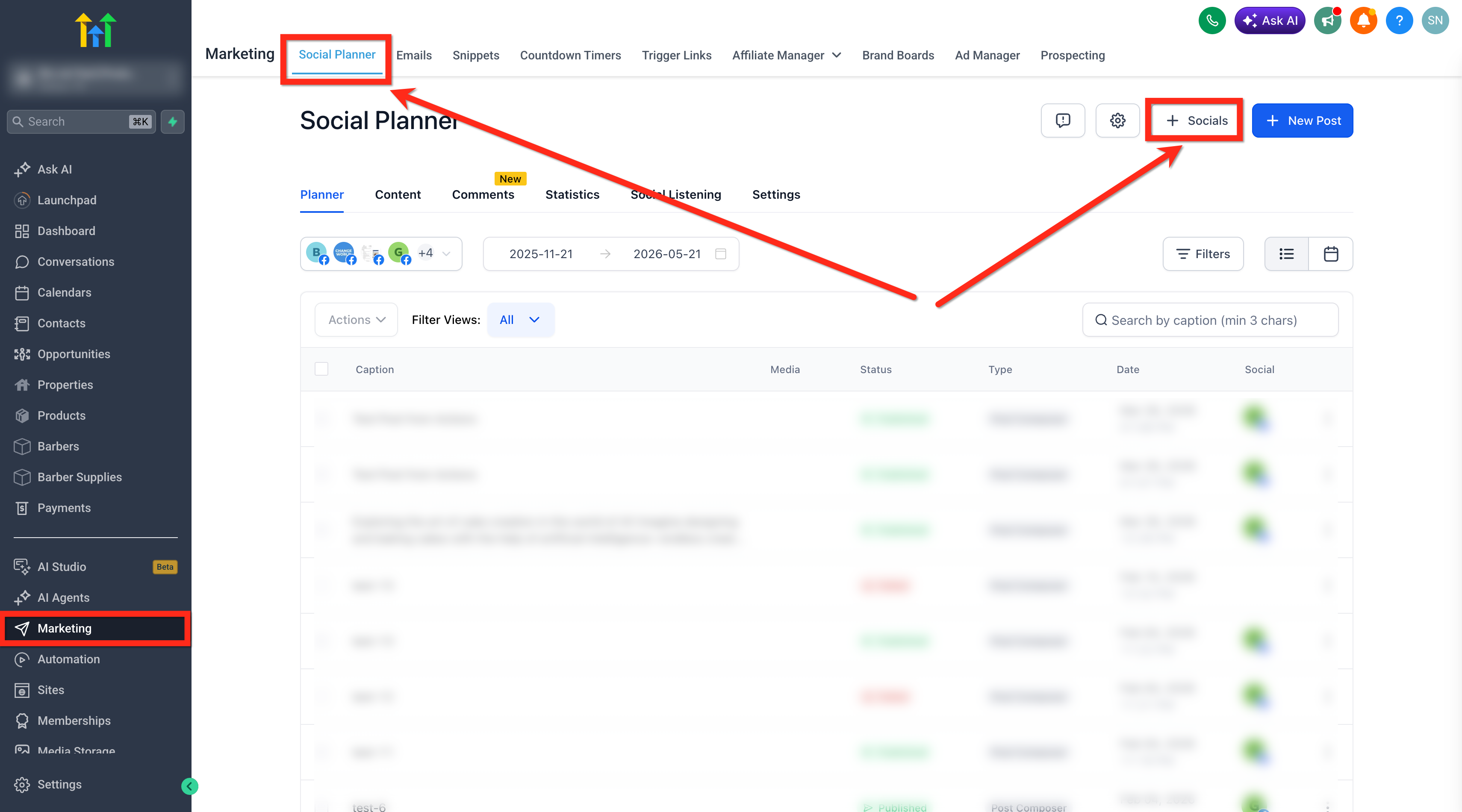
Go to Marketing > Social Planner.
Click + Socials.
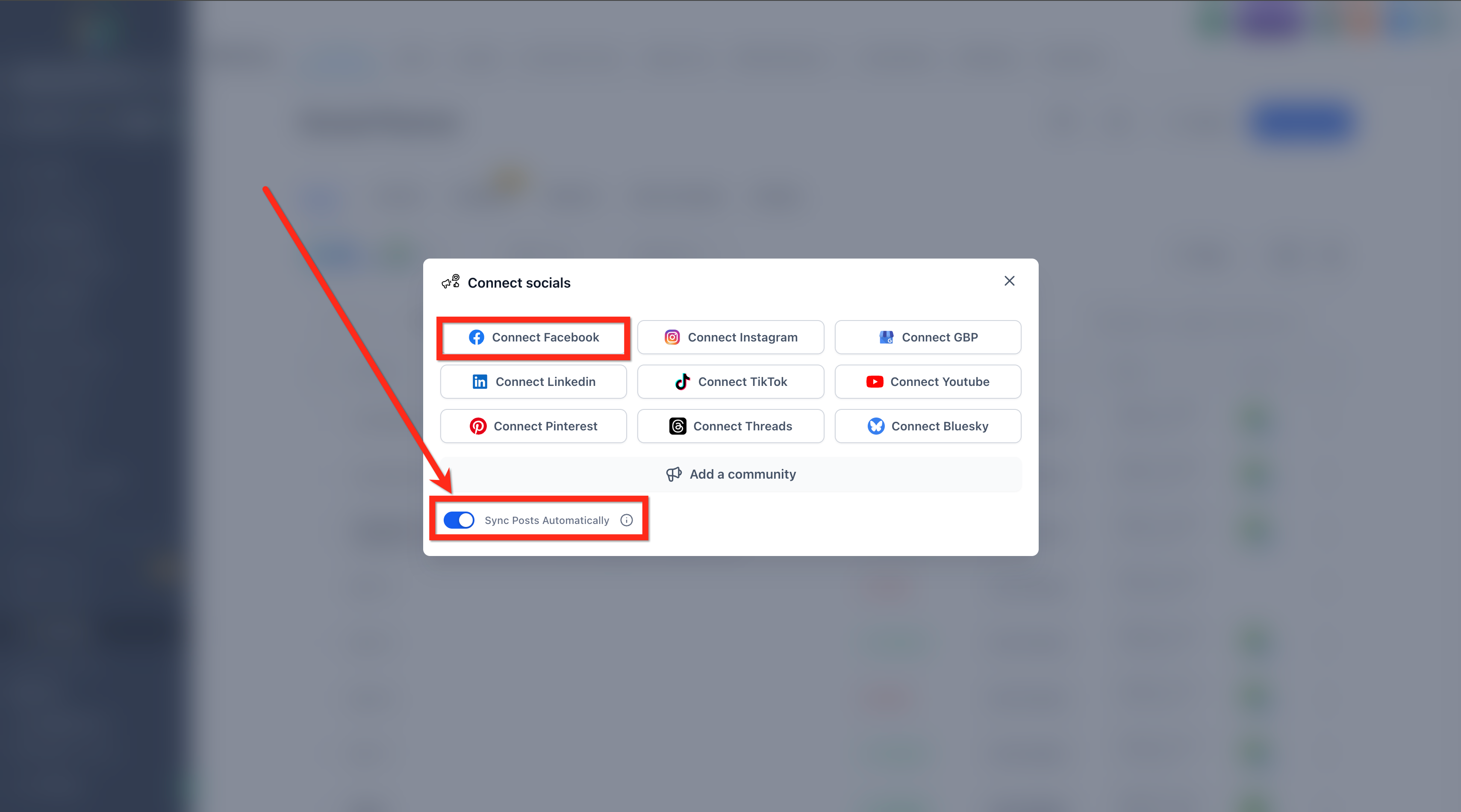
In the Connect Socials popup, enable the toggle: Sync Posts Automatically.
Click Connect Facebook and finish linking your account.
Once enabled, Social Planner will begin syncing your Facebook posts automatically.
Method 2: Enable Post Sync from Social Planner Settings
If your Facebook account is already connected, you can enable Post Sync later.
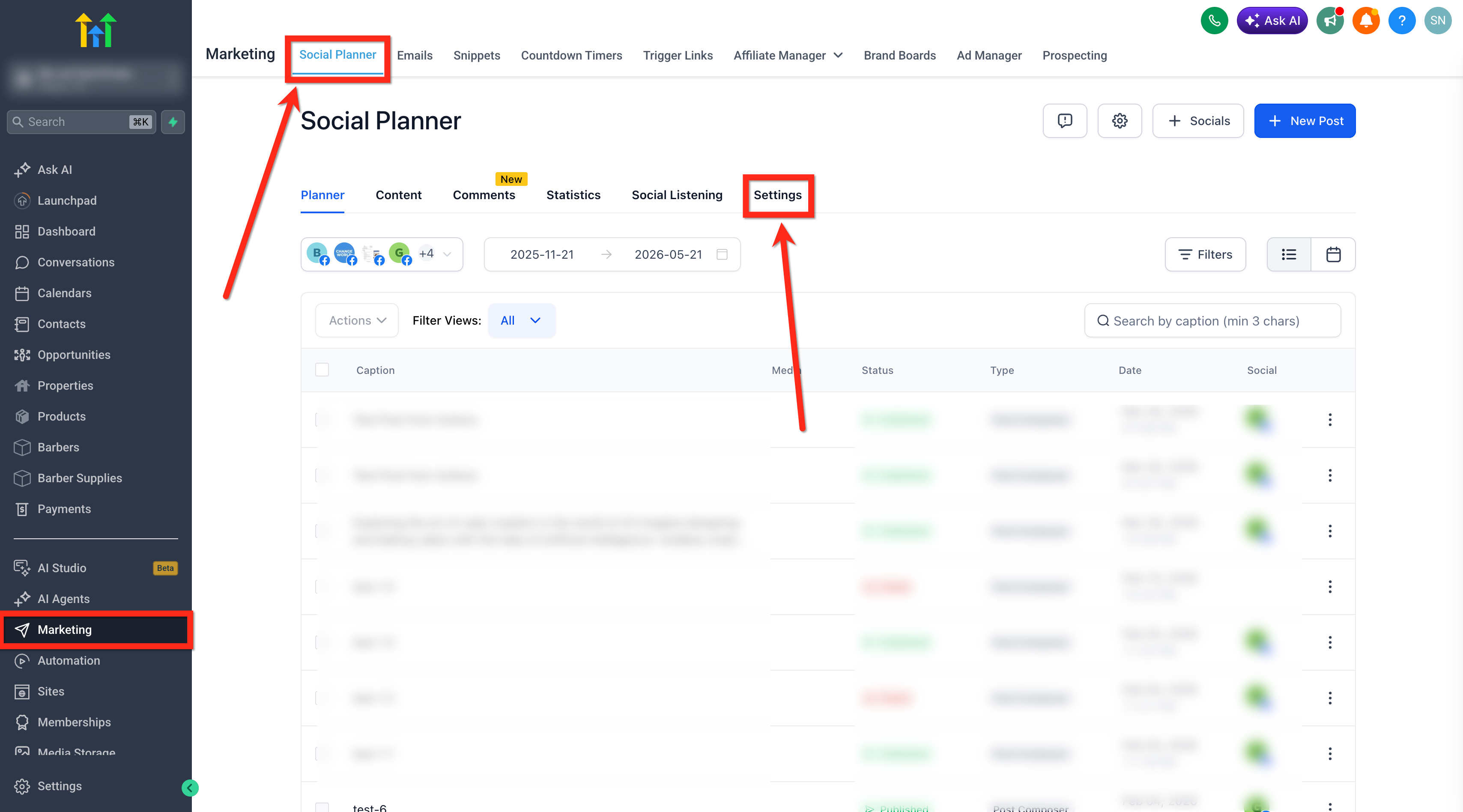
Navigate to Marketing > Social Planner.
Click on Settings.
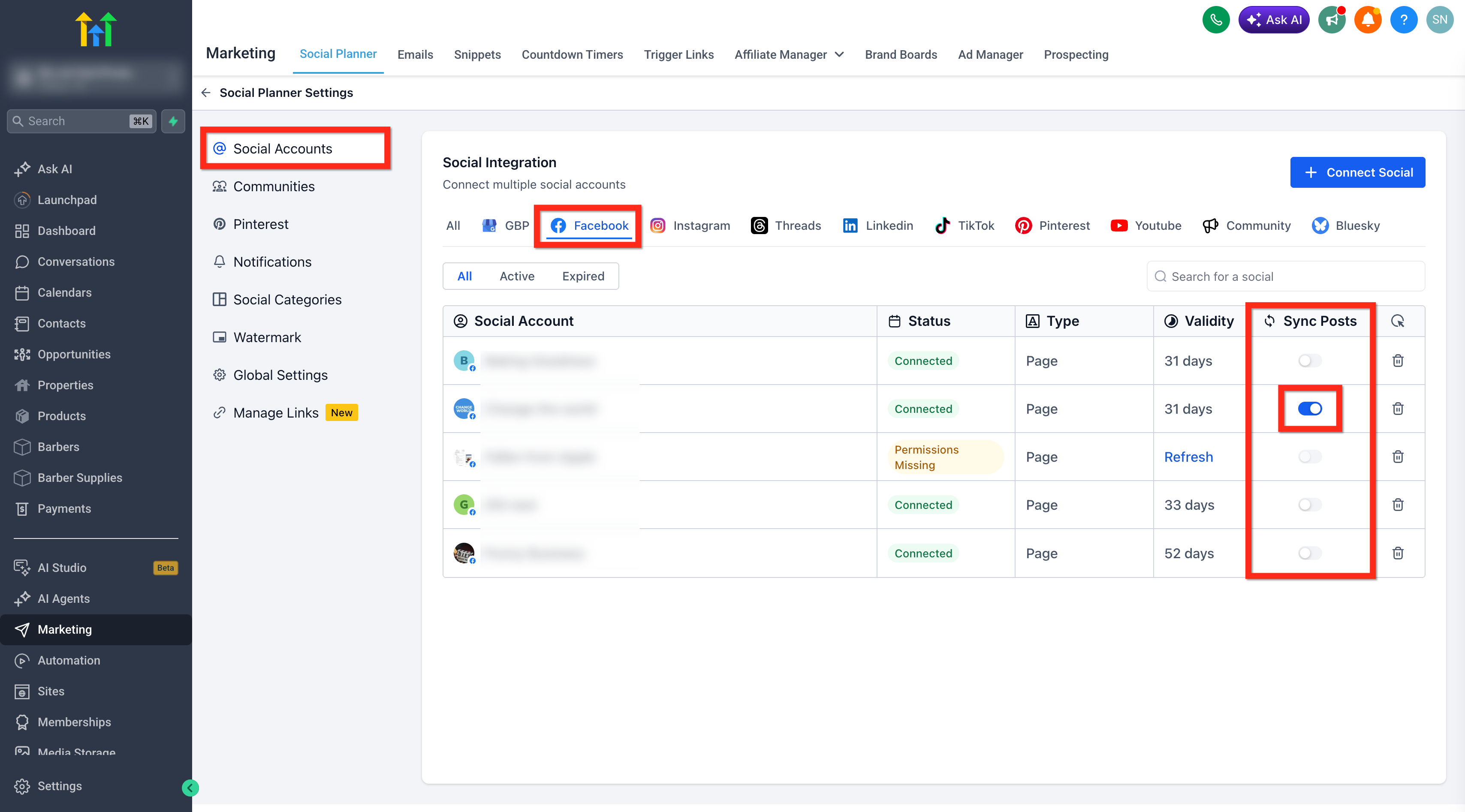
Go to Social Accounts > Facebook.
Enable the Sync Posts toggle for the page you want.
The system will start syncing posts in the background.
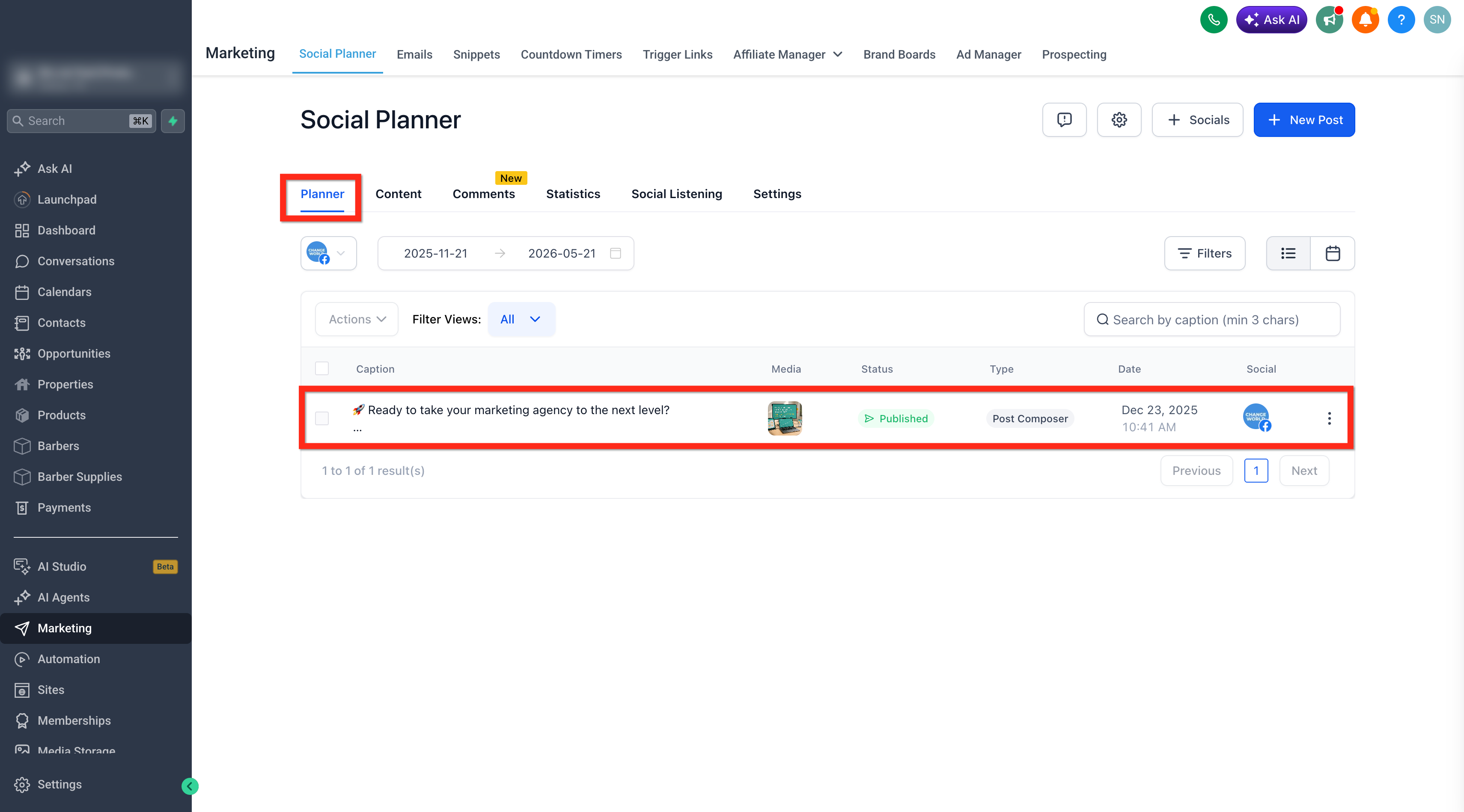
- Once sync is enabled, open Planner to review synced posts.
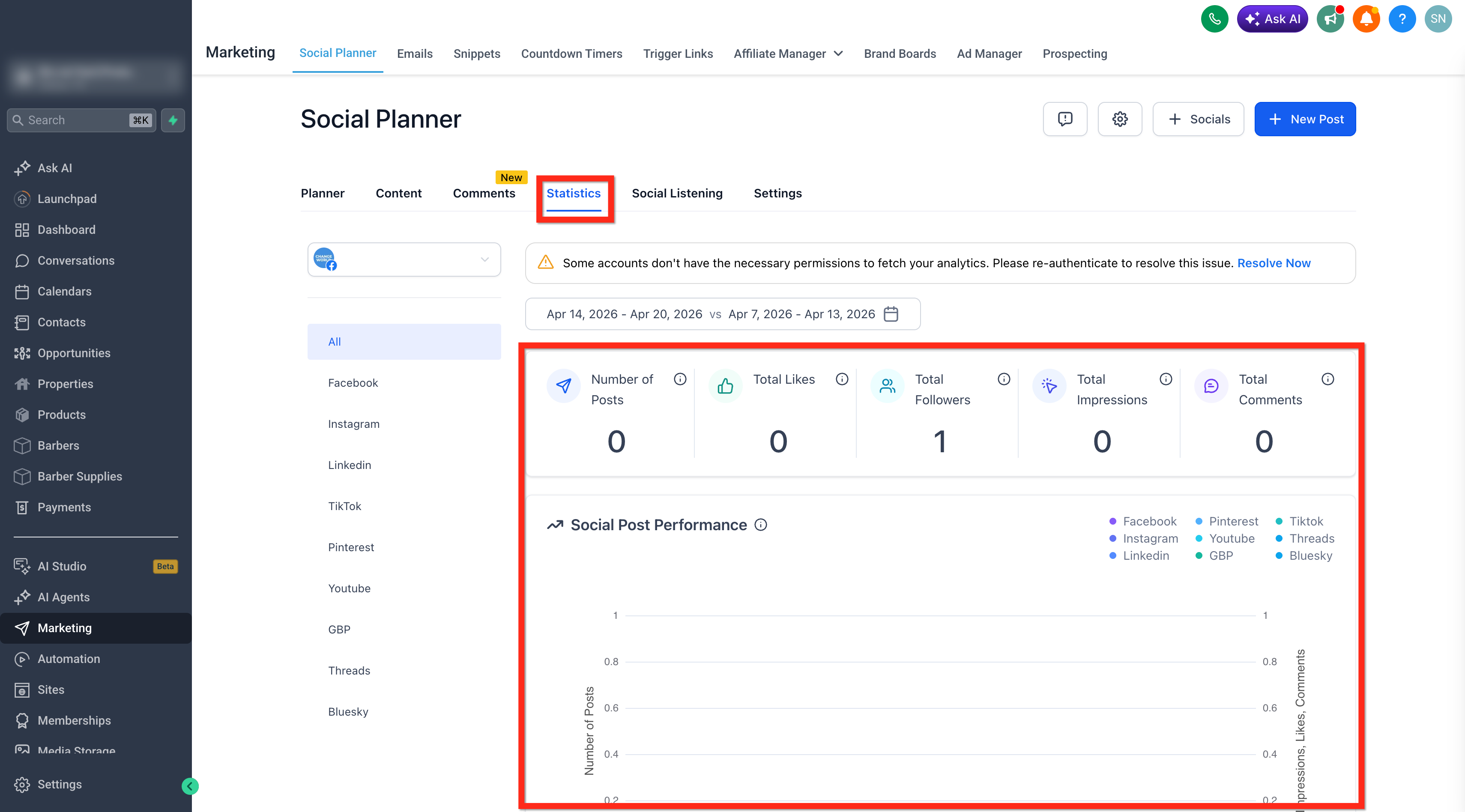
- Open Statistics to review synced performance data.
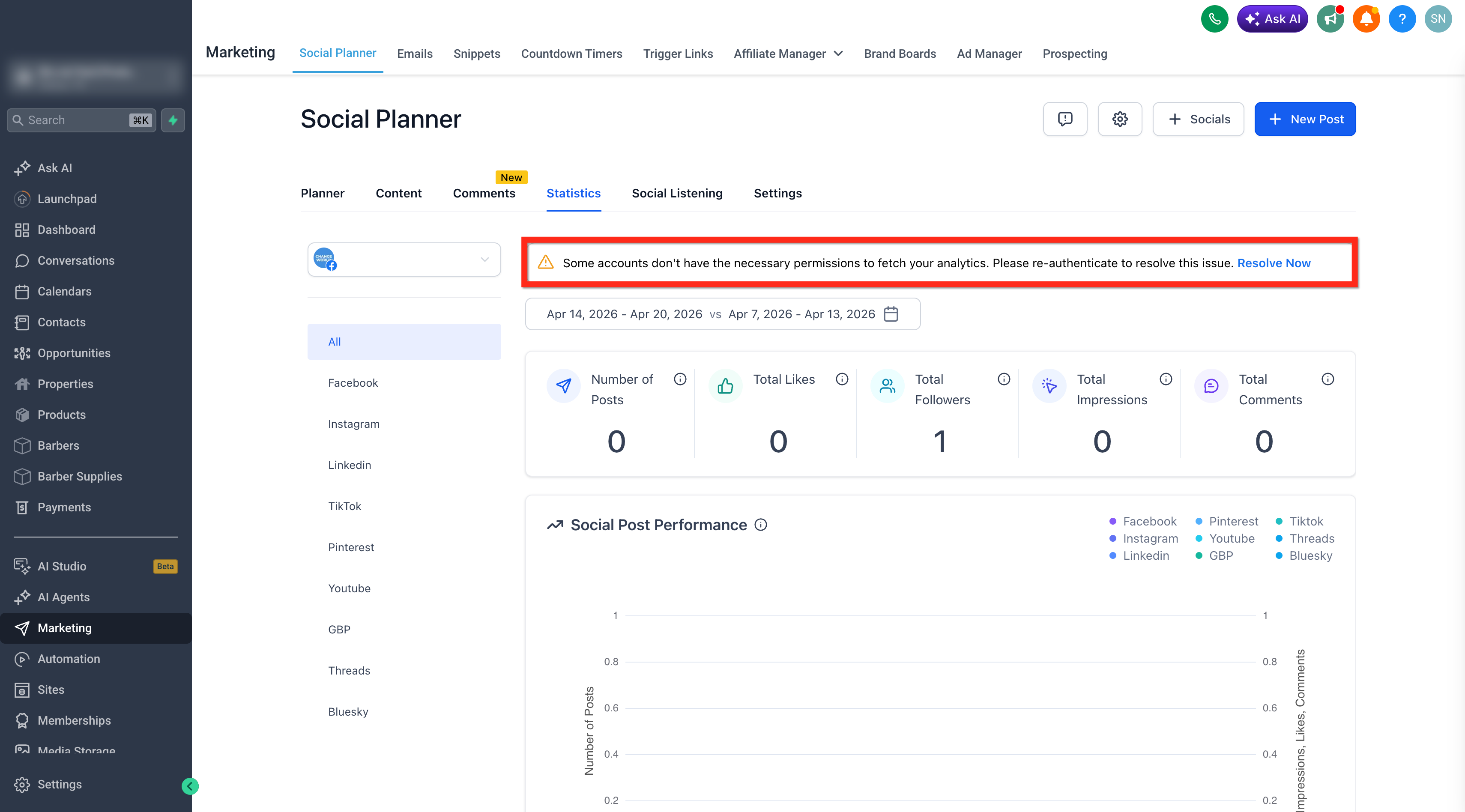
- If you see a disconnect or expired-access message, follow the reconnect prompt to resume syncing.
Frequently Asked Questions
Q: How far back will Facebook posts sync?
Social Planner automatically syncs Facebook posts from the last 30 days. In some cases, an extended historical fetch may occur during the initial sync if supported by the platform.
Q: How often do synced posts update?
Post insights and analytics refresh every 24 hours to stay within Facebook API limits while keeping your data up to date.
Q: What happens if my Facebook account disconnects?
If your Facebook connection expires, syncing will pause. You’ll see a reconnect prompt in Social Planner simply reconnect your account to resume syncing.
Q: Can I disable Post Sync later?
Yes. You can turn off the “Sync Posts Automatically” toggle anytime from Social Planner settings. This will stop future syncing but will not delete already imported posts.
Q: What types of Facebook content are supported?
Synced content supports text, images, and videos.