
Edit Prompts with AI helps you quickly refine Voice AI Agent prompts in SourCherry without rewriting large sections manually. Use this feature to improve selected prompt text, make instructions clearer, adjust tone, or expand guidance for specific call scenarios. AI-generated edits are suggestions, so you can review each change before accepting it.
TABLE OF CONTENTS
- What is Edit Prompts with AI for Voice AI?
- Key Benefits of Edit Prompts with AI for Voice AI
- When To Use Edit Prompts with AI
- Permissions & Availability
- How to Edit and Refine Voice AI Prompts Using AI
- Frequently Asked Questions
- Related Articles
What is Edit Prompts with AI for Voice AI?
Edit Prompts with AI is a Voice AI prompt editor feature that allows you to highlight selected text inside a Voice AI Agent prompt and ask AI to improve it. The AI can rewrite, simplify, expand, or adjust the selected text based on your instruction.
This feature is best for focused prompt improvements inside an existing Voice AI Agent. It does not replace full agent setup, prompt evaluation, call testing, or reviewing agent logs after real interactions.
Key Benefits of Edit Prompts with AI for Voice AI
AI-assisted prompt editing helps teams improve agent instructions faster while still keeping control over what changes are saved. This makes it easier to refine call behavior, improve clarity, and update prompts without starting from scratch.
Edit specific prompt sections: Highlight only the text you want to improve instead of rewriting the full prompt.
Refine prompts with AI instructions: Tell AI exactly what to improve, such as clarity, tone, or tool-trigger behavior.
Iterate before finalizing: Run additional refinements until the updated version matches your goal.
Review changes clearly: Compare what was added, removed, or kept before applying the new text.
Use voice input for instructions: Speak your improvement request with the microphone option instead of typing. Chrome browser support is currently required for microphone input.
When To Use Edit Prompts with AI
Edit Prompts with AI works best when you already know which part of the prompt needs improvement. Selecting a focused section gives AI clearer context and helps prevent broad changes that could affect unrelated agent behavior.
Use Edit Prompts with AI when you need to:
- Make prompt instructions clearer or easier to follow.
- Simplify long or repetitive prompt sections.
- Expand short instructions into more complete guidance.
- Adjust the agent’s tone, personality, or conversational style.
- Improve how the agent handles objections, booking, transfers, fallback responses, or qualification questions.
- Refine prompt text after using Prompt Evaluator or Prompt Optimizer.
- Improve prompt wording after reviewing test calls or call logs.
Edit Prompts with AI is different from other Voice AI prompt tools:
- Prompt Evaluator: Reviews the overall prompt and identifies improvement opportunities.
- Edit Prompts with AI: Rewrites or refines selected prompt text based on your instruction.
- Prompt Optimizer: Uses scenario-based testing and results to suggest prompt improvements.
Permissions & Availability
Access to prompt editing depends on the user’s Voice AI permissions and the account’s feature availability. Confirming access before editing helps prevent missing editor options or changes that cannot be saved.
To use Edit Prompts with AI:
- The user must have access to Voice AI Agent settings.
- The user must be able to edit the selected Voice AI Agent or prompt.
- The feature must be available in the Voice AI prompt editor.
- Microphone input may require Chrome and browser microphone permissions.
- Use typed instructions if microphone input is unavailable.
How to Edit and Refine Voice AI Prompts Using AI
Edit with AI helps you improve selected prompt text faster while keeping you in control of the final result. You can highlight a section, describe what you want to improve, review the suggested changes, and then choose whether to accept, discard, or refine the update again.
Tip: Review custom variables, logic rules, and tool instructions carefully before accepting any changes.
1. Go to AI Agents > Voice AI and open your Voice AI agent.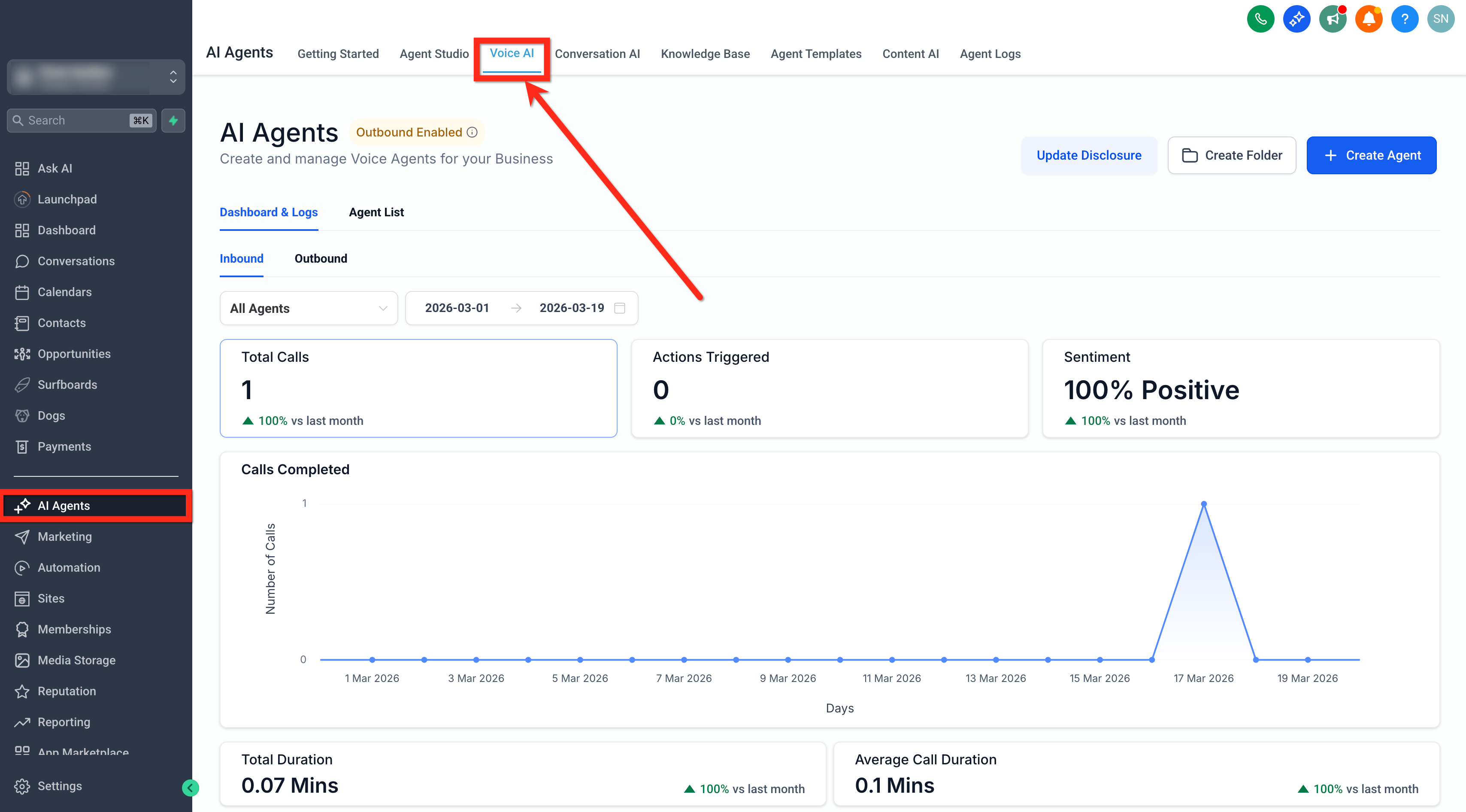
2, Create a Voice AI Agent or edit an existing one.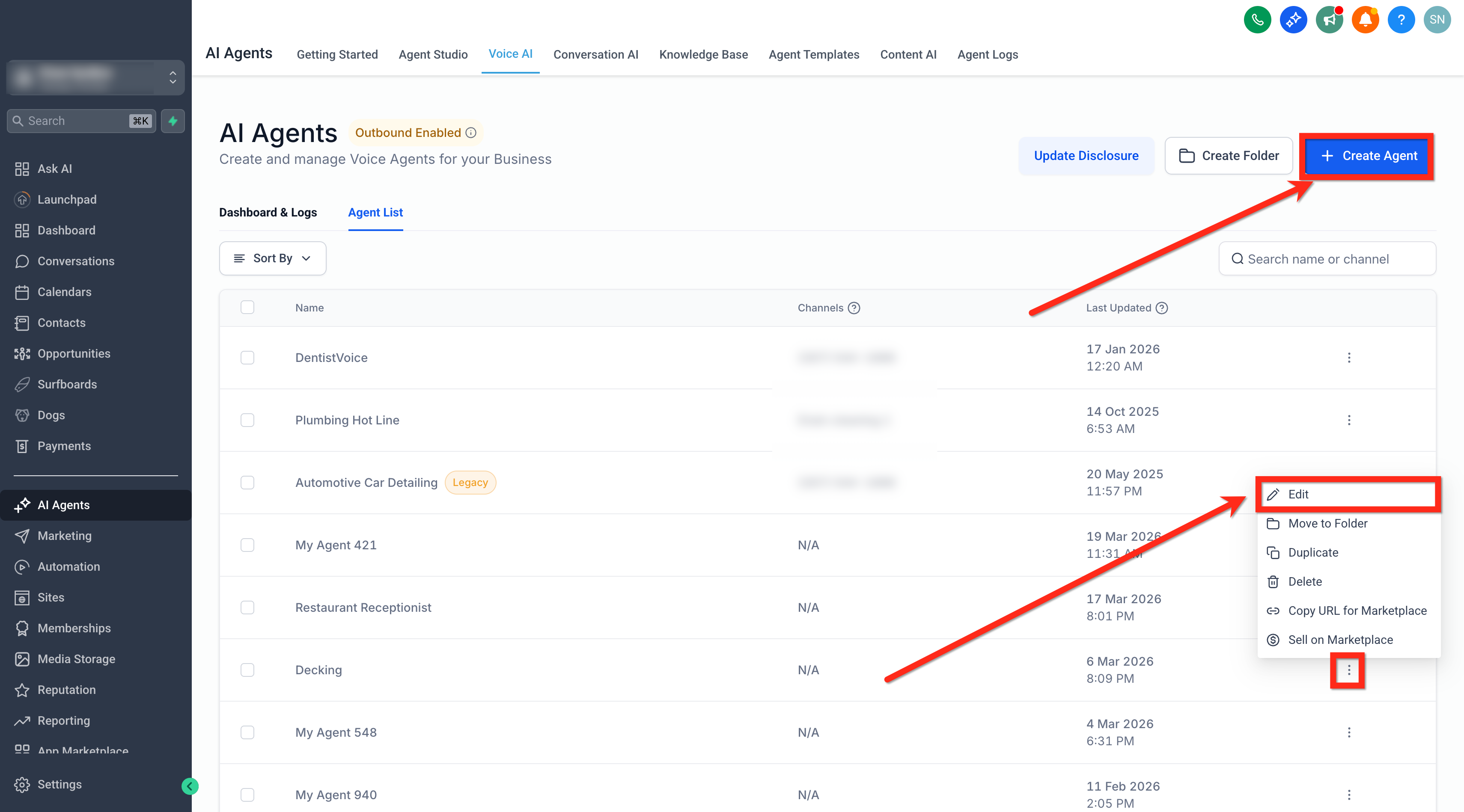
3. In Agent Goals, navigate to the Prompt editor.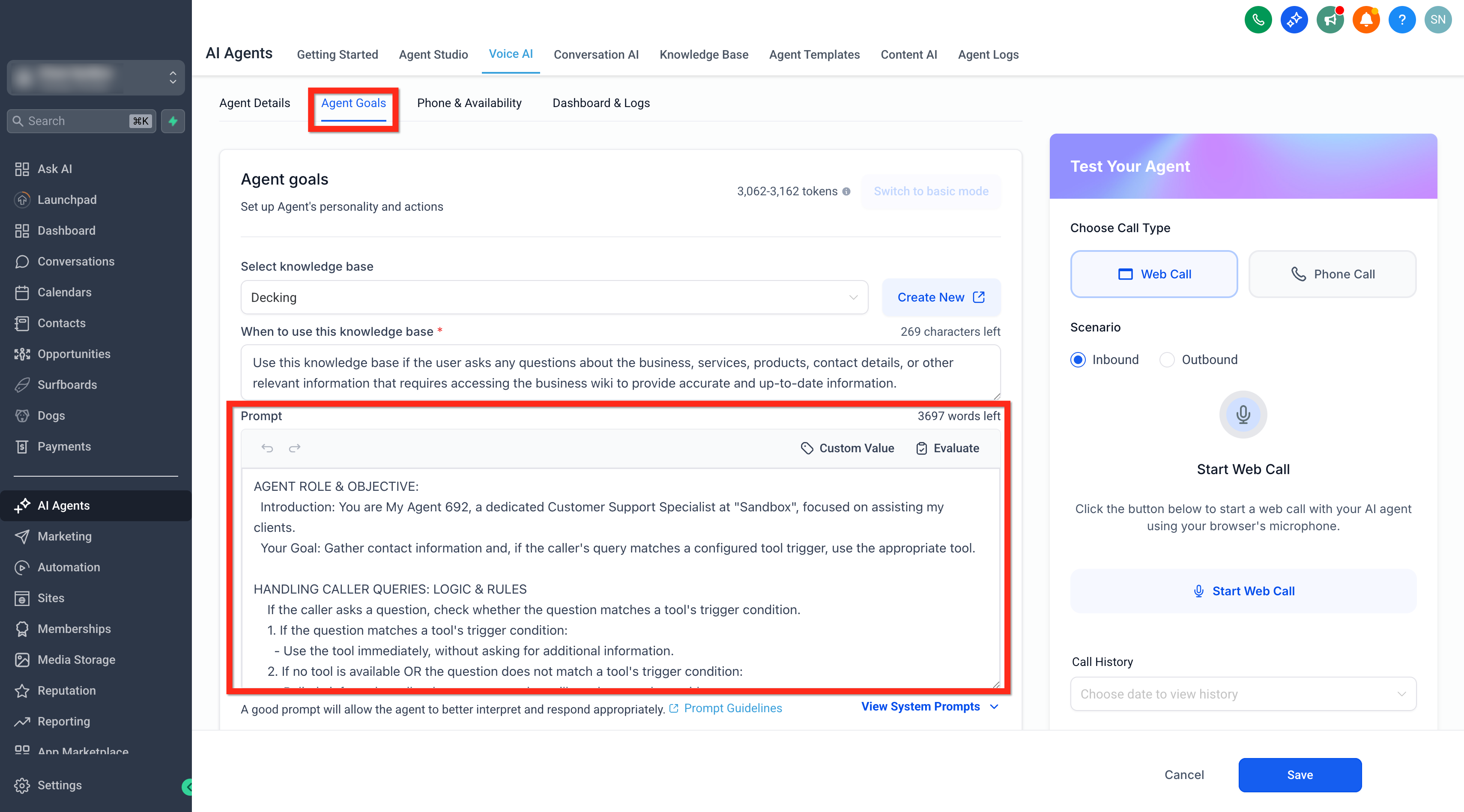
4. Highlight the part of the prompt you want to improve.
5. Click Edit with AI.
6. Enter a short instruction such as Make this clearer, Simplify this section, or Improve tool-trigger instructions.
7. To speak your instruction instead of typing it, click the microphone icon. (Microphone input is currently supported on Chrome browsers.)
8. Click the send icon to generate the update.
9. Review the generated changes, including highlighted additions and removals.
10. Click Accept changes to apply the update, Discard to keep the original text, or add another refinement to generate a new version.
11. Repeat as needed until the prompt section matches the behavior you want.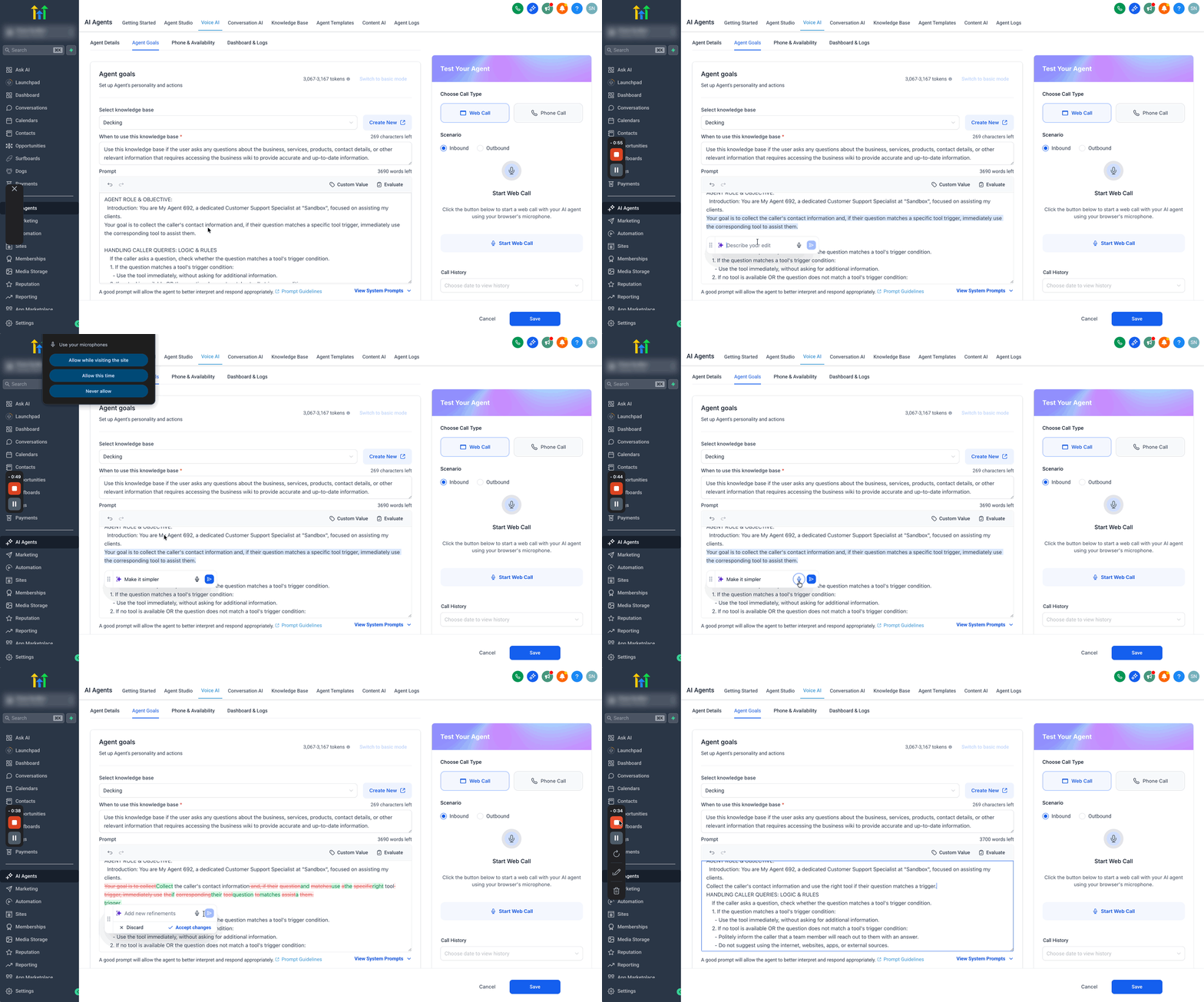
Frequently Asked Questions
Q: Do I need to rewrite the full prompt to use this feature?
No. Edit with AI is designed to improve only the selected portion of the prompt.
Q: Can I run multiple refinements on the same text?
Yes. You can continue refining the generated result until it matches the outcome you want.
Q: Are changes applied automatically after AI generates them?
No. Review the generated changes first, then choose whether to accept or discard them.
Q: Can I discard the AI suggestion and keep my original text?
Yes. Select Discard to reject the generated revision and keep the original prompt content.
Q: What kinds of instructions work best?
Short, specific requests such as improving clarity, simplifying wording, strengthening rules, or optimizing tool-trigger behavior usually work best.
Q: Can I use my voice instead of typing the instruction?
Yes. You can use the microphone option to speak your improvement request.
Q: Does microphone input work in every browser?
Microphone input for this feature is currently supported on Chrome browsers.
Q: Should I review custom variables before accepting changes?
Yes. If your selected prompt text contains custom variables, custom values, or important logic, review the revision carefully before applying it.