
TABLE OF CONTENTS
- What is Pipeline Navigation & Stage Colors in Opportunities?
- Key Benefits of Pipeline Navigation & Stage Colors in Opportunities
- Pipeline Dropdown Navigation in Opportunities
- Stage Color Customization
- Stage Color Display Options
- Where Stage Colors Appear in Opportunities
- How To Setup Opportunities – Pipeline Navigation & Stage Colors
- Frequently Asked Questions
What is Pipeline Stage Colors in Opportunities?
Key Benefits of Pipeline Stage Colors in Opportunities
- Faster pipeline management from Opportunities: Create or edit pipelines directly from the pipeline dropdown no need to leave the Opportunities view or navigate through Settings.
- Consistent visual language across views: Stage colors appear in Kanban (board), List view, opportunity cards, and record details so stages look and feel the same everywhere.
- Improved scan-ability of deals: Colored dots or background tints make it easier to quickly scan a column or list, spot priorities, and identify bottlenecks.
- Shared configuration for the whole team: Colors are configured at the pipeline level, so everyone sees the same palette, keeping your CRM visually consistent.
- Plays nicely with other visual tools: Stage colors layer alongside features like smart tags and custom opportunity card layouts, giving you richer visual context per deal.
Pipeline Dropdown Navigation in Opportunities
Streamlined pipeline navigation lets you create and edit pipelines from the same dropdown you already use to switch pipelines. This reduces context switching and makes on-the-fly pipeline adjustments much easier for admins and sales leaders.
- The pipeline dropdown at the top of the view now includes:
- A “+ Create Pipeline” action to create a pipeline instantly
- An edit option under three dots menu next to each pipeline to update its configuration
- These shortcuts mean you can refine your pipeline structure without leaving the page where you’re actively reviewing or managing opportunities.
- Your ability to create or edit pipelines still depends on your user role and pipeline permissions, so some users may see the dropdown but not edit options.
Stage Color Customization
Stage color customization allows you to assign distinct colors to each stage within a pipeline, giving your team a shared visual code for different steps (e.g., new leads, hot deals, onboarding). Thoughtful color choices make pipeline reviews faster and more intuitive.
- Colors are assigned per pipeline: Each pipeline can have its own set of stage colors, matched to that pipeline’s purpose.
- Every stage can be colored: You can choose colors for standard stages (including your own custom stages) to align with your sales or service process.
- Color settings are shared: Once configured, all users who can see that pipeline will see the same colors, ensuring a unified visual experience across the team.
Stage Color Display Options
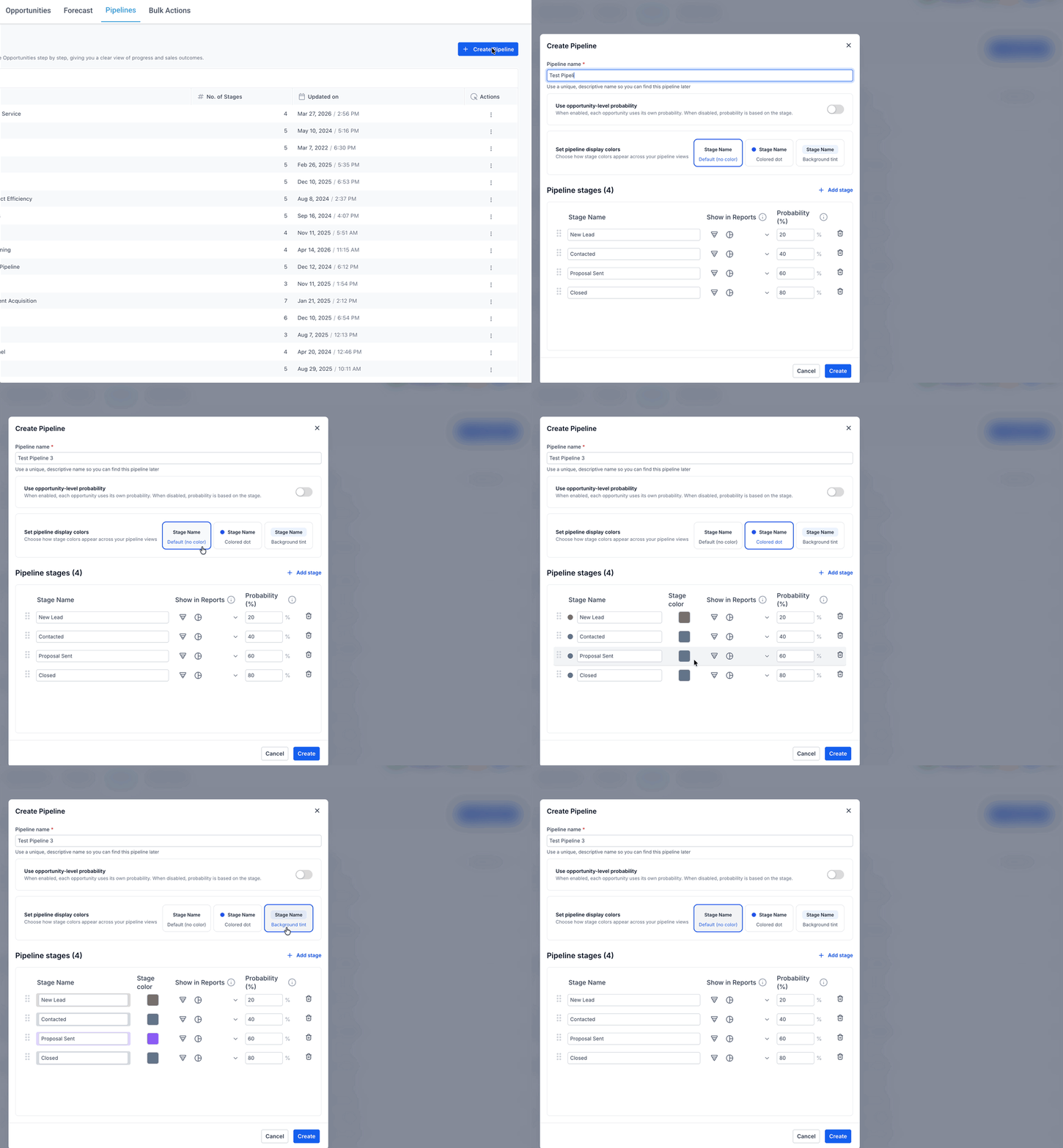
- Default (no color):
- Uses the standard SourCherry look with no added stage colors.
- Ideal if you prefer a minimalist UI or are just getting started with pipelines.
- Colored dot:
- Shows a small colored dot next to the stage label or opportunity, giving a subtle visual cue without changing the entire card or row.
- Great when you want color indicators but maintain a neutral background.
- Background tint:
- Applies a soft background tint for the stage color on cards and/or rows.
- Best for teams that want more vivid visual segmentation across stages and quick “at-a-glance” recognition.
Where Stage Colors Appear in Opportunities
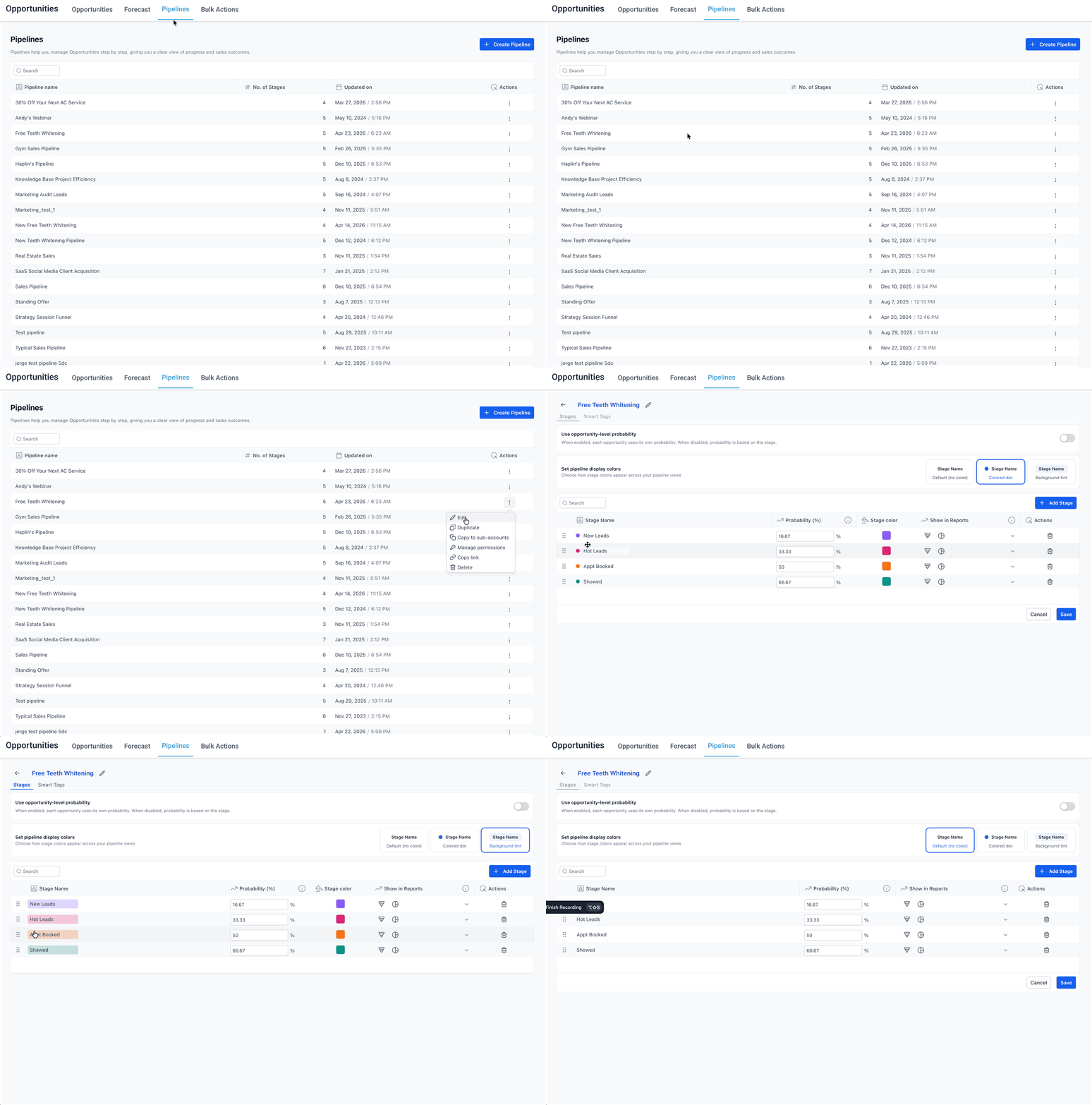
- Kanban (Board) view:
- Cards in each stage column show either a colored dot or tinted background, helping you instantly read the flow of your pipeline.
- List view for Opportunities:
- Stage colors appear alongside opportunities in the tabular view, giving you both dense data and visual stage cues in the same screen.
- Opportunity cards and record details:
Individual opportunity views and contact details surfaces will respect the stage’s color, helping you spot the deal’s position in the pipeline even when you’re away from the main Kanban.
How To Setup Opportunities – Pipeline Navigation & Stage Colors
Open Opportunities - Pipeline Menu
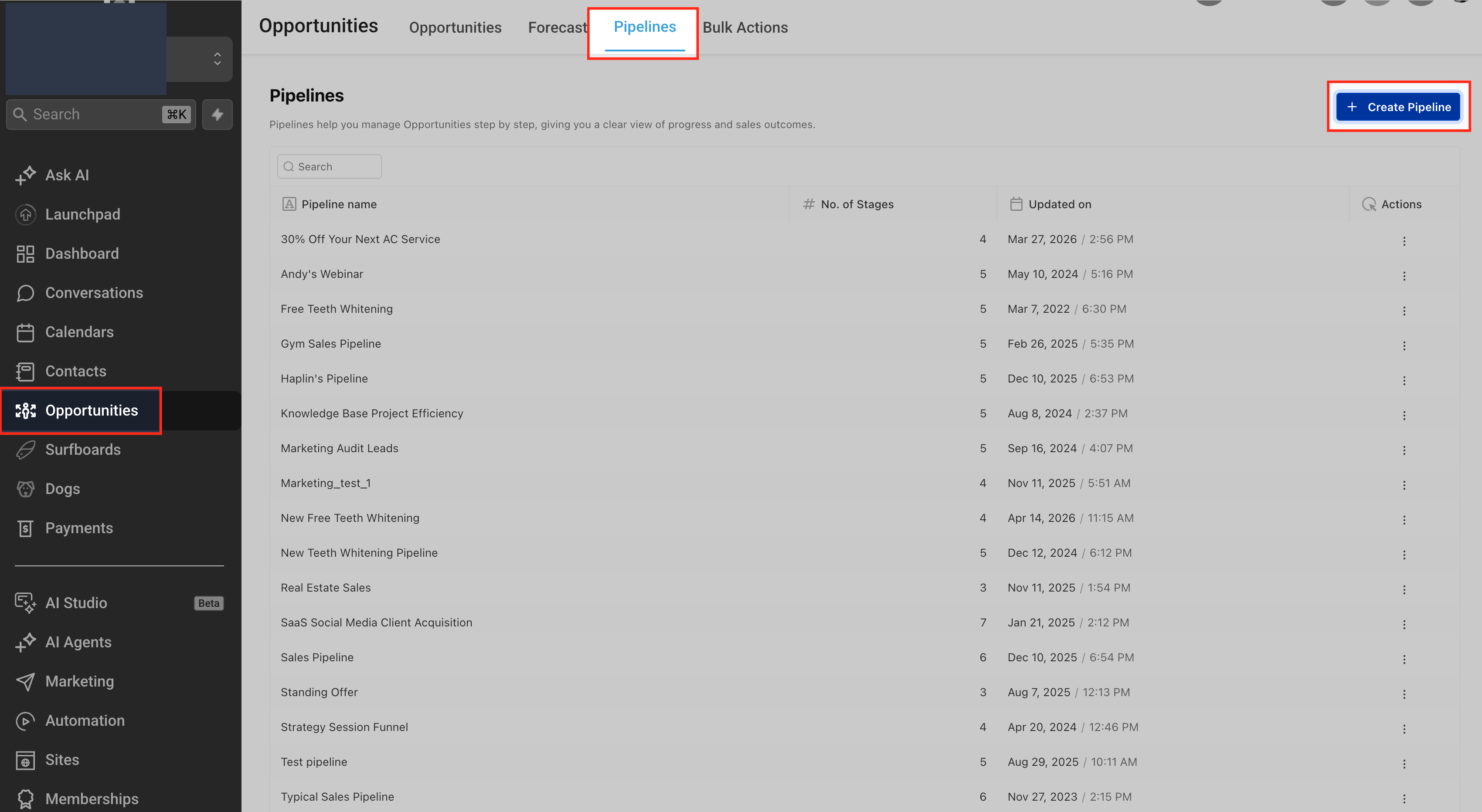
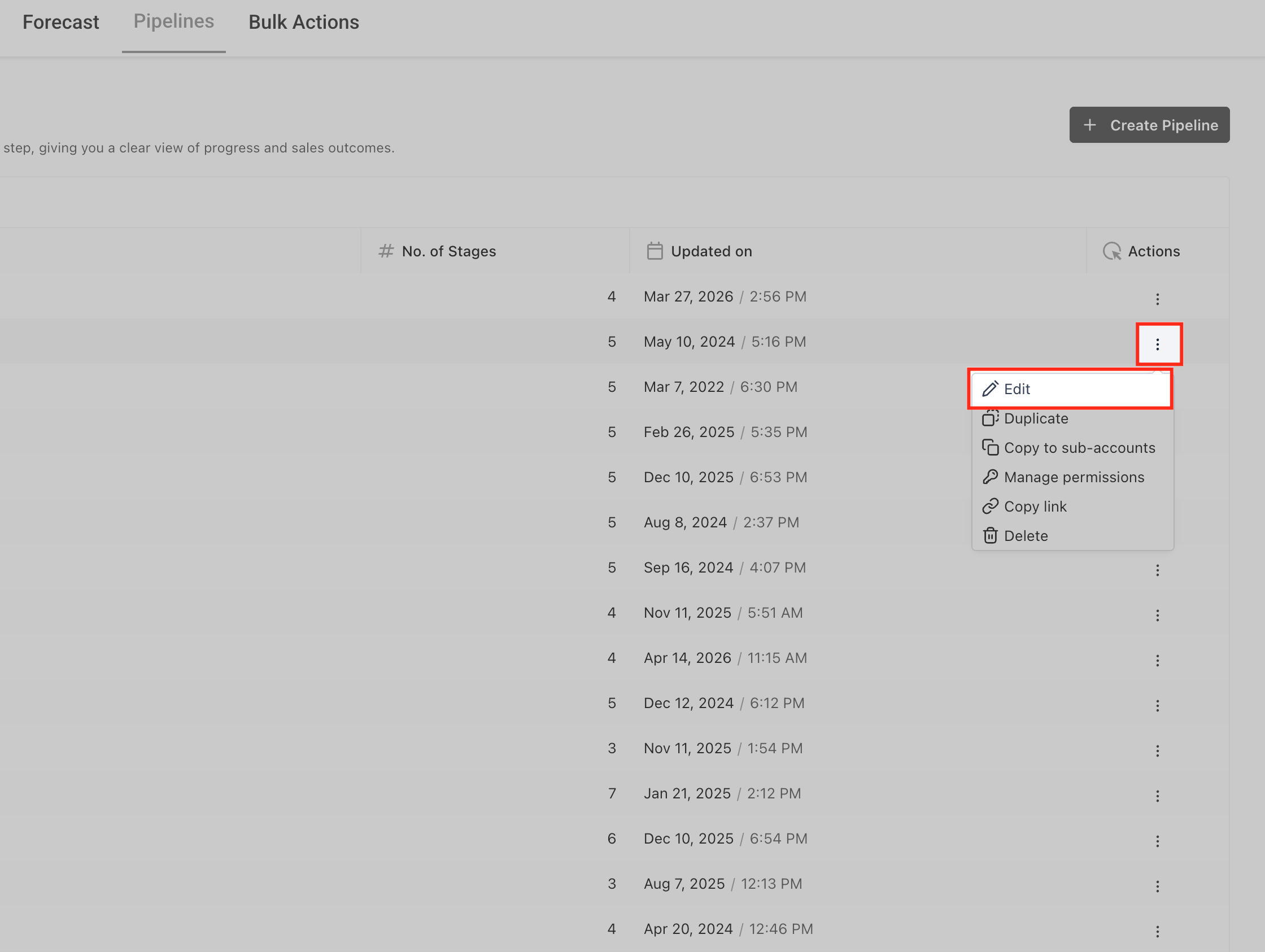
To get started, navigate to the Opportunities area from your sub-account by selecting Opportunities in the left-hand sidebar. Once you’re in, switch to the Pipelines tab at the top of the page. From here, you can easily create a new pipeline by clicking the + Create Pipeline button located in the top-right corner.
This allows you to set up and manage your pipelines without leaving the Opportunities section, making the process faster and more streamlined.
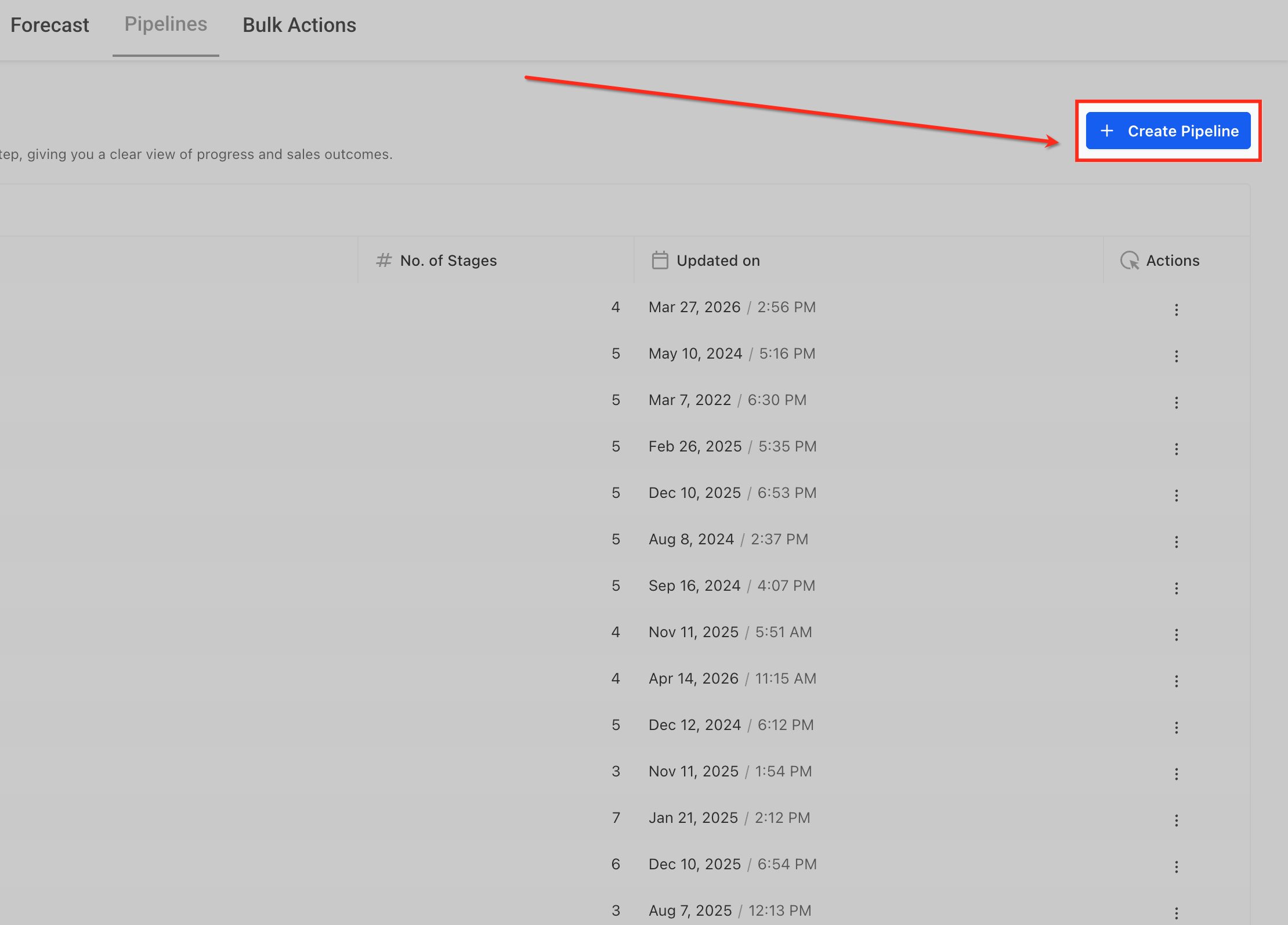
Create Pipeline
Click the + Create Pipeline button to quickly set up a new pipeline without leaving the Opportunities view. Use this when you need to organize deals into a new process (e.g., a separate pipeline for renewals or onboarding) so your workflows stay structured and easy to manage.
Edit Existing Pipeline
If you don’t need to create a new pipeline, you can alternatively update an existing one by clicking the three-dot (⋮) menu next to the pipeline and selecting Edit. This is useful when your process already exists and you simply want to refine stages, update probabilities, or apply stage colors.
Pipeline Name
Enter a Pipeline Name that clearly reflects its purpose (e.g., “Sales Pipeline” or “Client Onboarding”) so your team can easily identify and switch between pipelines.
Use the Opportunity-level probability toggle if you want each deal to have its own probability (useful for custom forecasting), or leave it off to follow stage-based probabilities for a more standardized approach.
Stage Color
Stage Color Options let you control how visual cues appear across your pipeline, helping your team quickly understand deal progress and prioritize work. By selecting the right display style, you can balance clarity and simplicity based on how your team reviews and manages opportunities.
Assign a color to each stage to visually represent its meaning (e.g., green for won, red for risk, yellow for follow-up).
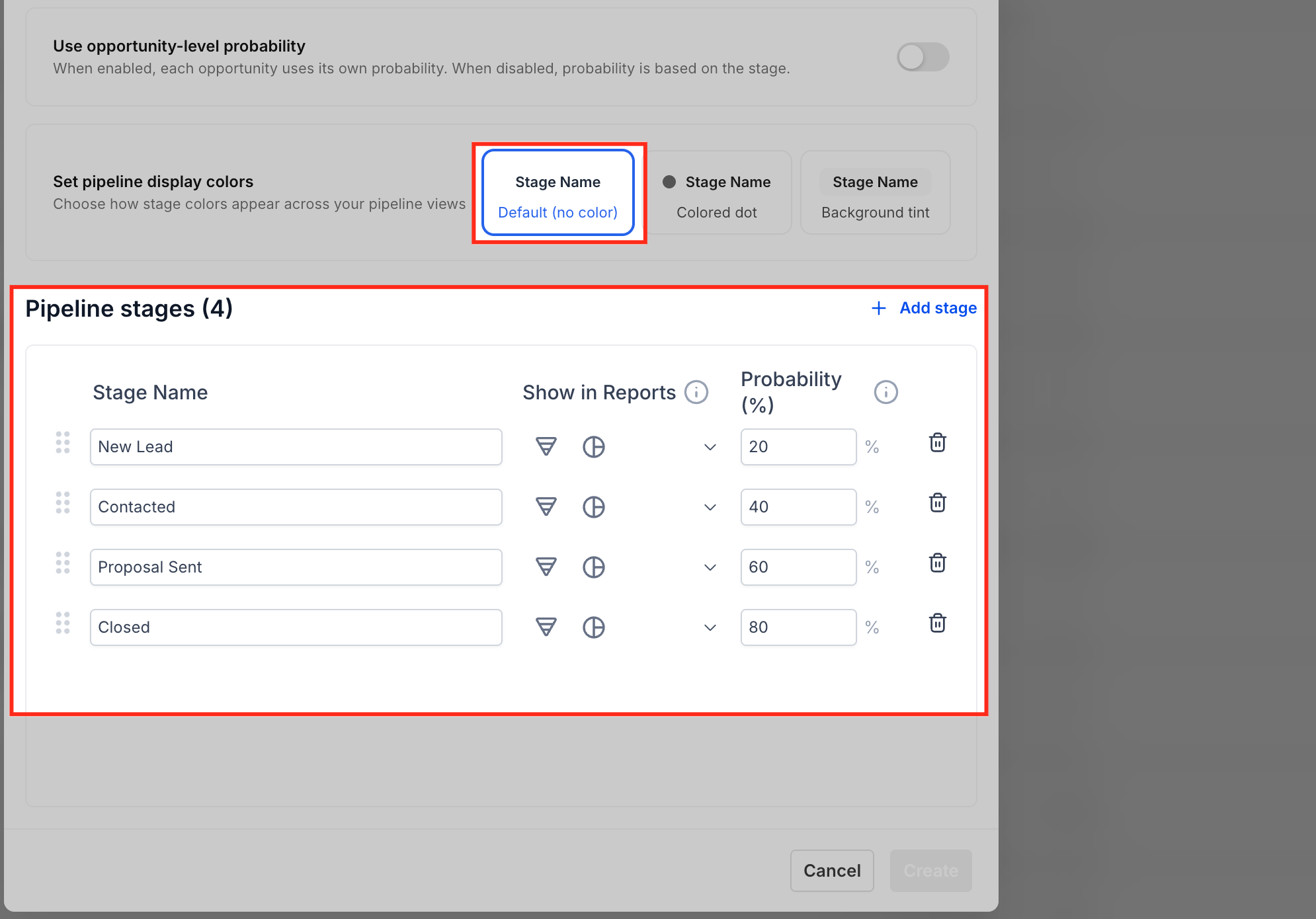
Default (No Color)
This option keeps your pipeline clean with no visual color indicators applied to stages. Use this when your team relies more on filters, tags, or detailed data rather than visual cues. It works best in simple workflows where color is not needed to interpret deal progress.
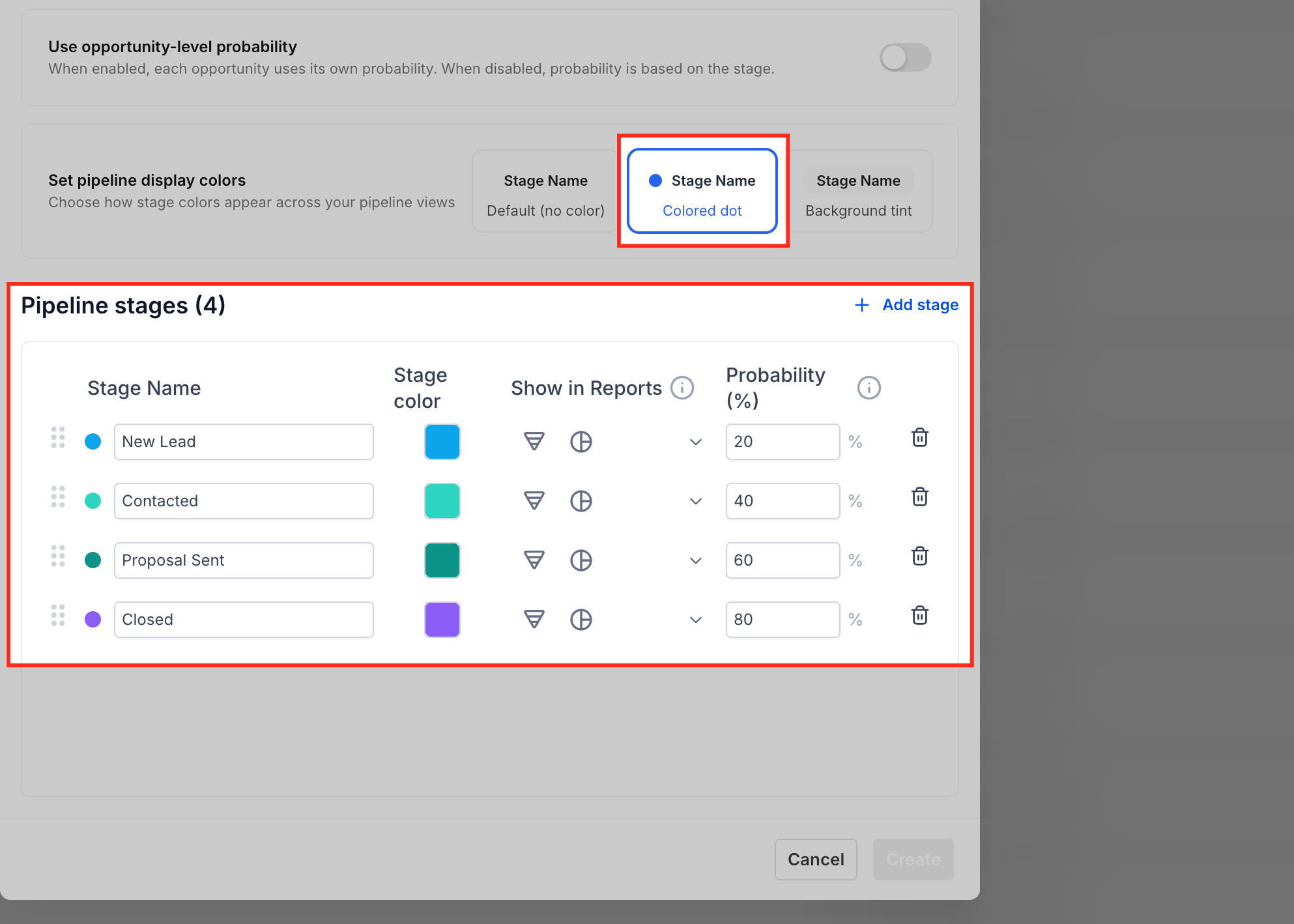
Colored Dot
This option adds a small colored dot next to each stage to provide a subtle visual indicator. Use this when your team works with list-heavy views and needs quick stage identification without overwhelming the interface. It’s ideal for maintaining a clean layout while still adding a layer of visual context.
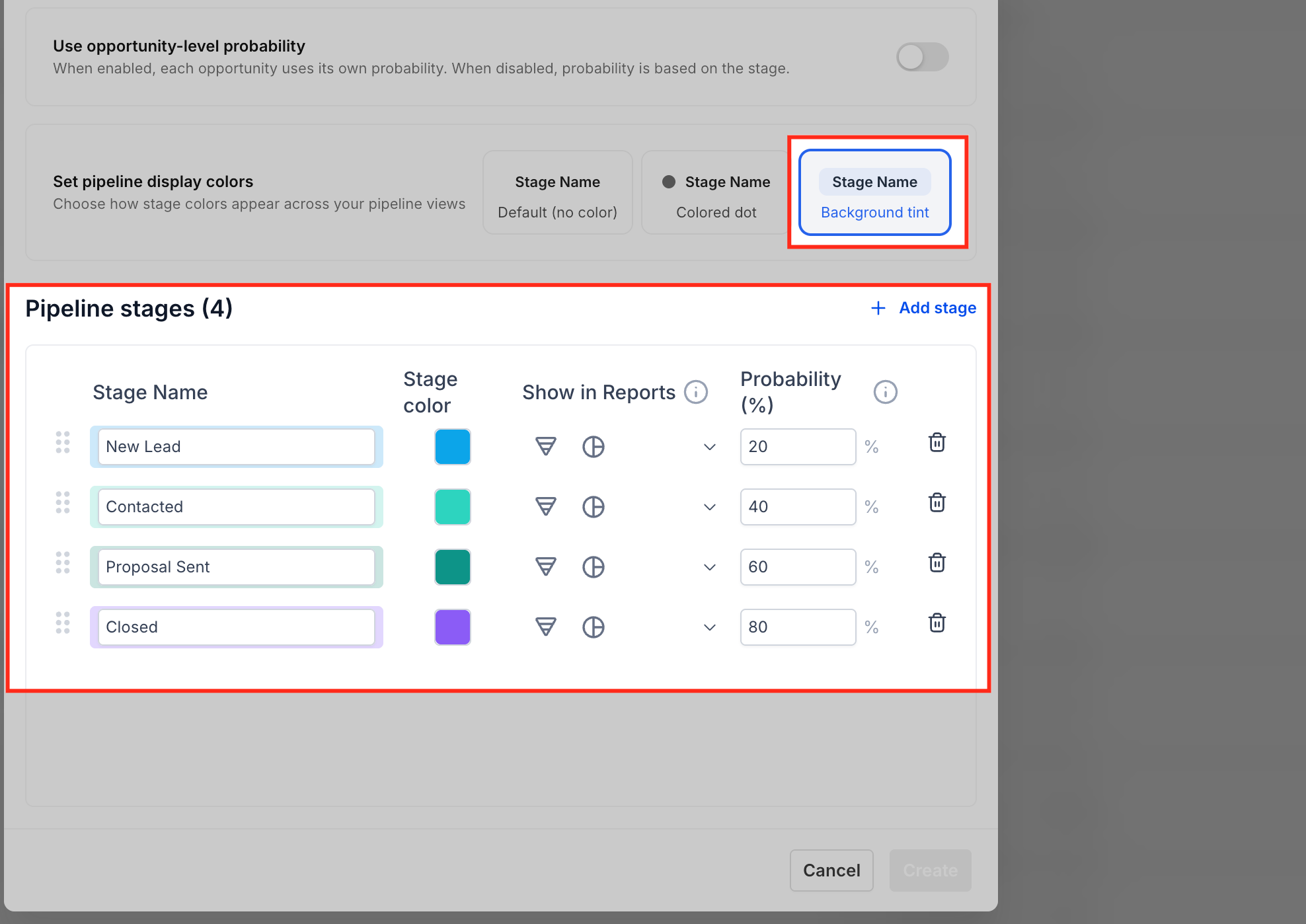
Background Tint
This option applies a soft color tint to the entire stage row or card, making stages highly visible. Use this when you need to quickly scan pipelines, identify priorities, or manage high volumes of deals. It’s especially useful for sales teams that rely on fast visual recognition during pipeline reviews.
Verify permissions and rollout to your team (optional but recommended)
If you’re an admin, review pipeline permissions so only the right users can modify pipeline structures and stage colors, while others still benefit from the visuals.
Communicate your color conventions (e.g., what each color means) so your team interprets the visuals consistently.
Refine over time.
Monitor how your team uses the colors and adjust as needed.
If you introduce new stages or processes, update colors to keep your visual language coherent.