
The Workflow Switcher allows you to quickly navigate between workflows without leaving the builder.
You can search, open, create, duplicate, and delete workflows directly from the switcher panel, helping you stay focused while managing automations.
TABLE OF CONTENTS
What’s New
The Workflow Switcher now includes:
Same-tab workflow switching to reduce tab clutter
Faster loading and smoother navigation
Infinite scroll to browse all workflows
In-panel actions to create, duplicate, and delete workflows
Availability in both Advanced and Standard Workflow Builders
How to Open the Workflow Switcher
Go to Automations → Workflows
Open any workflow
Click the Workflow Switcher in the left sidebar
Or press Shift + W
Workflow Switcher Interface
Below is an overview of the Workflow Switcher inside the builder:
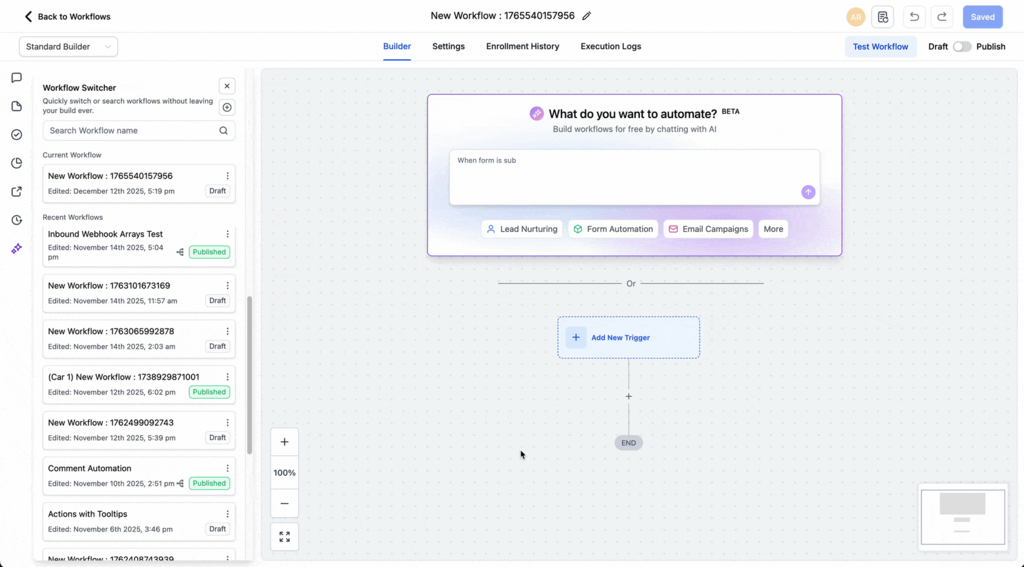
This panel allows you to:
Search for workflows
View recent workflows
Switch between workflows without leaving the builder
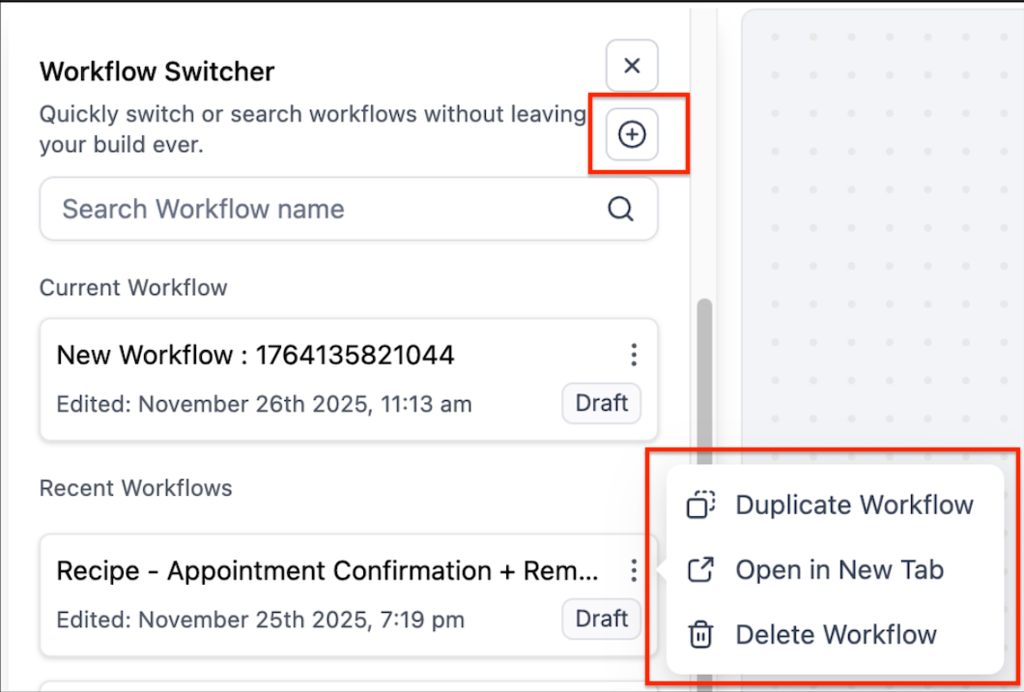
From this panel, you can:
Create a new workflow
Duplicate an existing workflow
Open a workflow in a new tab
Delete workflows
How to Switch Between Workflows
Open the Workflow Switcher
Use the search bar or scroll to find a workflow
Click the workflow name
The selected workflow will open in the same tab.
Manage Workflows from the Switcher
Inside the switcher, you can:
Create a new workflow using the + icon
Duplicate workflows from the options menu
Delete workflows you no longer need
These actions are available directly within the panel, so you don’t need to leave the builder.
Navigation Improvements
Same-tab switching keeps your workspace focused
Infinite scroll allows browsing large workflow lists without pagination
Improved performance speeds up loading and switching between workflows
Keyboard Shortcut
Press Shift + W to open or close the Workflow Switcher.
Frequently Asked Questions
Can I open a workflow in a new tab?
Yes. Use the options menu or right-click a workflow and select Open in new tab.
Will I lose unsaved changes when switching workflows?
No. You will be prompted to save or discard changes before switching.
Is the Workflow Switcher available in all builders?
Yes. It is available in both Advanced and Standard Workflow Builders.
Is there a limit to how many workflows I can view?
No. Infinite scroll allows you to browse all workflows without pagination.