
Tax support in Courses offers ensures your course checkout pages charge and display taxes accurately based on your Payments tax settings. This guide explains how taxes are calculated for course offers, how to configure them, and how to provide a transparent, compliant checkout experience for your learners.
TABLE OF CONTENTS
- What is Tax Support in Courses Offers?
- Key Benefits of Tax Support in Courses Offers
- Automatic Tax Calculation in Courses Offers Checkout
- Region-Based Tax and Nexus Configuration
- Tax-Inclusive vs Tax-Exclusive Pricing for Course Offers
- Manual Taxes and Fallback Behavior in Course Offers
- Coupons, Discounts, and Tax on Courses Offers
- How To Setup Tax Support in Courses Offers
- Frequently Asked Questions
What is Tax Support in Courses Offers?
Tax support in Courses offers connects your membership course checkout pages to SourCherry’s Payments tax engine. When a buyer checks out through a Course Offer, SourCherry can automatically calculate and display taxes based on their billing address, your nexus locations, and the tax behavior you’ve configured in Payments (automatic and/or manual taxes).
With this release, Course Offer checkouts now behave consistently with other SourCherry checkouts (like funnels and payment links) that already use Payments tax settings. That means your course pricing, discounts, and taxes are aligned with the same product and tax configuration you use elsewhere in your account.
Key Benefits of Tax Support in Courses Offers
Accurate tax handling in Courses offers helps you avoid surprises at checkout and maintain compliance while keeping the buying experience smooth for students.
- Automatic tax calculation at checkout: Taxes can be calculated in real time using the buyer’s billing address, your nexus addresses, and each product’s tax category.
- Transparent tax breakdown: Tax appears as a separate line item before payment, giving buyers a clear subtotal, tax amount, and total due.
- Support for both automatic and manual taxes: You can enable international automatic taxes, attach manual tax rates to products, or use both (with manual taxes acting as a fallback where needed).
- Region-based tax behavior: Taxes apply only where you have tax obligations (nexus) and according to local tax rules, using your configured nexus addresses and product tax codes.
- Tax-inclusive or tax-exclusive pricing: Decide whether course prices should include tax in the displayed amount or add tax on top, globally or per product.
- Works with coupons and recurring payments: Coupon codes and promotions still function normally, and taxes can apply to both one-time and recurring course products.
- Consistent reporting: The same tax configuration powers Courses offers and other checkouts, simplifying reconciliation, exports, and financial reporting.
Automatic Tax Calculation in Courses Offers Checkout
Automatic tax calculation uses SourCherry’s International Automatic Taxes feature to determine the correct tax amount on your Course Offer checkout based on the buyer’s address and your configured tax rules.
Once automatic taxes are enabled, Course Offer checkouts can calculate and display tax dynamically, just like funnels, payment links, and other supported checkouts. This reduces manual work and significantly lowers the risk of under‑ or over‑charging tax.
Key behaviors:
- Uses your Payments → Taxes configuration
- Global “Include tax in prices” setting (inclusive vs exclusive pricing).
- Automatic tax toggle.
- Default tax category and any product-level Product Tax Code.
- Nexus addresses (countries/states where you collect tax).
- Depends on accurate buyer address
- The checkout must capture the customer’s billing address for automatic tax to calculate correctly.
- If no address is provided, automatic tax can’t determine the right jurisdiction and may not apply taxes.
- Applies to one-time and recurring course products
- Taxes can be calculated on both one‑time purchases and subscription/recurring prices attached to your Course Offers.
- Shows a clear tax line item
- The tax amount appears as a separate line on the order summary before payment is confirmed, giving both you and the buyer visibility into how the total is calculated.
Region-Based Tax and Nexus Configuration
Region-based tax behavior ensures you only charge tax where your business has a tax obligation. This is managed through nexus addresses and tax categories inside Payments.
Tax support in Courses offers uses the same nexus and tax settings you use for other checkouts, so updating those settings automatically keeps your course tax calculations in sync.
How region-based tax works:
- Nexus addresses define where you collect tax
- Configure the countries (and states/provinces, where applicable) where your business has tax obligations in Payments → Settings → Taxes.
- Automatic taxes only apply in those regions; outside those, taxes may default to manual rates or no tax depending on your configuration.
- Product Tax Codes align each course product with the right tax rules
- In Payments → Products, each course product can be assigned a Product Tax Code (Tax Category) that describes what you’re selling (e.g., digital service, digital product, etc.).
- Automatic tax uses this code plus the buyer’s address and your nexus list to calculate tax correctly at checkout.
- Business address and tax IDs matter
- Adding your business tax IDs for each nexus location helps the tax engine respect local rules and include IDs on appropriate documentation.
Tax-Inclusive vs Tax-Exclusive Pricing for Course Offers
Tax support respects both global and product-level pricing behavior, giving you control over whether course prices include tax or show tax as an additional line.
Understanding and choosing the right behavior helps you present pricing that matches your market expectations (for example, VAT-inclusive pricing vs. US-style tax-on-top).
Key options:
- Global “Include tax in prices”(Payments → Settings → Taxes)
- Yes (Tax-inclusive)– The listed product price already includes the tax portion.
- The system backs the tax out of the price at checkout so the total stays fixed while tax and subtotal adjust.
- No (Tax-exclusive)– The listed product price is before tax.
- Tax is added on top of the subtotal at checkout to form the final total.
- Yes (Tax-inclusive)– The listed product price already includes the tax portion.
- Product-level overrides for Course products
- In each course product:
- Include taxes in prices can inherit the global behavior or be set to:
- Yes – Always treat this product as tax-inclusive.
- No – Always treat it as tax-exclusive.
- Include taxes in prices can inherit the global behavior or be set to:
This flexibility lets you, for example, sell one course with VAT-inclusive pricing to EU buyers while keeping another product tax-exclusive, even under the same global account.
Manual Taxes and Fallback Behavior in Course Offers
Manual tax rates remain important for jurisdictions not covered by automatic taxes or when you need very specific local handling. SourCherry continues to support manually created tax rates that you attach to products, and these now flow into Course Offer checkouts as well.
How manual taxes interact with Courses offers:
- Creating manual tax rates
- Go to Payments → Settings → Taxes and click Add Tax / Create Tax to define name, rate, optional description, and agency/ID.
- Attaching manual rates to course products
- In Payments → Products, open your course product and enable Attach Tax Rates to select one or more manual rates that should apply.
- These tax rates appear automatically whenever that product is used in a checkout, including Course Offers (except for some invoice-specific behavior).
- Manual taxes as fallback when automatic tax is enabled
- Manual tax rates can work as a fallback if automatic taxes are also on, especially where auto tax doesn’t apply or for exempt regions you deliberately manage manually.
This gives you a flexible path: rely primarily on automatic taxes, but still fine-tune or cover edge cases with manual rates where needed.
Coupons, Discounts, and Tax on Courses Offers
Coupons continue to work seamlessly with tax support, so you can run promotions without losing tax accuracy.
While exact behavior can vary by jurisdiction, the Course Offer checkout uses the same discount and tax engine as other Payments checkouts, helping keep displayed and charged amounts consistent.
Key points:
- Coupon codes reduce the applicable product or order subtotal.
- Taxes are calculated using your automatic/manual tax settings and the adjusted amount.
- The final summary shows:
- Original subtotal
- Discounts (from coupons)
- Tax amount
- Final total charge
How To Setup Tax Support in Courses Offers
Correct setup in Payments is essential for taxes to calculate correctly on your Courses Offer checkout. Once configured, every eligible purchase will automatically follow the same tax rules as your other Payments-powered checkouts.
Follow these steps to prepare your account and Course Offers:
- Connect and configure Payments (prerequisite)
- Ensure your payment provider (e.g., Stripe) is connected in Payments.
- Verify that you can create products and accept payments for Courses offers as described in the course product setup guide.
- Enable and configure your tax settings
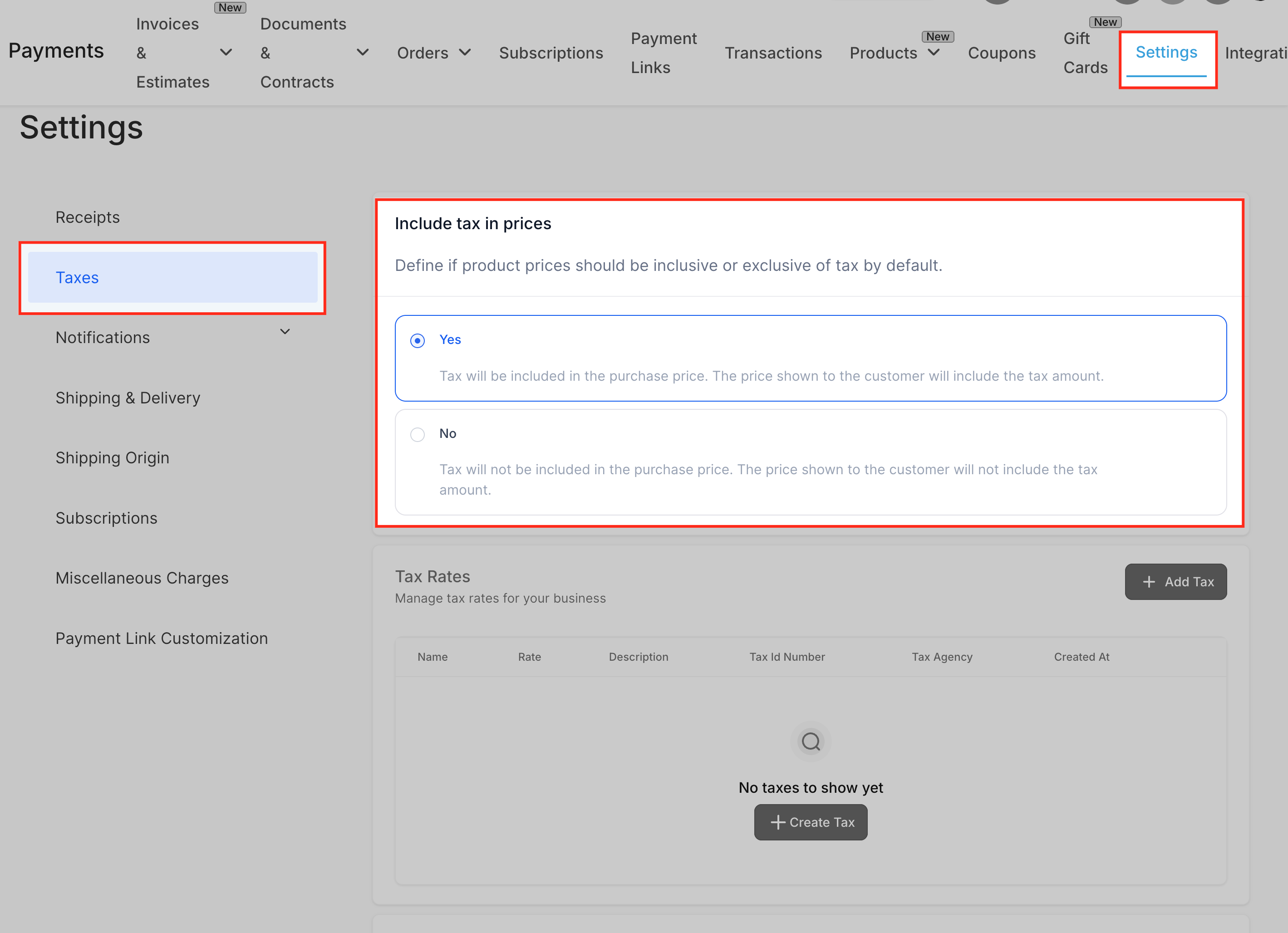
- Go to Payments → Settings → Taxes.
- Choose whether prices are tax-inclusive or tax-exclusive using the Include tax in prices setting.
- (Optional but recommended) Create any manual tax rates you need (e.g., for unsupported countries or special local rules).
- Turn on International Automatic Taxes (if applicable)
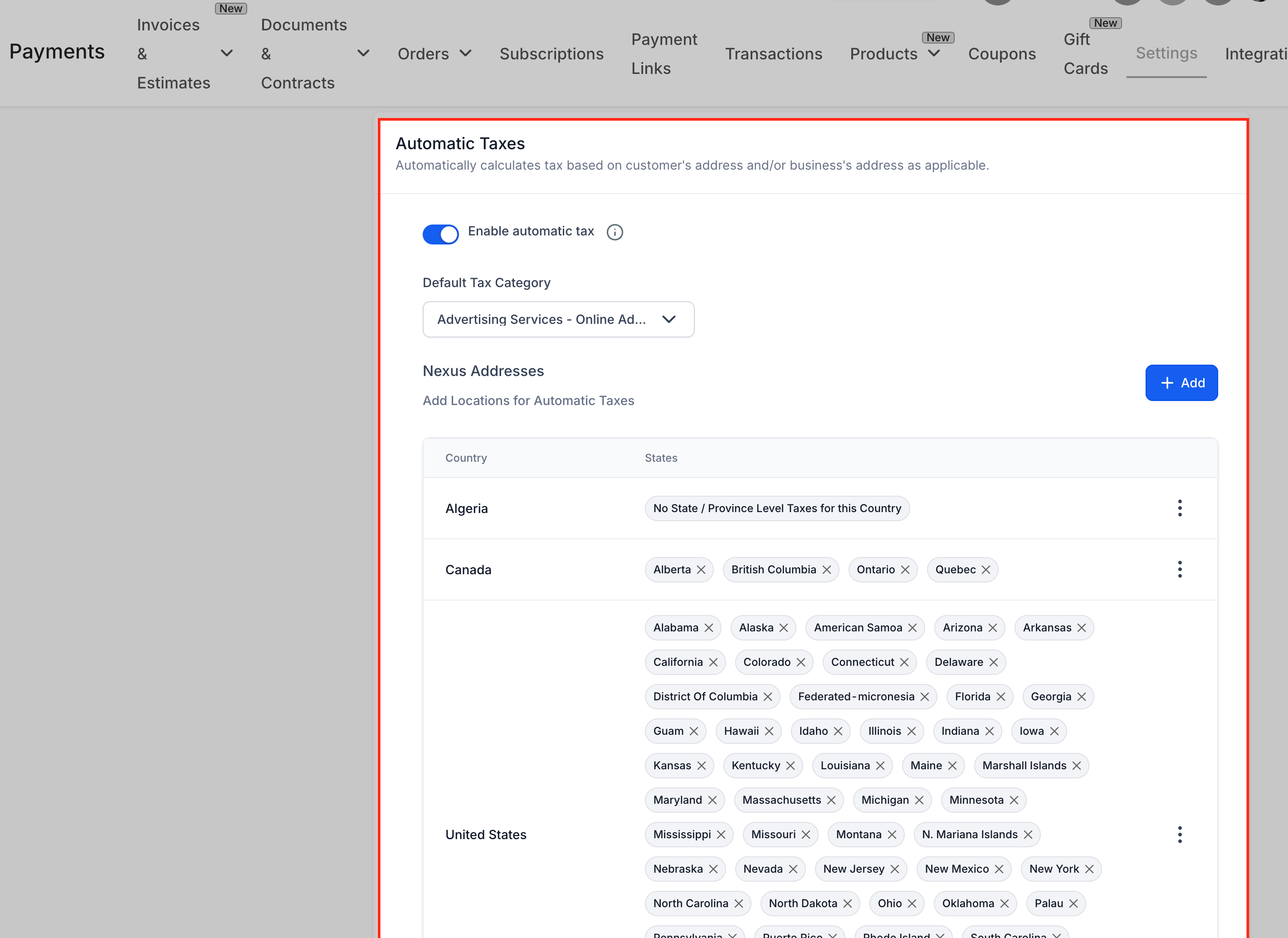
- In Payments → Settings → Taxes, scroll to Automatic Taxes.
- Toggle Enable automatic tax ON.
- Select a Default Tax Category that best matches your typical product type (e.g., digital services).
- Add and review nexus addresses
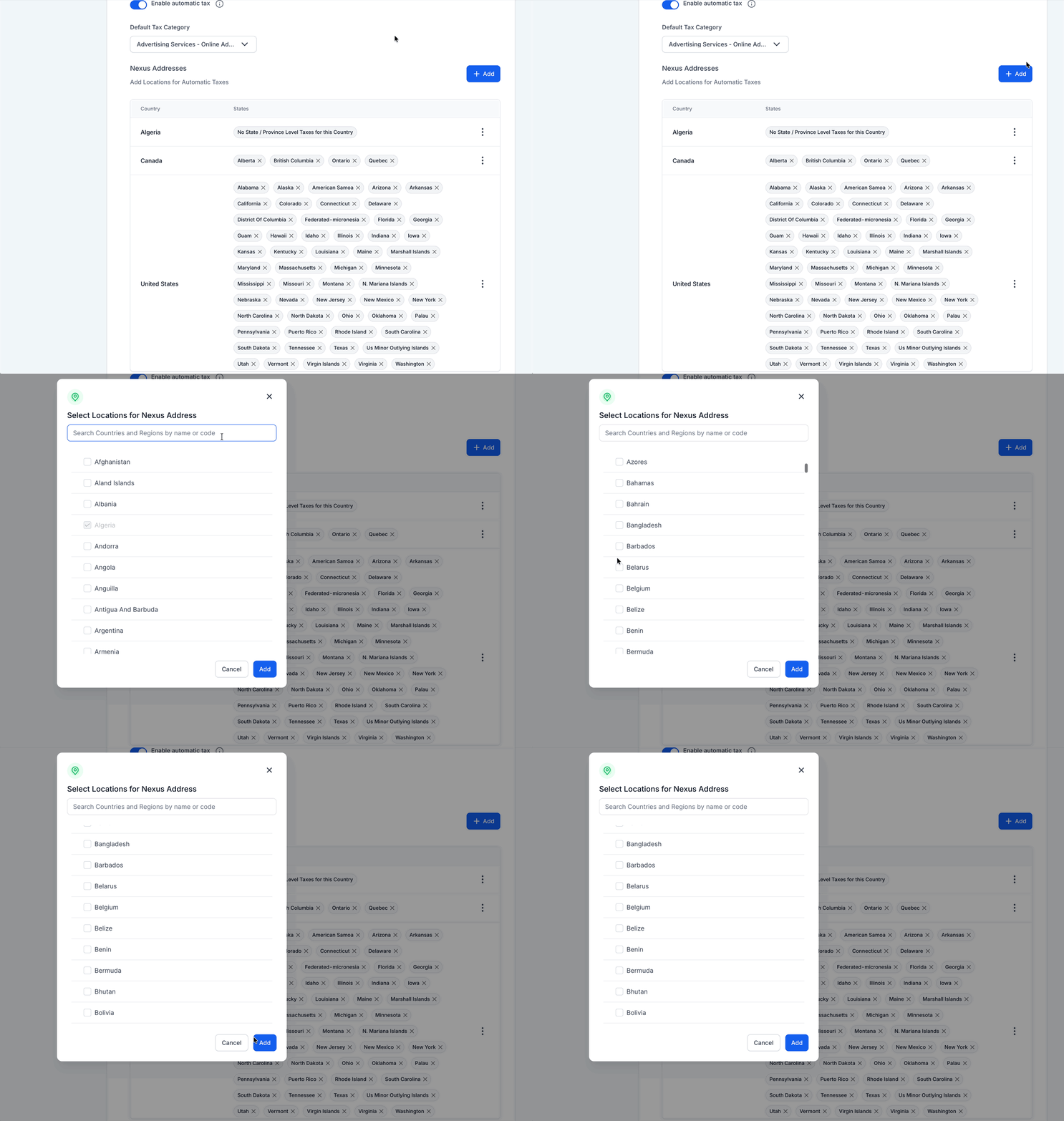
- Still under Taxes, click Add Nexus Address.
- Add each country (and state/province where applicable) where your business must collect tax.
- Optionally enter a Tax ID for each nexus region.
- Save your changes.
- Confirm your business address is correct
- Ensure your business address in account or Payments settings is accurate and kept up to date, especially for locations where you have tax obligations. A correct address helps ensure compliance and correct tax region mapping.
- Configure tax options on your course products
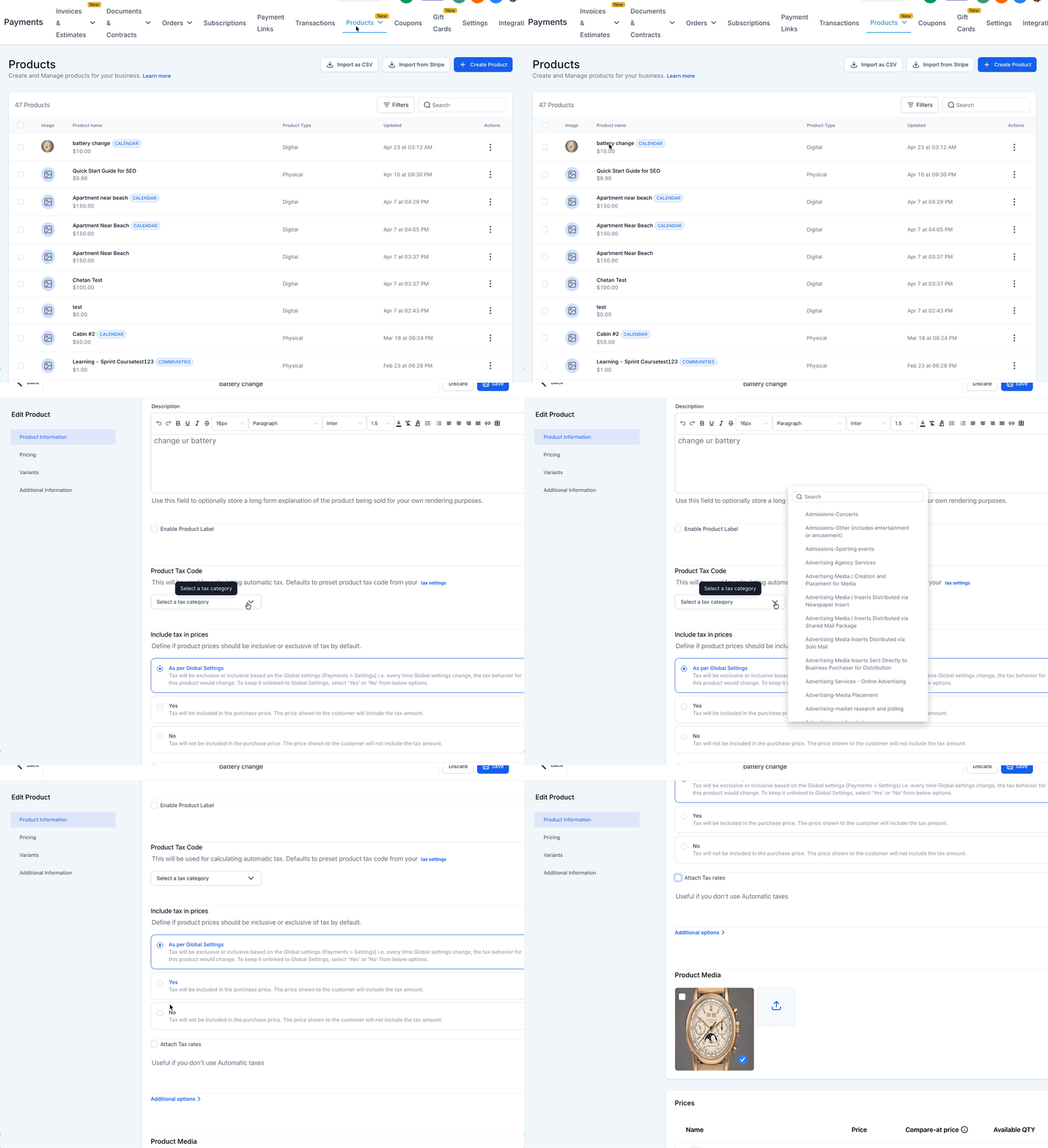
- Navigate to Payments → Products.
- Create or edit the product(s) that are linked to your Courses offers.
- In the Product Information / Tax Options area:
- Set a Product Tax Code (Tax Category) if needed.
- Choose whether this product should include or exclude tax in price, or inherit global behavior.
- Optionally Attach Tax Rates if you’re using manual taxes.
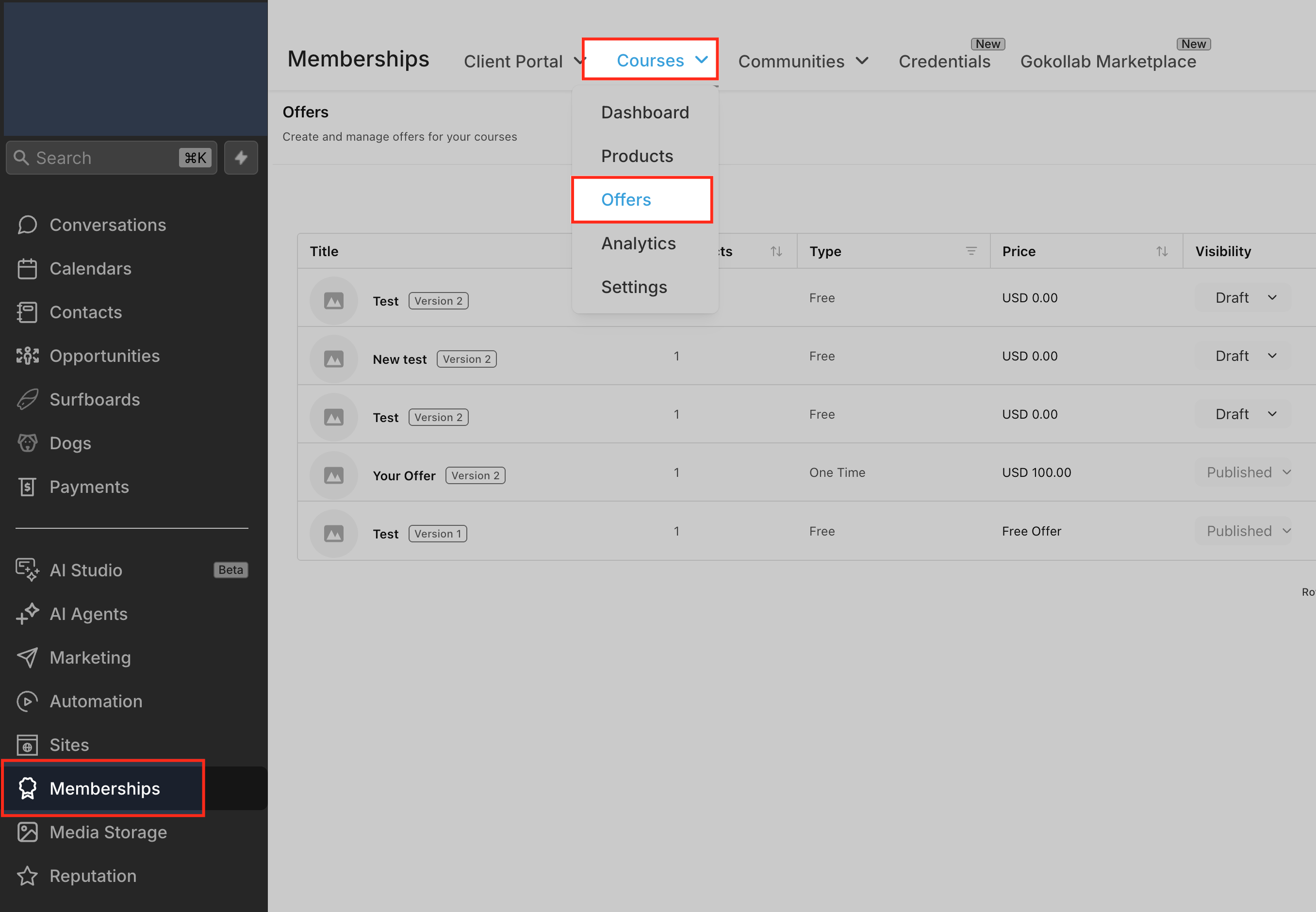
- Link products to Course Offers (if not already done)
- Ensure your Course Offer is created and published in Memberships.
- In Payments → Products, enable Membership Offer for your course product and select the correct Course Offer from the dropdown.
- Test a Course Offer checkout
- Open the Course Offer checkout (via preview or a test link).
- Enter a billing address in a region where you have nexus.
- Apply any relevant coupon codes.
- Verify that:
- Subtotal, discount, and tax amounts display correctly.
- Final total matches what you expect from your tax rules.
Once these steps are complete, all purchases made through your Courses offers will automatically respect the same tax logic you’ve configured in Payments.
Frequently Asked Questions
Q: Do I have to change my existing Courses offers to start using tax support?
No major structural changes are needed. As long as your Products and Payments → Taxes settings are configured correctly, existing Courses offers will start using the updated tax behavior on checkout automatically.
Q: What happens if automatic taxes are enabled but a buyer doesn’t provide a full billing address?
Automatic tax calculation depends on a valid address. If the checkout doesn’t capture enough location detail (for example, missing country or state), taxes may not be applied or may fall back to manual tax rates on the product, if configured.
Q: Can I charge different tax behavior for different courses (one inclusive, one exclusive)?
Yes. Use the Include taxes in prices option at the individual product level to override the global setting for specific course products.
Q: How do taxes work for subscription/recurring course payments?
Taxes can be applied to both one-time and recurring product prices. Once a subscription is created with the correct tax behavior, future recurring charges will follow the same tax rules, subject to any changes in tax configuration or customer address.
Q: What if my country or region is not supported by International Automatic Taxes?
For unsupported regions (for example, India), you should rely on manual tax rates attached to products or include tax directly in your pricing. Always check local tax regulations and consult a tax professional if needed.
Q: How do coupons affect the tax amount on a Course Offer checkout?
Coupons generally reduce the taxable amount first (the subtotal or specific line items they apply to), and then taxes are calculated based on the discounted price according to your configured rules and the jurisdiction.
Q: Can I use multiple tax rates on a single course product?
Yes. When using manual taxes, you can attach multiple tax rates to a product (for example, state + local tax). These combined rates will be reflected in the checkout’s tax calculation for that product.
Q: Where can I see the tax amounts after a buyer completes their purchase?
Tax amounts appear in the order details, transaction details, and relevant reports or exports in Payments, providing visibility for reconciliation and accounting.