
Hosting events in SourCherry Communities now includes a built-in Live Room option, making it easier to schedule and run live sessions directly from Community Events. Admins and owners can use Live Room for a native SourCherry experience or continue using Zoom, Google Meet, or another custom meeting link. This article explains how Live Room works in Community Events, when to use each location type, and how to set up your next workshop, Q&A, coaching call, or launch event.
TABLE OF CONTENTS
- What is Live Room for Community Events?
- Key Benefits of Live Room for Community Events
- Live Room Experience
- Attendee Join and Registration Experience
- How To Setup Live Room for Community Events
- Frequently Asked Questions
- Related Articles
What is Live Room for Community Events?
Live Room for Community Events is a built-in event location option that lets you host a live session directly inside a SourCherry Community. Instead of adding an external meeting link, you can select Live Room while creating the event so members can join from the event page.
Live Room uses SourCherry’s Go Live experience to support interactive sessions with video, audio, chat, reactions, screen sharing, and host controls. Community Events already centralize event details, registration, calendar actions, visibility, pricing, and reminders, and Live Room adds a native meeting option to that same event workflow.
If you want to go live instantly without creating a scheduled Community Event, refer to Communities - Use Go Live to Host Meetings & Broadcasts.Key Benefits of Live Room for Community Events
- Native event hosting: Host live sessions directly inside Communities without requiring members to install another meeting tool.
- Flexible meeting options: Choose Live Room, Zoom, Google Meet, or another custom link depending on how you want to run the event.
- Simpler attendee experience: Give members one clear event page where they can view details, register, add the event to their calendar, and join.
- Built-in engagement: Use Go Live features such as chat, reactions, raise hand, screen sharing, and host controls to keep members involved during the session.
- Community-based reminders: Use Community Event reminder emails and calendar options to help members remember upcoming sessions.
- Web and mobile access: Members can discover and register for Community Events on web and mobile, and Live Room events can be joined from supported browsers or the SourCherry mobile app when signed in.
Live Room Experience
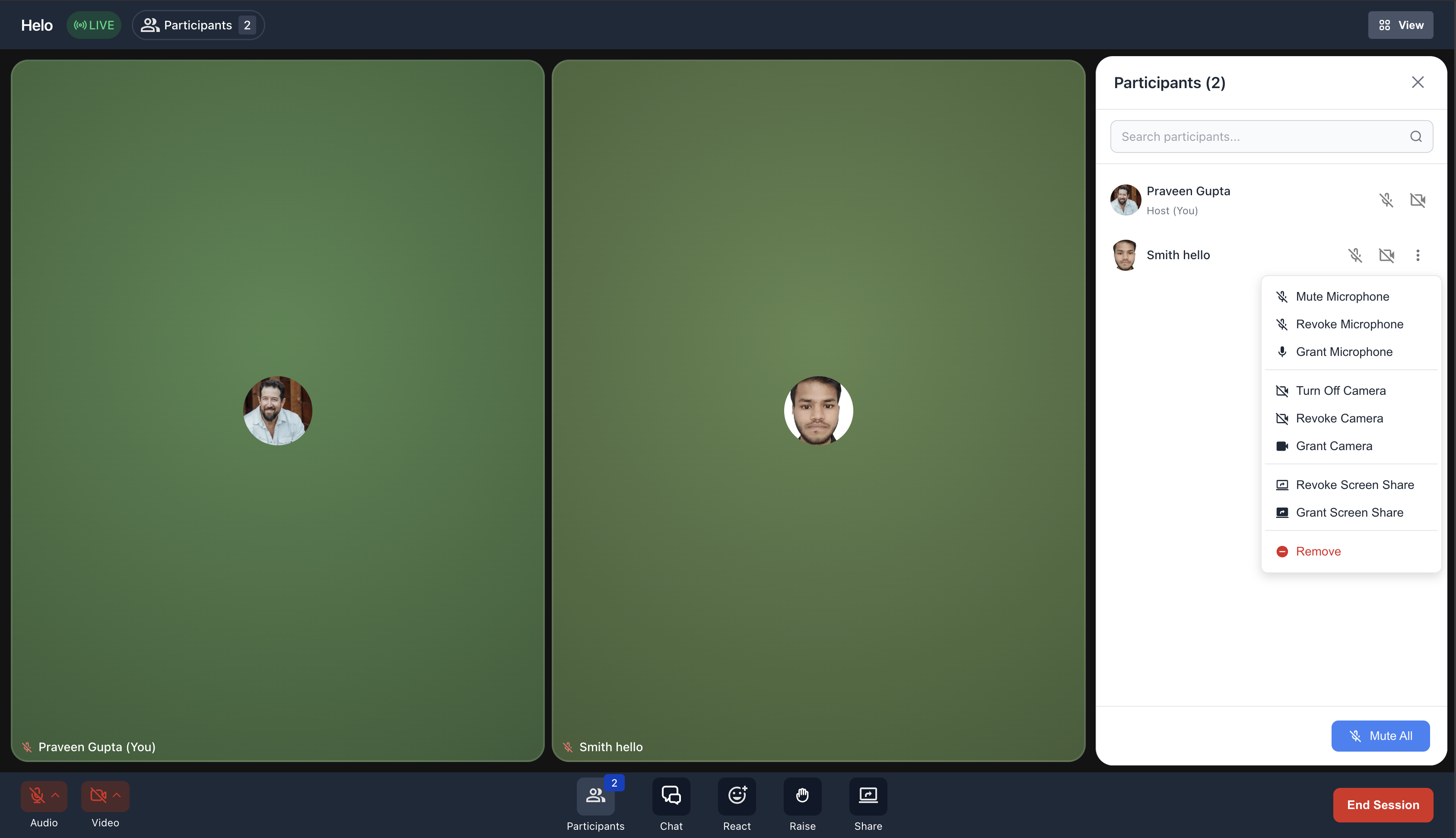
Live Room gives hosts and members an interactive meeting space connected to the Community Event. This helps keep the live conversation, event context, and follow-up activity close to the Community where members are already engaging.
Live Room uses the Go Live meeting experience, which includes:
- Video and audio participation
- Speaker and Gallery-style layouts
- Screen sharing
- Real-time chat
- Emoji reactions
- Raise hand
- Host and attendee roles
- Host permissions to manage participant access and session controls
Attendee Join and Registration Experience
A clear attendee flow reduces confusion before the event starts. Community Events help members find upcoming events, register, add events to their calendar, receive reminders, and join from the same Community experience.
Members can:
- Discover events from the group’s Events tab.
- Register for events they want to attend.
- Add events to Google Calendar or iCal.
- Receive in-app notifications and email reminders for upcoming events.
- Join Live Room events directly from the event page.
- Open the configured external link for Zoom, Meet, or Other events.
How To Setup Live Room for Community Events
A proper setup helps members quickly understand the event, register, and join from the correct location when the session starts. Live Room uses the standard Community Event creation flow, while Zoom, Google Meet, and custom links remain available for events that need an external meeting platform.
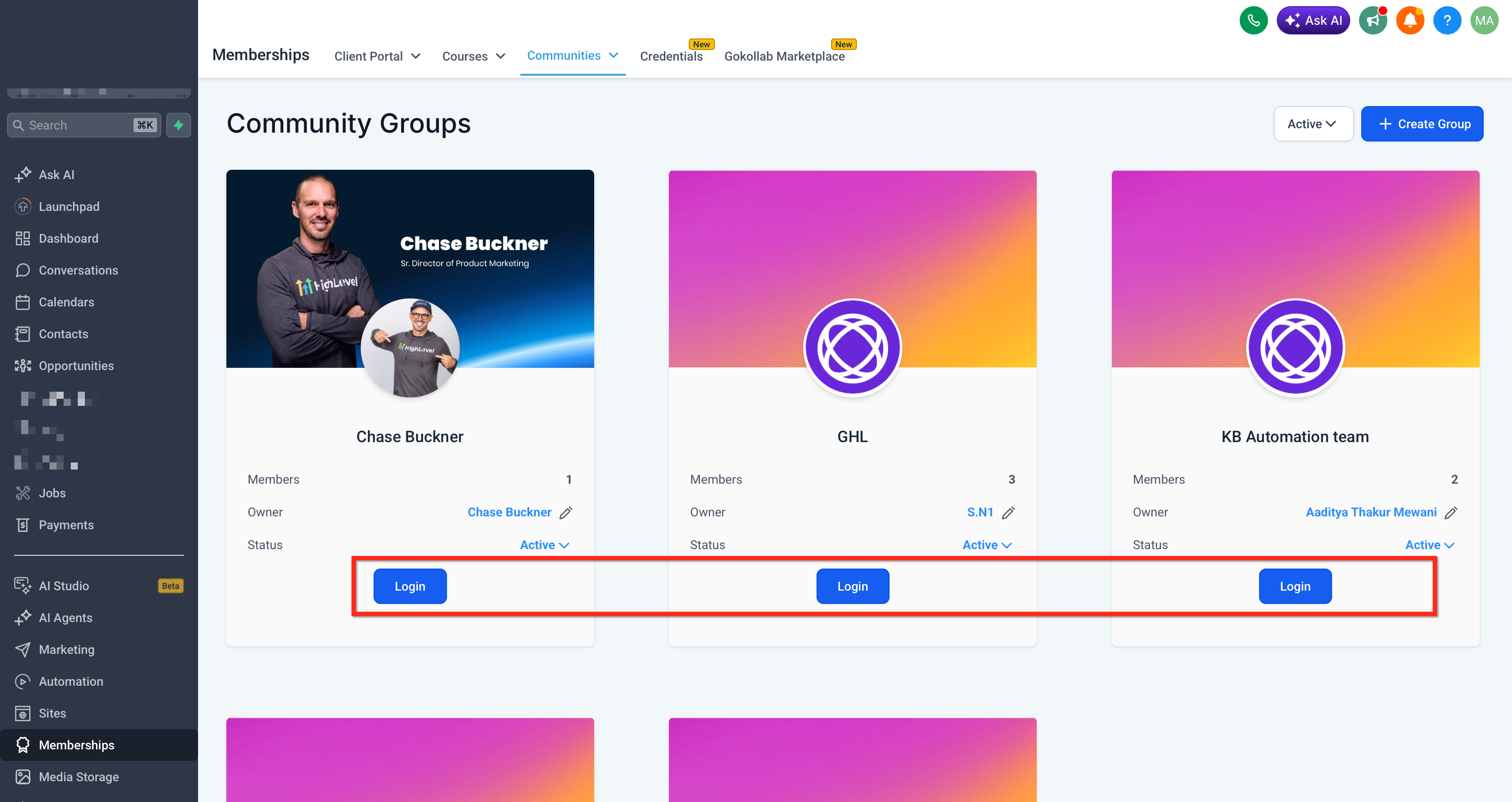
- Go to Memberships → Communities → Groups. Click Login on the group where you want to create the event.
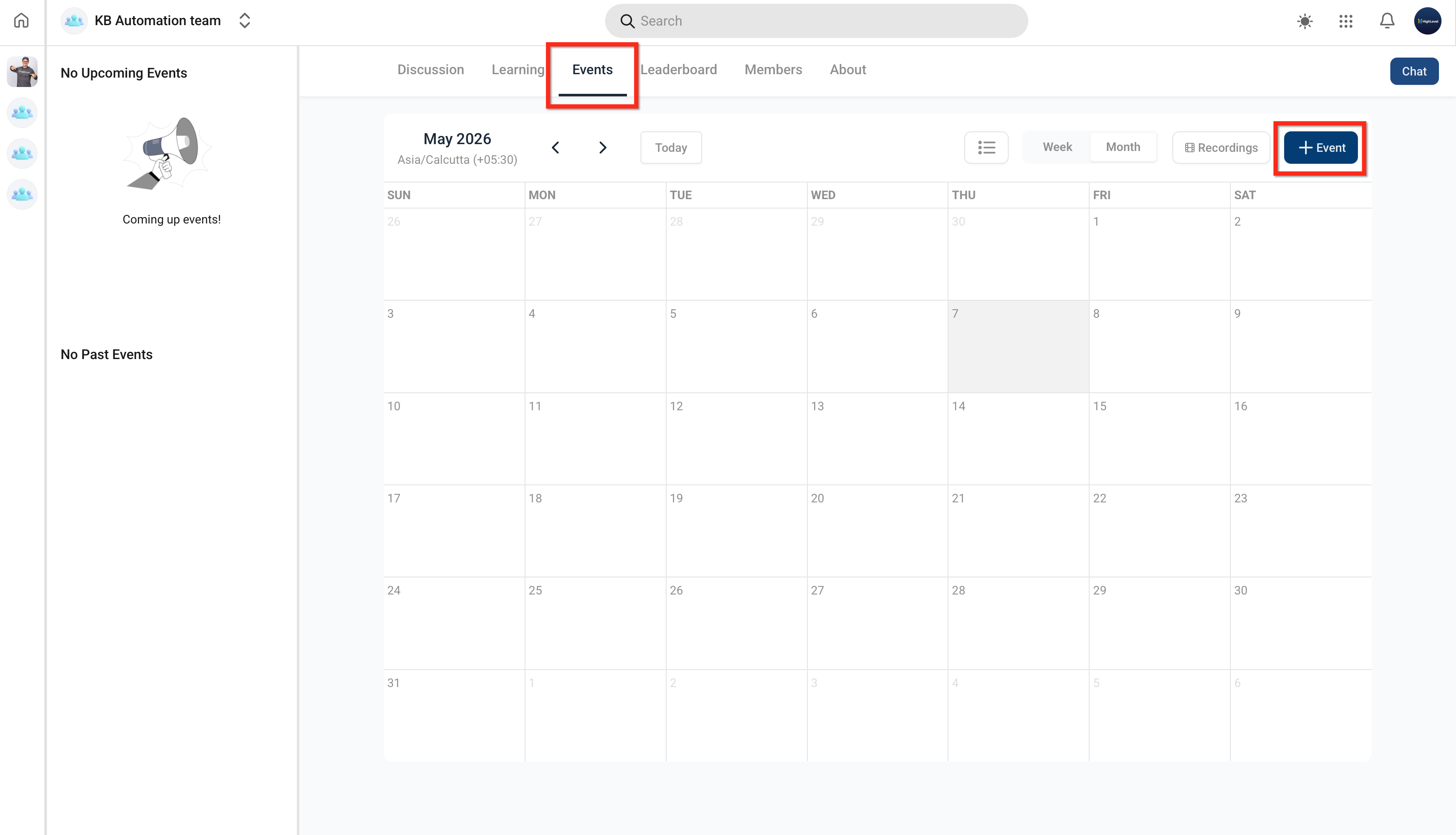
- Open the Events tab. Click Create Event.
- Enter the event title, description, date, time, duration, and timezone.
Add an event image or banner if needed.
Find the Location type field and select Live Room to host the event directly inside SourCherry Communities.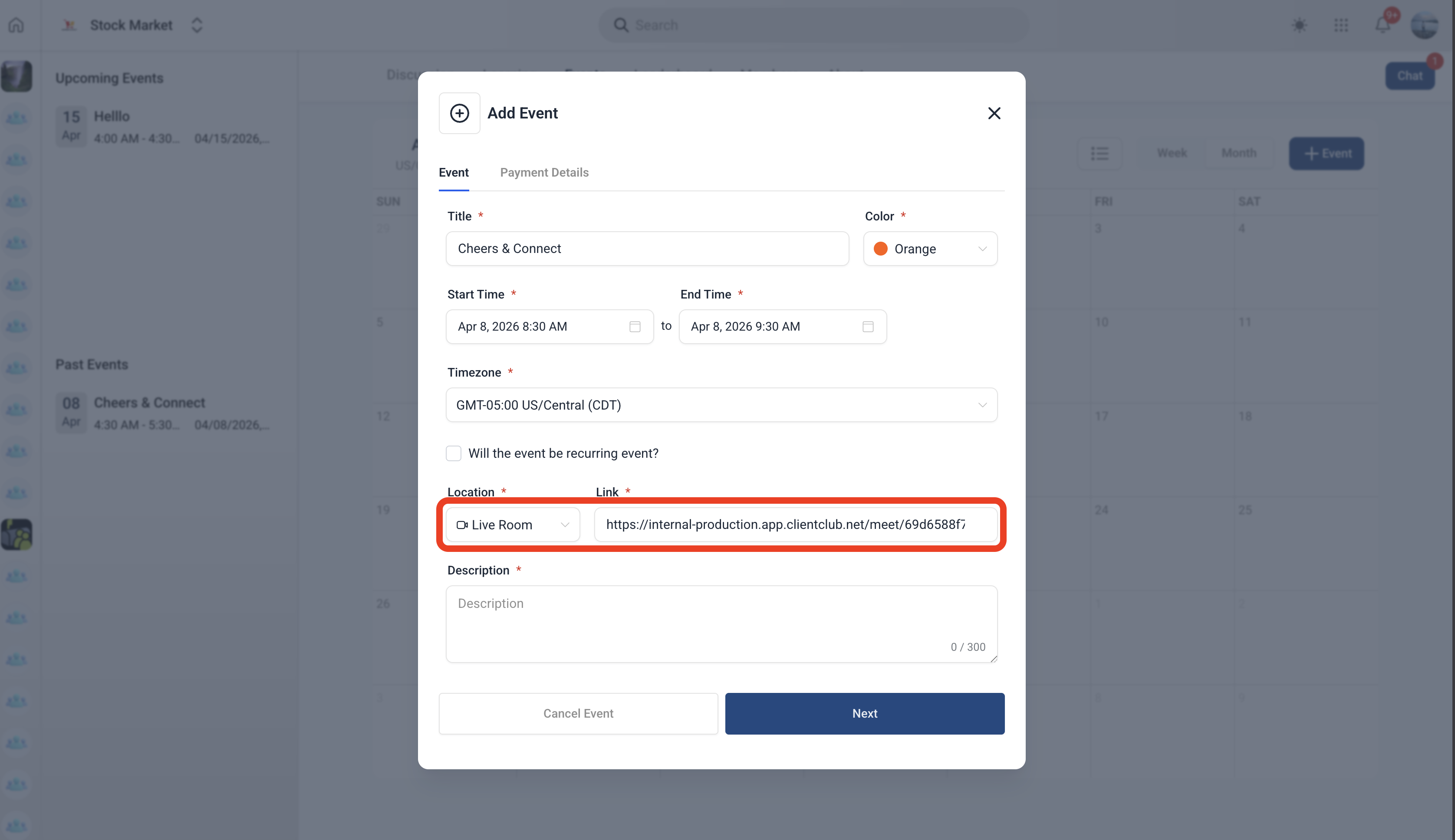
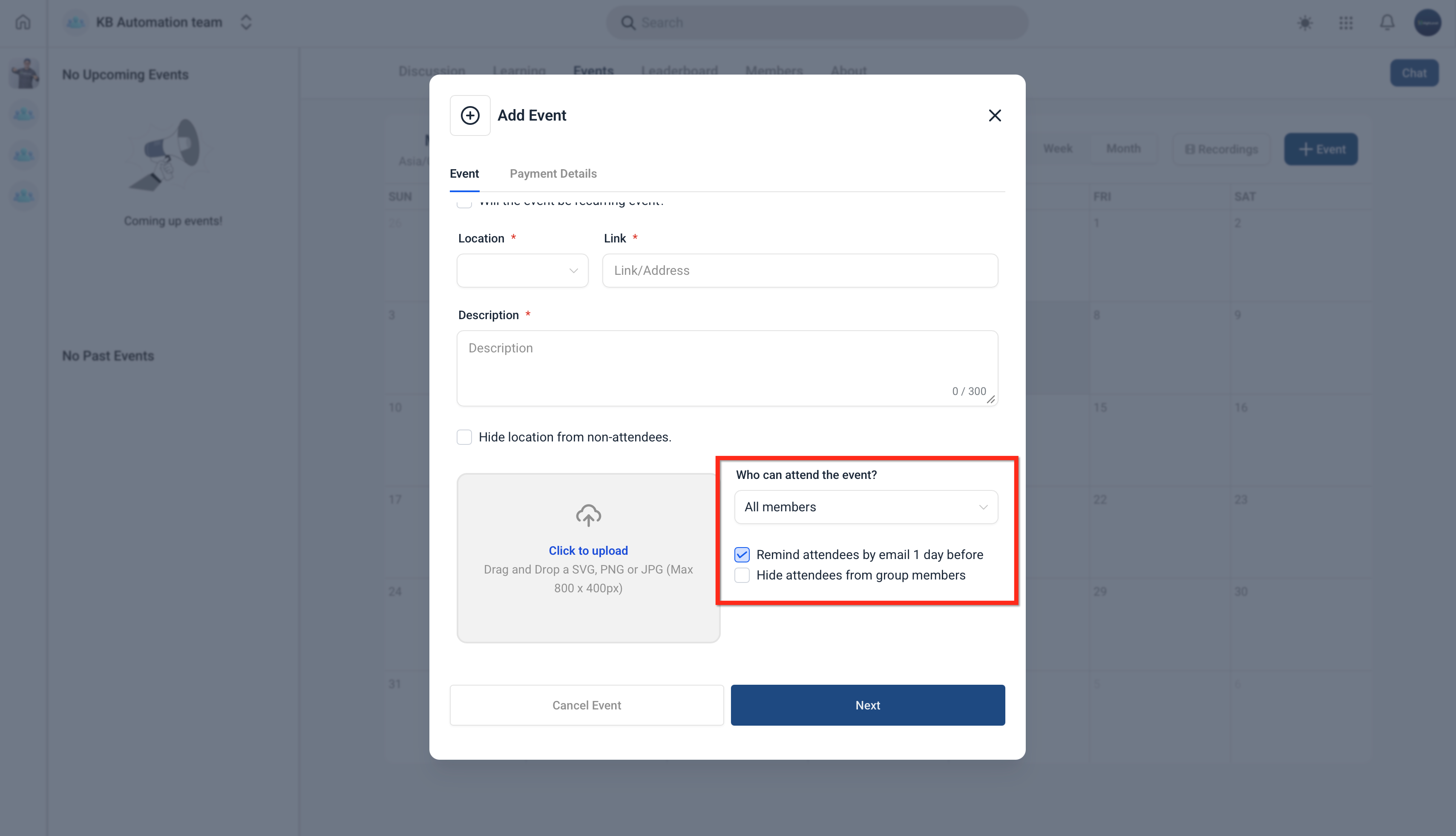
- Choose who can view or attend the event. Configure any course, group, private channel, or membership-level restrictions where available. Click Next to proceed.
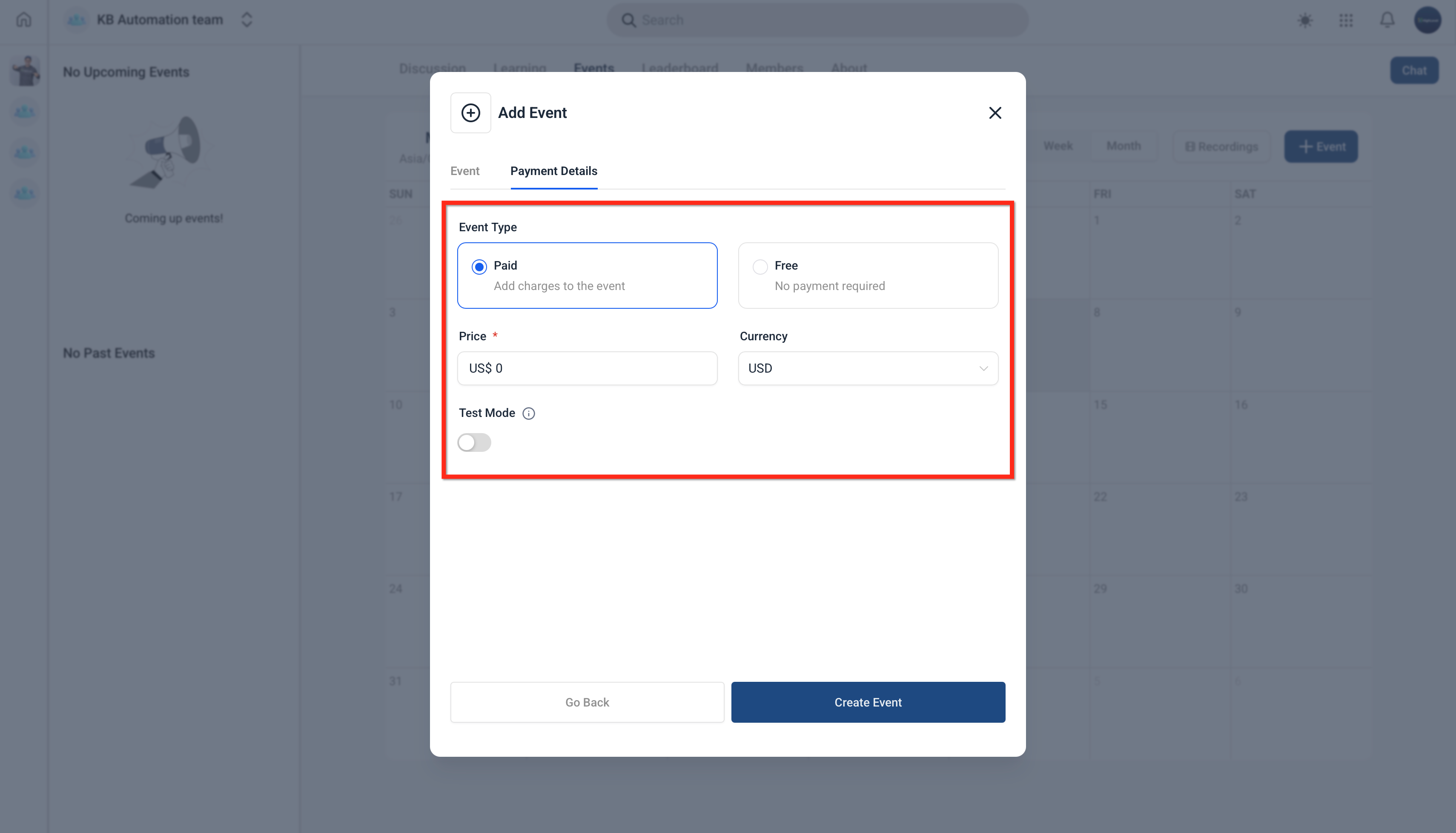
- Select whether the event is free or paid. If the event is paid, add the price and currency. Click Create Event.
- Share the event with members through a Community post, announcement, email, SMS, or other communication channel.
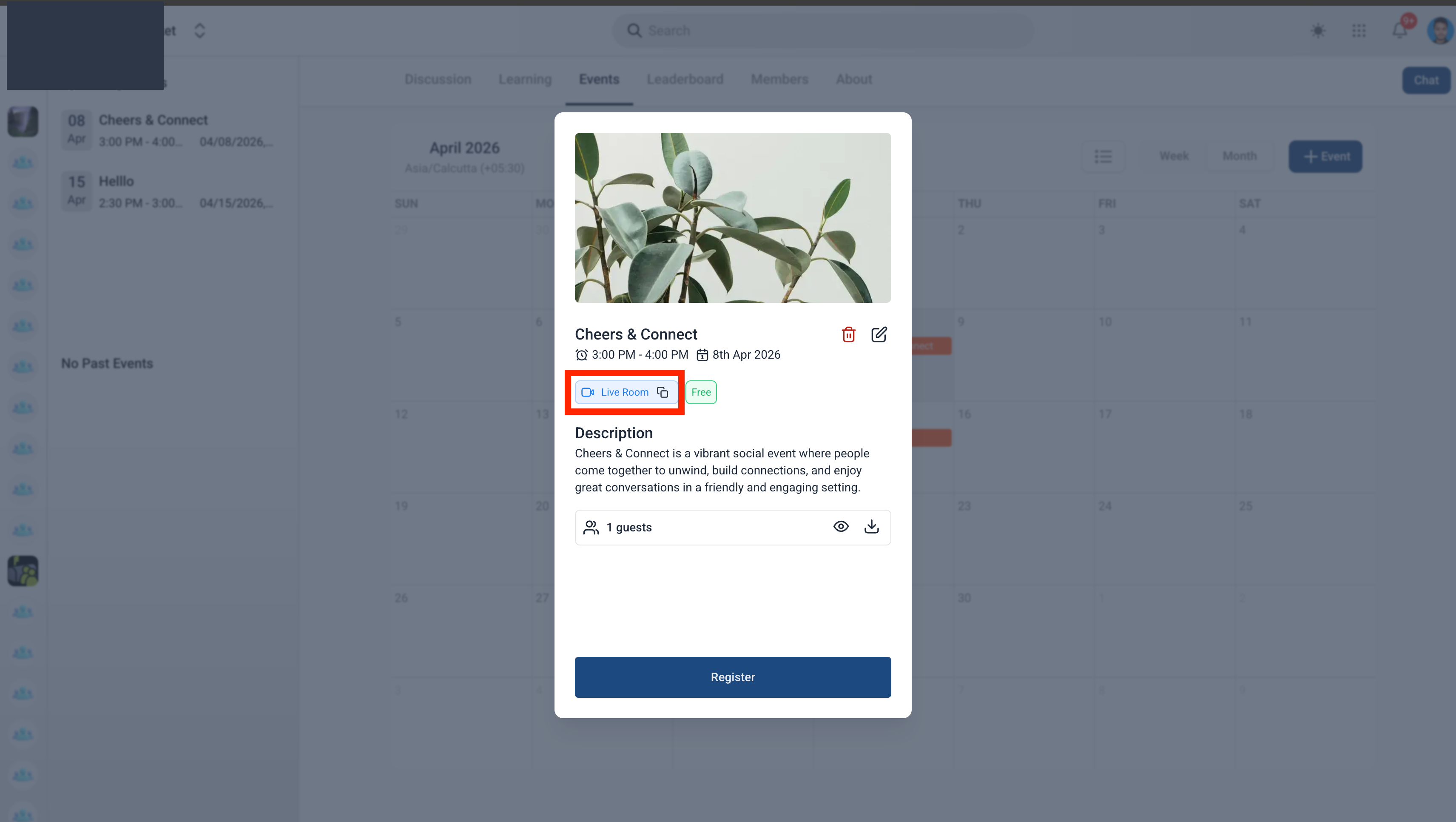
- At the scheduled time, open the event from the Events tab and click Live Room.
Frequently Asked Questions
Q: Do attendees need to install anything to join a Live Room event?
No. Members can join from supported browsers or the SourCherry mobile app when they are signed in.
Q: Can I still use Zoom or Google Meet for Community Events?
Yes. Live Room is an additional location option. You can still choose Zoom, Meet, or Other and add the external meeting link.
Q: Can I charge for a Community Event that uses Live Room?
Yes. Community Events can be free or paid, and pricing is configured during event creation.
Q: Can I restrict who can attend a Live Room event?
Yes. Community Events can be restricted by options such as course, group, private channel, or membership level where available.
Q: Does Live Room replace Go Live posts in Communities?
No. Live Room adds a scheduled event-based way to use a native live experience. Go Live can still be used directly in Communities for meetings or broadcasts outside of a scheduled Community Event.