
Automatically calculate and apply taxes when creating invoices, POS transactions, or estimates directly from the SourCherry mobile app. This feature helps ensure accurate tax handling based on customer location and product tax categories, reducing manual effort and improving compliance. With Automatic Taxes enabled, businesses can streamline their payment workflows while minimizing errors.
TABLE OF CONTENTS
- What is Automatic Taxes for Mobile Payments?
- Key Benefits of Automatic Taxes
- Product Tax Code Configuration
- Automatic Taxes in Payment Settings (Mobile)
- Address-Based Tax Calculation
- Invoice Tax Breakdown and Review
- How To Set Up Automatic Taxes
- Frequently Asked Questions
What is Automatic Taxes for Mobile Payments?
Automatic Taxes in SourCherry enables real-time tax calculation based on your configured tax settings, customer address, and product tax categories. This ensures that the correct taxes are applied automatically when creating invoices, processing POS transactions, or generating estimates on mobile.
By connecting your tax setup (such as nexus locations and tax IDs) with product-level tax codes, SourCherry determines the appropriate tax rates without requiring manual input. This is especially useful for businesses operating across multiple regions with varying tax rules.
Availability:
1. SourCherry v3.108.4 and above
2. SourCherry v3.108.4 and above
3. White Labelled apps - Self Serve
Key Benefits of Automatic Taxes
Understanding the advantages of Automatic Taxes helps businesses improve efficiency, maintain compliance, and reduce manual work in their payment processes.
- Automated Tax Calculation: Taxes are calculated instantly based on customer address and configured tax settings.
- Improved Accuracy: Reduces human error associated with manual tax entry.
- Global Compliance: Supports tax calculations across multiple countries and regions.
- Time Savings: Eliminates the need to manually apply tax rates for each transaction.
- Product-Level Flexibility: Assign tax codes to specific products for precise tax handling
Product Tax Code Configuration
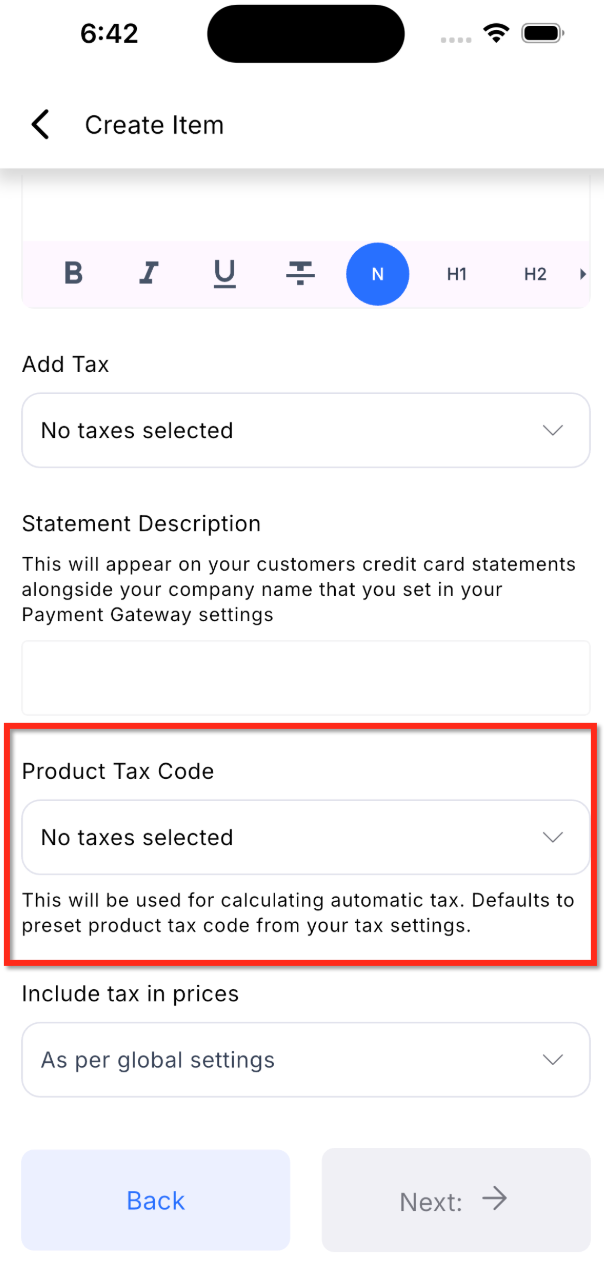
Assigning product tax codes ensures that the correct tax rules are applied to each item during transactions. This is essential for accurate tax calculation, especially when different products are taxed differently.
- Select a Product Tax Code when creating or editing a product.
- Tax codes determine how the product is taxed based on jurisdiction.
- If not manually selected, the system may default to preset tax configurations.
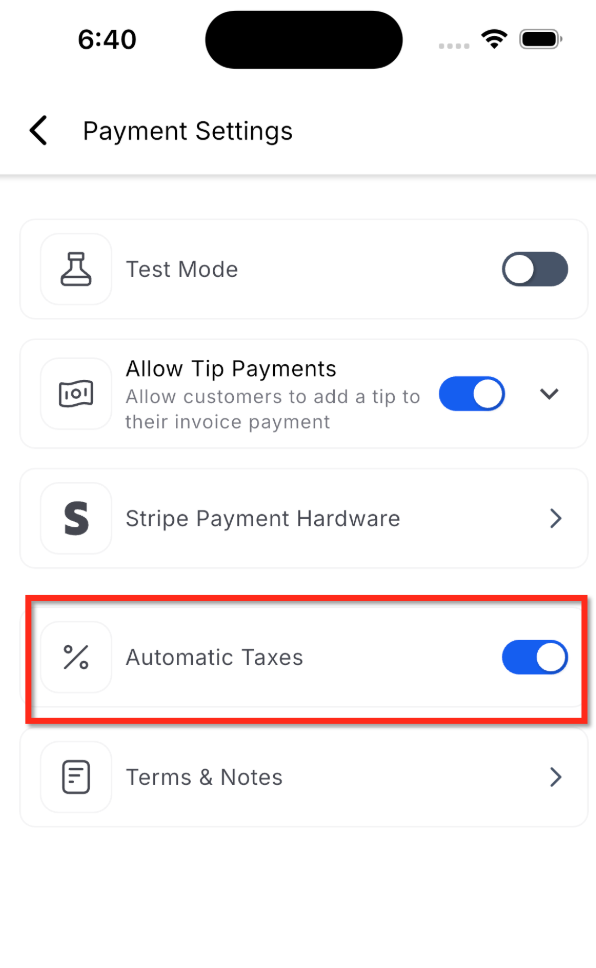
Automatic Taxes in Payment Settings (Mobile)
Enabling Automatic Taxes in Payment Settings allows tax calculations to be applied across invoices, POS transactions, and estimates created from the mobile app.
- Navigate to Payment Settings in the mobile app.
- Locate the Automatic Taxes toggle.
- Enable the toggle to activate automatic tax calculation.
Address-Based Tax Calculation
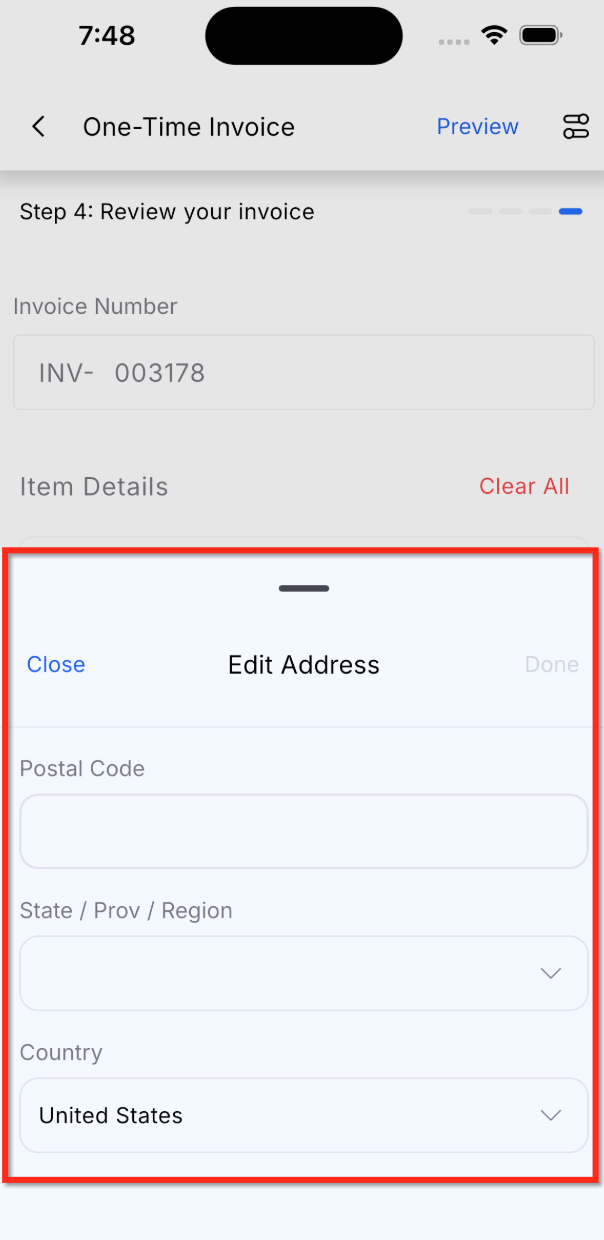
Tax calculations depend heavily on the customer’s address. Ensuring accurate address details allows SourCherry to determine the correct tax rates based on location.
- Taxes are calculated using the customer’s address.
- The system matches the address with your configured nexus locations.
- If the address is missing or incorrect, taxes may not calculate properly.
- Address details can be edited during invoice review.
Invoice Tax Breakdown and Review
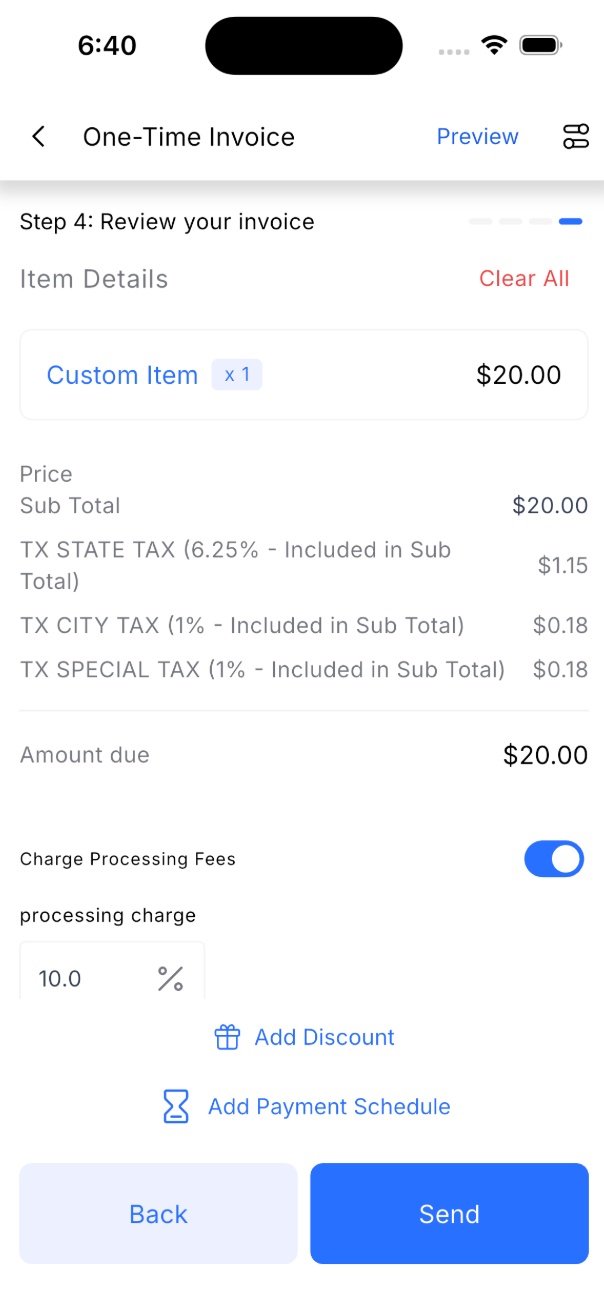
Reviewing tax details before sending an invoice ensures transparency and accuracy in billing. SourCherry automatically displays the calculated taxes in the invoice summary.
- Tax amounts appear automatically in the invoice summary.
- Multiple tax components (e.g., state, city, special tax) may be displayed.
- Taxes can be included in or added on top of the subtotal depending on settings.
How To Set Up Automatic Taxes
Proper setup is critical to ensure accurate and compliant tax calculations. This includes configuring tax settings on web and enabling the feature on mobile.
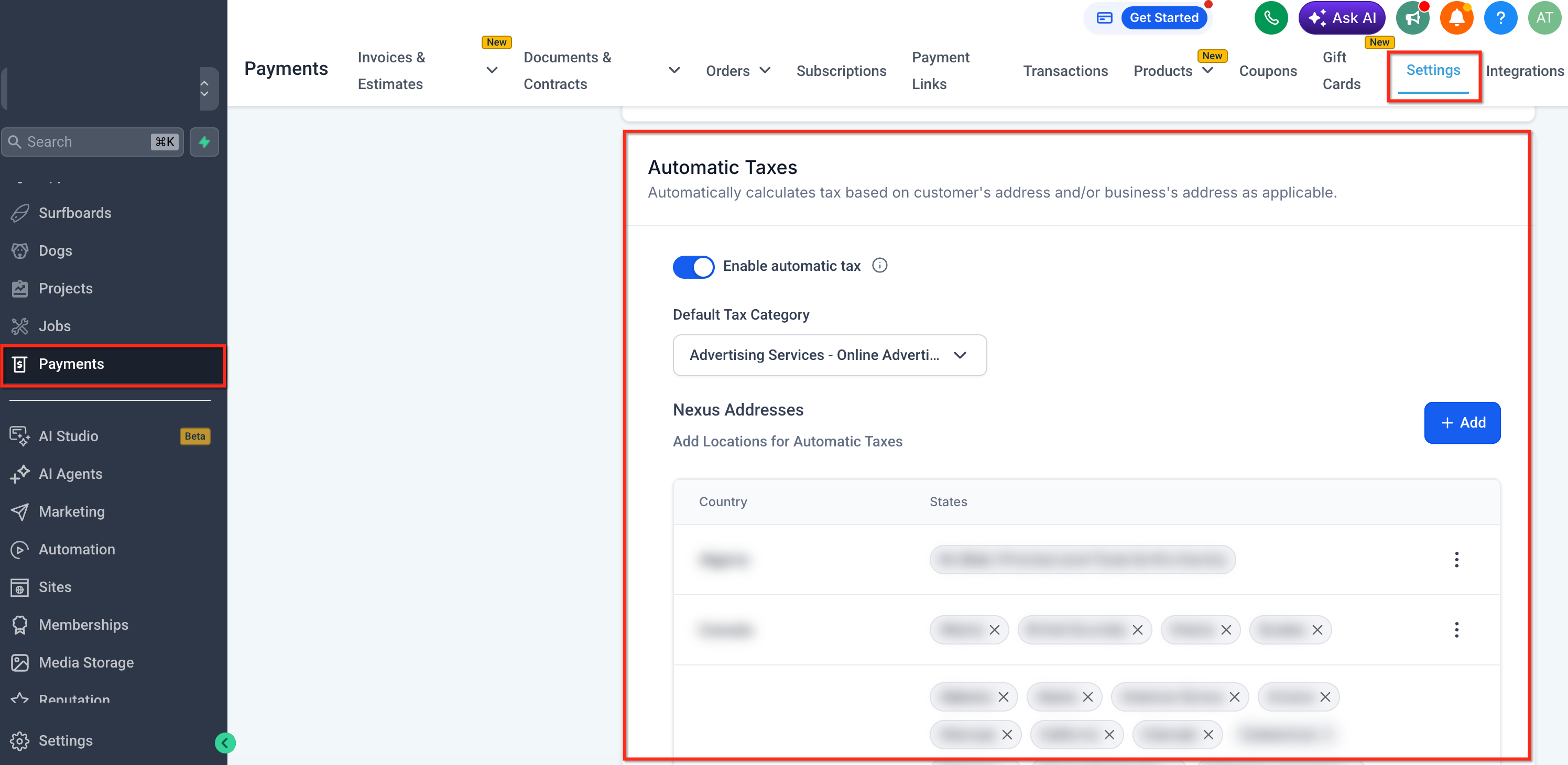
Step 1: Configure Automatic Taxes (Web)
- Go to Payments → Settings → Taxes → Automatic Taxes.
- Add your nexus locations (countries/states where you collect tax).
- Enter your Tax IDs for each applicable region.
- Save your configuration.
Step 2: Enable Automatic Taxes on Mobile
- Open the SourCherry mobile app.
- Navigate to Invoices or POS.
- Tap the “+” (Create) button to start a new invoice.
- Tap the settings icon (top-right corner).
- Toggle Automatic Taxes ON
Step 3: Create Invoice with Automatic Taxes
- Add products or custom items to the invoice.
- Ensure products have tax codes assigned.
- Enter or confirm the customer’s address.
- Review the invoice summary.
- Verify that taxes are automatically calculated.
- Tap Send.
Frequently Asked Questions
Q: Do I need to configure taxes on web before using this feature on mobile?
Yes, Automatic Taxes requires prior setup on web, including nexus locations and tax IDs.
Q: What happens if a product does not have a tax code?
The system may use a default tax configuration, but assigning a product tax code ensures more accurate results.
Q: Can I still apply taxes manually?
Yes, manual tax options may still be available, but Automatic Taxes is recommended for accuracy and efficiency.
Q: Why are taxes not showing on my invoice?
This may be due to missing customer address details, disabled Automatic Taxes, or incomplete tax setup.
Q: Can I edit the customer address after creating the invoice?
Yes, the address can be edited during the invoice review step.
Q: Does this work for POS and Estimates as well?
Yes, Automatic Taxes applies to invoices, POS transactions, and estimates.