
Knowledge Base tables now support instant CSV export, so you can quickly pull structured data out of SourCherry for analysis, QA, and backup. This guide explains how CSV and Google Sheet downloads work, where to find them, and best practices for using the exported files.
TABLE OF CONTENTS
- What is Knowledge Base Tables CSV and Google Sheet Download?
- Key Benefits of Downloading Knowledge Base Tables In CSV
- Download Options in the Tables Tab
- Supported Table Types
- Security and Link Expiration
- How To Download Knowledge Base Tables As CSV
- Frequently Asked Questions
What is Knowledge Base Tables CSV and Google Sheet Download?
Knowledge Base Tables CSV and Google Sheet Download is a convenience feature that lets you export any “ready” table from the Knowledge Base Tables tab as a CSV file directly from the table list. This applies to both Table Sources created from CSV uploads and live Google Sheets integrations, so you can reuse the same structured data your AI agents rely on in other tools such as spreadsheets, BI dashboards, or internal audits.
Table downloads are served directly from cloud storage, which keeps them fast and aligned with how SourCherry already stores and secures your Knowledge Base content.
Key Benefits of Downloading Knowledge Base Tables In CSV
Being able to download Knowledge Base tables as CSV helps you move data in and out of SourCherry without extra engineering work.
- Reuse structured knowledge outside SourCherry: Open the exported CSV in Excel, Google Sheets, or BI tools to run reports, build charts, or join with other datasets using the exact same rows your AI agents query.
- Faster data QA and troubleshooting: Review the full table that powers AI answers when you investigate odd responses, validate new imports, or reconcile values with source systems.
- Simple backup and change tracking: Save snapshots of critical tables (pricing, policies, SLAs, internal references) before major updates so you can compare “before vs after” or roll back manually if needed.
- Consistent exports from both CSV uploads and Google Sheets: Whether the table started as a static CSV upload or a live Google Sheet, you use the same download workflow from the Tables tab.
- Secure, time-limited links: Each downloaded file is served via the same authentication model as other Knowledge Base operations, and every link automatically expires in 15 minutes, reducing the risk of long-lived public URLs.
Download Options in the Tables Tab
The download feature is surfaced directly in the Knowledge Base Tables tab, giving admins and editors one-click access to the underlying CSV for each table.
When you open a Knowledge Base, SourCherry organizes sources into tabs (such as Web Crawler, FAQ, Web Search, Tables, Rich Text, and File Upload). The CSV download option appears on the Tables tab for any table whose status is “Ready,” so you can quickly export the same tabular data that’s been indexed for AI search.
Accessing the Tables list
- Go to AI Agents → Knowledge Base, open a specific Knowledge Base, and select the Tables tab to see all table sources connected to that Knowledge Base.
- Each row in the list represents an individual table (from either a CSV upload or a Google Sheet) along with its processing status.
Where the download control appears
- For each Ready table, open the three-dot action menu at the end of the row.
- A Download CSV action is available for any table that has finished processing and indexing.
When downloads are available
- Downloads are only offered once a table is fully processed (for example, after upload or after a new Google Sheet import finishes indexing).
- If a table is still processing, wait for the status to change to Ready and then check the action menu again.
Supported Table Types
Understanding which table types are eligible for CSV download helps you plan how to structure and maintain data that feeds your AI agents.
SourCherry currently supports Table Sources from both static CSV uploads and live Google Sheets connections. The download feature works across these table types so that any table visible in the Tables tab and marked as Ready can be exported to CSV from the same interface.
CSV-uploaded Table Sources
- Tables created by uploading CSV files into a Knowledge Base (up to 50,000 rows, 500 columns, and 50 MB per file) are indexed and stored in SourCherry.
- Once indexing is complete, the Ready table can be exported as a CSV using the download action.
Google Sheets–backed tables
- Tables connected via Google Sheets Integration for Knowledge Base are treated as live sources, with changes synced approximately every 15–20 minutes or via manual refresh.
- The CSV download reflects the version of the sheet that has been synced into the Knowledge Base at the time of download (after any in-progress sync finishes).
Tables and AI usage
- Both CSV-uploaded and Google Sheets–backed tables are used by Table Search so AI agents can answer natural-language questions over your structured data, such as pricing, schedules, or product catalogs.
Security and Link Expiration
CSV downloads follow the same security principles as other Knowledge Base operations, keeping your structured data protected while still making it easy to export when you have access.
Knowledge Bases already enforce role-based access for admins and editors, and the federated Knowledge Base UI reuses shared components wherever it appears. CSV download inherits that security, and each generated link is intentionally short-lived to reduce risk if the URL is copied or exposed.
Authenticated downloads
- Only users who can view and manage a Knowledge Base table can download it as CSV.
- Download actions are part of the table management controls, which are typically visible to admins and editors, not viewer-only users.
Time-limited links
- Each CSV download URL expires after approximately 15 minutes.
- If a link is opened after expiration, the file will no longer be accessible; the user must return to the Tables tab and trigger a fresh download.
Safe sharing practices
- Avoid pasting download links into public channels or documents, even though they expire quickly.
- When collaborating, share the CSV file itself or ensure teammates have appropriate SourCherry access so they can generate their own downloads.
How To Download Knowledge Base Tables As CSV
Using CSV download for Knowledge Base tables requires no separate configuration; once a table is created and processed, the download option appears directly in the Tables tab. These steps walk through exactly where to find it and how to confirm that your exported file reflects the latest data.
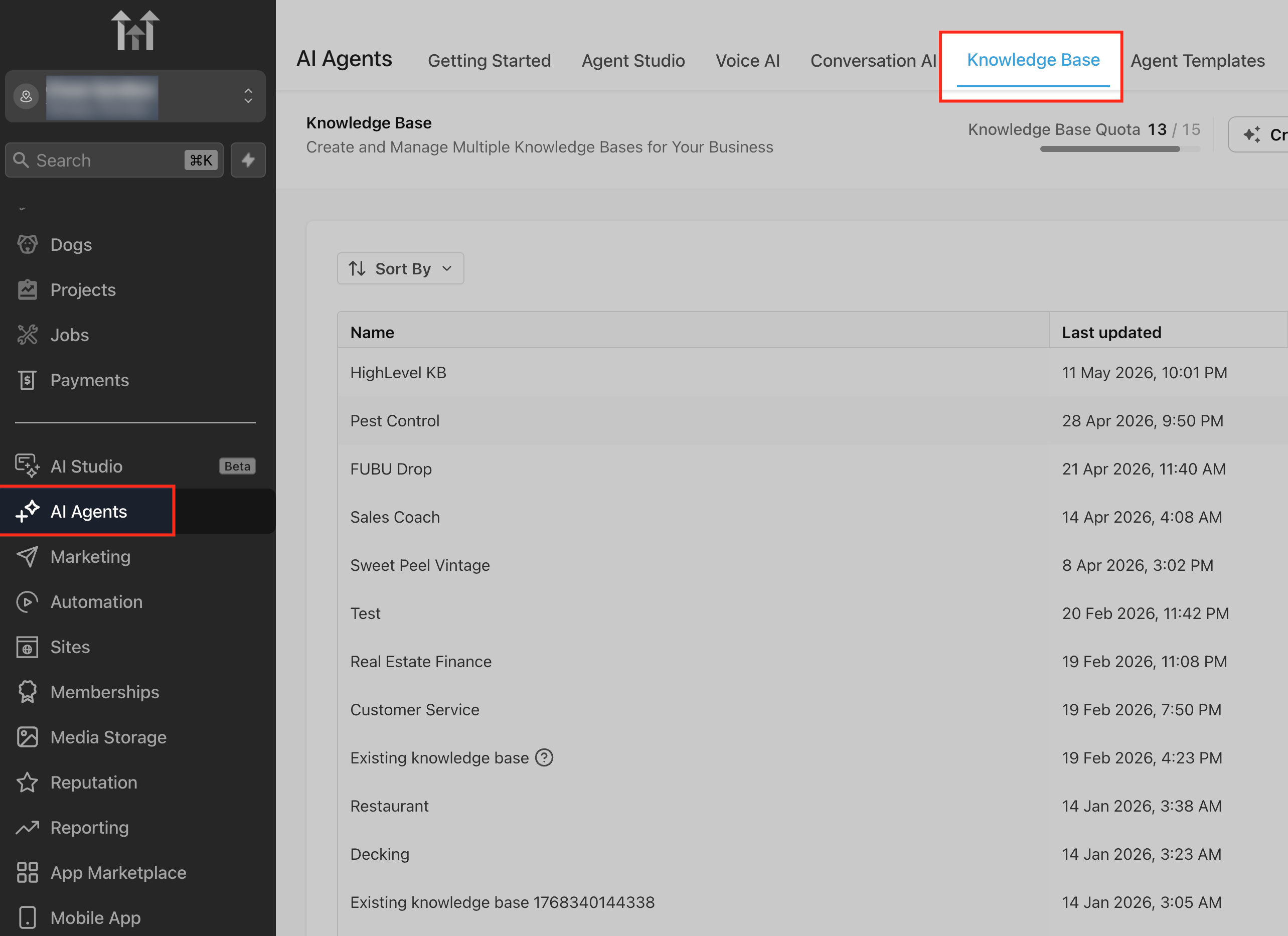
Open the Knowledge Base
- From your sub-account, go to AI Agents → Knowledge Base.
- Open the Knowledge Base that contains the table you want to export.
Go to the Tables tab
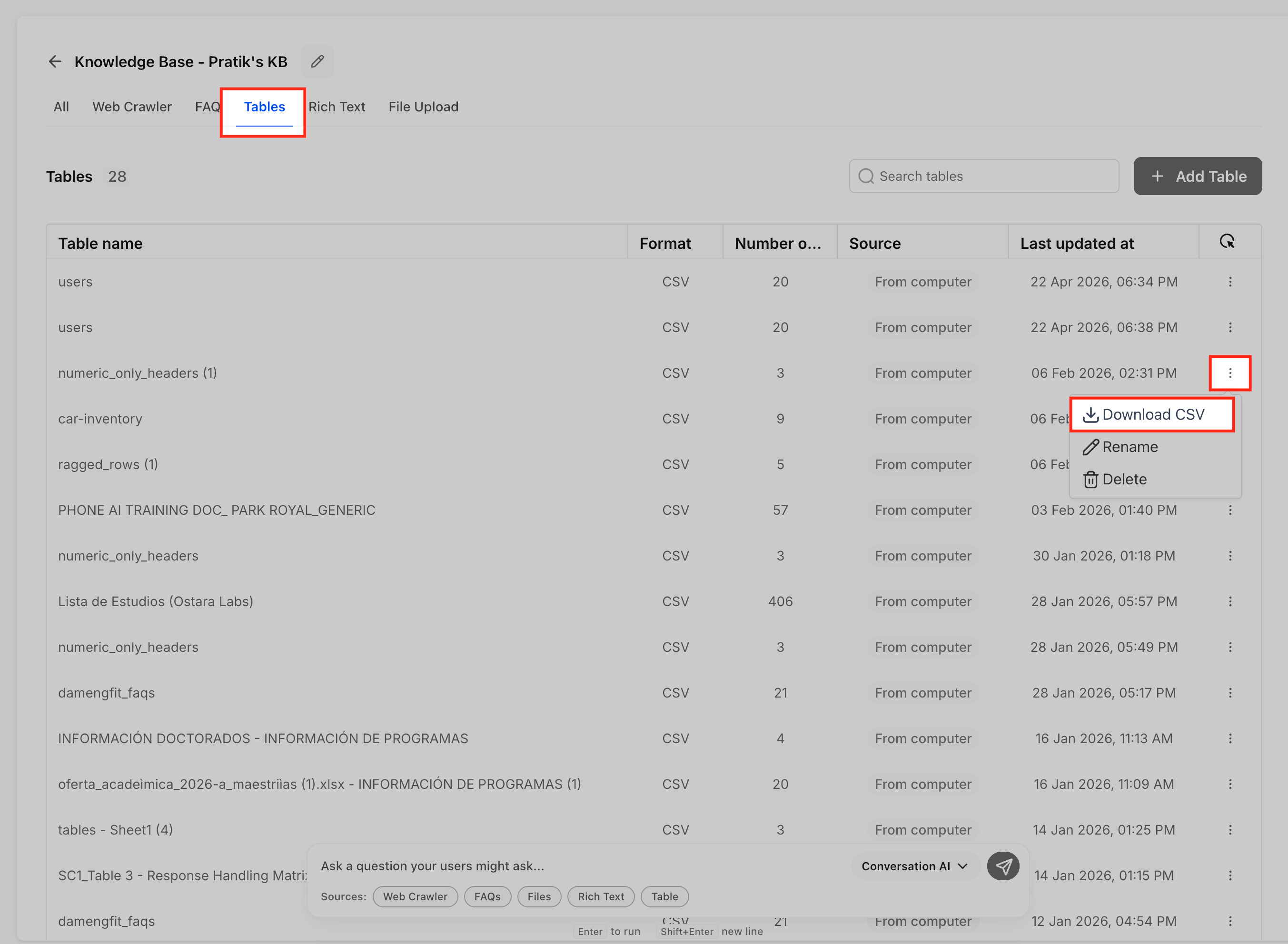
- Inside the Knowledge Base, click the Tables tab in the tabbed data sources header.
- Confirm that the table you want to export appears in the list and that its status is Ready (not processing).
Open the table action menu
- On the right side of the table row, click the three-dot (⋯) action menu.
- Look for the Download CSV option in the menu.
Download the CSV
- Click Download CSV.
- SourCherry will generate a secure, time-limited download link and immediately start the file download in your browser.
- The CSV file will be saved to your browser’s default download location.
Confirm freshness for Google Sheets tables (if applicable)
- If the table is powered by a Google Sheet and you recently made changes in Google Sheets, ensure the Knowledge Base has synced before downloading:
- Either wait for auto-sync (~15–20 minutes) or use the Manual Refresh option for the Google Sheet source.
- After sync completes and the table shows as Ready, repeat steps 3–4 to download the most up-to-date CSV.
Open and work with the CSV
- Open the downloaded file in a spreadsheet application or analytics tool.
- If you plan to re-upload or reuse the file within SourCherry, keep the header row and schema intact to maintain compatibility with Table Search.
Frequently Asked Questions
Q: Does downloading a CSV change or lock my Knowledge Base table?
No. Downloading a CSV is a read-only action. It does not change the table, reindex data, or affect how AI agents use the table for queries.
Q: Who can download Knowledge Base tables as CSV?
Only users who can access and manage the Knowledge Base Tables tab for a given Knowledge Base will see the Download CSV action. Viewer-only roles that do not have source-management permissions typically will not see this control.
Q: What version of a Google Sheet is used for the CSV export?
The CSV reflects the version of the Google Sheet that has already been synced into the Knowledge Base. For the freshest export, wait for the next auto-sync or trigger a manual refresh in the Tables tab, then download the CSV.
Q: Can I re-upload a downloaded CSV to update the same table?
You can upload a CSV (including one based on a previous download) as a new Table Source or replacement, but you must ensure it still meets CSV requirements (header row, size limits, clean data, correct encoding). If you change column names or structure, verify that the new table still works for your AI use cases.
Q: Why don’t I see the Download CSV option for a specific table?
Common reasons include: the table is still processing and not yet marked Ready, you have a limited role that does not expose management controls, or you are viewing a Knowledge Base context that hides editing tools. Once a table is Ready and you have edit access, the action menu should include Download CSV.
Q: Are CSV downloads available from all products that use the Knowledge Base?
Where the full federated Knowledge Base component is embedded (with tabs like Summary, Web Crawler, Tables, etc.), you should see the same table list and controls, including CSV downloads. Some product views might offer a read-only or simplified view of knowledge that does not expose table management or download buttons.
Q: Do CSV downloads support very large tables?
Yes, CSV downloads work with the same table sizes supported by Table Search. Current limits are up to 50,000 rows and 500 columns per location (with 20 columns selected as most relevant for indexing) and up to 50 MB for the uploaded CSV.
Q: Can I rely on CSV downloads as my only backup of this data?
CSV exports are useful as point-in-time snapshots, but they should complement not replace your primary data source (such as a system of record or the original Google Sheet). For live, frequently changing data, continue to treat the original system as your source of truth and use CSV snapshots for audits, reporting, and version comparisons.
Related Articles