
TABLE OF CONTENTS
- What are Facebook Text Background Posts?
- Where to Find the Feature
- What’s New
- How to Create a Facebook Background Post
- Important Notes
Social Planner now supports Facebook Text Posts with Backgrounds, allowing you to create engaging, native Facebook-style text posts directly from the composer.
You can now publish or schedule colorful background posts without leaving SourCherry or manually posting from Facebook.
What are Facebook Text Background Posts?
Facebook Text Background Posts are native Facebook text-only posts that display with colorful backgrounds to make content more visually engaging in the feed.
With this enhancement, Social Planner now allows users to:
- Create native Facebook-style background posts
- Select colorful background presets directly in the composer
- Preview posts in real time
- Schedule or publish instantly
- Manage everything without switching to Facebook
Where to Find the Feature
You can create background posts directly inside Social Planner.
Navigation:
Marketing → Social Planner
When Facebook is selected as a publishing platform, the Text Background option becomes available.
What’s New
1. Native Facebook Background Posts
Users can now create text-only Facebook posts with native background styles directly inside Social Planner.
Supported capabilities:
- Facebook-native colorful backgrounds
- Instant publishing
- Scheduled publishing
- Seamless integration into the existing composer
This creates a more native publishing experience directly within SourCherry.
2. Background Picker Inside Composer
A new Text Background option now appears when Facebook is selected.
Inside the background picker, users can:
- Browse multiple background presets
- Select preferred background styles
- See instant visual updates
- Customize posts without leaving the composer
The experience mirrors Facebook’s native background post creation flow.
3. Real-Time Post Preview
The composer preview now reflects how the post will appear on Facebook.
Preview improvements include:
- Live background styling updates
- Automatic font size adjustment based on text length
- Native-style Facebook layout preview
- Better visibility into final post appearance
This helps users confidently design posts before publishing.
4. Smart Validation & Auto Handling
The system automatically handles Facebook background eligibility rules.
Automatic behavior includes:
- Backgrounds are available only for text-only Facebook posts
- Adding images or videos disables the background option
- Editing scheduled posts with media automatically removes selected backgrounds
This ensures compatibility with Facebook’s publishing requirements.
How to Create a Facebook Background Post
- Navigate to Marketing → Social Planner
- Select Facebook as the platform
- Enter text content
- Click Text Background
- Choose your preferred background preset
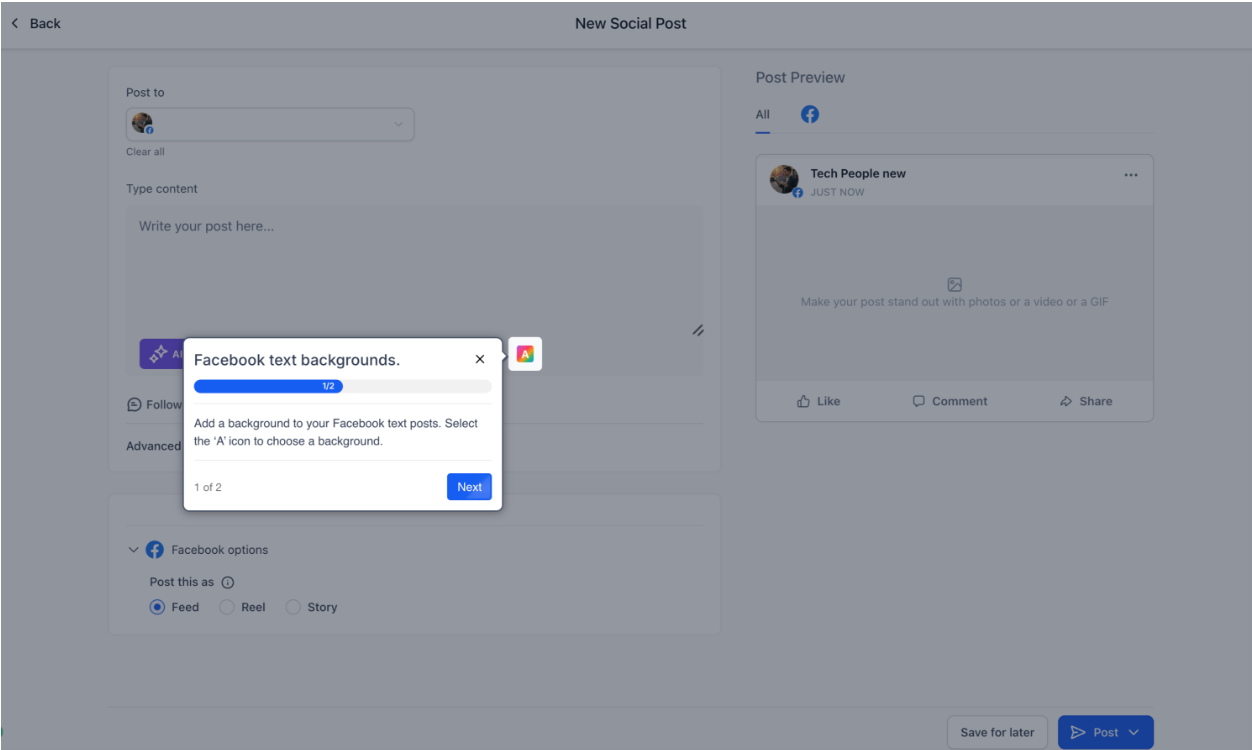
7. Preview the post in real time
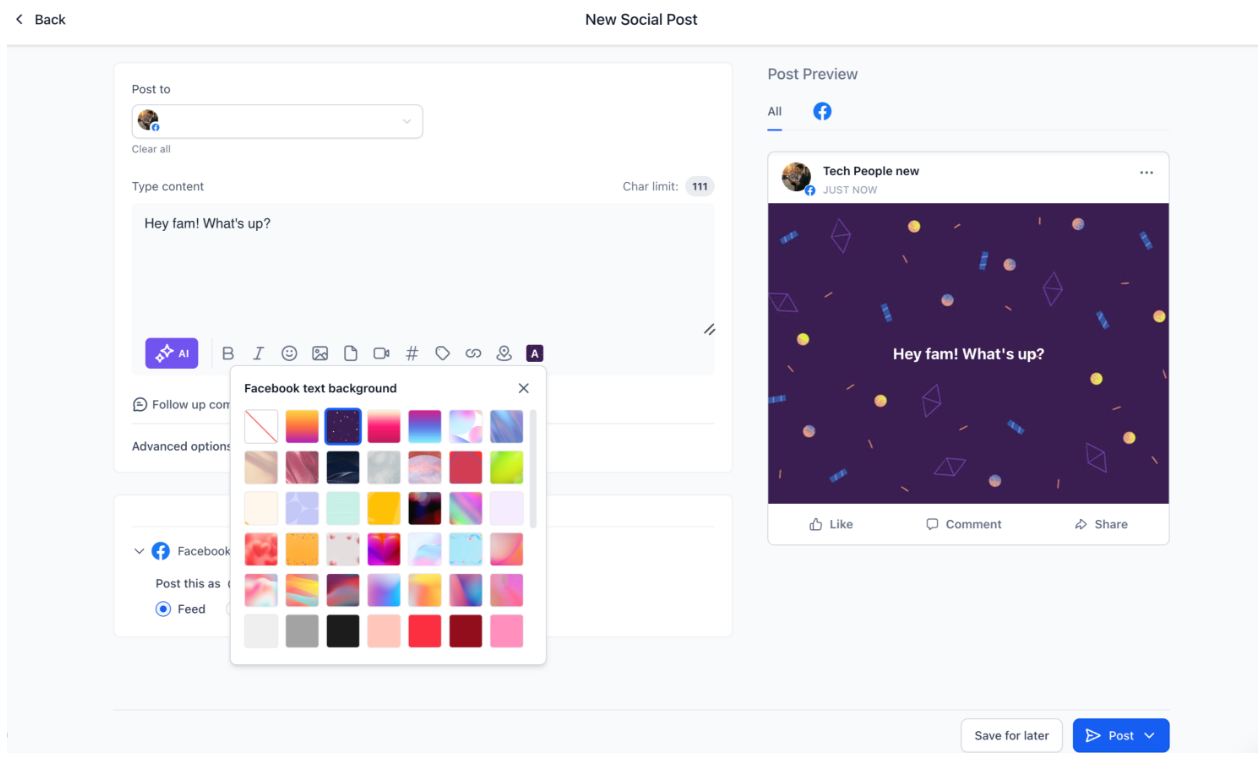
8. Click Publish Now or Schedule Post
Important Notes
- Backgrounds work only for text-only Facebook posts
- Adding media disables the background feature
- Removing media re-enables background selection
- Background styling is supported only on Facebook
- Character limit is 130 characters