
TABLE OF CONTENTS
- What is Ask AI - Task Scheduler?
- Key Benefits of Ask AI - Task Scheduler
- Scheduled Tasks Workspace
- Task Frequencies, Timezones, and Cron Schedules
- Run History and Result Indicators
- Task Lifecycle: Active, Paused, and Cancelled
- Manual Runs with “Run now”
- Creating Scheduled Tasks from Chat and Voice
- How To Setup Ask AI - Task Scheduler
- Frequently Asked Questions
What is Ask AI - Task Scheduler?
Key Benefits of Ask AI - Task Scheduler
- Recover hours every week: Automate daily summaries, weekly pipeline reports, follow‑up reminders, and recurring health checks that you’d otherwise trigger manually in Ask AI.
- Always get insights at the right moment: Schedule prompts like “Summarize yesterday’s new contacts” for early morning, “Send me a weekly pipeline report” for Monday before your team sync, or “Recap today’s appointments” for the end of day.
- Hands‑free productivity (including voice): Turn spoken instructions into scheduled tasks while commuting, between meetings, or away from your keyboard—Ask AI already supports voice input for hands‑free commands.
- Better visibility across multiple sub‑accounts: Agencies can set up per‑location daily or weekly check‑ins to spot missed appointments, drop‑offs, or stalled opportunities without manually pulling each report.
- Faster onboarding for new team members: New staff can rely on scheduled AI recaps and reports from day one, gaining the same insights experienced team members use—without needing to learn every report and screen.
- More value from your existing AI: The same Ask AI subscription now powers scheduled insights 24/7, increasing the business outcomes you get from the AI you’re already paying for.
Scheduled Tasks Workspace
The Scheduled Tasks workspace is where you create, review, and manage every Ask AI task that runs on a schedule. It provides a high‑level overview of what will run next and which tasks have fresh results waiting for you.
- Task list
- Each row represents one scheduled task.
- Common columns include:
- Name – e.g., “Daily new‑contacts summary”
- Frequency – e.g., Hourly, Daily, Weekdays, Weekly, Cron, or One‑time
- Next run – date/time of the next execution, shown in your local timezone
- Status – Active, Paused, or Cancelled
- New result indicator – a badge or marker when a new run has completed and hasn’t been opened yet.
- Task actions
- Quick actions on each task such as:
- Run now
- Pause / Resume
- Edit
- Delete
- Quick actions on each task such as:
Task Frequencies
Choosing the right schedule ensures your AI delivers insights exactly when they’re most useful before morning stand ups, ahead of client calls, or right after business hours.
- Hourly
- Runs the prompt every hour.
- Helpful for near‑real‑time monitoring (e.g., “Check failed appointments in the last hour.”).
- Daily
- Runs once per day at a specific time and timezone you choose.
- Great for daily dashboards like new contacts, appointments, or tasks created “yesterday.”
- Weekdays
- Runs Monday through Friday at your chosen time.
- Ideal for workday‑only summaries, such as weekday pipeline or lead reports.
- Weekly
- Runs on a chosen day of the week and time (e.g., every Monday at 10:00 AM).
- Perfect for weekly performance reviews, campaign summaries, or account health reports.
Run History and Result Indicators
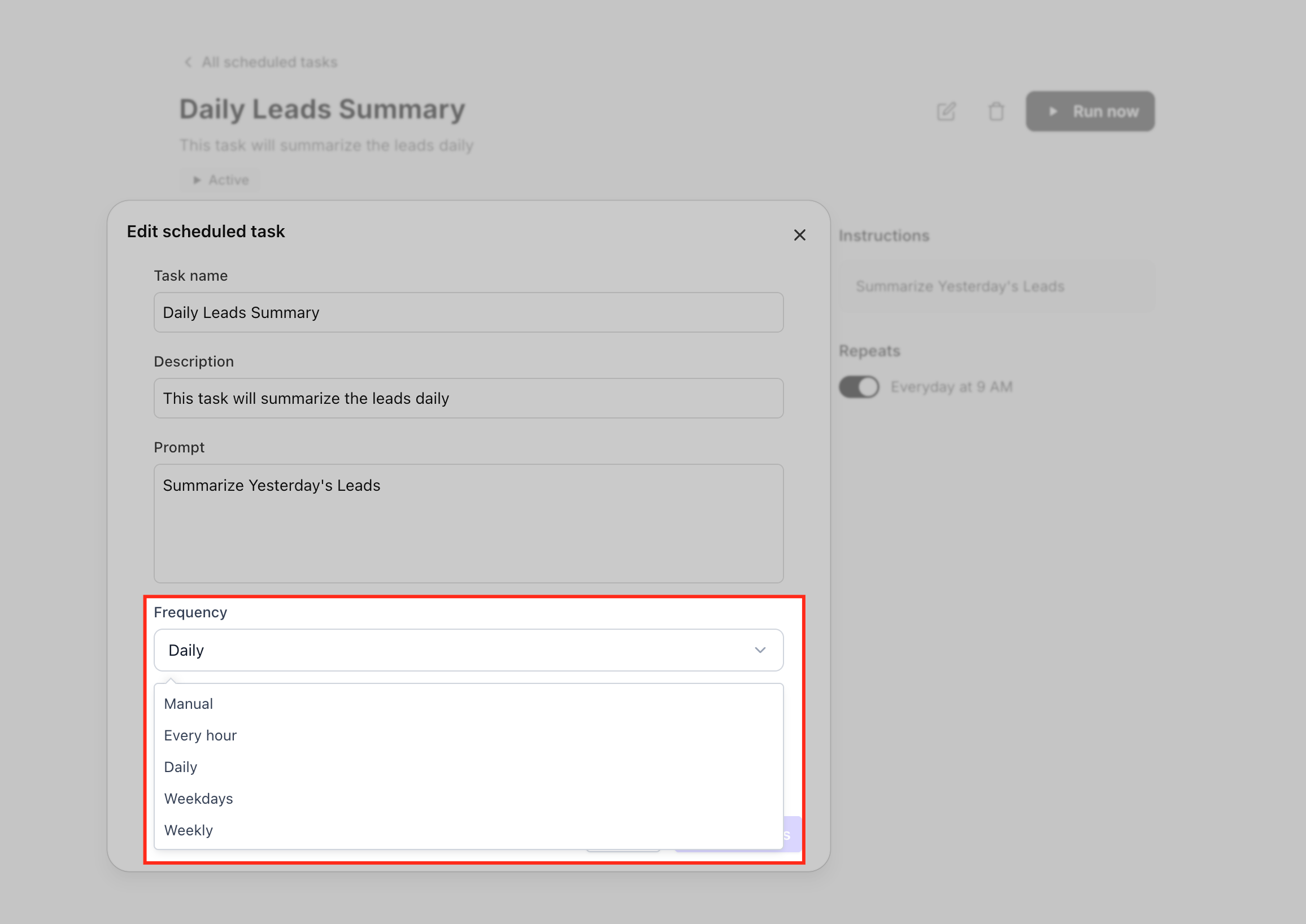
Run history turns each scheduled task into a transparent log of everything Ask AI has done—successful runs, failures, skips, and manual executions.
- See every “fire” of the task
- Successful: the prompt executed and returned results.
- Failed: Ask AI could not complete the run (for example, due to missing permissions or transient errors).
- Skipped: a scheduled run was intentionally bypassed (e.g., while the task was paused at its scheduled time).
- Open completed runs
- Click any completed entry to open the full Ask AI session tied to that run.
- Review summaries, reports, or downstream actions (e.g., emails sent, opportunities updated) just like any other Ask AI chat.
- Track new results
- A “new result” indicator appears when a run has finished but hasn’t been opened.
- Opening the run automatically marks it as read and removes the badge, helping you stay on top of what’s new.
Task Lifecycle: Active, Paused, and Cancelled
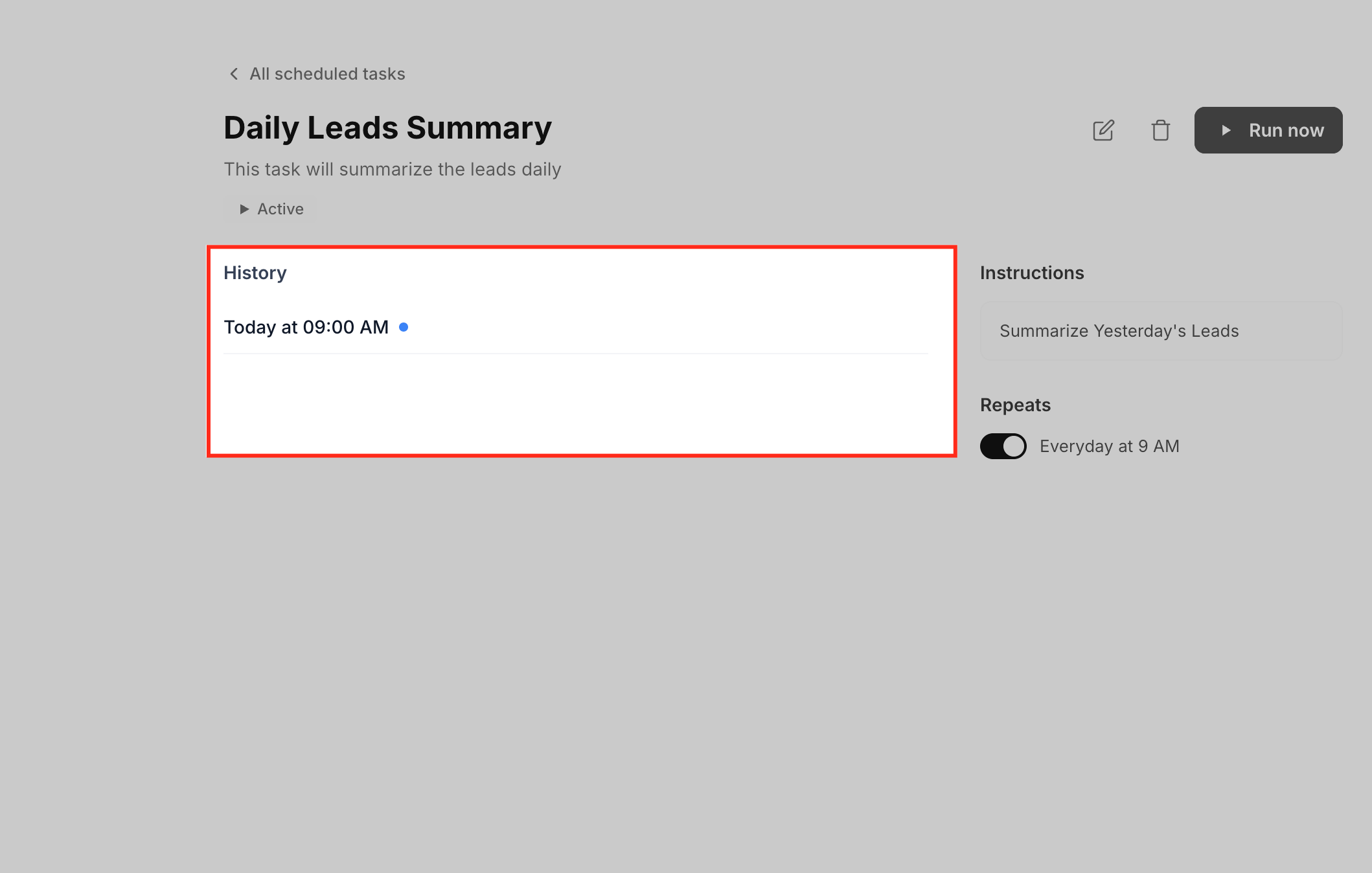
Task statuses reflect where each scheduled task is in its lifecycle so you can safely stop or retire tasks without losing important history.
- Active
- The task runs according to its schedule (Hourly, Daily, etc.).
- New runs are added to history and may show a “new result” badge until opened.
- Paused
- The task temporarily stops running at its scheduled times.
- Any fires that would have occurred while paused are skipped, and these skip events are still visible in run history.
- You can Resume when you want to restart the schedule.
- Cancelled / Deleted
- Cancelling or deleting a task removes it from the active list and stops all future runs.
- The historical runs remain available where supported, so you can still review past results even after you’ve retired the task.
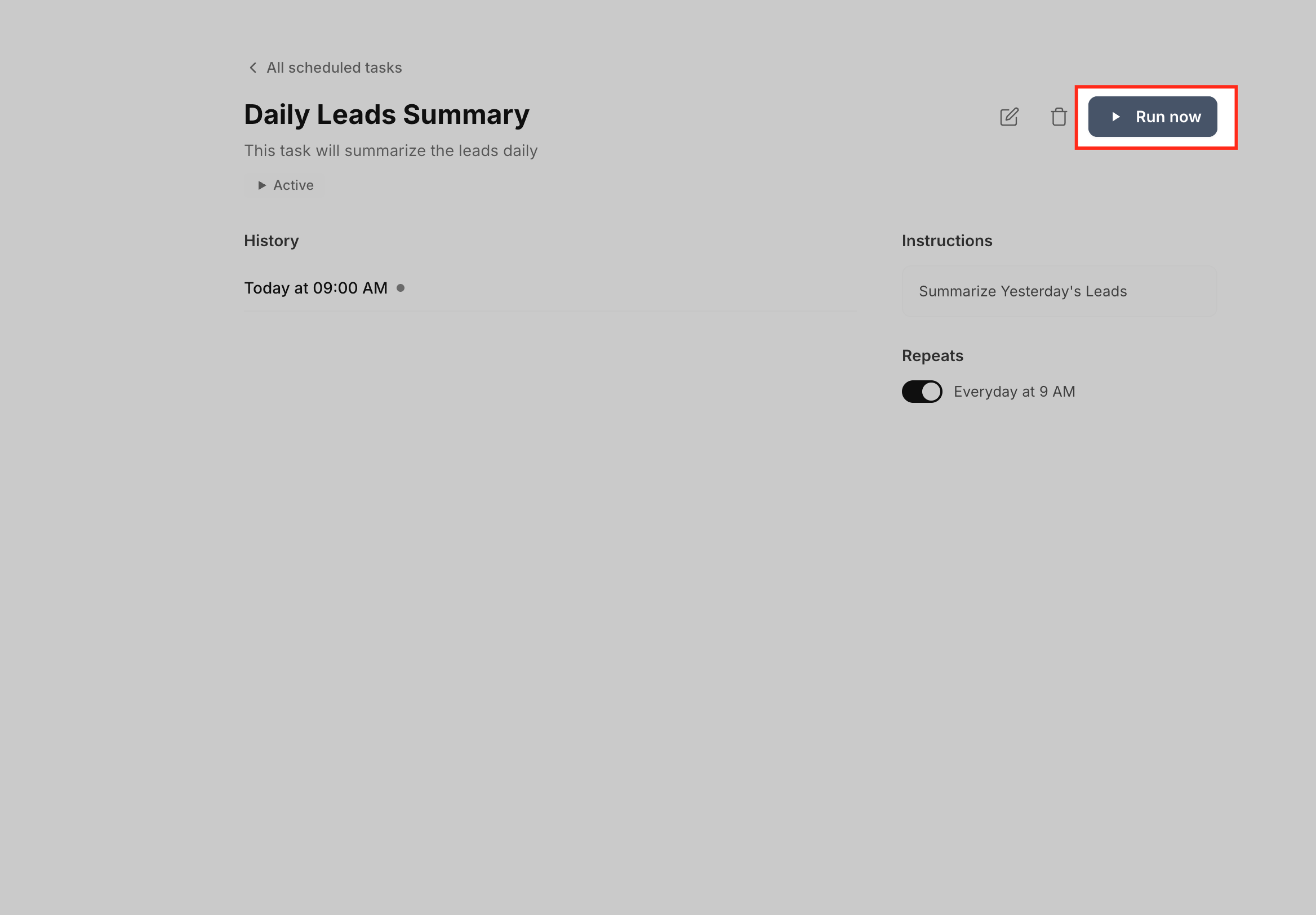
Manual Runs with “Run now”
Sometimes you don’t want to wait for the next scheduled time. The Run now option lets you trigger an on‑demand execution while preserving the existing schedule.
Key behaviors:
- Run any time
- Click Run now on any task whether it’s Active or Paused.
- Fresh Ask AI session
- Manual runs use a fresh Ask AI session, so the results are independent of previous scheduled runs.
- In history, manual runs are clearly labeled, so you can distinguish them from scheduled executions.
- Schedule remains unchanged
- The recurring schedule is not shifted or reset.
- The next scheduled fire still occurs at the originally defined time.
This is ideal when you’ve just updated a report prompt and want to see the new output immediately or when leadership needs the latest data before the scheduled report time.
Creating Scheduled Tasks from Chat and Voice
Ask AI - Task Scheduler doesn’t require you to leave your conversation. You can turn natural language prompts—typed or spoken directly into scheduled tasks.
- Example prompts:
- “Run a summary of new contacts every weekday at 9 AM.”
- “Send me a pipeline report every Monday at 10 AM.”
- “Email Sarah a check‑in reminder on June 1st at 9 AM.”
- Start a voice conversation with Ask AI.
- Speak a schedule request, such as:
- “Every weekday at 9 AM, give me a summary of new contacts.”
- Ask AI confirms the schedule out loud, including the next run time, and saves it to Scheduled Tasks.
How To Setup Ask AI - Task Scheduler
Proper setup ensures your scheduled tasks run reliably, use clear prompts, and respect the right timezone. The steps below cover creating tasks through the Scheduled Tasks form, from chat, and using voice.
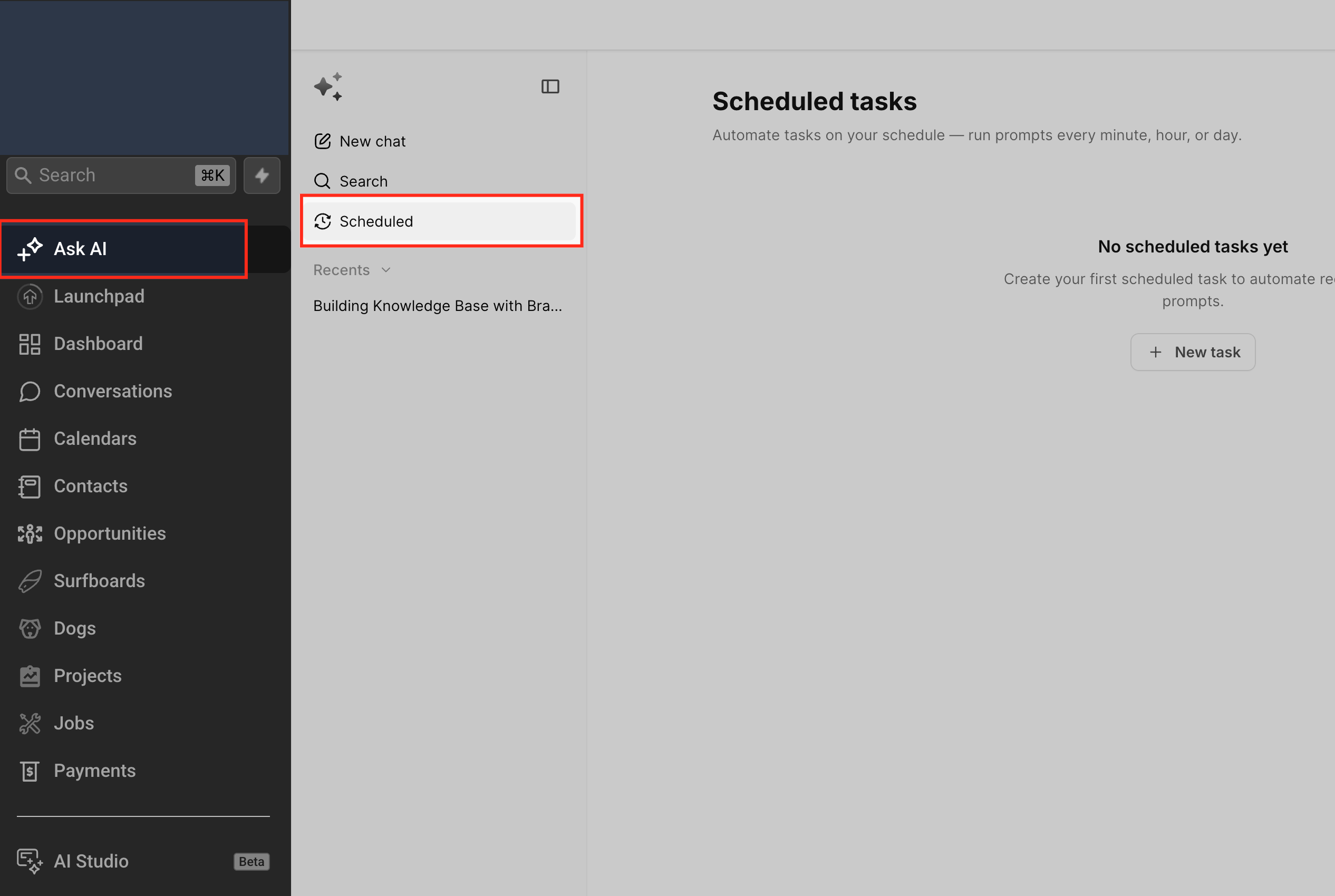
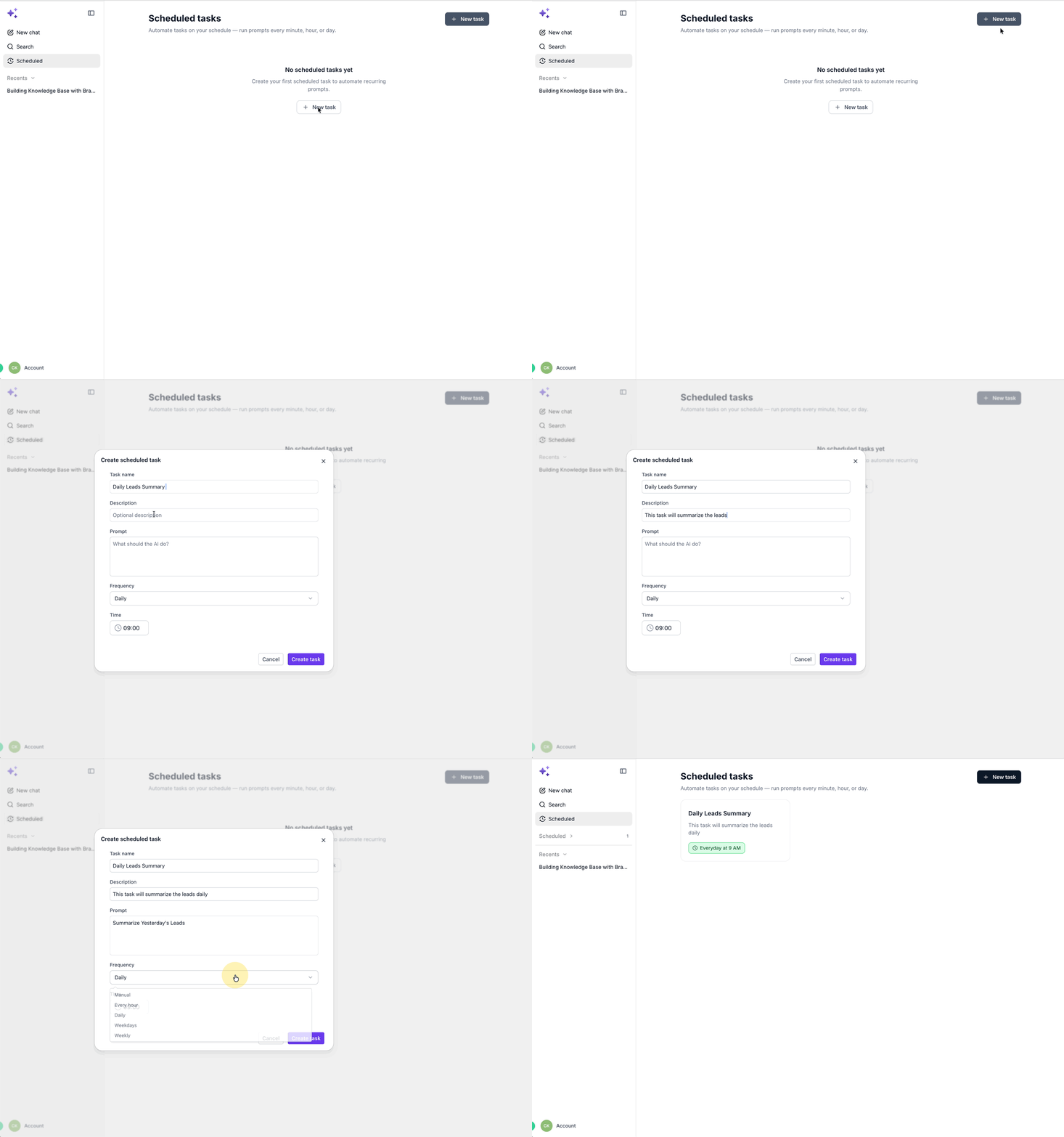
1. Create a task from the Scheduled Tasks tab
- Open Ask AI from the top navigation or left sidebar.
- Go to Scheduled Tasks.
- Click + New task.
- Fill in the form:
- Name
- A descriptive label such as “Daily new‑contacts summary” or “Monday pipeline review”.
- Prompt
- The exact instruction Ask AI should run, for example:
- “Summarize all new contacts added yesterday, highlighting source, status, and next steps.”
- “List opportunities in the pipeline that haven’t moved in 7 days and suggest next actions.”
- The exact instruction Ask AI should run, for example:
- Frequency
- Choose Manually, Hourly, Daily, Weekdays, Weekly.
- Name
- Click Save.
- The task appears in the list with its Next run time shown in your local timezone.
2. Create a task from Ask AI chat
- Open Ask AI and start a chat.
- Type your request combining what you want and how often you want it, for example:
- “Run a summary of new contacts every weekday at 9 AM.”
- “Send me a pipeline report every Monday at 10 AM.”
- Ask AI interprets the schedule, confirms details, and saves it into Scheduled Tasks.
- Open Scheduled Tasks to see the new entry, adjust the name or prompt if needed, and confirm the Next run time looks correct.
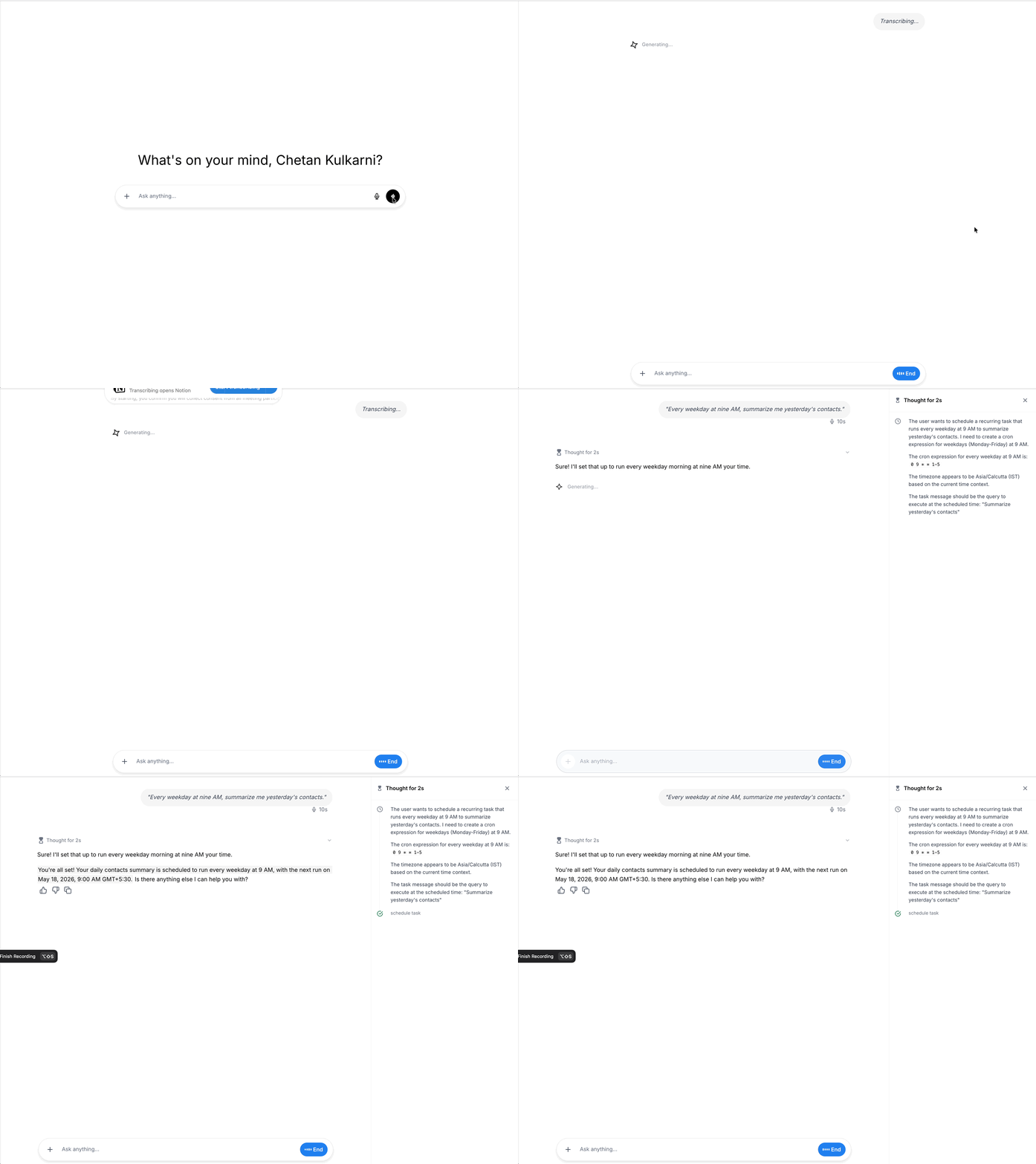
3. Create a task using voice
- Start a voice conversation with Ask AI.
- Speak your schedule in natural language, such as:
- “Every weekday at 9 AM, give me a summary of new contacts.”
- Ask AI repeats back the schedule and next run time for confirmation.
- Visit Scheduled Tasks later to fine‑tune the prompt or schedule if needed.
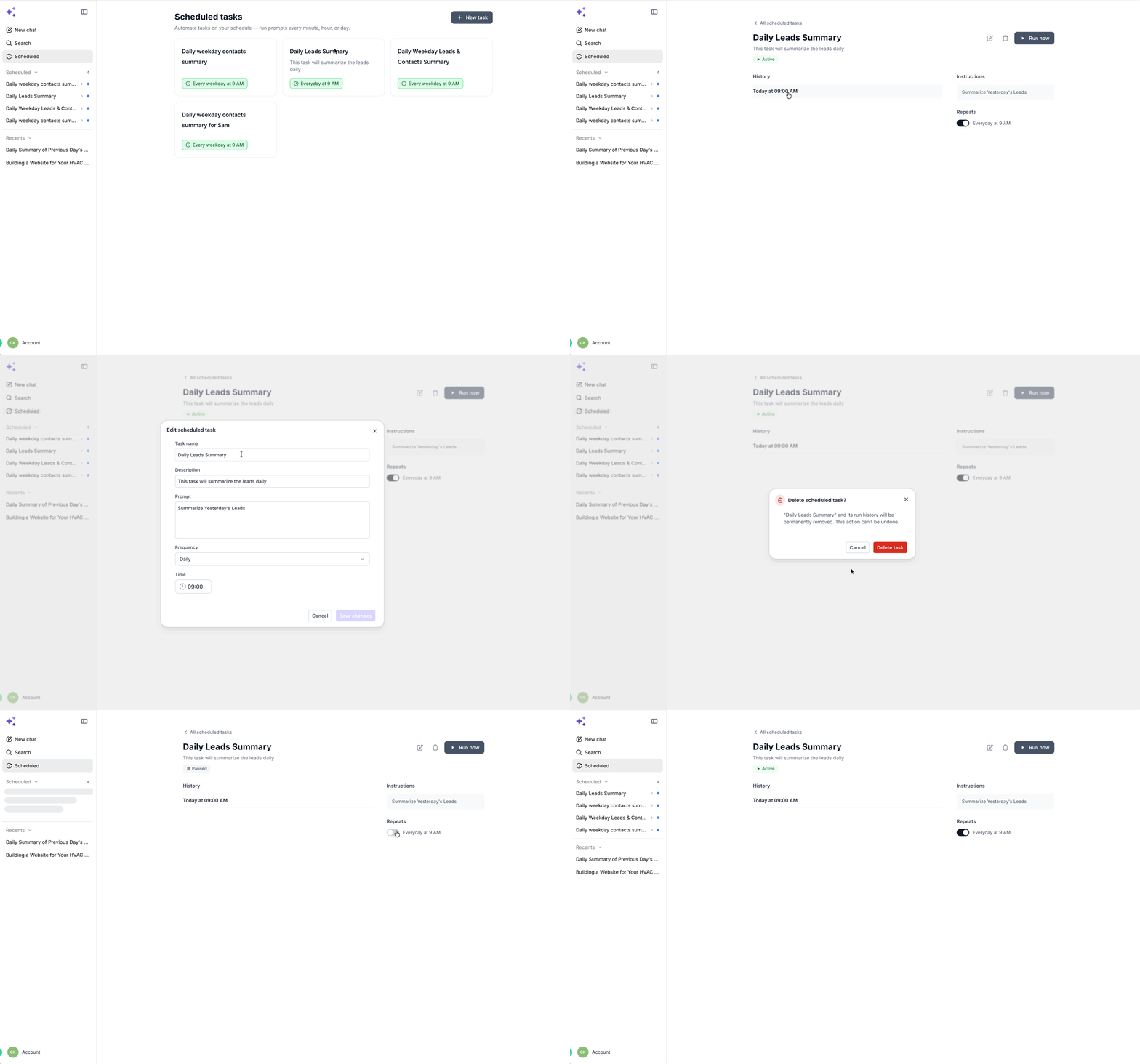
4. Manage existing tasks
- Pause / Resume
- Pause when a report isn’t needed (e.g., during holidays or between campaigns).
- Resume to restart the schedule—upcoming fires run as usual.
- Edit
- Update Name, Prompt, Frequency at any time.
- The next scheduled fire automatically uses the new values.
- Any pre‑update background jobs that might conflict are gracefully skipped, preventing duplicate runs during the changeover.
- Run now
- Use Run now for an immediate, one‑off execution without altering the underlying schedule.
- View run history
- Open past runs for auditing, troubleshooting, or comparing results over time.
- Delete
- Remove tasks you no longer need.
- Future runs are cancelled, and the task is removed from the active list.
Frequently Asked Questions