
Agent Logs for Conversation AI helps teams review how AI handled a customer conversation, including the messages, actions, timing, and session details behind each interaction. This article explains where to access Conversation AI Agent Logs, what information is available, and how teams can use logs to troubleshoot responses, review contact activity, and monitor performance.
TABLE OF CONTENTS
- What is Agent Logs for Conversation AI?
- Key Benefits of Agent Logs for Conversation AI
- Important concepts
- Where to Access Conversation AI Agent Logs
- Sessions View in Agent Logs
- Filtering Sessions
- Contacts View in Agent Logs
- Metrics in Agent Logs
- Customizing Metrics Layouts
- Log Detail View
- Raw Conversation and Execution Timeline
- Reviewing a Specific AI Message
- Tool and Action Calls
- Parsed and Raw Views
- Latency and Response Timing
- Frequently Asked Questions
- Related Articles
What is Agent Logs for Conversation AI?
Agent Logs for Conversation AI gives users visibility into what happened during a Conversation AI interaction. Instead of only seeing the final message sent to a contact, users can review the conversation, the AI response, the actions the AI selected, and the steps it followed before responding.
Think of Agent Logs as a transparency view for Conversation AI. It helps users understand what their AI agent did, how it handled a customer message, and where each response came from.
Key Benefits of Agent Logs for Conversation AI
Conversation AI can perform different actions depending on the customer message, the configured agent instructions, and the tools available to the agent. For example, it may answer a question, check calendar availability, collect contact details, use a knowledge base, end a conversation, or hand the conversation over to a team member.
Agent Logs help users see these actions more clearly. They are useful when a user wants to understand questions such as:
What did the contact say?
How did Conversation AI respond?
Did the AI call the expected action or tool?
What information was passed into an action?
What did the action return?
Why did the AI take longer to respond?
Did the AI use the knowledge base?
Did the AI hand over or end the conversation?
Agent Logs are especially helpful because AI agents are not always linear. The same agent may take different paths depending on what the contact says. Logs make those paths easier to review.
Important concepts
Before reviewing Agent Logs, it helps to understand how the information is organized.
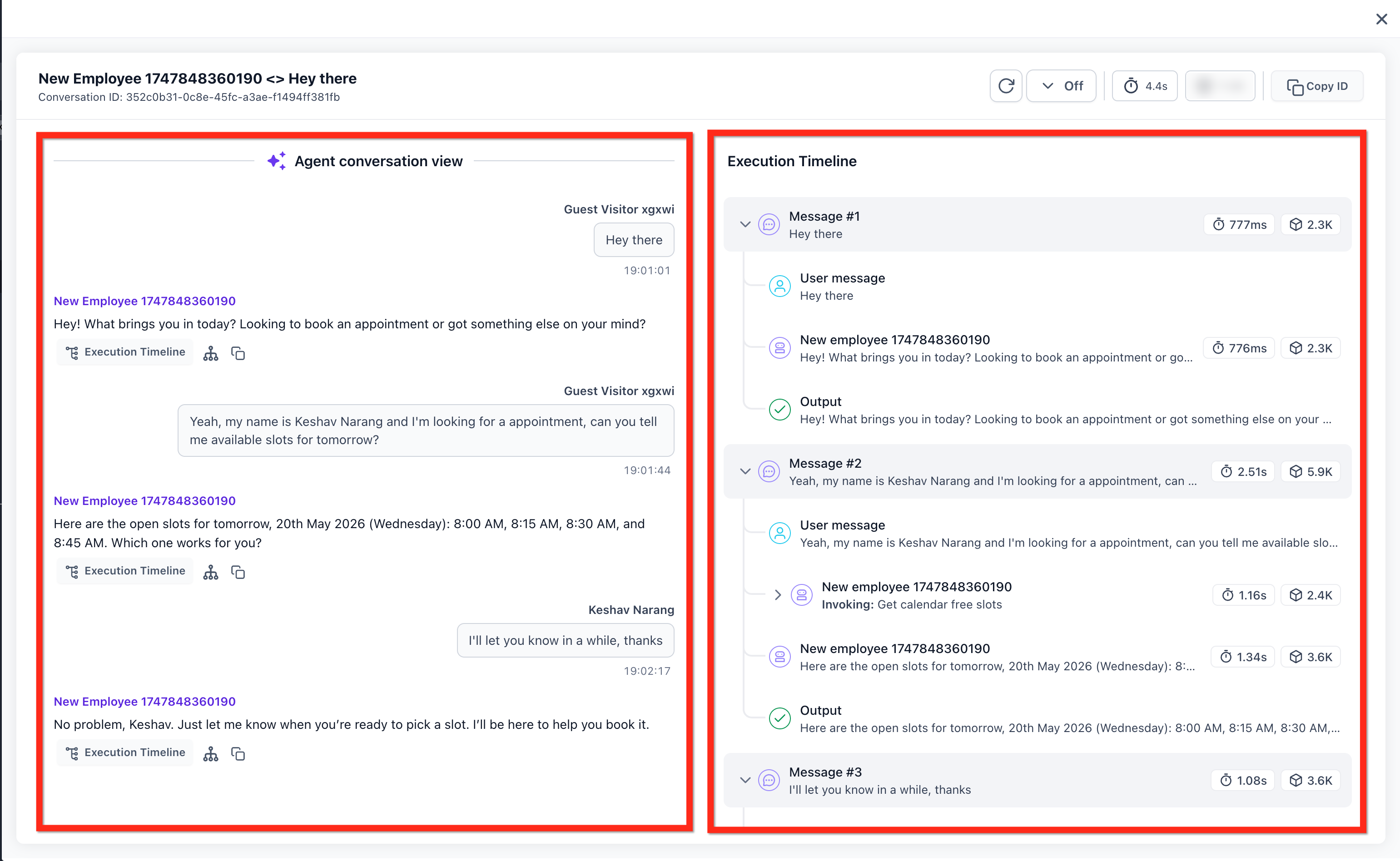
Conversation
A conversation is the full interaction between a contact and Conversation AI. It may include multiple customer messages and multiple AI responses.
Example:
A contact asks about availability, shares their name, asks for appointment slots, and later says they will confirm later. That full exchange is one conversation.
Turn
A turn is one back-and-forth exchange inside a conversation.
Example:
The contact sends a message.
Conversation AI processes the message.
Conversation AI sends a response.
That is one turn. A conversation can have multiple turns.
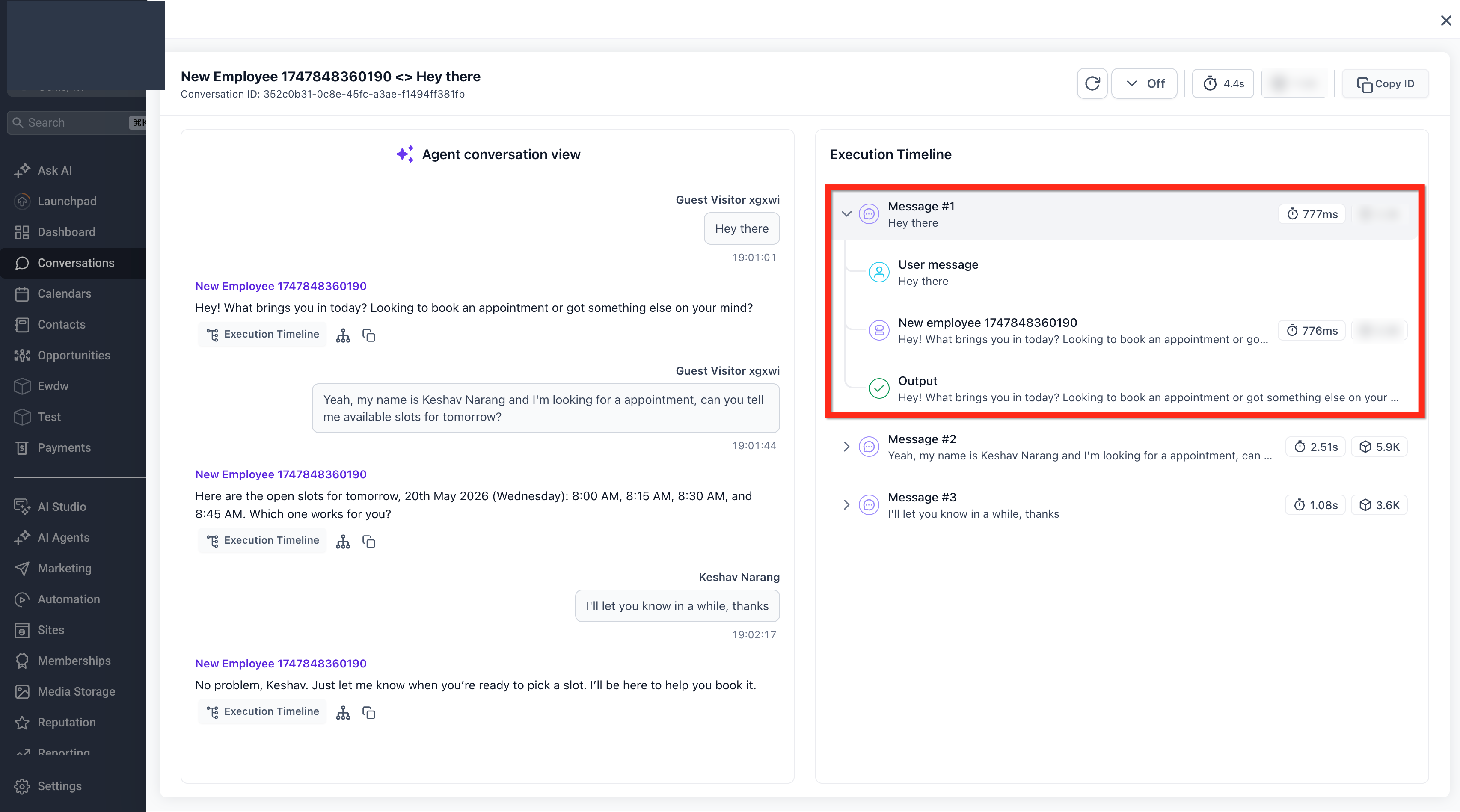
Step
A step is an individual action that happens inside a turn.
A single turn may include steps such as:
User message received
AI agent invoked
Tool or action selected
Calendar availability checked
Knowledge base searched
Contact information extracted
AI response generated
Conversation ended
Human handover triggered
Where to Access Conversation AI Agent Logs
Conversation AI Agent Logs can be accessed from three main areas.
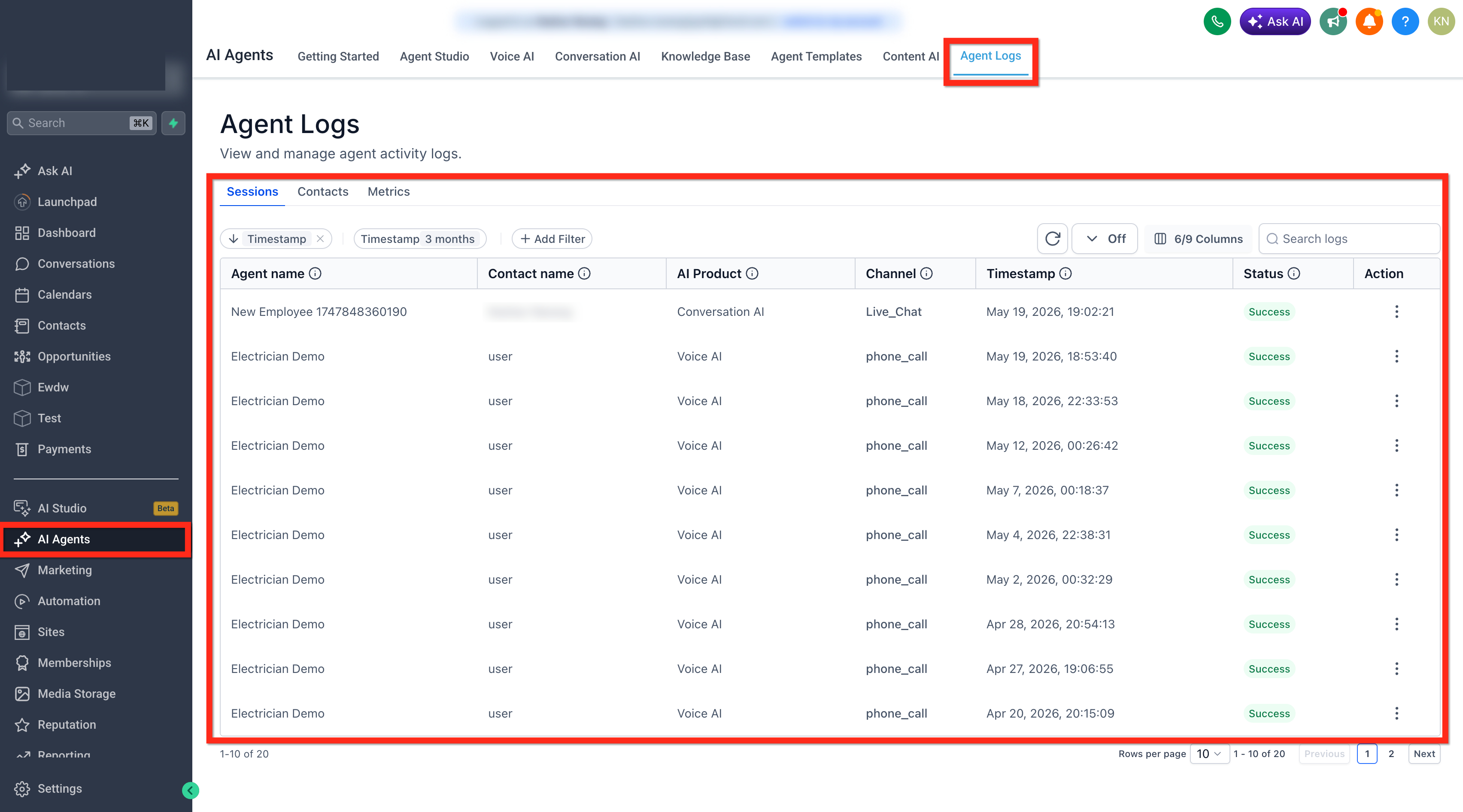
1. Agent Logs Tab Under AI Agents (Universal View)
The main Agent Logs area gives users a central place to review Conversation AI sessions.
Users can go to AI Agents > Agent Logs to view the Agent Logs page.
From this page, users can review:
Sessions
Contacts
Metrics
Filters
Search results
Log details
2. Conversations Page
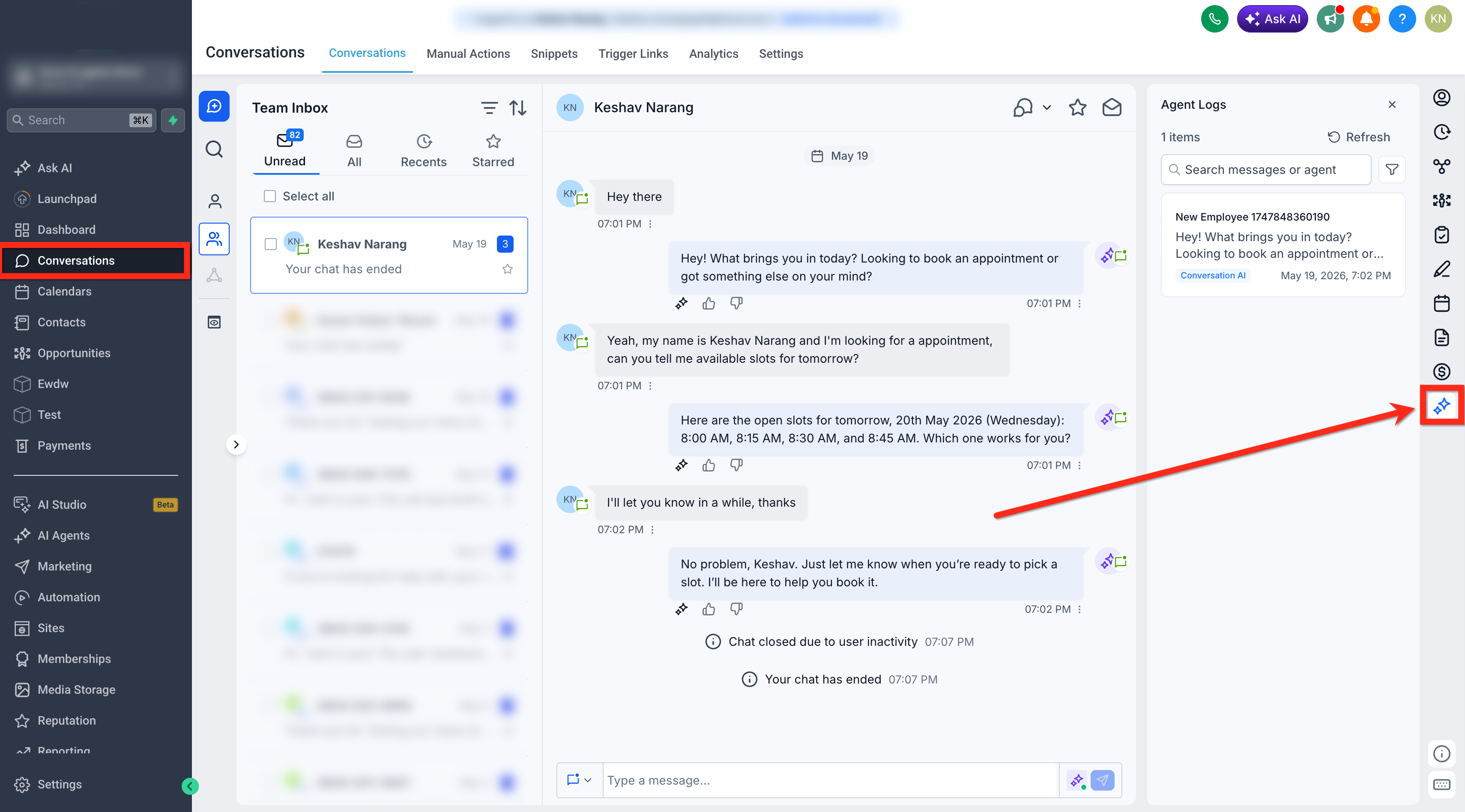
Conversation AI Agent Logs are also available from the Conversations page.
When a conversation includes Conversation AI activity, users can open the related log directly from the conversation thread. This helps users review the AI activity without leaving the inbox.
This is useful when a user is already reading a customer conversation and wants to understand how Conversation AI handled a specific message.
3. Contact Records and Contact Side Panels
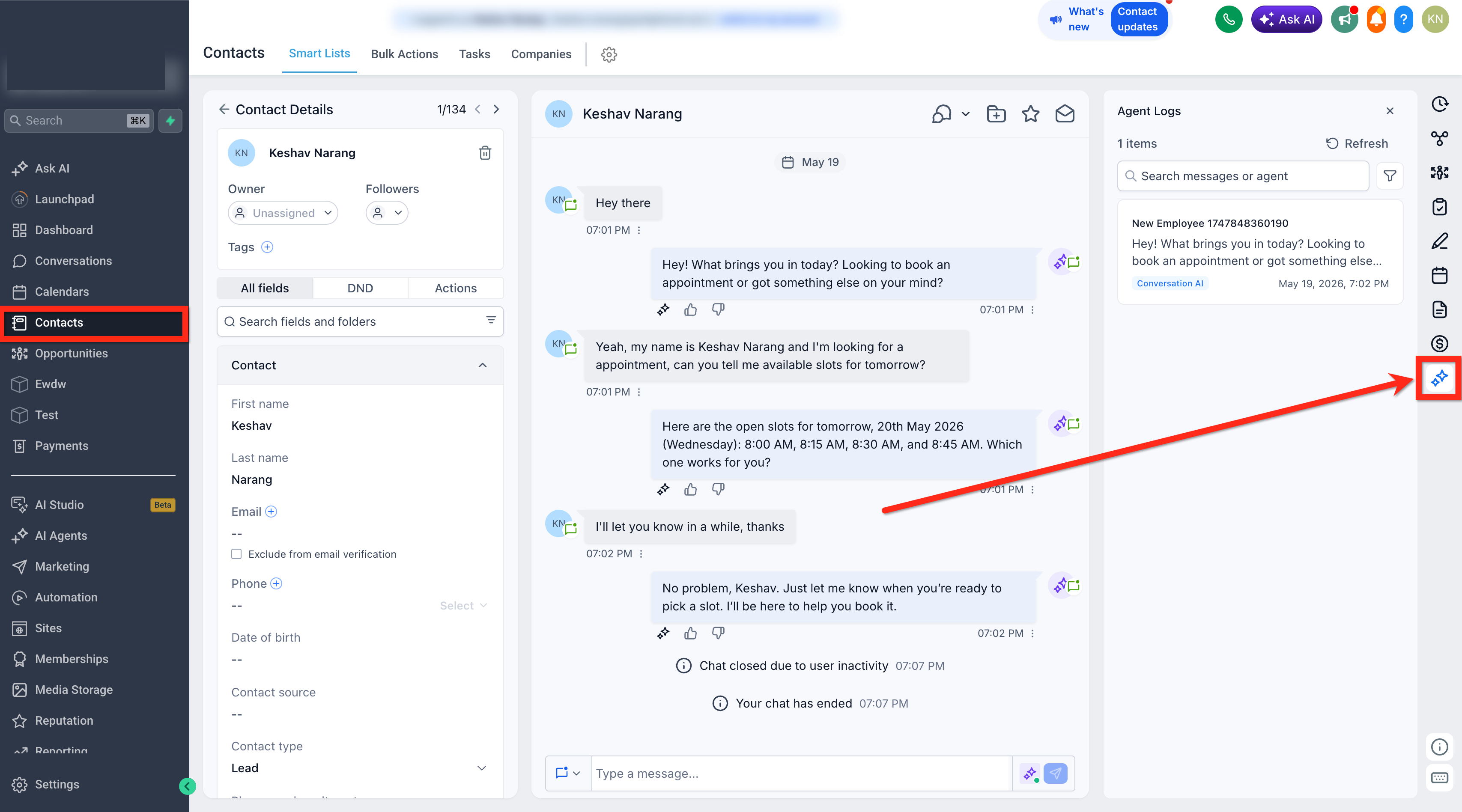
Agent Logs are available from contact records and contact side panels. This allows users to start from a contact and review the Conversation AI activity connected to that contact.
This is helpful when the user knows which contact they want to investigate but does not know the exact session or log.
Agent Logs also work with contact side panel layout customization. Users can place the Agent Logs panel in supported side panel layouts, such as the center or right panel, based on their workspace preference.
Sessions View in Agent Logs
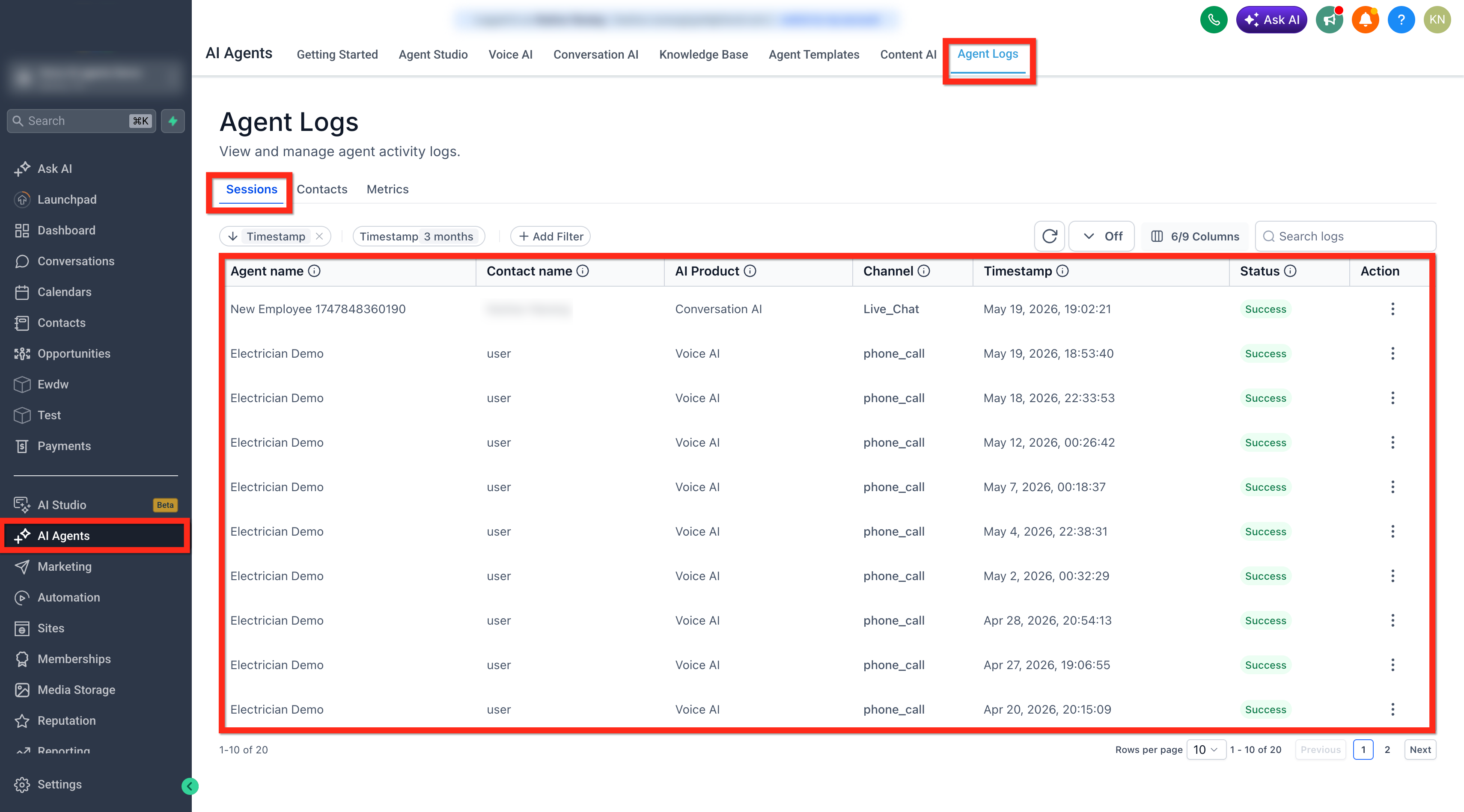
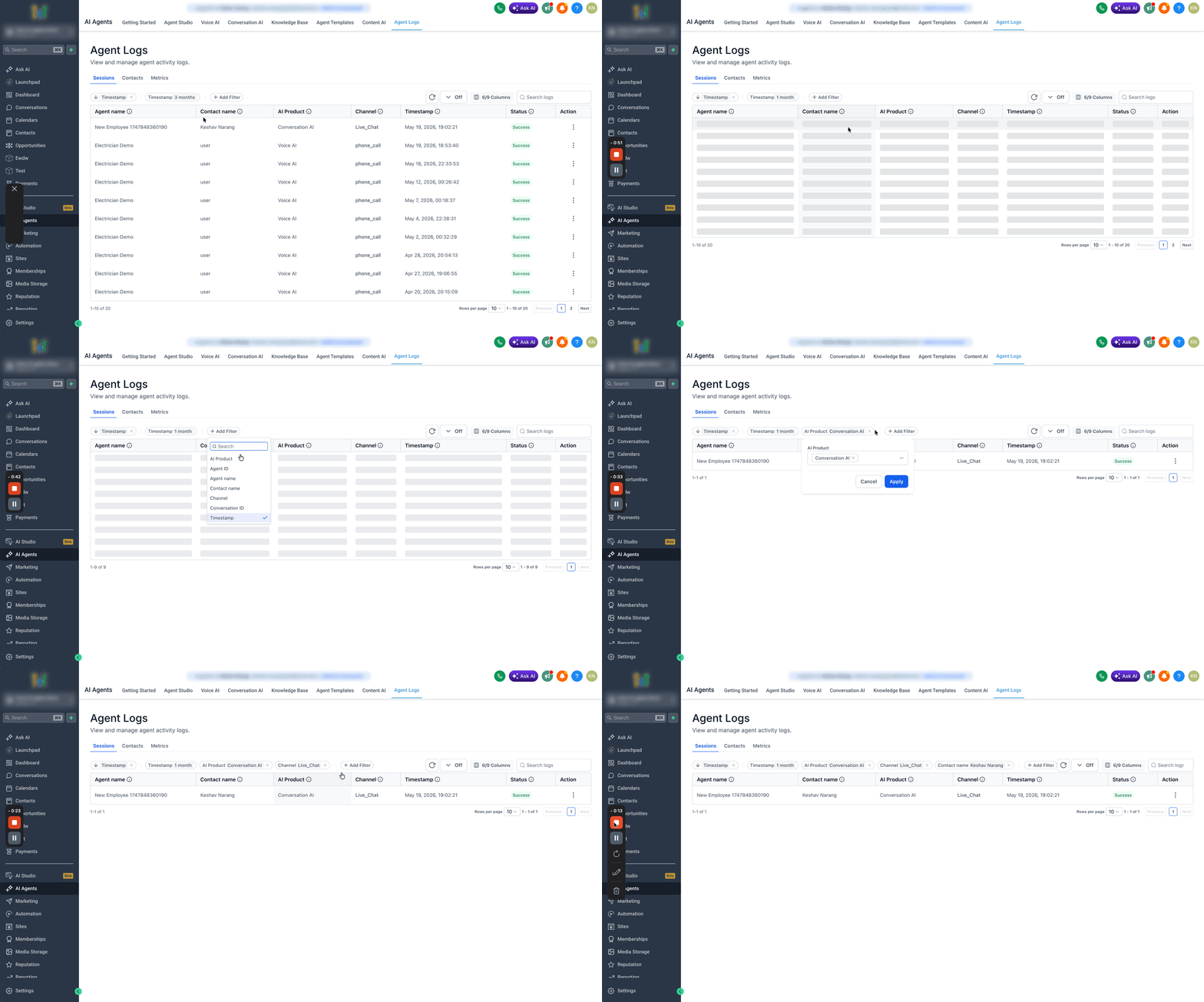
The Sessions view lists Conversation AI activity as individual sessions. Each row represents an AI session that can be opened for more detail.
Users can use the Sessions view when they want to review a specific interaction or find a log based on filters such as time range, contact, agent, or channel.
The Sessions view may show details such as:
Agent name
Contact name
Channel
Timestamp
Status
Action menu
Users can open a session to view the raw conversation and the execution timeline for that session.
Filtering Sessions
Filters help users narrow down the logs and find the exact Conversation AI activity they want to review.
Users may filter by details such as:
AI product
Channel
Contact
Time range
Agent
For example, a user may filter to show only Conversation AI sessions from live chat for a specific contact. This helps reduce noise when there are many sessions in the account.
Contacts View in Agent Logs
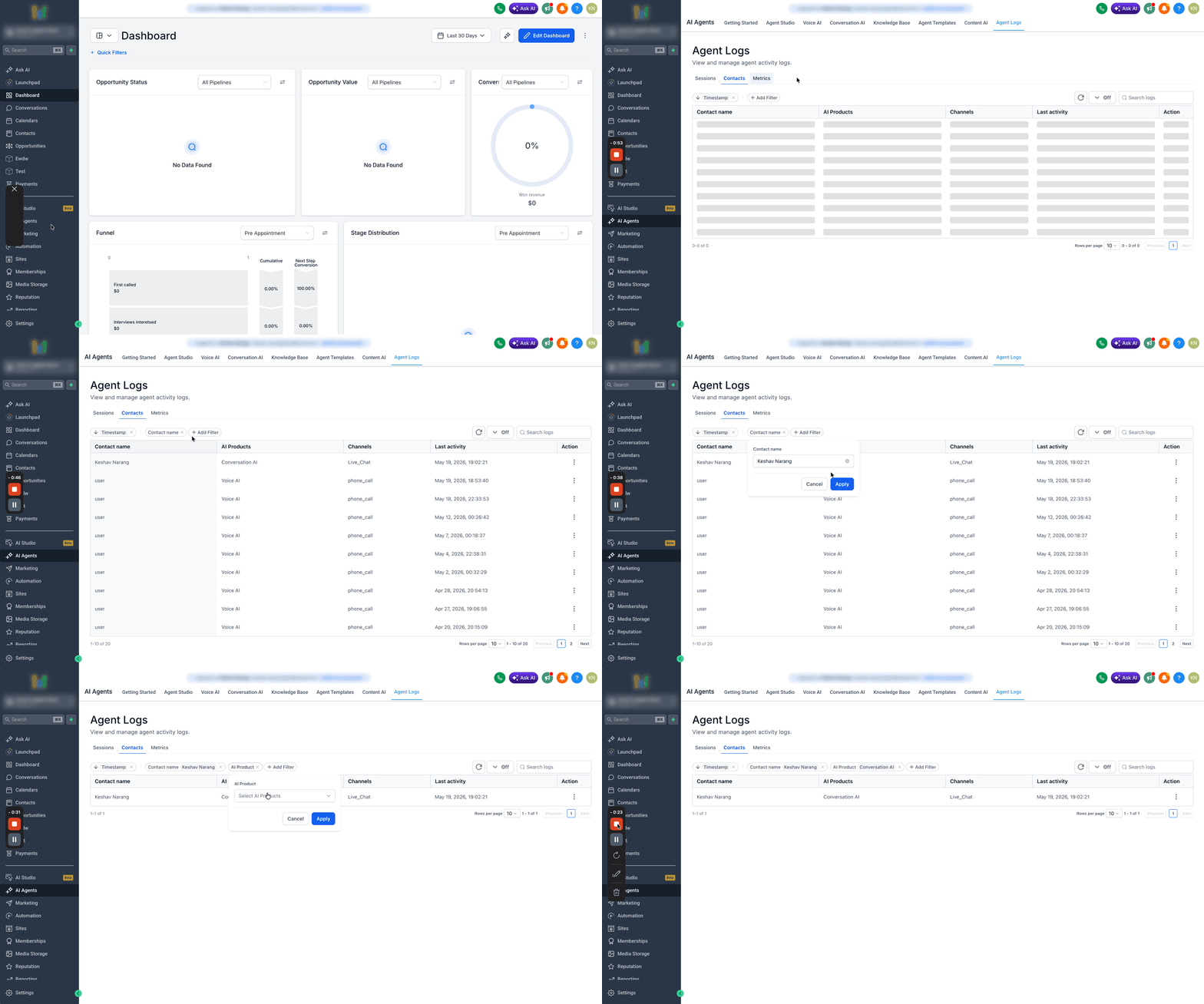
The Contacts view organizes Conversation AI activity around contacts instead of only sessions.
This is helpful when a user wants to start from a contact name and review the AI activity connected to that person.
For example, if a customer named Alex contacted the business multiple times, the Contacts view can help the user find Alex and open the related Conversation AI sessions.
The Contacts view is useful for:
Reviewing activity for a specific contact
Investigating repeated customer interactions
Understanding what Conversation AI did for one person
Finding sessions when the user does not know the exact session ID or timestamp
Metrics in Agent Logs
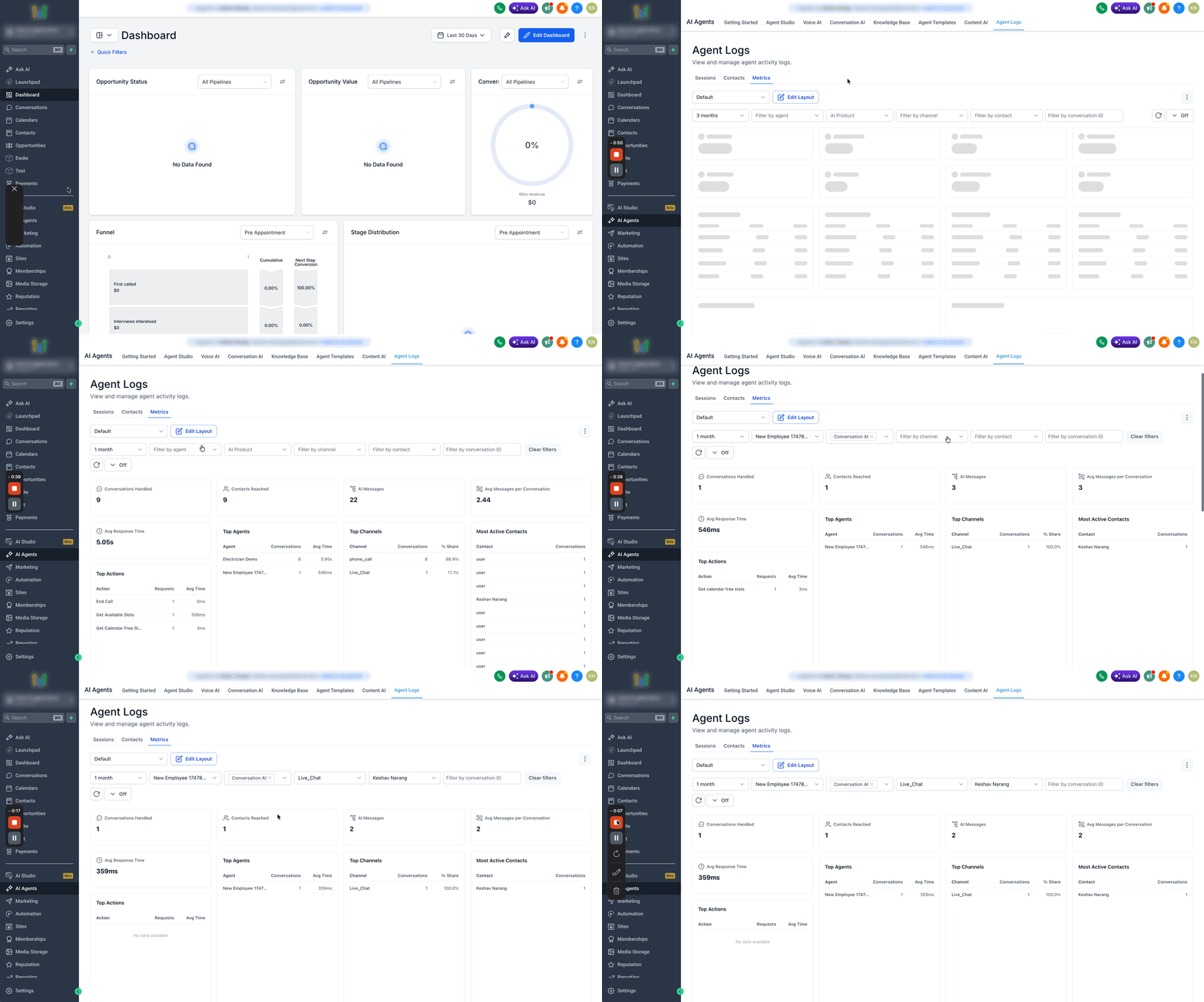
The Metrics tab gives users an overview of Conversation AI activity and performance.
While session logs help users understand a specific interaction, Metrics help users understand activity across multiple conversations.
Metrics may include:
Conversations handled
Contacts reached
AI messages
Average messages per conversation
Average response time
Top actions
Top agents
Top channels
Most active contacts
Conversation activity over time
Busiest hours
Channel usage over time
Users can filter Metrics by time range, agent, channel, and contact to focus on the data that matters to them.
Customizing Metrics Layouts
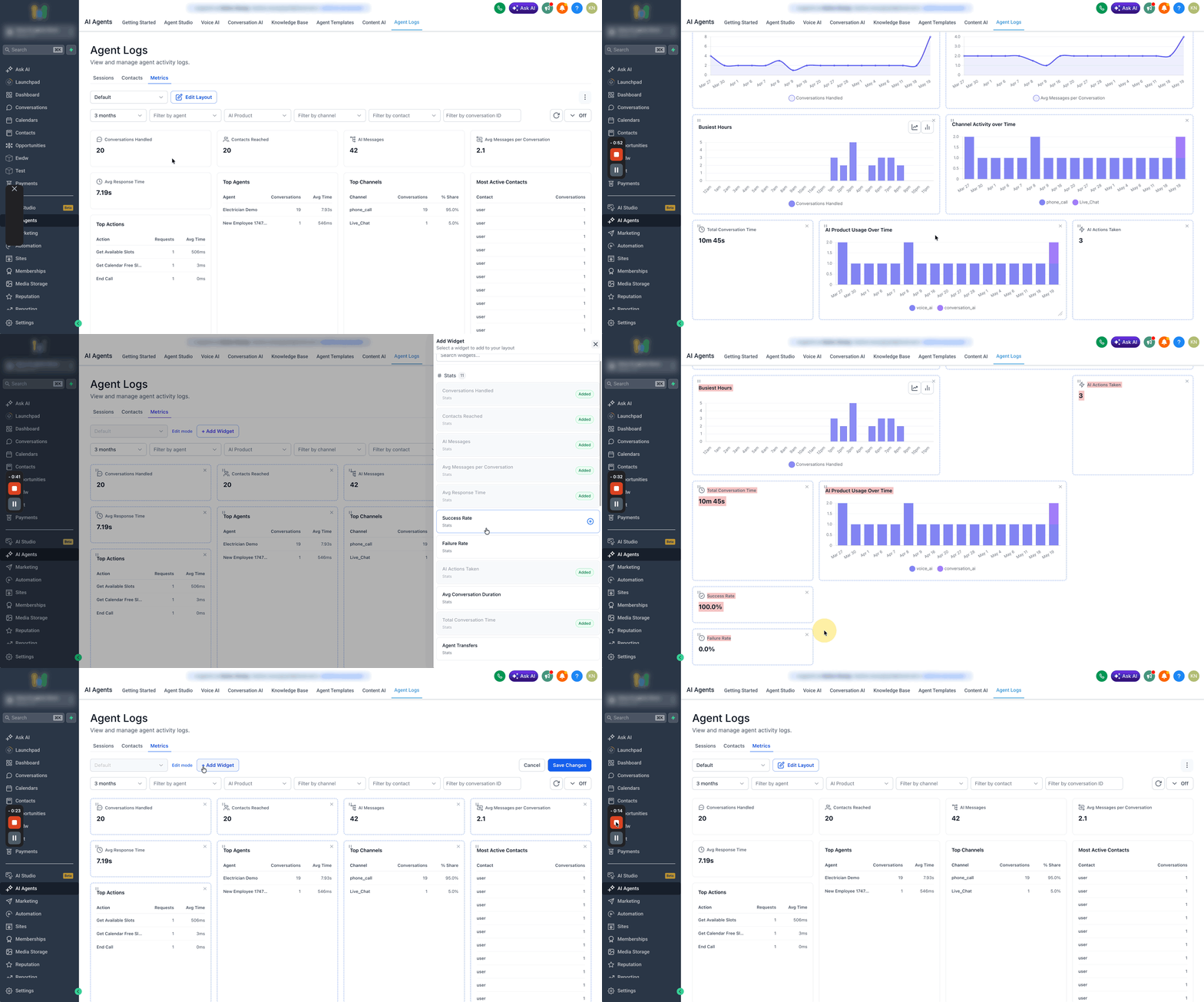
The Metrics view supports layout customization. Users can organize widgets based on what they want to monitor most often.
For example, one user may want to focus on top actions and average response time, while another may care more about active contacts and channel usage.
Users can customize layouts so the most relevant information is easier to review.
Log Detail View
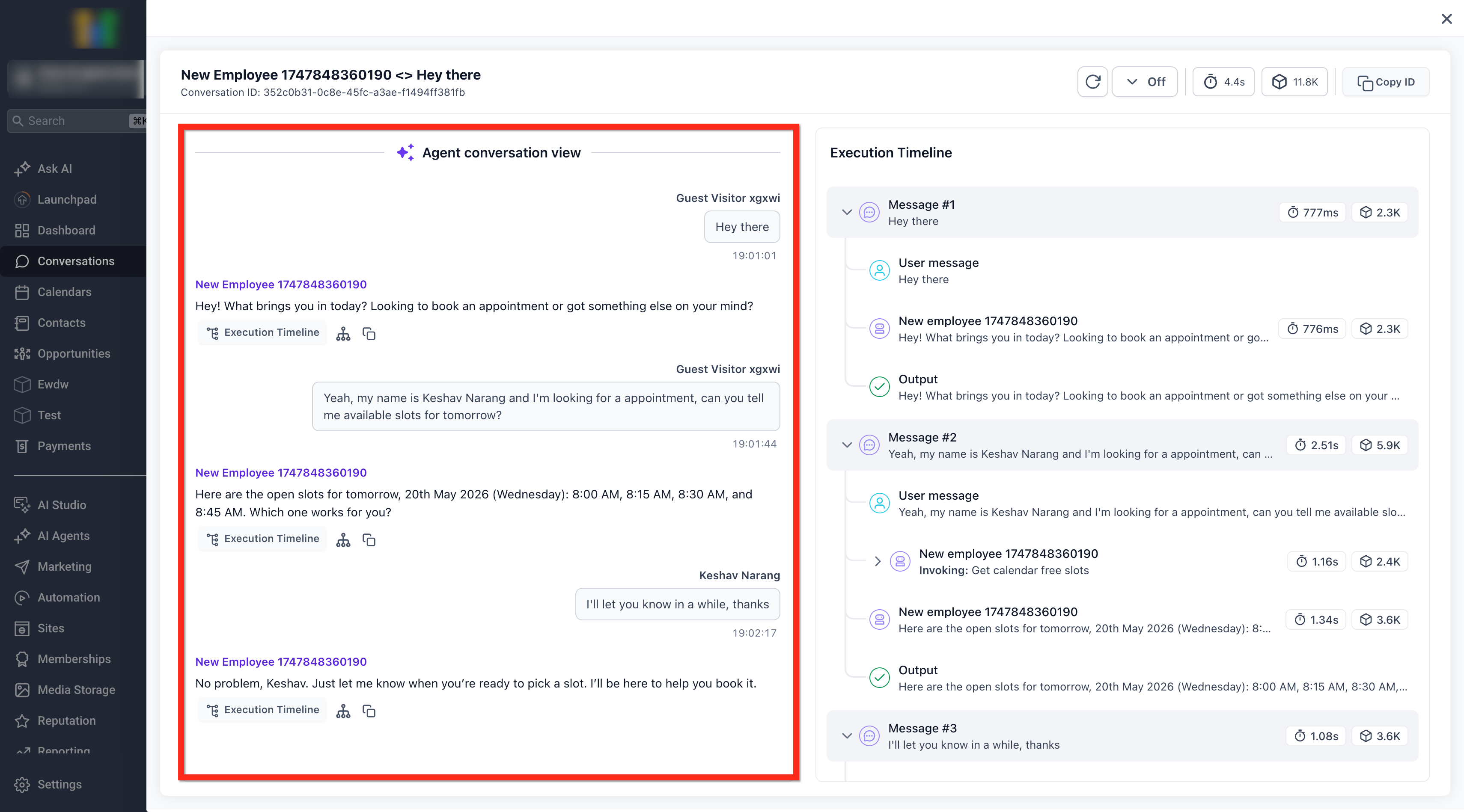
When a user opens a session, the log detail view shows the conversation and the execution timeline.
The log detail view generally includes:
The raw customer conversation
The execution timeline
User messages
AI responses
Tool or action calls
Inputs and outputs for selected steps
Latency for steps or turns
Status information
Copy or expand options where available
A visual graph of the execution path where available
This view helps users understand how Conversation AI moved from the customer message to the final response.
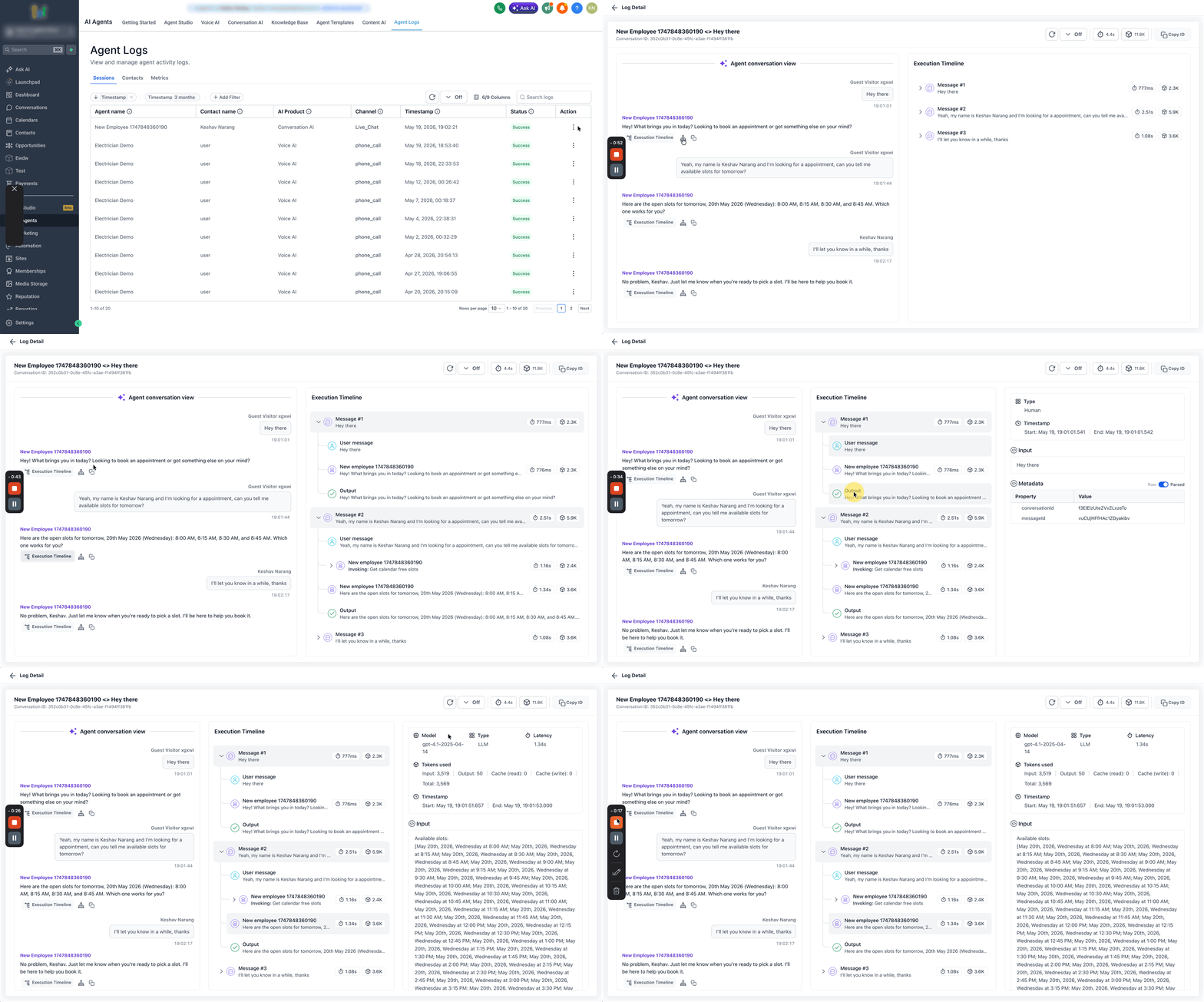
Raw Conversation and Execution Timeline
In the log detail view, users can review two important areas: the raw conversation and the execution timeline.
Raw conversation
The raw conversation shows the messages exchanged between the contact and Conversation AI. This helps users confirm what the contact said and what Conversation AI replied.
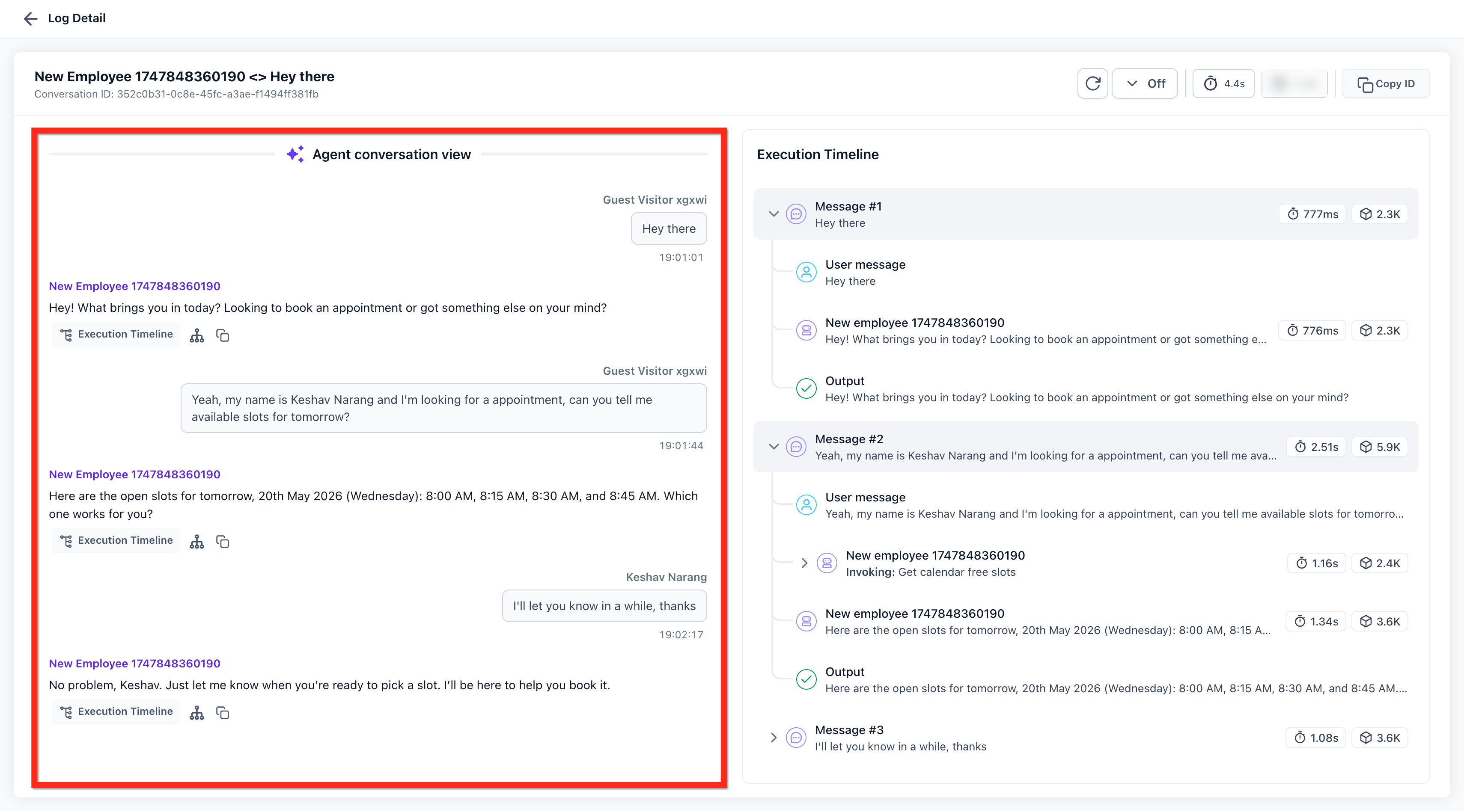
Execution timeline
The execution timeline shows what happened behind the scenes. It displays the steps Conversation AI followed during the interaction.
For example, if a contact asks for appointment slots, the timeline may show that Conversation AI:
Received the customer message
Invoked the AI agent
Selected the calendar availability action
Sent the required details into the action
Received available slots from the action
Generated a response using the returned slots
Sent the response to the contact
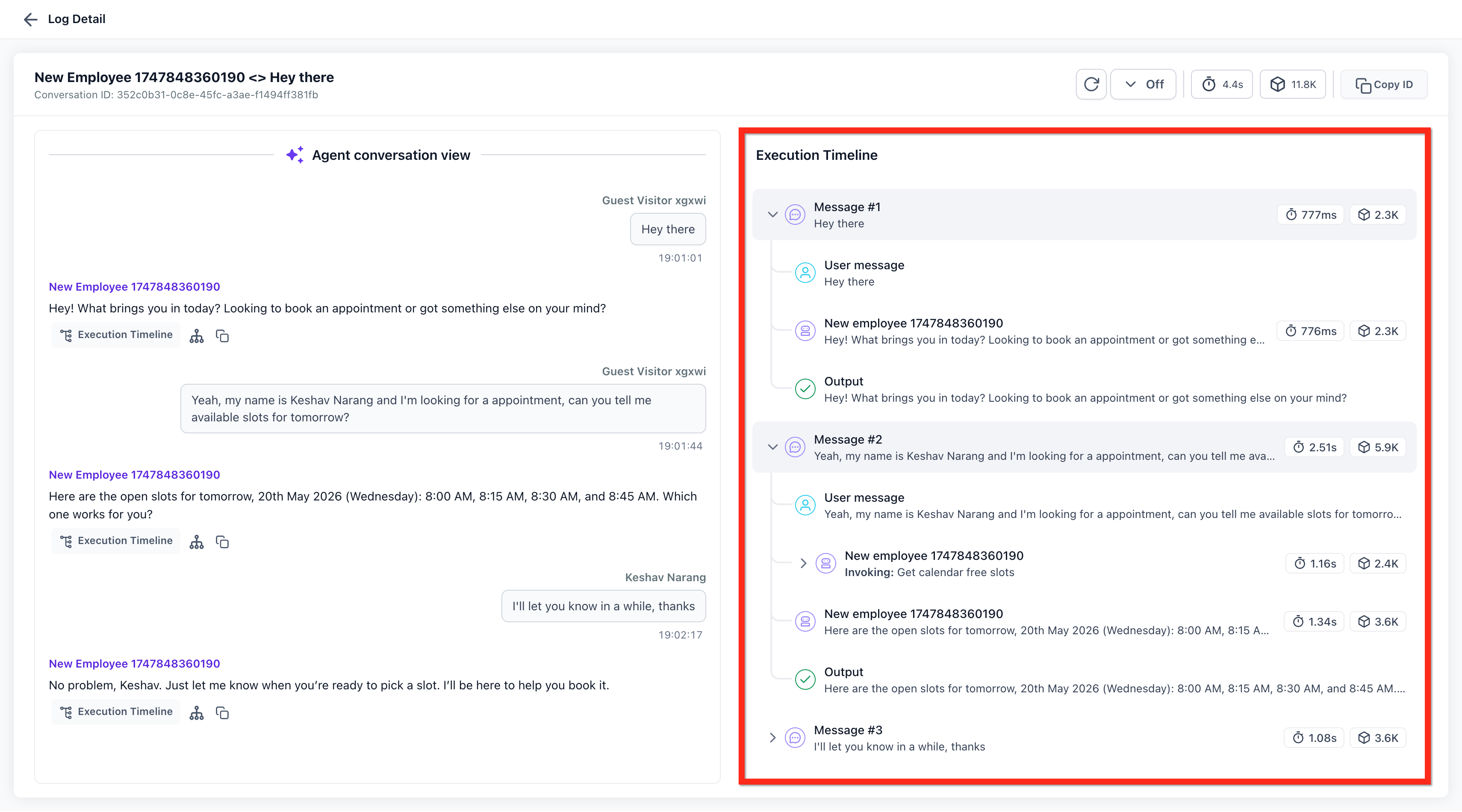
This helps users understand both the customer-facing conversation and the behind-the-scenes AI activity.
Reviewing a Specific AI Message
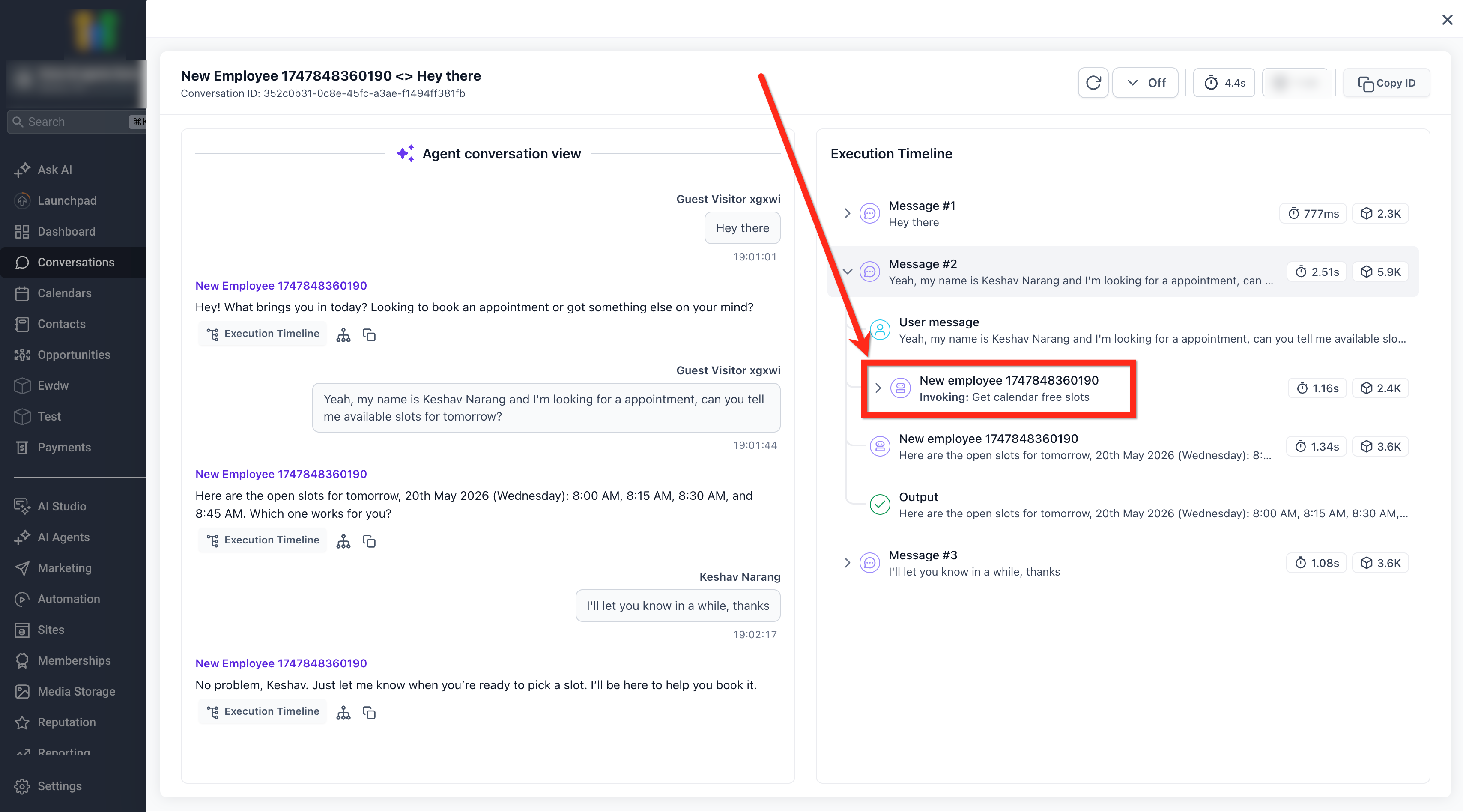
Users can click a message or related log entry to review what happened for that part of the conversation.
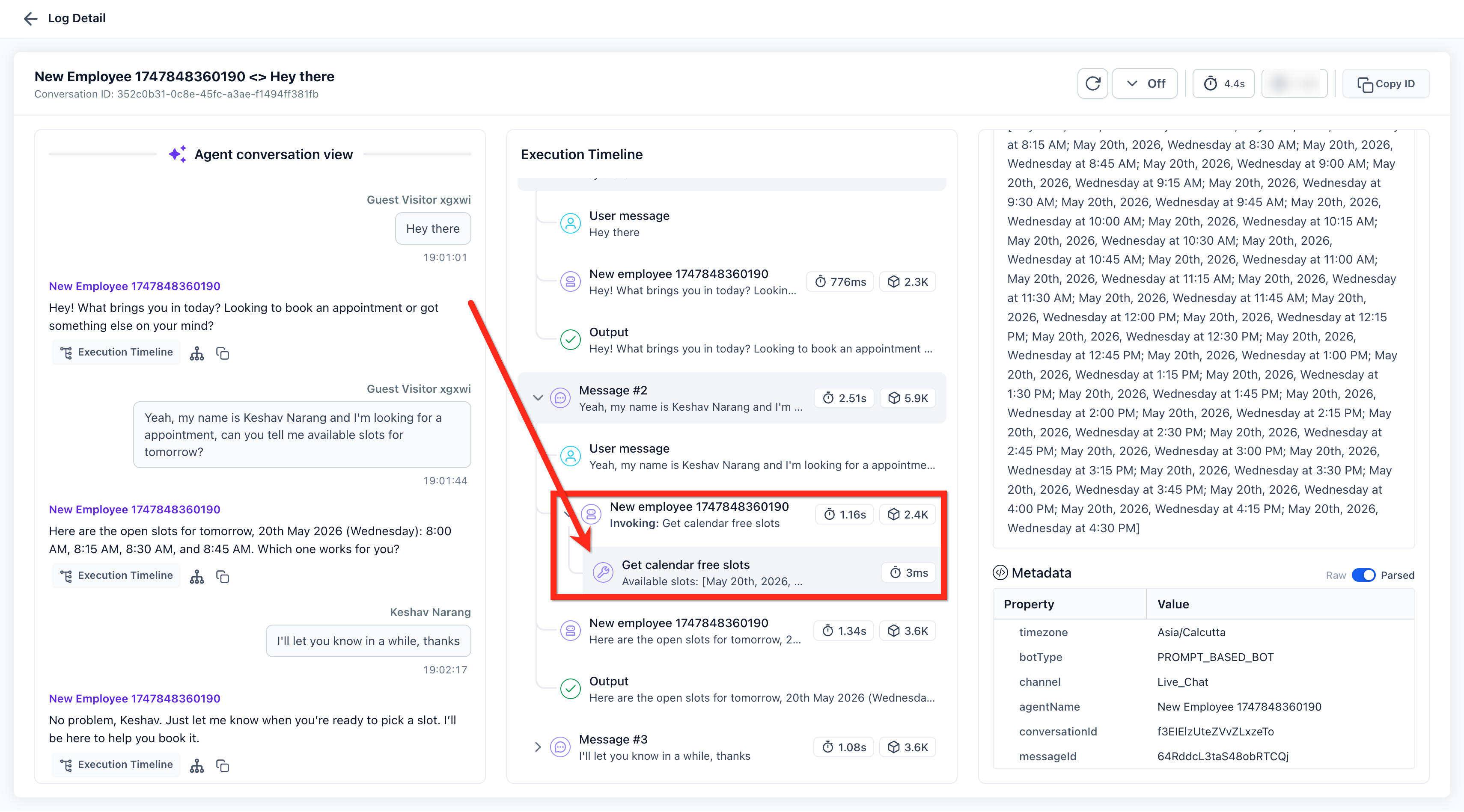
For example, if a customer asks, “Can I book an appointment tomorrow?”, the related log may show whether Conversation AI called the calendar availability action, what details were sent to the action, and what result came back.
This helps users confirm whether the AI took the expected path for that customer request.
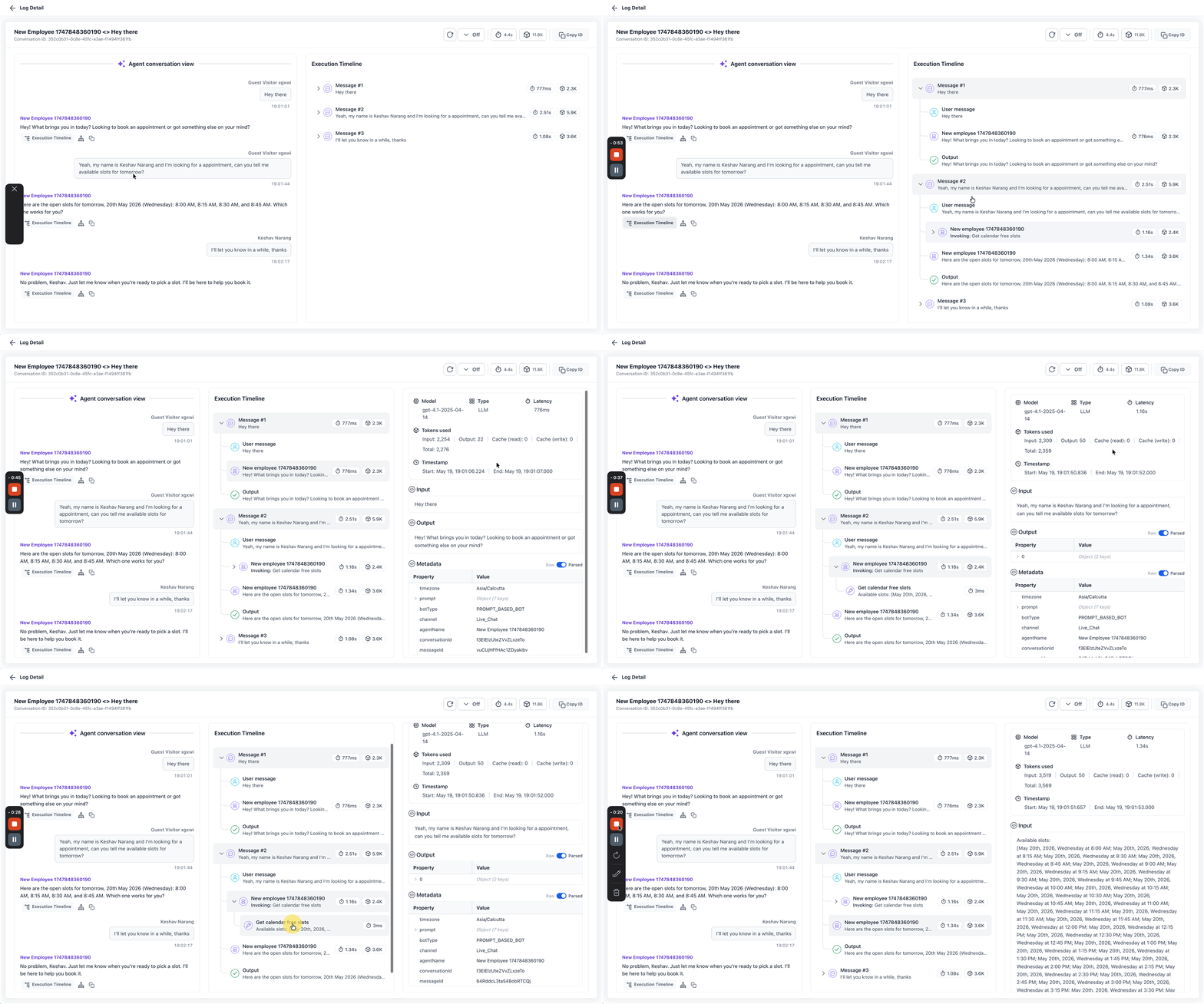
Tool and Action Calls
Conversation AI can use tools or actions to complete tasks. These may include checking availability, booking appointments, extracting contact information, ending a conversation, or handing over to a team member.
When Conversation AI calls a tool or action, Agent Logs can show information such as:
Which tool or action was selected
What details were passed into the tool
What the tool returned
How the result was used in the AI response
How long the step took
This is useful because it helps users understand whether Conversation AI used the expected action for the customer request.
Example:
If a customer asks for appointment slots, the log may show a calendar availability action. The action input may include the requested date range, and the output may include the available slots returned by the calendar.
Parsed and Raw Views
Some log details may be available in both parsed and raw formats.
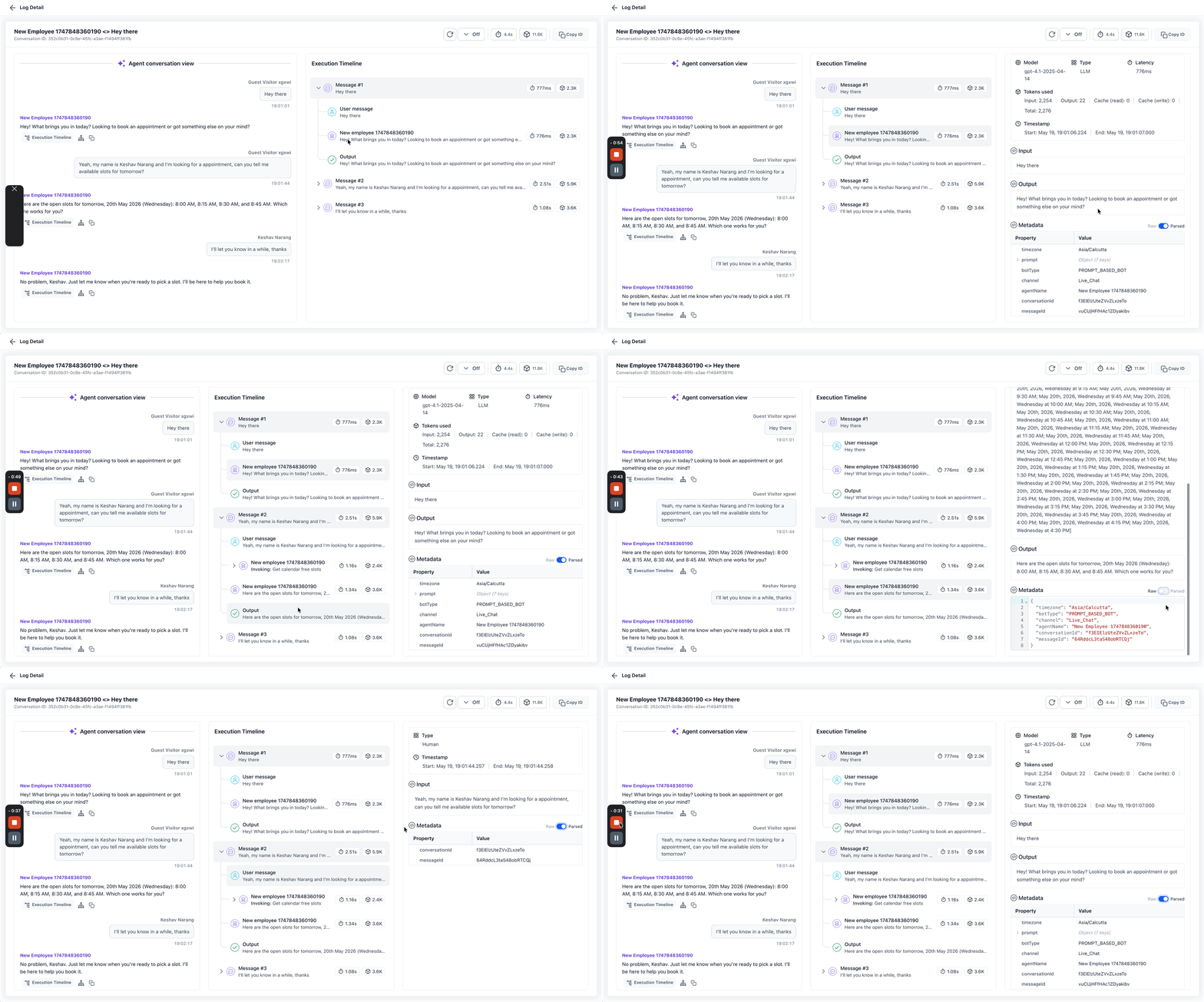
Parsed view
The parsed view presents information in a more readable table-like format. This is easier for most users to understand because the data is organized into fields and values.
Raw view
The raw view shows the underlying structured data. This may be useful for advanced users who want to inspect the exact data passed between the AI agent and the selected tool or action.
For most users, the parsed view will be easier to review.
Latency and Response Timing
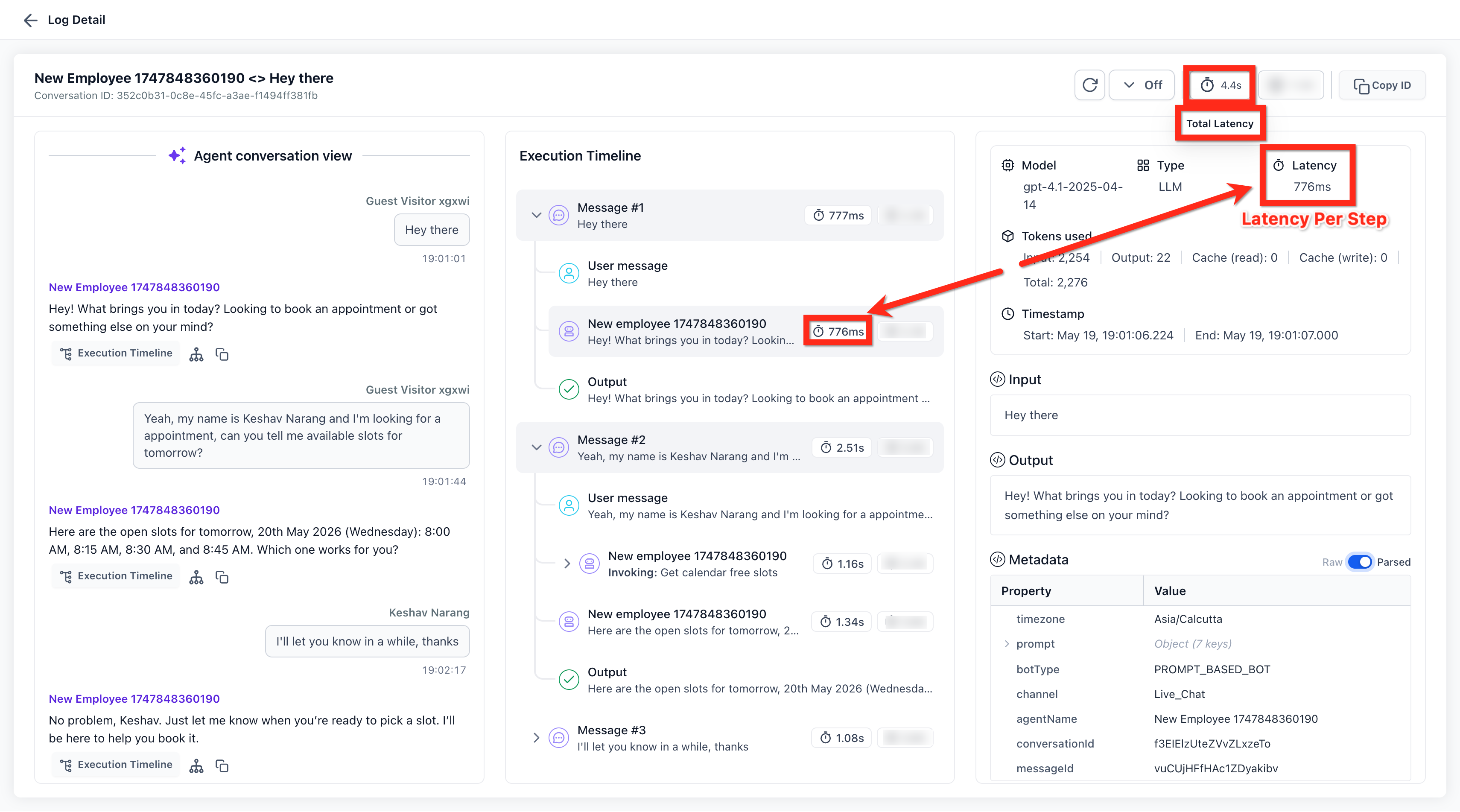
Agent Logs can show how long different steps took. This helps users understand why an AI response may have taken longer than expected.
For example, if Conversation AI checks calendar availability and also extracts contact information, the response may take longer because multiple steps happened before the AI replied.
Latency can help answer questions such as:
Which step took the longest?
Did a tool call add time to the response?
Did the AI perform multiple actions before replying?
Was the delay related to a specific part of the interaction?
Frequently Asked Questions
Q: Are Agent Logs meant only for troubleshooting?
No. Agent Logs are mainly a transparency view. They help users understand what Conversation AI did and how it handled a conversation. They can also help users investigate unexpected behavior.
Q: What is the difference between a conversation, a turn, and a step?
A conversation is the full interaction with a contact. A turn is one back-and-forth exchange between the contact and Conversation AI. A step is an action inside a turn, such as receiving a message, calling a tool, checking availability, or generating a response.
Q: What can users see in a log?
Users can review the customer message, AI response, execution timeline, selected tools or actions, inputs and outputs, latency, status, and related session details.
Q: What is the Sessions view?
The Sessions view lists Conversation AI sessions. Users can filter and open sessions to review the conversation and execution timeline.
Q: What is the Contacts view?
The Contacts view organizes logs by contact. This helps users start from a contact record and open the Conversation AI sessions connected to that person.
Q: What is the Metrics view?
The Metrics view shows aggregated Conversation AI activity, such as conversations handled, contacts reached, AI messages, average response time, top actions, top agents, top channels, and most active contacts.
Q: What is the difference between parsed and raw views?
The parsed view presents log data in a readable table format. The raw view shows the underlying structured data. Most users will find the parsed view easier to understand.
Q: Can users open Agent Logs without leaving Conversations?
Yes. When available, users can open the related Conversation AI Agent Log directly from the conversation thread.
Q: Do Agent Logs work with contact side panel layouts?
Yes. Agent Logs work with supported contact side panel layouts, allowing users to keep logs visible alongside contact information.