
Turn meeting recordings into engaging Community discussions without downloading and re-uploading videos manually. The Share as Post feature allows you to publish recordings directly into SourCherry Communities, helping teams continue conversations, share updates, and collaborate more efficiently after meetings end. By streamlining the publishing workflow, SourCherry makes it easier to repurpose recordings into reusable Community content in just a few clicks.
TABLE OF CONTENTS
- What is Share as Post for Recordings?
- Key Benefits of Share as Post
- Share Recordings Directly into Communities
- How To Setup Share as Post for Recordings
- Frequently Asked Questions
- Related Articles
What is Share as Post for Recordings?
Sharing recordings as Community posts allows users to publish meeting recordings directly into a SourCherry Community from the recordings workflow. Instead of manually downloading recordings, creating a separate post, and uploading the video again, the process is now built directly into the recording experience for faster collaboration and easier content sharing.
The feature includes:
- Direct sharing from recordings
- Searchable Community selection
- Auto-filled post composer
- Flexible Community switching before publishing
- Improved publishing confirmation workflow
This helps teams maintain momentum after meetings and makes recordings easier to distribute across Communities.
Key Benefits of Share as Post
Sharing recordings directly into Communities helps reduce repetitive steps and improves post-meeting engagement across teams and members.
- Faster Sharing Workflow: Publish recordings directly into Communities without manually downloading and re-uploading videos.
- Improved Collaboration: Continue conversations after meetings by sharing recordings where members already communicate.
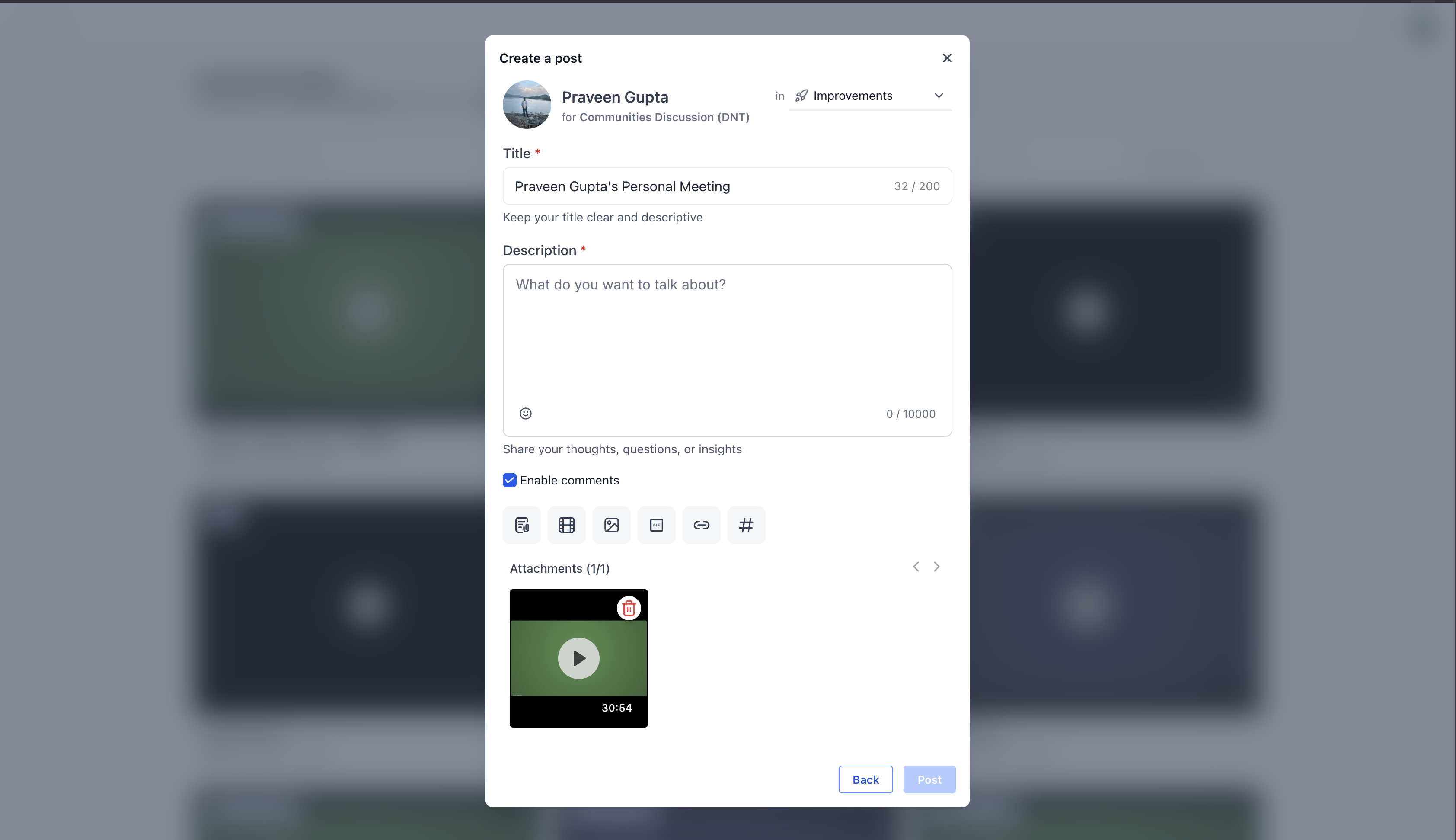
- Reduced Manual Work: Automatically populate the post composer with the recording title and video attachment.
- Flexible Publishing Experience: Change Communities before publishing without restarting the workflow.
- Better Content Reusability: Turn recordings into searchable and reusable Community content.
How To Setup Share as Post for Recordings
Properly using the Share as Post workflow helps teams distribute recordings faster and maintain collaboration after meetings. Ensuring recordings are organized and Communities are prepared ahead of time improves the overall publishing experience.
Setup Steps
- Ensure meeting recordings are available inside SourCherry.
- Confirm you have access to the target Community.
- Open the desired recording.
- Click Share as Post.
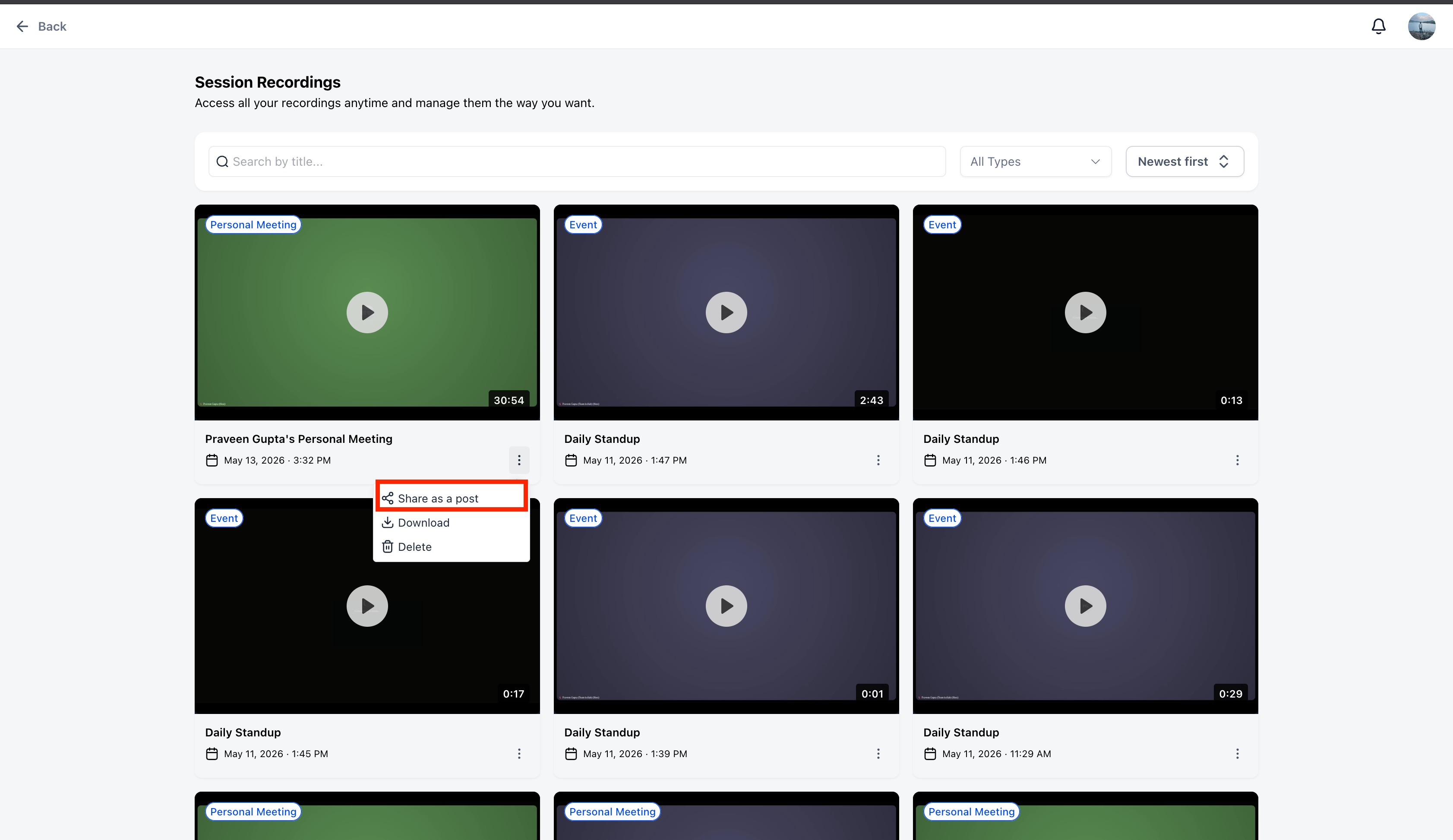
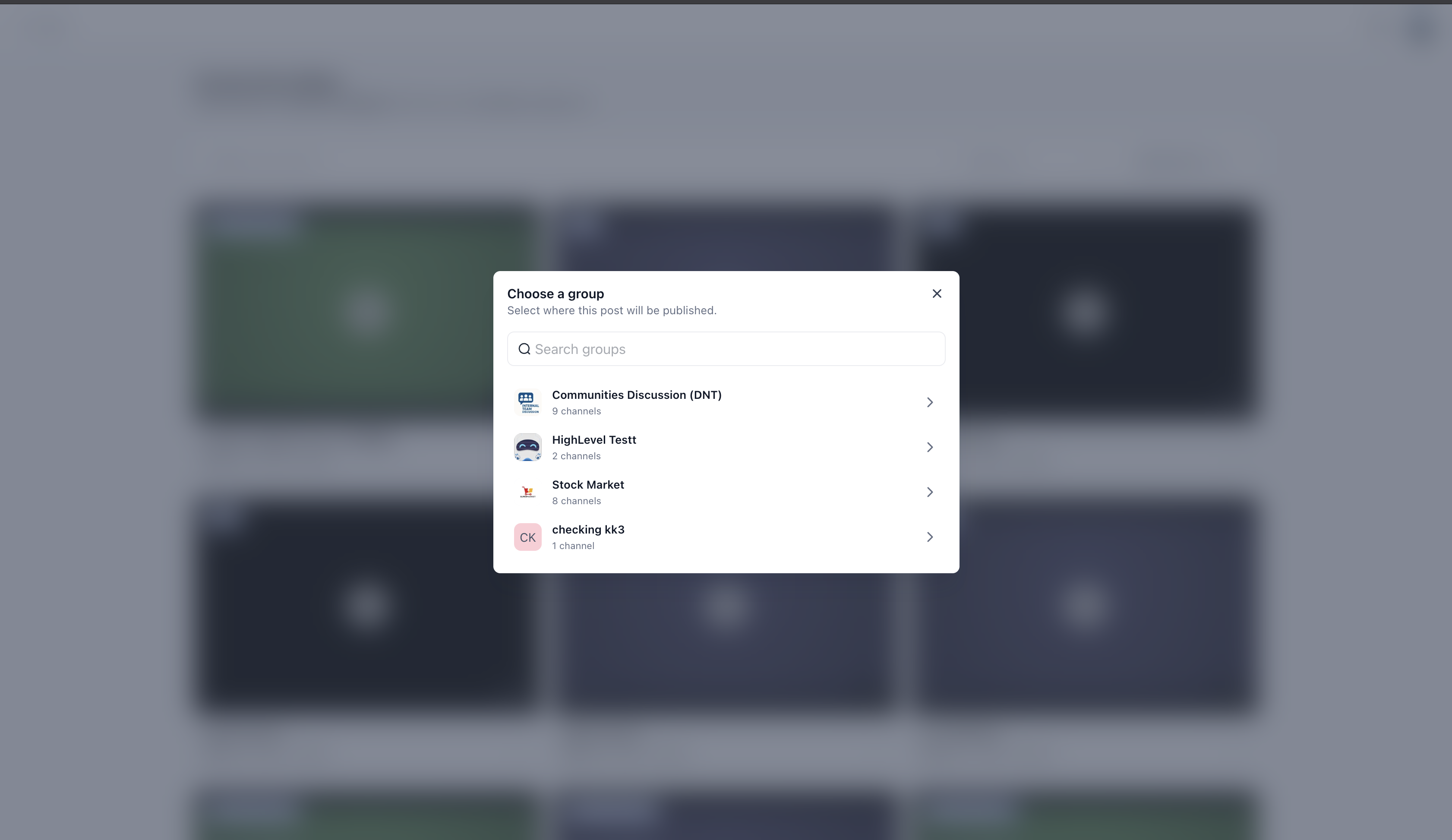
- Select the appropriate Community.
- Review the auto-filled post composer.
- Add optional context or discussion prompts.
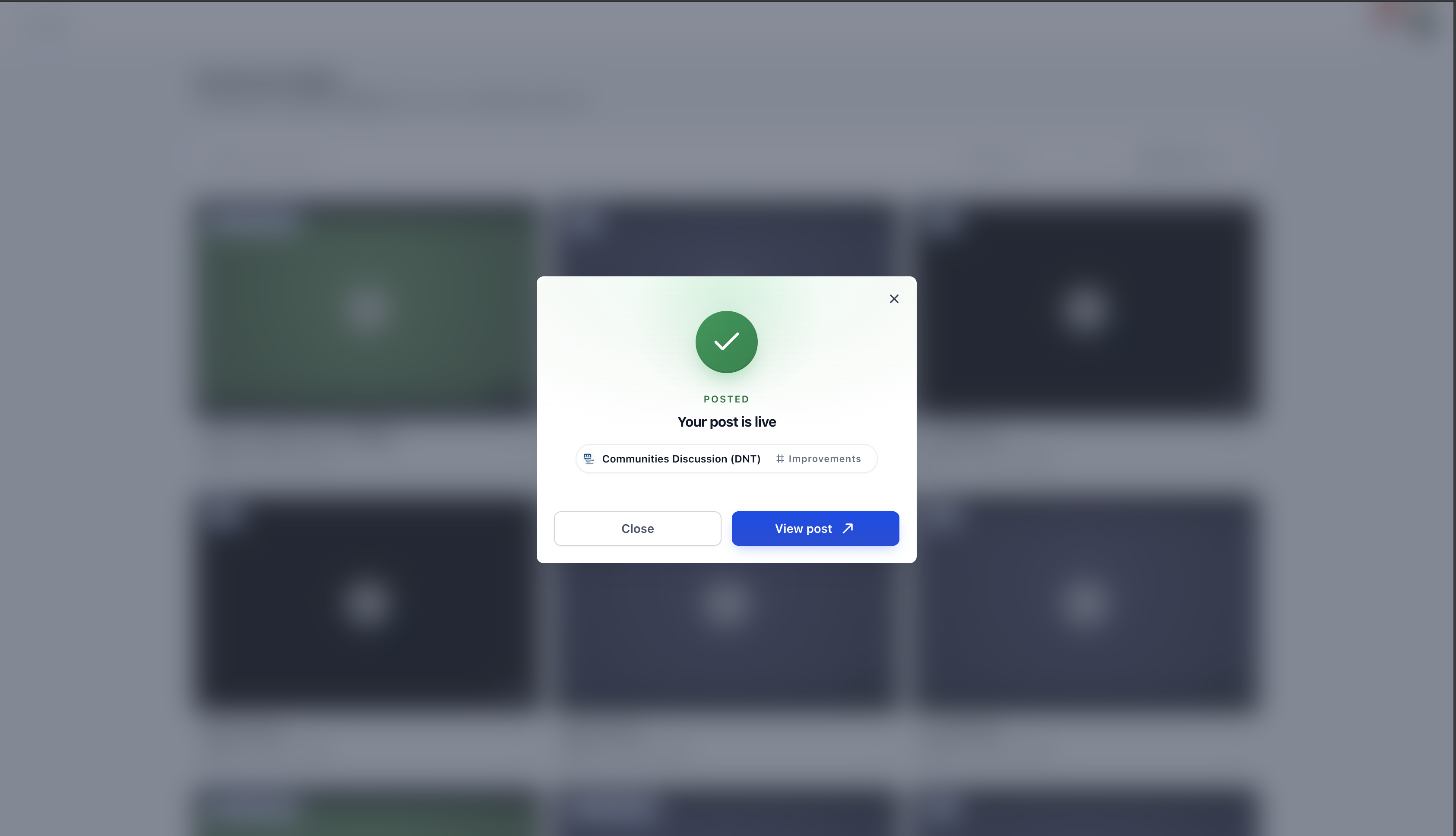
- Publish the post.
Frequently Asked Questions
Q: Can I edit the post before publishing?
Yes. After selecting a Community, the composer opens and allows you to review and add additional context before publishing.
Q: Does the recording upload automatically to the post?
Yes. The recording attachment is automatically added to the Community post composer.
Q: Can I switch Communities after selecting one?
Yes. Users can switch Communities directly from the composer without restarting the workflow.
Q: Do I need to manually download the recording first?
No. The Share as Post workflow removes the need to download and re-upload recordings manually.
Q: Can I search for Communities during the sharing process?
Yes. The Community selection modal includes search functionality to help locate Communities quickly.
Q: What happens after the recording is published?
A success modal appears with options to close the workflow or open the published Community post.
Q: Can shared recordings help continue discussions after meetings?
Yes. Sharing recordings inside Communities makes it easier for teams and members to continue conversations and
collaborate asynchronously.
Q: Is the recording title added automatically?
Yes. The recording title is automatically populated inside the post composer.