
TABLE OF CONTENTS
- Overview
- About the Integration
- How to Set Up Housecall Pro
- List of Triggers
- List of Actions
- Example: Setting Up a Trigger (Job scheduled)
- Example: Setting Up the Action (Create new customer)
- How to Test the Triggers and Action
- Common Use Cases
- Frequently Asked Questions
Overview
Housecall Pro is a field service management platform used by home service businesses to manage jobs, customers, scheduling, invoicing, estimates, and payments. The Housecall Pro integration brings the most actionable primitives — jobs and customers — directly into the Workflow Builder so booking and completion events fire customer-facing automations, and new customer records can be written into Housecall Pro from any workflow.
This means a new job booking can immediately fire a confirmation SMS, a job completion can fire a thank-you and review request, a reschedule can notify both the customer and the dispatched crew, and a new web-form lead can flow into Housecall Pro as a customer ready for the service team to quote and schedule.
About the Integration
The integration ships with two halves:
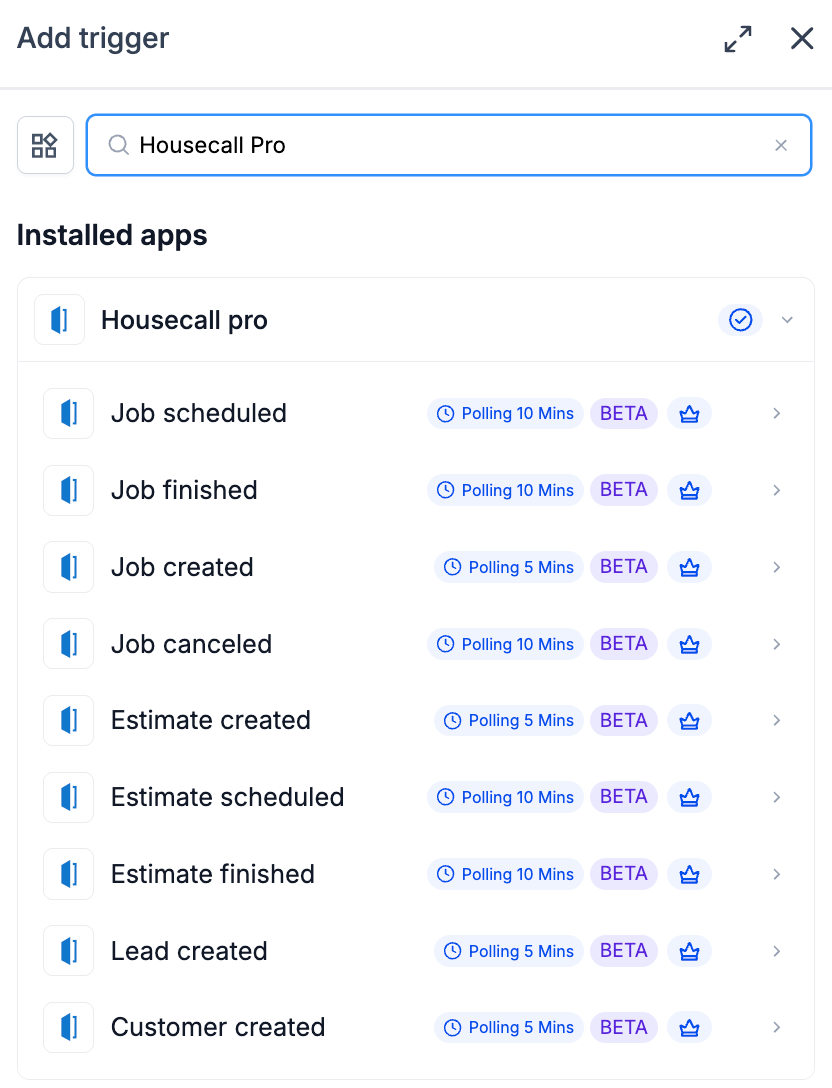
Triggers (Housecall Pro → Workflows): Nine polling triggers spanning the job lifecycle (created, scheduled, finished, canceled), the estimate lifecycle (created, scheduled, finished), and net-new lead and customer events.
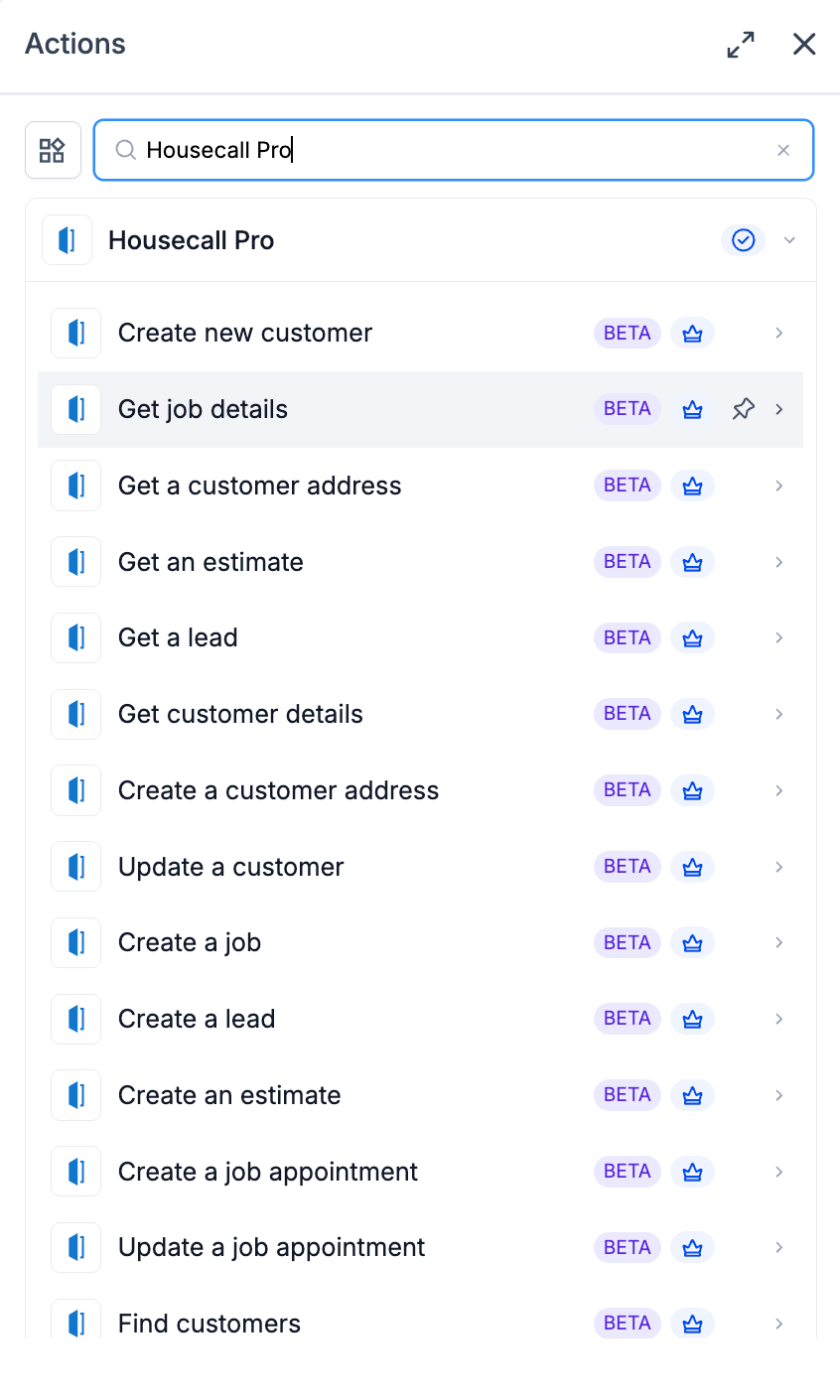
Actions (Workflows → Housecall Pro): Fourteen actions across customer management (create, get, update, find, address create/get), job management (create, get, appointment create/update), estimate management (create, get), and lead management (create, get).
All triggers and actions are flagged as premium workflow components — premium action credits apply at the standard automation rate. Housecall Pro plan usage (jobs, customers, invoicing, payments) is billed by Housecall Pro directly on your Housecall Pro account.
How to Set Up Housecall Pro
Before any Housecall Pro trigger or action can run, the integration has to be connected via API key.
Connect via the Workflow Builder (recommended)
Open Automation → Workflows and pick (or create) a workflow.
Add the Housecall Pro trigger or action — search for Housecall Pro in the Apps tab.
Select the trigger (Job scheduled) or action (Create new customer).
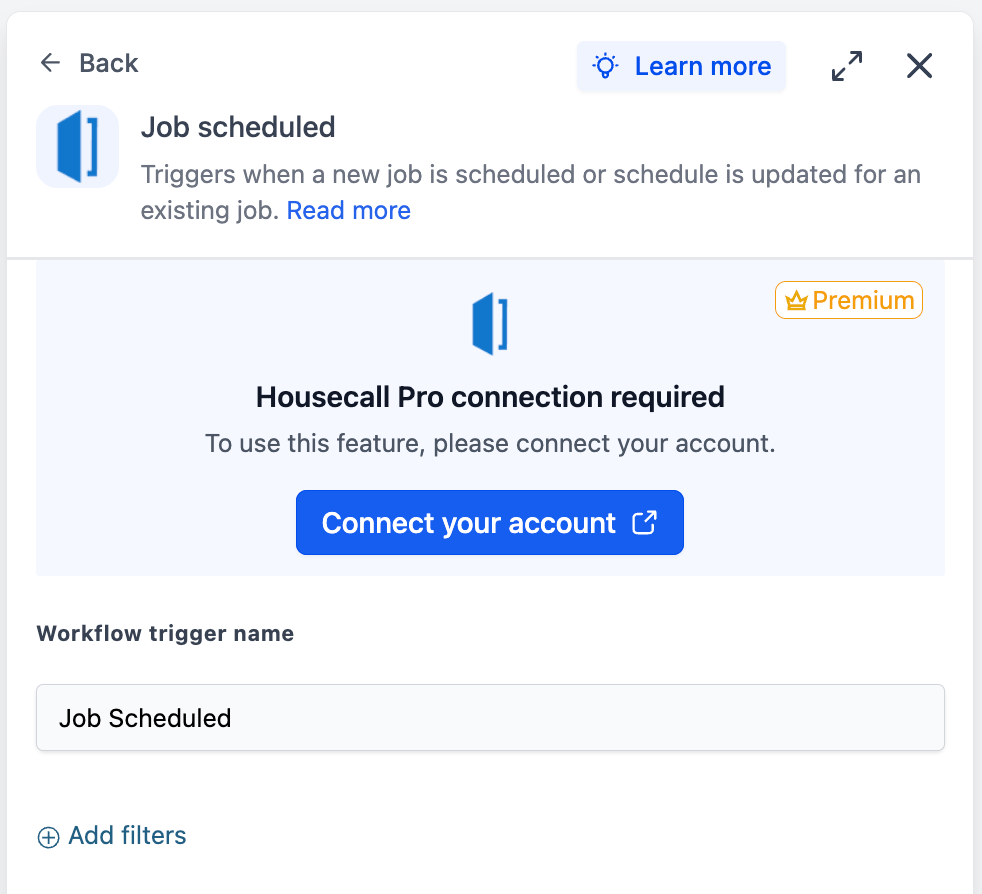
On the panel, click Connect your account.
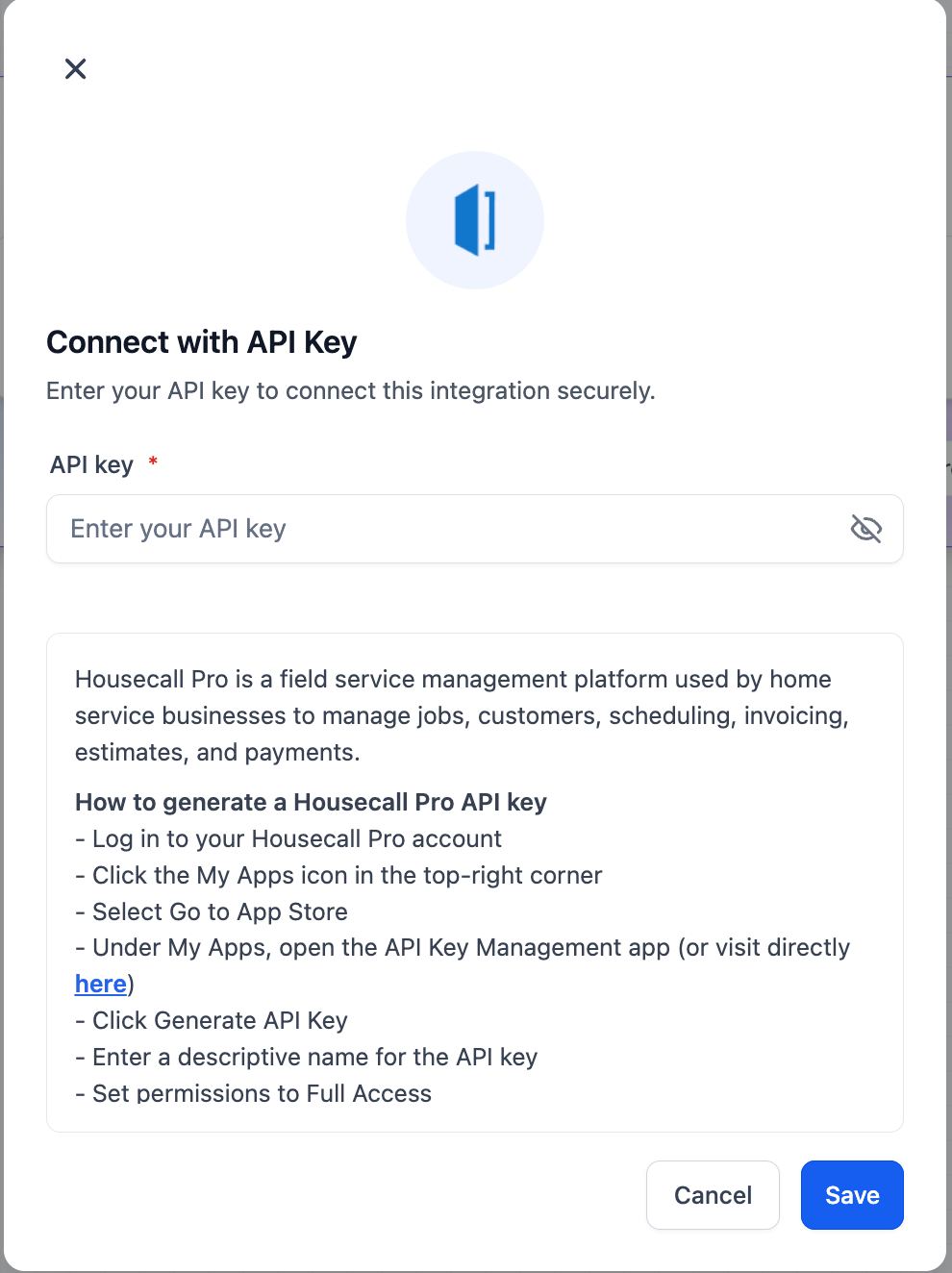
In the Connect with API Key modal, paste your Housecall Pro API key.
Click Save. The panel will update to show ‘Connected’.
Connect via Settings (alternative path)
Go to Settings → Integrations.
Locate Housecall Pro and click Connect.
Paste the API key and click Save.
List of Triggers
All triggers poll Housecall Pro on a fixed cadence and surface matching records since the last poll, in order. Creation events poll every 5 minutes; schedule, finish, and cancel events poll every 10 minutes.
Jobs
Estimates
Leads & customers
List of Actions
Actions are grouped by what they manage.
Customers
Jobs
Estimates
Leads
Example: Setting Up a Trigger (Job scheduled)
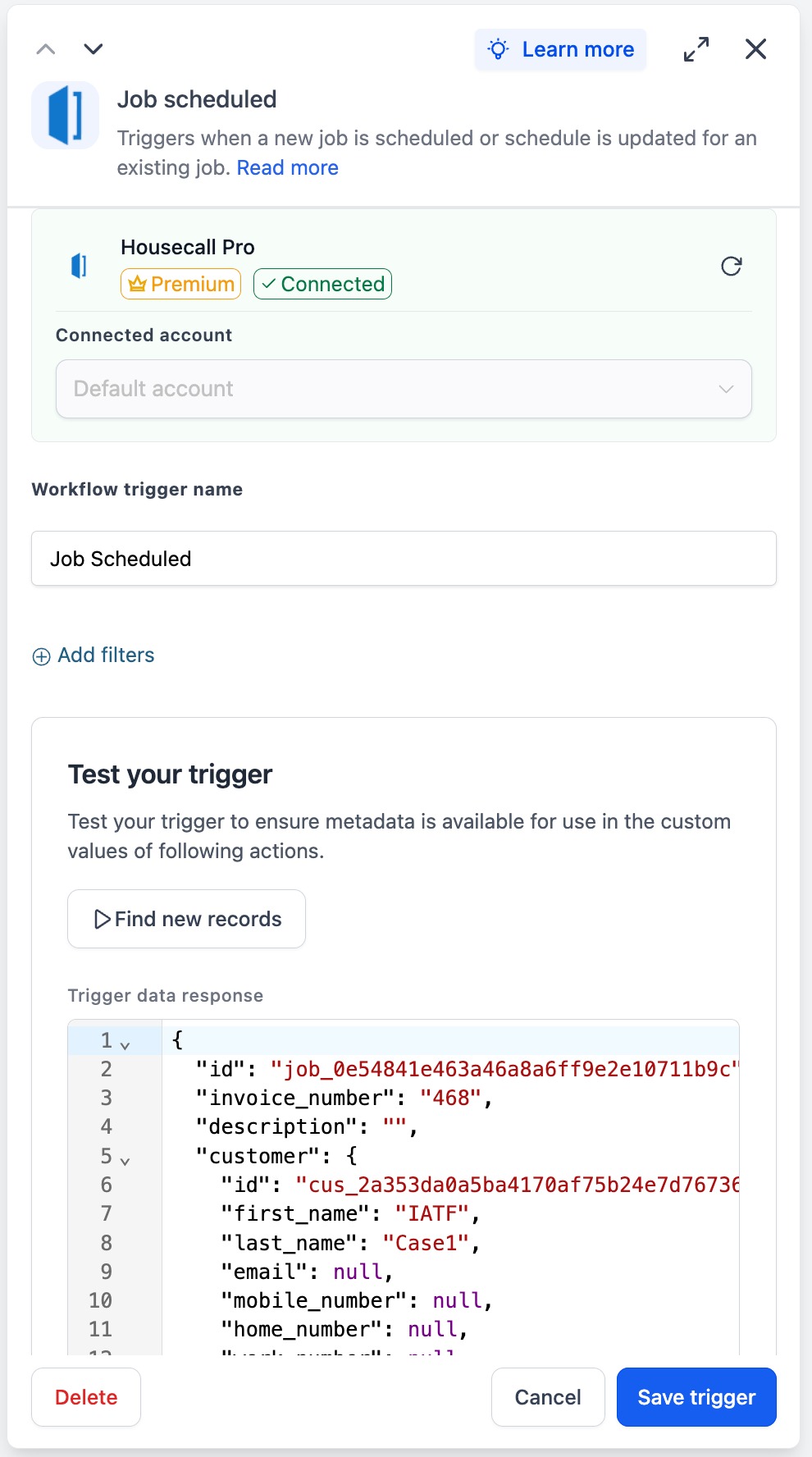
This walkthrough wires up a workflow that fires every time a job is scheduled or rescheduled in a specific Housecall Pro account. The same configuration shape applies to Job completed — only the trigger selection and Workflow Trigger Name differ.
Step 1: Add the trigger
Open the workflow and click Add Trigger.
Switch to the Apps tab and search for Housecall Pro.
Select Job scheduled from the trigger list.
Step 2: Configure the trigger
Connected Account — pick the Housecall Pro account this trigger should watch. Defaults automatically when only one account is connected.
Workflow Trigger Name — give it a meaningful label, e.g. ‘New Job Booking’ or ‘Job Booking or Reschedule’.
Add filters (optional) — layer on conditions if the workflow should only fire under specific circumstances. Common filters include customer attributes, job type or tag, and assigned employee.
Step 3: Test the trigger
Click Find new records inside the Test your trigger panel.
The system fetches the most recent matching scheduled jobs from Housecall Pro.
In the Records — Select Mapping Reference dropdown, pick one of the returned records. This locks the job + nested customer schema for downstream steps.
Confirm the captured fields appear in the preview — job id, invoice_number, description, customer.id, customer.first_name, customer.last_name, customer.email, customer.mobile_number, customer.home_number, and so on.
Click Save trigger to finish.
Example: Setting Up the Action (Create new customer)
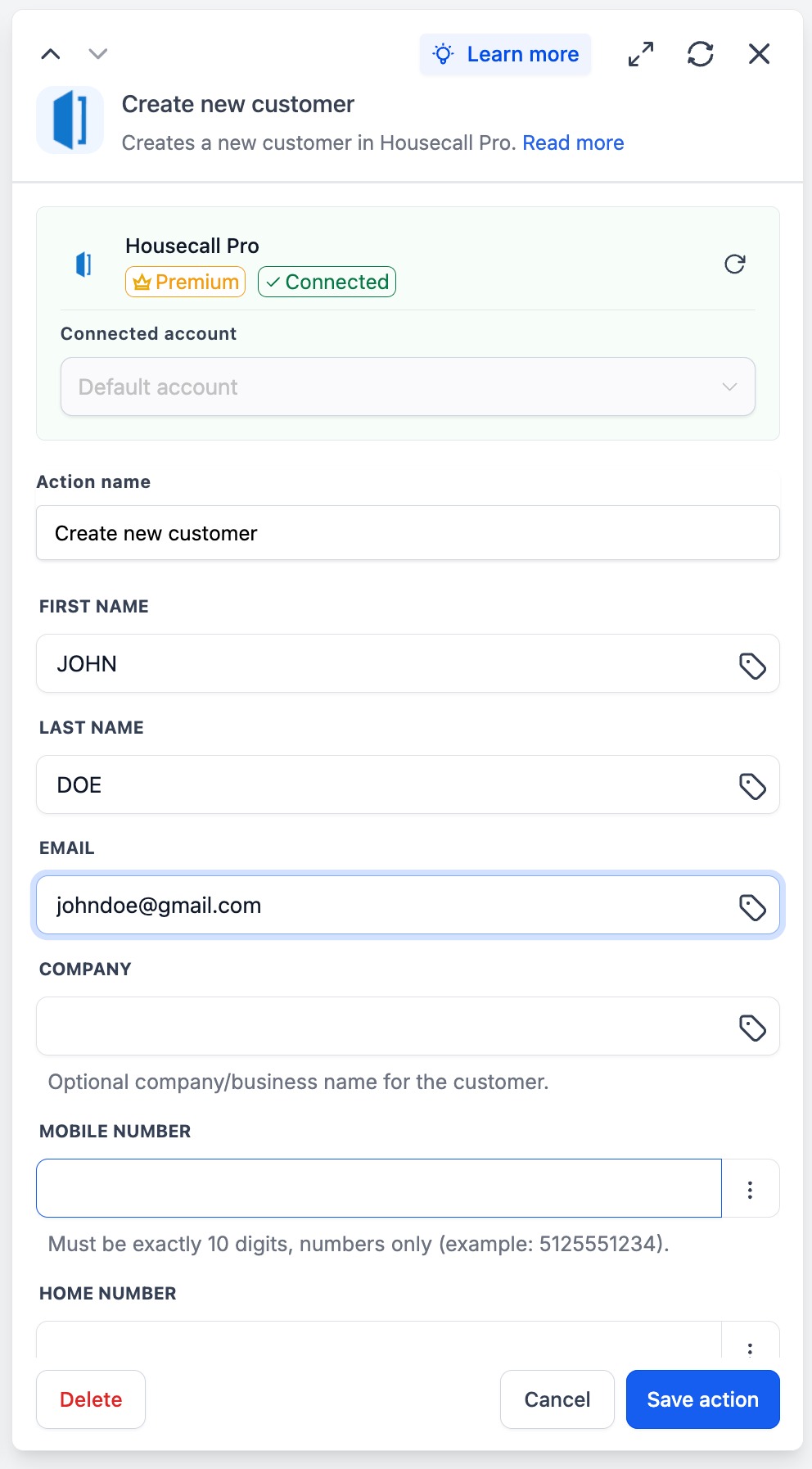
This walkthrough uses Create new customer to mirror a new contact into Housecall Pro from a workflow.
Step 1: Add the action
Inside the workflow, click Add to insert a new step.
Open the Apps tab and select Housecall Pro.
Choose Create new customer from the action list.
Step 2: Configure the action
Connected Account — pick the Housecall Pro account where the customer should be created.
Action Name — a meaningful label, e.g. ‘Create Customer from Web Form’.
First Name (required) — pass a workflow variable, e.g. {{contact.first_name}}.
Last Name (required) — pass a workflow variable, e.g. {{contact.last_name}}.
Email (optional) — workflow variable or literal value.
Company (optional) — for B2B or contractor relationships where the customer is associated with a business.
Mobile Number (optional) — must be exactly 10 digits, numbers only (example: 5125551234). Non-conforming values are rejected before the call is made.
Home Number (optional) — same 10-digit format as Mobile.
Step 3: Test the action
Click Test Action.
Confirm — this is a live API call and creates a real customer record in Housecall Pro. Use a clearly-marked test name (e.g. ‘TEST — DELETE’) if you’re iterating against a production account so you can clean up afterwards.
Inspect the response in the Test Drawer; the new customer ID appears in the response payload.
Save the action and run a full Test Workflow before publishing.
How to Test the Triggers and Action
Always test before publishing. Testing locks the payload schema and gives downstream steps a real record to map against.
Test the trigger (either one)
Inside the trigger panel, click Find new records.
If no matching records appear, perform the action in Housecall Pro manually — schedule a job for Job scheduled, or mark a job complete for Job completed — using a test customer, then re-fetch.
Select the returned record as the mapping reference. Confirm the job + customer fields appear in the preview.
Test the action
Inside the action panel, click Test Action.
The action runs against the live Housecall Pro account using the configured inputs — a real customer record is created.
Open Housecall Pro and confirm the customer appears under Customers. The returned customer ID is logged in the action’s response payload.
If wrong, double-check the field mappings (especially Mobile Number — must be 10 digits, numbers only) and re-test. Clean up the test record in Housecall Pro afterwards. Once satisfied, click Save action, then run a full Test Workflow before publishing.
Common Use Cases
Use Case 1: New Job Booking → Customer Confirmation + CRM Sync
Goal: Confirm bookings instantly and keep the CRM in sync with the operational source of truth.
Workflow Setup:
Trigger: Job scheduled
Action: Send confirmation SMS or email to the customer (using customer.mobile_number / customer.email)
Action: Find or Create CRM contact (key by email)
Action: Update contact — tag with job type, store job ID and scheduled window on custom fields
Example: A homeowner books a furnace tune-up for next Tuesday. Within moments, the workflow sends a confirmation SMS with the scheduled window, finds or creates the matching CRM contact, tags it with ‘HVAC — Tune-Up’, and stores the Housecall Pro job ID on the contact for cross-system reporting.
Use Case 2: Job Rescheduled → Customer + Crew Notifications
Goal: Catch schedule churn the same trigger surfaces — without needing a separate event type.
Workflow Setup:
Trigger: Job scheduled (fires on both new bookings and reschedules)
Branch: Was this job seen before? (Look up the job ID against a CRM custom field)
If yes (reschedule): Send updated-window message to the customer + dispatch note to the assigned crew
If no (new booking): Run the new-job confirmation flow (Use Case 1)
Example: A customer reschedules their gutter-cleaning visit from Wednesday to Friday. The same Job scheduled trigger fires; the workflow detects the job ID was seen before, sends the customer a ‘Your visit has moved to Friday’ SMS, and posts a dispatch note to the crew about the new window.
Use Case 3: Job Completed → Review Request + Receipt Delivery
Goal: Close the service loop: thank the customer, ask for a review, and deliver the receipt the moment the technician marks the job complete.
Workflow Setup:
Trigger: Job completed
Action: Send thank-you message (SMS or email) with a one-tap review link (Google, Yelp, or the platform’s review system)
Branch: Was the job paid in full at completion?
If paid: Send receipt with line items and payment confirmation
If unpaid: Send polite invoice reminder with a payment link
Optional Action: Update CRM contact lifecycle stage to ‘Customer — Completed Job’ for downstream lifecycle marketing
Example: A plumber marks an emergency repair job complete on Saturday morning. Within minutes, the workflow sends the homeowner a thank-you SMS with a Google review link, branches on payment status, delivers the receipt automatically (the job was paid via card on site), and advances the CRM contact’s lifecycle stage so the win-back nurture flow can pick them up in 90 days.
Frequently Asked Questions
Q: What is Housecall Pro?
Housecall Pro is a field service management platform used by home service businesses to manage jobs, customers, scheduling, invoicing, estimates, and payments. Service categories range from HVAC, plumbing, and electrical to cleaning, lawn care, and pest control.
Q: Are Housecall Pro triggers and actions premium workflow components?
Yes. The trigger and the action are flagged as premium and consume premium action credits at the standard automation rate. Housecall Pro plan usage (jobs, customers, invoicing, payments) is billed by Housecall Pro directly on your Housecall Pro account.
Q: Does the trigger fire on both new bookings and reschedules?
Yes — Job scheduled fires whenever a job’s scheduled date or time is set, including the initial booking and any subsequent reschedule of the same job. Use Add filters or a workflow branch (job-ID-seen-before check) to differentiate if downstream behavior should differ.
Q: What is the difference between Job scheduled and Job completed?
Job scheduled fires at the start of the field-service lifecycle — when a job is booked or rescheduled. Job completed fires at the end — when a technician marks the job complete in Housecall Pro. Both return the same job + nested customer payload, so downstream mapping is consistent. Use them together to bracket the full lifecycle: confirmation on Job scheduled, review request and receipt on Job completed.
Q: How do I generate a Housecall Pro API key?
Log in to Housecall Pro, click the My Apps icon in the top-right corner, select Go to App Store, open the API Key Management app, click Generate API Key, name it (e.g. ‘Workflows integration’), and set permissions to Full Access. Copy the value into the API Key field on the connection modal.
Q: Do I need Housecall Pro’s MAX plan?
No. Housecall Pro’s native webhook setup is restricted to their MAX plan, but this integration uses API key authentication and works across paid Housecall Pro plans that support API keys with Full Access permissions. If you’re unsure, confirm with Housecall Pro support that your plan supports API access.